

How to Fix the Netflix Error Cannot Play Title for Good
When the "netflix error cannot play title" message pops up, it’s almost always a sign of a temporary glitch. Think of it as a hiccup with the app's data, your device's connection, or a session getting out of sync. The quickest fixes are usually the simplest: restarting the Netflix app, signing out and back in, or just rebooting your streaming device to clear out those minor conflicts.
Your Quick Guide to Fixing the Netflix Playback Error
Nothing kills the mood for a movie night faster than that dreaded error message. But before you start yanking cords out of the wall or digging through complex settings, let's try the easy stuff first. These immediate actions are often all you need because they hit the most common culprits: stale data and temporary communication gaps between your device and Netflix's servers.
Think of it like this: your app sometimes holds onto old information that clashes with what it's trying to load now. A quick restart or sign-out acts as a reset button, forcing the app to grab fresh data and establish a clean connection.
The Usual Suspects
More often than not, the root of the "cannot play title" error isn't some catastrophic failure. It's usually just a minor data inconsistency, often tied directly to the app or the device itself.
Netflix even flags these issues with specific error codes. For instance, code 30103 on an iPhone or iPad simply means the information stored on your device needs a refresh. Given how much streaming happens on mobile devices, even a tiny percentage of users hitting a data corruption issue can add up to millions of playback errors worldwide every month. You can find more details on how common these device-level hiccups are by exploring these insights on streaming issues.
This simple decision tree helps visualize the first few things you should try when that error appears.
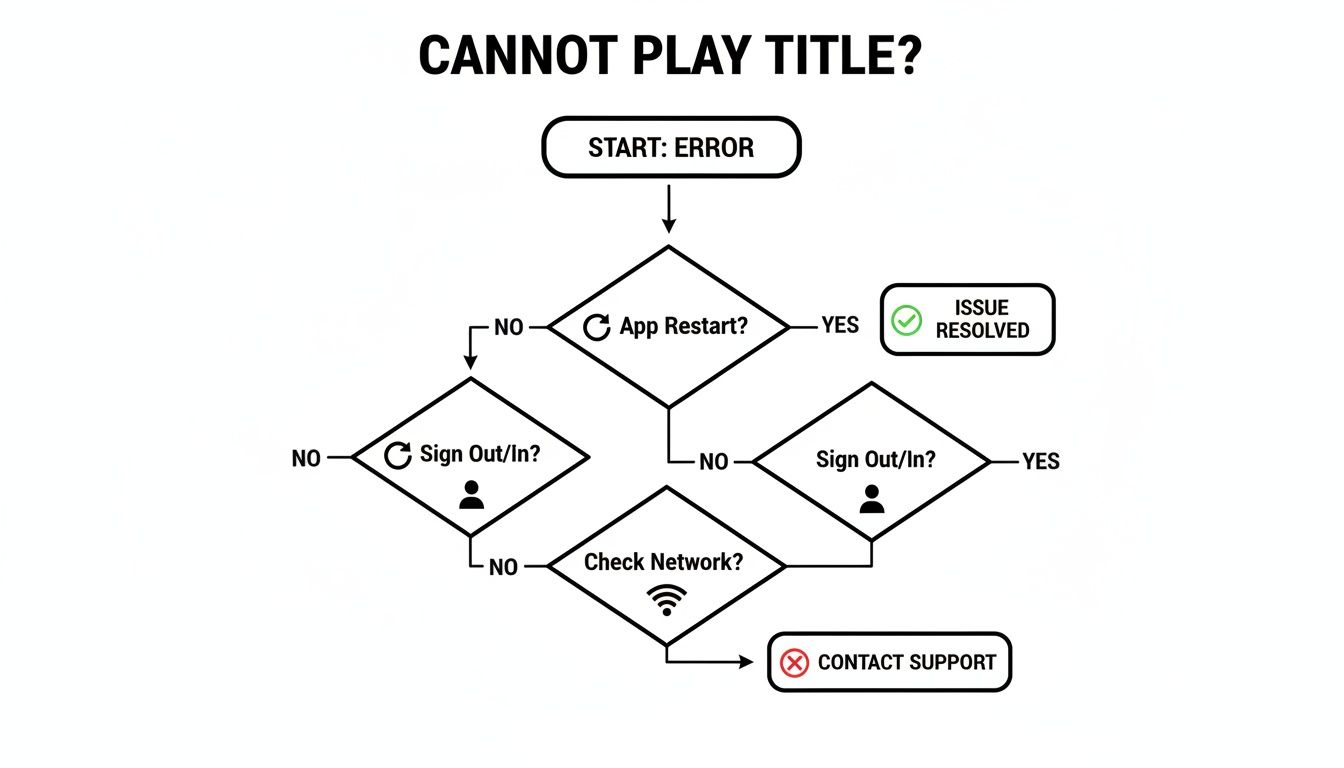
The flowchart shows a logical path, starting with the least disruptive fix (restarting the app) and moving toward slightly more involved steps. It’s designed to get you back to your show as quickly as possible.
Expert Tip: Always start with the basics. From my experience, a simple app restart or a fresh login solves this problem nine times out of ten, without you ever having to touch your internet connection or device settings.
Here’s a quick breakdown of these first-response actions, what each one actually fixes, and how little time they take. Following this order is the most efficient way to troubleshoot.
Immediate Fixes for the 'Cannot Play Title' Error
| Action | What It Solves | Typical Time |
|---|---|---|
| Restart the Netflix App | Clears temporary glitches and the app's memory cache. | Less than 1 minute |
| Sign Out and Sign Back In | Forces a complete resync of your account data with Netflix servers. | 1-2 minutes |
| Restart Your Device | Fixes deeper OS-level issues and stubborn network conflicts. | 2-3 minutes |
By running through these three steps, you’re tackling the most likely causes first. Most of the time, you'll be back to your show before you even get to the third one.
Diagnosing Your Network Connection Issues
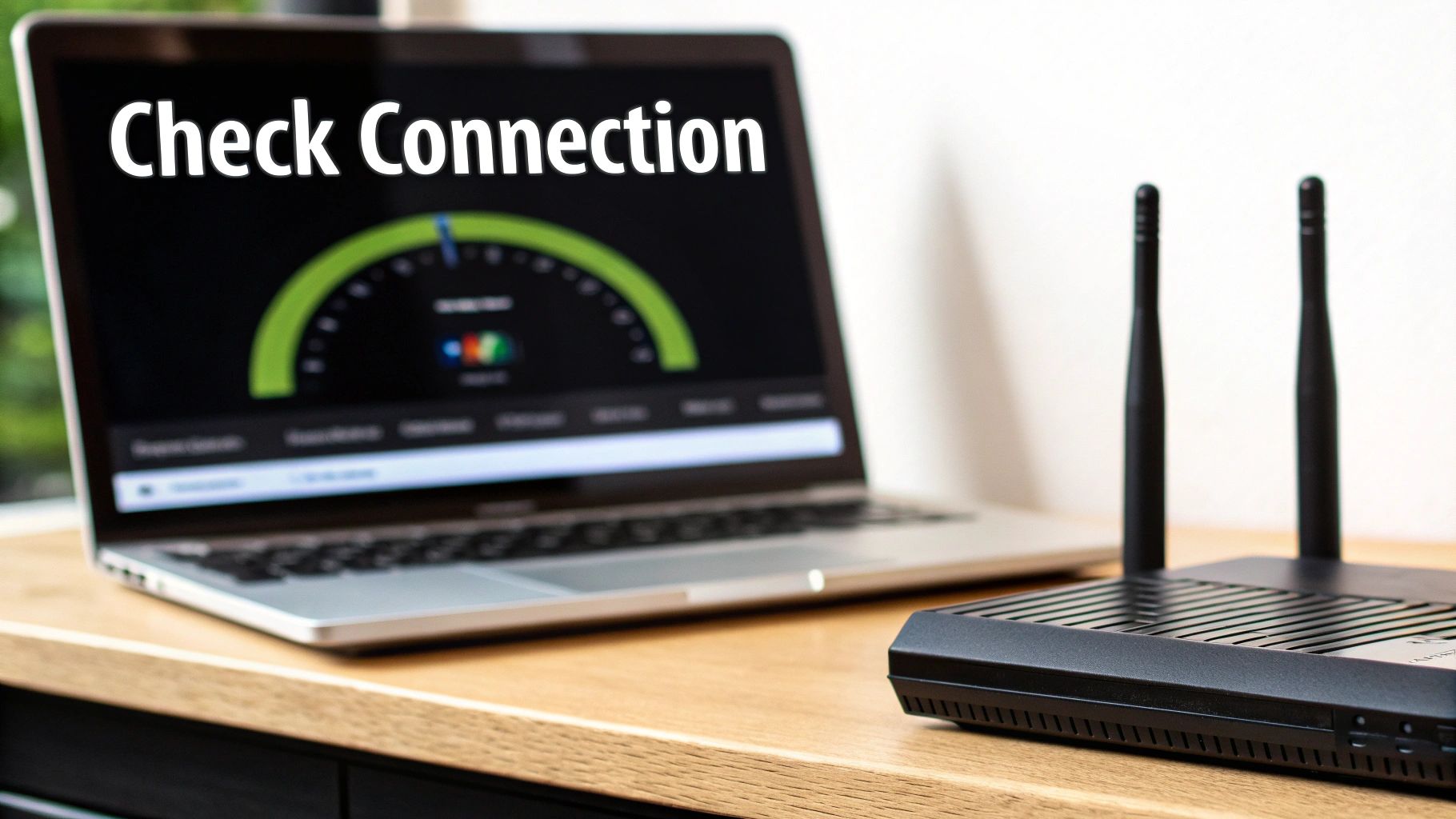
When the quick fixes don't cut it, it’s time to look at your internet connection. We’re not just talking about whether you're "online" or not; Netflix needs a stable, consistent connection to work properly. More often than not, an unstable network is the hidden culprit behind that frustrating "netflix error cannot play title" message.
This is especially common when your internet service provider (ISP) is dealing with heavy traffic. In fact, Netflix itself points to network connectivity as a primary reason for this error. It’s basically your device's way of saying it's struggling to hold a solid link to the Netflix servers.
Think about it: during peak evening hours, average broadband speeds can dip by over 30%. That creates the perfect storm for playback failures right when you're settling in for a movie.
Is Your Speed Up to the Task?
Before you start blaming your router, let's make sure your internet speed is actually fast enough for what you're trying to watch. A quick speed test is the best way to get a clear picture.
Netflix lays out its bandwidth recommendations pretty clearly:
- HD (720p): Needs at least 3 Mbps.
- Full HD (1080p): Requires 5 Mbps or more.
- Ultra HD (4K): Jumps up to a minimum of 15 Mbps.
Keep in mind, these are the bare minimums. If you have other people in your house gaming, scrolling, or on video calls, you'll need a lot more bandwidth to share.
If your speeds are consistently falling short, it might be time to have a chat with your ISP. You could also look into ways to improve internet speed for a more reliable streaming experience. A slow connection is a classic reason for all sorts of loading issues, something we cover in our guide on why https://accountshare.ai/blogs/new/why-wont-netflix-load-on-my-tv.
The Power of a Proper Reboot
What if your speed test results look great, but the error just won't go away? The next move is to give your network gear a full power cycle. And I don't mean just flicking the power switch off and on. A proper reboot actually clears the internal memory and can sort out weird conflicts that are tripping up your stream.
Here’s how to do it right:
- Unplug Both: Start by pulling the power cords from both your modem and your router. Don't just turn them off; physically disconnect them from the wall.
- Wait Patiently: Now, walk away for at least 60 seconds. This is the crucial part that allows everything to fully discharge and reset.
- Modem First: Plug the modem back in and give it a few minutes. Wait until the lights (usually power, send, receive, and online) are solid and stable.
- Router Second: Once the modem is fully back online, plug your router back in. Wait for its Wi-Fi indicator light to start blinking again.
Following this specific order helps your devices establish a fresh, clean connection with your ISP from the ground up.
A Quick Tip from Experience: A weak Wi-Fi signal can be just as bad as slow internet speeds. If your router is hidden in a cabinet or tucked away at the far end of the house, the signal might be struggling to reach your streaming device, causing all sorts of dropouts.
Try moving your router to a more central, open location. And for devices that stay put, like a smart TV or a gaming console, nothing beats a wired Ethernet connection. It’s the single best way to get a fast, stable link and completely eliminate Wi-Fi interference from the equation.
Solving Device-Specific App and Software Glitches

So, your internet connection is solid, but Netflix is still refusing to cooperate. It’s time to shift your focus from the network to the device you're watching on. Whether it's a smart TV, a gaming console, or a streaming stick, the hardware and its software can absolutely be the hidden culprit behind that frustrating "cannot play title" error.
Glitches aren't always about your internet; sometimes the problem is much closer to home. The Netflix app can get its own data tangled up right on your device, which is a surprisingly common issue.
Clearing Out the Digital Cobwebs
Think of the Netflix app like a small filing cabinet. Every time you watch something, it stores temporary files and data—what we call the cache. Over time, this digital cabinet gets cluttered with old, and sometimes corrupted, information. When that happens, the app can start to act up, causing playback to fail for no obvious reason.
One of the quickest and most effective fixes is to simply clear out the Netflix app's cache and data. Doing this forces the app to start fresh without messing with your profile, recommendations, or watch history. It’s a clean slate.
The exact steps change a bit depending on what you're using:
-
Smart TVs & Streaming Sticks (Roku, Fire Stick): Head into
Settings > Applications > Manage Installed Applications. Find the Netflix app, and you should see options for both Clear Cache and Clear Data. -
Android Phones & Tablets: Go to
Settings > Apps > Netflix > Storage & cache. You'll find separate buttons to Clear Cache and Clear Data. - Gaming Consoles (PlayStation, Xbox): On consoles, you often need to uninstall and then reinstall the app to fully wipe its local data.
If you need a more detailed walkthrough, our complete guide on clearing the Netflix cache covers every major platform. You can find it here: https://accountshare.ai/blogs/new/clearing-netflix-cache
A Quick Tip from Experience: I once tore my hair out for an hour blaming my router for a stubborn error on my Fire Stick. I reset it multiple times, but nothing worked. It turned out to be a corrupted bit of data from a previous session—a simple cache clear in the app settings fixed it instantly.
Keeping Your Device's Software Healthy
Beyond just the Netflix app, the health of your device’s operating system is critical. An outdated system can cause all sorts of compatibility problems with the latest version of the app. It's always a good idea to check for and install any available system updates.
Also, take a look at what else is running. Too many apps open in the background can hog your device’s memory and processing power, leaving little left for Netflix to stream smoothly. Similarly, if your device is running low on storage space, the app may struggle to download the temporary files it needs.
In some cases, especially on a computer, the problem can be more serious. Malicious software can wreak havoc on system performance. If you suspect an infection might be the cause, it’s crucial to remove a virus from your computer to get things back to normal.
When all else fails, a complete reinstallation of the Netflix app is your last resort. Deleting and reinstalling ensures you have the absolute latest, cleanest version, free of any deep-seated software conflicts. It's a bit more of a hassle, but it’s often the definitive fix for stubborn device-level issues.
Dealing with Account Conflicts and Region Locks
So, your internet is solid and your device is fine, but Netflix still won't play ball. When that "Cannot play title" error pops up, it’s often a sign that the problem lies within your Netflix account itself. This usually happens when you hit a limit or something looks off to Netflix's system, locking you out even with a perfect setup.
The most common culprit? Too many people watching at once. If your plan allows for two simultaneous streams, the third person who tries to log in and watch something is going to get blocked. It's a classic issue for families or anyone sharing an account.
Too Many People on Your Plan?
A quick peek at your account's recent streaming activity can tell you if overcrowding is the problem. Netflix keeps a running tab on which devices have used your account, where they were, and what was watched. See a device you don't recognize? That’s a dead giveaway you've hit your streaming limit.
The fastest fix is to kick everyone off. Netflix has a powerful "Sign out of all devices" feature that forces a clean slate.
Pro Tip: When in doubt, use the 'Sign out of all devices' option. It's the ultimate reset button for your account, clearing out any old, lingering sessions that might be hogging a streaming slot. It can take up to eight hours to fully kick in, but it’s a guaranteed way to solve session-related errors.
For those who share their login, managing who's watching and when can feel like a full-time job. If you're tired of the constant juggling, check out our guide on how to efficiently remove devices from Netflix and take back control.
Hitting a Digital Border: Regional Content Blocks
Another big reason for this error has to do with your physical location. Ever tried to watch your favorite show while on vacation, only to be met with an error message? That’s not a glitch—it’s how global content licensing works.
A whole category of Netflix errors boils down to these regional restrictions. Netflix is available in over 190 countries, but the library isn't the same everywhere. Some countries have 30–40% fewer titles than others because of specific licensing agreements. When you see an error like “This title is not available in your area,” it means Netflix knows where you are and is blocking the content accordingly. You can read more about these regional rules directly from Netflix.
This is a common headache for VPN users. While VPNs are great for privacy, Netflix is constantly trying to block them to enforce its licensing deals. If you have one running, try turning it off completely, then reload the title. More often than not, that’ll clear the error right up.
When All Else Fails: Calling in the Netflix Pros
So, you’ve tried everything. You’ve restarted, reinstalled, signed out and back in, and maybe even gave your router a stern talking-to. If the "Cannot play title" error is still haunting your screen, it's time to bring in the cavalry: Netflix Support.
Contacting support doesn't have to be a painful last resort. In fact, if you go in prepared, it can be surprisingly quick and effective. The trick is to give the support agent everything they need to bypass the basic script and jump straight to the heart of the problem.
Prep Your Intel Before Making the Call
Before you even navigate to the help page, take five minutes to gather some crucial details. This little bit of prep work is honestly the secret sauce to a fast resolution. It's the difference between a frustrating 30-minute call that goes nowhere and a 5-minute chat that actually solves the issue.
Here’s what you should have written down and ready to go:
- The Specific Error: Is there an error code on screen? Something like NW-2-5 or UI-800-3? Write it down verbatim. If there’s no code, note the exact wording of the message.
- Device & Model: Don't just say "my TV." Be precise. Is it a "Samsung QN90B Smart TV," a "Roku Streaming Stick+," or a "2021 MacBook Pro"? The specific model can make a huge difference.
- Your Internet Provider: Simply telling them you have Comcast or Spectrum can help them immediately check for known outages or issues in your area.
- Troubleshooting You’ve Done: This is the big one. Give them a quick rundown: "I've already restarted my router, reinstalled the app, and signed out and back in on all devices."
A Pro Tip from Experience: Support agents work from a troubleshooting flowchart. When you tell them exactly what you’ve already done, you’re essentially helping them skip the first few pages of their script. This gets you to more advanced solutions much, much faster.
Phone Call vs. Live Chat: Which is Better?
Netflix gives you a couple of ways to get in touch, and picking the right one for your situation can streamline the whole process.
A phone call is usually best for complex or weird issues where you need to describe what you're seeing in real-time. The immediate back-and-forth is perfect for clarifying those "it's doing this weird glitchy thing" moments.
On the other hand, live chat is fantastic if you prefer having a written record of the conversation. It’s also great for multitasking and makes it super easy to copy and paste that long, annoying error code or device model number directly to the agent.
No matter which method you choose, leading with your prepared info will set the tone for a smooth, efficient conversation that gets you back to your show.
Got Questions About the Playback Error? Let's Clear Things Up.
It’s frustrating when the “Cannot play title” error pops up out of nowhere, especially when you’ve settled in for a movie night. Let's walk through some of the most common questions I hear and get you some straight answers.
Why Is It Only Happening With One Show?
This is a classic head-scratcher. You can browse, everything else plays fine, but that one movie or the next episode of your binge-watch just won't load. More often than not, this points to a problem on Netflix's end, not yours.
Think of it like a broken link on a website. The issue is usually temporary and tied to that specific title's data on Netflix's servers or a hiccup in their content delivery network (CDN). Another possibility? You might be dealing with a regional licensing issue. If you're traveling or using a VPN, the show you're trying to watch might not be licensed for the region you're currently connected to, which triggers the error for that title alone.
Can Sharing a Netflix Account Cause This Error?
A shared account won't cause a technical glitch, but it can definitely be the reason you can't watch something. The most common culprit is hitting your plan's screen limit. For instance, if your plan allows for two simultaneous streams and a third person logs on, they'll get blocked.
This isn't really an "error" in the traditional sense; it's just Netflix enforcing the rules of your subscription. The fix is pretty simple: either coordinate with the other users or think about upgrading your plan to accommodate more people watching at the same time.
A Quick Tip: If the problem is your subscription payment, Netflix won't be subtle. You'll see a very clear message like "Your account is on hold," and you won't even be able to browse. If you can still scroll through titles, the problem is technical, not your credit card.
How Do I Stop This Error From Coming Back?
You can't stop every possible glitch, but you can build some simple habits to make your streaming experience much more stable. A little proactive maintenance goes a long way.
- Weekly Reboots: Get into the habit of restarting your router and your main streaming device (your smart TV, Fire Stick, etc.) once a week. It's the oldest trick in the IT book for a reason—it clears out junk data and gives everything a fresh start.
- Stay Up-to-Date: Always install updates for the Netflix app and your device's firmware or operating system. These patches often contain fixes for known playback bugs.
- Give Your Wi-Fi Some Love: If your signal is weak, try moving the router to a more central spot in your home. For devices that don't move, like a TV or gaming console, switching to a wired Ethernet connection is the absolute best way to guarantee a stable stream.
- Clear the Cache: Every few months, go into your device's settings and clear the Netflix app cache. This is especially helpful on Android TVs and streaming sticks where old, corrupted data can build up and cause problems.
By making these small steps part of your routine, you can prevent many of the common issues that trigger the netflix error cannot play title and keep your streams running smoothly.
Tired of juggling shared account limits and streaming errors? AccountShare makes it easy to access premium services cost-effectively. Join a group, share the cost, and enjoy seamless access without the hassle. Find out more at https://accountshare.ai.