

Your Guide to Clearing Netflix Cache and Fixing Streaming Glitches
Is your Netflix show stuck on that dreaded 25% loading screen? Or are you seeing a black screen instead of the opening credits? More often than not, the culprit is a clogged-up cache, and clearing it is the quickest way back to your binge-watch.
Think of it as a quick refresh for the app—a simple, effective trick that solves a surprising number of streaming headaches without touching your personal data.
Why Clearing the Netflix Cache Is Your Go-To Streaming Fix
You’ve got the popcorn ready, you've picked your show, and you hit play... only to be met with endless buffering or a bizarre error code. These are the classic signs of a corrupted cache. But what does that even mean?
Every device you watch Netflix on—your phone, smart TV, or laptop—sets aside a little bit of storage for temporary files. This is the cache. It’s not your watch history or profile preferences; all that important stuff is safe on Netflix's servers. The cache is just for bits and pieces that help the app run faster, like:
- Cover art and thumbnails so you can scroll through titles without waiting.
- Playback data to remember exactly where you paused an episode.
- Menu and interface elements to make the app feel snappy.
When Good Data Goes Bad
The cache is designed to make your experience smoother, but sometimes that temporary data gets messy. An app update, a brief internet hiccup, or just old files hanging around too long can corrupt the cache. When that happens, you get the frustrating glitches: a show that won't load, a sluggish interface, or persistent error messages.
By clearing the Netflix cache, you’re essentially telling the app to dump all its old, potentially broken files and start fresh. It’s a simple but powerful troubleshooting step because it targets the most common point of failure.
Let's look at some frequent issues and how a quick cache clear solves them.
Common Problems Solved by Clearing Netflix Cache
This table gives you a quick look at frequent Netflix issues and how clearing the cache directly addresses them.
| Symptom You Experience | What the Cache Is Doing Wrong | How Clearing Helps |
|---|---|---|
| Video stuck at 25% or 99% | Old, incomplete download instructions are saved. | Forces Netflix to fetch new, correct playback data. |
| Black screen with audio playing | Corrupted video display data is being loaded. | Deletes the bad files so the app can redownload clean video elements. |
| App is slow or unresponsive | The cache is cluttered with old UI data. | Removes the junk, letting the app load a fresh, speedy interface. |
| Constant buffering | The app is trying to use outdated network info. | Flushes the old network settings and reconnects properly. |
| Error codes like NW-2-5 | Stored login or network data has become invalid. | Wipes the bad credentials, prompting a fresh, clean connection. |
Clearing the cache isn't a complicated technical fix; it's just basic digital housekeeping that gets you back to streaming in minutes.
The scale of this is massive. Netflix itself manages a huge caching system to serve over 240 million subscribers. On their end, good cache management has been shown to cut down latency by 25-40%, which proves just how critical clean data is for a smooth stream. You can dive deeper into how Netflix handles its giant caching infrastructure if you're curious.
Here's an easy way to think about it: Your device is trying to navigate Netflix with an old, crumpled-up map (the corrupted cache). Clearing it is like throwing that map away and letting the app download a brand new, accurate one.
It’s the digital version of "turning it off and on again," and it's almost always the best first step to fix your streaming woes.
How to Clear the Netflix Cache on Mobile Devices and Computers
Your phone, tablet, and computer are probably where you watch Netflix the most. Because of that, they're also the most common places for those frustrating cache-related glitches to pop up.
The goal is always the same: get rid of the temporary junk files causing the problem. But how you do it changes a lot depending on whether you're using an Android phone, an iPhone, or a web browser. Knowing the right moves for your device will save you a ton of time and stop you from accidentally deleting something important.
Luckily, it's pretty simple once you know where to look. We'll go through the exact steps for each platform so you can get back to your show without any more interruptions.
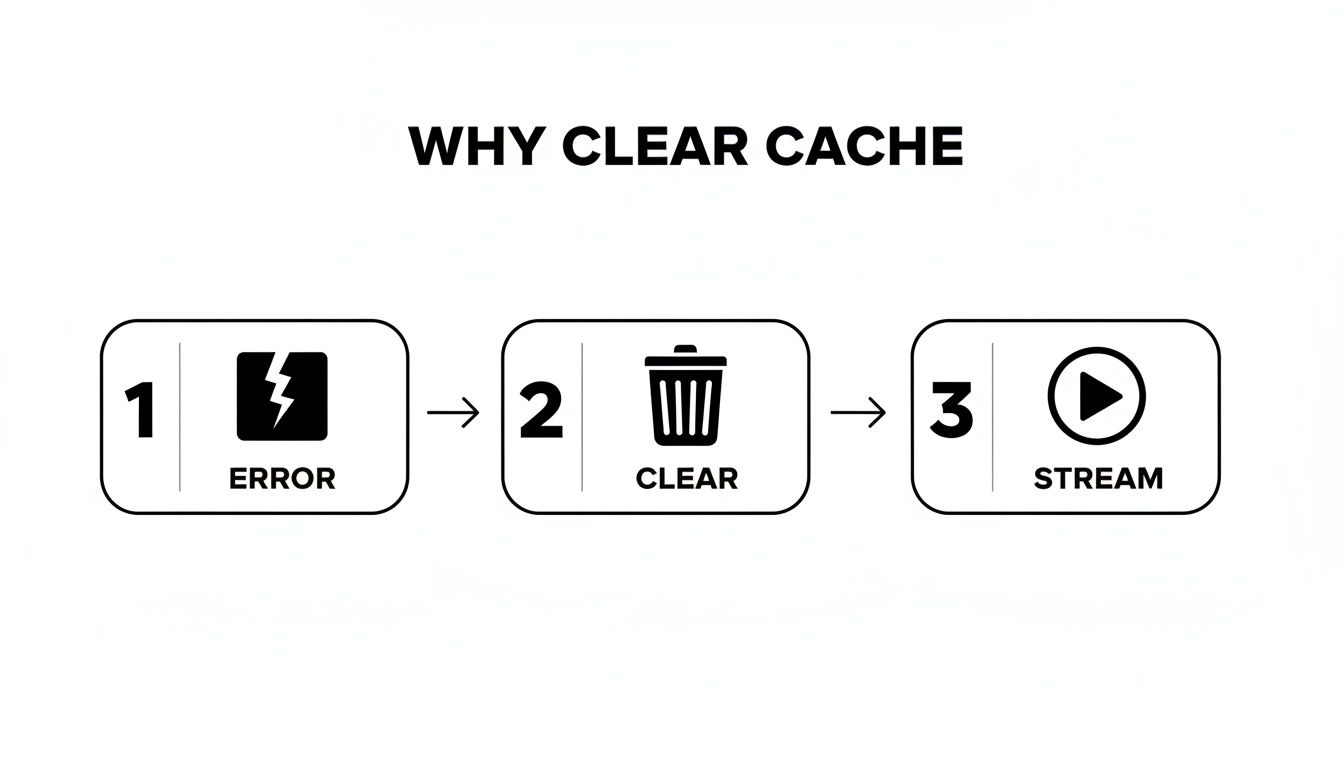
As you can see, when a streaming error hits, wiping out old data is often the quickest way to force a fresh connection and solve the problem.
The Android Method
If you're on an Android device, you've got the most direct route to clearing the Netflix cache. The operating system gives you the power to target a single app's temporary files without touching the app itself.
Here's the path:
- Open your device's Settings menu.
- Find and tap on Apps (or sometimes Apps & Notifications).
- Scroll through the list until you find Netflix and select it.
- Next, tap on Storage & cache. You'll see two main options: Clear cache and Clear storage (or Clear data).
A Quick Word of Warning: Always, always tap Clear cache first. This button gets rid of the temporary files—like video thumbnails and playback markers—but keeps your login info intact. Clear storage is the nuclear option; it erases everything, including your login details and any shows or movies you've downloaded.
Once you hit Clear cache, you should see the number next to it drop to zero. For the best results, give your phone a quick restart before opening Netflix again. This makes sure any leftover data is fully flushed out of the system's memory.
The iOS Approach: Offloading the App
Apple handles app data a bit differently. You won't find a simple "Clear cache" button on an iPhone or iPad. Instead, Apple's equivalent is a clever feature called Offload App.
When you offload an app, it removes the application itself but keeps all your personal data and settings safe. When you reinstall it, your login info and preferences are usually right there waiting for you. It’s a much smoother process than deleting and starting from scratch.
To offload the Netflix app:
- Go to Settings > General > iPhone Storage.
- Give it a moment for the list of your apps to load.
- Scroll down, find Netflix, and tap on it.
- You'll see the Offload App option. Tap it, confirm, and then hit Reinstall App once the offloading is finished.
If your iPhone is acting sluggish in general, not just with Netflix, it might be worth exploring some other common iPhone freezing fixes. Sometimes an app problem is just a symptom of a wider device issue.
Clearing Netflix Cache on a Computer Browser
When you're watching on your computer, the cache isn't managed by Netflix, but by your web browser—whether it's Chrome, Firefox, Safari, or Edge. You could clear your entire browser cache, but that's a massive headache. It would log you out of every single website.
A much smarter, more surgical approach is to clear the data for just one site.
-
In Chrome: Go to Settings > Privacy and security > Cookies and other site data. From there, click See all site data and permissions. Just type "netflix.com" into the search bar and click the little trash can icon to zap its data.
-
In Firefox: Head to Settings > Privacy & Security. Scroll down to the Cookies and Site Data section and click the Manage Data button. Search for "netflix.com," select it, and click Remove Selected.
Doing this wipes out only Netflix's cache and cookies. It forces the site to load fresh and usually fixes any browser-related streaming issues without messing up your other saved logins.
How to Refresh Netflix Data on Your Smart TV and Streaming Devices
When Netflix starts acting up on your big screen, the fix isn't always as straightforward as it is on a phone or computer. You can't just hunt for a "clear cache" button in the settings menu, which can definitely leave you feeling a bit stuck.

The good news is, you don't need one. There are a few highly effective workarounds for pretty much any smart TV or streaming device out there—Roku, Amazon Fire TV, Apple TV, you name it. These methods all force a data refresh, which accomplishes the exact same thing as clearing the Netflix cache.
The Universal First Step: Power Cycling
Before you start digging through complex menus, try the simplest fix of them all: a proper power cycle. I'm not talking about just turning it off and on with the remote; that usually just puts the device in a low-power sleep mode.
A real power cycle means completely unplugging your TV or streaming stick from the wall outlet. Give it a full minute—60 seconds is the key—before plugging it back in. This simple act drains any residual power from the internal components, clearing out temporary memory and fixing a surprising number of stubborn freezes and glitches.
Device-Specific Methods for Clearing Data
If a power cycle doesn't quite do the trick, your next move will depend on the device you're using. Every platform handles app data a little differently.
Here’s how to tackle it on the most common devices:
- Amazon Fire TV Stick: Head into Settings > Applications > Manage Installed Applications. Scroll to find Netflix, select it, and then choose Clear cache. If that doesn't solve the problem, the Clear data option is your next best bet, but just know it will log you out of your account completely.
- Roku: Roku devices are a bit different; they don't let you clear the cache for a single channel. The most effective route here is to simply uninstall and reinstall the Netflix app. From your home screen, highlight Netflix, press the star (*) button on your remote, and select Remove channel. Then just pop over to the Channel Store to add it back.
- Apple TV: Much like on an iPhone, the go-to method is to uninstall and reinstall. Navigate to Settings > General > Manage Storage, find Netflix in the list, and delete the app. Then you can quickly redownload it from the App Store.
If you're finding that your TV is frequently struggling with the app, we have a deeper guide on troubleshooting why Netflix won't load on your TV.
For Smart TVs: Samsung, LG, and Others
Smart TVs from manufacturers like Samsung and LG often have their own unique—and sometimes hidden—ways to refresh app data. The process can vary a lot, even between different models from the same brand.
On many newer Samsung TVs, you can find the option by going to Settings > Support > Device Care > Manage Storage. From there, you should be able to find Netflix, select "View Details," and hit the Clear Cache button. For LG TVs running WebOS, the most reliable method is usually to delete and reinstall the app directly from the LG Content Store.
Pro Tip: The quickest and most surefire method across almost every smart TV and streaming stick is to just sign out of your Netflix account from within the app itself. Go into the "Get Help" or "Settings" section in the Netflix menu and find the "Sign Out" option. This forces the app to dump all its local session data and reload everything from scratch the next time you log in.
This little trick is so effective because it wipes the slate clean without forcing you to hunt through confusing device menus. Think of it as the ultimate reset button for the Netflix app on any platform. When you realize Netflix's caching system is managing a mind-boggling 14.3 petabytes of data to power 400 million operations per second, it's easy to see why giving your device a clean slate to connect with is so important.
What Happens to Shared Netflix Accounts When You Clear the Cache?
If you’re sharing a Netflix account with family or friends, a common fear pops up when you start troubleshooting: "If I clear the cache on my device, will I mess things up for everyone else?"
You can relax. The answer is a clear and simple no.
Think of your device's cache as its own private little notepad. It's where the Netflix app on your phone or TV jots down temporary files to remember things and load faster. When you clear that cache, you're just wiping that one notepad clean. Everyone else's notepads are untouched. All the important stuff—profiles, watch history, recommendations—is stored safely on Netflix's main servers, not on your local device.
Your Fix Stays Local
Clearing the cache is a completely device-specific action. You're performing a bit of local maintenance that has zero effect on anyone else using the account.
Here’s what will not change for other users:
- Their Viewing History: Everyone's "Continue Watching" row and watch lists will stay exactly as they were.
- Individual Profiles: No profiles will be deleted or changed in any way.
- Personalized Recommendations: The algorithm keeps suggesting shows for each person based on their profile, which is stored on Netflix’s servers.
The only person who will be logged out is you, and only on the device you're working on. Just have your password handy, because you'll need to sign back in. It’s a tiny hiccup for what is often a major performance fix.
This is especially good to know in modern sharing setups. For anyone who uses a service to make sharing easier and more organized, knowing these little maintenance tricks is key. If you're new to the idea, a good guide on how to share a Netflix account can give you the lay of the land.
Don't Be Fooled by Misleading Errors
Here's a scenario I see all the time: a corrupted cache on one device can cause some real confusion. The smart TV in the living room might start flashing a network error code, making it seem like there's a problem with the entire account. This can easily lead others to think the subscription lapsed or there's a big Netflix outage.
In reality, it’s often just a localized glitch on that one TV.
By simply clearing the Netflix cache on the device that's acting up, you can solve the problem without interrupting anyone else's binge-watching session. It’s an isolated fix for an isolated problem, keeping your shared account running smoothly for everyone.
When Clearing the Cache Doesn't Cut It
So, you’ve meticulously cleared the Netflix cache, but you're still staring at that dreaded spinning red circle. It’s frustrating, I know. While clearing the cache is a go-to fix for a ton of common glitches, it's not a silver bullet. If the problem hangs around, it’s time to dig a little deeper.
Don't throw the remote just yet. Think of this as a simple troubleshooting checklist. More often than not, the real culprit is something straightforward, and working through these next few steps will almost always get you back to your show.

First Things First: Is Netflix Itself Down?
Before you start tearing your entertainment center apart, your very first move should be to see if the problem is even on your end. It's rare, but Netflix does have outages.
A quick check on a site like Downdetector will show you if thousands of other people are suddenly reporting the same issue. If you see a massive spike in outage reports, you can stop troubleshooting. The problem is with Netflix, and their engineers are likely already scrambling to fix it. Just sit tight.
Check Your Internet Connection
A shaky or slow internet connection is the number one thing that masquerades as an app problem. If your show is constantly buffering, stuck in low resolution, or just won't start, your Wi-Fi is the likely suspect.
A great way to check this is by heading to Fast.com (which is actually run by Netflix) on any browser.
For a decent HD stream, Netflix says you need at least 5 Mbps. If you’re trying to watch in 4K, you’ll need a solid 15 Mbps. If your speed test comes in way below those numbers, the issue isn't the Netflix cache—it's your internet.
Often, the fix is as simple as restarting your router. Unplug it from the wall, give it a full minute to completely power down, and then plug it back in. This classic "turn it off and on again" trick resolves a surprising number of connectivity snags. For more detailed steps, we cover network issues in our guide on how to reset Netflix at https://accountshare.ai/blogs/new/how-do-i-reset-netflix.
Is Your Gear Up to Date?
Outdated software can cause all sorts of strange compatibility problems. Developers are always pushing out updates to patch bugs and improve how an app runs. If your Netflix app or your device's operating system is a few versions behind, clearing the cache won't fix the underlying conflict.
- App Updates: Pop into your device's app store (Google Play, Apple App Store, etc.) and search for Netflix. If an "Update" button is there, tap it.
- Device Updates: Head into your device's main settings menu and look for an option like "System Update" or "Software Update."
Sometimes, a software glitch is buried so deep that clearing the app's data isn't enough. On a phone, for instance, a persistent problem that survives a cache clear might require a more drastic step. While it's a last resort, knowing how to factory reset your iPhone can be the ultimate fix for stubborn software issues. This wipes the slate clean and gets rid of any corrupted files causing the conflict.
Common Questions About Clearing Your Netflix Cache
Even with a step-by-step guide, it's natural to have a few questions before you start digging into your device's settings. Let's tackle the most common "what if" scenarios that come up when clearing the Netflix cache, so you can move forward with confidence.
Think of this as your quick-reference FAQ. We've rounded up the top concerns people have and provided straightforward answers to put your mind at ease.
Will Clearing the Netflix Cache Delete My Downloads?
This is a big one: yes, clearing your app's cache and data will almost always remove any movies or shows you've downloaded for offline viewing. Your device treats those downloads as temporary files, and they get wiped out during the cleaning process.
The good news? Your watch history, profiles, and "My List" are all tied to your account on Netflix's servers, so they are completely safe and will not be affected. Just make sure you can get back on Wi-Fi later to re-download your content after you sign back in.
Don't worry, your meticulously curated watch list is safe. The cache is just local temporary files; your account profile, history, and preferences are stored securely on Netflix's servers, untouched by this process.
How Often Should I Clear the Netflix Cache?
Honestly, there's no need to clear your Netflix cache on a regular schedule. This isn't routine maintenance; it's a troubleshooting tool. Think of it less like taking out the trash every week and more like calling a plumber when a pipe gets clogged.
You should only really do this when you're running into specific problems.
- Constant buffering that isn't related to your internet speed.
- The app is sluggish or totally unresponsive.
- You're seeing persistent, cryptic error messages.
- Video playback is acting up—like you get a black screen but can still hear the audio.
If Netflix is running smoothly, the cache is actually your friend. It's doing its job by helping the app load faster. In that case, just leave it be.
Does Clearing the Cache Log Me Out of Netflix?
Yep, in nearly every case, clearing the app data or cache will log you out of your Netflix account on that device. The cache holds onto temporary login info and session tokens that keep you signed in. Wiping that data essentially makes the app forget who you are.
It’s a minor inconvenience, but one you can easily prepare for. Before you start, just have your Netflix email and password handy. That way, you can sign right back in and get back to your show without missing a beat.
At AccountShare, we believe that managing your subscriptions should be simple and affordable. Our platform makes it easy to share access to premium services securely, so you can enjoy more for less. Learn how you can save on your favorite subscriptions with AccountShare.