

How to Add Songs to Shared Spotify Playlist in 2026
Your group chat has a Spotify playlist link, everyone has song suggestions, and someone still can't add anything. They can open the playlist and play it, but its name doesn't appear when they try to save a track.
The missing step usually isn't finding the right button. It's confirming that the owner sent a collaboration invitation and that everyone joined through it. Knowing how to add songs to a shared Spotify playlist starts with access, then moves to adding tracks and keeping the group's choices manageable.
Invite Collaborators and Confirm Access First
Start with the person who owns the playlist. They should open the actual list the group will edit, rather than send a song link, a profile link, or an ordinary listening link.
Give the playlist a recognizable name before inviting anyone. A name such as Summer Drive Suggestions is easier to identify in the playlist picker than several lists called Favorites. Check the owner's profile too, especially if someone has already made a similarly named copy.
Choose the owner's device path
Owner setup paths by device
| Device | Where to start | Action | Then |
|---|---|---|---|
| Mobile app | Open the playlist and tap the menu at the top | Select Invite collaborators | Share the generated link |
| Desktop | Open the playlist and choose the collaboration option | Generate the invitation link | Share the link in a messaging app |
| Any device | Check the invitation date | Check whether the invitation window is still open | Issue a new link after expiry |
According to Spotify's collaborative-playlist support guide, invitation links remain valid for 7 days. Treat that as a joining deadline, not a deadline for finishing the playlist.
Post the invitation somewhere participants are likely to find it, such as the existing WhatsApp, Messages, or Discord conversation. Add a clear instruction to open it while signed into the Spotify account they intend to use. Sending a link without explaining that people need to join leaves room for confusion.
If you're choosing between sending a listening link and inviting editors, Premierely's guide to how to share Spotify playlists provides useful context for the sharing workflow. The important distinction is what you want the recipient to do: listen or contribute.
Confirm access before collecting everyone's music
Use this owner checklist in order:
- Confirm the destination. Open the playlist the group should edit and check its name and owner.
- Generate the invitation. Use the collaboration option rather than copying an ordinary share link.
- Send a joining deadline. Include the send date in the chat so late joiners know whether to request a replacement.
- Ask participants to join. Don't assume that seeing a message means they accepted its invitation.
- Test a contribution. Ask a participant to add a track from their phone, then have someone else confirm it appears.
Say a student project group posts its invitation on Monday and asks everyone to join by Wednesday. The owner checks a test contribution before asking the group to build the study soundtrack. That keeps an access problem from becoming a pile of song requests the owner must enter manually.
Practical rule: A successful test contribution is better evidence of access than someone saying they opened the link.
Playlist access is separate from subscription membership. Our Spotify subscriptions are listed from $15.85 USD, but buying a subscription isn't the step that grants editing permission to someone else's playlist. If you're also organizing account membership, distinguish that task using our guide to adding someone to your Spotify account.
If someone misses the invitation window, generate a fresh invitation. Reposting the expired message won't fix their access.
Add a Song to a Shared Playlist on Mobile and Desktop
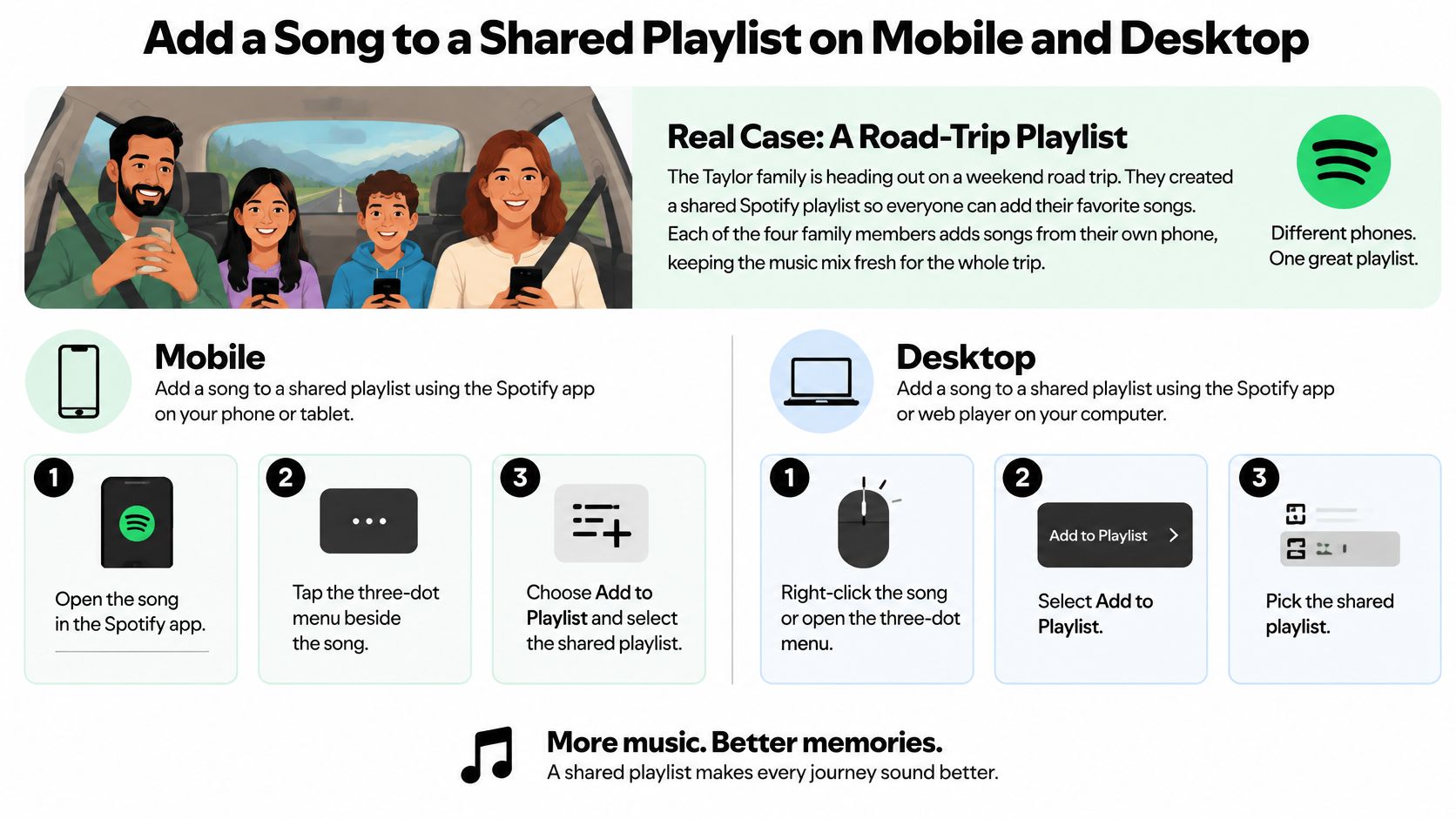
Say your family is preparing a road-trip playlist, with everyone choosing music from their own phone. Once each person has joined as a collaborator, they can add their selections directly instead of sending titles for the owner to copy.
Use the track's menu, not just its play button. Playing a song, adding it to your queue, and saving it to a playlist are different actions.
Add from the Spotify mobile app
- Open the song in Spotify. Find it through Search, an album, or your library so you can check the artist and recording.
- Tap the three-dot menu beside the track. This opens actions for that particular song.
- Select Add to playlist. Choose the shared playlist by its name, taking care not to select a personal copy.
- Open the destination playlist. Confirm that the track appears before adding more music.
Don't assume the new song will land beside the track currently playing. Check the list itself, and look at its display or sorting options before deciding that the addition failed.
The mobile and desktop paths use the same basic choice: select the song, then select its destination.
Add from the desktop app
- Right-click the track or open its menu. Check that you're acting on the song rather than the album.
- Choose Add to playlist. Select the shared list from the available destinations.
- Alternatively, drag the track onto the playlist in the sidebar. This is convenient when you're browsing several songs in the same session.
- Inspect the playlist afterward. Confirm the correct recording arrived and avoid repeating an addition just because you didn't notice it immediately.
The menu route is more deliberate. Dragging is quicker when the destination is clearly visible, but it's easier to drop music onto the wrong similarly named playlist.
If the shared playlist isn't in your destination list, check collaborator access before trying different songs. Also confirm that Spotify is signed into the account that accepted the invitation.
Success is straightforward: the chosen recording appears in the shared list and another collaborator can see it. Nobody needs to exchange a password.
Who Can Change a Shared Playlist and Who Controls Access
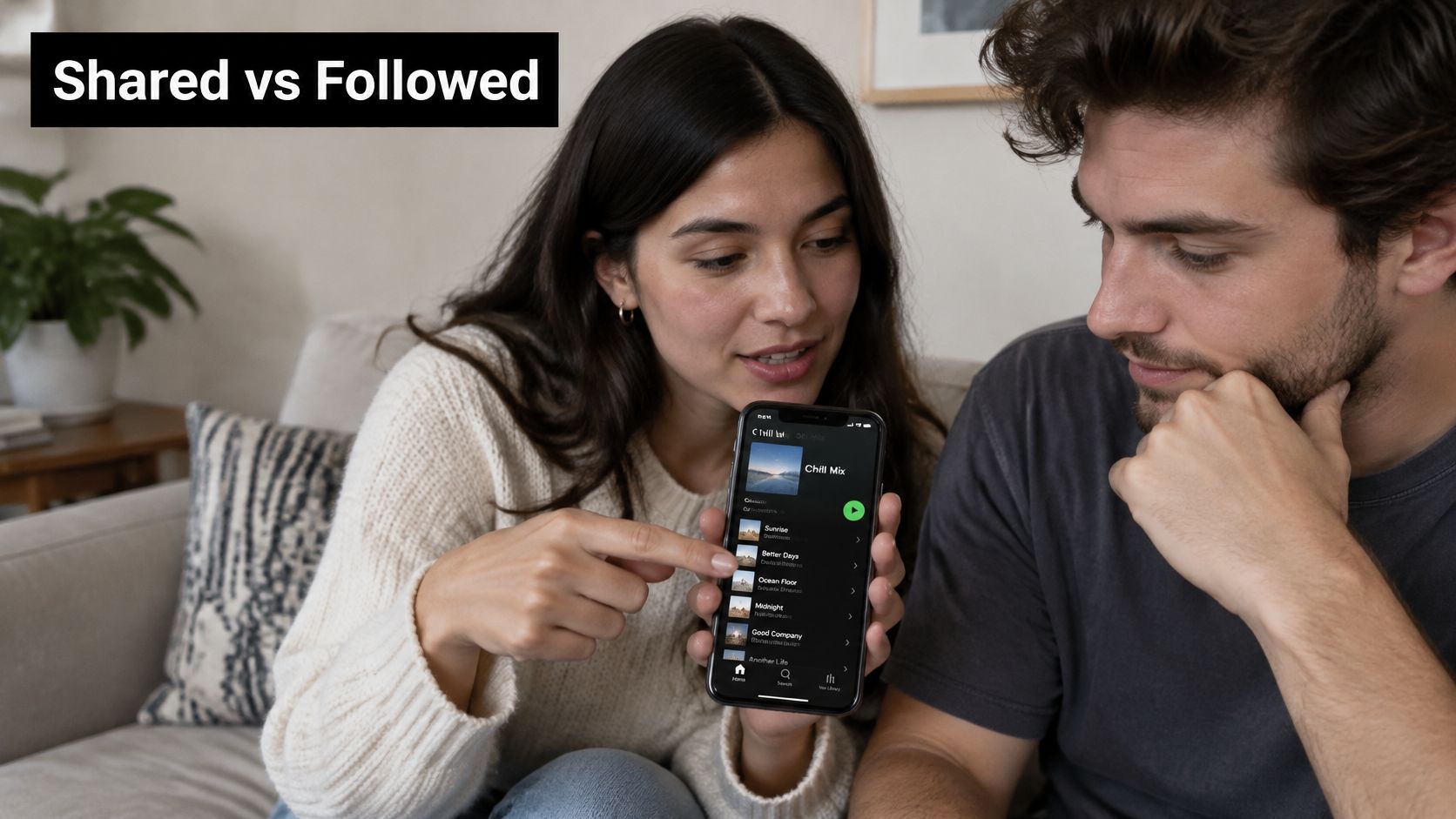
Following isn't collaborating. A person who follows or saves someone else's playlist gains a convenient way to listen, not permission to edit its contents.
A collaborator has a different role. They can contribute to the common list, and their edits affect what the rest of the group sees. That's useful for collecting suggestions, but it also means the owner shouldn't promise that everyone's selections will remain untouched.
The distinction matters whenever someone hands over their phone to demonstrate a playlist. Seeing the songs on another screen tells you nothing about whether that person has editing access.
Separate visibility from editing permission
Spotify's Web API playlist documentation distinguishes collaborative status from named collaborator management and states that the API's collaborative and public attributes can't both be enabled at the same time. That's a technical rule for the API model, not a reason to assume every app visibility control works identically.
For everyday use, the important point is that shared doesn't automatically mean publicly listed. A private collaborative playlist can be accessible through a link without being offered as a public recommendation list.
Playlist types and what they allow
| Playlist type | Who can add or remove tracks | Reachable by link | Key rule |
|---|---|---|---|
| Collaborative playlist | Owner and invited collaborators | Yes, through the invitation link | Every change is visible to all participants |
| Public playlist, not collaborative | Owner only | Yes, through its share link | The API public attribute can't be enabled alongside collaborative status |
| Playlist you only follow | Owner only, unless collaboration is separately granted | Following doesn't determine link access | Following adds no editing rights |
If your aim is discovery rather than group editing, use our guide to making your Spotify playlist public. Publishing a listening destination and admitting contributors solve different problems.
Let the owner manage membership
Treat an invitation like a key, not a promotional flyer. Send it to the intended group rather than posting it somewhere strangers can forward it without context.
When membership changes, inspect the current collaborator controls in the app. Issuing another invitation shouldn't be treated as proof that previous participants have lost access.
The owner should know who is meant to edit, even when everyone helps choose the music.
For example, a distributed team might agree that its shared list is for focused sprint work and check contributions at its Friday review. A teammate can suggest a different mood in chat without immediately deleting someone else's choices.
The documented starting points are the invitation window and collaborative status. Before promising approval queues, restricted editing roles, or a particular removal mechanism, check what the current app offers.
Common Problems and How to Fix Them
An expired invitation is the first thing to check when a previously shared joining link no longer works. This needs the owner: ask them to generate a replacement rather than repeatedly reopening the original message.
Other failures need a different response. A missing destination points toward access or account selection, while a missing song calls for checking the playlist and the recording itself.
Match the symptom to the fix
Symptoms, likely causes and fixes
| Symptom | Likely cause | Fix |
|---|---|---|
| Invitation link no longer works | Invitation has expired | Owner generates and sends a fresh invitation |
| Add to playlist option is missing | Not yet admitted as a collaborator, or the wrong menu is open | Open the track's menu; if the shared destination is missing, have the owner resend the invitation |
| Track disappeared from the list | Another collaborator may have removed it | Ask in the group chat and add it again if agreed |
| Song will not add | Track may be unavailable in your country | Check availability and try a different available version |
| Change not showing on another phone | App hasn't refreshed | Reopen the app or pull to refresh where available, then check your connection |
Missing command and missing destination aren't the same problem. If you can't find Add to playlist at all, make sure you opened an individual track's menu; if the command appears but your shared list doesn't, investigate membership and the signed-in account.
For an invitation problem, tell the owner which Spotify account you're using. That's more useful than sending only a screenshot of an empty playlist picker.
Check before repeating the action
A vanished track isn't automatically a syncing failure. Ask whether someone intentionally removed it before adding it again, particularly if the group has agreed to avoid explicit recordings, live versions, or repeated songs.
An unavailable recording may have an accessible album or single version. Compare the artist and title carefully so you don't substitute a cover, remix, or clean edit without realizing it.
If another phone doesn't show your change, reopen the playlist and check the connection before adding the song again. Repeated attempts can leave duplicates once the app displays the updated list.
Troubleshooting shortcut: Describe what you can see and what you can't do. “I can play the list, but it isn't an Add to playlist destination” gives the owner a useful starting point.
Refreshing the app, checking the selected account, and trying an available recording are quick self-service checks. Creating a new invitation or reviewing collaborator access requires the owner.
If those checks don't resolve it, stop changing several things at once. Test a clearly available track, confirm the destination account, and ask another admitted participant whether they can contribute; that helps separate a personal app problem from a playlist-wide access issue.
Curation Habits That Keep a Group Playlist Usable
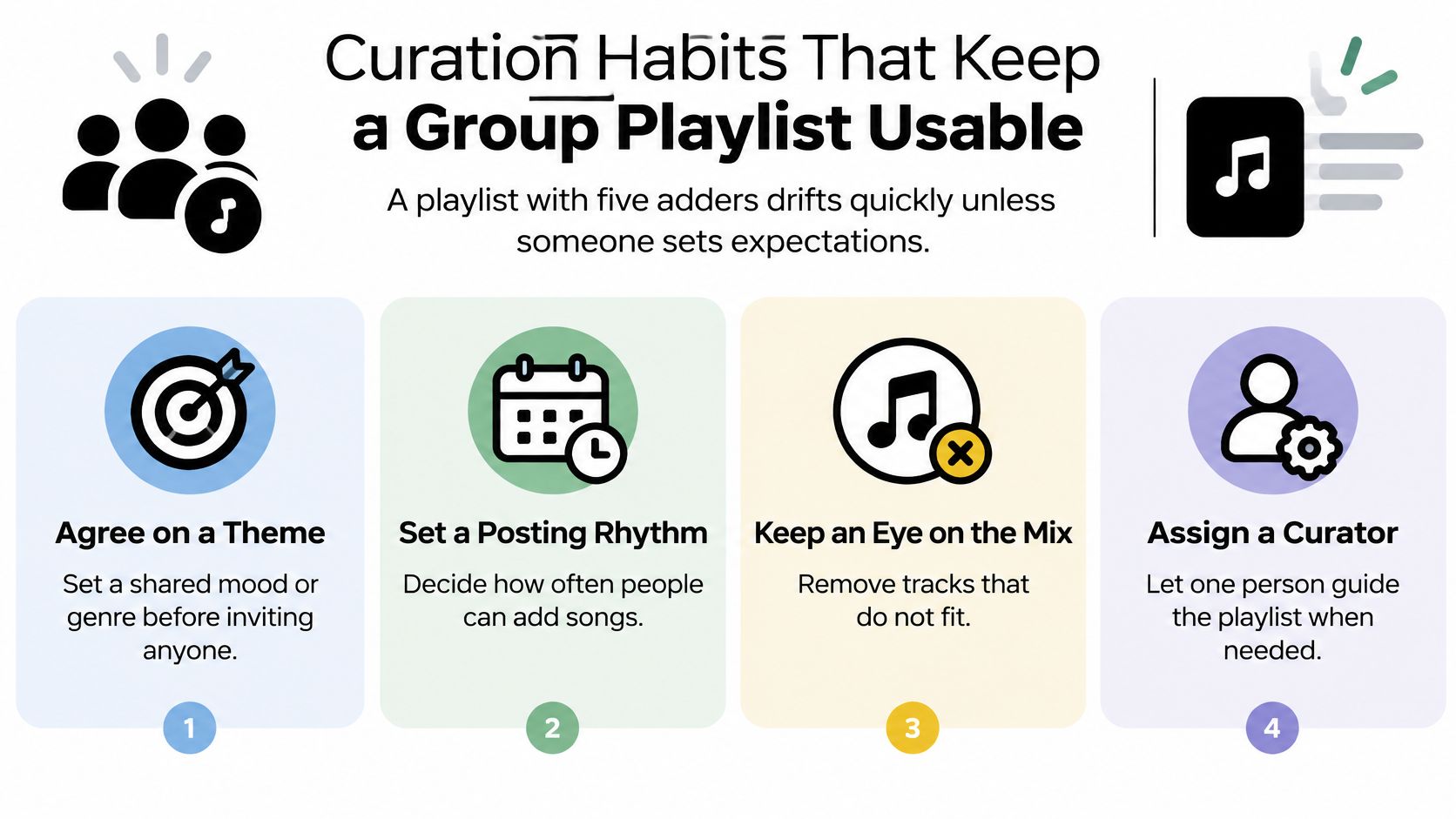
A playlist with several contributors can drift from relaxed background music to a mixture nobody wants to play straight through. The problem isn't necessarily anyone's taste. People are often adding songs for different situations.
Decide whether the list is an open suggestion box or a finished listening sequence. An open list encourages participation; a finished sequence needs someone to make choices about fit and order.
Give contributors useful boundaries
- Agree on a theme. Describe the listening situation, such as quiet study music or upbeat driving songs. A practical mood description is easier to follow than a broad label like good music.
- Set a posting rhythm. For example, let each participant nominate a pair of tracks during a weekly refresh. Treat this as a group agreement, not an automatic Spotify limit.
- Put the rules in the description. Write whether explicit tracks, repeat artists, and long live recordings fit. Newcomers shouldn't need to search old chat messages.
- Name a backup curator. Choose another participant to check for duplicates and off-theme additions when the owner is unavailable. This is a social responsibility, not a claim that Spotify grants a separate administrator role.
- Arrange music for the occasion. Group tracks by energy or stage of the trip rather than leaving every contribution in arrival order. Ask participants to avoid reordering while someone else is arranging the sequence.
These habits work best when the group can understand them at a glance.
Separate collecting from final sequencing
For a family road trip, the group might agree to alternate contributors rather than play someone's entire batch consecutively. The driver can request a calmer stretch without permanently rejecting anyone's favorites.
Keep maintenance proportional to the purpose. Our Spotify playlist management guide is useful when occasional cleanup becomes a recurring task.
If you're curating around your own music releases, distinguish participation from promotion. SCHelper's guide to build reach across streaming platforms addresses the broader promotion task; a private group playlist still needs selections that suit its listeners.
Choose a fixed review point, such as the evening before departure or the team's sprint review. Remove tracks that no longer fit, settle disagreements in chat, and let the curator finish the order before playback.
We offer subscriptions across streaming and music, AI tools, and creative tools, with membership and sharing rules determined by the selected plan and confirmed terms. If you're organizing subscription access alongside your group playlist, visit AccountShare to review the available options, keeping account membership separate from Spotify's collaborator invitations.