

What Is Apple Family Share and How Does It Work?
Think of Apple Family Sharing as your family's digital command center. It’s a clever feature that lets up to six people share access to Apple services, including App Store purchases, subscriptions, and even a big chunk of iCloud storage. The best part? Everyone gets to keep their own private Apple ID, so your photos, messages, and files stay completely separate. It's all about sharing the benefits without sacrificing privacy.
Your Digital Household Hub Explained

Here's a simple analogy: imagine your family having one shared credit card for all your entertainment—movies, music, games, and storage—but everyone gets to pick what they want. One person, the organizer, manages the main account and pays the bill, but each family member enjoys the perks on their own device. That's exactly how Family Sharing works.
Apple rolled this out way back with iOS 8 in 2014, and it has since become a cornerstone of its ecosystem. With Apple now supporting over 2.35 billion active devices worldwide, Family Sharing is the glue that connects iPhones, iPads, and Macs for millions of households. You can dive deeper into Apple's device ecosystem growth right on their newsroom page.
How It Works at a Glance
So, how does this actually function day-to-day? It all starts with one person becoming the "Family Organizer." This person sets up the group, sends out invites to five other family members, and links their payment method to the account. From there, the magic happens.
Here’s a quick rundown of what you can do:
- Shared Purchases: When you buy a cool new app, a movie for family night, or an iBook, everyone in your Family Sharing group can download it on their own devices. No need to buy it multiple times.
- Subscription Pooling: Instead of everyone paying for their own Apple Music or Apple Arcade, one family subscription covers all six members. This is where the savings really start to stack up.
- iCloud+ Storage: You can share a single large storage plan—like 200GB or even 2TB—with the whole family. Don't worry, everyone's photos, documents, and backups are kept completely private from one another.
- Location Sharing: Want to see if the kids are on their way home from school? The integrated Find My app lets you share locations with each other, giving you a little extra peace of mind.
This setup strikes a perfect balance. Each person maintains their own personal Apple ID, so your digital life remains your own. But you all get to tap into a shared pool of resources, making it a fantastic tool for any family looking to simplify and save.
To make it even clearer, here is a quick table that breaks down the core features and their benefits.
Apple Family Sharing At a Glance
| Feature/Service | What Can Be Shared | Main Benefit |
|---|---|---|
| App Store Purchases | Apps, music, movies, TV shows, and books | Buy once, and everyone in the family can enjoy it on their own devices. |
| Apple Subscriptions | Apple Music, Apple TV+, Apple Arcade, Apple News+, and Apple One bundles | Consolidate multiple individual subscriptions into one cheaper family plan. |
| iCloud+ Storage | A single storage plan (50GB, 200GB, or 2TB) | Everyone gets plenty of storage for their photos, files, and backups, which remain private. |
| Location Sharing | Real-time locations via the Find My app | Easily keep track of family members' whereabouts for safety and coordination. |
| Screen Time | Activity reports and parental controls for children's devices | Parents can monitor and manage their kids' device usage from their own iPhone. |
This table shows just how much Family Sharing can streamline your digital life, from cutting costs on subscriptions to making parental oversight a whole lot easier.
How to Set Up Your Family Sharing Group

Ready to create your digital household? Getting a Family Sharing group off the ground is surprisingly quick, and it all starts with one adult who takes on the role of the Family Organizer.
This person is the captain of the ship. They'll set up the group, invite everyone, and link a single credit or debit card that the entire family will use for App Store purchases, subscriptions, and more.
Before you dive in, make sure you're signed into your Apple ID and have a valid payment method ready to go. The concept of a central organizer and shared benefits is common in digital subscriptions; for instance, it's a lot like the process we outline in our guide on how to share Microsoft 365 Family.
Starting the Setup on iPhone or iPad
Most people will set this up on their iPhone or iPad, and Apple has made the process incredibly straightforward. You won't need to download any extra apps—it's all handled right in your Settings.
Here’s how to get it done:
- Open the Settings app.
- Tap on your name at the very top.
- Choose Family Sharing.
- Tap Set Up Your Family and just follow the prompts. Apple walks you through exactly what you want to share, like purchases, iCloud+, or your location, so you can pick and choose from the get-go.
Once the group is live, you can start sending out invites. You can ping family members through Messages or AirDrop, or if they're right there with you, they can just type in their Apple ID password on your device.
Key Insight: Remember, the Organizer is the only person who can add or remove members. This keeps things simple and gives one person clear control over who's in the group.
Adding Members to Your Group
With your family group created, it's time to bring everyone else in. Apple makes it easy to add both adults and kids, so your setup can match your real-life family.
-
For Adults and Teens: Head back to
Settings > [Your Name] > Family Sharingand tap Add Member. You can fire off an invitation through Messages. They just have to tap the link, accept, and they're in. -
For Children: For any kids under 13, you can create an Apple ID for them right from this screen. Doing this automatically adds them to your family and turns on helpful parental controls like Ask to Buy by default.
The initial setup screen gives you a clean overview of all the features you can switch on for your family, like Purchase Sharing and iCloud+, making it simple to configure everything just the way you want it.
Getting to Grips with Roles and Permissions in Your Family
When you set up a digital family, everyone needs to know their role. Apple Family Sharing gets this right by assigning specific responsibilities to each person. Think of it like a real household—one person might handle the budget, while others have their own freedoms and responsibilities. This structure keeps things simple and makes sure everyone can enjoy the shared benefits safely.
The most important role is the Family Organizer. This is the adult who starts the family group and invites everyone else. They're in charge of the single credit card that all purchases and subscriptions for the group are billed to. They are also the only person who can add or remove members, giving them the final say over the digital household.
The Role of the Organizer
The Organizer is essentially the captain of the ship. They don't just manage the money; they also decide which features the family gets to share. For instance, the Organizer is the one who chooses to share an iCloud+ storage plan or an Apple Music Family subscription with everyone.
This centralized control really streamlines things. Instead of everyone having their own bills and logins to manage, everything is handled by one person. It means subscriptions get paid on time, purchases are easy to track, and there’s no confusion over who’s paying for what.
Setting Boundaries with Parent and Guardian Roles
Beyond the Organizer, any other adult in the group can be set up as a Parent/Guardian. This role is a game-changer for families with kids, as it lets them manage parental controls for any child accounts in the group.
A Parent/Guardian can set Screen Time limits, approve app downloads, and block explicit content, which means the responsibility of keeping an eye on the kids' digital lives can be shared. For a really deep dive into this, our guide on https://accountshare.ai/blogs/new/how-to-set-parental-controls will walk you through all the settings.
Key Takeaway: The Parent/Guardian role allows any adult in the family to help create a safe, age-appropriate digital space for the kids, even if they aren't the one managing the payments.
This setup is incredibly practical. If one parent is tied up, the other can step in to approve an app request or adjust settings. It makes digital parenting a true team effort.
The Power of Ask to Buy
One of the most useful tools for parents is Ask to Buy. This feature is on by default for any child under 13, and you can choose to turn it on for older teens as well. It’s basically a financial gatekeeper.
Here’s a simple example of how it works:
- Your child finds a game they’re desperate to download from the App Store.
- When they tap "buy," the download doesn't start. Instead, a notification pops up on the Organizer's and any Parent/Guardians' devices.
- You can look at what they're asking for and approve or deny the purchase right from your iPhone or Mac.
This feature is a lifesaver. It puts a stop to accidental in-app purchases and ensures you have the final word on the content your kids are engaging with. It helps you guide their digital journey and avoids any nasty surprises on your credit card bill. While these internal controls are a great start, it's also smart to brush up on broader strategies to protect your privacy online to keep your whole family secure.
So, What Can You Actually Share?
This is where the magic of Family Sharing really shines. It's about way more than just splitting the cost of an app; it’s about creating a connected digital hub for your whole family. Let’s break down exactly what you can pool together.
The most immediate win for most families is with shared purchases. Think about it: you buy that great new game, a compelling audiobook, or the latest movie everyone's talking about. Instead of everyone else in the family having to buy it too, they can just head to the "Purchased" section of the App Store and download it for free. It’s a simple "buy once, enjoy by all" system that puts a stop to duplicate spending right away.
This kind of smart integration is a huge part of why people love the Apple ecosystem. Sharing apps, music, movies, and books with up to six family members makes every purchase more valuable.
Subscriptions and Cloud Storage: The Real Money-Savers
Family Sharing becomes even more powerful when you start pooling subscriptions. Forget juggling multiple accounts and payments—you can consolidate everything into one, more affordable family plan.
- Apple Music: The family plan gives everyone their own private music library, personal playlists, and unique recommendations. No more clashing music tastes on a shared account.
- Apple TV+: Your entire family gets unlimited access to Apple's original shows and movies, all watchable on their own devices.
- Apple Arcade: With over 200 games and no ads, every iPhone and iPad in the family instantly becomes a premium gaming device.
- Apple News+: Get access to hundreds of top-tier magazines and newspapers, all covered under a single family subscription.
The most practical feature, though, might be iCloud+ storage. You can grab a large plan—like 200GB or 2TB—and let the entire family use that space for their photos, files, and device backups. The key here is that while you share the space, everyone's content stays completely private.
More Than Just Entertainment
Beyond media and storage, Family Sharing includes practical tools designed to keep your family organized and safe in the real world. These features are baked right into your Apple devices, so they’re incredibly easy to use.
The system is built on a clear set of roles, ensuring the person who sets it up has control while everyone else gets the benefits.
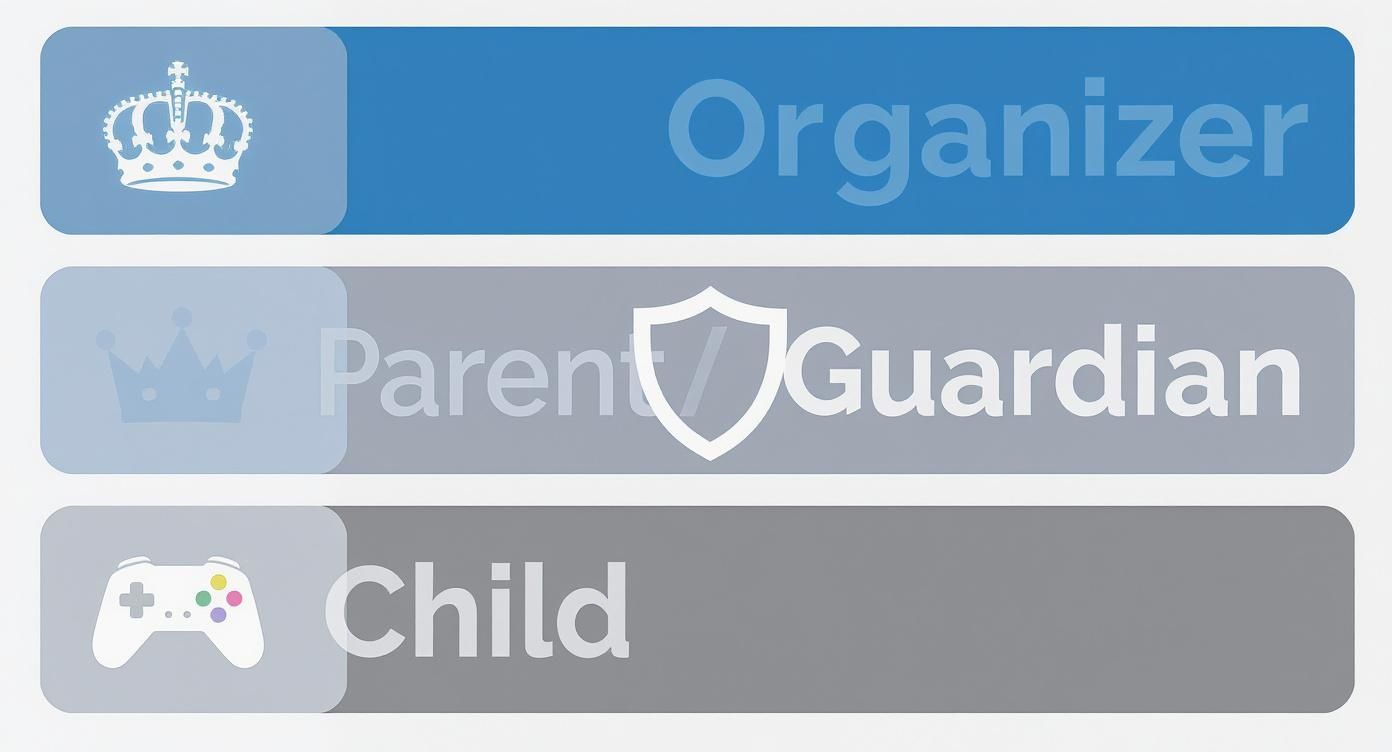
This structure is what allows parents to set sensible boundaries while still giving kids access to the family's shared resources.
Here are a few of the standout organizational tools:
- Shared Photo Albums: You can create a dedicated album where anyone in the family can drop in photos, videos, and comments. It's the perfect way to gather all your memories from a holiday or birthday party in one central spot.
- Family Calendar: A shared calendar is automatically set up for your group, making it simple to track everyone's schedule. Add soccer practice, dentist appointments, and family dinners, and everyone is instantly in the loop. You can also learn more general tips to share calendars on iPhone for even more ways to stay organized.
- Find My: This feature lets you see your family members' locations on a map and helps track down misplaced devices. It offers genuine peace of mind, whether you're just checking that your teenager made it home safely or trying to find a lost iPad.
What Stays Private?
A common question is, "If we're sharing so much, what about my privacy?" It's a valid concern, and Apple has designed the system to keep your personal data separate. While you share access to services, your private information remains yours alone.
This table breaks down what gets shared versus what stays private for each key feature.
| Feature | What Is Shared | What Stays Private |
|---|---|---|
| Purchases | Access to purchased apps, music, movies, books | Your purchase history, payment information (unless you're the Organizer) |
| Subscriptions | Access to the service (e.g., Apple Music, Apple TV+) | Your personal playlists, watch history, saved articles, game progress |
| iCloud+ Storage | The total pool of storage space | Your individual photos, files, notes, backups, and messages |
| Location Sharing | Your real-time location (if enabled) | Your location history, past movements |
| Shared Calendar | Events added to the "Family" calendar | Events on your personal calendars |
| Shared Album | Photos and videos added to the "Family" album | Your entire personal photo library |
Ultimately, Family Sharing is built on a foundation of trust and privacy. You get all the benefits of sharing resources without having to give up control over your personal data.
The Real Financial Benefits of Sharing
Let's be honest, beyond all the cool features, one of the biggest draws of Family Sharing is saving money. It’s a seriously powerful tool for your wallet, and the real-world financial impact is where it truly shines. By pooling your family's digital services, you can unlock some pretty significant annual savings without anyone losing their personal access.
Let's get practical and talk numbers. Imagine a family of four where everyone has their own Apple Music subscription. That’s four separate monthly bills hitting your bank account. With a single Apple Music family plan, you cover everyone for one flat fee and can often save over 50% compared to paying for individual plans. It's a no-brainer.
This same logic applies right across Apple's entire suite of services. The savings really start to stack up when you add other subscriptions like Apple Arcade for the gamers in the house or a shared iCloud+ plan for everyone's photos and backups. Instead of a bunch of small, inefficient payments, you've got one larger, much more cost-effective bill.
Calculating Your Potential Savings
The absolute best way to squeeze the most value out of this is with an Apple One bundle. Think of it as a combo meal for Apple services—it packages things like Music, TV+, Arcade, and iCloud+ into one monthly subscription at a discounted price.
Here’s a pretty common scenario for a family of four:
- Apple Music Family Plan: One plan gets everyone listening.
- 200GB iCloud+ Plan: Plenty of shared storage for photos, device backups, and files.
- Apple TV+ and Apple Arcade: Entertainment for the entire group, covered.
If you bought all of these separately, the costs would add up fast. But when you wrap them into an Apple One Family plan, the savings can easily top $100 per year. If your family is all-in with the Premier bundle that adds Fitness+ and News+, those savings climb even higher. It’s a clear, measurable benefit.
Exploring other guides on shared subscriptions can also open your eyes to even more ways to cut costs on digital services beyond just the Apple ecosystem.
Key Insight: The more Apple services your family uses, the more financial sense an Apple One bundle makes. It's designed to reward deeper engagement with real, tangible savings.
Why This Strategy Works for Apple Too
Of course, this model isn't just about saving you cash; it's a brilliant move by Apple. By making its services more affordable and tightly integrated for groups, the company creates a "stickier" ecosystem. When a family’s entire digital life—music, photos, calendars, and entertainment—is woven together, they are far more likely to stick with Apple for the long haul.
This strategy is a cornerstone of Apple's modern business. The company's services division, which includes everything you share through Family Sharing, has become a massive source of revenue. In fact, services revenue recently accounted for over 28% of Apple's total quarterly income, showing a major focus shift from just selling hardware to building recurring subscription income. This creates a win-win: lasting value for your wallet and long-term success for Apple.
Got Questions? Let’s Clear Things Up
Even after you get the hang of Apple Family Sharing, a few practical questions almost always pop up. Let's tackle the most common ones so you can use the service without a second thought.
What Happens If I Leave the Family Group?
This is probably the number one concern. If you leave a group (or get removed), you instantly lose access to everything being shared—from Apple Music to the family’s collection of purchased movies.
The good news? Anything you bought with your own Apple ID is yours to keep. You won't lose your personal apps or media. You will, however, have to sign up for your own subscriptions for services the family organizer was covering.
Can I Join More Than One Family?
Simple answer: no. Your Apple ID can only be part of one Family Sharing group at a time. This keeps things straightforward and ensures the feature is used as intended—for one family unit.
You can switch to a different family group, but Apple puts a limit on this: you can only make a switch once per year. This is just a measure to keep people from hopping between groups to pool benefits.
How Does Shared iCloud+ Storage Really Work?
What if one person in the family is a digital hoarder, backing up thousands of photos and videos? Will they use up all the storage for everyone else?
It's a common worry, but thankfully, it's not an issue. While everyone draws from the same pool of storage, no one person can lock others out. Everyone's files, photos, and backups stay completely private and separate. If the total storage starts running low, the organizer just gets a friendly nudge from Apple suggesting it's time to upgrade the plan.
Who Actually Owns the Shared Apps?
This can get a little confusing. If the Family Organizer buys an app and shares it, does everyone own a copy? Not quite.
Here’s how it works:
- The Organizer holds the license because they made the purchase.
- Family members can use the app as long as they're in the group and Purchase Sharing is on.
- If you leave, you lose access. To keep using it, you’d have to buy the app for yourself.
This setup keeps ownership clear and simple, avoiding any messy situations if the group ever changes.
If you're interested in sharing more than just Apple services, you might want to check out AccountShare. We make it easy and secure to split costs on all sorts of digital subscriptions, from streaming to productivity software, so everyone gets a better deal. Find out more at https://accountshare.ai.