

How to Set Parental Controls That Actually Work
Setting up parental controls in a tool like AccountShare is more than just flipping a switch. It's about creating individual profiles for each of your kids, carefully customizing what they can see and do based on their age, and setting clear boundaries for daily screen time.
This approach is all about getting ahead of the curve. You're not just blocking bad stuff; you're actively teaching healthy digital habits and protecting them from the very real risks of the online world. The best part is, you can manage all of this from one central dashboard.
Why Modern Parental Controls Are Essential

Let's be honest, navigating the digital world as a parent can feel like a constant struggle. The goal has shifted from simply restricting access to actively guiding your children toward a healthy, balanced relationship with technology. Thinking through how you'll set parental controls is your first move in creating a safer online space for them.
Today's tools are a world away from the clunky website blockers of the past. They offer a smart, structured way to teach responsible tech use from the ground up. This helps you shield your family from genuine dangers like cyberbullying, inappropriate content, and the kind of excessive screen time that wreaks havoc on sleep and schoolwork.
A Proactive Strategy for Digital Parenting
Instead of waiting for a problem to pop up, a good parental control setup lets you establish the ground rules from day one. This isn't about spying on your kids; it's about education and protection. You're building a digital framework that can adapt and grow right along with them.
Here’s what that looks like in practice:
- Building Healthy Habits: You can schedule "Downtime" during homework hours or set a "Bedtime" that ensures devices get put away for the night.
- Preventing Exposure: Smart filters can block inappropriate apps, games, and websites before your child ever has a chance to find them.
- Encouraging Balance: You can set time limits for games and social media while leaving educational apps completely unlimited, nudging them toward more productive screen time.
The real goal here is to use technology to teach responsible technology use. Think of it as a partnership with your kids, where the safety rules are clear, consistent, and designed to help them thrive both online and off.
This isn't just a hunch; the demand for better digital supervision is clear. The global parental control software market was valued at USD 1.29 billion in 2024 and is expected to hit roughly USD 2.38 billion by 2032, largely driven by rising concerns over online safety. You can dive deeper into these market insights and the factors behind this growth.
Alright, let's get into the nitty-gritty of setting up your family's digital safety net. The very first thing you need to do is give each of your kids their own profile in your parental control app.
This isn't just about keeping things organized; it's the absolute foundation for everything else. A one-size-fits-all approach just doesn't cut it when you're dealing with, say, a seven-year-old who loves cartoons and a teenager navigating social media for the first time. Their needs are worlds apart.
Think of it like childproofing your home. You wouldn't use the same safety measures for a toddler as you would for a pre-teen. The same logic applies online. Setting up separate profiles is the digital equivalent of making sure the environment is right for their age, much like how you'd look into baby safety products and home babyproofing for your youngest.
Finding Your Command Center
Most good parental control apps, like AccountShare, will have a clearly marked 'Family' or 'Profiles' section. This is where you’ll live. Head there and start by adding a new profile for each child. All it usually takes is their name and age, which kicks off the smart, age-appropriate filtering we'll tackle next.
This is a pretty standard layout you'll find for setting up user profiles and permissions.
See how it’s designed to give you precise control? You can dial in everything from daily time limits to exactly what kind of content they can access.
Lock It Down with a Parent Passcode
Once you've got the profiles set up, don't skip this next step—it’s critical. You need to set a strong parent passcode or PIN. This is the one thing standing between your well-thought-out rules and a tech-savvy kid who wants five more minutes of screen time.
Think of the parent passcode as your master key. It ensures you’re the only one who can tweak settings, approve a new app download, or grant that extra bit of time on a special occasion. Without it, the whole system can be bypassed.
A solid passcode is non-negotiable for keeping your parental controls intact. If you're looking for more ways to keep all your family's accounts secure, checking out the top 7 family password managers for 2025 is a great next step. It helps ensure everything from streaming services to school portals is properly protected.
Now that you have separate profiles set up, it’s time to fine-tune what each child can actually see and do. This is the heart of setting effective parental controls—customizing the digital space to fit each child’s age and maturity level.
This isn’t about putting up a digital wall. It’s about smart curation. For my 10-year-old, for example, I’m happy for them to browse sites like National Geographic Kids, but I definitely want social media and open forums off-limits. With AccountShare, you can easily block entire categories of content, like gambling or explicit material, with a single click.
Dialing in App Access and Purchases
Control goes way beyond just websites. You can get really specific with apps, games, and media, too. Setting age ratings—like G for movies or E for Everyone for games—is a great first step. It automatically filters out content that’s too mature. You can apply similar logic to streaming services. For instance, our guide on how to manage Netflix profiles with a few easy tips can help you lock down their viewing library even further.
One of the most important features, in my opinion, is managing app installations and in-app purchases. I always recommend enabling purchase approvals. This means you get a notification every time your child tries to download a new app or buy something in a game. It puts you in the driver’s seat, preventing those surprise credit card bills and stopping unvetted apps from getting onto their device.
The infographic below gives a great visual of how this all works, with the parent account at the top and individual settings branching out for each child.
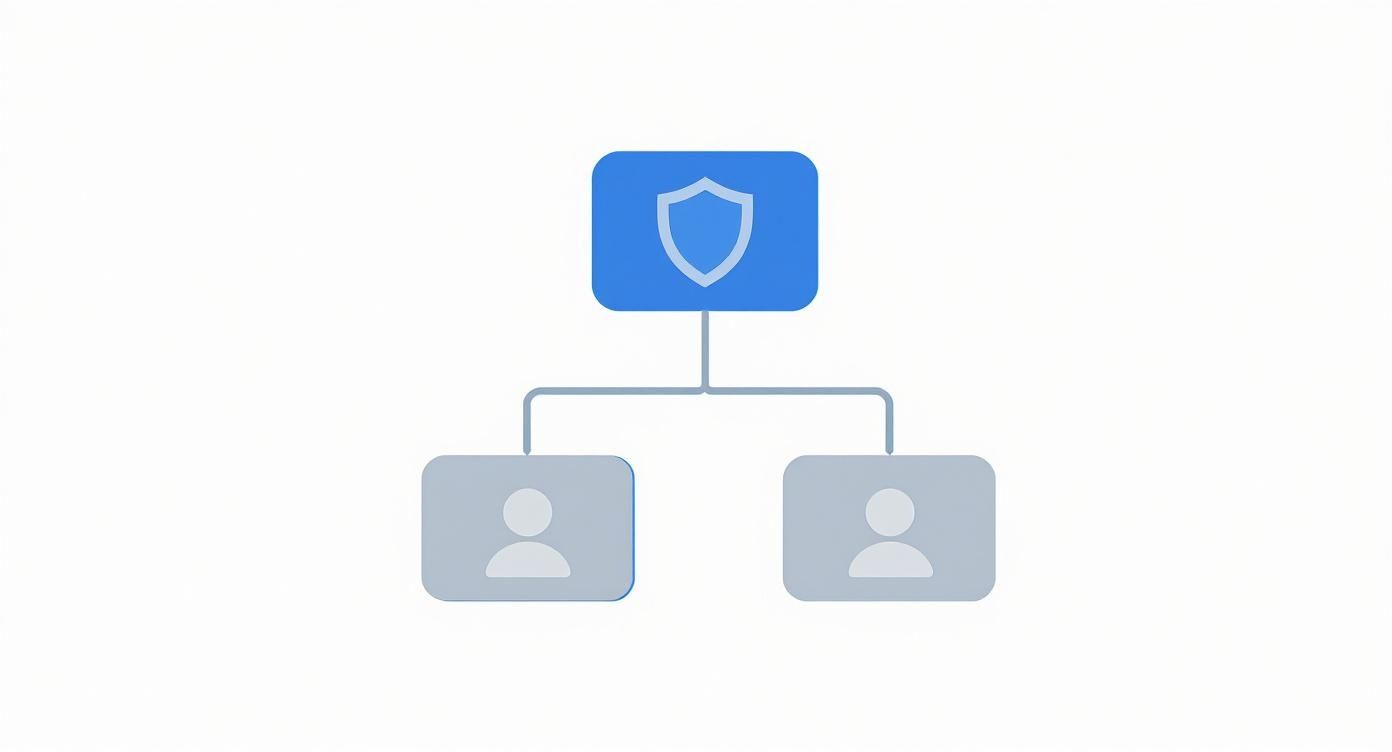
As you can see, everything flows from one central hub, but the rules for each child can be completely different.
Why Filtering Matters More Than Ever
Getting these settings right is more critical than ever. The U.S. parental control software market was valued at around USD 227.5 million in 2024 and is expected to more than double by 2032. Why the surge? Increased screen time and the explosion of online gaming are big drivers, making robust content filtering an absolute must-have for parents today. You can read more about this expanding market and its trends to see just how quickly things are changing.
To help you get started, I’ve put together a simple table outlining some common filter levels I recommend for different age groups.
Comparing Content Filter Levels for Different Age Groups
This table is a practical starting point for setting restrictions that align with a child's developmental stage.
| Age Group | Recommended App Restrictions | Web Filtering Level | Example Allowed Content |
|---|---|---|---|
| Ages 3-7 | Educational only (e.g., PBS Kids Games, ABCmouse). In-app purchases blocked. | High (Whitelist): Only allows access to pre-approved websites. | Specific, pre-approved learning and video sites. |
| Ages 8-12 | Apps rated Everyone 10+. Approval required for all new downloads. | Medium: Blocks adult categories, social media, and forums. | YouTube Kids, educational wikis, moderated gaming sites. |
| Ages 13-17 | Apps rated Teen. Approval for paid apps or those with in-app purchases. | Low: Blocks explicit and illegal content categories. | Most websites, with filters for mature topics still active. |
Remember, these are just guidelines. You know your child best, so feel free to adjust these settings to better fit their maturity and your family's values.
By fine-tuning these filters, you're not just restricting—you're curating a healthier digital world. It's a proactive step that allows kids to explore the positive aspects of the internet while shielding them from its risks.
Establishing Healthy Screen Time Routines

Once you've got content filters in place, the next piece of the puzzle is managing when and for how long your kids are glued to their screens. This isn't just about blocking things; it's about teaching them crucial life skills like digital balance and time management.
A great way to approach this is by setting different daily allowances for different app categories. For example, you might decide one hour for gaming is plenty, but leave educational apps like Duolingo or Khan Academy completely unrestricted. This nudges them toward more productive screen time without you having to constantly police it.
Creating Smart Device Schedules
This is where you can really take back control and reduce the daily arguments. By setting up automated schedules, you establish clear, predictable routines that the device itself enforces. It's a game-changer.
Two of the most effective schedules I've seen parents use are:
- Downtime: This is perfect for after-school hours. You can block access to most apps and notifications, say from 4 PM to 6 PM on weekdays, ensuring homework and chores get done without the temptation of a quick game or video.
- Bedtime: This one is non-negotiable for protecting sleep. Setting a device to lock down from 9 PM to 7 AM helps prevent late-night scrolling that can seriously mess with their natural sleep cycles.
These schedules aren't a punishment. Think of them as creating a predictable structure that helps kids learn to disconnect on their own. It shifts you out of the "bad guy" role, because the device—not you—is the timekeeper.
Fostering a Healthy Digital Balance
Ultimately, the goal is to help your kids build a healthy, mindful relationship with their devices. The tools are a huge help, but they're most effective when you have open conversations about why these limits are good for them.
Setting up the tech is just one part of the equation. You'll also want to establish clear family rules around device use. For more ideas on that front, this practical guide to reducing screen time offers some excellent strategies that work hand-in-hand with your technical settings. By combining both, you're not just limiting screen time—you're giving your kids the foundation for lifelong digital wellness.
Going Beyond the Basics for Extra Peace of Mind
Once you’ve got content filters and screen time schedules locked in, you can start exploring some of the more powerful features that modern parental control tools offer. These features often extend beyond the screen and into the real world, giving you valuable insight without feeling like you're constantly looking over their shoulder.
Location tracking is one of the most practical tools in this category. It's less about surveillance and more about safety and simple coordination. For example, you can use a feature called geofencing to set up virtual perimeters around important places, like school, a friend's house, or home.
How Geofencing Gives You Automatic Updates
Setting up a geofence is surprisingly straightforward. You just draw a "safe zone" on a map within the app. From then on, you'll get an automatic notification whenever your child's device enters or leaves that area. It's a simple way to confirm they got to school safely without having to text them for an update.
Another advanced feature is the ability to monitor calls and messages. This is a tool that requires a delicate touch and should always be part of an open conversation about safety, not something done in secret. The goal here isn’t to spy, but to spot potential red flags—like signs of cyberbullying or messages from strangers—so you can step in before a situation gets out of hand.
Think of these advanced tools as a support system. They're most effective when they're part of an ongoing conversation about online safety and responsibility, helping protect your kids in situations they might not know how to handle alone.
It's clear that parents are looking for these more sophisticated tools. The parental control software market is expected to jump from USD 1.7 billion in 2023 to a massive USD 4.5 billion by 2032. This boom is driven by the demand for things like real-time alerts and behavioral analytics. You can dig into the trends driving this market expansion to see where things are headed.
Ultimately, these advanced features help you build a more complete safety net. For families who want to take that protection even further, looking into a NordVPN family plan for enhanced security can be a great next step to secure all your digital activities.
Beyond the App: Talking to Your Kids About Online Safety

Parental control apps are fantastic tools, but they’re only one piece of the puzzle. The most durable and effective safety net you can create is pairing those tech tools with open, honest conversations about why digital boundaries matter.
It's all about framing the rules as a partnership. When you explain that these settings are there to protect them from real risks—like scams, cyberbullies, or content that’s just not for them—it helps them understand the why behind the what. This approach turns a potential power struggle into a team effort.
Building a Foundation of Trust
Ultimately, you want to create an environment where your child feels comfortable coming to you if they see something strange or upsetting online. That trust is your real safety net, giving them a place to turn when an app's filter just isn't enough.
These conversations should start early and evolve as your kids grow. For a younger child, it might be as simple as explaining why we don't share our real names in games. With a teenager, that same conversation might grow into a discussion about their digital footprint and long-term online privacy.
The real goal is to equip your kids to make smart choices on their own. Parental controls are just the training wheels; they provide stability while your kids build the awareness and confidence to navigate the online world independently.
To make these talks stick, try a few of these strategies:
- Use real-world analogies. Comparing "online strangers" to strangers they might encounter at the park helps connect the dots.
- Schedule regular check-ins. Make talking about what they're doing online a normal part of your week, not just a reaction to a problem.
- Listen without jumping to conclusions. If they admit to a mistake, focus on finding a solution together. This builds trust far more than immediate consequences.
This approach ensures that even when you’re not looking over their shoulder, they have their own internal "parental controls" to guide them.
Common Questions Parents Ask About Digital Boundaries
Even after you've set everything up, you'll probably have a few questions pop into your head. That's completely normal. Let's walk through some of the most common things parents wonder about when they start using these tools.
So, Can My Kid Just Get Around These Controls?
It's a fair question—kids are clever. While no system is 100% impenetrable, good parental control software is designed to be tough to crack. Your best defenses are features like uninstall protection and, critically, a strong parent passcode that you don't share.
But technology is only half the battle. The real key is to combine these tools with honest conversations. Talk about why the rules are in place. When kids understand it's about keeping them safe, not just limiting their fun, it makes a world of difference.
Will Using Parental Controls Ruin the Trust I Have With My Teen?
This is probably one of the biggest worries for parents of older kids, and it’s a smart one to have. The trick here is all in the approach. Don't spring these controls on them as a punishment or a sign of mistrust.
Instead, frame it as a team effort. You’re working together to navigate a complicated online world safely. For teens, you can even ease up on some restrictions to give them more autonomy while keeping essential safety features active.
A great way to build trust is to set the rules with your teenager. You could agree that location sharing is non-negotiable for safety reasons, but let them have more say in their app time limits. This shows you respect their growing independence.
Do These Controls Work on Everything? A Phone, a Tablet, a Laptop?
Absolutely. Any decent parental control app knows that kids jump between devices. Most high-quality services provide multi-platform coverage, so you can manage their digital life across:
- Smartphones (both iOS and Android)
- Tablets
- Computers (Windows and macOS)
The best part is that you can usually monitor and adjust settings for all of these devices from one central dashboard on your own phone. Just make sure to double-check that the service you pick supports every gadget your family uses before you sign up.
Ready to build a safer and more balanced digital world for your family? AccountShare simplifies how you manage permissions and set healthy boundaries on all your shared accounts. Get started with AccountShare today and bring some peace of mind to your digital parenting.