

Explore spotify offline mode iphone: Your Quick Guide to Listening Anywhere
If you've ever had your favorite jam cut out right as the train goes underground, you know how frustrating it is to rely on a live internet connection. This is exactly where Spotify's Offline Mode for iPhone comes in—it’s a game-changer for anyone who wants their music to be as mobile as they are.
Simply put, this Spotify Premium feature lets you download playlists, albums, and podcasts directly to your iPhone. Once they're downloaded, you can listen anywhere, anytime, completely independent of Wi-Fi or your cellular data plan.
Your Guide to Uninterrupted Listening
Think of it as building a personal music library right on your device. It’s your go-to collection for flights, road trips through areas with spotty service, or even just your daily commute. This guide will walk you through everything you need to know, from downloading your first playlist to smartly managing your phone's storage.
Why You'll Love Offline Mode on Your iPhone
Here’s a quick look at the main advantages of downloading your Spotify music.
| Benefit | How It Improves Your Listening Experience |
|---|---|
| Save Mobile Data | By downloading your favorite tracks over Wi-Fi, you can listen for hours on the go without eating into your monthly data allowance. |
| Extend Battery Life | Playing local files is much easier on your iPhone's battery than constantly streaming, which requires a steady data connection. |
| Guaranteed Playback | No more buffering or dropouts. Enjoy crisp, uninterrupted audio in tunnels, rural areas, or even just buildings with poor reception. |
These benefits come together to create a much more reliable and seamless listening experience, putting you in control of your soundtrack.
With a Premium plan, you get a generous amount of space for your offline library—you can download up to 10,000 songs on each of up to 5 different devices. Just remember to go online at least once every 30 days to keep your downloads active and verified. You can find more details in Spotify's official guide to its download limits.
Getting Your Music and Podcasts Ready for Your iPhone
The secret to a great offline experience is thinking ahead. Before you find yourself on a flight or in an area with spotty service, you'll want to get your favorite playlists and podcasts downloaded. The best time to do this is when you’re connected to a solid Wi-Fi network—it'll save your mobile data for when you really need it.
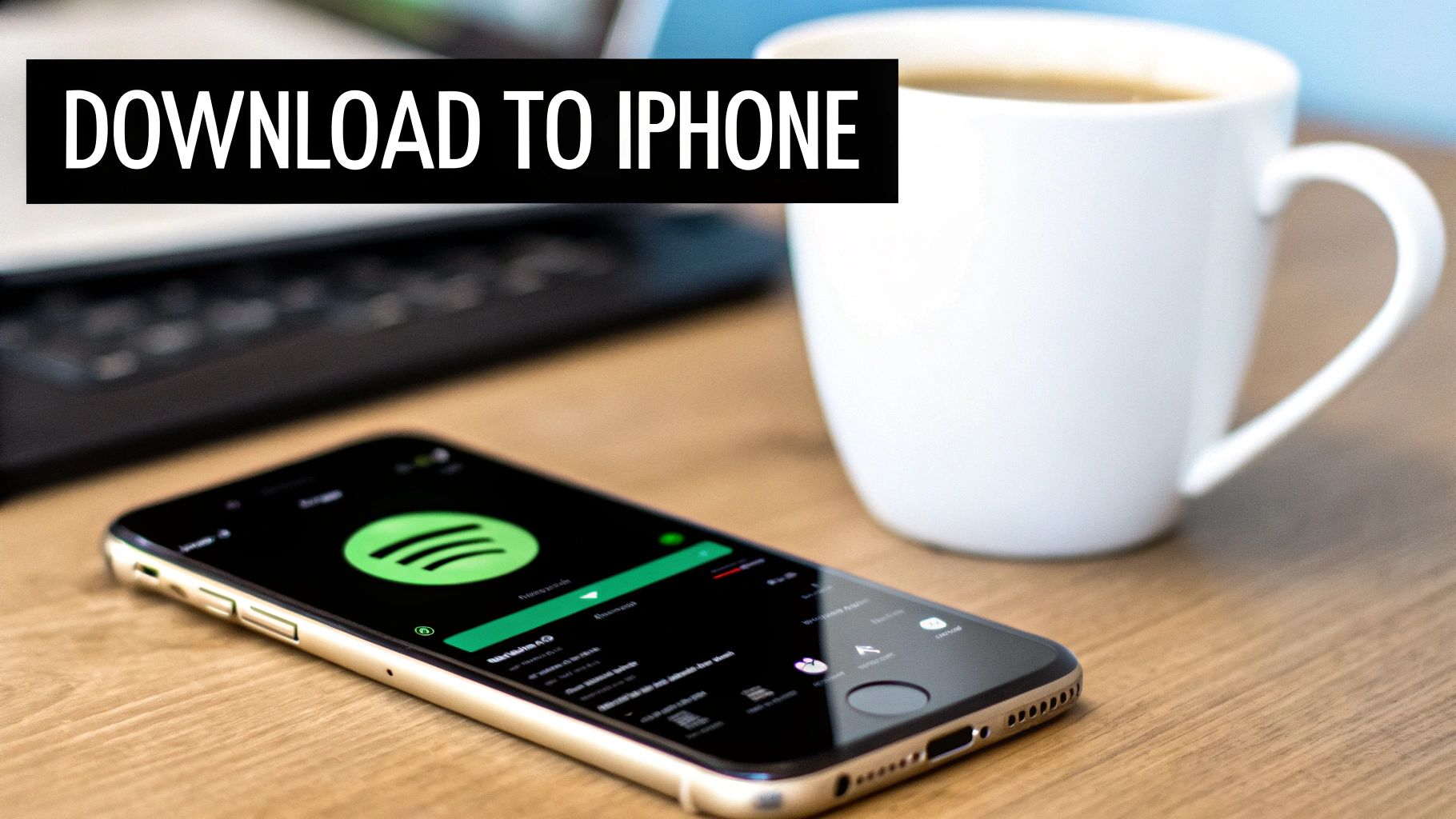
Just pull up the playlist, album, or podcast you want to save for later. Right near the top, you'll spot a small, downward-pointing arrow icon. Give that a tap.
Once you hit that arrow, it’ll turn green, and you'll see little green arrows pop up next to each track as it saves to your device. That green icon is your all-clear signal, letting you know the content is successfully downloaded and ready for Spotify offline mode on your iPhone.
A Quick Word on Data and Security
Spotify is smart enough to download only over Wi-Fi by default, which is a great data-saving feature. But what if you’re about to head into the subway and forgot to download that new album? You can override this setting.
- To download using your data plan: Head into Settings, then Audio Quality, and flip the switch for “Download using Cellular.” Just be mindful—those high-quality tracks can eat through your data allowance pretty quickly.
It's also worth thinking about security, especially if you're using a public network at a coffee shop or airport. It's always a good idea to secure your connection when downloading on public Wi-Fi to keep your personal info safe.
Here's a pro tip I use all the time: I have a dedicated playlist called "Commute Mix." Whenever I hear a song I like, I add it there. The playlist is set to auto-download on Wi-Fi, so my favorite tracks are always waiting for me without any last-minute hassle.
You can easily spot all your downloaded content in your library—just look for that same green symbol next to the playlist or song title. For more tricks and a full rundown, this guide on how to https://accountshare.ai/blogs/new/play-spotify-offline is a great resource to make sure you're set for any situation.
Flipping the Switch to Offline Mode
You've done the heavy lifting by downloading your favorite playlists and podcasts. Now, it's time to take full control and tell Spotify exactly when to use that local music library. Manually activating Spotify's offline mode on your iPhone is the surefire way to prevent the app from using any cellular data, which is a lifesaver when you're on a tight data plan or about to board a plane.

Ready to go off the grid? Just open up the Spotify app.
- Tap the Home icon in the bottom-left.
- Next, tap your profile picture at the very top-left of the screen.
- Go into Settings and privacy.
- Select Playback from the list of options.
Toggling Offline Mode On and Off
Right inside the Playback menu, you'll find the Offline mode toggle. This is the magic switch.
Give it a tap, and you'll see the app instantly refresh. Suddenly, anything you haven't downloaded will vanish. Your library will now only show the tracks, albums, and podcasts saved directly to your iPhone. This is a deliberate action, very different from just losing your internet connection where the app might buffer or fail. By toggling this on, you're giving a clear command: "Spotify, only use what's already on my phone."
This simple toggle turns your streaming app into a personal, self-contained music player. It's the best way to guarantee you won't accidentally burn through your data cap or get hit with surprise roaming charges when traveling abroad.
Think of it as putting up a digital "do not disturb" sign for your cellular connection. Your music becomes completely reliable, no longer dependent on spotty reception.
When you're back on Wi-Fi or ready to start streaming again, just follow the same path and flip the switch back off. Your full online library will reappear instantly.
Smartly Managing Your Downloads and iPhone Storage
Having a massive offline music library is a fantastic perk of a Spotify Premium subscription, but those downloaded tracks have to live somewhere—and that somewhere is your iPhone's precious storage space. It’s surprisingly easy to fill up your device with playlists and podcasts, which is why a little digital housekeeping is essential to keep everything running smoothly.
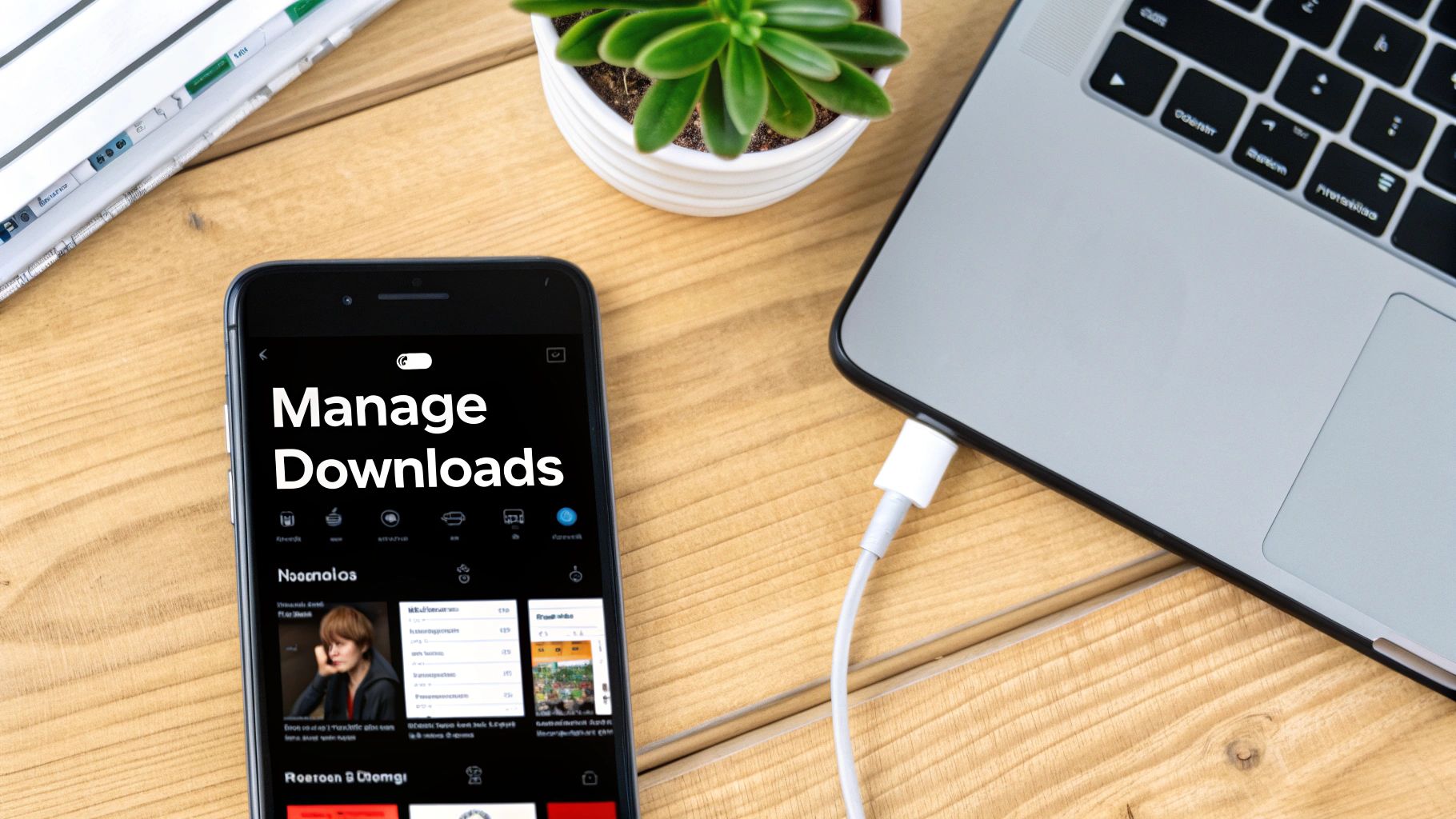
Thankfully, Spotify makes it easy to see exactly what you’ve got stored offline. You don't have to go digging through your phone's settings to figure it out.
- Just head over to Your Library.
- At the top of the screen, tap the Downloaded filter.
This instantly shows you every single album, playlist, and podcast episode you've saved. From here, you can quickly spot that old road trip playlist or a podcast series you've already finished.
Keeping Your Storage Tidy
Getting rid of downloads is just as straightforward as adding them. Find a playlist you no longer need offline and tap that little green downward-arrow icon. It will change back to a plus sign, and just like that, the files are removed from your iPhone.
If you're looking for a fresh start or need to free up a lot of space quickly, there's a "nuke" option. Go to Settings > Storage > Remove all downloads. One tap and it's all gone.
Spotify officially recommends keeping at least 1GB of free space on your device for the app to work properly, which is especially important when using Spotify offline mode on an iPhone. This little buffer helps prevent frustrating app crashes and keeps the experience snappy. You can find more user-sourced advice in these community discussions on Spotify’s performance.
Pro Tip: Don't forget to clear the cache. Navigate to Settings > Storage > Clear cache. This action won’t touch your precious downloads, but it will get rid of temporary data that builds up over time and eats away at your storage.
By taking a few minutes every so often to prune old downloads and clear the cache, you can easily maintain a fantastic offline library without ever having to worry about running out of space on your iPhone.
Troubleshooting Common Offline Mode Problems
Even a feature as solid as Spotify's Offline Mode can hit a snag every now and then. Nothing’s more frustrating than your downloaded playlist refusing to play just as your flight takes off. The good news is that most of these headaches have surprisingly simple fixes.
Before you start digging into complex settings, let's cover the basics. These quick checks solve the problem more often than you'd think.
- Restart the App: The classic "turn it off and on again." Force-closing the Spotify app and relaunching it can clear out minor, temporary glitches.
- Check Your Subscription: Remember, Offline Mode is a Premium feature. It's worth a quick trip to your account settings to make sure your subscription is still active.
- Update Spotify: Running an old version of the app is a common cause of weird bugs. Pop over to the App Store and see if there’s an update waiting for you.
When The Simple Fixes Don't Cut It
If a quick restart didn't do the trick, the issue might be a little more stubborn. One of the most common complaints I hear is the app crashing a few seconds after playing a downloaded song. This usually points to a problem with corrupted cache files or a bad installation, which can also chew through your battery life.
For these persistent problems, a clean reinstall is your best bet. Yes, it’s a pain to re-download all your music, but deleting and reinstalling the app almost always clears out whatever corrupted data was causing the crashing and playback errors.
A pro tip from experience: Spotify officially recommends keeping at least 1GB of free space on your iPhone. If your storage is packed, the app can struggle to function correctly, leading to all sorts of performance issues, including crashes.
Device limits can also be a sneaky cause of syncing problems. If you use Spotify on your laptop, tablet, and phone, you might have hit your device cap for offline downloads. It’s a good idea to check how many devices are on your Spotify account to make sure everything stays in sync. For more details on this, you can check out this guide: https://accountshare.ai/blogs/new/how-many-devices-on-spotify
Finally, if the problem seems bigger than just Spotify—like your whole phone is acting sluggish—it might not be the app's fault. In that case, it can be helpful to troubleshoot general phone performance issues to get your device running smoothly again.
Frequently Asked Questions About Spotify Offline Mode
Even with a step-by-step guide, a few questions always pop up when you start using Spotify offline mode on an iPhone. Let's clear up some of the most common ones so you can get back to your music.
Can I Download Individual Songs Instead of a Whole Playlist?
This is probably the most-asked question, and the short answer is no—not directly. Spotify's system is built around downloading entire playlists or albums, not single tracks.
But there's a really easy workaround I use all the time. Just create a new, dedicated playlist. I call mine "Offline Singles," but you can name it whatever you want. Add any individual songs you want to save to that playlist, and then just tap the download arrow for that one list. It's a simple way to get the same result and keep things organized.
Why Do My Downloads Sometimes Disappear?
It’s definitely frustrating when your downloaded tracks vanish, but don't worry—it’s usually for a simple reason and your music isn't gone for good.
Here are the usual suspects:
- You Haven't Connected in a While: Spotify needs you to go online at least once every 30 days. This is just to verify your Premium subscription is still active and keep your downloads authorized.
- You've Hit Your Device Limit: A Premium account lets you download music on up to five different devices. If you log in and download on a sixth, Spotify will automatically kick one of the older devices off the list.
- You Reinstalled the App: If you ever delete and reinstall the Spotify app, it wipes all your local data, including your downloads. You'll have to download them again.
Sharing your account details can sometimes cause these device deactivations unexpectedly. If you're on a shared plan, it's smart to know the ground rules. You can learn more about how to share Spotify Premium safely to avoid these hiccups.
How Much Data Does Downloading a Playlist Use?
The data consumption comes down to your audio quality settings. Better sound means bigger files, which means more data.
As a quick rule of thumb, here’s a rough estimate:
- Normal Quality: About 2MB per song.
- High Quality: Closer to 5MB per song.
- Very High Quality: Jumps up to 8MB per song.
So, a 100-song playlist on "High Quality" will use around 500MB of your data. This is exactly why it's always best to do your downloading over a Wi-Fi connection—it’ll save you from a nasty surprise on your phone bill.
Does Offline Mode Use Less Battery?
Yes, absolutely. Playing files stored directly on your iPhone is way more power-efficient than streaming music over Wi-Fi or cellular. When you stream, your phone is constantly working to pull in data and maintain a stable network connection.
Flipping on offline mode cuts out that constant data exchange, which gives you a noticeable boost in battery life. It's the perfect setting for long flights, commutes, or any situation where you need to make your battery last as long as possible.
This robust offline experience is a big reason Spotify has been so successful. It helped the platform grow to over 276 million Premium users globally by early 2025, especially in places where mobile data can be pricey or unreliable. To learn more about this growth, you can discover more insights about Spotify's growth on The Social Shepherd.
Ready to cut down on your subscription costs without giving up premium features? With AccountShare, you can join a group to access services like Spotify Premium at a fraction of the price. Enjoy all the benefits, including offline listening, while saving money every month. Check out your options at https://accountshare.ai today.