

Share Spotify Playlist
Copy a Spotify playlist from the Share menu and send the link through your preferred messaging or social app. For group editing, use a collaborator invitation instead, but remember that Spotify's native sharing and collaboration links are valid for only 7 days.
You've found the right soundtrack for a road trip, office party, or family gathering. The problem starts when someone asks, “Can I add songs too?” A regular playlist link may let people listen, but it doesn't automatically give them editing access. A private playlist may not open through an ordinary link at all.
The safest way to share Spotify music is to decide what recipients should be able to do before sending anything. Listening, following, discovering, and editing are separate permissions. Choose the least powerful option that fits the occasion, then use a collaboration invitation only when the group needs to change the playlist.
Introduction to Spotify Playlist Sharing
Spotify playlist sharing has grown into a mature social habit rather than a minor convenience. Spotify says playlisting dates back to 2008, and by 2026 listeners had created more than 9.67 billion playlists across the platform's history. That cumulative figure includes playlists created over time, not necessarily active or publicly shared collections, but it shows how central user-curated music has become to Spotify's experience. (Spotify's history of listening trends)
That scale matters in practical terms. A playlist can be a personal archive, a shared mood board, a running order for an event, or a group project that several people maintain. Each use case calls for a different access level.
Choose the permission before the link
For casual sharing, a standard playlist URL is usually enough. It gives someone a route to the playlist for listening, provided the playlist's privacy settings allow access. This works well when you're sending a finished road-trip mix to friends or posting a public discovery playlist on social media.
For a group that needs to contribute, use Spotify's collaborative playlist feature. That invitation grants the ability to add, remove, and reorder tracks, so it should go only to people you trust to edit the collection.
For a website or newsletter, consider an official Spotify embed or playlist link rather than copying audio files. An embed directs visitors back to Spotify, while reproducing music elsewhere can create copyright and licensing problems.
A useful companion for organizing shared streaming access is Spotify playlist management, especially when several people use digital services together. The core rule remains simple: share the playlist for listening, invite collaborators for editing, and never treat a normal URL as an editing credential.
Sharing via Direct Link and Social Platforms
The direct-link method is the fastest way to share a Spotify playlist. Open the playlist in the Spotify mobile or desktop app, select the Share control, and choose Copy link. You can then paste the URL into WhatsApp, email, a group chat, Instagram, or another service that accepts links.
On mobile, the Share menu may also offer direct shortcuts to installed apps. On desktop, copying the link gives you more control because you can add an explanation before sending it. That small message helps recipients understand whether you're sharing a finished playlist or asking them to help curate it.
Check access before distributing
A copied link doesn't override the playlist's privacy status. Spotify's privacy guidance distinguishes between ordinary sharing and private access. A private playlist can't be reached through a normal shared link, while a private-sharing link can provide access for only 7 days. (Spotify's playlist privacy and access guidance)
Before sending the link, open the playlist settings and confirm that its visibility matches your intention:
- For private listening: Use the appropriate private-sharing option instead of assuming a standard URL will work.
- For public discovery: Make sure the playlist is available for the audience you're targeting.
- For group editing: Generate a collaborator invitation, not just a playback link.
- For a temporary event: Note when the access window ends so late arrivals don't receive a dead link.
The distinction prevents a common event-day failure. Someone sends a regular URL to a private playlist, guests click it, and the organizer assumes Spotify is broken. The core issue is that the link type and playlist visibility don't match.
Match the channel to the audience
Messaging apps work well for small groups because the sender can explain the purpose and answer questions immediately. Instagram Stories and similar social formats are better for discovery, especially when the playlist cover and title communicate the mood clearly. Spotify's sharing options also connect with platforms such as WhatsApp, Instagram, TikTok, Snapchat, Facebook, LinkedIn, and Threads, with some formats showing artwork or a short preview before a listener opens Spotify. (Spotify's social sharing options)
Don't confuse an attractive preview with permission to edit. Social posts generally promote listening, while collaboration requires a separate invitation. For a more detailed walkthrough of the standard process, see how to send a Spotify playlist.
Creating Collaborative Playlists for Groups
A collaborative playlist is useful when the group needs to build the soundtrack together. It suits a road trip where passengers contribute songs, a party where guests request tracks, or a team gathering where everyone wants a voice in the queue. It's the wrong choice for a finished playlist that people only need to hear.
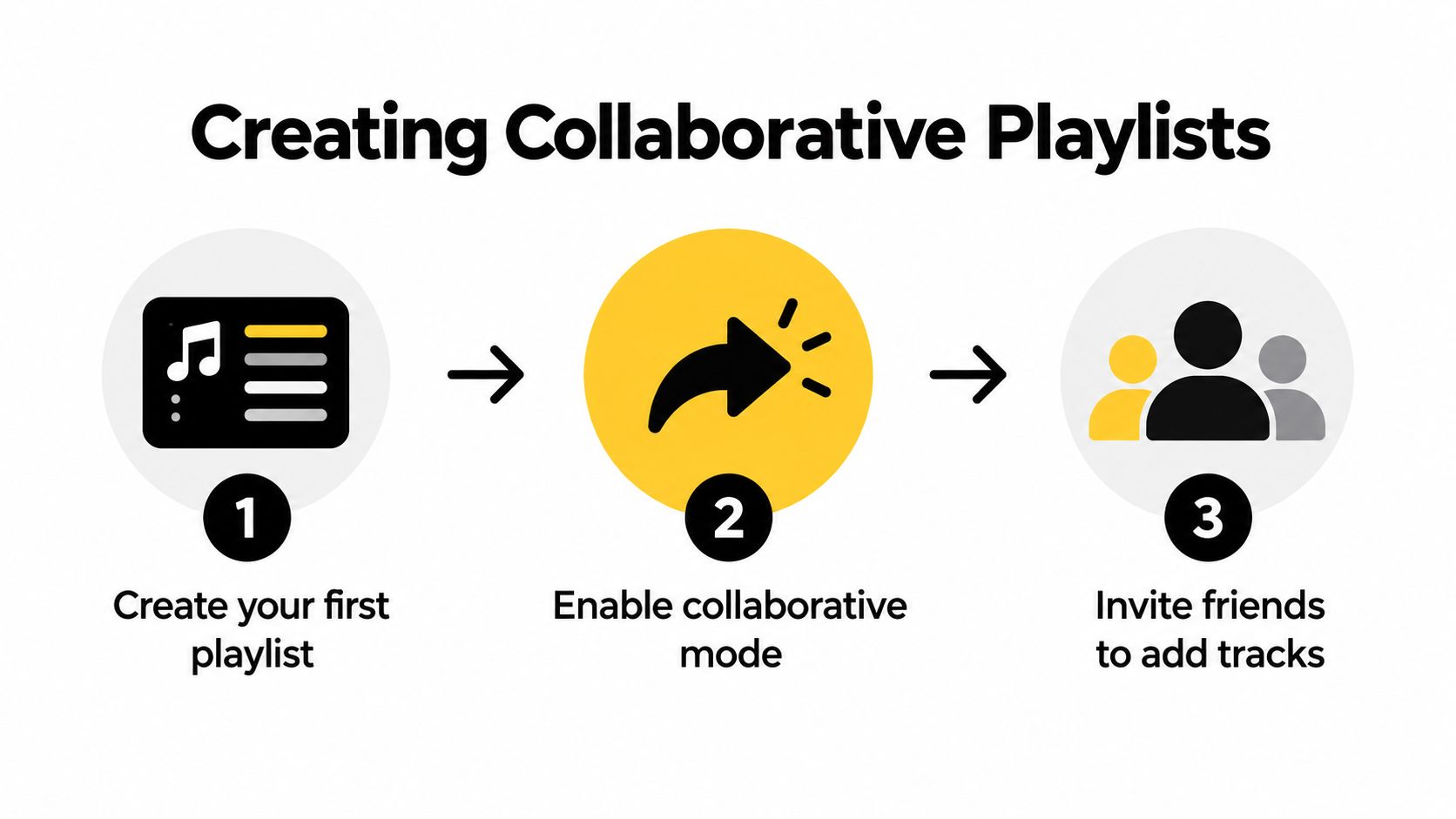
The workflow starts with a playlist you created. Open it in the Spotify app, select the collaborator or invite-users control, generate the invitation link, and distribute that invitation through a controlled channel. Spotify's official instructions cover sharing the invitation through apps, copied links, or social platforms. (Spotify's collaborative playlist instructions)
Standard link versus collaborator invitation
The two links serve different purposes:
| Sharing method | What it does | Best use |
|---|---|---|
| Standard playlist URL | Lets people discover or listen, subject to playlist privacy | Finished mixes and public recommendations |
| Collaborator invitation | Grants editing capability to the recipient | Group curation and shared playlists |
| Private-sharing link | Provides temporary access to a private playlist | Limited-audience listening |
A normal playlist URL is not an editing token. Sending it to a friend won't make that person a collaborator. Conversely, a collaboration invitation gives the recipient meaningful control over the playlist, so forwarding it casually can create unwanted changes.
Spotify says a collaborator can add, remove, and reorder tracks. That flexibility is helpful during a live event, but it also means one person can disrupt the running order or remove songs that others expected to hear. A group playlist works better when someone owns the final decision, even if several people can suggest tracks.
Set simple rules before inviting people
Tell contributors what the playlist is for and how they should use it. For example, you might allow road-trip songs but prohibit explicit tracks, duplicate versions, or tracks longer than the group wants during dinner. Clear rules reduce arguments after someone adds a song that technically fits the theme but ruins the atmosphere.
Use this operating pattern:
- Create one owner account. That person handles the final review and access changes.
- Send the invitation privately. Use the event group chat rather than posting it publicly.
- Verify the recipients. Check who received the link before the playlist starts filling up.
- Review the contents regularly. Remove unsuitable tracks and restore the intended order.
- Regenerate access when necessary. The invitation link is valid for only 7 days, so late participants need a newly issued invitation.
For a longer-term group project, document the playlist owner and keep a backup list of contributors. How to make a group Spotify playlist can help with the creation process, but permission management is what keeps the playlist usable once people start editing.
Practical rule: If recipients only need to hear the music, never send them the collaborator invitation.
Integrating Spotify with Third-Party Apps
Spotify links are most reliable when the recipient's goal is to open Spotify and listen. That makes them practical in Discord channels, WhatsApp groups, event-management messages, newsletters, and productivity spaces where a clickable URL is enough. The external app handles conversation or coordination, while Spotify remains the place where playback happens.
The experience becomes less predictable when you're trying to maintain the same playlist across different music services. A Spotify playlist link won't automatically become an Apple Music playlist, and a cross-platform tool may need to match tracks manually. Differences in availability, artist versions, explicit-content settings, and regional catalogues can leave gaps that someone must review.
Separate discovery, invitation, and changes
Developers often get into trouble by treating every playlist URL as if it served the same function. A more dependable architecture separates three operations:
- Discovery: Use a standard playlist link so people can find or play the collection.
- Invitation: Use Spotify's collaboration invitation when a person needs editing rights.
- Mutation: Use authenticated API requests when an authorized application needs to change tracks.
Spotify's Web API represents collaboration as a playlist-level boolean attribute. It also makes publication and collaboration mutually exclusive, meaning a playlist can't have both public and collaborative set to true at the same time. Creating a collaborative playlist therefore requires the appropriate playlist-modification OAuth scopes, including playlist-modify-private and, where applicable, playlist-modify-public. (Spotify's Web API playlist concepts)
That constraint affects automation. A workflow that tries to create one playlist as both a public showcase and a collaboratively editable collection will fail by design. The cleaner solution is to choose the primary purpose, then create separate assets if the audience needs both public discovery and controlled group editing.
Choose integrations for the actual job
Discord is useful when a community already discusses music there and needs a quick route into Spotify. Apple Music is relevant when members use different streaming ecosystems, but cross-platform conversion needs a review step. A shared document or event workspace can hold the playlist link, rules, and owner details without granting anyone additional Spotify permissions.
OAuth consent should be explicit, and applications should request the least privilege they need. An app that only displays a playlist shouldn't receive permission to modify it. Remove inactive collaborators and avoid using possession of a playback URL as proof that someone is authorized to make changes.
Embedding Playlists for Businesses and Creators
Embedding a Spotify playlist on a website can be a useful way to present a soundtrack without uploading the audio yourself. A blog, event page, artist site, or newsletter can direct readers to an official Spotify player or playlist URL. The visitor chooses whether to open Spotify, and the business avoids pretending that a playlist link is a licence to redistribute the underlying recordings.
That distinction matters for creators. A playlist link points to Spotify's service and its catalogue access rules. It doesn't authorize you to download the tracks, place them inside a podcast episode, use them as background audio in a video, or create a downloadable compilation.
Keep the playlist and the audio separate
Spotify's creator guidance says that using another party's music or intellectual property in a podcast requires permission or appropriate rights. It also warns creators not to use podcasts to distribute music tracks or DJ mixes. (Spotify's copyright education for creators)
For a business, the practical choices look different depending on the output:
| Use case | Safer approach |
|---|---|
| Personal recommendation | Share the Spotify playlist URL |
| Public playlist discovery | Publish the link or use an official embed |
| Event soundtrack | Confirm the venue and public-performance requirements |
| Podcast or video | License the music separately before including audio |
| Downloadable mix | Obtain the rights needed for reproduction and distribution |
A fitness instructor might share a Spotify playlist for clients to play on their own accounts, but that isn't the same as adding the music directly to a workout video. An educator can recommend a classroom playlist, yet should still check whether the intended use involves public playback or copied audio. A business newsletter can feature a listening link, but it shouldn't imply that the company owns the tracks.
Treat commercial use as a rights question
Music rights can involve both the sound recording and the underlying composition. Platform availability doesn't remove local copyright obligations, and Spotify's player doesn't grant blanket commercial, broadcast, or synchronization rights.
The most workable pattern is to use Spotify for discovery and playback, then secure separate permissions for any use that reproduces or synchronizes the music outside Spotify. Describe the playlist accurately, link to the official destination, and avoid extracting audio from the service. That approach gives audiences a convenient way to listen without turning a recommendation into an unauthorized distribution channel.
Best Practices and Security Considerations
A shared playlist needs maintenance, especially when it supports a recurring event or a group that changes over time. Start with the narrowest permission, keep one accountable owner, and treat every invitation as temporary access rather than a permanent membership record.
Use this short control checklist:
- Review visibility: Confirm whether the playlist is public, private, or available through temporary sharing.
- Remove unwanted collaborators: Open the playlist's collaborator controls and revoke people who no longer need editing access.
- Check the contents: Look for accidental additions, removals, reordered tracks, and unsuitable versions.
- Protect invitations: Don't post an editing link in a public channel or forward it beyond the intended group.
- Plan for expiry: A collaboration invitation lasts 7 days, so issue a new one for people joining after the original window.
- Separate long-running access: Keep the playlist private or public according to its purpose, and re-invite active editors when a new curation period begins.
A regular listening link is usually the better choice for a finished playlist because it limits the recipient's role. Collaboration should be temporary and purposeful, not the default setting for every share.
Before the event starts: Test the link from a recipient account, confirm the playlist opens, and check that contributors have the permission they actually need.
If you're coordinating several shared digital services alongside music, AccountShare provides shared-account management with password-sharing options and customizable permissions. Visit AccountShare to organize access more deliberately and reduce the confusion that comes from sending the wrong link to the wrong person.