

How to Stream Netflix From Phone to TV a Simple Guide
So you want to stop squinting at your phone and get your Netflix binge up on the big screen? Great idea. It's way simpler than you might think. Essentially, you just use the Netflix app on your phone to "cast" your show wirelessly to a compatible TV or device, or you can go old-school with a direct cable connection. Either way, your phone becomes the ultimate remote control.
Let’s walk through the best ways to get it done. We'll cover everything from the slickest wireless options to the simple reliability of a good old-fashioned HDMI cable, so you can find the perfect method for your setup.
Quick Comparison of Netflix Streaming Methods
Before we dive deep, let's get a bird's-eye view. Here's a quick look at the most popular ways to stream Netflix from your phone, comparing what you'll need, how easy it is, and what situation it's best for.
| Method | Required Equipment | Ease of Use | Best For |
|---|---|---|---|
| Chromecast | Chromecast dongle, Wi-Fi | Very Easy | Anyone with a Google ecosystem or a TV without smart features. |
| AirPlay | Apple TV, AirPlay-compatible TV | Very Easy | Apple users who want seamless integration between their devices. |
| Smart TV/Roku/Fire TV App | Smart TV or streaming device | Easy | The most common scenario; using the TV's own app for the best experience. |
| HDMI Cable & Adapter | HDMI cable, phone-specific adapter | Easy | Situations with no Wi-Fi or when you need a guaranteed, stable connection. |
| Screen Mirroring | Smart TV or streaming device | Moderate | A last resort when casting isn't supported; quality can be lower. |
This table should give you a solid starting point. Now, let's explore which path is the right one for you.
Wired vs. Wireless: Your First Big Decision
The first choice you'll make is whether to go wireless or plug in a cable. Honestly, it all comes down to the gear you have on hand and what you find most convenient. This little flowchart can help you figure out your best path forward.
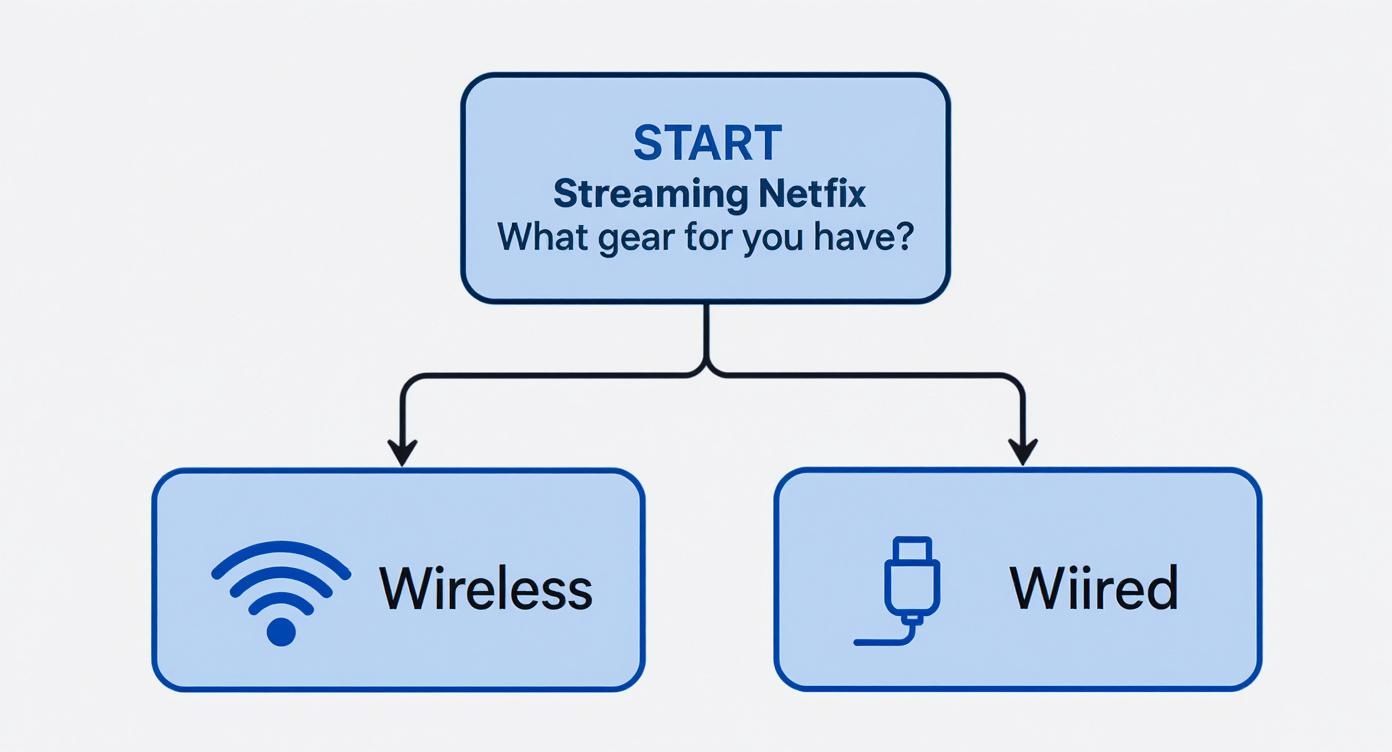
As you can see, the equipment you already own pretty much points you in the right direction—either toward the effortless freedom of Wi-Fi or the rock-solid stability of an HDMI cable.
What Are Your Real-World Streaming Options?
The ways we get Netflix from a phone to a TV have definitely changed over the years. For a long time, the heavy hitters were Google Chromecast and Apple AirPlay, alongside the casting features built right into smart TVs. But the streaming game is always evolving.
Back in 2019, Netflix made a pretty significant move by phasing out direct casting support for many newer smart TVs and streaming players—basically, any device that came with its own remote and a dedicated Netflix app. The idea was to gently nudge us into using the native TV app instead, which gives Netflix better control over the viewing experience and analytics. You can read more about Netflix’s strategy for TV app usage on fortune.com.
The bottom line: While casting from your phone is still a fantastic and popular option (especially with a Chromecast), the industry standard is now to fire up the Netflix app directly on your TV or streaming box. Your phone has shifted from being the source of the stream to being more of a "second screen" for browsing and choosing what to watch next.
Don't worry, though. This guide covers all the current, reliable methods that still work flawlessly. We'll get into the details of each one, starting with the most popular wireless solutions.
Mastering Wireless Streaming with Chromecast and AirPlay
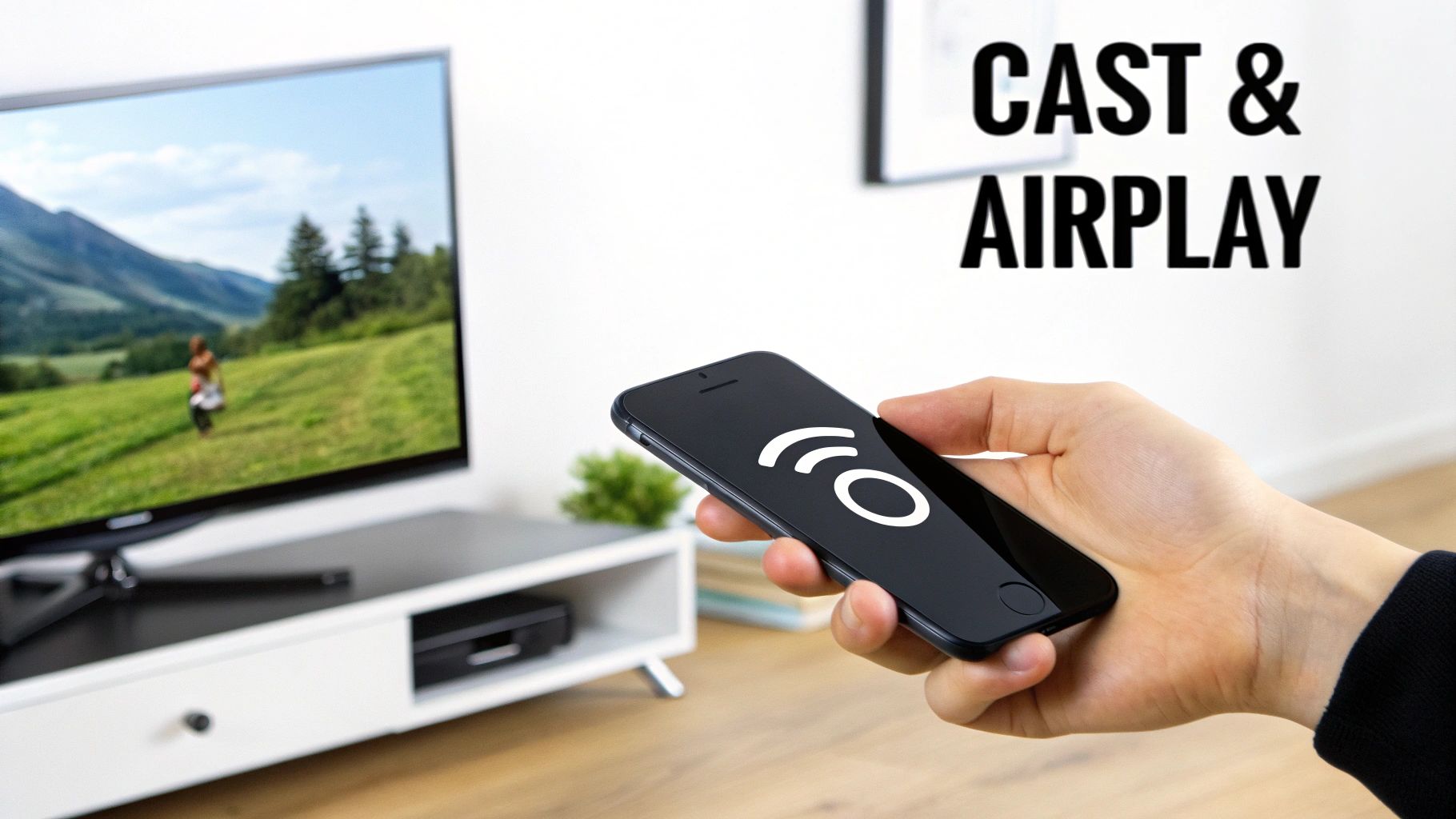
Let's be honest, cutting the cord—literally—is the easiest way to get Netflix from your phone to your TV. Wireless casting is king, and technologies like Google's Chromecast and Apple's AirPlay make it incredibly simple. They turn your phone into a high-powered remote without needing any cables.
A common misconception is that you're just "mirroring" your screen. What's actually happening is much smarter. When you hit the cast button, your phone tells the Chromecast or AirPlay device what to play. The streaming device then fetches the video straight from the internet. This frees up your phone, so you can take a call, scroll through Instagram, or even let the screen go dark without interrupting movie night.
Casting Netflix with Google Chromecast
Using a Chromecast is probably one of the most popular ways to get Netflix on the big screen, and it works beautifully with both Android and iPhones. The whole process hinges on finding that little cast icon inside the Netflix app.
First things first: make sure your phone and Chromecast are on the same Wi-Fi network. I can't stress this enough—it's the number one reason casting fails, so always check this before you start troubleshooting.
With that sorted, open Netflix on your phone and pick the movie or show you want to watch. In one of the corners of the screen, you’ll see a small, rectangular icon with Wi-Fi waves. That's the cast button you're looking for.
- Tap that cast icon, and a list of available devices on your network will pop up.
- Find your Chromecast in the list. It might be named "Living Room TV," "Basement TV," or whatever you called it during setup.
- Select it, and within a few seconds, the video will jump from your phone to your TV screen.
Your phone is now your remote control. You can pause, scrub forward or back, tweak the volume, and manage subtitles, all from the Netflix app.
Pro Tip: Is the cast icon missing? It happens. The first thing I always try is just restarting the Netflix app and then my phone. If it’s still playing hide-and-seek, a quick reboot of your Wi-Fi router usually does the trick by refreshing the network connections. For a deeper dive, check out our guide on how to cast Netflix for more tips.
Streaming with Apple AirPlay
If you're an Apple user, AirPlay offers an experience that's just as seamless. It lets you fling content from your iPhone or iPad straight to an Apple TV or any newer smart TV that supports AirPlay 2.
The setup is pretty much the same as Chromecast: your iPhone and the TV have to be connected to the same Wi-Fi network. From there, the steps are a little different but just as easy.
Start playing a show in the Netflix app and look for the AirPlay icon (it looks like a triangle pointing up into a rectangle). If you don't spot it right away, you can also swipe down from the top-right of your screen to open the Control Center, then tap the "Screen Mirroring" button.
A list of your devices will appear. Just tap your Apple TV or compatible smart TV, and the show will instantly start playing on the big screen. It’s a super reliable method that really shows off how well Apple’s devices work together.
Your Phone Is the Best Remote for Your Smart TV
Forget clicking around with a clunky TV remote. Even when you're not casting directly, your phone is the ultimate command center for navigating Netflix on the big screen. It’s like having a high-powered, intuitive "second screen" that makes finding and playing what you want a breeze.
Instead of slowly typing movie titles letter-by-letter using your TV remote, you can just use your phone's keyboard. Find that obscure indie film or browse through your favorite genres, and once you've picked something, you can launch it directly on your Roku, Fire TV, or smart TV's built-in Netflix app. It's a much smoother experience.
The Power of the "Second Screen"
With this setup, you're letting the native Netflix app on your TV do the heavy lifting—it’s optimized for the best picture and sound quality. Your phone just steps in as a smart, powerful controller.
Often, this connection happens automatically. If you open the Netflix app on your phone while it's already running on your TV, the two will sync up. Suddenly, your phone becomes a remote for what's happening on the television.
This is super handy for all the little adjustments you make during a movie night. For example, you can:
- Tweak Subtitles and Audio: Need to switch to a different language or turn on subtitles? You can do it all from your phone without pausing the action on the big screen.
- Dig Into the Details: Curious about an actor? While the show plays, you can pull up the cast list, read episode summaries, or find similar titles right on your phone.
- Manage Your Queue: Instantly add a new show to your watchlist or jump to the next episode with a quick tap.
This way of watching has become the new normal. The rise of connected TVs has been massive; by mid-2025, smart TV ownership had already climbed past 75% in many major countries. With streaming making up almost half of all TV time, using a native app controlled by a phone is just how we watch now. Nielsen's research offers a deeper look into these streaming trends.
How to Link Your Phone and TV App
Getting this to work is simple. First, make sure your phone and your smart TV (or a device like a Roku or Fire TV) are on the same Wi-Fi network. Then, just open the Netflix app on both devices.
You'll often see the "Cast" icon pop up in your phone app. Tapping it will let you select your TV from a list, linking the two.
Sometimes, the cast icon might not show up, but don't worry. Even without it, your phone can act as a remote. Once a show is playing on the TV, playback controls will usually appear automatically in your phone app, letting you pause, rewind, or change settings.
This method really gives you the best of both worlds: the rock-solid, high-quality stream from your TV's dedicated app, combined with the quick and easy navigation of your phone. It's the smartest way to stream Netflix from your phone to your TV when you're not using Chromecast or AirPlay.
The Unbeatable Reliability of an HDMI Connection
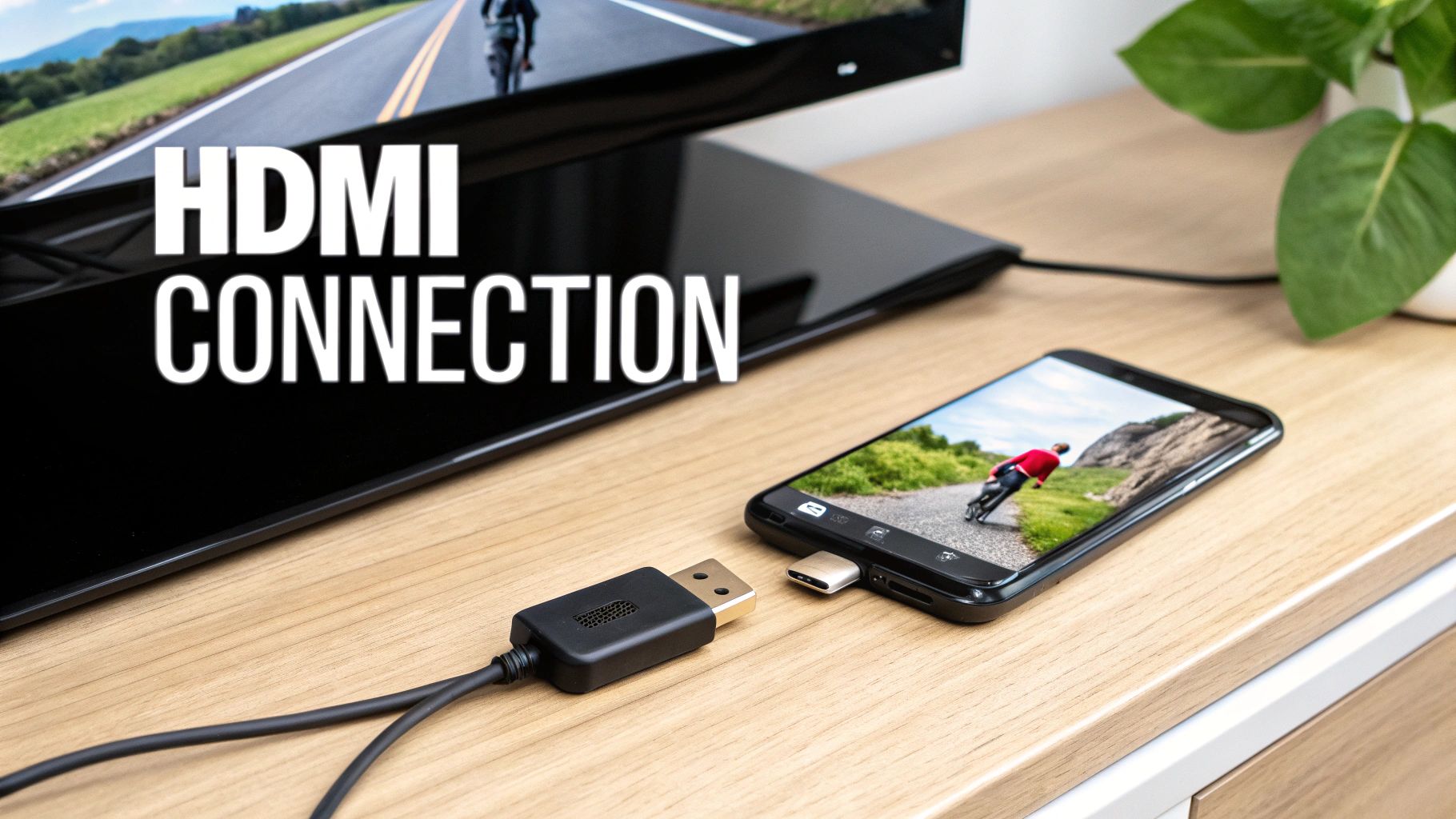
Sometimes, wireless streaming just doesn't cut it. When your Wi-Fi is spotty, overloaded, or just plain non-existent, a direct HDMI connection is your best friend. Think of it as the ultimate backup plan for a perfect, buffer-free movie night.
This old-school method is a lifesaver in tons of situations. I've used it in hotels with terrible guest networks and at a friend's place when no one could remember the Wi-Fi password. By physically plugging your phone into the TV, you completely sidestep any network headaches and get a rock-solid, high-quality picture.
Choosing the Right Adapter for Your Phone
Making this work boils down to one crucial piece of hardware: the right adapter. You need something to bridge the gap between your phone's charging port and a standard HDMI cable, and the one you need depends entirely on your phone.
- For iPhone Users: You'll need a Lightning to Digital AV Adapter. My advice? Stick with the official Apple version or a certified "Made for iPhone" (MFi) product. I've seen countless cheap knock-offs fail because they don't support the copy protection needed for apps like Netflix.
- For Android Users: Most modern Androids have a USB-C port, so you'll be looking for a USB-C to HDMI Adapter. Just like with iPhones, it pays to get one from a reputable brand that specifically mentions support for video output (sometimes called "DisplayPort Alt Mode").
Once you've got the adapter, you're golden. The setup couldn't be easier: plug the adapter into your phone, connect an HDMI cable from the adapter to an open port on your TV, and then switch the TV's input source to that port. Your phone’s screen should pop right up on the TV.
Avoiding the Dreaded HDCP Error
Ever connect everything just right, hit play on Netflix, and get nothing but a black screen or a cryptic error message? That frustrating experience is almost always caused by High-bandwidth Digital Content Protection (HDCP).
HDCP is an anti-piracy measure built into the video signal. For it to work, every single link in the chain—your phone, the adapter, the HDMI cable, and the TV—has to be HDCP compliant. If one piece isn't, the stream won't play.
This is exactly why I stress buying official or certified adapters. Cheap, uncertified dongles often cut costs by skipping HDCP compliance, which means they can't handshake with the protected Netflix stream. The result? A playback error every time.
Save yourself the headache and invest in the right gear from the start. A quality adapter ensures you can stream Netflix from your phone to your TV without any interruptions. If you want to explore other options, check out our guide on how to connect to Netflix on your TV for more tips.
Solving Common Netflix Streaming Problems
Even the most buttoned-up streaming setup can hit a snag. We’ve all been there: the dreaded buffering wheel spins endlessly, or a crucial icon vanishes right when you want to cast. These technical hiccups can quickly derail movie night, but the good news is that most of the common problems you'll face are surprisingly easy to fix.
More often than not, the culprit is a weak or unstable Wi-Fi connection. If you're seeing constant buffering, a pixelated picture, or audio that keeps dropping out, your network is probably struggling to keep up. Sometimes the problem is your network gear itself; learning how to choose a reliable WiFi router can make a world of difference.
This is especially true during prime time. Research shows that most Netflix binging happens between 8 PM and 10 PM. With over 60% of all streaming hitting TVs during this window, local networks can get congested pretty quickly, making a stable connection non-negotiable.
Diagnosing and Fixing Buffering or Poor Quality
When your stream just won't stop buffering, start with the basics. A simple restart of your phone, your TV, and your Wi-Fi router often works wonders. It's the classic "turn it off and on again" trick, and it forces everything to re-establish a fresh connection.
If that doesn't do it, try moving closer to your router or check for physical obstructions that might be blocking the signal. You can also dive into your Netflix account settings and give the app a nudge.
- Log into your Netflix account using a web browser.
- Head over to Account > Profile & Parental Controls.
- Click on your profile and look for Playback settings.
- Change the Data usage per screen from "Low" or "Medium" to "Auto" or "High."
This tells Netflix that your connection can handle a better-quality stream, which can sometimes stabilize the connection.
Key Takeaway: Poor video quality isn't always about your internet speed. Your Netflix subscription plan plays a huge role. The Basic plan is limited to Standard Definition (SD), so you'll need to upgrade to Standard for HD (1080p) or Premium for Ultra HD (4K) to get that crystal-clear picture.
When the Cast or AirPlay Icon Is Missing
It’s a common frustration: you open Netflix, ready to cast your show, but the Cast or AirPlay icon is nowhere to be found. The first thing you absolutely have to check is that your phone and your TV (or streaming device) are connected to the exact same Wi-Fi network. If one is on a guest network or a different band (like 2.4GHz vs. 5GHz), they won't be able to see each other.
If you’ve confirmed they’re on the same network and the icon is still AWOL, try force-closing the Netflix app on your phone and reopening it. It’s also worth checking if your TV or streaming device needs a software update, since outdated firmware can cause all sorts of compatibility issues. For a deeper dive, our guide on why Netflix won't load on your TV has more troubleshooting tips you can try.
Common Questions & Quick Fixes for Streaming
Even when you know the ropes, a few common questions always seem to pop up when streaming Netflix from your phone to a TV. Getting these details sorted can be the difference between a frustrating tech headache and a perfect movie night. Let's tackle the most frequent ones.
Can I Still Use My Phone While Casting?
Absolutely. This is one of the best parts about using a Chromecast or AirPlay.
Once you hit that cast button and your show starts playing on the TV, your phone has done its job. The streaming stick or smart TV takes over from there, pulling the video straight from the internet.
Feel free to answer texts, take a call, or doomscroll through social media. You can even lock your phone and put it in your pocket. The show on your TV will keep right on playing, which is a massive step up from basic screen mirroring where your phone is completely tied up.
Why Is My HDMI Adapter Not Working With Netflix?
You've got everything hooked up with an HDMI adapter, but all you see is a black screen or a strange error message. What gives?
The problem is almost always something called High-bandwidth Digital Content Protection (HDCP). It’s an anti-piracy measure that services like Netflix must use to prevent people from easily recording their content. For it to work, every single link in the chain—your phone, the adapter, the cable, and the TV—has to be HDCP-compliant.
Cheaper, uncertified adapters often cut corners and don't include HDCP support. When Netflix detects this, it blocks the signal. Sticking with official or well-reviewed certified adapters is your best bet to avoid this headache.
Will Streaming From My Phone Eat Up My Mobile Data?
Here’s the good news: when you cast to a device on your home Wi-Fi, the stream uses your home internet, not your phone's mobile data. Your phone just sends the initial command, which uses a negligible amount of data.
The only time it would drain your cellular plan is if you’re using your phone as a Wi-Fi hotspot for your TV or streaming stick. Otherwise, you can cast for hours on end without a single worry about your data cap.
If you have other tech questions that go beyond streaming, this list of general tech FAQs can be a really helpful resource.
Quick Note on Netflix Plans: A major exception to keep in mind involves Netflix's ad-supported plan. This cheaper tier does not support casting from a mobile device to a TV. You’ll need to be on an ad-free plan to use this feature.
How Do I Get Better Video Quality?
Is your picture looking blurry or pixelated? A few things could be at play, but they're usually easy to fix.
First and foremost, check your Netflix plan. The quality is hard-capped by your subscription level.
- Basic Plan: Standard Definition (SD) only.
- Standard Plan: Up to High Definition (HD, 1080p).
- Premium Plan: The only way to get Ultra HD (4K) and HDR.
You can have the fastest internet in the world, but you won't get a crisp HD picture with a Basic plan. If your plan is solid, the next suspect is your Wi-Fi. A weak or spotty signal will force Netflix to downgrade the video quality to avoid constant buffering.
Finally, you can take matters into your own hands. Log into your Netflix account on a web browser, navigate to Account > Playback settings, and change the "Data usage per screen" to High. This tells Netflix to always prioritize picture quality.
Ready to simplify your digital life? With AccountShare, you can get cost-effective access to premium streaming services and much more. Stop overpaying for individual subscriptions and join a group to share the costs securely and easily. Learn more about sharing accounts with AccountShare.