

How to Make a Spotify Account Private and Control Your Listening Data
Wondering who can see what you’re listening to on Spotify? While there isn't one magic "private mode" button, you can definitely lock down your account and reclaim your privacy. The trick is to combine a few key settings.
To truly make your Spotify account private, you'll need to tackle it from three angles: disabling your listening activity, setting your playlists to private, and using Private Sessions when you want to be completely invisible.
Taking Back Control of Your Spotify Privacy
Think of your Spotify profile as a room with a few different windows. There's one for your profile, one for your playlists, and another showing what you're listening to right now. By default, Spotify leaves some of these windows open for others to peek through.
This guide will walk you through how to close each of those blinds, giving you total control over who sees what. We'll cover the specific settings you need to change to hide everything from your late-night guilty pleasures to your meticulously crafted workout mixes.
Why Bother with Spotify Privacy?
Let's be real—managing your privacy isn't just about hiding that one embarrassing song you have on repeat. It’s about setting personal boundaries and making sure your listening habits aren't public information unless you want them to be. This becomes even more important if you're on a shared or family plan.
A few minutes spent tweaking your settings can save you from awkward conversations and keep your data secure. Plus, it ensures your recommendations are actually for you, not skewed by what your kids or roommates are listening to.
Beyond just Spotify, practicing good digital hygiene is always a smart move. For some broader advice on keeping shared accounts safe, these 10 key security tips to prevent unauthorized access are a great starting point. But for now, let’s focus on giving you a more private Spotify experience.
Managing Your Profile and Listening Activity
Your public profile and listening activity are the main windows into your musical world on Spotify. By default, the platform is built for sharing, but a few quick tweaks can hand the privacy controls right back to you.
The single biggest move you can make is to stop broadcasting what you're listening to in real-time.
Spotify has a feature called "Share my listening activity on Spotify." When it's on, anyone following you can see exactly what you're playing in the "Friend Activity" sidebar on the desktop app. Flipping this switch off is an instant privacy win, hiding your live listening from prying eyes.
Another setting to check is "Recently Played Artists," which appears on your public profile. It's not as immediate as live activity, but it still paints a clear picture of your tastes. Disabling this cleans up your profile, leaving just your display name, picture, and any playlists you've chosen to make public.
Finding the Right Toggles
Getting to these settings is a little different depending on whether you're on a computer or your phone.
- On Desktop: Click your profile picture in the top-right corner and head into Settings. Scroll down to the Social section, and you'll find the toggles for both your listening activity and recently played artists.
- On Mobile (iOS & Android): Tap your profile icon (top-left), navigate to Settings and privacy, and then tap Privacy & Social. The same options are right there.
This diagram gives a great overview of the different privacy levers you can pull.
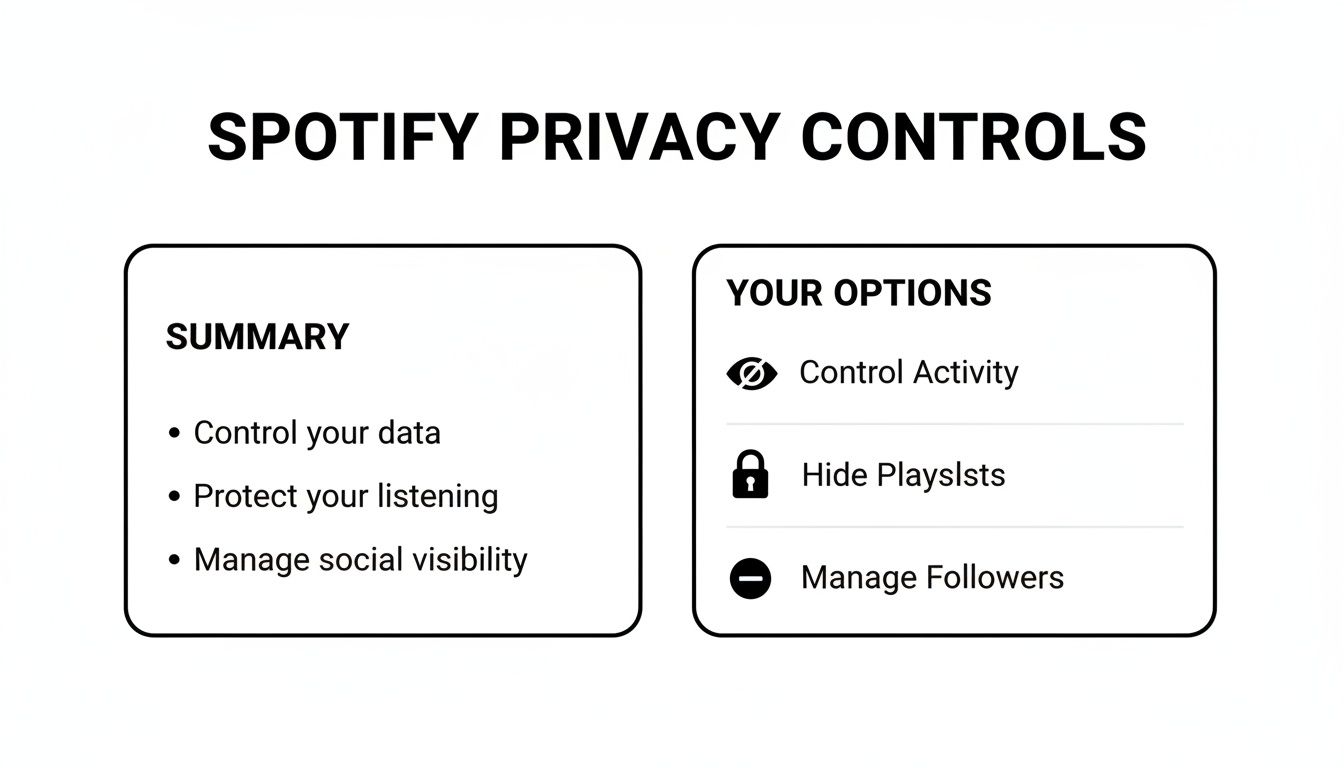
To simplify things, I've put together a quick reference table that breaks down the most important privacy settings and what they actually do.
Key Spotify Privacy Controls and Their Impact
| Privacy Setting | What It Controls | Platform Availability |
|---|---|---|
| Share my listening activity | Toggles the "Friend Activity" feed on/off for your followers. | Desktop & Mobile |
| Show recently played artists | Hides the list of artists you've recently listened to from your public profile. | Desktop & Mobile |
| Make playlists private/secret | Makes a specific playlist invisible to everyone but you. | Desktop & Mobile |
| Start a Private Session | Temporarily hides your listening activity for a single session. | Desktop & Mobile |
These settings give you granular control, letting you decide exactly how much you want to share and when.
Pro Tip: These settings are account-wide, but they become absolutely essential on a shared plan. If you're on a Family or Duo account, disabling public activity ensures your late-night guilty pleasures aren't broadcast to your sibling's or partner's friends.
Sharing a plan definitely comes with its own quirks. If you need a refresher on the best way to set one up, you can learn more about how to add someone to your Spotify account in our guide. Getting these privacy settings right from the start makes the whole experience better for everyone.
Need to Go Incognito? Use a Private Session
Sometimes, you just want to listen to something without the world knowing. Maybe you’re about to dive into a guilty pleasure pop playlist that would completely wreck your algorithm's carefully curated "Indie Chill" vibe. Or perhaps you're listening to a self-help podcast you'd rather not broadcast to your friends.
For moments like these, Spotify's Private Session is your best friend.
Think of it as the "incognito mode" for your listening activity. When you flip it on, whatever you play won't show up in your followers' "Friend Activity" feed. It’s perfect for those one-off listening sprees you want to keep under wraps.
One thing to remember, though: a Private Session doesn't hide your listening from Spotify's own recommendation engine. What you listen to can still influence your future Discover Weekly and other personalized playlists.
How to Start a Private Session
Getting a Private Session started is incredibly straightforward, whether you're at your desk or on the go.
- On the Desktop App: Just click your profile picture in the top-right corner. You'll see an option for Private Session in the dropdown menu. Click it, and a little lock icon will pop up on your profile pic to let you know you're hidden.
- On Your Phone (Mobile App): Tap your profile icon at the top-left, then navigate to Settings and privacy. From there, tap on Privacy & Social and you’ll see the toggle for Private Session.
Here's the catch: a Private Session isn't a "set it and forget it" feature. It will automatically turn off after six hours of inactivity or if you close and restart the app. You'll have to remember to turn it back on each time you want to go silent.
While specific numbers on Private Session usage are hard to come by, we know that social sharing is a huge part of the Spotify experience. The platform thrives on users discovering new music through their friends, as detailed in this comprehensive overview of Spotify's user base. Knowing how to quickly toggle your visibility on and off gives you the control to participate when you want and go private when you need to.
How to Make Your Playlists Private
Let's face it, your playlists are more than just a random assortment of songs. They're the soundtrack to your workouts, your study sessions, and maybe even your secret "Guilty Pleasures" 90s pop collection. By default, every new playlist you create on Spotify is public, meaning anyone who finds your profile can see it. Securing your playlists is a huge part of locking down your account's privacy.
The good news is that making a playlist private is incredibly straightforward, whether it's a brand-new creation or one you've had for years.
This simple tweak ensures your "Sad Day Songs" mix stays just for you. It’s a small but powerful step in controlling who sees what you listen to.
Changing Playlist Visibility on Any Device
Thankfully, Spotify keeps the process almost identical whether you’re on your phone or your computer, so you can manage your privacy from anywhere.
- First, head to your library and find the playlist you want to hide.
- On the desktop app, right-click the playlist name. On mobile, just tap the three-dot menu icon (usually near the top).
- From the options that pop up, simply select "Make Private."
And that's it! You might see a small lock icon appear next to the playlist's name. Your playlist is now officially hidden from your public profile.
Key Takeaway: A private playlist is totally invisible. No one can find it by searching, and it won't show up on your profile. You can, however, still share a direct link with a friend if you want them to have access without making it public for everyone.
Understanding Playlist Types
Spotify's terminology for playlists can get a little confusing, so here’s a quick rundown of what each type means:
- Public: This is the default. Anyone on Spotify can find and follow your playlist through search or by visiting your profile.
- Private: Completely hidden. Only you can see it and listen to it.
- Collaborative: These are shared playlists where you and friends can add, remove, and reorder songs together. They can be set to be either public or private among the collaborators.
Getting your music organized is just as important as keeping it private. For a deeper dive into becoming a power user, check out our guide on Spotify playlist management. Knowing how to use these settings is a game-changer, especially since playlists are one of the most-used features on the platform. If you're curious about user trends, you can explore some fascinating insights about Spotify's global statistics to see how people around the world interact with music.
What About Shared and Family Plans?
Sharing a Spotify Family or Duo plan is a great way to cut costs, but it can get messy. Suddenly, your carefully curated "Discover Weekly" is full of your kid's favorite cartoon soundtracks or your partner's newfound obsession with sea shanties. Your listening habits start to blend together, and everyone's recommendations get a little weird.
The best way to handle this is by treating your shared plan like a shared house—everyone needs their own space. This is where the Private Session feature really shines.
Think of it this way: if you're about to dive into a genre you know no one else in the family enjoys, just pop on a Private Session first. This tells Spotify, "Hey, don't count this listening session towards our shared recommendations." It’s a simple click that keeps everyone's personalized playlists, well, personal.
Ground Rules for Shared Accounts
To keep the musical peace and protect everyone's privacy, it helps to have a few ground rules for the whole group.
- Stick to Your Own Playlists: Instead of everyone dumping songs into one massive "Family Road Trip" playlist, encourage each person to create their own. Crucially, remind them to set these to private if they don't want them showing up for others.
- Unique Logins are a Must: Even though you're on a shared plan, each person has their own unique login. Never share passwords between family members. This is basic security hygiene.
- Keep Social Media Separate: It's best to avoid linking personal social media accounts to Spotify. This prevents any accidental crossover or sharing of listening activity between profiles.
The idea is to be good digital roommates. Everyone gets their own private corner of the account, and a few simple habits prevent the recommendations from turning into chaos.
A lot of users wish Spotify had a "guest mode" for when friends want to play DJ, but for now, the Private Session is the next best thing. It’s the single most important tool for anyone trying to figure out how to make a Spotify account private when sharing it with others. If you're curious about how people generally use the platform, you can learn more from these Spotify user statistics.
Got Questions About Spotify Privacy? We've Got Answers
Digging into Spotify's privacy settings often brings up a few common questions. Let's clear up some of the most frequent ones so you can get back to listening, your way.
Does a Private Session really stop Spotify from tracking me?
Not in the way you might think. A Private Session is really about social privacy, not data privacy. It’s perfect for hiding what you're listening to right now from the "Friend Activity" feed on your friends' desktops.
But even during a Private Session, Spotify's algorithm is still taking notes. That secret 90s pop playlist you indulge in will absolutely influence your future Discover Weekly and Release Radar mixes. Think of it as social camouflage, not an invisibility cloak for the algorithm.
Can my followers see what podcasts I'm listening to?
By default, yes they can. If you have your listening activity public, podcasts show up in the "Friend Activity" feed just like any song.
If you'd rather keep your podcast binges to yourself, you'll need to either switch off the main "Share my listening activity" setting or just pop on a Private Session before you hit play.
Good to know: Your Spotify Wrapped is safe! It’s built from your complete listening history, including everything you listen to in private sessions or with your activity hidden. So go ahead and hide your listening—it won't mess up your year-end stats.
While you're thinking about your library, it's also interesting to know why songs might be removed from Spotify and how that affects your playlists.
So if I make a playlist private, can I still share it with a friend?
Absolutely! This is one of the best things about private playlists. You can send a direct link to anyone you choose, and they'll get exclusive access.
The playlist won't show up on your public profile or appear in any search results. Only the people you've personally shared the link with can see and listen to it, making it perfect for creating a special mix for just one person.
At AccountShare, we believe you should have full control over your digital subscriptions. Our platform helps you manage shared accounts securely and affordably. Learn more at https://accountshare.ai.