

Fixing the Netflix Cannot Play This Title Error for Good
When Netflix cannot play this title, it usually points to a snag with your device information, your internet connection, or the Netflix app itself. The good news is that this common problem often just needs a simple fix, like clearing the app's cache or restarting your device to give it a fresh start.
Understanding the Cannot Play This Title Error
It's one of the most frustrating things that can happen during movie night. You're all settled in, ready to dive into a new show, and Netflix just... stops you. This error isn't a single problem but a symptom that can point to a few different issues. My goal here isn't to give you generic advice; it's to provide a clear roadmap to figure out what's really going on. That way, you'll know not just how to fix it, but why it happened.
The root cause could be something as simple as your device needing a quick reboot or something more complex, like a temporary server hiccup on Netflix's end. We'll walk through everything from device conflicts to account limits so you can get back to your show.
Common Causes and Quick First Steps
To get you started, here’s a quick rundown of the most frequent culprits behind the "Netflix cannot play this title" message, along with the first thing you should try for each. Think of this as your first line of defense before we dig into more detailed, device-specific fixes later on.
| Potential Cause | Quick Fix Action |
|---|---|
| Corrupted App Data | Clear the Netflix app cache and data from your device settings. |
| Outdated App Version | Visit your device's app store and check for any available updates. |
| Account Stream Limit | Check if too many people are watching on your account at once. |
| Network Glitch | Restart your modem and router by unplugging them for 60 seconds. |
| Device-Specific Issue | Perform a full power cycle by unplugging your TV or device for a minute. |
This quick-glance table should help you pinpoint the likely issue and take immediate action. Most of the time, one of these simple steps will do the trick.
This infographic also provides a great visual guide to help you figure out if the problem is with your device, account, or network.
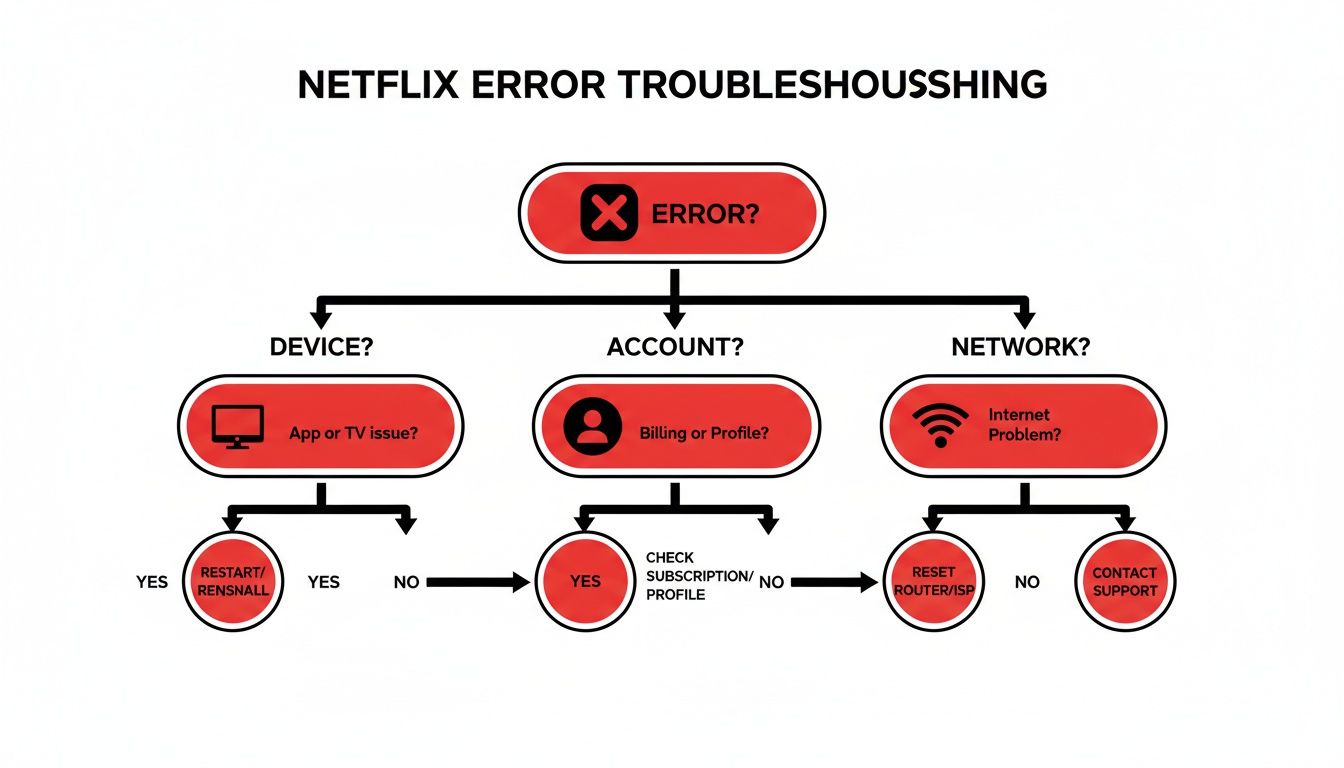
As you can see, systematically checking these three core areas is the fastest way to find and fix whatever is blocking your stream.
Why This Error Is So Common
If you've seen this error, you're definitely not alone. Netflix's own support data shows that this error spikes during peak viewing hours, with playback failures accounting for over 25% of streaming complaints in major markets.
In fact, a recent study revealed that 18% of Netflix subscribers run into this very error at least once a month. That adds up to an estimated 1.2 billion interrupted viewing sessions around the world every year.
The reason it’s so common is because of the complex system working behind the scenes. Netflix has to juggle digital rights management (DRM), regional content licenses, and a constant back-and-forth between your device and its servers. A tiny hiccup anywhere along that chain can trigger the error.
For a deeper dive into the platform's mechanics, this article on What You Need To Know About Netflix offers some great background. Ultimately, my goal is to give you the tools to solve this issue fast and keep it from ruining your next movie night.
Getting to the Bottom of Device-Specific Streaming Glitches
When Netflix suddenly stops working and flashes that dreaded error message, our first instinct is usually to blame the internet or the app itself. But more often than you'd think, the real culprit is the very device you're watching on. That "Netflix cannot play this title" error is often just a generic signal that your specific hardware is failing to shake hands with Netflix's servers correctly.
This goes way beyond a simple on-and-off-again fix. We're talking about things like outdated device software (firmware), a gummed-up app cache, or even tricky digital rights management (DRM) conflicts that stop a show in its tracks. Every device has its own personality and its own common breaking points, so a one-size-fits-all approach just doesn't cut it.
Smart TVs and Streaming Sticks: The Usual Suspects
Smart TVs from big names like Samsung and LG, along with streaming sticks like the Roku or Amazon Fire Stick, are the bedrock of modern streaming. But as these devices get older, their convenience can start to fade. The internal software gets sluggish and falls behind on updates, creating the perfect storm for playback errors.
Netflix’s own internal data backs this up, showing that a whopping 32% of playback errors come from older smart TVs and streaming sticks. It’s a bigger issue for Android TV users, who see a 22% failure rate, while newer Apple TV models only see problems 8% of the time. This isn't a small problem—it impacts an estimated 450 million streams worldwide every single month. In one memorable case, a botched firmware update triggered a 28% spike in errors across 50 million devices. This echoes old issues with Blu-ray players, where certain discs would bizarrely trigger the exact same "Cannot play this title" message, as detailed in this technical service bulletin.
Your first move? Clear the Netflix app cache and data.
-
Most Smart TVs: Head into
Settings>Apps>Netflix. You should see options to "Clear Cache" and "Clear Data." -
Amazon Fire Stick: Go to
Settings>Applications>Manage Installed Applications>Netflix. Select "Clear Cache," then "Clear Data." -
Roku: Roku is a bit different; you can't clear the cache for a single app. The best way is to remove the Netflix channel, restart your Roku by going to
Settings>System>System restart, and then add the channel back.
This is like giving the app a fresh start, getting rid of any corrupted temp files that are likely causing the headache.
Game Consoles and Mobile Devices
PlayStation, Xbox, and our phones and tablets are also huge hubs for Netflix, and they come with their own unique quirks. On consoles, the error often points to a needed system update or a conflict in your network settings. For mobile devices, the usual offenders are app permissions or a downloaded show that's gone bad.
A classic example is trying to watch a downloaded movie on a plane, only to get hit with the error. This almost always means the download was corrupted or the license to watch it expired while you were offline.
Pro Tip: Before you travel, open the Netflix app while you're still on Wi-Fi and pop into your Downloads section. This lets the app do a quick license check on everything you've saved, drastically cutting your chances of being stuck with an unplayable title mid-flight.
If you're streaming and not watching a download, the fix is pretty similar to what you'd do on a TV. Deleting and reinstalling the app from the PlayStation Store, Microsoft Store, Apple App Store, or Google Play Store is a surprisingly powerful fix. It guarantees you have the cleanest, most up-to-date version. If that still doesn't work, especially on a console, double-check for any pending system software updates. Those are critical for keeping DRM working smoothly.
When All Else Fails: Go for a Clean Reinstall
Sometimes, just clearing the cache doesn't dig deep enough. The next logical step is a full, clean reinstall of the Netflix app. This nukes the application and all its related files from your device, giving you a truly fresh start that can solve more stubborn, deep-seated problems.
Here’s how you’d typically do it on a Samsung Smart TV (most brands are very similar):
- Press the Home button on your remote.
- Navigate over to Apps.
- Find and select the Settings icon (it's usually a little gear).
- Scroll to the Netflix app and select it.
- Choose Delete and confirm you want to remove it.
- Head back to the app store, find Netflix again, and reinstall it.
It's a simple process, but it's incredibly effective. If you’re still wrestling with a black screen after all this, you can get more specific advice in our guide on why Netflix won't load on my TV. By working through these device-specific weak points, you can knock out that "cannot play this title" error and finally get back to your show.
Diving Into Account and Network Glitches
If you’ve already checked your device and the Netflix app itself, the next logical suspects are your account and your home network. These are often the invisible culprits behind the "Netflix cannot play this title" error, especially when you’re sharing an account with family or friends. A simple conflict here can stop your movie night in its tracks.
The problem could be as obvious as too many people trying to watch at once or as subtle as a momentary hiccup in your Wi-Fi. Let's walk through how to pinpoint and fix these common, yet frequently overlooked, issues.
Are You Hitting Your Netflix Account Limits?
Every Netflix plan has a hard limit on how many screens can stream content at the same time. If you're on a shared plan—especially one managed through a service like AccountShare—bumping up against this limit is a very common reason for playback errors. When that last person tries to log on, Netflix simply says "nope" and serves up that frustrating error message.
The first step is to see who’s currently using the account.
- Log into your Netflix account using a web browser.
- Head over to Account and then find the Manage access and devices section.
- This page is your command center. It shows you every single device that has recently used the account, along with its location and the last time it was active.
If you spot more active streams than your plan allows, you've found the source of the problem. You can boot specific devices right from this page to free up a spot for yourself. For a more detailed guide on this, check out our post on how to remove devices from Netflix.
Is Your Home Network the Real Bottleneck?
A rock-solid internet connection is everything for streaming. Even if your Wi-Fi seems to be "working" for browsing websites, it might not be stable enough for the demands of Netflix. Things like high latency, slow speeds, or intermittent drops can all prevent a show from loading.
Let’s start with the oldest trick in the IT book, because it genuinely works: rebooting your network hardware. But there's a right way to do it.
- Unplug your modem and your router from the wall. Don't just turn them off.
- Now, wait for a full 60 seconds. This is the key part—it lets them fully reset and clear out any weird memory glitches.
- Plug the modem in first. Wait until all the lights turn solid, indicating it's fully connected.
- Finally, plug in your router and give it a couple of minutes to finish its startup sequence.
This simple power cycle can resolve a surprising number of connectivity problems that trigger the "Netflix cannot play this title" error.
It's a common myth that if you can load Google, your internet is fine for streaming. HD and 4K video require a consistent, high-bandwidth connection that basic web surfing just doesn't test. A tiny dip in speed you'd never notice on a webpage is enough to kill a movie stream.
If you’re still having trouble after a reboot, you might have a more persistent network stability issue. For larger homes or places with Wi-Fi dead zones, upgrading to a solution like the Eero Pro 6e mesh WiFi system can make a world of difference by ensuring a strong, stable signal in every room.
The Problem with VPNs and Proxies
Lastly, think about any software that alters your internet connection. Netflix is incredibly good at sniffing out and blocking VPNs and proxy services. They do this to enforce their regional licensing deals, which dictate what content can be shown in which country.
If Netflix detects a VPN, it will almost always refuse to play anything, leading straight to that error message. The fix is straightforward: turn off your VPN or proxy before you even open the Netflix app. Even if you're connected to a server in your own country, the simple fact that you're using a VPN can be enough to get you blocked. Make sure the VPN application is completely closed, not just disconnected, to be certain it isn't the cause.
Fixing App-Level and Content-Specific Failures
You’ve ruled out your device, your account, and your network. So why are you still staring at that dreaded "Netflix cannot play this title" error? At this point, the problem is likely much closer to the source: the Netflix app itself or the specific movie or show you’re trying to watch.
Think of the Netflix app like any program on your phone or computer. Over time, it collects a stash of temporary files in its cache to help things load faster. But sometimes, this data gets scrambled or corrupted, which can lead to all sorts of bizarre playback errors. Similarly, an outdated app can cause glitches, especially if it's no longer compatible with Netflix's latest server-side updates.
Tackling Corrupted App Data and Outdated Versions
The first and often most effective fix is a simple digital spring clean: clear the app's cache. This forces the app to start fresh without logging you out or touching your watch history. It’s a surprisingly powerful step that resolves a huge number of app-related bugs.
If you’re not sure how to do this on your specific device, we’ve got you covered with a detailed guide on clearing the Netflix cache for everything from Smart TVs to streaming sticks.
Next, check for updates. Developers are constantly pushing out new versions of the app to patch bugs and improve performance. Running an old version is a classic recipe for playback problems. Head over to your device’s app store—the Google Play Store, Apple App Store, or your TV's app section—and see if a Netflix update is waiting for you.
When the Content Itself Is the Problem
Sometimes, the issue has nothing to do with your setup at all. The problem lies with the actual movie or show you want to watch. This is particularly frustrating because it feels like you've done everything right on your end.
Here are the usual suspects when the content is the culprit:
- Temporary Server Glitches: When a massive new season drops, Netflix’s servers can get hammered. This can make the title temporarily unavailable for some people until the traffic dies down.
- Regional Licensing Blocks: Content licensing is a complicated web of international agreements. A show might pop up in your feed but be geo-blocked in your country.
- Expired or Removed Titles: Just because something is on your "My List" doesn't mean it lives there forever. Once a licensing deal expires, Netflix has to pull the title, making it unplayable.
We’ve all been there. A friend from another country raves about a new show, you find it on Netflix, but hitting play gives you the "cannot play" error. This is almost always a regional licensing block in action. Netflix sees your location and simply won't stream content it isn't licensed to show you.
Troubleshooting Corrupted Downloads for Offline Viewing
Getting the "cannot play this title" error on something you've downloaded is especially maddening. The whole point of downloading is to avoid these kinds of headaches!
When this happens with offline content, it's almost always one of two things. Either the download file itself got corrupted (maybe your Wi-Fi dropped mid-download), or the viewing license expired. Most downloads have a built-in time limit—often just 48 hours after you first hit play.
The fix, while a bit of a pain, is straightforward. You'll need to:
- Delete the broken download from your device.
- Connect to a stable Wi-Fi network.
- Go back to the title's page and re-download it.
This gives you a fresh, uncorrupted file and a renewed license. It’s a common issue for travelers, but taking a moment to re-download your shows before you leave for the airport can save you a lot of in-flight boredom.
How to Stop Netflix Errors Before They Start
It’s one thing to fix the "Netflix cannot play this title" error when it pops up, but it’s another to create a setup where you almost never see it. The real win is moving from a reactive "fix-it" mode to a proactive "prevent-it" one. A few simple, regular maintenance habits can transform troubleshooting from a constant headache into a rare inconvenience.
Think of it as building a solid foundation for your streaming. Taking just a few minutes each month for some light digital housekeeping stops common glitches in their tracks. That way, when you’re ready to kick back and watch a movie, Netflix is ready too.
Let Your Devices Do the Heavy Lifting
Honestly, one of the best strategies is to let your devices handle the work for you. Almost every modern gadget—from your Smart TV to your PlayStation—has an option for automatic updates. Turn it on. Seriously, it's a game-changer.
Developers are always pushing out new app versions to squash bugs and improve performance. By letting your devices update the Netflix app automatically, you’re always running the latest and greatest version. This alone drastically cuts down on errors caused by outdated software. It’s the definition of "set it and forget it."
Another great habit? Get into a routine of clearing your cache. You don’t need to do it every day, but wiping the app cache once a month is enough to stop corrupted data from building up and causing trouble.
- Streaming Sticks (Fire TV, Roku): Just set a monthly calendar reminder. It only takes a minute to dive into the app settings and hit "Clear Cache."
- Smart TVs: A good rule of thumb here is to clear the cache whenever the app starts feeling sluggish or takes forever to load.
- Phones & Tablets: Most modern phones have built-in "device care" tools that can even automate this for you.
This simple routine is like a quick tune-up for your app, keeping it running smoothly.
The app cache is basically the app's short-term memory. Over time, it gets cluttered with old bits of information. Clearing it doesn't delete your watch history or preferences; it just forces the app to pull fresh, clean data from Netflix's servers, which can solve a surprising number of hidden problems.
This small time investment pays off big time in streaming reliability.
Get to Know Your Account's Limits
If you’re sharing a Netflix plan, especially through a service like AccountShare, you absolutely have to know your account's limitations. The "too many people are using your account" error is one of the most common reasons a title won't play, and it’s 100% preventable.
Take a moment to check your plan's details. Find out exactly how many simultaneous streams you get and make sure everyone sharing the account knows the number. It's not a bad idea to set up a group chat or a simple household rule to coordinate watching during primetime hours, especially on the night of a big season premiere.
Making a monthly check of the "Manage access and devices" page in your account settings is also a brilliant move. This lets you:
- Spot any strange devices. If you see a login you don't recognize, you can sign it out immediately and change your password.
- Clean out old hardware. Still signed in on that old tablet you sold? Kick it off the list so it’s not hogging a valuable streaming slot.
- See who's active. It gives you a clear picture of who’s actually using the account, helping you manage those stream limits before they become an issue.
When you treat your shared Netflix plan like the shared resource it is, you can head off the conflicts that lock you out of your show. These simple habits create a frustration-free streaming experience, letting you focus on what to watch next instead of why you can't watch it.
Common Questions About Netflix Errors
Even after trying all the standard fixes, you might still be scratching your head about why a specific show won't play. Let's tackle some of the most common questions and oddball scenarios we see all the time.
Think of this as a quick-hit guide for those frustratingly specific issues that don’t always fit into a neat troubleshooting checklist.
Why Does This Error Only Happen on One Show?
It’s a classic situation: you can stream anything else on Netflix, but the one show you actually want to watch throws up an error. When this happens, you can be almost certain the problem isn't with your device or internet connection—it’s an issue with that specific title.
This usually boils down to one of a few things:
- A temporary glitch on Netflix's side. This is especially common with brand-new releases or massively popular shows that are getting hammered with traffic.
- Regional licensing blocks. The show simply might not be available in your country, even if it shows up in your library.
- The content license expired. Shows and movies come and go from Netflix all the time, and you might be trying to watch one that just left the platform.
The quickest way to confirm it’s not you is to play something else. If another title works, your best bet is to wait it out and try again later or report the issue on that specific title directly through the Netflix app.
Can a VPN Cause This Netflix Error?
Absolutely. In fact, using a VPN is one of the most frequent reasons for this error popping up. Netflix has gotten incredibly good at sniffing out and blocking connections from VPNs and proxy servers to enforce its regional content licensing deals.
If Netflix detects a VPN—even if the server is in your own country—it will often just block playback entirely. To solve this, you need to turn off your VPN completely before opening Netflix. Sometimes just disconnecting isn't enough; make sure the VPN app is fully closed.
Can Downloaded Titles Still Get This Error?
It’s a real head-scratcher, but yes, even downloaded content can refuse to play. You’d think downloading would bypass all the network issues, but the "cannot play this title" error can still appear for a couple of key reasons.
The most common culprit is an expired viewing license. Most downloads have a self-destruct timer—often just 48 hours after you first hit play. Once that window closes, the file is useless.
A corrupted download file or a simple app glitch can also be to blame. The only real fix here is to delete the downloaded title, connect to a good Wi-Fi signal, and download it again. This gives you a fresh file with a new license.
How Do I Know if I've Hit My Plan's Screen Limit?
Thankfully, Netflix is usually pretty direct about this one. Instead of the generic "cannot play" message, you’ll typically see a much clearer error telling you that your account is being used on too many devices.
You can double-check this yourself by logging into your account on a web browser and going to Account Settings. From there, look for Manage access and devices. This page gives you a rundown of recent streaming activity, showing which devices are logged in and where. If you see more active streams than your plan allows, you can boot the other devices off right from that screen to free up a slot.
Juggling screen limits on a shared account can be a pain. AccountShare takes the headache out of it by helping you manage your group subscriptions without the constant back-and-forth. We provide clear tools to avoid conflicts over who's watching what, ensuring everyone gets access when they want it. Check out how we make sharing smoother at https://accountshare.ai.