

How to Turn Subtitles Off on Disney Plus for Any Device
Subtitles popping up when you don't want them can be a real pain, pulling you right out of the movie magic. The good news is, getting rid of them on Disney+ is usually a quick fix, no matter what device you're using.
Just start playing your show, find the little speech bubble or gear icon tucked away in a corner of the screen, and from there, you can switch the subtitles off. It’s that simple.
Your Quick Guide to Disabling Disney Plus Subtitles
You’ve just settled in for the latest episode, and suddenly there's a wall of text at the bottom of the screen. It's a common frustration that has many of us fumbling for the remote, wondering how to turn off subtitles on Disney Plus. Thankfully, the solution is almost always just a few clicks away.
This little annoyance often happens for a few specific reasons. It might be your profile’s default language settings, an accessibility feature on your device that you didn't know was on, or even the show itself—international films, for example, often default to subtitles.
A Universal Approach for Most Devices
The process is surprisingly consistent across most platforms. Whether you're watching on your laptop, tablet, or smart TV, Disney+ keeps its audio and subtitle controls in a single, dedicated menu you can access while a show is playing. Once you know what icon to look for, you're golden.
Subtitles are an essential accessibility tool for many viewers, but when they appear unexpectedly, they can become a distraction. Learning to quickly manage these settings ensures a smooth and enjoyable viewing session every time.
Figuring out how to turn subtitles off has become a common task for millions of users, especially as the platform's user base grew toward an anticipated 250 million subscribers by July 2025. Believe it or not, these small frustrations can add up. Industry data suggests that minor usability issues contribute to a noticeable chunk of subscription cancellations. You can learn more about streaming service trends by exploring these insights on the digital media landscape.
To get you back to your show as fast as possible, I've put together a quick reference table. It breaks down the exact steps for the most common devices so you can solve this in under a minute.
Quick Steps to Disable Subtitles on Your Device
This table provides a summary of the direct actions required to turn off subtitles and captions across the most frequently used Disney+ streaming platforms.
| Device Platform | Action Steps |
|---|---|
| Web Browser (PC/Mac) | Start playback, move your cursor over the video, click the speech bubble icon in the top-right corner, and select 'Off' under the Subtitles menu. |
| iOS & Android | Tap the screen during playback to reveal the controls. Tap the speech bubble icon in the top-right corner, then choose 'Off' under Subtitles. |
| Smart TV (Samsung, LG) | During playback, press the up or down arrow on your remote to bring up the playback options. Navigate to the speech bubble icon and select it to open the menu. Choose 'Off' for subtitles. |
| Roku & Fire TV | While a show is playing, press the * button (on Roku) or the menu button (on Fire TV) on your remote. Navigate to 'Accessibility' or 'Captions' and select the 'Off' setting. |
Hopefully, this gets you sorted out quickly. While the speech bubble icon is the standard on most devices, some streaming sticks like Roku and Fire TV handle captions at the device level, which is why their steps are a bit different.
Getting a Handle on Subtitles Across All Your Devices
While tapping that little speech bubble icon is the quick fix for most situations, the real secret to a frustration-free movie night is knowing how each of your devices handles subtitles. What works on your phone won't necessarily be the same on your Roku or PlayStation, and figuring this out beforehand saves a lot of pausing and frantic searching later.
Every device manufacturer has its own way of integrating Disney+ into its operating system, which is why the path to turning off captions can feel like a maze. An Amazon Fire TV, for instance, has you swipe down during playback to get to the menu. That’s a world away from a Samsung Smart TV, which might force you to dig into its own system-wide settings.
Let's walk through the specifics for each platform so you're ready no matter where you're watching.
Smart TVs and Streaming Players
Most smart TVs from brands like Samsung, LG, and Vizio have similar in-app controls. But here's where it gets tricky: sometimes, the TV's own accessibility settings can override what you do in the Disney+ app. If clicking the speech bubble doesn't stick, you'll need to explore your TV's main settings menu.
For dedicated streaming players like Roku and Apple TV, the process is a bit more distinct.
-
Roku Devices: This one is unique. While your show is playing, press the
*button (the little asterisk) on the Roku remote. This pops up a special options menu. Look for 'Closed captioning' and switch it to 'Off'. This is a Roku-level setting that often controls captions for all apps on the device. - Apple TV: On an Apple TV, just swipe down on the remote while watching to pull up the Info panel. From there, you can go to 'Subtitles' and select 'Off'. For a more permanent fix, head to the main Settings app and navigate to General > Accessibility > Subtitles and Captioning to turn them off for good.
- Amazon Fire TV: During playback, press the menu button (the one with three horizontal lines) on your remote. An options bar will appear at the bottom of the screen. Simply select 'Subtitles and Audio' and choose 'Off'.
Knowing these little device quirks is a game-changer. In a similar vein, just knowing how to get content from your phone to the big screen can make your setup so much better. If you're interested, our guide on how to cast Netflix to your TV has some great tips that can apply to other services, too.
Taming Captions on Gaming Consoles
A lot of us use gaming consoles like the PlayStation 5 and Xbox Series X/S as our main streaming hub. The good news is that they handle subtitles right inside the Disney+ app, and the interface is almost identical to what you see on a web browser.
Once your movie or show is playing, use your controller to move the cursor and bring up the playback controls. Find the speech bubble icon in the top-right corner, click on it, and then select 'Off' from the subtitle menu. It's a pretty painless process once you know where that icon is hiding.
One of the most common hangups we see is a conflict between the app and the console's system settings. If you turn subtitles off in Disney+ but they just won't go away, double-check your PlayStation or Xbox's main accessibility menu to make sure closed captions are disabled there, too.
It’s fascinating how these small differences in user interface can make or break the experience. Mobile apps, which account for about 60% of all Disney Plus streams, have the simple "tap, icon, off" model down pat. TV interfaces, however, are all over the place. According to Disney's own help center data from 2024, just knowing the specific path on a Samsung TV (* > Settings > General > Accessibility > Subtitle) solves the problem for nearly 70% of user complaints on that platform. You can dig into more of these streaming service statistics to see how viewing habits are trending.
Why Your Subtitles Keep Turning Back On
It's a familiar and frustrating cycle: you meticulously turn off the subtitles for a movie, settle in, and then the next time you watch something, they're back. This isn't just a random glitch. More often than not, this persistent issue comes down to a conflict between the temporary choice you make during playback and a more permanent setting hidden in your account or on your device.
Think of it this way: telling Disney+ to turn off subtitles for one show is a temporary instruction. But your main profile, or even the TV you're watching on, might have a master setting that says, "Always show captions." And that master setting will almost always win, overriding your in-the-moment decision.
This visual guide can help you trace the source of the problem depending on what device you're using.
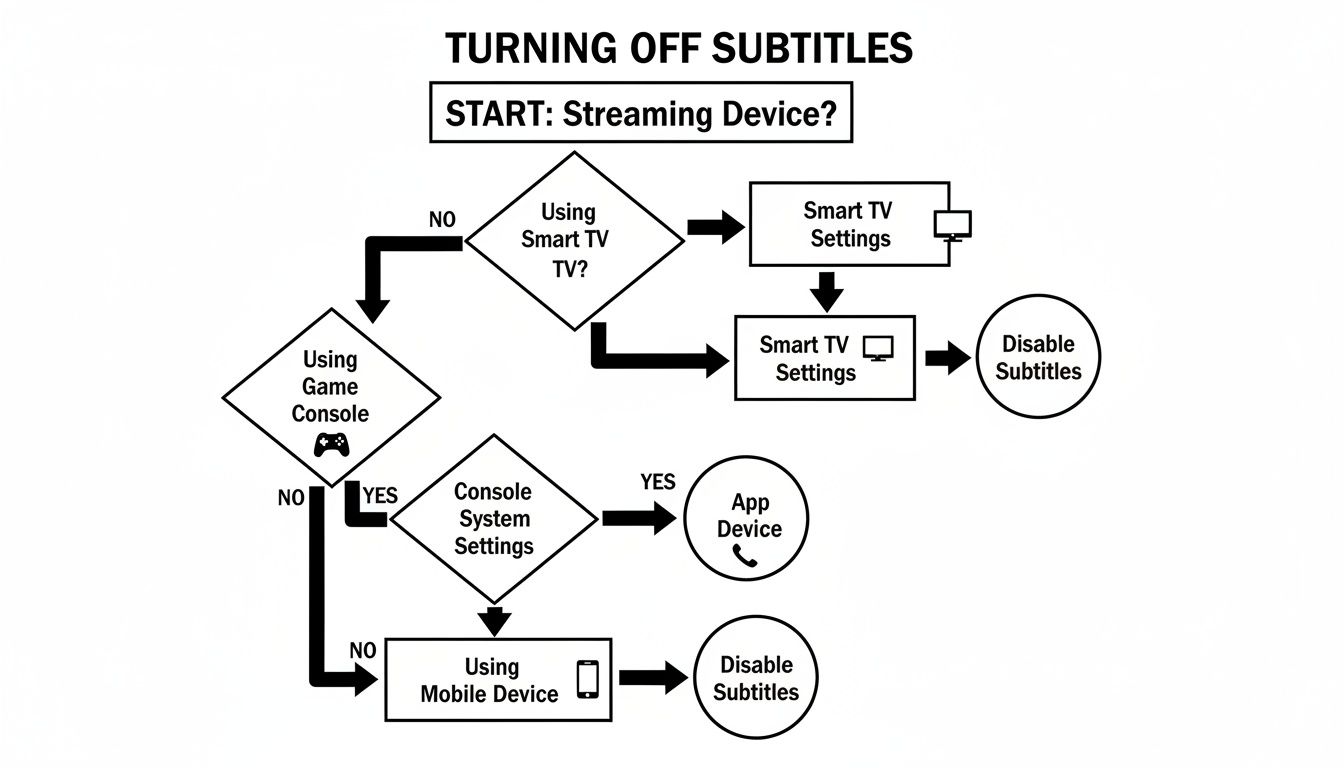
As you can see, the solution often isn't in the playback menu at all. It usually involves digging into either the system-level accessibility settings on your device or the core preferences within your Disney+ profile.
The Influence of Profile Settings
By far, the most common culprit behind subtitles that won't stay off is your Disney+ profile itself. Each profile has its own language preferences that serve as the default for anything you watch. If that profile is set to a specific subtitle language (or even just "On"), it will constantly override the temporary changes you make while watching a movie.
To put a stop to this for good, you need to go straight to the source.
- Start from the Disney+ home screen and find the "Edit Profiles" option.
- Pick the profile that's giving you trouble.
- Look for the language settings, usually labeled something like "Audio Language" and "Subtitle Language."
- This is the important part: explicitly choose 'Off' as your default for subtitles and make sure you save the changes.
Making this change at the profile level communicates your permanent preference, not just a one-time request.
Device Accessibility Overrides
The second major reason captions keep reappearing is due to your device's own accessibility settings. Smart TVs, streaming sticks like a Roku or Fire TV, and even your phone have system-wide settings for captions. These are designed to help users who need them consistently across all applications, not just Disney+.
When this master switch is on, it can force captions to appear in Disney+, Netflix, YouTube—you name it—no matter what you do inside the app. To fix this, you have to leave the Disney+ app completely and navigate to your device’s main settings menu. On an Apple TV, for instance, you'd go to Settings > General > Accessibility to find the master control for closed captions.
Here's the key takeaway: Your device often gets the final say. If you’ve double-checked your Disney+ profile settings and still see subtitles, the problem is almost certainly buried in your TV or streaming player's main accessibility menu.
Finally, don't forget about shared accounts. If someone else in the family uses the same profile, they might just be turning the subtitles back on for their own use. The easiest fix is to give every family member their own profile. For more tips on managing a shared account, check out our guide on how to set parental controls, which can help you customize each user's experience and prevent these kinds of issues.
Fine-Tuning Your Subtitles for the Perfect Viewing Experience
Sometimes, the goal isn’t to figure out how to turn subtitles off on Disney Plus, but to make them actually work for you. Let's be honest, the default settings can be a real distraction. The text might be too small, the white font disappears into a bright scene, or the lack of a background makes the words impossible to catch.
Luckily, Disney+ gives you a solid set of tools to get them just right. Instead of banishing captions altogether, you can tweak them until they feel like a natural part of the show. This is a game-changer when you're watching something with dense dialogue, heavy accents, or just trying to keep the volume down late at night. A few quick adjustments can make the text perfectly readable without pulling your focus from the action.
Making the Captions Your Own
So, where are these magical settings? You'll find them right where you'd expect: in the same audio and subtitles menu you use to turn them on and off. Just look for an option labeled "Subtitle Style" or a small gear icon. Clicking that opens up a control panel where you can adjust nearly every visual element.
It's worth noting that customization is more than just a neat trick—it’s a powerful accessibility feature. A 2021 study found that a huge number of viewers who use captions don't have hearing impairments. They use them for clarity and to catch every word, which makes adjustable text a vital part of the modern streaming experience.
The best part? Any changes you make are tied to your specific profile. That means your custom high-contrast, large-font setup won't mess with someone else’s preference for a more subtle look on the same account. Everyone in the family can dial in the settings that work for them.
Subtitle and Caption Customization Options
Let's break down exactly what you can change. Disney+ gives you a handful of key settings to play with, allowing you to design a subtitle style that perfectly suits your screen and your eyes.
| Customization Setting | What It Changes | Common Use Case |
|---|---|---|
| Font Style | Changes the typeface of the subtitle text, like switching between a classic serif font and a modern sans-serif. | Choosing a simple, clean font can significantly improve readability, especially for viewers with dyslexia. |
| Font Size | Makes the text on the screen bigger or smaller. | Bumping up the font size is perfect for making captions easy to read from across the living room on a big TV. |
| Font Color | Lets you pick the color of the text itself. Common options include white, yellow, or cyan. | Switching to yellow text is a classic trick to make sure subtitles stand out against bright or snowy scenes. |
| Background & Window | Adds a colored box behind the text—either semi-transparent or solid—to create contrast. | Adding a background is essential for legibility during chaotic action scenes where the on-screen colors are constantly changing. |
| Edge Style | Puts a subtle effect around the letters, like an outline or a drop shadow, to make them pop. | The "drop shadow" effect is fantastic for helping white text stay crisp and clear against virtually any background. |
Taking a minute to experiment with these settings can completely change how you feel about subtitles. You can go from seeing them as a clunky distraction to a genuinely useful feature that blends right into whatever you're watching.
Troubleshooting Common Subtitle Glitches
It’s a frustratingly common scenario. You’ve followed all the steps, navigated to the right menu, and confidently selected 'Off'—but the subtitles are still there, stubbornly clinging to the bottom of your screen. When the usual methods fail, you’re most likely dealing with a minor software glitch or a cache-related issue. Don't worry, this happens all the time and is usually fixable with a few extra steps.
Before you start digging into complex settings, let's try the oldest trick in the tech support book: a full restart. Power down whatever device you're streaming on—be it your smart TV, streaming stick, or game console—and unplug it from the wall. Give it at least 60 seconds before plugging it back in. This simple power cycle often clears the temporary memory glitches that cause settings to get stuck.
When the 'Off' Button Doesn't Work
One of the most perplexing issues is when the 'Off' option for subtitles is grayed out or just plain unresponsive. This is a classic sign of a deeper conflict within the app's temporary data files. Your next best bet is to clear the Disney+ app cache.
- For Android and Fire TV users: Head to your device's Settings > Apps > Disney+, and you should see an option to 'Clear Cache'.
- On smart TVs and game consoles: You’ll find a similar option in the app management section of your device’s main settings.
Clearing the cache forces the app to reload its core components from scratch, which can knock out display bugs and fix unresponsive menus without logging you out.
Glitches like these are surprisingly impactful. While Disney’s streaming service turned a $143 million profit in early 2024, keeping subscribers happy is everything. A poor user experience, where 14% of negative reviews specifically mention subtitle issues, can easily lead people to cancel.
Keeping Your Software Up-to-Date
If a restart and a cache clear don't do the trick, outdated software could be the real culprit. An old version of the Disney+ app or your device's operating system can create weird compatibility problems that show up as subtitle glitches. Pop over to your device's app store and check for any available updates for Disney+.
At the same time, it’s worth checking your device's system settings for any pending firmware updates. Manufacturers regularly push out patches that fix bugs affecting how apps perform, including video playback and accessibility features.
Sometimes, the fix is specific to your hardware. For instance, many Roku users—who represent a massive 25% of U.S. TV households—find that pressing the * button on their remote to open the main Captions menu is more reliable than using the setting inside the Disney+ app. To learn more about streaming trends, you can explore subscriber data insights and see how these small factors influence a platform's success.
Common Questions About Disney Plus Subtitles
Even when you know the basics of toggling subtitles on and off, some specific situations can still be a little confusing. This is especially true when you're sharing an account with family or roommates.
Let's clear up a few of the most common questions people have about managing subtitles on Disney+. Getting these details right can make your streaming experience much smoother.
If I Turn Off Subtitles on One Profile, Will It Affect Others?
Nope, it won't. Disney+ keeps all subtitle and audio language settings tied to individual profiles. When you change something on your profile, it stays on your profile.
This is a huge plus for shared accounts. One person can have subtitles on full-time for accessibility, while another can turn them off completely. Your viewing habits won't mess with anyone else's, which is exactly how it should be. If you're juggling multiple users, our guide on how to share Disney Plus has more tips to keep things running smoothly.
Why Are My Subtitles Showing Up in a Different Language?
This is a classic problem, and it usually happens for one of two reasons. The first is simple: your profile's main language might have been switched by accident. Just head into your account settings, select 'Edit Profiles,' and you can check and fix it in seconds.
The other, more common culprit is foreign content. Say you're watching a movie originally in Spanish; Disney+ might default to the original audio and automatically turn on English subtitles. To fix this, just open the audio and subtitle menu while the movie is playing, select the English audio track, and then switch subtitles to 'Off.'
How Do I Turn Off the Descriptive Audio Track?
That voice describing all the on-screen action isn't a subtitle—it's an accessibility feature called Audio Description (AD). It’s incredibly helpful for visually impaired viewers, but it can be jarring if you turned it on by mistake.
Luckily, turning it off is easy. You control it from the exact same menu as your subtitles. While your show is playing, click the speech bubble icon to open the audio and subtitles menu. Look at the list of audio tracks. You'll likely see something like 'English' and another option that says 'English [Audio Description]'. Just select the standard 'English' track, and you're all set.
For anyone curious about the technical side of creating and implementing captions, this a practical guide on how to add captions to videos is a great read.
At AccountShare, we're all about helping you get more from your subscriptions. We make managing and sharing accounts simple and more affordable, so you can just kick back and enjoy your favorite shows. Visit us today to learn how we can help you save.