

How Do I Share My Playlist On Spotify A Musics Lovers Guide
So, you’ve put together the perfect Spotify playlist and now it's time to share your masterpiece. The good news is, it's pretty straightforward. You'll always be looking for the 'Share' option, but how you get there and what you do next can vary a little depending on whether you're on your phone, desktop, or the web player.
Your Quick Guide To Sharing Spotify Playlists
Sharing playlists on Spotify isn't just a feature; it's practically a social currency. It's how we share a vibe for a road trip, create a soundtrack for a friend's party, or just introduce someone to an artist we're obsessed with. This simple act has completely changed how we connect over music.
And it’s happening on a massive scale. Think about it: playlists are the engine driving 90% of all listening time on the platform. In a single year, Spotify users sent nearly 340 million messages to each other right inside the app, a huge chunk of which were playlists. It's clear that sharing music is a core part of the experience.
The Basic Sharing Workflow
No matter what device you're on, the core process is always the same. It boils down to a simple, three-part flow. This graphic sums it up nicely.
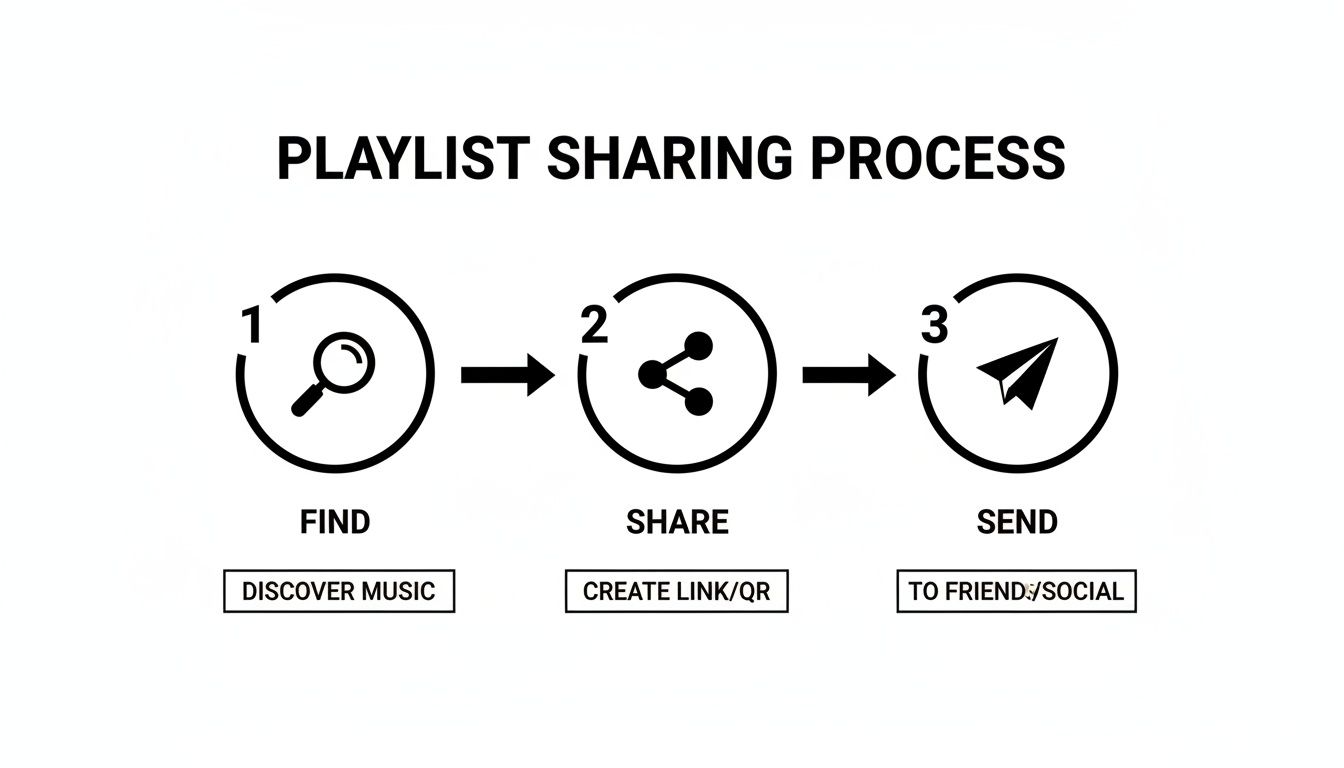
This Find, Share, Send rhythm is something you'll get used to quickly. Once you know it, you can share a playlist in seconds, whether you’re texting a link or posting it to your Instagram story.
You've got a few different ways to share, from grabbing a simple link to generating a scannable Spotify Code. The method you choose really depends on who you're sharing with and where.
To help you decide, here’s a quick rundown of your main options.
Playlist Sharing Options At A Glance
| Sharing Method | Best For | Available On |
|---|---|---|
| Copy Link | Universal sharing via text, email, or social media. The most direct method. | Desktop, Mobile, Web Player |
| Social Media Apps | Sharing directly to Instagram Stories, Facebook, X, etc., for a more visual post. | Mobile |
| Spotify Code | In-person sharing; someone can scan the code with their phone's camera. | Mobile |
| Embed Playlist | Adding an interactive playlist player to a website or blog. | Desktop, Web Player |
This table should give you a good starting point. Each method has its own strengths, so pick the one that fits the moment. For a more detailed walkthrough of all these methods, you can explore our full guide on how to send a Spotify playlist.
Sharing From Your Phone Or Tablet
Let's be real, your phone is probably where you listen to most of your music. So, knowing how to quickly share a playlist from the Spotify mobile app is a must. The good news is that the steps are pretty much the same whether you're on an iPhone or an Android device, so you can send off that perfect mix in seconds.
First, pull up the playlist you've crafted. You'll see a small icon with three dots (•••) somewhere near the top—that's your command center for all things playlist-related. Tapping it opens up a menu where you'll find the share option.

This simple feature connects you to a massive global community. With 696 million monthly active users and 252 million Premium subscribers, sharing playlists is how we all discover new music. It’s a core part of the experience. You can discover more insights about Spotify's growth to see just how big this network is.
Choosing Your Mobile Sharing Method
After you hit the three dots and tap 'Share', a menu pops up with a bunch of different ways to send your playlist out into the world. The options you see will depend on what apps you have installed on your phone.
You'll usually see these go-to methods:
- Copy Link: This is the classic, most flexible option. It saves the playlist's URL to your clipboard so you can paste it anywhere—a text, an email, a Slack message, you name it.
- Social Media Apps: Look for icons like Instagram, Facebook, X (what we used to call Twitter), and WhatsApp. Choosing one of these creates a pre-formatted post or message, complete with the playlist's cover art, which looks great in a feed.
- Spotify Codes: This generates a unique, scannable image—almost like a QR code just for your playlist. It's awesome for sharing in person. A friend can just open their Spotify camera and scan it to instantly access your tunes.
Pro Tip: Sharing to an Instagram Story is especially cool. Spotify lets you pick a 15-second song clip from the playlist to feature. It's the perfect way to give your followers a taste of the playlist's vibe.
Sharing From The Desktop App And Web Player
Let's be real—when you're in the zone, whether you're deep into a work project or in the middle of a gaming session, the last thing you want to do is grab your phone just to share a playlist. Thankfully, the Spotify desktop app and web player make it super easy to send your favorite tunes without breaking your stride.
The process is virtually the same on both platforms. Just head over to your library and find the playlist you want to share.
You can either right-click directly on the playlist's name or click the three-dot icon (•••) located near the top. Both actions will pull up a menu. From there, hover over 'Share,' and you'll see all your options.
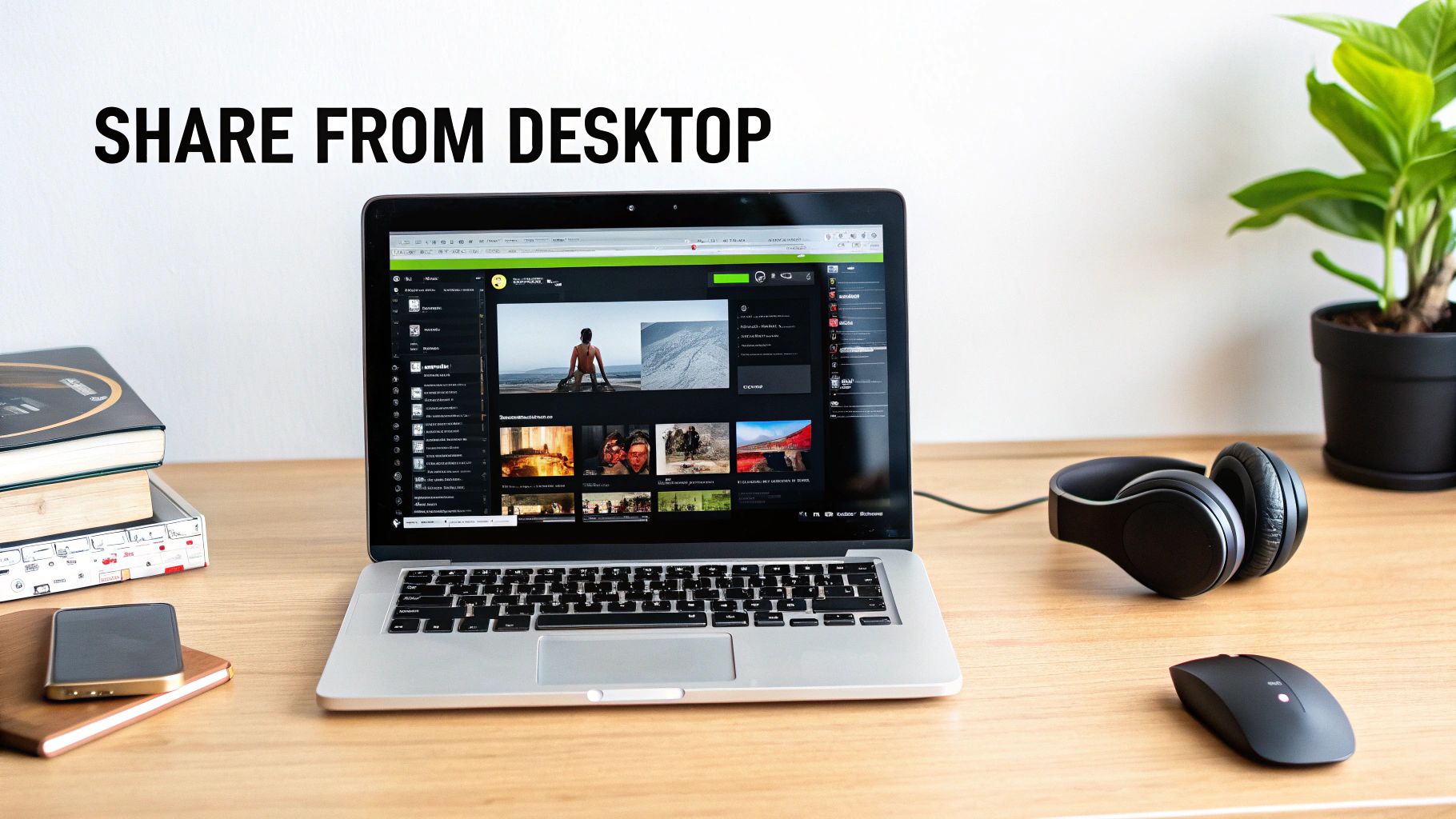
This is my go-to method for dropping a 'Deep Focus' playlist into a Slack channel for the team or sharing a victory mix on Discord after a big win. It's quick and keeps you in the moment.
Understanding Your Link Options
Once you open the share menu, you'll see a few different ways to grab a link. Knowing the difference will help you pick the right one for the job.
- Copy link to playlist: This is your standard, all-purpose link. It generates a regular web URL that anyone can click to open the playlist in their browser or the Spotify app. It’s the one you’ll use 99% of the time.
- Copy Spotify URI: This one's a bit more technical. A URI (Uniform Resource Identifier) is a special code that links directly to content within the Spotify app itself. It's mostly useful for developers or for embedding playlists in specific applications.
For everyday sharing with friends, family, or coworkers, stick with 'Copy link to playlist.' It's simple and it just works.
Real-World Scenario: Let's say you're getting the team pumped for a big deadline. You can right-click your "Productivity Beats" playlist, go to 'Share,' and select 'Copy link to playlist.' Then, just paste it into your team chat with a quick note: "Here’s some focus music for the afternoon grind!"
The desktop app also has an 'Embed playlist' option. This gives you a snippet of HTML code that you can drop into a website or blog. It creates a neat little interactive player, letting visitors listen to your playlist without ever leaving the page.
Building A Playlist Together
Sharing a finished playlist is great, but creating one with friends in real-time? That's where the real fun starts. Spotify's collaborative playlist feature turns your personal music library into a shared sandbox, which is perfect for everything from planning a road trip to building the ultimate party mix with a group.
Instead of just sending a link and asking for feedback, you can invite your friends to become actual co-curators. They can add songs, remove tracks, and even reorder the list on the fly. This makes the playlist a living, breathing project that reflects everyone's tastes.
This feature is tapping into a huge trend. Spotify is home to nearly 9 billion user-created playlists, so turning them into group projects just makes sense. The collaborative energy is clear, with in-app Message sharing hitting 340 million shares from 40 million users.
Making Your Playlist Collaborative
Flipping the switch on any of your playlists to make it collaborative is incredibly simple, whether you're on your phone or computer.
Just head to the playlist you want to share and look for the Add user icon—it’s the little person silhouette with a plus sign next to the title. Give that a tap or click.
From there, you just need to select “Make collaborative.” Now, when you share the playlist link, anyone who gets it will have full editing permissions to add their own jams.
It’s that easy. For a deeper dive into keeping these shared projects from getting too chaotic, our guide on https://accountshare.ai/blogs/new/spotify-playlist-management has some great tips.
A Quick Heads-Up: Making a playlist collaborative automatically makes it public. Anyone with the link can listen, but more importantly, they can also add, delete, and reorder songs. So, just be mindful of who you send that link to if you want to keep the vibe just right. And if you're curious how content curation works on other platforms, these insights into YouTube playlist management offer a different perspective.
Getting a Handle on Playlist Privacy and Visibility
Before you start sending out links to your latest masterpiece, it's a good idea to get a feel for who can actually see it. Spotify puts you in the driver's seat when it comes to your playlist's visibility, which is pretty important. After all, you probably want different audiences for your "80s Hair Metal Power Hour" and your "Quiet Morning Coffee" mixes.
Spotify offers three main privacy settings, and each one serves a very different function. Getting these straight will save you from any accidental oversharing.
Public, Private, and Collaborative: What's the Difference?
The line between these settings is simple, but it has a huge impact on who gets to hear your carefully curated tracks.
-
Public Playlists: Think of these as your billboard to the world. Anyone on Spotify can find them through search or by visiting your profile. This is the setting you want if you're trying to build a following or share a mix with the masses.
-
Private Playlists: These are for your ears only... unless you decide otherwise. They're totally hidden from your profile and won't show up in any searches. The only way someone can listen is if you send them the direct link.
-
Collaborative Playlists: As we talked about earlier, these are designed for teamwork. By default, they are public, and anyone with the link can jump in to add, delete, and re-arrange songs. It’s a group effort.
Here's something to remember: for anyone to find your playlist on their own, it has to be public. If you’ve put together the perfect playlist for your coffee shop or brand, making it public is step one to getting it discovered.
Switching between these settings is easy. Just head to the playlist, tap the three-dot menu, and choose "Make private" or "Make public." If you want a more detailed walkthrough, we've got a full guide on how to make your playlist public on Spotify.
Got Questions About Sharing Spotify Playlists?
Sharing playlists is usually a breeze, but every now and then, you might hit a snag. Whether you're trying to build the perfect party mix with friends or just want to get your curated collection out into the world, a few common questions always seem to pop up.
Let's get you some answers.
What if a Friend Can’t Add Songs to Our Collaborative Playlist?
This is probably the most common headache with collaborative playlists, but the fix is usually simple. If a friend is having trouble adding tracks, run through this quick mental checklist:
- Is it actually set to collaborative? It's easy to forget this step. Double-check that you've tapped the little "add user" icon and toggled it on.
- Did they "Follow" it? Sometimes, Spotify requires a user to officially follow the playlist before it grants them editing powers. Ask them to hit the follow button.
- Try a fresh invite. If all else fails, the original link might have glitched. Go back into the playlist's share menu and send them a brand-new invite link directly.
Can I See Exactly Who Follows My Public Playlists?
This is a big one for aspiring curators. Unfortunately, Spotify doesn't show you a list of individual followers for your public playlists, mainly to protect user privacy.
What you can see is the total number of "likes" (the little heart icon). Think of this as your main popularity score. While you won't get a list of names, the like count is the best gauge you have for how many people are tuning in and enjoying your mix.
Once you have your Spotify playlist link, you might want to get it in front of as many people as possible. A great way to do this is to post your playlist link to all social media at once to maximize its reach.
How Do I Share a Specific Part of a Song?
Ever want to send someone just the epic guitar solo or the beat drop? While Spotify doesn't have a direct "share from this timestamp" feature like YouTube, there's a great workaround for social media.
When you share a track to an Instagram or Facebook Story, the app lets you pick and feature a specific 15-second clip of the song. For direct messages, the old-school method works best: just send the playlist link and tell your friend the exact song and time to jump to. A quick "Check out the synth part at 2:05!" gets the job done perfectly.
At AccountShare, we help you get more out of your premium subscriptions without the premium cost. Start sharing and saving today!