
Can I Create a Playlist on YouTube? Yes, Here Is How
Yes, a signed-in YouTube account can create playlists from videos and Shorts, with three visibility choices: public, unlisted, and private. But who should be able to open your list, and should those people also be allowed to change it?
That's the decision the Save button doesn't make for you. A family queue, a classroom collection, and a public channel series may contain similar videos, but they need different sharing settings.
Yes You Can and Which Audience Should See It
If you're asking, “Can I create a playlist on YouTube?”, start with the audience rather than the interface. Pick the row that matches who needs access before you save anything.
Which playlist visibility fits the audience
| Visibility | Who can open it | Appears in search | Link sharing | Best fit |
|---|---|---|---|---|
| Public | Anyone | Yes, and it may show in recommendations, on the channel, and in subscriber feeds | Not required | Series, music, or other content meant to be found |
| Unlisted | Anyone with the URL | No | Yes, treat the URL as a key | Family viewing, classroom resources, client review |
| Private | Owner only | No | No | A personal queue nobody else should open |
YouTube's playlist help documents the three visibility choices and explains how to create and manage playlists. Its playlist visibility guidance also distinguishes discoverability from link-based access.
For a public beginner guitar series, you want unfamiliar viewers to find the collection. For a class handout, you probably want students to open a shared URL without publishing the collection for general discovery. For videos you're considering for a lesson, private is the sensible starting point.
Unlisted isn't confidential. A recipient can forward the URL, so it's useful for convenient sharing, not for controlling exactly which people may watch. Don't put sensitive information in a playlist title or description just because the list stays out of search.
Private means personal, not exempt
Private playlists aren't invisible to YouTube. Automated systems and human reviewers can still examine them for copyright, advertising suitability, and abuse prevention. Privacy controls the viewing audience; it doesn't switch off platform enforcement.
Practical rule: Choose visibility based on who should open the list, not on whether the videos feel personal.
Once you've chosen the audience, the basic creation path is straightforward: open a video, select Save, choose Create new playlist, enter a title, and set visibility. You can later change the title, description, visibility, and ordering, as well as add or remove videos.
Keep publishing decisions separate
A public playlist doesn't mean you need to publish every collection you make. A channel can have an audience-facing teaching series while its owner keeps planning material private.
If you coordinate a series launch with posts elsewhere, iHatePosting's social media scheduler is a separate resource for that publishing workflow. Set the playlist's audience in YouTube itself before you distribute its URL.
Playlists also aren't channel subscriptions. If those terms blur together, this explanation of what subscriptions on YouTube mean helps separate following a channel from organizing videos into your own collections.
How to Create the Playlist on Computer or Phone
Sign in first, and check the account avatar. Your playlists belong to the account you're using, not just to the browser or phone in front of you.
That matters on a shared household computer or classroom tablet. A perfectly named collection won't help if you accidentally build it under someone else's account.
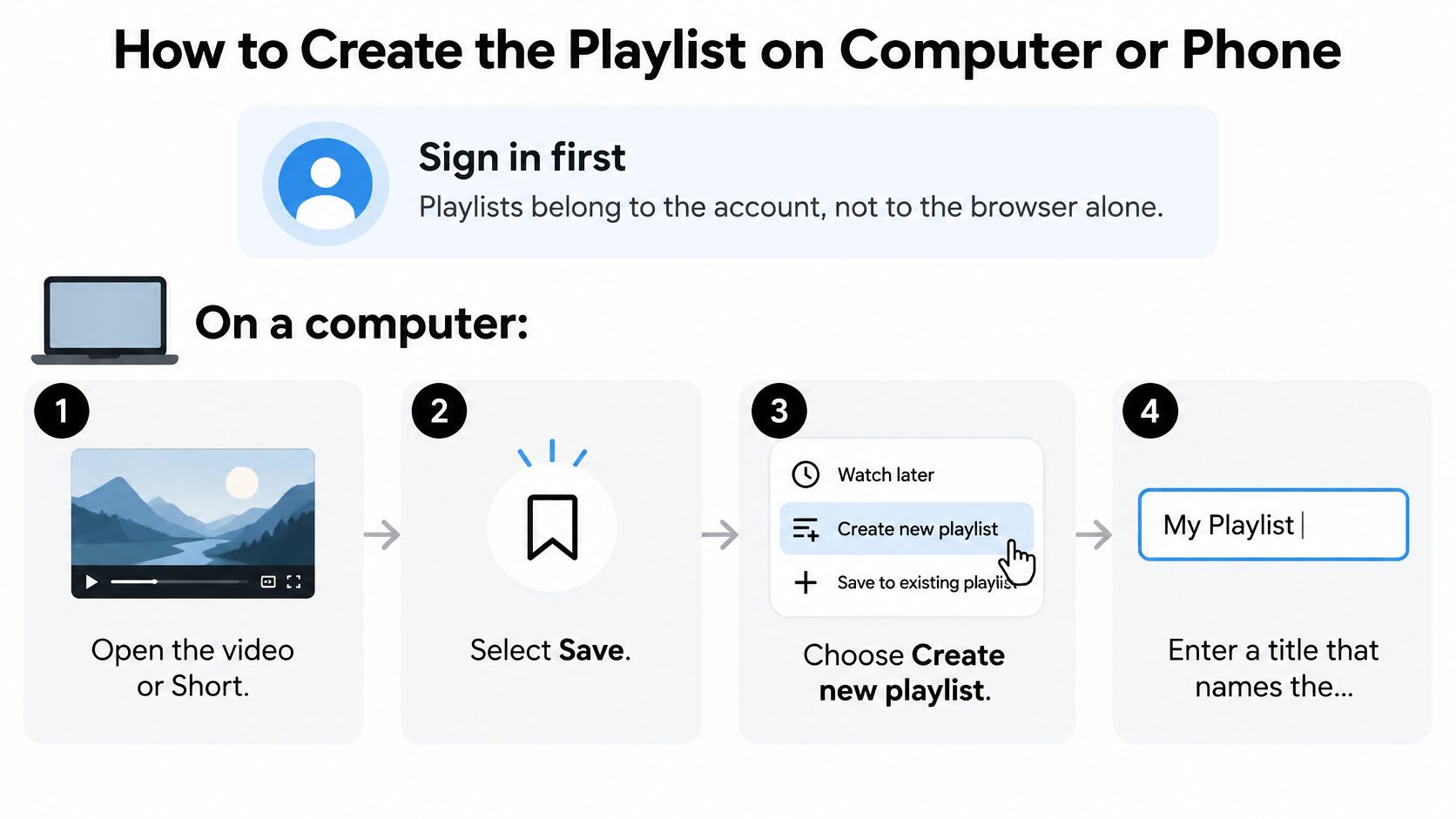
On a computer
- Open the content. Go to the video or Short you want to include.
- Select Save. If the control isn't immediately visible, check the available action menu.
- Choose Create new playlist. Don't select an existing collection unless that's where you intend to put the video.
- Enter a useful title. Try Lab preparation clips or Friday film queue, rather than a name you won't recognize later.
- Set visibility and create. Choose the audience you decided on, confirm creation, and make sure the current video is included.
You don't need to upload a video before you can organize a viewing collection. Start from the content you want to save, then build the sequence around its purpose.
On a phone
YouTube's iPhone and iPad instructions describe the More → Save route, along with creating a playlist from videos in watch history.
- Open a video or Short. Tap More, then Save.
- Open the playlist choices. If an existing playlist appears, tap Change to choose a different destination.
- Select New playlist. Enter its name and choose the privacy setting.
- Tap Create. Finish the creation flow before moving to another video.
Android uses the same general Save-to-playlist pattern, although button placement and wording can differ. Follow the controls shown in your app rather than expecting every screen to match an iPhone.
For a batch of videos you've already watched, use the playlist-creation option in your profile area and select from watch history. That's easier than searching again for each clip.
In YouTube Studio
- Find playlist management. Open YouTube Studio and locate Playlists, typically within Content on desktop.
- Start a new playlist. Enter the title and a description explaining what the collection is for.
- Choose its settings. Set visibility and the ordering method offered in the creation screen.
- Add content and finish. Use the available add-video controls, then confirm creation or save your changes.
Studio is especially useful when you're maintaining a channel series rather than saving an occasional clip. You can revise the playlist's details there; the Studio app also provides management options, though its layout differs from desktop.
For an additional walkthrough focused on collection-building, Taja AI explains how to organize YouTube videos into playlists. Use that as a companion to the controls available on your device.
Finish with the destination check. Mobile saving can reuse the last playlist you selected, so read the confirmation after every addition. If the displayed title isn't the one you intended, use Change before leaving the video.
Who Can Add Videos and Who Can Remove Them
A shared viewing link doesn't make its recipient an editor. Someone can open an unlisted collection without having permission to add anything to it.
Use Add collaborators when you want other people to contribute. Treat that invitation as a separate decision from making the playlist watchable.
Playlist editing and voting controls
| Setup | Who can add | How order changes | If access is revoked |
|---|---|---|---|
| Owner only | Owner | Owner drag-and-drop on desktop | Not shared |
| Collaborators, voting off | Owner and invited collaborators | Owner sets the order | Turning collaboration off removes all collaborators; someone who leaves cannot add more |
| Voting for everyone | Owner and collaborators add; signed-in viewers can vote | Anonymous votes influence ranking | Disable voting to stop further voting |
| Voting for collaborators only | Owner and invited collaborators | Anonymous collaborator votes influence ranking | A person who no longer has collaborator access can't add more videos |
YouTube's collaboration and voting instructions explain that votes are anonymous, with one vote per video, and that voting can be open to everyone, limited to collaborators, or disabled.
Match the controls to the job
For a channel tutorial sequence, owner-only editing makes sense. Viewers need a dependable learning order, not a popularity contest that moves an advanced lesson ahead of its introduction.
For internal training, invited contributors with voting off are usually more practical. A colleague can suggest useful material by adding it, while the owner maintains the intended sequence.
A community music queue is different. Letting viewers influence ranking may be the point, provided someone still checks for irrelevant additions. Voting rights and adding rights remain separate.
Keep removal authority clear
The owner can remove unwanted entries, and original contributors can remove material they added. You don't need to delete the entire collection because a collaborator included an off-topic clip.
Turning collaboration off removes all collaborators, rather than pausing their contributions. Someone who leaves can no longer add new videos, so review access when a project ends or group membership changes.
Write the house rule before sending invitations: contributions should fit the topic, and the owner may remove anything that doesn't.
For a classroom, describe the subject and expected difficulty level in the playlist description. For a company training list, name the intended role or task so contributors can judge whether a clip belongs.
The walkthrough on managing a shared YouTube playlist can help you think through the invitation workflow. Keep account access separate from playlist collaboration: a contributor should use their own account, not your password.
When the Video Lands in the Wrong Playlist
The most familiar mix-up is a phone save that goes to yesterday's collection. Your work tutorial ends up beside family cartoons because the app reused the previous destination.
Fix the entry, not the whole playlist. Open the incorrect collection, remove that video from it, return to the video's Save control, and select the intended title through Change.
Fix the symptom you actually have
- The video is missing from the intended list. Check the playlist named in the save confirmation and your recently used collections. Once you locate it, remove the mistaken entry and save it to the correct destination.
- The order won't stay as arranged. Open the playlist on a computer and use manual drag-and-drop ordering. Check the selected sorting method before assuming your changes disappeared.
- A recipient can't open the list. Check visibility and make sure you shared the playlist itself, rather than only the currently playing video.
- An editor added unrelated material. Remove the offending entries as owner, clarify the contribution rule, and decide whether continued collaboration is appropriate.
Removing a playlist entry doesn't delete the original video from YouTube. That distinction makes cleanup less risky: you're changing your collection, not taking down someone else's upload.
When access or availability is the problem
If an unintended viewer can open the collection, inspect its visibility before sending more messages. Changing an unlisted list to private stops link-based viewing, but it also prevents your intended audience from using that URL.
Don't assume copying the same URL again creates a fresh access boundary. If you need sharing limited to a specific group, consider whether an easily forwarded playlist URL is suitable at all.
Troubleshooting habit: Change a setting, reopen the playlist, and test the result before changing something else.
If YouTube limits or removes material, read the notice and address the stated issue. Replace unavailable entries with appropriate alternatives; recreating the same collection isn't a remedy for an enforcement problem.
For a public series that viewers aren't starting, first check the basics: the collection opens, the shared destination is correct, and the introductory video appears first. Test the viewer's actual route from the channel or message, rather than only opening the list from your own library.
Tips That Keep a Playlist Worth Replaying
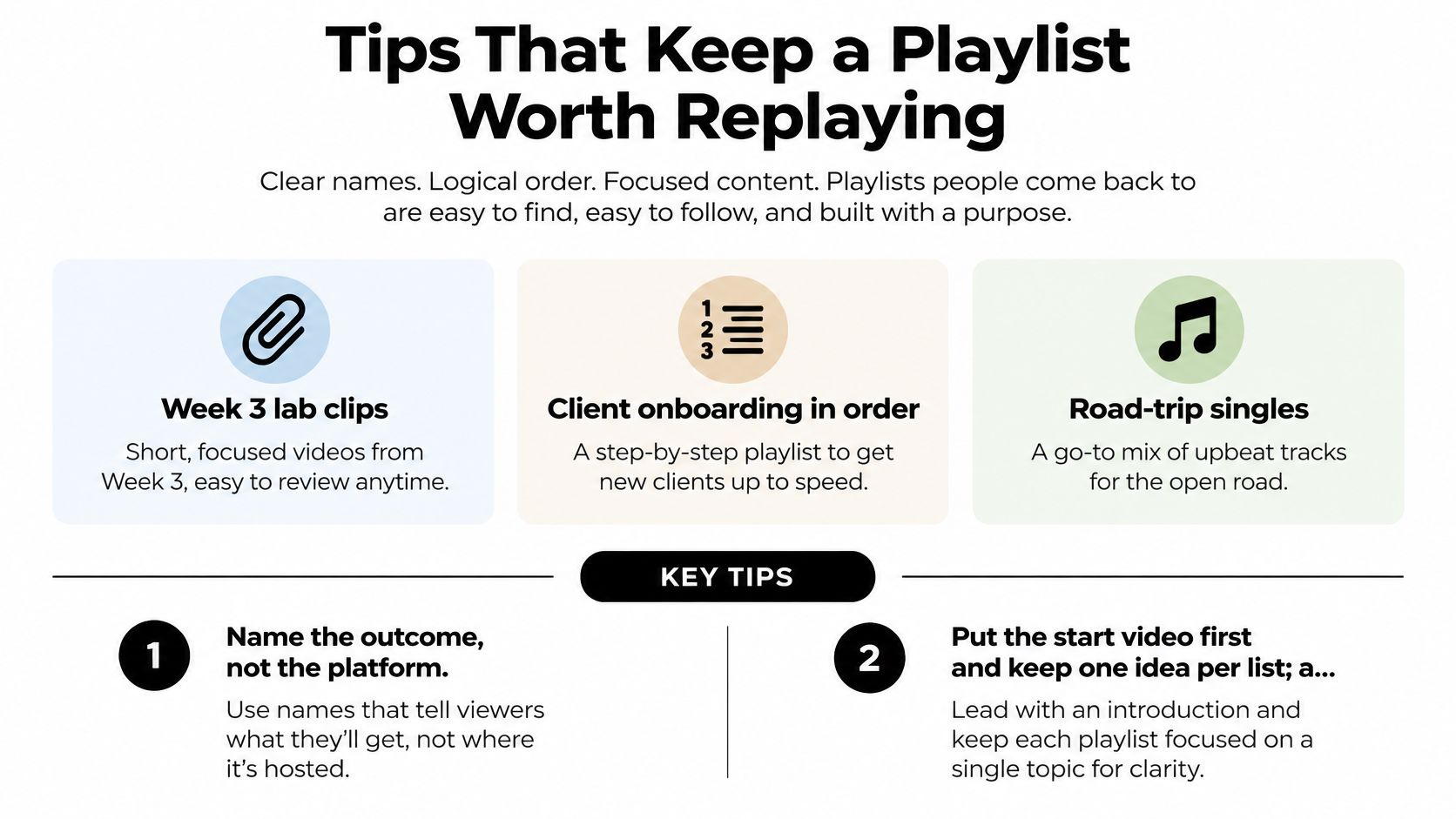
A useful playlist promises an outcome and then delivers it in a sensible order. Client onboarding in order tells a viewer more than Useful videos, because it explains both the purpose and how to watch.
As of 2025, fans had created more than 4 billion music playlists, according to YouTube's anniversary post. That scale doesn't tell you how to organize a class, but it reinforces the value of giving your own collection a recognizable purpose.
Build a sequence someone can follow
- Name the task. Use Lab preparation clips, Client onboarding in order, or Road-trip singles. A reader should know what they'll get before opening the list.
- Lead with the starting point. For teaching, put the explanation of basic terms before the demonstration that assumes them.
- Keep the subject focused. Separate revision lessons from comedy clips, even if the same class enjoys both.
- Describe the route. Add a short description explaining who the list is for and whether viewers should watch in order.
Play the collection yourself after rearranging it. Listen for moments when a presenter refers to a concept that hasn't appeared yet, then move the prerequisite earlier.
Maintain it like a teaching resource
Watch Later works as a private scratch pad. Move a keeper into a named collection when it becomes part of a deliberate sequence, rather than leaving every useful find in the same holding area.
Remove duplicate entries, unavailable clips, and explanations you've replaced with clearer alternatives. If you're rebuilding an older collection, this guide to finding old YouTube videos offers a starting point for locating missing material.
Channel owners can also consider audience reactions alongside sequence and relevance. SleekPost's guide to YouTube dislike insights for channel growth provides context for thinking about feedback, but a reaction count alone shouldn't decide whether a lesson belongs.
The strongest test is practical: does the next video answer the question the current one leaves open? If it sends viewers into an unrelated topic, split the collection.
Create the List You Will Open Tomorrow
Start with a collection you'll use, not a project to reorganize your entire viewing history. Choose a clear job: your own queue, a resource for people you know, or a series strangers should discover.
For a personal collection, save material you expect to revisit. For a class or family queue, check the viewing experience before distributing it. For a channel series, make the opening video a useful invitation to continue.
Make the first version usable
- Choose the purpose and audience. Decide what the viewer should be able to do after watching.
- Create the named collection. Use the device you already have open, rather than postponing it for a larger organizing session.
- Check the result. Confirm the saved destination, open the playlist, and inspect the sequence.
- Invite help deliberately. Add contributors only when you want shared curation, and enable voting only when group ranking serves the purpose.
Creating a playlist doesn't require a paid plan. Premium viewing features are a separate choice, not a prerequisite for saving and arranging videos.
You don't need a finished library today. You need a recognizable title, the right audience setting, and a starting video that belongs there. Add the rest when you find content that improves the collection.
We offer subscriptions across AI tools, Creative tools, and Streaming & music, separate from YouTube's free playlist tools. If you're also comparing paid services for your viewing routine, visit AccountShare, choose a tool, review the plan, then add your chosen plan to the cart and continue to checkout.