

YouTube Background Play Not Working? Here's How to Fix It
When YouTube background play isn't working, it almost always boils down to one of two culprits: an inactive Premium subscription or a finicky setting on your phone. It's a frustrating experience, for sure, but the good news is the fix is usually simple. Before you start digging into complex troubleshooting, checking your membership status and your device's battery settings will solve the problem for the vast majority of people.
Why Won't YouTube Play in the Background?
Let's get right to it. That annoying moment when the audio cuts out as soon as you switch apps is a shared experience, but the cause is rarely mysterious.
The very first thing to check is your YouTube Premium status. This is the entire ballgame. Background play is the cornerstone feature that separates paid members from free users. If you don't have an active subscription, that's your answer—the feature simply isn't available. You can learn more by understanding what subscriptions on YouTube are.
For those who are paying for Premium, the trail leads us to a few other common suspects:
- Payment Problems: Your subscription might have lapsed because of an expired card or payment issue.
- Battery Savers: Your phone's aggressive battery optimization mode could be shutting YouTube down the second it's not on screen.
- App Glitches: Sometimes, the app just needs a refresh. A simple cache clear or a restart can work wonders.
- Wrong Account: Are you positive you're logged into the Google account that has the Premium subscription? It's an easy mistake to make.
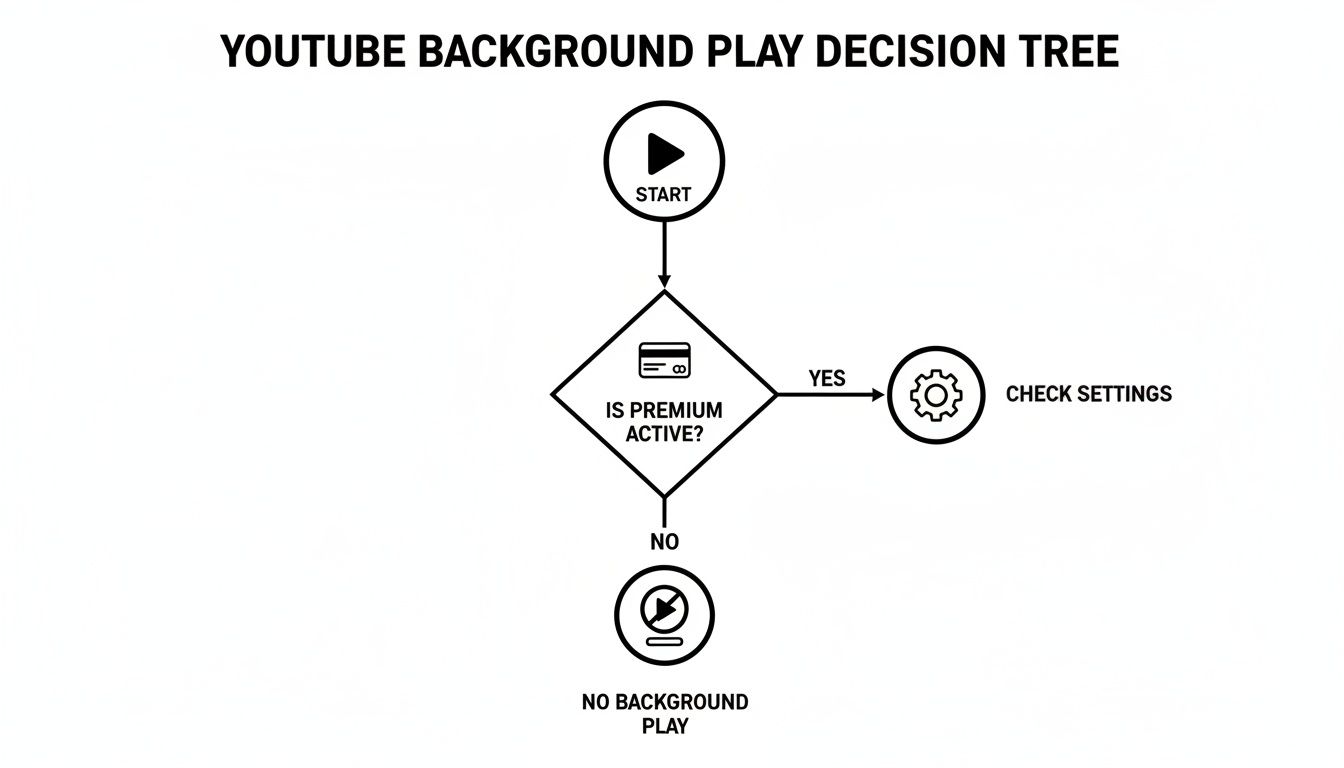
This decision tree gives you a quick visual of where to start looking when your YouTube background play stops working.
Quick Fix Checklist for Background Play Issues
Before diving deep, use this table to quickly find your problem and the most likely solution. It's the fastest way to get your audio back.
| Symptom | Most Likely Cause | Your First Action |
|---|---|---|
| Audio stops immediately after locking screen. | Expired/Inactive Premium Subscription | Go to Profile > Purchases and memberships to verify your status. |
| Background play works for a few minutes, then stops. | Aggressive Battery Optimization | Check your phone's Settings > Apps > YouTube > Battery and set to "Unrestricted." |
| The feature randomly works sometimes, but not others. | App Glitch or Cache Issue | Clear the YouTube app cache in your phone's settings or restart your device. |
| "Background play isn't available" message appears. | Logged into the Wrong Google Account | Tap your profile picture in YouTube and confirm you're on the correct account. |
Trying these quick actions first will often save you a lot of time and frustration.
With over 100 million Premium subscribers and mobile viewing making up more than 60% of all watch time, this feature is essential for a huge number of users. It’s a core part of the modern YouTube experience, so getting it working again is key. You can find more stats on YouTube's user base over at GlobalMediaInsight.com.
First Things First: Is Your YouTube Premium Subscription Actually Active?
Before you start messing around with your phone's settings, let's check the most common culprit when YouTube background play is not working: a simple account issue. It happens more often than you'd think. A credit card expires, an auto-renewal fails, or there’s a hiccup with a family plan, and poof—your Premium benefits are gone without any big warning.
This is always the first place I tell people to look. Getting this sorted out from the start can save you a ton of headaches. Thankfully, checking your subscription status is a breeze and takes less than a minute right inside the YouTube app.
How to Verify Your Membership
You can see if your subscription is live in just a few taps. Don't just assume it's fine because you watched ad-free videos yesterday, as payment issues can sometimes take a day to reflect on your account.
Here’s the quick way to check:
- Pop open the YouTube app.
- Tap your profile picture down in the bottom-right corner.
- From the menu, choose Purchases and memberships.
This screen tells you everything you need to know. It will clearly show if your YouTube Premium membership is "Active." If you see an error or an expired notice, you've found your problem. Usually, the app gives you a button right there to update your payment info and fix it.
Pro Tip: If you're on a family plan and the subscription shows as active, it's worth a quick message to the plan's manager. They might have removed you, or their main payment method could have failed, which cuts off benefits for everyone.
Are You Logged Into the Right Google Account?
So many of us juggle multiple Google accounts—one for work, one for personal stuff, maybe another for a side project. A classic mistake is being signed into the YouTube app with an account that doesn't have the Premium subscription.
On that same "Purchases and memberships" page, just glance at the top and confirm the account shown is the one you actually paid with. If it's the wrong one, tap your profile picture again, hit "Switch account," and pick the correct one. This simple swap often brings back background play instantly.
Once you’ve confirmed you’re on the right, active account, you should have access to all the features. If you need a refresher, check out this breakdown of the YouTube Premium benefits you should have access to.
Tweaking Your Device Settings for Uninterrupted Playback
So, you've confirmed your YouTube Premium is active, but your audio still cuts out the second you switch apps. What gives? More often than not, the problem isn't the YouTube app itself—it's your phone's own operating system being a little too helpful.
Modern smartphones are relentless when it comes to saving battery. They’ll often shut down apps running in the background without a second thought, and that includes YouTube. You might have background play enabled in the app, but your device's master controls are simply overriding it. This is a super common roadblock, but thankfully, it's usually an easy fix.
For Android Users: Tame Your Battery Optimizer
Android phones, particularly from brands like Samsung or OnePlus, are famous for their robust battery optimization. It’s fantastic for making your charge last all day, but it can be the direct cause of your playback headaches. You essentially need to tell your phone, "Hey, leave YouTube alone."
The setting you're looking for is usually under "Battery usage" for the YouTube app. The path is typically something like Settings > Apps > YouTube > Battery.
Inside this menu, you’ll probably see a few options: "Optimized," "Restricted," and "Unrestricted."
The default setting, "Optimized," is almost always the problem. It gives your phone permission to kill the app when it thinks you aren't actively using it—even if you're listening to something.
Switch this setting to "Unrestricted." This one simple change tells your Android OS not to interfere with YouTube, and it often solves the problem instantly.
For iPhone Users: Check Background App Refresh
On an iPhone, the setting to check is called "Background App Refresh." This feature is what lets apps, like your email, fetch new content when they aren't on your screen. If this is turned off for YouTube, it can prevent it from playing audio when you lock your screen or switch to another app.
Here’s where to find it:
- Open the Settings app on your iPhone.
- Scroll down and tap on General.
- From there, select Background App Refresh.
You'll see a list of all your installed apps. Just find YouTube and make sure its toggle is switched on (green). It's a small detail, but it’s a crucial one for ensuring smooth playback.
This clash between app features and OS power-saving is a constant battle. In fact, data from community help forums often shows that searches for YouTube background play not working surge right after major Android or iOS updates, which can quietly reset these permissions. As highlighted in statistics from Rev.com, OS updates are a frequent source of these new-found issues. By checking these settings, you’re tackling one of the most common reasons this feature fails.
If you've checked all your settings and background play still isn't working, the problem might be lurking inside the app itself. The YouTube app stores temporary files, known as a cache, to help things load faster. Normally this is a good thing, but sometimes these files get corrupted—especially after an app update—and cause all sorts of strange bugs.
Think of clearing the cache as a quick spring clean for the app. It's a totally safe first step that gets rid of those temporary files without touching your watch history, subscriptions, or login info. It’s surprising how often this simple fix can solve stubborn glitches that even a phone restart won't touch.
Know the Difference: Cache vs. Data
Before you go tapping away, it’s really important to know what you’re clearing. On Android, you’ll see two options right next to each other, and picking the wrong one can be a headache.
- Clear Cache: This is what you want to do first. It removes temporary junk files. Your account, downloads, and settings will be perfectly safe.
- Clear Data/Storage: This is the nuclear option. It completely resets the YouTube app to its original state, logging you out and deleting all your downloaded videos and custom settings.
Expert Tip: Always, always start by clearing just the cache. Only think about clearing all data if the problem persists and you've tried everything else.
How to Clear the Cache on Your Phone
The steps are a bit different depending on whether you're using an Android or an iPhone.
For Android Users
On Android, you have direct control. Just head into Settings > Apps > YouTube > Storage. You'll see two distinct buttons: "Clear cache" and "Clear data."
Go ahead and tap "Clear cache." Once it's done, close and reopen the YouTube app. That's it! Check to see if your background play is back in action.
For iPhone Users
Things work a little differently on an iPhone. Apple doesn't give you a button to clear the cache for a single app. Instead, you have to "offload" it.
Navigate to Settings > General > iPhone Storage > YouTube. Here, you’ll see an option to "Offload App." Tapping this removes the app itself but cleverly keeps all your personal data and settings safe. Then, just pop over to the App Store and reinstall it. This gives you a fresh version of the app with a clean slate, effectively clearing the old cache.
Exploring Workarounds for Background Play
So, your YouTube Premium background play is acting up, or maybe you're a free user who just wants to listen to a video with your screen off. Don't worry, you're not out of luck. There are a couple of solid, legitimate workarounds that can get you listening to your favorite content while you multitask.
One of the oldest and most reliable tricks in the book is to simply use your phone's web browser—like Chrome or Safari—instead of the YouTube app. This method basically tricks the YouTube website into thinking you're on a desktop computer, which lets audio play in the background by default. It's a surprisingly simple fix for a common annoyance.
The Browser Method for Background Audio
Ready to give it a shot? All you need to do is request the desktop version of the YouTube site. It works on both Android and iOS, and it only takes a moment.
- First, open your mobile browser and head over to YouTube.com.
- Find the video you want to listen to and tap play.
- Next, look for your browser’s menu icon. On Chrome, it's the three dots; on Safari, it's the "aA" symbol.
- From that menu, just choose "Desktop site" or "Request Desktop Website."
The page will refresh and look just like it does on your computer. Now, when you switch to another app or lock your screen, the audio should keep right on playing. You might have to pull down your notification panel or open your control center and hit the play button to get it started again, but it’s a dependable solution.
Using Picture-in-Picture Mode
Another fantastic option is Picture-in-Picture (PiP) mode. This feature shrinks the video into a small window that floats over your other apps. It's perfect for multitasking—you can keep an eye on a tutorial while taking notes or watch a music video while texting a friend.
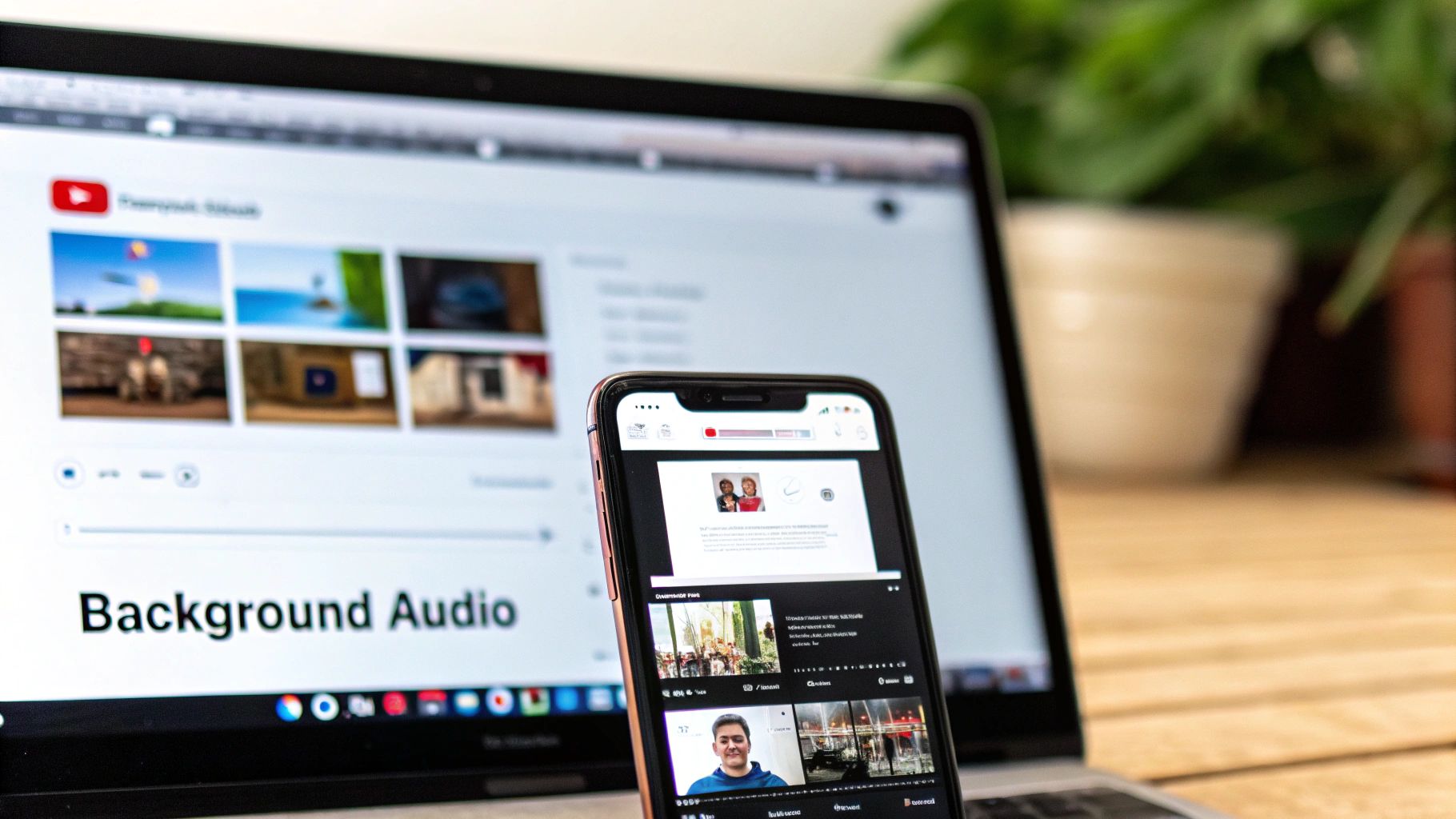
As you can see, PiP keeps your video in view without taking over the whole screen. To make this work, you’ll want to double-check that PiP is enabled in both your phone’s system settings and inside the YouTube app’s settings under the General section.
While this has traditionally been a Premium feature, YouTube has been rolling it out to free users in some regions, so it's definitely worth checking if it works for you. These tricks are great alternatives to a paid subscription.
And if you're really looking to upgrade your experience, you can learn more about how to get a completely ad-free experience at https://accountshare.ai/blogs/new/how-to-get-ad-free-youtube. For anyone who needs to absorb long videos more quickly, some of these YouTube video summarizer tools are also a huge time-saver.
Common Questions About YouTube Background Play
Even after you've double-checked all the settings, some specific situations can leave you wondering why things aren't working. When YouTube's background play feature acts up, it’s usually because of a quirky rule or a behavior you might not be aware of. Let's dig into some of the most common questions to clear things up.
One of the biggest head-scratchers for Premium subscribers is finding out that not every single video works. While most content plays just fine, there are a few key exceptions. For example, any video marked as "Made for Kids" will not play in the background. This isn't a bug; it's an intentional restriction to comply with child protection laws, which disables features like the miniplayer and background playback on that content. You might also run into similar restrictions on purchased movies or certain TV shows.
Why Did Picture-in-Picture Suddenly Stop?
If your Picture-in-Picture (PiP) feature suddenly vanishes, the culprit is almost always a settings issue. Sometimes, an update to your phone's OS or the YouTube app itself can accidentally reset these permissions. Your first move should be to dive back into your phone’s main settings and the YouTube app's settings to make sure PiP is still enabled in both spots.
It's also worth remembering that PiP for non-Premium users can be a bit hit-or-miss and often depends on your location. If you’re not a paying subscriber, a recent change in YouTube's regional policies could easily be the reason it suddenly stopped working for you.
Can I Use Background Play on a Computer?
You absolutely can, but it works completely differently and doesn't require a Premium subscription at all. On a desktop or laptop, "background play" is just the natural result of multitasking. You just keep a YouTube tab open and playing while you click over to another tab or a different application.
As long as that browser tab with YouTube stays open, the audio will keep right on playing.
On mobile, background play is a specific, premium feature designed for when the app is minimized or the screen is off. On a desktop, it's just how web browsers normally work.
Is It a Bug If Music Stops When I Open Another App?
This is usually the intended behavior, not a glitch. Your phone's operating system is built to give audio focus to only one app at a time. The moment you open another app that makes sound—like a game, a podcast player, or another streaming service—it requests control of your device's audio.
To avoid a jumbled mess of competing sounds, your phone automatically pauses YouTube to let the new app take over. This is all about giving you a clean audio experience where the app you're actively using gets priority.
By the way, if you're a content creator, you might also find value in exploring the different YouTube transcription use cases for repurposing your video content.
At AccountShare, we believe you should get the most out of your subscriptions without overpaying. Our platform makes it easy to share access to premium services securely and affordably. Join a group and start saving today at https://accountshare.ai.