

Permission Management App Compared: Which Fits Your Setup
You've shared a streaming login with your family, or given a teammate access to a tool, and now one person needs to leave. Removing their name from a list may not end an existing session, erase a saved password, or stop access through a device you don't manage. A permission management app is only as useful as what happens at that boundary: when access should stop.
The right choice depends on what you're trying to control. A workplace admin console, a family-control tool and a shared password vault solve different problems, so compare the control each one actually enforces before counting its settings.
Permission Management App Types at a Glance
| App type | Best fit | Permission granularity | Revocation speed | Main limitation |
|---|---|---|---|---|
| Admin console for a work or school tenant | Teams with an IT admin | High, per app and scope | Immediate, by admin | Needs an admin role and isn't built for households |
| Operating-system family controls | Parents managing children's devices | Medium, by app, content and purchases | Immediate, from the parent device | Doesn't control access to a subscription's own account |
| Password manager with sharing vault | Households and small teams sharing logins | Medium, per item and per member | Immediate removal of a member | Can't limit what a user does inside the shared service |
| Mobile device management suite | Small businesses with company devices | High, by device policy | Remote unenrollment or wipe | Heavy setup and overkill for families |
| Shared-account access platform | Buyers of shared subscriptions | Depends on plan, shared or private | Follows the provider's removal process | Credential handling and revocation follow the provider's policy |
For shared logins, granularity and revocation speed matter more than feature count.
Read the admin-console row first if you manage people and work or school accounts. If your main concern is children's phones and tablets, start with operating-system family controls. If you're deciding how to share credentials or subscription access, compare the password-vault and shared-account rows, then check what each service lets you revoke.
What a Permission Management App Actually Controls
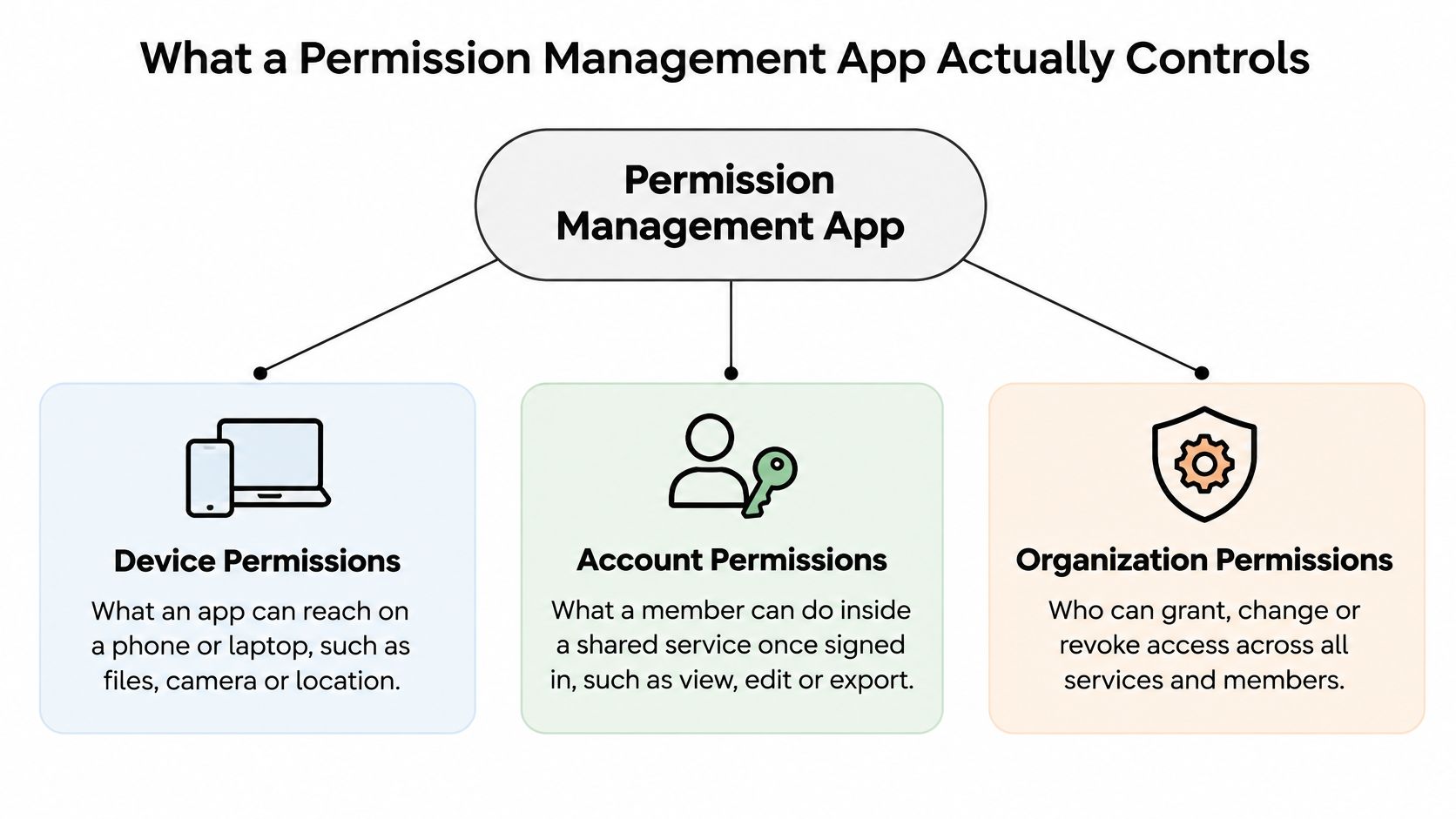
Keep three layers separate. Device permissions govern what an app can reach on a phone or laptop, such as files, the camera or location. Account permissions determine what a signed-in member can do within a service, such as view content, change settings or add devices. Organization permissions govern who can grant, change or revoke access across members and services.
The distinction matters because a permission that looks routine can still carry more reach than someone needs. In an analysis of 1,041,336 Android apps collected in 2014, the Pew Research Center's study of Android app permissions identified 235 distinct permission types. Of those, 165 mainly involved hardware or system functions, while 70 could provide access to personal information. The average app requested five permissions before installation.
A shared account can create the same mismatch between task and reach. Someone asked to watch a show may not need the ability to change account settings or add devices; a collaborator who only needs to use a tool may not need export or billing access. A guide to user roles and permissions can help you think through those distinctions, and Coachful's user roles guide offers a practical example of explaining roles in a service context.
Working rule: Give each person the minimum access their task requires, explain what that access means, and review it when the person's circumstances change.
Platform Support Across Devices and Services
Start with the devices your household or team really uses. A permission app that covers phones but not laptop sessions may leave an important gap, especially if members sign in through a browser.
- List every platform. Record Windows, macOS, iOS, Android and browser use. Note which people use each device, including older phones or tablets that may still hold an active session.
- Find where the rule is enforced. Check whether access is controlled by the service itself or only on a managed device. Device-only rules may not stop someone who signs in elsewhere.
- Match the sharing method to the service. A service may use a shared vault entry, an individual seat or a profile. Confirm that the tool supports the method you need rather than assuming one app covers every case.
- Test device removal. Remove a test device and verify that the member can no longer use its session. Deleting a device from a list may not terminate service access.
- Check family and team coverage. If children use several operating systems, decide whether you need a separate parent-controlled tool as well as account-level controls. For Android-specific settings, this guide to permission control on Android can help you identify device-level controls to check.
Write down the result for each platform before choosing. If the app doesn't enforce an important rule on a device or service you use, choose a different app type rather than treating partial coverage as complete protection.
Security Controls That Separate Serious Apps
The test isn't whether an app offers many controls. It's whether its rules still work when a member's role changes, a device goes missing or access needs to end.

Use roles for recurring responsibilities. Role-based access control (RBAC) makes it easier to assign standard roles such as parent, child, administrator or collaborator. Instead of inventing a separate set of exceptions for every person, define what each role can do and apply it consistently.
Add context where roles aren't enough. Attribute-based access control (ABAC) can account for details such as the service, device, time window or subscription tier. A collaborator might have access to a work tool from a managed device, for example, without receiving access to billing or administrative settings.
OWASP's authorization guidance recommends clearly defining roles and attributes, applying least privilege and enforcing strict policies. In practical terms, least privilege should be the starting point, not a special restriction someone has to request. Give the new member only the functions their task requires, then add access only when there's a clear reason.
Check what happens to a session. Removing someone from a group doesn't automatically prove that the service has ended their active session. Short-lived access tokens can reduce the period during which a removed member remains signed in. Ask how sessions expire after revocation, and test the result rather than trusting a status label.
Look for an auditable event log. A useful log should show who requested or changed access, what decision the system made and when. That record helps an administrator distinguish an intentional change from a permission that remained active by mistake.
A permission model is stronger than a shared-password-only arrangement because an administrator can narrow or revoke access without having to change the underlying credential. A password vault still has a role, but it won't necessarily limit what someone can do once they've signed in to the service.
The failure to watch for is simple: a former member is marked as removed but can still use a session that never expired.
Before choosing an app, check two things. Does it fail closed, denying access when a rule is missing or unclear? And does the vendor test denied actions as well as successful ones? A system tested only on the happy path may fail precisely when you need a restriction to hold.
How Clear Explanations and Easy Revocation Compare
A member leaves at noon, the admin screen says access is off, and the shared workspace still opens at 12:20. That gap is the actual comparison: the quality of the explanation decides whether the owner granted the right scope, and revocation decides whether the service boundary honors the decision.
Clarity changes what people approve. In a Pew Research Center survey about app permissions, 90% of app downloaders said clear information about data access was very or somewhat important when deciding whether to download, 60% had declined to install an app after seeing how much personal information it required, and 43% had uninstalled one for the same reason. Research summarized in a guide to understanding app permissions says more than 60% of users accept permission requests by default because of prompt fatigue, which is exactly how excessive sharing gets approved under time pressure.
Five things to check in ten minutes
- Plain-language consequences: Does each permission say what the member can do, such as view, invite, export or change billing?
- Risky combinations: Can the app flag pairs that become sensitive together, such as read access plus export or share rights plus external guests?
- Current access versus retained data: Can you separate “this person still has access now” from “the service may keep copies of what they already opened”?
- A reason and an undo path: Does each recommendation state why it fits the task and how to reverse it after the task ends?
- A focused dashboard: Can you see active services, admins and high-impact permissions without sorting through controls that do not apply to shared accounts?
The ACM study of permission managers found that users often infer a permission's meaning from its label and past experience, while irrelevant permissions add cognitive burden; it recommends decluttering interfaces. For shared accounts, favor compact views, short descriptions and recommendations an owner can explain back before approving them.
Test revocation, not the screen
Create a test member, grant one permission and revoke it. Then try the denied action from a fresh sign-in and, where the tool allows it, from the old session. The pass mark is boring: the activity history records the change quickly, the member loses the action, and any retained-data note says what the service still holds. I'd score an app that explains scope beautifully but revokes slowly below a plainer tool whose deny takes effect at the boundary.
Setups That Fit Families, Students and Small Teams
Sharing isn't an unusual edge case. The UK Information Commissioner's Office found that 61% of surveyed people shared streaming-service login details, 42% shared them with a spouse or partner, and 21% with children. Overall, 72% had shared at least one type of security information, according to the ICO's report on people and online authentication. The practical question is how to share without handing everyone the same authority.
| Situation | Access model | Grant | Withhold | Review cadence |
|---|---|---|---|---|
| Family with children | Role-based: parent admin, child member | Streaming profile and approved apps | Account settings, billing, password | Monthly, and at each school term |
| Student group sharing one tool | Time-limited member access | One seat for the course term | Admin role and export of shared files | At term start and end |
| Small team of three to ten | Role-based with per-service scope | Collaborator role on the tools each person uses | Billing, admin and data export | Monthly, and within 24 hours of a departure |
| Solo digital nomad on a shared plan | Private access where possible, shared only for low-risk tools | Single profile | Recovery email and password changes | At each renewal date |
The important questions are whether access can expire automatically, whether it can be limited to one service or profile, and whether you can remove one person without disrupting everyone else. A role should reflect what someone needs to do, not their relationship to the account owner. For examples of role distinctions in a team setting, see RedirHub's guide to team permissions.
Before selecting an account, confirm whether the plan is shared or private. Usage limits and exclusions apply to the plan you choose, so a shared option isn't interchangeable with a private account. If the service can't isolate profiles or revoke one member cleanly, treat that as a limitation in the setup rather than assuming another layer of permissions will fix it.
How to Set Up Shared Account Permissions Step by Step
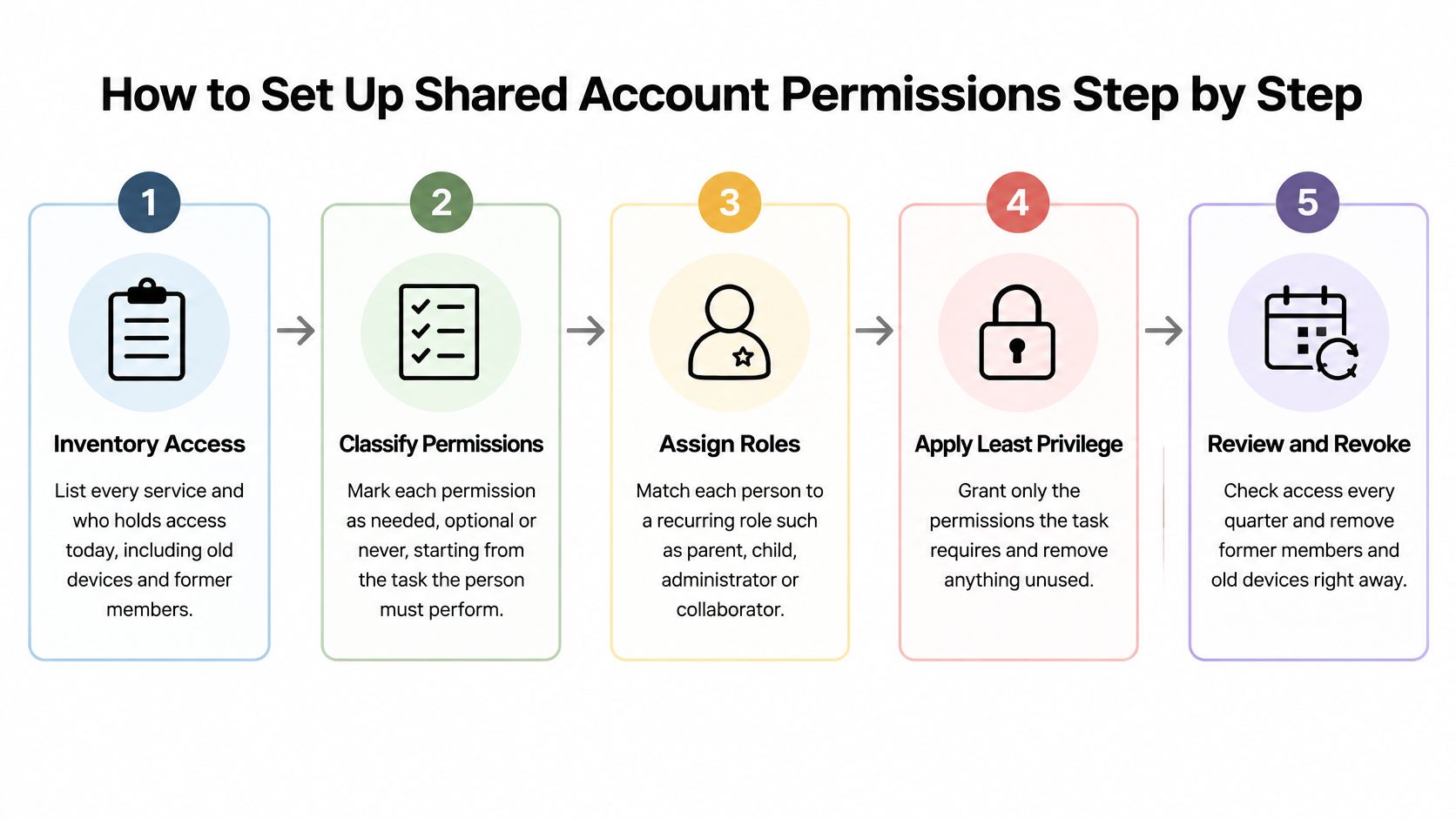
- Inventory every service. Write down who has access now, including former members, old devices and accounts that may still be signed in. This exposes forgotten access before you decide what to change; the common slip is checking people but overlooking devices.
- Classify permissions as needed, optional or never. Start with the task each person must complete, then decide what access supports it. If someone only needs to use a service, don't grant an administrative role just because it's the easiest option.
- Assign roles instead of creating one-off exceptions. Give each person a role that matches their recurring responsibility, such as parent, child, administrator or collaborator. That makes future changes easier to apply consistently; a role that was never needed can grant access across the group without anyone noticing.
- Set an end date for temporary access. Add a review date for everyone else, too, so access doesn't become permanent by default. A student or contractor who finishes a task shouldn't remain in the account just because nobody remembered to remove them.
- Store credentials in a password vault. Share them using the vault's sharing feature, not through chat or informal notes. Passwords, sessions, verification codes and backup codes must not be written in order notes or ordinary messages; leaving a password in an old group chat can preserve access after someone leaves.
- Test denied actions. For each member, try two actions their role should block, such as changing billing or exporting data. If either action succeeds, adjust the role before relying on it.
- Review and remove access promptly. Review the setup monthly, remove a departing member within 24 hours and rotate any password they could have seen. Removing someone from a roster while leaving a shared credential unchanged doesn't close that route back in.
For household-specific settings, this guide to family sharing settings can help frame the roles and boundaries you need. Teams that coordinate work across locations may also find Samba's approach to streamlining collaboration across tour operations useful when thinking about who needs access to which shared work.
Confirm the Setup With Your Provider Before You Pay
Choose the app type that matches how you manage people, devices or credentials, then confirm the operating details before buying. Send support these questions in writing:
- Is the plan shared or private?
- What usage limits apply to the specific plan I'm selecting?
- How do I remove a member, and how quickly does removal take effect?
Also ask what happens to a shared login if someone leaves mid-term, and whether the provider changes the credential after removal. The answers should match the access model you plan to use, not just describe a general account policy.
We don't accept sensitive authorization online, so contact support to confirm service availability before choosing a plan. Account delivery requests only a contact email; don't provide authorization for an account you already use. Keep passwords, sessions, verification codes and backup codes out of messages and notes while you wait. If any answer is missing or unclear, hold off on buying until you have a clear response.
AccountShare offers shared access to subscriptions and digital services, with customizable permissions and password-sharing options. Compare whether a shared or private account fits your access needs, then visit AccountShare to explore the available plans.