

Permission Control Android: How to Manage App Access
You've just installed a delivery app, and before you can order, it wants your precise location, contacts, and notifications. You tap allow because you're hungry, then forget about it. Weeks later, that app still holds access you never meant to give permanently. That's exactly what Permission Control on Android is for. You can narrow, pause, or withdraw access on your terms, and you don't need to uninstall anything to do it.
How Android Permissions Evolved Into Runtime Control
Early Android worked on an all or nothing basis. You installed an app, accepted the list it presented, and that was your decision made. If you didn't like one item on the list, your realistic option was not to install the app at all.
That model made some sense when phones did less. As devices gained better cameras, sensors, storage, and constant connectivity, the stakes changed. An app with broad access could reach far more personal material than an early app ever could.
Why the Old Model Stopped Working
The scale tells the story. Android initially defined 103 permissions, while later versions contained approximately 314, a more than threefold increase. More permissions sounds like more complexity, but it also reflects finer distinctions between types of access.
A flashlight feature, a photo picker, and full storage access aren't the same risk. With hundreds of defined permissions, bundling everything into one install screen stopped giving you a meaningful choice. You were agreeing to things you couldn't realistically evaluate in advance.
Granular permissions only help if you're asked at a moment when you understand why the app needs them.
The Runtime Shift
The turning point came with Android 6.0 Marshmallow, API level 23, released in 2015. Instead of settling everything at install, apps began asking for sensitive permissions at runtime, when you used the feature that needed them. A messaging app could wait until you tapped the camera button before requesting camera access.
That timing matters more than it sounds. When a request appears in context, you can judge it. A maps app asking for location while you search for directions is easy to assess. The same request from a calculator at launch is not.
You also gained the ability to change your mind. Access granted today can be revoked tomorrow in Settings, without removing the app. Permission control became an ongoing setting rather than a one time contract.
What You Control Now
Today's system gives you three practical powers. You can grant access selectively, choosing one permission while refusing another. You can review decisions later, per app or per capability. And you can withdraw access whenever an app's behavior stops earning it.
Those powers only work if you use them. Install time habits die hard, and many people still tap through prompts automatically. The rest of this guide is about breaking that habit with a few deliberate checks.
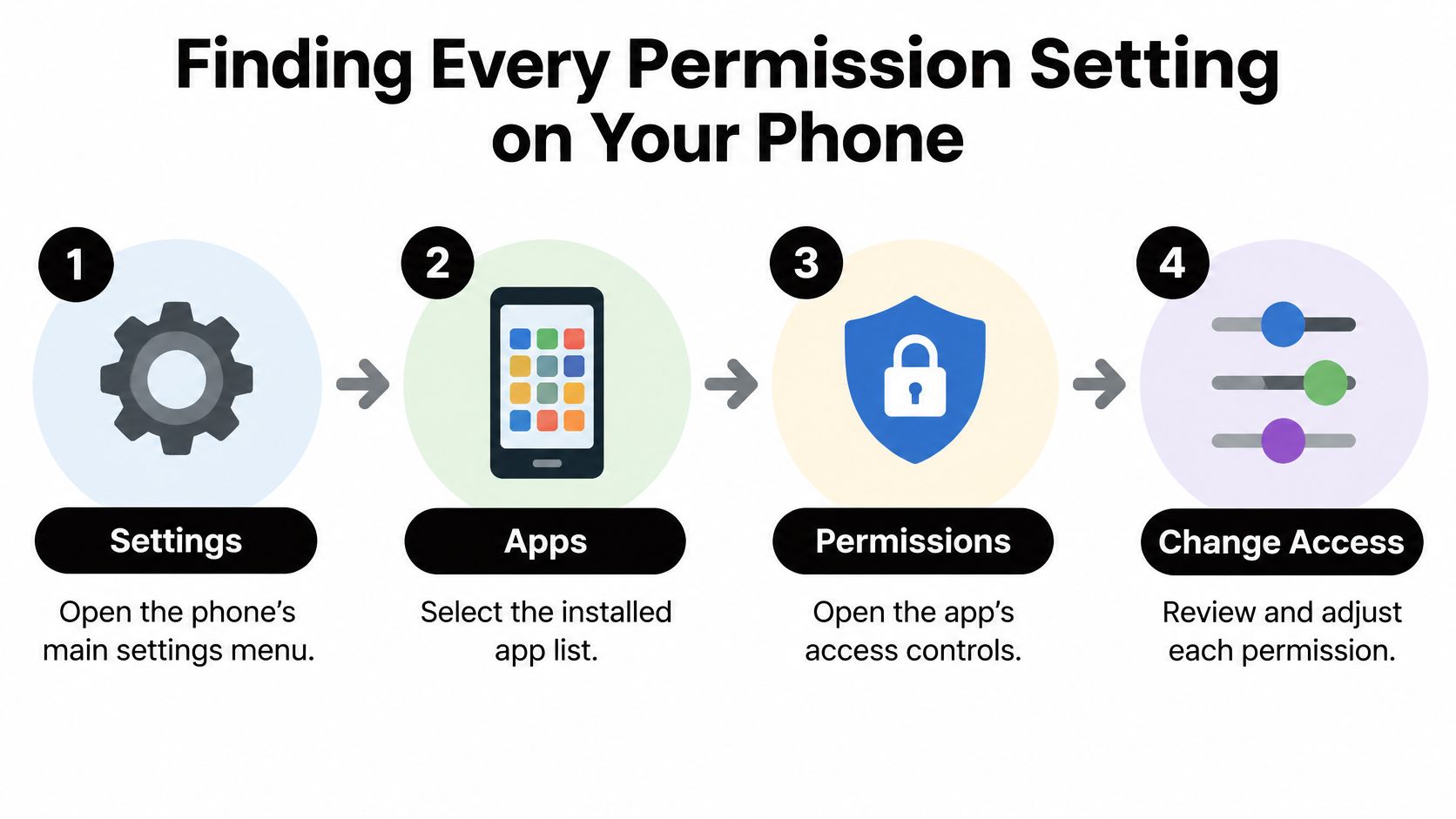
Finding Every Permission Setting on Your Phone
You don't need a third party tool to audit permissions. Everything lives in Settings, although the exact labels shift between manufacturers. Samsung, Pixel, and Xiaomi phones arrange menus differently, so treat the paths below as landmarks rather than exact street addresses.
The Per App Route
Start with a single app you care about. This route answers the question, what can this one app reach?
- Open Settings: Use the gear icon in your app drawer or quick settings panel.
- Go to Apps: Tap See all apps if your phone shows a shortened list first.
- Pick the app: Search by name rather than scrolling, it is faster on a full phone.
- Tap Permissions: You'll see what's allowed, what's denied, and sometimes what's set to ask every time.
Long pressing an app icon on your home screen and tapping App info often gets you to the same screen in two taps. That's the shortcut worth memorizing, because you'll use it right after an app behaves oddly.
The Permission Manager Route
The second route flips the question. Instead of asking what one app can do, you ask which apps can reach one sensitive resource. Go to Settings, then Privacy, then Permission manager, where access is grouped by capability.
- Location: Often the longest list, and the one most worth trimming.
- Camera and microphone: Check these for apps you barely remember installing.
- Contacts and call logs: Social and dialer apps belong here, games usually don't.
- Photos, media, and files: Look for apps holding broad storage access they no longer need.
This view is better for audits. If you're concerned about who can track where you go, one screen shows every app with location access, including whether it's allowed all the time or only while in use.
Finding Neglected Apps
Pay attention to apps you haven't opened in a while. Many phones surface an unused apps view under Apps in Settings. An app you forgot about can still hold permissions you granted in a hurry, and forgotten access is the least defensible kind.
Start your cleanup there. Remove permissions from anything dormant first, because you won't notice any loss of function. Then move to your daily apps, where the trade offs need a little more thought.
Granting and Revoking Access for Individual Apps
Take a food delivery app as a working example. It asks for precise location so it can show restaurants near you and send a courier to your door. The courier part needs an accurate address. Browsing menus does not.
That split is where permission control on Android earns its keep. You aren't choosing between using the app and protecting yourself. You're choosing how much access each task gets.
Granting With Limits
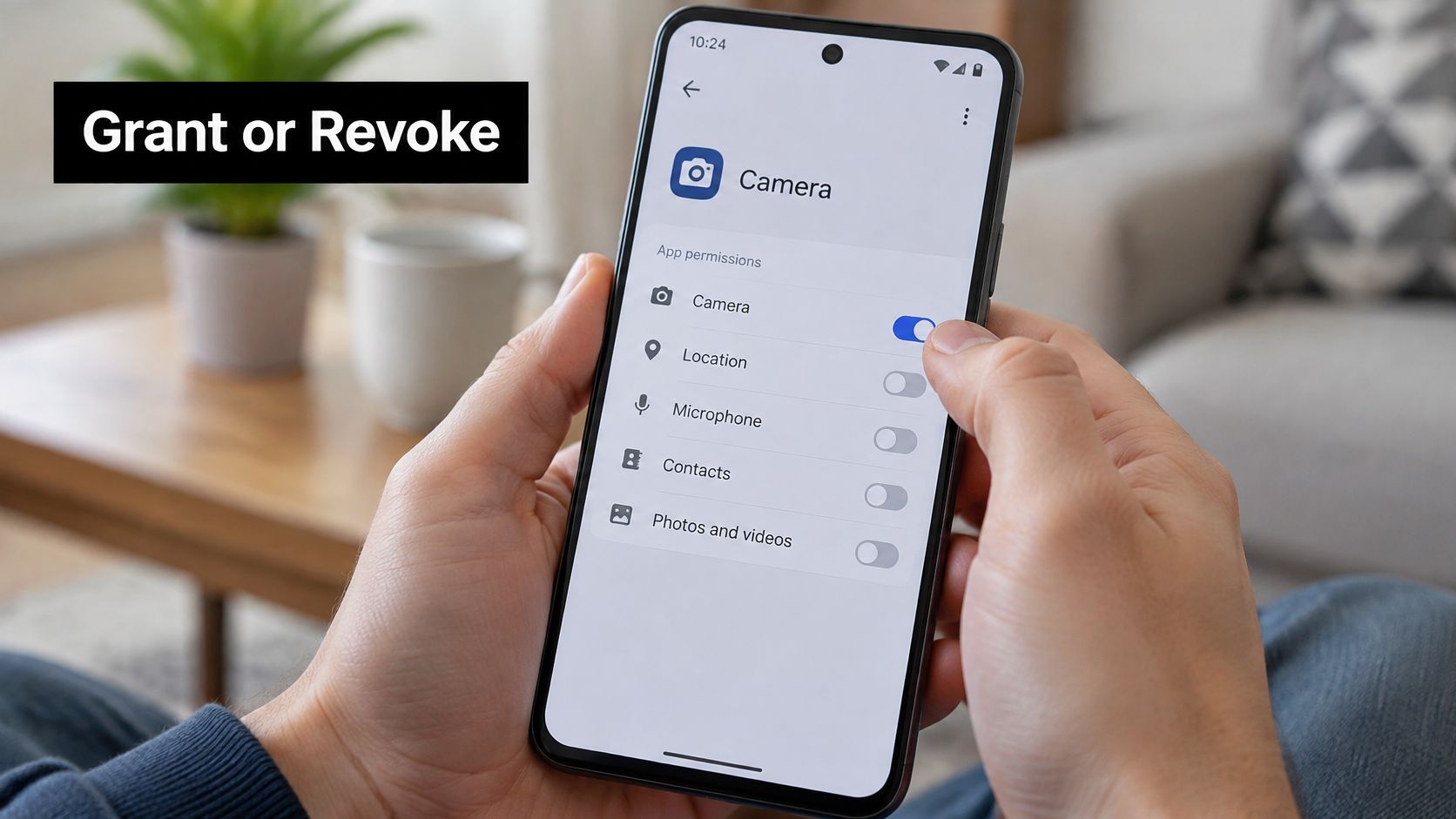
When a prompt appears, read the options instead of tapping the first one. For location, camera, and microphone, you'll typically see choices like these:
- While using the app: Access works only when the app is open and active.
- Only this time: One time access that ends when you leave the app, so it must ask again later.
- Don't allow: The app gets nothing and has to work without that feature.
For the delivery app, only this time suits a single order from a hotel. While using the app suits your regular service at home. Always on access is rarely necessary unless an app tracks deliveries or activity in the background, and even then it's worth questioning.
Location has an extra lever. Many phones let you grant approximate location instead of precise. Approximate is enough for weather, local news, and finding stores in your area. Save precise location for navigation, ride services, and delivery drop offs where the exact spot matters.
Revoking Step by Step
Revoking is just as direct. Open Settings > Apps, choose the app, tap Permissions, select the permission, and switch it to Don't allow. The change applies the next time the app tries to use that capability, so an app currently running may not react until it attempts a fresh access.
Expect consequences, but smaller ones than people fear:
- Location removed: The delivery app asks you to type an address instead.
- Camera removed: Scanning a loyalty code stops working until you grant it again.
- Contacts removed: Sharing features lose suggested recipients, core ordering still works.
Well built apps degrade gracefully and ask again with an explanation when you hit the blocked feature. An app that refuses to open at all over an unrelated permission is telling you something about its priorities. Broader thinking about how different access control methods shape what users can reach helps you spot when an app demands more authority than its job requires.
A Quick Check After Every Change
After tightening a permission, reopen the app and use its main feature once. Order a browse, send a test message, take one photo. If the core task still works, your change cost you nothing. If something breaks, you now know exactly which permission that feature depends on, and you can regrant the narrowest version, such as one time access, with full knowledge of the trade.
Reading Permission Groups and Context-Based Limits
Not every permission deserves the same scrutiny. Android separates normal permissions, which are generally granted automatically, from dangerous permissions, which require your explicit approval at runtime. Normal permissions cover lower risk behavior an app needs to function. Dangerous permissions guard private data and powerful actions, which is why they trigger a prompt.
That distinction explains why some access never asks you. It doesn't mean normal permissions are meaningless. It means Android judged the risk low enough not to interrupt you, and saved your attention for the requests that matter.
How Context Changed the Rules
Later releases added a second idea on top of that split. Access could depend on context, not just identity. An app might reach your location only while you're actively using it, or reach the microphone for a single session. Context limits recognize that timing and duration matter as much as the permission itself.
The ecosystem kept shifting under the hood, too. In Android 11 alone, 29 of 580 newly introduced APIs required dangerous permissions, while seven dangerous APIs were removed from Android 10. Some permissions became more restricted while others relaxed, which is why an older phone may show different options than a newer one for the same app.
| Android release | Permission change | What it means for you |
|---|---|---|
| Before 6.0 | Permissions granted at install as a bundle | Accept everything or skip the app |
| 6.0, API 23 | Runtime prompts for dangerous permissions | Decide when the feature actually asks |
| 10 and 11 | Context limits such as while in use and one time access | Grant narrower, time bound access |
| Later versions | Approximate location and auto resets for unused apps | Share less precise data by default |
Using This When a Prompt Appears
When a new prompt interrupts you, run a short mental test. Does this request match the action you just took? Is there a narrower option that still completes the task? If you can't connect the request to something you tapped, deny it and see what happens.
Practical rule: Grant the smallest version of access that keeps the feature working, then widen it only if something you value actually breaks.
Most apps survive a denial better than their prompts imply. And because you can revisit Settings anytime, a cautious answer today isn't permanent. It's a default you can relax deliberately, which beats relaxing it by accident.
What Revoking Access Does Not Erase
Turning off a permission feels final. The toggle flips, the app drops off the allowed list, and it's natural to assume the matter is closed. That assumption is where most guides stop, and it's only half true.
Revocation controls what happens on your phone from that moment forward. It doesn't reach into a company's servers. One time access, approximate location, and automatic permission resets do not necessarily delete data already collected or revoke information already transmitted to a service. The dashboard governs future access, not past copies.
A Four Stage Lifecycle
Thinking in stages keeps this clear:
- Before consent: Nothing flows yet, and your choices here have the greatest impact. Declining upfront prevents collection entirely.
- During access: The app can read, upload, and process what you've allowed. Anything transmitted now may be stored under the service's own retention policy.
- After revocation: New access stops, but uploaded photos, location history, contacts, and account data may remain on the service.
- After account deletion: This is a separate request to the service, governed by its deletion process, not by your phone's toggles.
Device Local Versus Service Side
Picture a family photo app. Your teenager revokes camera and photo access before lending you the phone, and the app can't read new pictures. But images uploaded last month still sit in the app's cloud library, visible to anyone signed into that account. The phone setting did its job. It just wasn't the job she thought she did.
The same gap applies to notification content, backed up media, and data gathered through an account rather than a sensor. Closing the device door and asking a service to delete what it holds are two separate actions. For shared accounts and family devices, understanding how privacy compliance duties apply to data a service retains clarifies which requests you can make beyond your own Settings screen.
None of this makes revoking pointless. Cutting off future collection still shrinks what a service accumulates, and approximate or one time access reduces what it gathers in the first place. Just pair the toggle with the service level step when the data matters. Check in app privacy settings, delete stored content there, and use account deletion when you're done with a service for good.
Best Practices for Privacy-Focused Permission Management
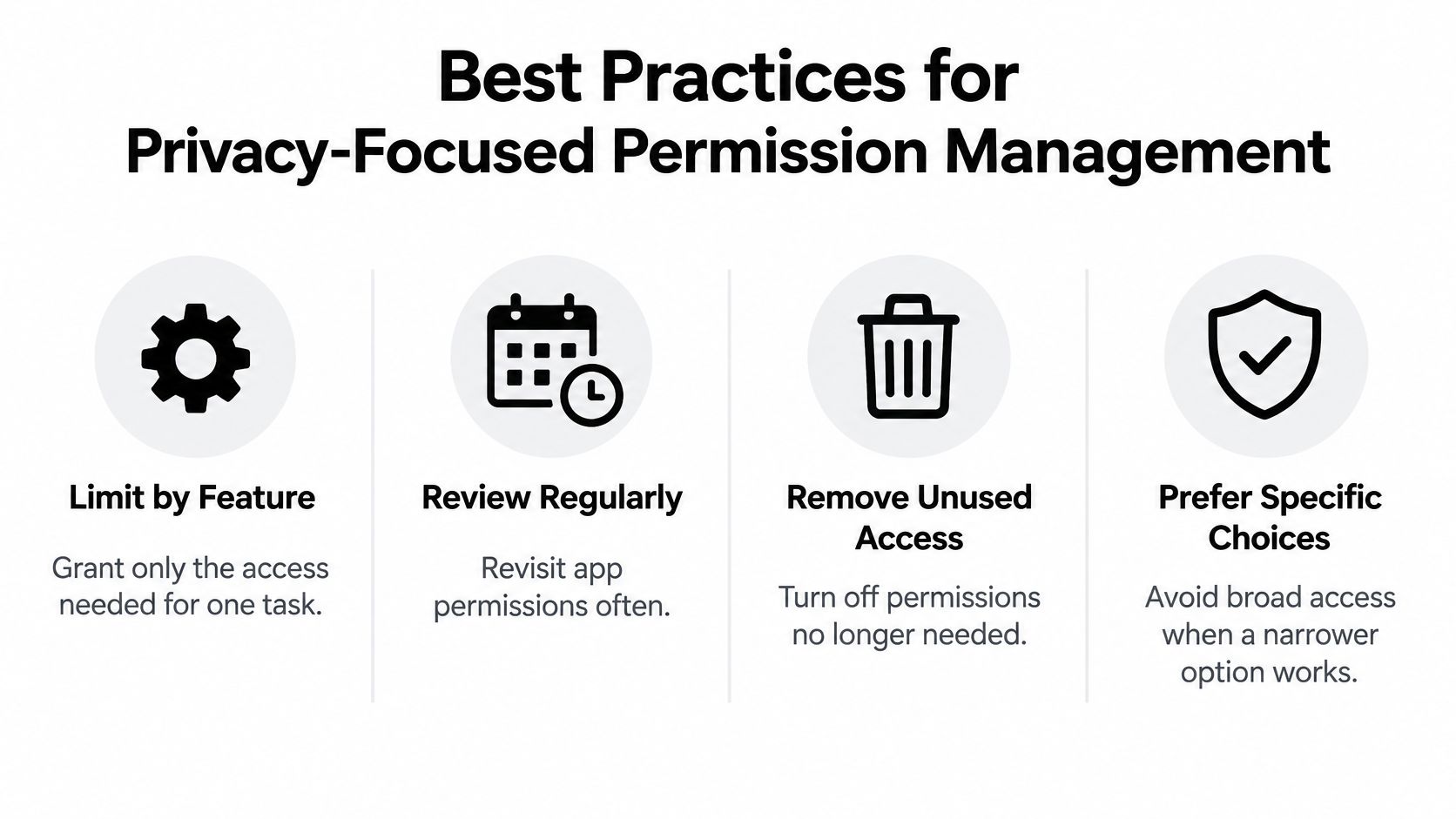
Good permission hygiene isn't a one afternoon project. It's a small habit applied every time an app asks for something. The organizing principle is simple. Access should follow features, not apps.
An app that needs your camera to scan a document hasn't earned your microphone or contacts. Permissions should be separated by feature, and an app shouldn't request device permissions merely to manage credentials, subscription membership, or sharing rules. When an app bundles unrelated requests into one moment, treat that as a prompt to slow down, not speed up.
Habits That Actually Stick
Grand audits fail because they're tedious. Small recurring checks work better:
- Review after major updates: Updated apps sometimes introduce features that request new access. A quick look after big updates catches quiet expansions.
- Check unused apps monthly: Anything you haven't opened has no business holding sensitive permissions. Strip them or uninstall.
- Prefer one time grants: For a feature you'll use once, like photographing a receipt, one time access leaves nothing behind to manage.
- Question account tasks asking for device access: Signing in, managing a subscription, or changing who shares your plan shouldn't require your location or contacts.
That last point connects phone settings to wider account security. Reading up on practical mobile app security habits for everyday users will help you judge which requests deserve a flat refusal, whatever the app claims.
A Checklist for Any App
Run these five questions before granting anything new. Does the request match the feature I just used? Can approximate or one time access do the job? Would this app still work if I said no? Have I checked what it already holds? When will I review this again?
A permission you can't explain is a permission you should probably take back.
You won't answer perfectly every time, and you don't need to. The advantage of runtime control is that every answer is revisable. Start narrow, watch what breaks, and adjust. That loop, repeated across your apps, does more for your privacy than any single setting.
Comparing Shared Account Options and Your Next Step
Shared subscriptions introduce a confusion worth clearing up. People often assume that tightening a phone permission controls who can use a shared streaming, software, or AI tool account. Those are two different layers solving two different problems.
Android permissions decide what an app on your device can reach, such as your camera, files, or location. Account roles decide what a person signed into a service can do, such as managing billing, inviting members, or only watching content. Turning off an app's storage access does nothing to stop another member of your plan from signing in on their own phone.
Why the Layers Must Stay Separate
That separation is by design. Roles such as account owner, family member, administrator, or viewer must be enforced separately through server side authorization and short lived, revocable session tokens. Server side enforcement means the service checks who's acting on every request, so removing a member or ending a session takes effect across all their devices, not just one handset.
| Layer | What it controls | Where you manage it |
|---|---|---|
| Device permission | App access to camera, location, storage, sensors | Settings > Apps > Permissions |
| Account role | Who can use, manage, or view a shared service | The service or sharing platform |
Managing only one layer leaves the other wide open. A device locked down tightly still shares an account with anyone holding credentials. A well governed account still sits behind apps with sprawling device access.
Your Next Step
Make a short inventory before you change anything:
- List your shared services: Streaming, software, and AI tools you split with family, friends, or colleagues.
- Check each app's device permissions: Trim anything unrelated to signing in and using the service.
- Review the account roles: Confirm who owns each account, who can invite others, and whose access should end.
Work through that list once and both layers line up. Your phone stops oversharing with apps, and your shared accounts stop oversharing with people who no longer belong on them.
If you're sharing streaming, software, or AI subscriptions, pair tight Android permissions with proper account level control instead of passing passwords around. AccountShare offers group purchasing, shared account management, password sharing options, and customizable permissions so each person gets the access they need and nothing more. List the services you share, review their roles, and visit the platform before you join or reorganize your next group.