

How to Disconnect Netflix from TV A Complete Guide
The quickest way to sign out of Netflix on a TV is usually right inside the app itself. Just head over to the "Get Help" or "Settings" menu and hit the sign-out option. This works on pretty much any smart TV or streaming stick and logs you out in just a few seconds.
How to Quickly Disconnect Netflix From Any TV
We’ve all been there. You finish a movie marathon at a friend's place or check out of a hotel room, only to realize later you left your Netflix account logged in. It's an easy mistake to make, but it can mess with your recommendations and viewing history, not to mention your privacy.
Thankfully, you've got a couple of solid ways to handle this, and which one you choose just depends on the situation.
The most direct way is to sign out right from the TV's Netflix app. This is perfect when you're still in front of the screen and have the remote in hand. But what if you're already home and remembered you left your account logged in on that vacation rental TV? No problem. Netflix has a powerful remote option that lets you sign out of all your devices at once from your account page in a web browser. Think of it as a master kill switch for your account.
Choosing Your Sign-Out Strategy
Knowing which method to use can save you a lot of hassle. If you're selling an old smart TV or just doing a little digital spring cleaning on the devices around your house, signing out directly through the app is fast and simple. You get immediate confirmation that your account is disconnected, and you can move on.
But let's think about that vacation rental scenario again. You’re hundreds of miles away and have no way to get back to that TV. This is exactly what the remote "Sign out of all devices" feature was made for. It ensures no one else can poke around your profile, use your subscription, or judge you for your viewing habits. It’s your ultimate account security tool.
Pro Tip: Whenever you use the "Sign out of all devices" feature, make it a habit to change your password right after. This adds another layer of security, making sure anyone who had your old login info can't just sign right back in.
Not sure which path to take? Choosing the right sign-out method is all about your current situation. Sometimes you need a quick, surgical removal, and other times you need the nuclear option.
This table should help you find the fastest way to disconnect your Netflix account.
Choosing the Right Netflix Sign-Out Method
| Your Situation | Best Method | Why It Works Best |
|---|---|---|
| Leaving a friend's house or hotel | In-App Sign Out | It's instant, and you can confirm it's done before you walk out the door. |
| Selling or giving away a device | In-App Sign Out | Wipes your profile so the new owner gets a fresh start without accessing your account. |
| You forgot to log out somewhere | Remote "Sign out of all devices" | Your only option when you no longer have physical access to the TV. |
| Suspect unauthorized account use | Remote "Sign out of all devices" | Immediately boots everyone out, putting you back in full control of your account. |
Ultimately, both methods get the job done. The key is picking the one that’s most convenient and secure for your circumstances.
How to Sign Out of Netflix on Any Device You Own
Trying to log out of Netflix can sometimes feel like a digital scavenger hunt. Every TV, streaming stick, and game console seems to tuck the sign-out button away in a different spot. But here's the thing: once you know the general trick, you can find it almost anywhere.
While the exact clicks might change a bit from a Samsung remote to a PlayStation controller, the core idea is the same. I'll walk you through the specific steps for all the popular devices, so you can get your account disconnected in just a few seconds, no matter what screen you're on.
This visual guide breaks down the two main ways you can tackle this—either directly on the device itself or by using the powerful remote logout feature from your account settings.
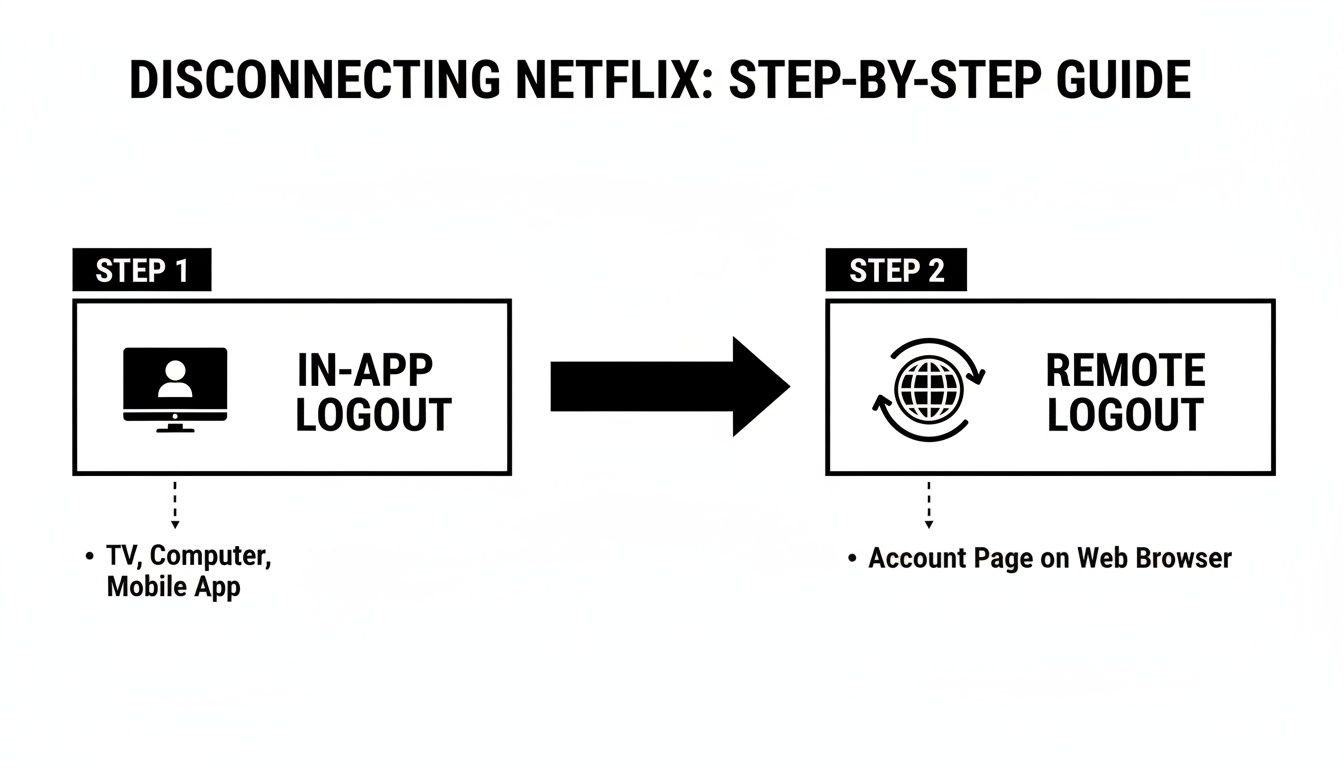
As you can see, signing out directly from the app is your quickest option. But having the remote logout as a backup is a lifesaver.
Smart TVs (Samsung, LG, Sony, etc.)
Smart TVs from different brands like Samsung, LG, and Sony all run on their own unique software, which can make the Netflix app look slightly different on each. Don’t worry, though—the path to signing out is almost always hidden in the same place: the help or settings menu.
For most Samsung TVs (running Tizen OS) and LG TVs (with webOS), the process is practically identical.
- First, open the Netflix app.
- Using your remote, navigate left to pop open the main menu.
- Scroll down to the very bottom and look for "Get Help." Sometimes it’s called "Settings."
- Inside that menu, you’ll find the "Sign Out" option. Select it.
- Just confirm you want to log out, and you're done! The app will reset to the login screen.
If you're on a Sony TV (Android TV/Google TV) or another model that uses the Google ecosystem, the steps are just as simple. That left-side menu is still your best friend. If you can't see it, just hit the "back" button on your remote a few times until it appears.
My Pro Tip: The "Get Help" section is your golden ticket. I've found that on virtually any smart TV, if you're stuck, finding that little question mark (?) or gear icon (⚙️) is the fastest way to locate the sign-out function.
Streaming Devices (Roku, Fire TV, Apple TV)
Streaming sticks have completely changed how we watch TV, turning any screen into a smart one. Here’s the quick-and-dirty guide to logging out on the most common players in the game.
Roku
Roku is all about simplicity, and signing out is no exception.
- From the main Netflix screen, just press left on your remote to open the menu.
- Scroll down to "Get Help" and select it.
- Choose "Sign Out" and confirm. That’s it.
Amazon Fire TV and Fire Stick
Amazon's Fire TV platform is just as straightforward.
- Fire up the Netflix app.
- Tap left on your remote's directional pad to bring up the side menu.
- Head down to "Get Help."
- Select "Sign out" and hit confirm when it asks.
Apple TV
The Apple TV has its own sleek interface, but the core logic for signing out holds up.
- Open the Netflix app and navigate to the menu on the left.
- Scroll all the way to the bottom to find and select "Get Help."
- Click "Sign Out" and confirm your choice.
These devices are built to be intuitive, and thankfully, logging out follows that same philosophy. If you're someone who uses a lot of different gadgets, you might find our full guide on how to remove devices from Netflix a helpful resource for managing everything from one place.
Gaming Consoles (PlayStation and Xbox)
For millions of people, a game console is the main entertainment hub in the living room. Whether you’re Team PlayStation or Team Xbox, signing out of your Netflix account takes less than a minute.
PlayStation 4 and PlayStation 5
Sony keeps the Netflix app experience consistent across both PS4 and PS5, which is nice.
- Launch the Netflix app from your console's media tab.
- Use your controller’s D-pad or left stick to open the menu on the left.
- Navigate all the way down to "Get Help" and press the X button.
- Find "Sign Out" in the next menu, select it, and confirm.
Your account is now disconnected, keeping your watch history and recommendations safe.
Xbox One and Xbox Series X/S
The process on the Xbox family of consoles will feel very familiar. Microsoft also streamlined the Netflix app across its devices.
- Open Netflix from the Xbox dashboard.
- Press left on your controller to pull up the main menu.
- Scroll down to "Get Help" and select it.
- Choose "Sign Out" and confirm on the final prompt.
This is a really important habit to get into, especially if you have roommates or live in a house with a shared family room console. Taking a few seconds to sign out ensures your Netflix profile stays exactly the way you left it.
The Ultimate Reset: Securing Your Entire Netflix Account
Sometimes, just logging out of a single TV isn’t enough. Maybe you’ve spotted a show in your "Continue Watching" row that you've never heard of, or you’ve recently gone through a breakup and need to make a clean digital break. For moments like these, you need a more decisive solution.
This is where Netflix's "Sign out of all devices" feature comes in. It's the ultimate reset button for your account. Think of it as a digital kill switch that forces a log-out on every single TV, game console, laptop, and phone connected to your profile. It’s the most powerful step you can take to reclaim total control.
When to Use the Nuclear Option
This feature isn't for everyday use, but in certain situations, it’s absolutely essential. It’s your go-to move when you need total certainty that your account is secure.
Consider pulling the plug in these real-world scenarios:
- After a breakup or roommate change: When you no longer live with someone who had access, a full reset prevents any awkward, lingering logins.
- If you suspect unauthorized use: Noticing unfamiliar profiles or strange viewing history is a massive red flag. This feature boots out any intruders immediately.
- When you've lost a device: If your phone, tablet, or laptop goes missing, this is the quickest way to protect your account from being accessed.
- Post-vacation security sweep: After using Netflix in hotels or vacation rentals, a global sign-out is a smart precaution, just in case you forgot to log off one of them.
Taking this kind of proactive security measure has become more important than ever. Back in May 2023, Netflix officially started its crackdown on password sharing, a policy shift that shook its massive subscriber base. Before the change, a staggering 25.6% of Americans were sharing accounts with relatives outside their homes, and another 17.7% shared with friends.
By making it easier to manage devices and disconnect TVs, Netflix successfully enforced its new household-only rule. This move was a key factor in boosting its paid subscriber numbers from 260.28 million in 2023 to 282.68 million by the first quarter of 2024. You can dig deeper into these subscriber trends and the impact of the policy changes over on BankMyCell.com.
The Critical Two-Step Security Process
Hitting "Sign out of all devices" is a great first step, but it's only half the battle. Sure, it logs everyone out, but if an unauthorized person knows your password, they can just log right back in. That's why a two-step approach is crucial to locking down your account for good.
First, you trigger the global sign-out. Then, without missing a beat, you change your password. It's an unbeatable one-two punch. The sign-out kicks them out, and the new password bars the door, preventing them from ever getting back in.
This entire process is a practical application of a basic access control system, which is the fundamental principle that determines who can access information. By changing your password, you're rewriting the rules for your personal account's access.
Key Takeaway: The "Sign out of all devices" function is incredibly powerful, but its true strength is unlocked when you pair it with an immediate password change. This combination guarantees that only you and your authorized household members can get into your account.
Yes, this process means you'll have to log back in on your own devices—the living room TV, your phone, your laptop. It's a minor hassle, but it’s a small price to pay for the peace of mind that comes with knowing your account is 100% secure.
For a detailed walkthrough of the second half of this process, check out our guide on how to change your Netflix password: https://accountshare.ai/blogs/new/how-to-change-my-netflix-password-the-ultimate-safety-guide.
Troubleshooting Common Sign-Out Problems
It’s one of those little tech headaches that can be surprisingly maddening: you’re trying to sign out of Netflix on a TV, but the button is missing, greyed out, or just won't work. Trust me, you're not alone. This is a common snag, especially on older smart TVs, hotel room screens, or devices running an outdated version of the app.
Before you consider throwing the remote, take a breath. There's almost always a straightforward fix. The problem usually boils down to a simple software glitch, a caching error, or an app that just needs a quick refresh to get its act together. Let's walk through the usual suspects and get your account logged out for good.
The Case of the Missing (or Unresponsive) Sign-Out Button
So, you’ve dug into the "Get Help" menu where the sign-out option is supposed to live, and... nothing. Maybe it's not there at all, or maybe you can see it, but you can't click it. This is a classic symptom of a buggy or outdated Netflix app.
The very first thing you should do is check for an app update. Go to your TV's app store—whether it’s on a Samsung, LG, Roku, or Fire TV—and look up Netflix. If you see an "Update" button, you've likely found your culprit. Install it, restart the app, and that sign-out option should reappear.
If an update doesn't do the trick (or there wasn't one available), the next step is a good old-fashioned power cycle. And I don't mean just turning it off and on with the remote.
- First, unplug the TV from the wall socket.
- Next, wait at least 60 seconds. This is the important part—it gives the internal hardware time to fully power down and clear out any temporary glitches.
- Finally, plug it back in, turn it on, and head back to the Netflix app.
This simple "hard reset" is incredibly effective for fixing these kinds of software hiccups without messing with any of your saved settings.
Clearing the Cache and Reinstalling the App
Sometimes, the problem is a bit more stubborn because of corrupted data hiding in the app's cache. Clearing it out can often solve issues that a restart won't touch. The process is a little different for every device, but you'll generally find the option in your TV's main settings menu, under a section like "Apps" or "Application Management."
Once you find Netflix in your list of apps, select it and look for a "Clear Cache" option. Just be careful not to hit "Clear Data," which could wipe out your settings. After clearing the cache, restart the TV one more time before checking again.
If you’ve tried all of that and the sign-out button is still playing hide-and-seek, your last resort on the device itself is to reinstall the app completely.
The Final On-Device Fix: Go into your TV’s app management settings, find Netflix, and choose "Uninstall." Once it’s gone, restart the TV again. Then, head back to the app store and install a fresh copy. This guarantees you’re running the cleanest, most up-to-date version.
And remember, if the TV itself is fighting you every step of the way, you always have the ultimate trump card: using the "Sign out of all devices" feature on the Netflix website. It's the perfect remote solution for forcing a logout on a difficult device and giving you back control of your account.
Smarter Sharing and Modern Account Management
Let's face it: the wild west of password sharing is officially over. For years, we all did it—tossing our Netflix login to friends, family, and that cousin you see once a decade. But those days are gone. Netflix has drawn a line in the sand with its strict "household" model and the "extra member" feature, completely changing the game.
This new reality makes knowing how to sign out of Netflix on a TV more crucial than ever. It's not just about tidying up your device list anymore. Now, it's about managing your monthly bill, staying on the right side of Netflix's rules, and keeping your account secure. The old, casual approach just doesn't fly.
Navigating the New Netflix Rules
The heart of this change is the Netflix Household. Think of it as the collection of devices connected to the internet at your main home. If you want someone outside that location to have permanent access, they need to be added as an extra member—and that comes with an extra fee. It's Netflix's way of clamping down on the rampant account sharing of the past.
Of course, this fixes a revenue issue for Netflix, but it throws a wrench in the works for many of us. Students away at college, families spread across different cities, and anyone who relied on sharing to afford a premium plan now has a headache to deal with.
The sheer scale here is staggering. Projections show Netflix hitting 301.6 million subscribers by 2026, a massive leap from 21.5 million back in 2011. With over 70 million homes in the US alone streaming, skills like knowing how to disconnect Netflix from a TV have become essential. You can dig deeper into these Netflix subscriber statistics and what they signal for streaming's future over at Tridenstechnology.com.
This shift has really highlighted the need for better, more affordable ways to get premium access without falling back on risky password sharing and the security messes that come with it.
A Modern Solution for Account Sharing
For anyone looking for a more flexible and budget-friendly way forward, some innovative platforms offer a smart alternative. Services like AccountShare were practically built for this new era. They use a group purchasing model to give people legal and secure access to premium subscriptions.
This isn't about handing out your personal password. Instead, these services use collective buying power. You join a group to legally split the cost of a high-tier subscription, getting your own dedicated spot on the plan with secure access and clear rules.
Here’s how this approach really changes things:
- Enhanced Security: Your own login details stay completely private. You’re given secure access to the shared plan without ever having to expose your credentials, which kills the risk of someone using them elsewhere.
- Clear Management: No more awkward texts asking friends for their share of the bill. The platform handles all the money stuff, keeping everything fair and transparent for everyone involved.
- Cost Savings: By pooling your money, you get all the perks of a premium Netflix plan—like 4K streaming and multiple screens—for a fraction of what you'd pay on your own.
This model is a perfect fit for anyone who loved the savings of sharing but wants a legitimate, secure, and stress-free way to handle their subscriptions. You can find out more about how to share a Netflix account safely and affordably in this new landscape. It's all the financial benefit of sharing, without any of the security risks that force you to constantly sign out of devices.
Got Questions About Logging Out of Netflix?
Even with the steps laid out, a few questions always pop up when it comes to managing your Netflix account on different TVs. It's totally normal—juggling access across so many devices can get confusing.
Let's clear up some of the most common questions people have. Think of this as your quick-reference guide for those final, lingering details, so you can take control of your account with confidence.
How Long Does a Remote Sign-Out Take?
When you hit that "Sign out of all devices" button, Netflix officially says it can take up to 8 hours to fully kick in everywhere. That delay can feel like an eternity if you're trying to secure your account in a hurry.
In my experience, it's usually much faster than that, often happening within just a few minutes. But you can't count on it being instant. For immediate peace of mind, the best move is to change your password right after you trigger the remote sign-out. This makes the old password useless on the spot, blocking anyone from getting back in even if the 8-hour window is still ticking.
Will Signing Out Erase My Viewing History?
This is a big one, but you can breathe easy. Logging out of Netflix on a TV will never delete your personal data. Your carefully curated viewing history, your "My List," and all those recommendations are tied to your account, not the device itself.
It’s just like signing out of your email on a library computer. All your emails and folders are still safe on the server; you've just cut off access from that one machine. The second you log back in on any TV, anywhere, your entire profile will be there waiting for you, exactly as you left it.
Key Insight: Your Netflix profile lives in the cloud. When you sign out, you’re just disconnecting that specific device from your cloud-based profile. Everything from your watch progress to your thumbs-up ratings stays safe and sound within your account.
This is precisely what makes your Netflix experience feel so seamless as you move from one screen to another.
Can I Remotely Disconnect Just One TV?
Unfortunately, no. Netflix doesn't give you a way to cherry-pick a single device to sign out of remotely. The "Sign out of all devices" option is an all-or-nothing affair. This is a deliberate security feature, designed as a "master reset" for when you think your account might be compromised.
If you need to log out of a TV you can't physically get to anymore—say, one in a vacation rental or at an ex's place—this global sign-out is your only option. It’s a bit of a blunt tool, for sure, since you'll have to sign back in on all your personal devices. But that's a small price to pay for securing your account.
The whole game changed in 2023 when Netflix started cracking down on password sharing. They began targeting the 100+ million accounts suspected of being used outside the primary household, a huge chunk of their nearly 277 million global subscribers. With 25.6% of US users admitting they share with distant relatives, knowing how to easily sign out on platforms like Roku and Fire TV became essential for anyone trying to follow the new rules. For a closer look at the numbers and market trends, you can check out the data over at Wall Street Zen.
In this new streaming world, managing a bunch of different subscriptions can be a real headache. AccountShare makes it simple by letting you legally and securely split the costs of premium services through group purchasing. You get all the perks of top-tier plans without the hefty price tag or security worries. Join a group on AccountShare today!