

How to Cancel Crunchyroll Subscription: how to cancel crunchyroll subscription
So, you're ready to hit pause on your Crunchyroll subscription. Let's walk through what that looks like and make sure it goes smoothly. For most people, the quickest way to get this done is by logging into the Crunchyroll website, heading to your account settings, and finding the "Cancel Membership" button.
We'll start with that direct approach before getting into the nitty-gritty of canceling through mobile apps or other platforms.
Your Quick Guide to Canceling Crunchyroll
Deciding to cancel is one thing, but knowing what happens to your account right after is crucial for avoiding any surprises on your next bank statement. The process itself is usually simple, but the effects on your billing and access are immediate and final for the current cycle.
First things first: you absolutely need to know where you signed up. Did you subscribe directly on the Crunchyroll website using a credit card? Or did you go through an app store like Apple, Google Play, or even a streaming device like a Roku? This single detail changes everything, because you have to cancel through the same service you used to pay.
What Happens After You Cancel
Once you've confirmed the cancellation, your premium access doesn't just disappear into thin air. Typically, you can keep binging your favorite ad-free anime right up until your current billing period ends. It's best to read the confirmation message carefully, though, as policies can sometimes vary.
This is a common sticking point for a lot of users, so it's good to be aware of it beforehand.
Canceling your Crunchyroll subscription is pretty straightforward, but it comes with a reality check: you won't get a refund for any unused time. As of early 2025, Crunchyroll has a massive base of over 15 million paying subscribers worldwide. Yet, many users find the cancellation policy a bit harsh. Once you hit that 'Cancel Membership' button, your premium access is set to expire at the end of the billing cycle with no prorated refunds offered.
This no-refund policy means timing is everything. If you're juggling several streaming services, it's easy for a renewal date to sneak up on you. A great way to get a better grip on your digital spending is to learn how to cancel unwanted subscriptions before they renew.
To make it crystal clear, here’s a quick summary of what to expect after you cancel your Crunchyroll premium plan.
What Happens After You Cancel Crunchyroll
| Aspect | What to Expect | Key Takeaway |
|---|---|---|
| Account Access | Premium features remain active until the end of your billing cycle. | You paid for the full month, so you can use it until the last day. |
| Future Billing | All future recurring payments will be stopped immediately. | No more charges will appear from Crunchyroll on your statement. |
| Account Status | Your account reverts to a free, ad-supported membership. | Your watch history and queues are saved if you decide to return. |
In short, canceling stops future payments while letting you enjoy the time you've already paid for. Your account will still exist, just without the premium perks.
Finding Where Your Subscription Is Managed
The biggest hurdle in canceling your Crunchyroll subscription isn't the cancellation process itself. It’s figuring out where your membership is actually managed. Your billing is tied to the service you used to pay, which might not be the Crunchyroll website. That elusive "cancel" button will only show up on the platform that handles your payments.
This is a super common point of frustration. For instance, if you subscribed through the app on your iPhone, you can’t cancel by logging into the Crunchyroll website on your laptop. The option just won't be there because Apple manages that subscription, not Crunchyroll directly. The same rule applies if you signed up through the Google Play Store, Roku, or another third party.
Pinpoint Your Subscription Source
Before you start clicking around, take a second to retrace your steps. The key is to remember how you first paid for it.
- Credit Card on Website: If you entered your credit card details directly on the Crunchyroll.com website, that's where you'll manage your account.
- Mobile App Stores: Did you subscribe through the iOS or Android app? Then your subscription is handled within your Apple App Store or Google Play Store settings.
- Streaming Devices: For services like Roku or Amazon Prime Video Channels, you'll need to go into their own subscription management portals to make changes.
This flowchart lays it out visually, helping you quickly find the right path.
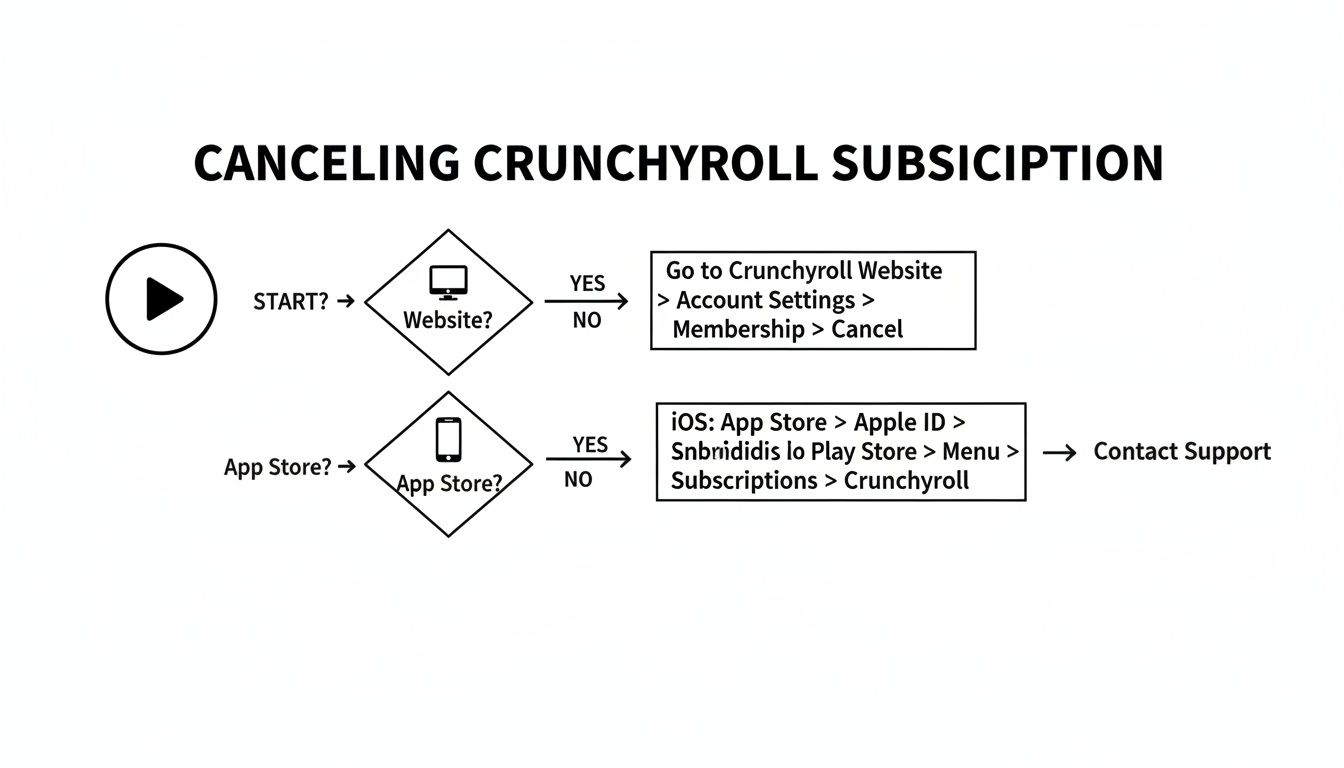
It highlights the three main ways people sign up and where they need to go to cancel. If you're having trouble remembering this or other services you've signed up for, our guide on how to check subscriptions can be a lifesaver.
This fragmented system is a major source of user friction. While Crunchyroll's subscriber base is projected to hit 17 million by 2025, this growth hides a significant cancellation problem. In fact, 40% of lapsed users cite billing dissatisfaction as their reason for leaving, often tied to a strict no-refund policy that feels out of step with more flexible competitors.
Once you know where your subscription lives, the rest is easy. The next sections will walk you through the specific steps for each platform.
Alright, you've figured out where your Crunchyroll subscription is managed. Now for the easy part: actually canceling it.
How you do this depends entirely on where you originally signed up—directly on their website, through your phone's app store, or on a streaming device. It's a common point of confusion, but don't worry. I'll walk you through the exact steps for each platform.
Let's dive into the specific instructions for your setup so you can get this done in just a few minutes.
Canceling on the Crunchyroll Website
If you signed up directly on Crunchyroll.com with a credit card or PayPal, you're in luck. This is the most straightforward way to cancel because you're dealing directly with Crunchyroll, no third parties involved.
First, you'll need to log into your account on the Crunchyroll website. You can do this from any web browser on a computer or your phone. Once you're logged in, click your profile icon (usually in the top-right corner) to get to your account settings.
From there, look for a menu item like "Membership Info" or "Subscription Status." This page shows your current plan, your next billing date, and the all-important "Cancel Membership" button. Just click that and follow the confirmation prompts to finalize it.
Managing Your Subscription on iOS Devices
Did you subscribe through the Crunchyroll app on your iPhone or iPad? If so, your subscription is actually managed by Apple, not Crunchyroll. This is a critical detail because you won't find a cancellation option anywhere inside the Crunchyroll app or on its website.
You have to handle this through your device's main settings. Here’s the path:
- Open the Settings app on your iPhone or iPad.
- Tap your name/Apple ID banner at the very top.
- Select the "Subscriptions" option.
You'll see a list of every active and expired subscription tied to your Apple ID. Find Crunchyroll on that list, tap it, and you'll see a big "Cancel Subscription" button. Press it, confirm, and you're all set. Apple will stop the payments from there.
I see this all the time: people think deleting the Crunchyroll app cancels the subscription. It absolutely does not. You have to go through the Apple Subscriptions menu to stop the recurring charges, or you'll keep getting billed.
Stopping Payments Through Google Play
Just like with Apple, if you subscribed using the Android app, your billing is handled by the Google Play Store. That means you have to cancel it through your Google account, not within the Crunchyroll app.
The process is pretty simple. Grab your Android phone or tablet and open the Google Play Store app.
Tap your profile icon in the top-right corner, then head into "Payments & subscriptions." From that menu, choose "Subscriptions." Find Crunchyroll in your list of services, tap on it, and you'll see the "Cancel subscription" option at the bottom. A few taps later, and it's done.
How to Cancel on Roku
If you added the Crunchyroll channel directly through your Roku device and subscribed that way, you'll manage it right from your TV screen. You don't even need to open the app.
From your Roku home screen, navigate to the Crunchyroll channel icon. Instead of launching it, just highlight it and press the asterisk button (*) on your Roku remote. This brings up a special options menu.
Inside that menu, you'll find an option called "Manage subscription." Select that, and you'll see the choice to "Cancel subscription." Confirm your decision, and Roku will take care of the rest, ensuring no future charges come through.
Hitting a Snag? Troubleshooting Your Crunchyroll Cancellation
So, you've decided to cancel your Crunchyroll subscription, but it's not going as smoothly as you'd hoped. Don't worry, you're not the first person to hit a roadblock. Let's walk through some of the most common hiccups people run into and get them sorted out.
The Case of the Missing "Cancel Membership" Button
This is, by far, the most frequent issue. You log into the Crunchyroll website, head to your account settings, and the option to cancel is just... gone. It's a frustrating moment, but the reason is almost always the same: you didn't subscribe directly through Crunchyroll's website.
If you signed up through the iOS app, Google Play, Roku, or another platform, that's where the subscription lives. Crunchyroll literally can't touch a subscription managed and billed by Apple or Google, so the cancellation option won't even show up on its site. You'll need to go back to the original service you used to sign up and manage your subscriptions there.
Why Am I Still Being Charged After I Canceled?
Seeing a new charge from Crunchyroll after you’ve already canceled is another all-too-common headache. Before you panic, first double-check that you actually received a cancellation confirmation. It could be an email or a final confirmation screen.
If you have proof but the charges keep coming, it's time to get in touch with support. The key is contacting the right support team.
- If you subscribed on the website: Your issue is with Crunchyroll's support team. Have your account details and cancellation date ready.
- If you subscribed through a third party: You need to contact Apple, Google, or Roku support. They control the billing, so they're the only ones who can investigate and stop the charges.
Keep in mind that timing can also be a factor. If you canceled just a day or two before your renewal date, the payment might have already been processed. In that situation, you’ll keep your premium access for that final billing cycle, and the charges will stop after that.
Here's a pro tip I always follow: Take a screenshot of the final cancellation confirmation page. It provides a timestamped record that can be a lifesaver if you ever need to dispute a charge down the line. It’s a simple step that can save you a world of trouble.
Can't Log In to Cancel?
It's hard to cancel if you can't even get into your account. If you've forgotten your password, just use the "Forgot Password?" link on the login screen. Crunchyroll will send a reset link to your email, and you'll be back in business.
If that reset email never shows up, take a peek in your spam or junk folder. It's also worth thinking about whether you might have signed up with a different email—maybe an old one you don't check as often anymore.
Navigating a Shared Account Cancellation
Things get a little trickier when you're sharing an account with friends or family. Only the primary account owner—the person whose payment details are on file—has the power to cancel the subscription. If that's not you, you simply won't have the permissions needed to change any billing settings.
Your first step is to figure out who the main account holder is and get in touch with them. They'll have to be the one to log in and follow the cancellation steps. This is especially crucial for people using tools like AccountShare, where one person is managing the subscription for a whole group. A quick chat ensures everyone is on the same page and prevents any surprise renewals.
Life After Crunchyroll: Exploring Your Options
So, you've gone through the steps and canceled your Crunchyroll subscription. What happens now? The good news is your account isn't zapped into oblivion. All your watch history, queues, and preferences are saved, so if you ever feel the pull of new anime releases, you can jump right back in where you left off.
But let's be real, a lot of us cancel because streaming costs are getting out of hand. That desire for premium, ad-free anime doesn't just vanish when the subscription ends. The real challenge is figuring out how to keep watching without your wallet taking a hit.
This is where subscription sharing has become a seriously smart and popular workaround. It’s a way to keep all the premium features you love while cutting the cost down for everyone involved.
Embracing a Smarter Streaming Strategy
Think about it: instead of footing the entire bill for a premium plan, you split it. This simple idea has completely changed the game for many people, making top-tier services affordable. You still get all the perks—no ads, offline downloads, the works—but for a tiny piece of the solo price.
This isn't just about saving a few bucks; it's about being more strategic with your entertainment budget. You can still dive into that massive anime library, but on your own financial terms. It’s a perfect fit for services that already offer family or multi-screen plans, which are practically built for sharing anyway.
Platforms like AccountShare were created specifically for this. They provide a safe and organized way to handle group purchasing, connecting people who want to share the cost of one powerful subscription. It takes all the awkwardness out of bugging your friends for their share of the bill and makes sure access is always smooth.
By sharing a premium plan through a group purchasing platform, users can often slash their individual subscription cost by over 75%. An expensive monthly bill suddenly becomes a small, easy-to-manage expense, putting premium streaming back in reach.
The Benefits of Group Purchasing
Going the shared route has some clear upsides beyond just the initial savings. It’s a much more sustainable way to juggle multiple streaming services without feeling the financial squeeze.
Here’s why it’s such a great option:
- Massive Cost Reduction: This is the big one. You get the full premium experience for a quarter of the price, sometimes even less.
- Stable and Secure Access: Using a trusted sharing platform means the account stays active and secure. They manage the logistics, so you just log in and watch.
- More Flexibility and Freedom: With a much smaller financial commitment, you can either afford to subscribe to more services or just enjoy the extra cash in your pocket.
This approach directly tackles the main reason most people cancel in the first place: the high cost. If you want to dive deeper into how it all works, our guide on shared subscriptions breaks down the benefits and the process. It's a savvy way to keep up with your favorite anime without the financial stress.
Common Questions After You Cancel
When you decide to part ways with a premium subscription, a few questions always come to mind. Let's walk through the most common ones people have when they hit the cancel button on Crunchyroll, so you know exactly what to expect.
Will I Get a Refund for My Unused Time?
This is the big one, but unfortunately, the answer is almost always no. Crunchyroll’s policy is pretty standard for streaming services: they don’t offer prorated refunds for the remaining days in your billing cycle.
Once your cancellation is confirmed, your premium access sticks around until the very last day of your paid period. This is why it’s so important to cancel before your renewal date hits, otherwise, you'll be on the hook for another full month or year.
It's a common practice in the streaming world that catches a lot of people off guard. Think of it like this: you're buying access in blocks of time, and canceling just tells them not to charge you for the next block.
Can I Still Watch Free Anime on Crunchyroll?
Absolutely. Hitting cancel on your premium plan doesn't lock you out of your account. It simply downgrades you to a free, ad-supported account once your current subscription period runs out. You'll still have access to a huge chunk of their anime library.
Just be ready for a few changes to the experience:
- Ad Breaks: Get ready for ads to pop up during your episodes.
- Simulcast Delays: New episodes of shows airing in Japan are usually delayed by a week for free users.
- Smaller Library: Some shows and movies are kept exclusively for premium members.
What Happens to My Watch History and Queues?
Don't worry, your viewing data is completely safe. Crunchyroll hangs onto all your personalized info, from your watch history and saved queues to any custom lists you've built. This is a fantastic feature if you think you might come back one day.
If you ever decide to resubscribe with the same account, everything will be right where you left it. You can jump back into your watchlist without missing a beat.
Why Can't I Find the Cancellation Button?
This is easily the most common point of frustration, but there's a simple reason for it. If you've logged into the Crunchyroll website and the "Cancel Membership" button is nowhere to be found, it means you didn't subscribe directly through them.
Instead, you signed up through a third-party service, like:
- The Apple App Store
- The Google Play Store
- The Roku Channel Store
- Amazon Prime Video Channels
When you subscribe this way, that third party manages all your billing. You have to go straight to that platform’s own subscription management page to cancel. The option will never show up on Crunchyroll's site because, from their perspective, they aren't the ones handling your money.
Juggling multiple streaming subscriptions can feel like a chore, but it doesn't have to be. With a service like AccountShare, you can join secure group buys to get premium access for a fraction of the price. It's a smart way to manage your digital spending. You can learn more at https://accountshare.ai.