

Best Tools for Content Creators: 10 Top Picks
Most advice on the best tools for content creators gets one thing wrong. It treats software like a trophy shelf. The serious creator stack isn't the one with the most logos. It's the one that gets ideas from rough concept to published asset with the fewest handoff problems, the least duplicated spend, and the smallest learning burden your team can sustain.
That matters more now because AI isn't a side feature anymore. A 2026 industry summary says 85% of marketers use AI for content creation, up from 61% in 2023, and 59% of creators use generative AI to streamline content creation. In practice, that means the best creator tools aren't just editors or schedulers. They're workflow accelerators for drafting, repurposing, personalization, and publishing.
So this list is organized around bottlenecks creators hit: planning, recording, editing, design, publishing, discovery, and asset sourcing. Pick based on output type, collaboration needs, learning curve, usage limits, and pricing structure. If premium access is the blocker, affordability also becomes part of tool selection. For some eligible services, platforms like AccountShare may help creators evaluate access costs more realistically, but always within provider terms, permission settings, and security requirements.
If you're comparing options right now, start with a smaller stack and browse creator workflow tools with the workflow in mind, not the hype cycle.
1. Adobe Creative Cloud (All Apps)
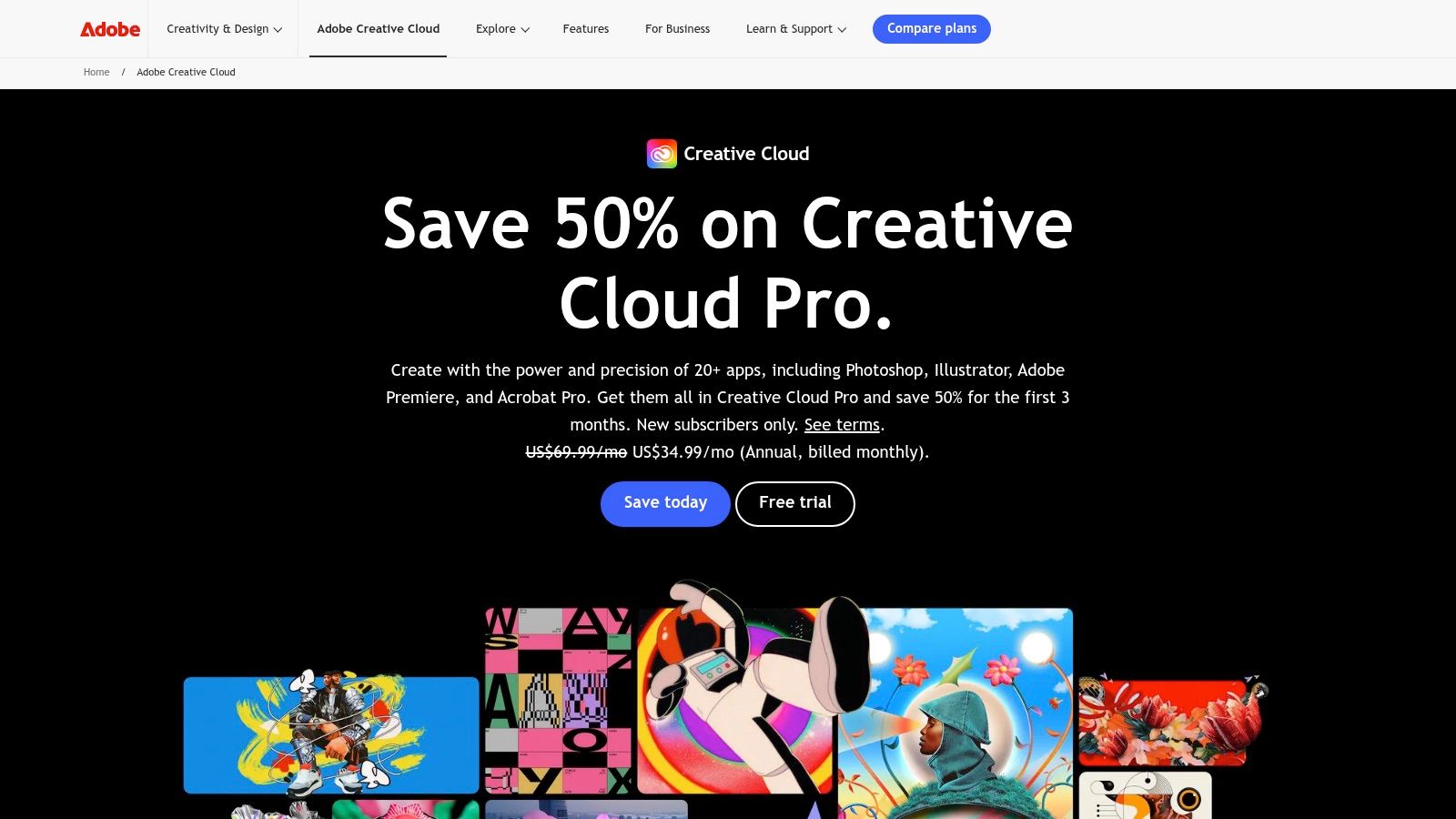
Adobe Creative Cloud makes sense when your content operation crosses formats every week. If you cut video in Premiere Pro, design thumbnails in Photoshop, animate intros in After Effects, clean audio in Audition, and hand review links through Frame.io, Adobe removes a lot of export-import chaos that smaller stacks create.
The biggest reason teams stick with Adobe isn't just depth. It's interoperability. Libraries, fonts, linked assets, and app-to-app handoff keep branding tighter when several people touch the same campaign. That matters more now that Adobe reports 86% of creators actively use generative AI, based on a survey of more than 16,000 creators across multiple countries. In a production stack, AI is most useful when it's embedded inside existing creative steps, not floating as a separate prompt tab.
Where Adobe earns the subscription
Adobe is overkill for simple social output, but it's hard to beat for multi-format production.
- Best fit: Teams making long-form video, campaign design, ads, audio, motion graphics, and platform variants from the same source assets.
- What slows people down: New users hit a steep learning curve, especially with After Effects and Premiere color workflows.
- What overlaps badly: Pairing Adobe with too many separate point tools for design and editing often creates duplicate spend.
Practical rule: If clients, editors, designers, and freelancers already exchange Adobe project files, switching away usually costs more in friction than you save in subscription fees.
For solo creators, Adobe works best when content quality and client compatibility matter more than simplicity. For beginners, it can feel like buying a studio before proving your workflow.
2. Canva (Pro/Business)
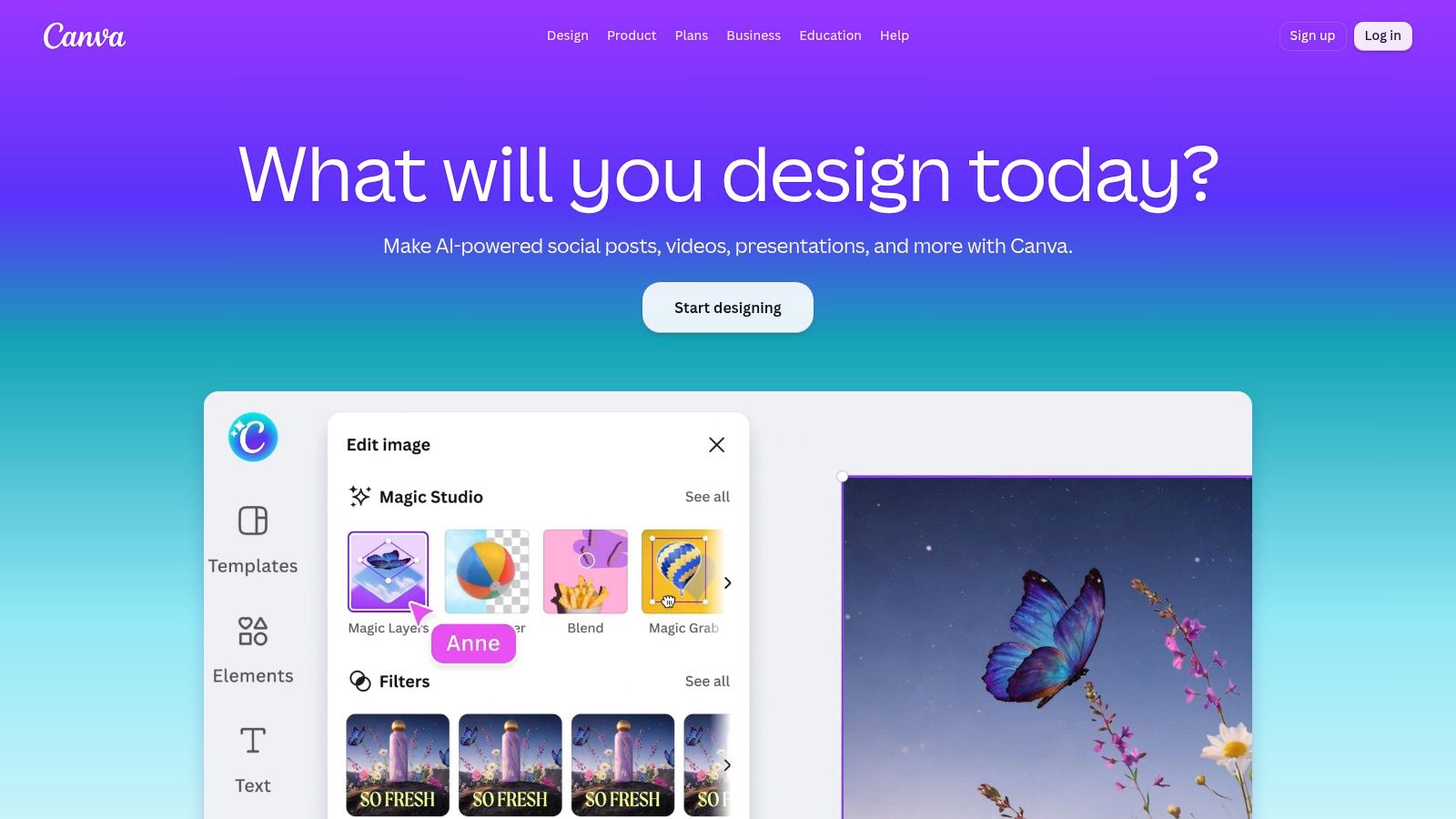
Canva earns its place in a creator stack after the idea is already clear and the bottleneck shifts to packaging. A weekly workflow makes the fit obvious. Record the video, cut the clips, then turn the same topic into a thumbnail, carousel, sponsor one-pager, email header, and story graphic without handing files to a designer each time.
That is why Canva often replaces several lightweight tools at once. Pro and Business plans cover repeatable production tasks well: brand kits, shared templates, resize, background removal, stock assets, simple AI assistance, and basic scheduling. For creators publishing the same formats every week, those features reduce setup time more than they improve raw design quality.
The trade-off is control.
Canva is strong when the goal is consistency across recurring assets, especially with assistants, editors, or clients who need to make quick changes without breaking the brand. It is weaker once the work depends on detailed masking, high-end retouching, layered motion, or exact typography decisions. Those jobs still belong in a heavier design tool.
A practical way to judge Canva is to map it to the handoff points in your workflow:
- Use Canva for: thumbnails, channel art updates, lead magnets, pitch decks, quote cards, social promos, PDF freebies, and sponsor deliverables.
- Avoid paying for overlap: a separate stock subscription, a basic presentation tool, and a simple social graphics app often duplicate what Canva already covers.
- Expect friction with: advanced file prep, intricate image manipulation, and assets that need to move cleanly into more technical post-production.
For YouTube-heavy creators, thumbnails are usually the decision point. Canva is good enough for fast iteration, headline testing, and team collaboration. If click-through rate depends on more specialized thumbnail work, this breakdown of thumbnail creator tools for YouTube and social channels will help you decide whether Canva is the right ceiling or just the starting point.
I usually recommend Canva when a creator has already proved they can publish consistently and now needs a cleaner operating system for visual output. It saves more time in the middle of the workflow than at the creative edge. Eligible creators comparing Pro or Business access can also use AccountShare to evaluate premium plans at lower cost while keeping access management structured and secure.
3. CapCut (Standard/Pro)
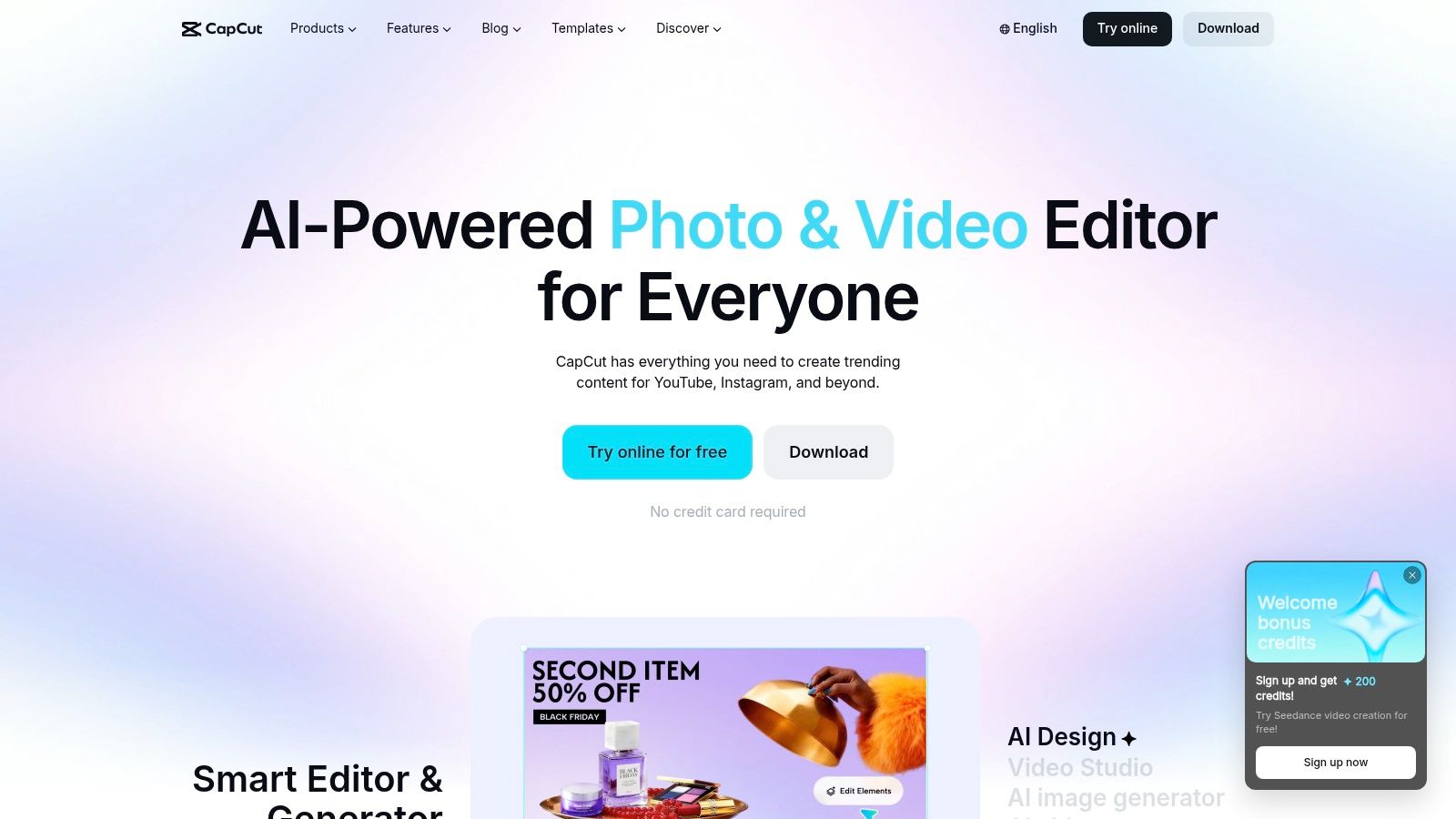
CapCut earns its place in a creator stack for one reason: it cuts the time between recording and posting. For short-form creators, that matters more than having the most advanced timeline.
The best way to judge CapCut is by bottleneck, not by feature list. If the slow part of your workflow is turning a long recording, voice memo, or phone clip into publishable Shorts, Reels, or TikToks, CapCut usually removes more friction than a traditional editor. Auto-captions, quick effects, background removal, resizing, and template-based pacing all help when volume matters and every clip does not need custom finishing.
I usually see CapCut fit in two places:
First, as the fastest repurposing tool in a broader system. A creator might record in Riverside, keep planning and approvals in Notion, use CapCut to cut social clips, then schedule distribution in Buffer.
Second, as the main editor for creators whose business is built on frequent short videos. In that setup, CapCut often replaces the need for a heavier editing app until brand deals, longer videos, or more polished post-production start demanding tighter control.
The trade-off is straightforward. CapCut is excellent at speed, but speed comes partly from abstraction. Templates, one-click effects, and simplified controls help beginners ship faster, yet they also make it harder to manage complex audio, detailed color decisions, or densely layered edits with the same precision you would expect in Resolve or Premiere.
A few practical cautions matter before paying for Pro:
- Creators working across mobile, desktop, and web should verify which paid features carry over, because plan access and billing can be confusing across platforms.
- Teams should decide whether CapCut is a clipping tool or a long-term editing home base. Using it for both can create messy handoffs.
- If you already pay for a full editor and only publish occasional short clips, CapCut Pro may add convenience but not enough value to justify another subscription.
That overlap is where costs creep up for creators. Canva covers a share of quick visual output. Resolve or Premiere may already cover full edits. Descript can handle some transcript-driven clip extraction. CapCut is most useful when it removes a specific production choke point: fast social editing at volume.
Eligible creators comparing Standard and Pro can also use AccountShare to assess premium access at lower cost while keeping access structured and secure.
4. DaVinci Resolve (Free) / DaVinci Resolve Studio
Many creators buy a faster editor first, then end up rebuilding their workflow later when projects get longer, clients ask for cleaner finishing, or audio and color start limiting the final result. Resolve is often the tool that makes that second rebuild unnecessary.
It fits best as the serious editing center of a creator stack. Record in Riverside, organize notes in Notion, cut long-form in Resolve, then send exports to Buffer or break out clips elsewhere if needed. That matters because a lot of software overlap comes from asking one tool to handle every stage equally well. Resolve is stronger as the home base for footage that needs editorial control, color consistency, and better sound.
The free version is the main reason it belongs on this list. It covers far more than basic cutting, and for many solo creators it can carry the entire channel without a monthly edit subscription. Resolve Studio earns its keep later, usually when the workflow gets heavier and the time savings from advanced features or hardware acceleration start to matter.
A practical way to evaluate it:
Use Resolve if your bottleneck is finishing quality. Long YouTube videos, interviews, courses, documentaries, and sponsored work benefit from tighter trimming, cleaner audio handling, and more deliberate color work.
Skip it as your first priority if your bottleneck is publishing speed. The learning curve is real, especially in Fusion and Fairlight, and weaker machines can make that learning curve feel worse.
Be careful about stack overlap. If CapCut already handles short-form volume and Descript handles transcript-first cleanup, buying yet another paid editor too early can create cost without removing a real production constraint.
One more trade-off matters. Resolve can replace several specialized apps for creators who want one editing environment, but that consolidation only helps if they are willing to learn it well enough to use editing, audio, and color in the same project instead of bouncing files between tools.
For eligible creators comparing Free with Studio, AccountShare can help assess premium access more affordably while keeping access structured and secure.
If you're moving from lightweight editors into a more durable production setup, this roundup of video editing software for beginners can help narrow the jump. If your workflow also includes AI-driven user-generated style production, an AI UGC creator tool may complement Resolve rather than replace it.
5. Descript
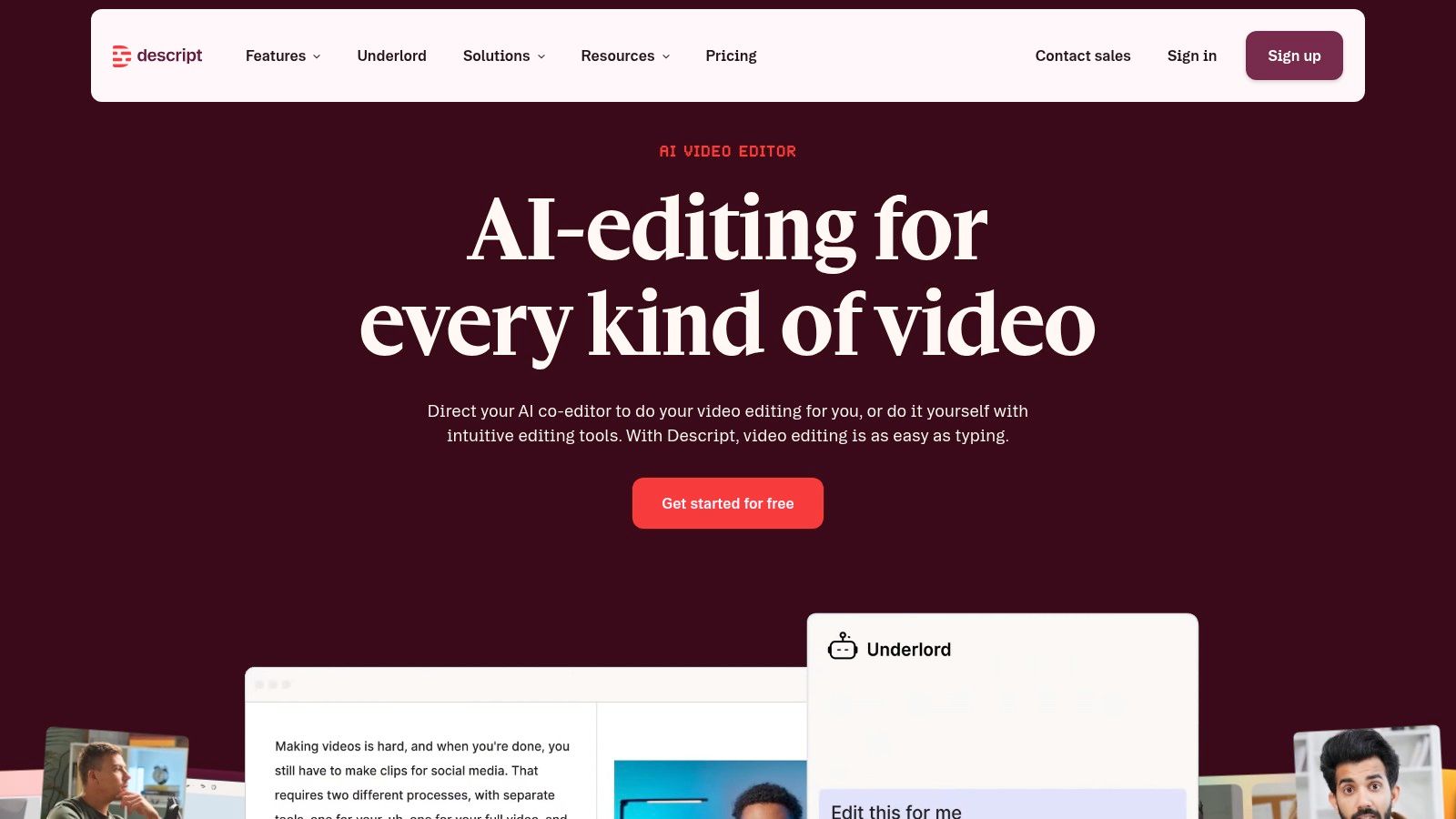
A lot of creators buy Descript expecting a full video editor with AI on top. That is not the right frame. Descript is a production bottleneck tool. It works best when the problem is turning spoken recordings into usable assets without spending hours in a timeline.
That distinction matters for stack decisions.
If the workflow starts with podcasts, interviews, webinars, sales calls, course lessons, or founder monologues, Descript can remove friction fast. Transcript editing, filler-word cleanup, captions, basic screen recording, clip extraction, comments, and tools like Studio Sound all point toward one outcome: faster post-production on dialogue-heavy content.
It also changes who can edit. A producer, marketer, or founder can cut a section by deleting text, approve revisions in comments, and hand off fewer messy drafts. For small teams, that often matters more than having the deepest motion graphics toolkit.
The trade-off is clear. Descript speeds up cleanup and repurposing, but it is still weaker than traditional editors for visual rhythm, detailed multicam work, layered effects, and stylized storytelling. Creators who care about micro-pacing usually feel that ceiling quickly.
A practical way to use it is as the middle of the workflow, not the whole stack.
Record in Riverside if remote capture quality matters. Clean the transcript, cut the core narrative, and pull social clips in Descript. Move the final piece to CapCut or Resolve only if the project needs stronger visual editing. That setup keeps each tool tied to a real bottleneck instead of paying for overlapping software too early.
Descript is a strong fit for:
- Podcast teams turning one episode into clips, captions, and show assets
- Interview channels that need approvals from guests or clients
- Course creators updating lessons without rebuilding an edit from scratch
- Founder-led brands publishing thought leadership from recorded conversations
It is a weaker fit for creators whose content depends on cinematic sequencing, heavy animation, or polished short-form built around visuals first.
For eligible creators considering paid plans, AccountShare can help evaluate premium access more affordably while keeping access structured and secure.
6. Notion
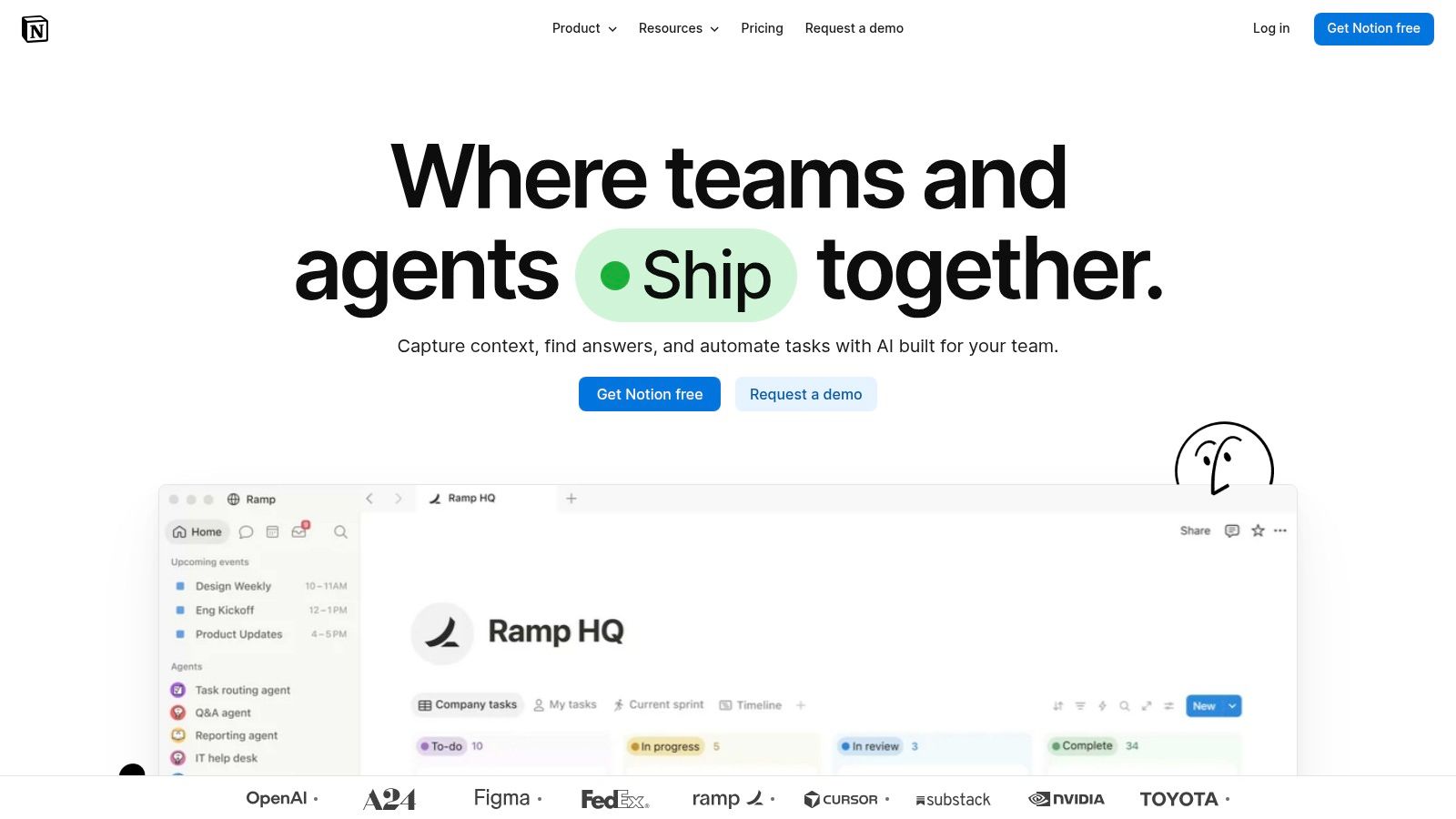
Creators rarely need another editing app. They usually need one place that answers three questions fast: what are we making, who owns it, and what is blocking publish?
That is Notion's job.
Notion works best as the control layer across the stack, not the place where the creative work itself gets finished. Scripts may still start in a doc. Thumbnails may still live in Canva or Adobe. Video cuts may still happen in CapCut, Resolve, or Descript. Notion keeps all of that tied to deadlines, approvals, sponsor requirements, and reusable process so work does not disappear into chats and scattered folders.
The upside is consistency. The downside is maintenance. A clean workspace saves time every week. A bloated one turns into another tool people avoid under deadline.
Here is the practical cutoff point I use. If a creator publishes occasionally, a simple calendar and folder system may be enough. Once content has recurring sponsors, freelancers, multiple formats, or repurposing across platforms, Notion starts paying for itself because status tracking becomes production work, not admin.
A useful setup is smaller than many templates suggest:
- One pipeline for ideas, drafts, review, scheduled, and published
- One page format for briefs, with fields for hook, audience, CTA, and source assets
- One sponsor tracker tied to deliverables and due dates
- One library for reusable SOPs, brand notes, and postmortems
That structure helps expose overlap in the stack too. If Notion already handles planning, approvals, and asset references, creators may not need a separate project management tool right away. That matters because software sprawl usually starts with paying twice for organization, not editing.
The common failure mode is overbuilding. Teams add dashboards, nested databases, and custom views before they have stable publishing habits. Then updating the system feels like a second job. Keep the rules obvious. Name statuses clearly. Assign one person to maintain the schema.
For eligible creators testing paid tiers, AccountShare can help evaluate premium access more affordably while keeping access structured and secure.
7. Buffer
Buffer earns its place in a creator stack for one reason. It keeps publishing simple.
That sounds minor until posting becomes a bottleneck. Many creators do the hard part upstream, scripting, editing, approvals, thumbnails, then lose time at the last step because scheduling lives in a tool built for large social teams. Buffer works better for solo creators and small operators who need a clean handoff from finished asset to scheduled post.
Its best use is narrow and practical. Queue the content, tailor captions per platform, check basic performance, reply to comments, and move on. If your workflow already runs through Canva, CapCut, Descript, or Adobe, Buffer should sit at the distribution layer instead of trying to replace planning or production tools.
The trade-off is clear. Buffer is easier to maintain than heavier social suites, but that simplicity also sets the ceiling. Teams that need deep approval chains, complex permissions, paid social coordination, or executive-grade reporting usually outgrow it.
A good test is this: if publishing is getting skipped because the final scheduling step feels annoying, Buffer likely helps. If publishing is already disciplined and the problem is cross-team governance, it probably does not.
It also helps reduce stack overlap. Creators often overpay by using one tool for planning, another for asset review, and a third for scheduling, then expecting the scheduler to act like a project manager. Buffer is stronger when used with a clear division of labor. Notion can track status, creative tools can produce assets, and Buffer can handle release.
For eligible creators comparing paid publishing tools, AccountShare can help evaluate premium access more affordably while keeping access structured and secure.
8. Riverside
Bad remote capture creates expensive editing problems later.
Riverside fits the part of the workflow where creators need to get the interview right before they worry about titles, clips, thumbnails, or scheduling. If your content engine depends on guest conversations, podcasts, remote panels, customer stories, or founder interviews, recording on a standard meeting app usually creates avoidable cleanup. Riverside reduces that risk by recording local audio and video for each participant, which gives editors cleaner source files and more control once the session ends.
That matters most in stacks built around repurposing. One strong interview can feed a full podcast episode, short clips, quote graphics, newsletter excerpts, and social posts, but only if the raw capture holds up. Riverside earns its place at the acquisition stage of that workflow.
The practical upside is simple. Guests join through a browser link, producers get separate tracks, and the team can move faster from recording to transcription to clipping. The practical limit is just as clear. Riverside improves capture quality, but it does not fix weak guest prep, noisy rooms, poor microphones, or a laptop that is already struggling before the call starts.
A useful way to judge it is by bottleneck:
- If the problem is ruined takes, uneven remote audio, or hard-to-edit interview files, Riverside is a strong fit.
- If the problem starts after recording, Descript usually does more of the heavy lifting.
- If the problem is full-scale finishing, color, sound mix, and final delivery, Adobe or DaVinci Resolve will still carry that work.
That separation helps avoid overlap. Creators often overspend by expecting one subscription to handle recording, editing, collaboration, and distribution equally well. Riverside is strongest when it stays in its lane: capture first, handoff second. A workable system might look like this: Riverside for recording, Descript for transcript-based editing, Canva or Adobe for promo assets, and Buffer for release.
For eligible creators testing paid recording tools, AccountShare can help evaluate premium access more affordably while keeping access structured and secure.
9. TubeBuddy
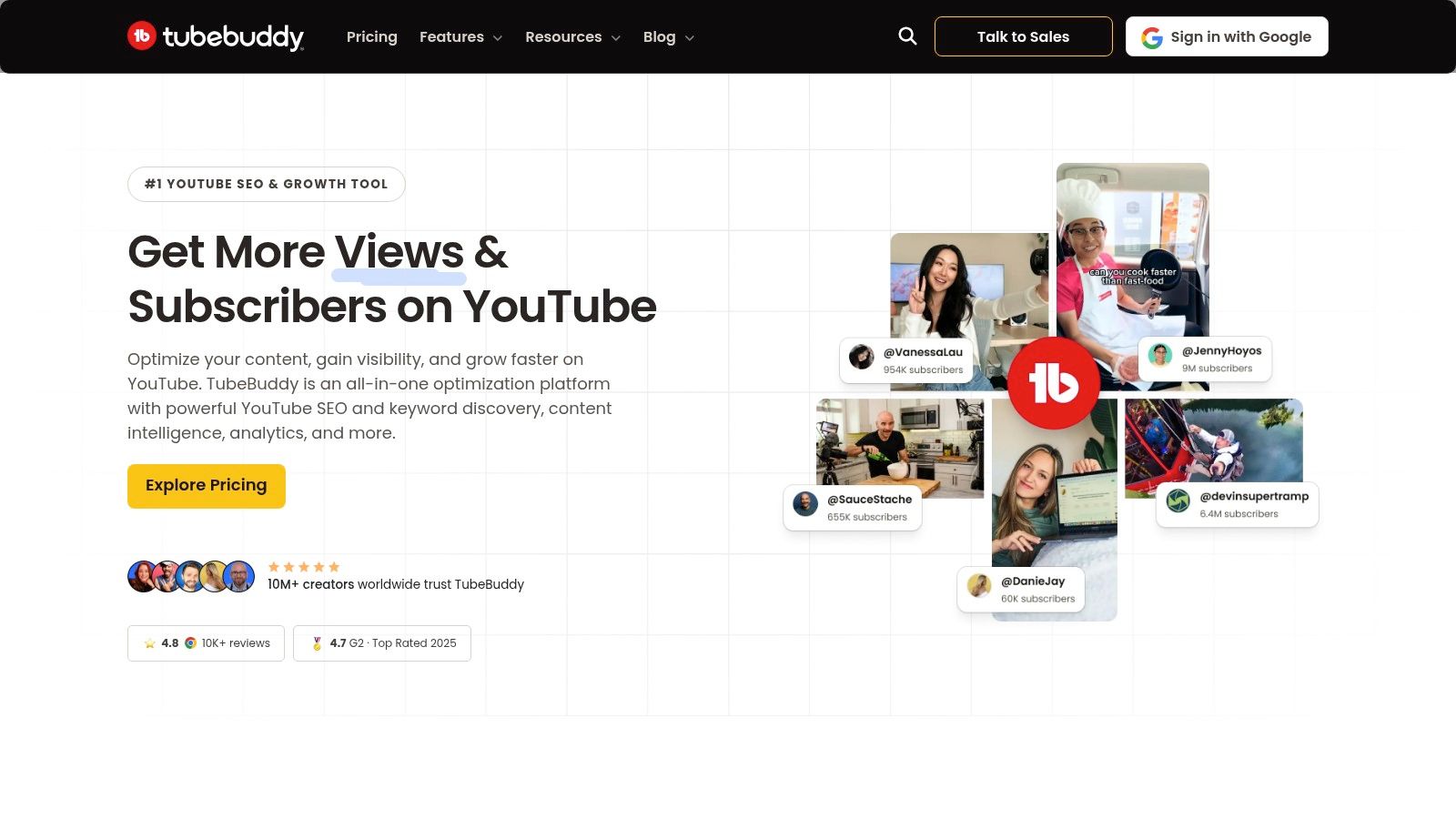
Publishing to YouTube is rarely the hard part. Repackaging a video well enough to earn the next click usually decides whether the work keeps compounding or disappears into the archive. TubeBuddy fits that packaging and maintenance stage.
Its value shows up after the edit is done. Titles need testing. Thumbnails need iteration. Old videos need metadata cleanup, end screens, cards, and bulk updates that are tedious inside YouTube alone. TubeBuddy shortens that admin layer by putting research and optimization prompts close to the channel workflow instead of sending creators into a separate reporting system.
That convenience has a limit. TubeBuddy can improve how a strong video is presented, but it will not rescue weak topics, flat hooks, or inconsistent publishing. Creators sometimes buy SEO tooling before they have enough output to learn from it. That is usually the wrong order.
A better way to judge TubeBuddy is by channel maturity and workload.
For a creator with ten videos and no repeatable publishing process, the paid plan can feel premature. For a channel with a real back catalog, recurring uploads, and clear thumbnail or title experiments to run, the time savings are easier to justify. Teams feel this even more because bulk edits and standardized optimization work are boring, repetitive jobs that still affect performance.
TubeBuddy also overlaps with work some creators already do elsewhere. If Notion holds the content plan, Canva handles thumbnails, and YouTube Studio covers basic analytics, TubeBuddy should earn its spot by speeding up testing and archive maintenance specifically. If it does not remove manual work, it becomes one more subscription attached to a channel that mostly needs better ideas.
A lean YouTube stack might look like this: Riverside for capture, Descript or CapCut for edit prep, DaVinci or Adobe for finishing, Canva for thumbnails, and TubeBuddy for packaging tests plus channel upkeep. That division of labor is usually cleaner than expecting one tool to handle research, editing, optimization, and distribution equally well.
For eligible creators comparing premium YouTube workflow tools, AccountShare can help evaluate paid access more affordably while keeping access structured and secure.
10. Envato Elements
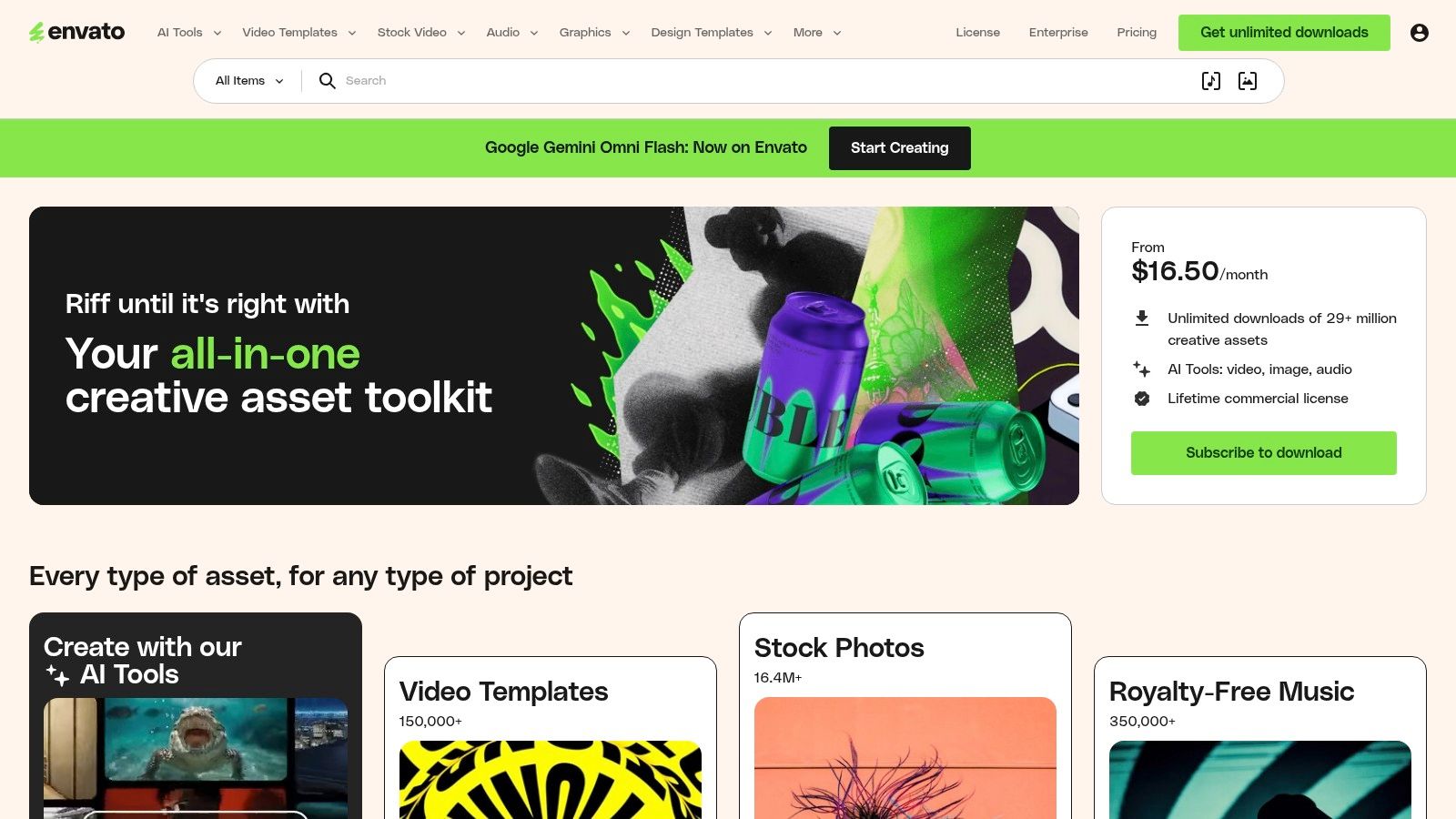
Envato Elements earns its keep at a specific point in the workflow. The edit is moving, the script is approved, and production stalls because the team still needs background music, a logo sting, B-roll, icons, or a lower-third template. That kind of asset hunting breaks momentum fast.
Used well, Envato is less a design tool and more a production support library. It reduces the number of places creators have to search when every deliverable needs small supporting pieces. That matters for agencies, YouTube teams, and solo creators publishing across formats, because one weekly video can easily turn into a thumbnail set, vertical cutdowns, promo graphics, and client variations.
The trade-off is obvious after a few sessions. Unlimited access creates browsing debt. A large catalog helps only if the team already knows its brand style, quality bar, and file requirements. Otherwise Envato becomes a place to collect decent-looking assets that make the final work feel generic.
I usually see Envato fit into two systems.
One is the replacement model. A creator cancels separate stock photo, music, and template subscriptions and centralizes asset sourcing in one library.
The other is the burst-capacity model. A team keeps its core design work in Adobe or Canva, then uses Envato only when deadlines stack up and custom asset creation is too slow.
That distinction matters because overlap gets expensive. If Canva already covers quick social graphics, Adobe handles custom motion work, and the team has a music library it trusts, Envato needs to remove enough search time to justify another subscription. If it only adds more options, it slows production instead of helping it ship.
For creators deciding between free libraries and paid asset bundles, this comparison of websites like Unsplash is a practical starting point. Free sources can cover simple image needs. They usually do not solve the broader packaging problem of matching photos, motion templates, music, and editable graphics inside one repeatable workflow.
For eligible creators testing paid asset libraries, AccountShare can help evaluate premium access more affordably while keeping access structured and secure.
Top 10 Content Creator Tools Comparison
| Product | Core features | UX / Quality (★) | Value / Pricing (💰) | Target audience (👥) | Standout (✨ / 🏆) |
|---|---|---|---|---|---|
| Adobe Creative Cloud (All Apps) | 20+ apps (Photoshop, Premiere, Illustrator), Firefly AI credits, cross-app libraries | ★★★★★ Pro-grade; steep learning curve | 💰 High subscription cost | 👥 Agencies, studios, pro creators | ✨ Industry-standard tools; 🏆 tight cross-app workflows |
| Canva (Pro/Business) | Template-driven design, 3.6M+ templates, AI tools, Brand Kits | ★★★★☆ Fast, low learning curve | 💰 Mid subscription; great for rapid outputs | 👥 Non-designers, marketers, small teams | ✨ Speed + brand kits; 🏆 massive asset library |
| CapCut (Standard/Pro) | Mobile/desktop/web editor, cloud sync, templates, auto-captions | ★★★★☆ Social-first; very fast | 💰 Freemium → Pro adds assets/tools | 👥 Short-form creators, influencers | ✨ Mobile-first templates; 🏆 strong free tier |
| DaVinci Resolve (Free) / Studio (One‑time) | All-in-one NLE: editing, color, Fusion VFX, Fairlight audio; Studio adds AI & pro codecs | ★★★★★ World-class color/audio; steep learning for advanced tools | 💰 Free powerful tier; Studio = one-time fee | 👥 YouTubers to professional post houses | ✨ Industry color tools; 🏆 one-time pro license option |
| Descript | Text-based audio/video editing, transcription, overdub, Studio Sound | ★★★★☆ Intuitive for non-editors; speeds edits | 💰 Tiered plans; transcription/AI limits may add cost | 👥 Podcasters, creators repurposing long-form content | ✨ Edit-by-text; 🏆 huge time-saver for talking-heads |
| Notion | Flexible databases, Notion AI agents, automations, workspace sharing | ★★★★☆ Highly flexible; setup overhead | 💰 Freemium → paid tiers for advanced features | 👥 Solo creators, small teams, content ops | ✨ Editorial OS + AI; 🏆 scalable workflows |
| Buffer | Scheduling, analytics, engagement inbox, AI reply tools; per-channel pricing | ★★★★☆ Clean UI; easy onboarding | 💰 Affordable per-channel pricing; free onramp | 👥 Solo creators, small agencies | ✨ Transparent pricing; 🏆 simple, reliable scheduler |
| Riverside | Local multitrack recording, 4K capture, cloud sync, AI clips | ★★★★☆ Pro recording quality; easy guest links | 💰 Monthly/annual with storage/hour quotas | 👥 Podcasters, interviewers, remote producers | ✨ Local-track capture; 🏆 guest-friendly remote studio |
| TubeBuddy | YouTube SEO, keyword explorer, A/B thumbnail testing, bulk edits | ★★★★☆ Native YouTube overlays; effective for growth | 💰 Tiered, power features on higher plans | 👥 YouTubers focused on discoverability | ✨ On-YouTube tools; 🏆 A/B testing for CTR |
| Envato Elements | 29M+ assets (video, music, templates), commercial license, AI credits | ★★★★☆ Broad catalog; quality varies | 💰 Subscription replaces multiple stock buys | 👥 Video teams, creators needing assets at scale | ✨ Unlimited downloads while subscribed; 🏆 wide asset variety |
Build the Smallest Stack That Ships
The best tools for content creators usually come from subtraction, not accumulation. Start with the bottleneck that slows publishing right now. If ideas die before scripting, use a planning hub like Notion. If interviews are painful to capture, use Riverside. If editing spoken content takes too long, use Descript. If visual output is the issue, choose Canva for speed or Adobe for depth. If short-form video is your engine, CapCut is often enough until you outgrow it. If you want a long-term editing home, DaVinci Resolve is hard to ignore.
Don't buy three tools that solve the same stage. That's one of the most common stack mistakes. Canva and Adobe can overlap. CapCut, Descript, and Resolve can overlap. Buffer may make a separate lightweight scheduler unnecessary. Envato can replace several smaller asset subscriptions. TubeBuddy is useful when YouTube optimization is an active discipline, not just an aspiration.
There's also a practical market signal behind keeping your stack lean. Independent 2026 guidance argues that most creators don't need giant software bundles to every category. The better approach is matching a small stack to the bottleneck, and one guide notes that most creators run four tools, not ten, while beginners can often start free before moving into paid plans through more advanced stacks, as summarized in this creator tools workflow guide. That aligns with how working creators operate. A few tools become daily infrastructure. The rest become neglected renewals.
Before upgrading, test the free tier or lowest viable plan. Confirm export limits, AI credit limits, transcript or storage caps, watermark rules, collaboration permissions, and licensing terms. Then check how the tool fits with the rest of your stack. Good tools don't just have strong features. They remove one handoff, one approval delay, or one repurposing bottleneck that currently costs you output.
A workable stack might look like Notion for planning, Riverside or Descript for spoken content, Canva or Adobe for design, CapCut or DaVinci Resolve for editing, Buffer for publishing, TubeBuddy for YouTube optimization, and Envato Elements for assets. But not every creator needs all of that. Most don't.
If subscription cost is the main blocker, AccountShare may help reduce the cost of eligible premium subscriptions through group purchasing. That can be useful when you want to test stronger tools without committing to full solo pricing immediately. Still, check provider terms, account permissions, privacy requirements, and available security controls before using any shared-access arrangement.
If you've figured out which part of your workflow is worth upgrading, AccountShare can help you explore lower-cost access to eligible premium tools through group purchasing. That's especially relevant for creators comparing paid AI and design subscriptions, where testing the right stack is often easier when the cost barrier is lower.