

The 12 Best Video Editing Software for Beginners in 2025
Navigating the world of video editing software for beginners can feel overwhelming. You have a vision for your project, whether it's a polished YouTube video, a family vacation montage, or engaging social media content, but the sheer number of available tools is daunting. Many professional-grade editors come with a steep learning curve and a high price tag, creating a barrier for new creators. This guide is designed to cut through that complexity.
We have curated a comprehensive list of the best video editing software tailored specifically for those just starting out. Our goal is to help you find the perfect match for your needs, budget, and creative goals without the frustration. We focus on tools that balance powerful features with intuitive, user-friendly interfaces, ensuring you can start creating high-quality videos quickly.
This resource provides a detailed analysis of each software option, moving beyond generic feature lists. For every editor, you will find:
- Honest pros and cons based on real-world use cases.
- Clear pricing and platform information (desktop, mobile, or web).
- Recommended starter workflows to help you begin your first project.
- Direct links and screenshots for easy access and a clear visual preview.
We will cover everything from free, open-source options like Shotcut to accessible paid programs like Adobe Premiere Elements and Wondershare Filmora. We'll also explore strategies for accessing premium software affordably and securely. By the end of this article, you will have the clarity and confidence to choose the right video editing software for beginners and bring your creative ideas to life.
1. Adobe Premiere Elements
Adobe Premiere Elements strikes a perfect balance between user-friendliness and powerful features, making it a standout choice for anyone just starting their editing journey. Instead of the steep learning curve associated with professional software, Elements provides a guided experience that helps you create polished videos without feeling overwhelmed. Its core strength lies in its three-tiered editing modes: Quick, Guided, and Advanced. This structure allows you to grow your skills at your own pace, starting with simple edits and gradually moving to more complex techniques.
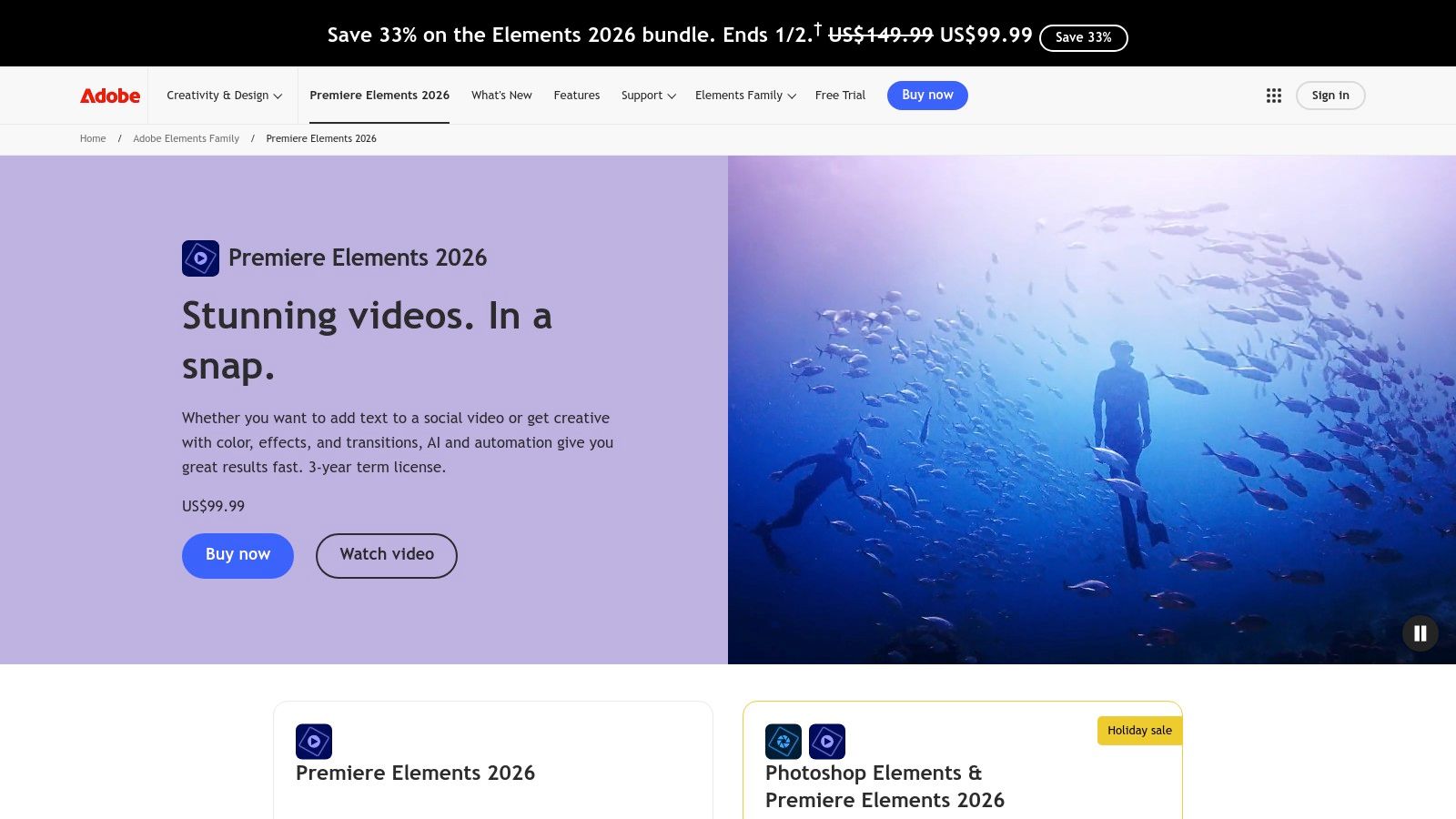
The platform’s AI, Adobe Sensei, automates tedious tasks like trimming, reframing for social media, and applying effects, which is a huge time-saver. For beginners, the Guided Edits are a game-changer. These step-by-step tutorials walk you through creating popular effects like double exposures or animated overlays directly within your project. This hands-on approach is one of the best ways to learn practical video editing software for beginners.
Key Details & User Experience
Unlike the subscription-based model of its professional counterpart, Premiere Pro, Elements is purchased with a one-time payment for a three-year license. This makes budgeting predictable, a significant advantage for students and hobbyists. Those looking for educational pricing may find other ways to get discounted software access for various Adobe products.
The interface is clean and well-organized, ensuring you can find tools and media without confusion. Exporting is also simplified with presets optimized for different platforms like YouTube and Vimeo.
- Best For: Home videos, social media content, and learning foundational editing skills.
- Pricing: One-time payment for a 3-year license (check the official site for current pricing).
-
Pros:
- Excellent learning curve with Guided Edits.
- No recurring monthly subscription.
-
Cons:
- Lacks the advanced tools of professional editors.
- The license is not perpetual; it has a 3-year term.
2. Wondershare Filmora (official store)
Wondershare Filmora is a favorite among new YouTubers and content creators, celebrated for its intuitive design and vast library of creative assets. It strips away the complexity found in professional-grade software, focusing instead on a drag-and-drop interface that makes producing stylish videos incredibly fast. The platform empowers beginners to create professional-looking content from day one with its extensive collection of built-in effects, titles, and transitions that can be applied with a single click.
Filmora's strength is its combination of simplicity and powerful AI-driven features. Tools like AI background removal, silence detection, and auto-subtitle generation handle tedious editing tasks automatically. This allows you to focus on the creative aspects of your project. For those wanting to enhance their videos further, Filmora integrates with its own asset library, Filmstock, offering an even wider array of templates and effects. This makes it an excellent choice for anyone looking for powerful video editing software for beginners.
Key Details & User Experience
Filmora offers flexible pricing, including both annual subscriptions and a one-time perpetual license, giving users a choice that fits their budget and commitment level. This is a significant draw for creators who prefer to own their software outright rather than pay a recurring fee.
The user interface is one of the cleanest and most straightforward on the market, making it easy to import media, arrange clips on the timeline, and export finished projects. The learning curve is minimal, and most users can produce a polished video within their first session.
- Best For: YouTubers, social media creators, and anyone wanting polished videos quickly.
- Pricing: Offers annual subscriptions and a one-time perpetual license option.
-
Pros:
- Extremely intuitive user interface; very fast to learn.
- Flexible pricing models including a one-time purchase.
-
Cons:
- Accessing all stock assets and advanced features may require extra subscriptions.
- An internet connection might be needed during export to verify the license.
Visit Wondershare Filmora (official store)
3. CyberLink PowerDirector (official)
CyberLink PowerDirector is a powerful yet approachable editor known for its massive library of creative assets and AI-powered tools. It provides a fantastic middle ground for beginners who want more creative control than basic editors offer, without the complexity of professional-grade software. The platform is designed to get you started quickly with pre-made templates and a drag-and-drop workflow, allowing you to produce high-quality videos right from the beginning.
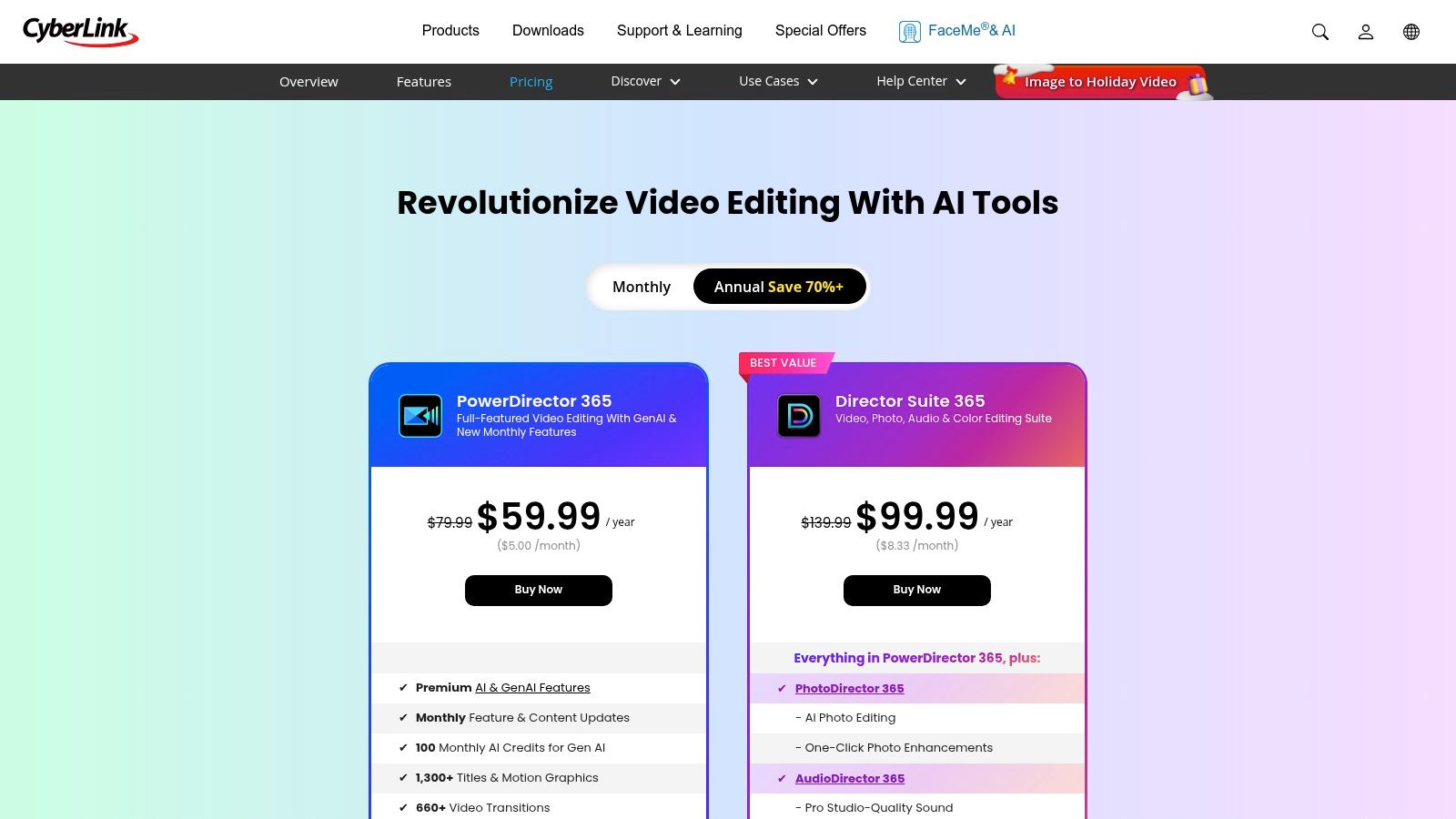
Its strength lies in its ecosystem of effects, titles, and royalty-free music, which is constantly updated for subscribers. AI features like sky replacement, motion tracking, and speech enhancement automate complex tasks, making this an excellent video editing software for beginners who want to add impressive effects easily. The combination of ease of use and a deep feature set ensures the software can grow with your skills.
Key Details & User Experience
PowerDirector offers flexible pricing with both a perpetual license (PowerDirector) and a subscription model (PowerDirector 365). The subscription is competitively priced and includes ongoing updates plus access to an extensive stock content library, which is a major benefit for creators needing fresh assets. This choice allows users to select the payment model that best fits their budget and long-term needs.
The interface feels intuitive, balancing a traditional timeline editor with guided tools and clear menus. It supports up to 4K video export, ensuring your final projects look professional on any screen.
- Best For: YouTube content creators, action camera footage, and users who love creative effects.
- Pricing: Available as a one-time purchase or via a monthly/annual subscription.
-
Pros:
- Huge library of built-in creative content and stock media.
- Flexible pricing with both perpetual and subscription options.
-
Cons:
- Feature parity can sometimes differ between Windows and macOS versions.
- Some users report occasional stability issues across different updates.
4. Blackmagic Design DaVinci Resolve (official)
DaVinci Resolve is widely known as the industry standard for professional color grading, but its free version is one of the most powerful and complete video editors available to anyone. While its full feature set can seem intimidating, its dedicated "Cut" page offers a streamlined, intuitive interface designed for quick edits, making it surprisingly accessible. This dual-environment approach allows you to start simple and then graduate to its more advanced editing, effects, and audio tools without ever needing to switch software.
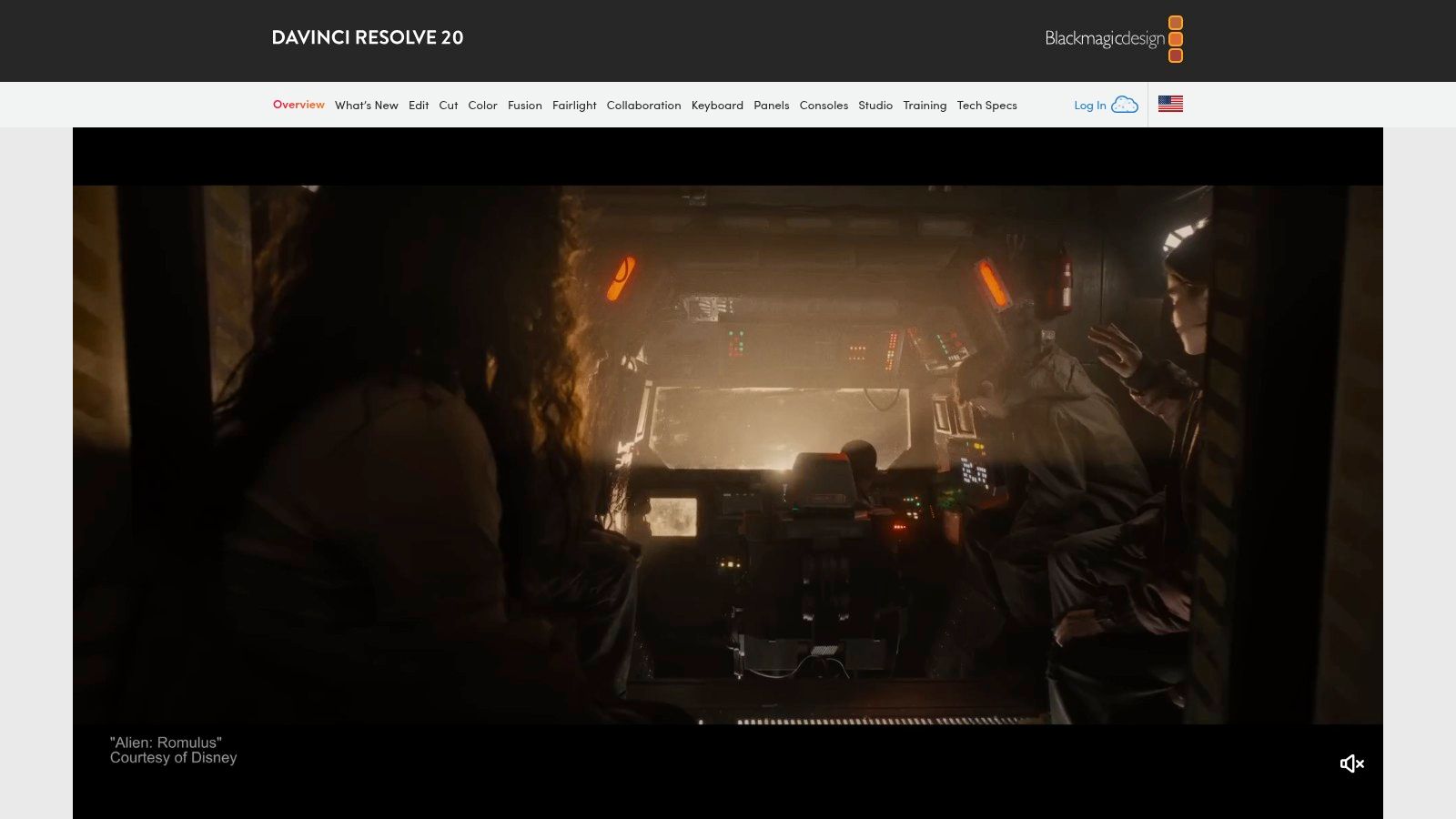
The free version of DaVinci Resolve is not a trial; it's a fully-featured application that includes editing, color correction, visual effects (Fusion), and audio post-production (Fairlight). For beginners, this means you can learn on the same software used to create Hollywood films and major television shows. The path to growth is built-in, and you'll likely never outgrow its capabilities, which is a key reason it’s considered an excellent video editing software for beginners with long-term ambitions.
Key Details & User Experience
Unlike the subscription-heavy market, DaVinci Resolve offers its advanced Studio version for a one-time purchase. This unlocks the powerful DaVinci Neural Engine for AI-driven tools, more advanced effects, and higher resolution support. However, the free version is more than enough for most beginners, supporting projects up to UHD 4K at 60 frames per second.
The interface is professional and responsive, though it requires moderately capable computer hardware to run smoothly. The learning curve is steeper than template-based editors, but the massive amount of high-quality, free training provided by Blackmagic Design on their website makes the process manageable and rewarding.
- Best For: Aspiring filmmakers, YouTubers who want to grow, and anyone wanting to learn professional-grade software without an initial investment.
- Pricing: A very capable free version is available. The Studio version is a one-time payment (check the official site for current pricing).
-
Pros:
- Exceptionally powerful free version that is not time-limited.
- One-time payment for the Studio upgrade avoids recurring subscriptions.
-
Cons:
- Steeper learning curve compared to more basic editors.
- Requires a reasonably powerful computer for a smooth experience.
Visit Blackmagic Design DaVinci Resolve
5. Apple iMovie (Mac App Store)
For those fully immersed in the Apple ecosystem, iMovie is the quintessential starting point for video editing. It comes pre-installed on most Apple devices and offers a surprisingly robust set of tools completely free of charge. Its core strength is its simplicity and seamless integration. You can start a project on your iPhone during your commute, add more clips on your iPad, and then use Handoff to apply the final touches on your Mac, all without missing a beat. This makes it an incredibly efficient video editing software for beginners.
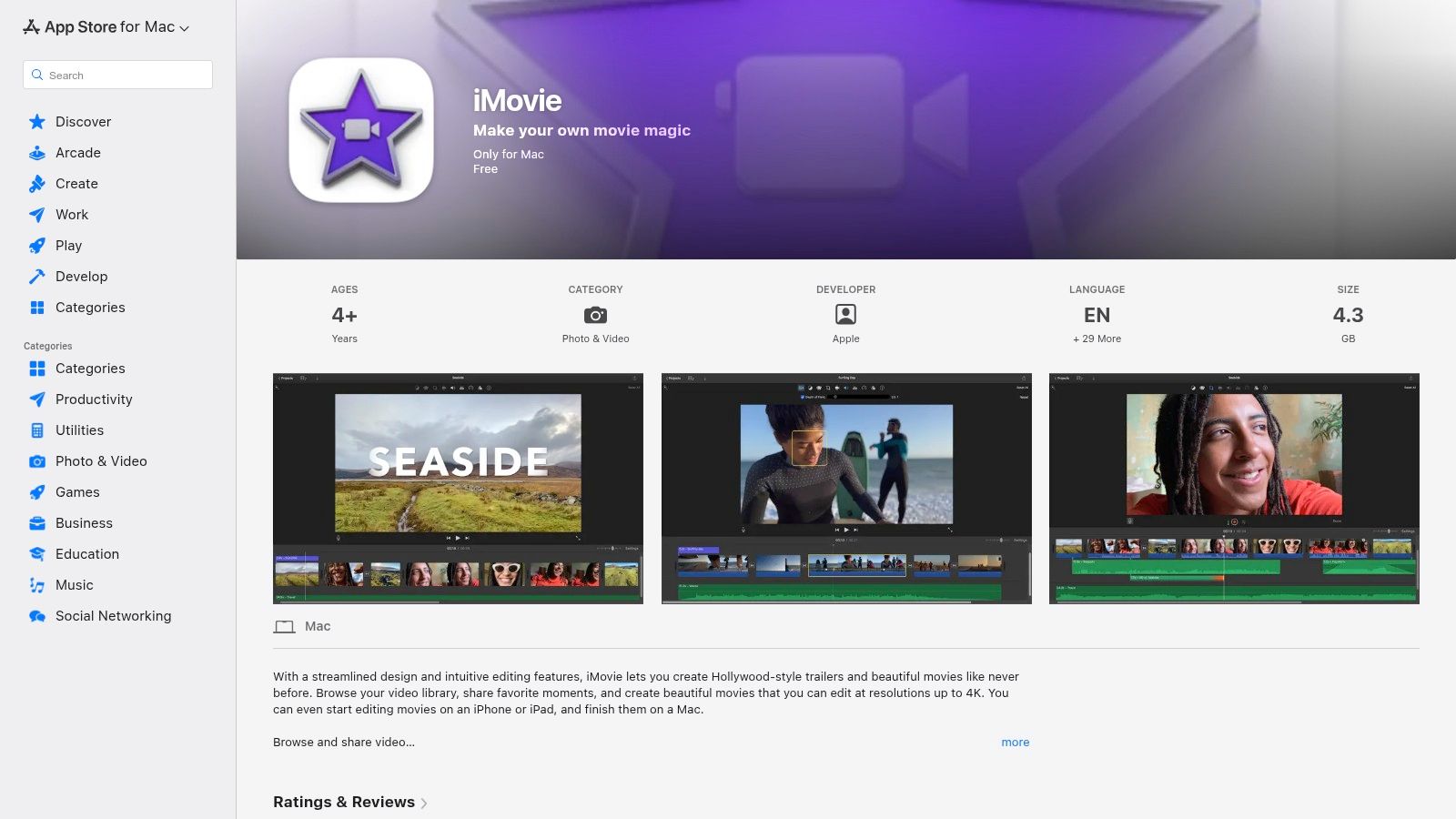
The platform features a clean, drag-and-drop timeline that makes arranging clips, audio, and titles intuitive. For those seeking a more automated approach, the Magic Movie and Storyboards features on iOS and iPadOS can assemble your clips with transitions and music in minutes. Despite its simplicity, iMovie includes essential features like 4K support, green screen effects, and picture-in-picture, giving you enough creative control for impressive results without a steep learning curve.
Key Details & User Experience
As a free application, there are no subscriptions or hidden costs to worry about, making it the most accessible option for Mac and iOS users. The user interface is a masterclass in minimalism; it's uncluttered and highly responsive, ensuring a stable and crash-free editing experience even with 4K footage.
The app provides polished, pre-made templates for movie trailers and themes that help give your projects a professional look with minimal effort. Exporting is straightforward with optimized presets for Apple devices, YouTube, and email.
- Best For: Apple users creating family videos, travel vlogs, and school projects.
- Pricing: Completely free for all macOS, iOS, and iPadOS users.
-
Pros:
- No cost and tightly integrated within the Apple ecosystem.
- Extremely simple, stable, and ideal for first-time editors.
-
Cons:
- Only available on Apple devices; no Windows version.
- Lacks the advanced tools and customization needed for professional workflows.
Visit Apple iMovie (Mac App Store)
6. Movavi Video Editor (official)
Movavi Video Editor is designed from the ground up to be intuitive and accessible, making it an excellent starting point for aspiring creators. It avoids the complexity of professional software by focusing on a streamlined workflow with helpful AI-powered tools. The platform excels at guiding users through the editing process, allowing you to quickly create engaging social media videos, family montages, or simple tutorials without a steep learning curve.
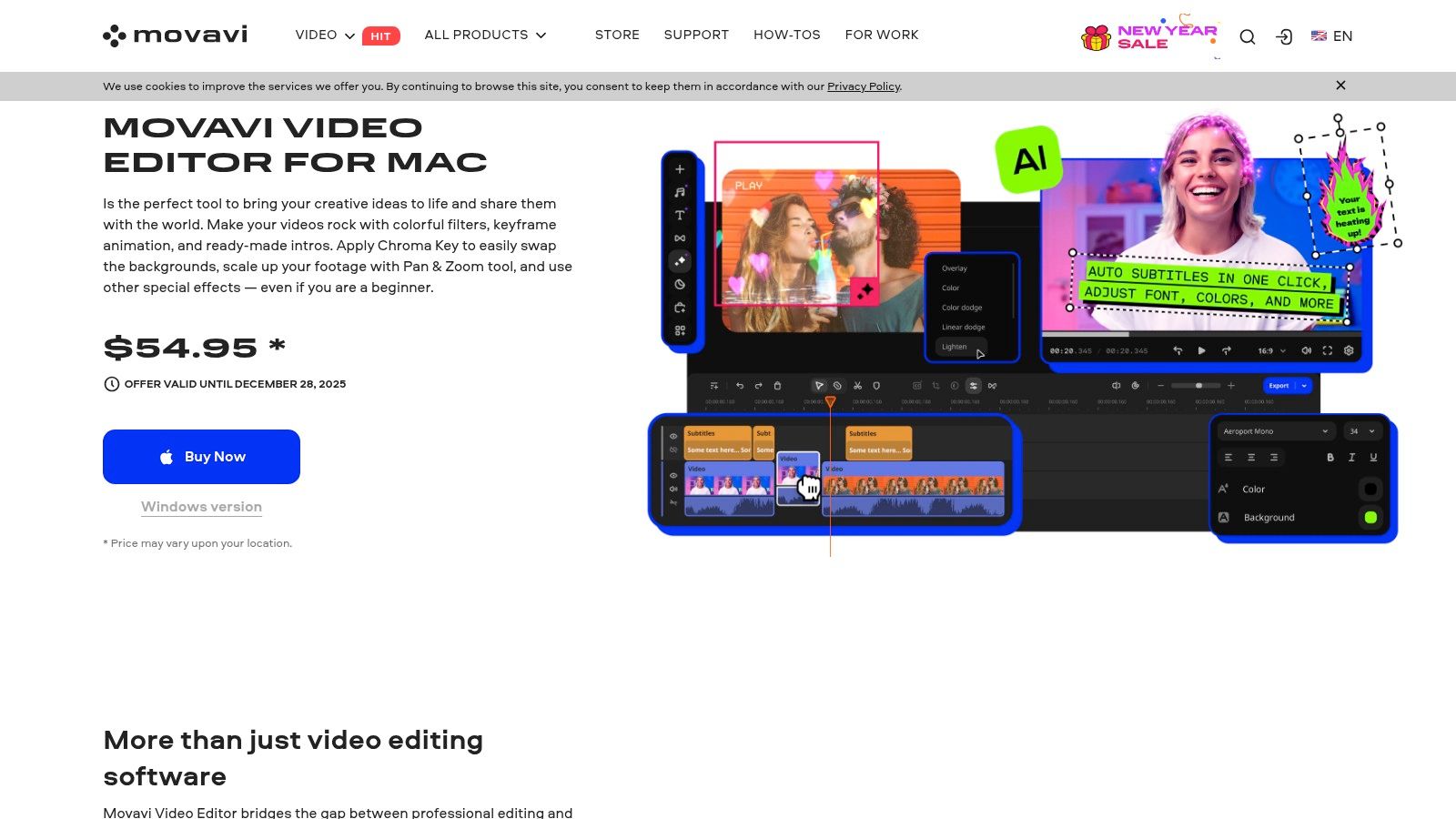
The editor comes packed with essential features like cutting, merging, transitions, and titles, but its AI helpers are what make it shine for newcomers. Tools like automatic silence removal and AI-generated subtitles save significant time and effort. Its strong support for vertical video formats also makes it a fantastic piece of video editing software for beginners aiming to create content specifically for platforms like TikTok or Instagram Reels.
Key Details & User Experience
Movavi offers flexible pricing with both annual subscriptions and a one-time lifetime license, giving users the choice to pick what best suits their budget and commitment level. This flexibility is a major advantage for hobbyists who may not want to be tied to a recurring payment.
The user interface is clean, modern, and incredibly easy to navigate, ensuring that even first-time editors can find their way around the timeline and effects library. While the core software is robust, it's worth noting that many advanced effects and assets are sold separately through the Movavi Effects Store.
- Best For: Creating social media content, family videos, and quick video projects.
- Pricing: Offers both a 1-year license and a one-time payment for a Lifetime license.
-
Pros:
- Very approachable UI with a fast learning curve.
- Offers both yearly and lifetime licensing options.
-
Cons:
- Effects store upsells for additional assets.
- Fewer pro-level tools compared with advanced NLEs.
7. Microsoft Clipchamp (official)
As Microsoft's own video editor, Clipchamp offers seamless integration for Windows users and a surprisingly capable free tier, making it an excellent entry point into video editing. Bundled with Windows 11 and available as a web app, it removes the friction of downloading heavy software. Its strength lies in its accessibility and template-driven workflow, allowing you to quickly create professional-looking videos for presentations, social media, or personal projects without a steep learning curve. The multitrack timeline provides a familiar editing environment, but with simplified controls perfect for newcomers.
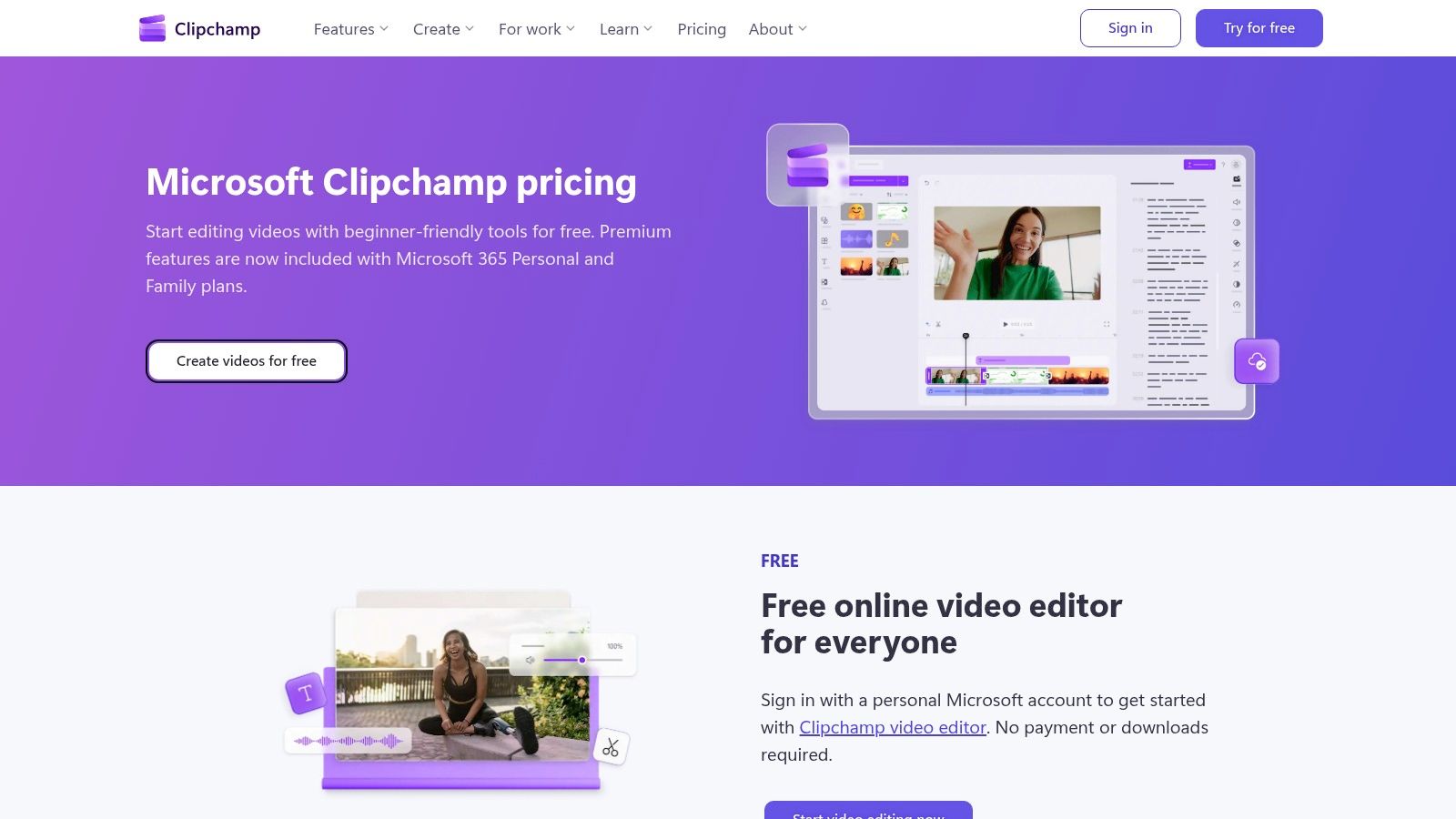
Clipchamp stands out by offering features often reserved for paid tools in its free version. The built-in screen and webcam recorder is ideal for creating tutorials or reaction videos, while AI-powered tools for auto-captions and text-to-speech add a layer of polish. For anyone looking for a solid piece of video editing software for beginners, the ability to export in 1080p without a watermark on the free plan is a massive advantage.
Key Details & User Experience
The user experience is clean and intuitive, focusing on a drag-and-drop interface that feels natural from the start. For those already in the Microsoft ecosystem, the premium version is bundled with Microsoft 365 subscriptions. This unlocks advanced features like a brand kit for consistent branding, 4K exports, and access to a premium library of stock video, audio, and images.
The web-based nature means you can access your projects from different devices, although it may not have the raw power of a dedicated desktop NLE for complex, high-resolution projects.
- Best For: Quick social media edits, corporate presentations, and Windows users needing a convenient, integrated tool.
- Pricing: A robust free tier is available; premium features are included with a Microsoft 365 subscription.
-
Pros:
- Excellent free plan with watermark-free 1080p exports.
- Tight integration with Windows and the Microsoft 365 ecosystem.
-
Cons:
- Key features like 4K exports and the brand kit are behind a subscription.
- Being web-based, performance can be limited compared to desktop software.
8. CapCut (official)
CapCut has rapidly become the go-to editor for short-form social media content, thanks to its incredibly intuitive interface and trend-driven features. Developed by ByteDance, the same company behind TikTok, it excels at helping you create engaging Reels, Shorts, and TikToks in minutes. Its main advantage is a massive ecosystem of templates, trending effects, and sounds that are constantly updated, allowing beginners to produce professional-looking videos with minimal effort.
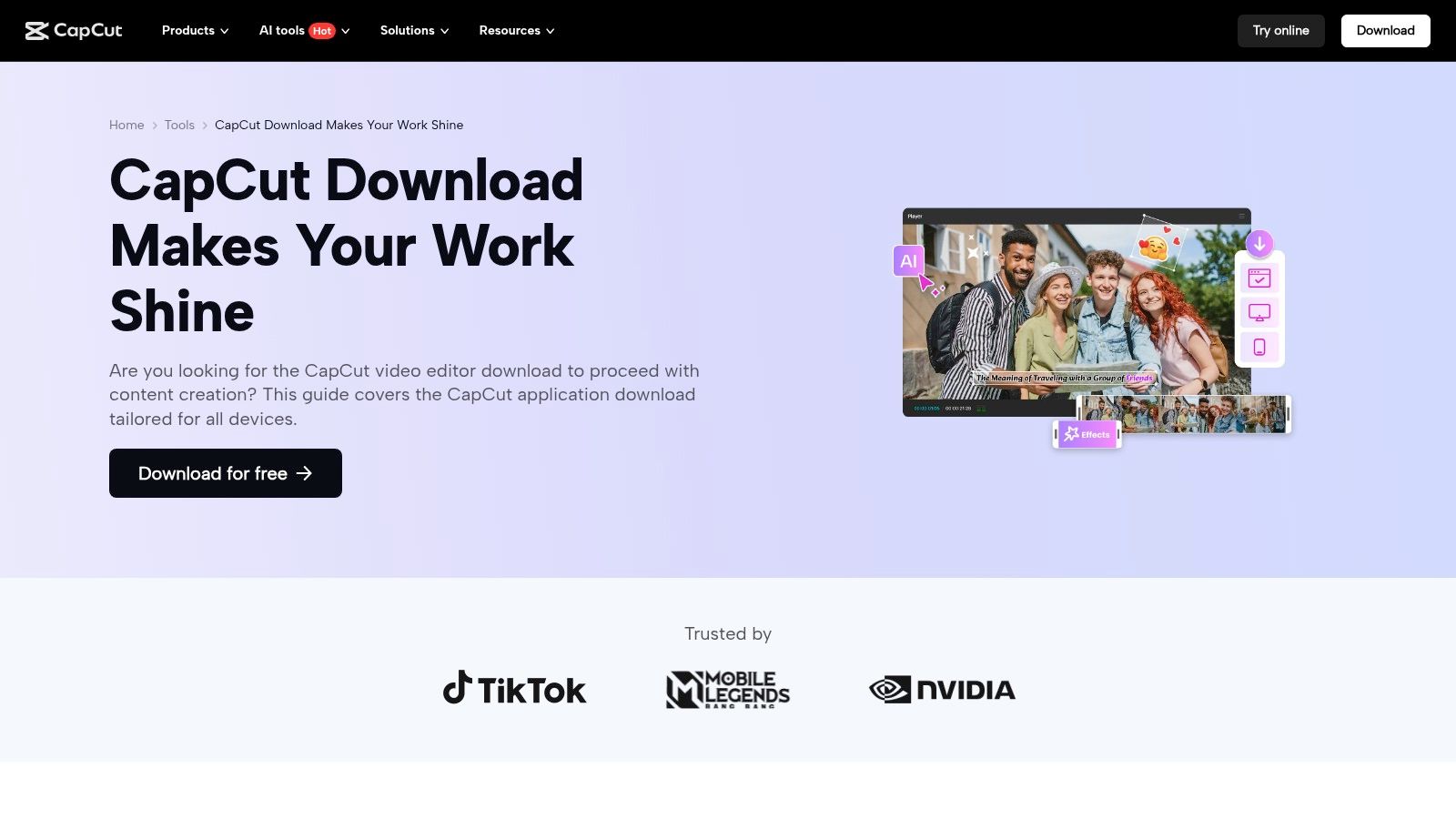
The platform is more than just templates; it offers powerful tools like automatic captions, background removal, and a multi-track timeline that are surprisingly robust for a free application. This combination makes it a fantastic piece of video editing software for beginners who want to jump straight into creating content without a steep learning curve. The availability of desktop and web versions alongside the popular mobile app provides excellent flexibility for editing wherever you are.
Key Details & User Experience
CapCut's free version is remarkably capable, offering features like 4K exports that are often locked behind paywalls in other editors. While the core editor is free, a Pro subscription unlocks premium assets, effects, and cloud storage. The user interface is streamlined and easy to navigate, particularly for those familiar with social media apps, making the editing process feel natural and fast.
One point of consideration is its availability, which has faced uncertainty in the U.S. market, though it remains widely accessible. For casual creators focused on social media, CapCut provides an unmatched workflow speed.
- Best For: TikToks, Instagram Reels, and quick social video edits.
- Pricing: Free core editor; optional Pro subscription for advanced assets and features.
-
Pros:
- Very fast for social/reels with a huge template ecosystem.
- Generous free features suitable for casual creators.
-
Cons:
- Advanced features and premium assets require a subscription.
- Periodic availability and policy uncertainty in certain regions.
9. WeVideo (official)
WeVideo brings the power of video editing directly to your web browser, making it a fantastic choice for collaboration, education, and anyone who wants to avoid installing bulky software. Its cloud-based nature means you can start a project on one computer and seamlessly continue on another. This accessibility is central to its design, offering a simplified editing experience without sacrificing essential features needed to create compelling videos.
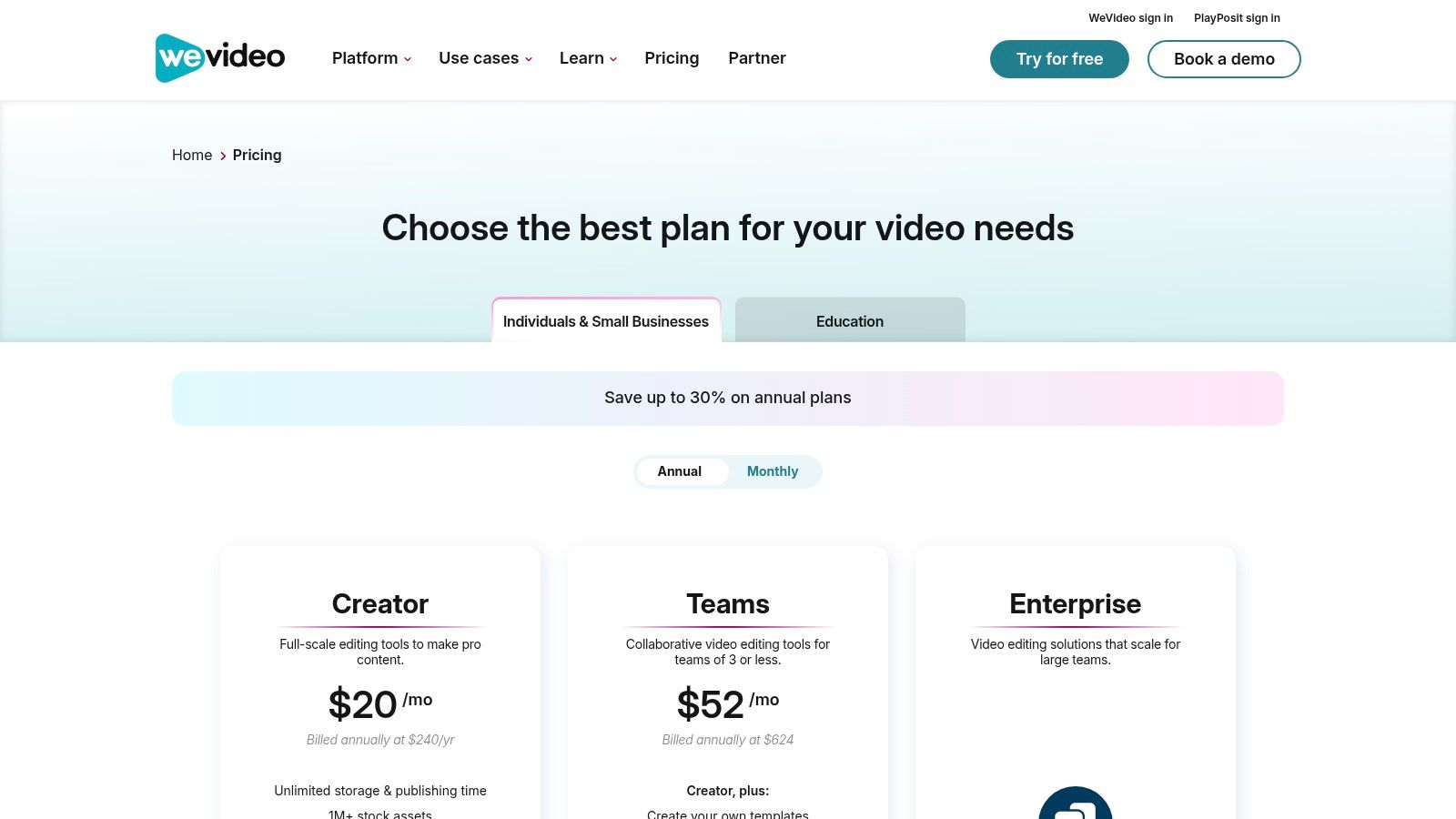
The platform stands out with its extensive built-in library of stock video, images, and music, which is a huge advantage for creators on a budget. Even on lower-tier plans, users can access features like green screen and motion titles. For teams and classrooms, the collaboration tools are a defining feature, allowing multiple users to work on the same project timeline. This makes it an ideal piece of video editing software for beginners who are part of a group project or a small business team.
Key Details & User Experience
WeVideo operates on a subscription model with a clear upgrade path, including a free-forever plan with some limitations like watermarking and lower export resolution. Paid plans unlock higher resolutions up to 4K, expand the stock library, and remove the watermark. This tiered approach allows you to start for free and only pay for more advanced features as your needs grow.
The interface is intuitive and resembles traditional desktop editors, with a timeline, media bin, and preview window, ensuring a gentle learning curve. Because everything is processed in the cloud, it runs smoothly even on less powerful computers.
- Best For: Students, educators, small business teams, and creators needing cloud-based collaboration.
- Pricing: Free plan available; paid subscription tiers for more features.
-
Pros:
- Runs entirely in a browser with no installation needed.
- Excellent collaboration features for team projects.
-
Cons:
- The free version includes a watermark and has export limits.
- Requires a constant internet connection for editing.
10. Shotcut (official)
Shotcut is a powerful, free, and open-source editor that appeals to beginners who want a no-cost entry point without sacrificing key features. While its interface might seem less polished than commercial alternatives, its strength lies in its raw capability and broad format support. It handles everything from standard video files to 4K resolutions, allowing you to edit footage directly on the timeline without a mandatory import step, which speeds up the initial workflow considerably.
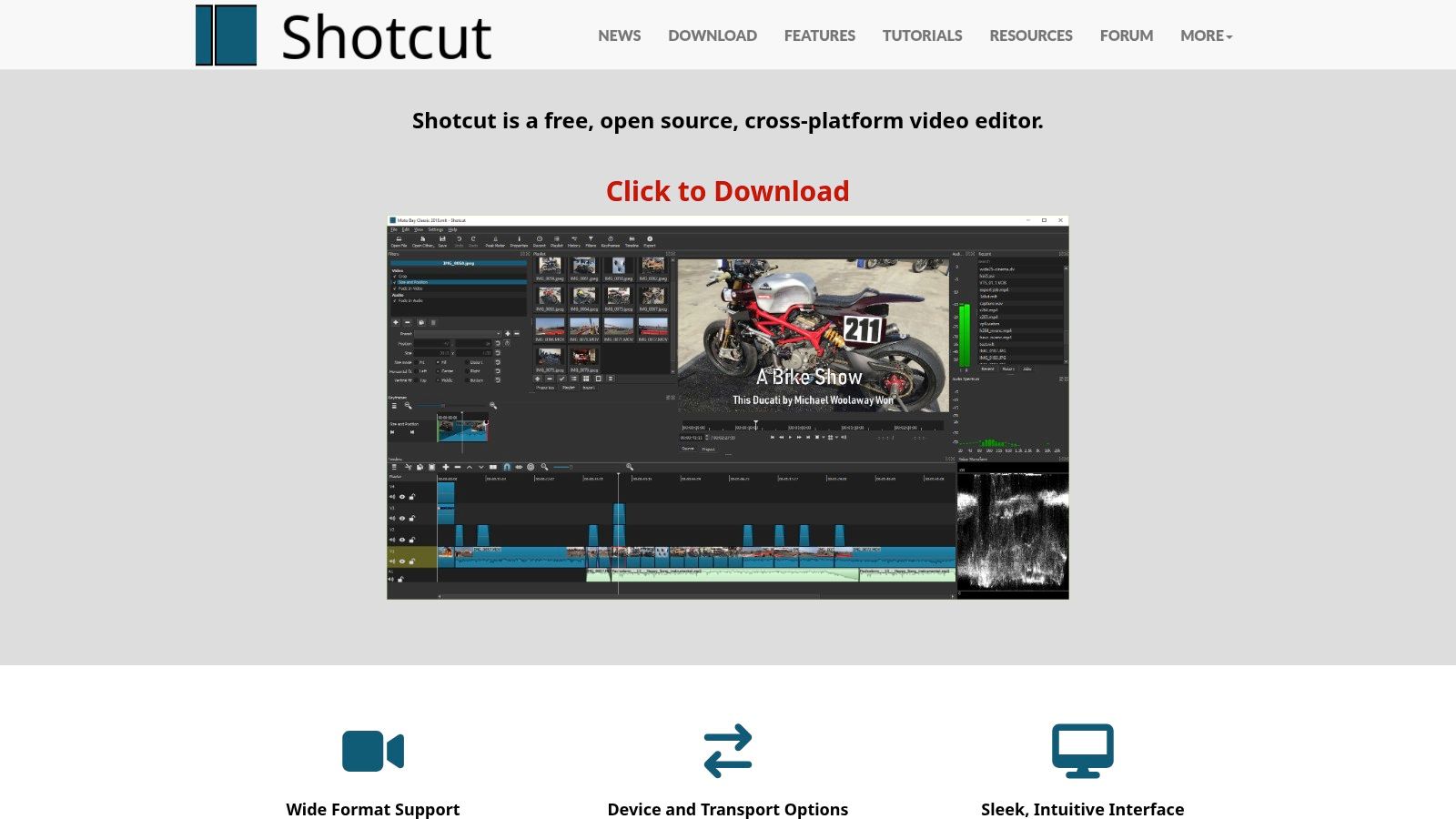
This platform is an excellent piece of video editing software for beginners willing to invest a little time in learning, as it doesn't hold your hand with guided tutorials like other apps. Instead, it provides a flexible environment with a multi-track timeline, extensive video and audio filters, and color correction tools. Because it is open-source, it is regularly updated by its community and is available across Windows, macOS, and Linux, ensuring a consistent experience no matter your operating system.
Key Details & User Experience
The user experience in Shotcut is more utilitarian than artistic. Panels and toolbars are customizable, so you can arrange the workspace to fit your needs, but finding specific tools may require a bit of exploration or watching a few community-made tutorials. The biggest draw is that it is completely free forever, with no watermarks, ads, or feature paywalls when downloaded from the official website. This makes it an ideal choice for users on a strict budget who need a reliable editor for school projects, YouTube videos, or personal use.
- Best For: Budget-conscious creators, multi-platform users, and those who prefer open-source software.
- Pricing: Completely free.
-
Pros:
- No cost, no watermarks, and no ads.
- Excellent format support and native timeline editing.
-
Cons:
- The interface can feel dated and less intuitive.
- Lacks the guided tutorials and templates of paid software.
11. OpenShot (official)
OpenShot is a free, open-source editor celebrated for its simplicity and cross-platform availability, making it an excellent starting point for absolute beginners. Designed to be intuitive, it removes the complexity often found in professional software, allowing new users to focus on fundamental tasks like trimming clips, adding basic transitions, and creating simple titles. Its straightforward drag-and-drop interface is perfect for anyone creating their first video project without a steep learning curve.
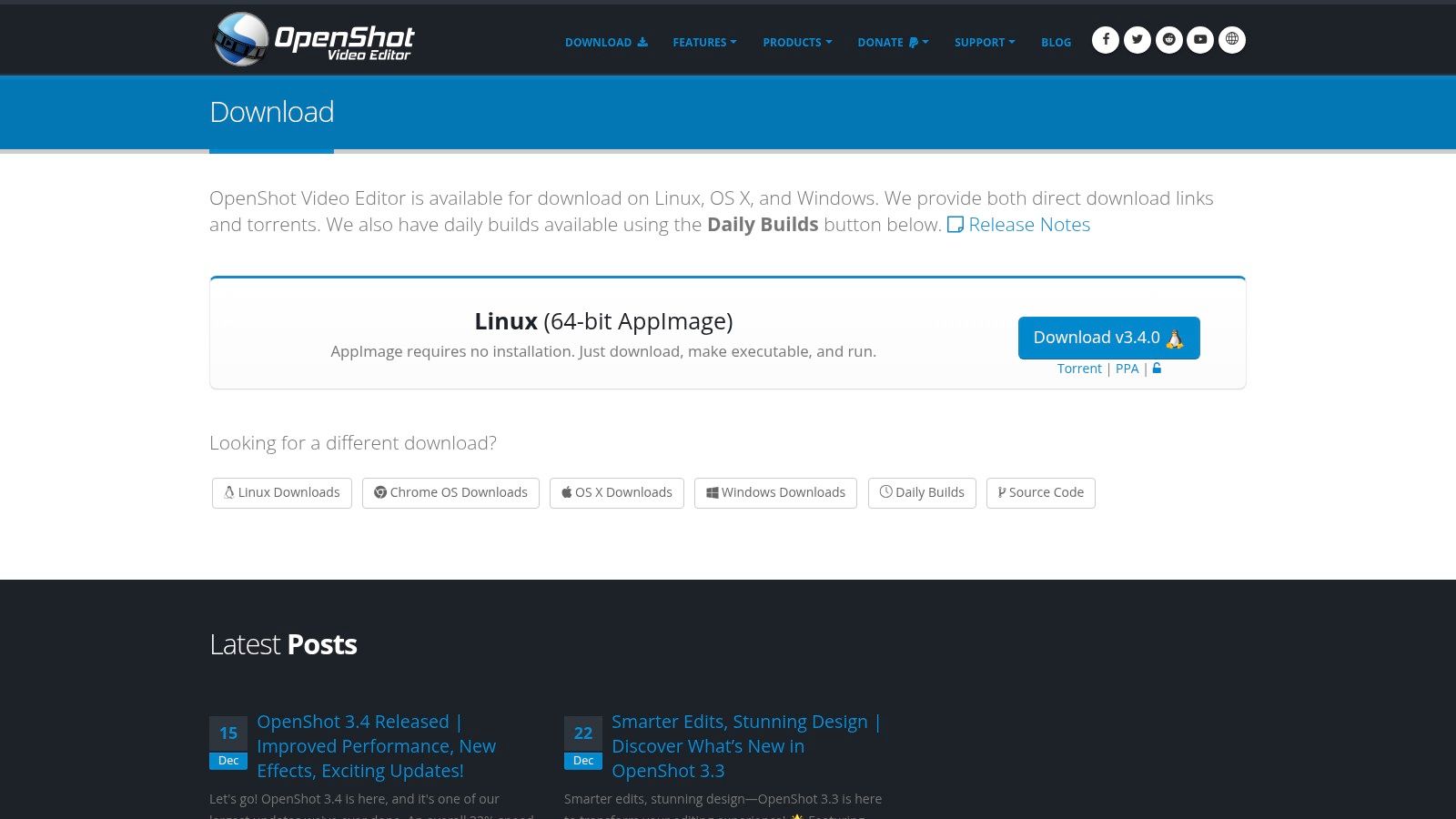
The platform supports unlimited tracks, giving you the flexibility to layer audio, video, and graphics as you see fit. While it lacks the advanced effects of paid alternatives, it handles core editing functions smoothly, including basic animations and title templates. As a community-driven project, it represents one of many excellent free alternatives to popular software, offering a completely cost-free way to learn the basics of video editing.
Key Details & User Experience
OpenShot is 100% free with no hidden costs, which is its primary appeal for students, hobbyists, and anyone on a tight budget. The interface is minimal, focusing only on the essential tools needed to assemble a video. Because it is an open-source project, development is active, though some users report occasional performance issues. To ensure a safe installation, it is crucial to download the software directly from the official website to avoid third-party bundles that may include unwanted ads.
- Best For: First-time editors, school projects, and simple video montages.
- Pricing: Completely free.
-
Pros:
- No cost and open-source.
- Simple, beginner-friendly interface and workflow.
-
Cons:
- Can suffer from performance or stability issues.
- Lacks advanced features for complex projects.
12. Best Buy – Video Editing Software (US retailer category)
Instead of a single software, Best Buy offers a centralized hub for comparing and purchasing various video editing programs from leading brands. This approach is ideal for beginners who want to see multiple options side-by-side without visiting numerous websites. The platform aggregates consumer-focused titles from Adobe, Corel, MAGIX, and others, allowing you to compare prices, features, and user reviews in one place. It serves as a practical starting point to discover what type of video editing software for beginners fits your budget and needs.
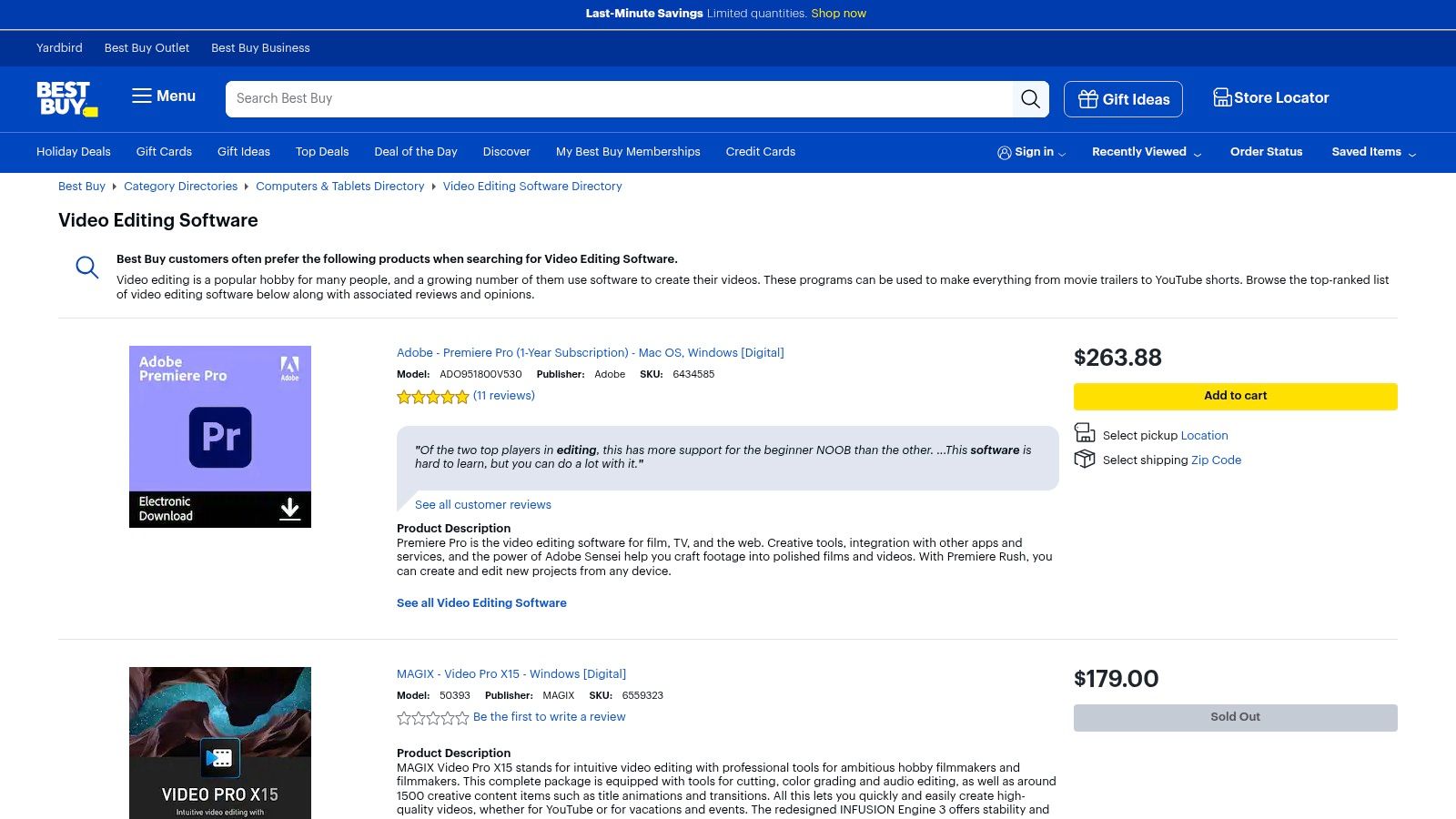
One of Best Buy's key advantages is its mix of digital downloads and physical boxed software, catering to different consumer preferences. Frequent sales and holiday promotions can lead to significant savings on popular titles. The ability to pick up an order in-store or rely on its established return policy provides a level of convenience and customer security that direct downloads from software developers might not offer.
Key Details & User Experience
Navigating Best Buy's software category is straightforward, with filters for brand, price, and customer rating to help narrow your search. Each product page provides detailed specifications and, most importantly, user reviews from other buyers, which can offer candid insights into the software's real-world performance. This is particularly helpful for beginners trying to gauge the learning curve or potential issues with a program before committing.
The retailer's US-focused customer support and easy return process make it a low-risk option for purchasing your first editor.
- Best For: Price comparison, finding promotional deals, and easy returns on popular beginner software.
- Pricing: Varies by product; includes one-time purchases and sometimes subscription cards.
-
Pros:
- One place to compare pricing across multiple beginner tools.
- Easy returns and reliable US-focused customer support.
-
Cons:
- Catalog rotates and may include prior-year releases.
- Not a single product vendor; availability varies by title.
Visit Best Buy – Video Editing Software
12 Beginner Video Editors — Side-by-Side Comparison
| Product | ✨ Core features | ★ Quality | 💰 Price / value | 👥 Target audience | 🏆 Unique selling point |
|---|---|---|---|---|---|
| Adobe Premiere Elements (official) | ✨ Guided Edits, AI trim/reframe, media library, 3‑yr one‑time license | ★★★★☆ | 💰💰 One‑time (3‑yr) | 👥 Home users, beginners | 🏆 Guided learning + predictable license |
| Wondershare Filmora (official store) | ✨ Drag‑drop timeline, AI tools, Filmstock assets, flexible licenses | ★★★★☆ | 💰💰 Annual / Perpetual (addons) | 👥 YouTubers & new creators | 🏆 Fast polished edits + asset store |
| CyberLink PowerDirector (official) | ✨ AI tools, 4K, large effects pack, perpetual or 365 | ★★★★☆ | 💰💰 Subscription or one‑time | 👥 Beginners → pros seeking content | 🏆 Large creative packs + flexible licensing |
| Blackmagic DaVinci Resolve (official) | ✨ Full NLE+color+Fairlight, free tier, Studio one‑time upgrade | ★★★★★ | 💰💰💰 Free core / one‑time Studio | 👥 Beginners to professionals | 🏆 Industry‑grade features in a free tier |
| Apple iMovie (Mac App Store) | ✨ Templates, Magic Movie, 4K, seamless Apple device handoff | ★★★★☆ | 💰💰💰 Free (Apple devices) | 👥 Apple users & first projects | 🏆 Seamless Apple ecosystem integration |
| Movavi Video Editor (official) | ✨ Quick templates, AI subtitle/silence removal, vertical support | ★★★★☆ | 💰💰 Yearly or Lifetime | 👥 Social creators & families | 🏆 Lifetime license option + social formats |
| Microsoft Clipchamp (official) | ✨ Templates, multitrack, screen/webcam recorder, 1080p free | ★★★★☆ | 💰💰 Free tier; Premium via 365 | 👥 Windows / Microsoft 365 users | 🏆 1080p free exports + 365 bundling |
| CapCut (official) | ✨ Huge templates, auto‑captions, bg removal, multi‑platform | ★★★★☆ | 💰 Free core, Pro subscription | 👥 Short‑form creators (TikTok/Reels) | 🏆 Rapid social workflows & template ecosystem |
| WeVideo (official) | ✨ Cloud editing, collaboration, stock assets, templates | ★★★☆☆ | 💰💰 Subscription (tiers) | 👥 Education, small teams, SMBs | 🏆 Cloud collaboration + classroom focus |
| Shotcut (official) | ✨ FFmpeg format support, multi‑track, 4K, cross‑platform, free | ★★★★☆ | 💰💰💰 Free (no watermark) | 👥 Budget‑conscious users & tinkerers | 🏆 Full‑featured open‑source NLE at no cost |
| OpenShot (official) | ✨ Unlimited tracks, basic effects/titles, cross‑platform | ★★★☆☆ | 💰💰💰 Free | 👥 Beginners wanting simple edits | 🏆 Simple, free, easy cross‑OS access |
| Best Buy – Video Editing Software (US retailer category) | ✨ Aggregated listings, reviews, digital & boxed SKUs, deals | ★★★☆☆ | 💰 Variable (retailer pricing) | 👥 Shoppers preferring retail/returns | 🏆 One‑stop shop for comparison, pickup & returns |
Final Thoughts
Embarking on your video editing journey is an exciting step, and as we've explored, the landscape of video editing software for beginners is richer and more accessible than ever before. From the intuitive drag-and-drop simplicity of mobile apps like CapCut to the surprising depth of free desktop programs like DaVinci Resolve, the right tool to bring your vision to life is within reach. You don't need a Hollywood budget or a film school degree to start creating compelling, professional-looking videos.
The key takeaway from our extensive list is that there is no single "best" editor for everyone. The ideal choice is deeply personal and depends entirely on your specific goals, your current hardware, and your willingness to learn. Your creative journey is unique, and your software should be a partner in that process, not a barrier.
Choosing Your Path: A Quick Recap
To help you make a final decision, let's distill our findings into a few core principles. This framework will guide you toward the software that best fits your immediate needs and future aspirations.
-
For Absolute Beginners (No Budget): If you're just starting and want to learn the ropes without any financial commitment, your best options are iMovie (for Apple users), Microsoft Clipchamp (for Windows users), or the open-source powerhouses Shotcut and OpenShot. These tools provide all the fundamental features you need to learn about timelines, cuts, transitions, and basic effects.
-
For Aspiring Content Creators: If you're creating content for platforms like YouTube or TikTok, look for software with a strong library of built-in effects, titles, and royalty-free music. Wondershare Filmora, Movavi Video Editor, and the free version of CapCut are all excellent choices. They prioritize speed and have user interfaces designed for a fast, social-media-centric workflow.
-
For Those with Long-Term Ambitions: If you see video editing as a potential career or a serious, long-term hobby, starting with a program that has a high ceiling for growth is a smart move. DaVinci Resolve is the undeniable champion here, offering a free version with industry-standard color grading and effects. While it has a steeper learning curve, the skills you develop are directly transferable to professional environments.
-
For Families and Hobbyists: If your primary goal is to edit family videos, vacation montages, or school projects, you need a tool that is straightforward and reliable. Adobe Premiere Elements and CyberLink PowerDirector excel in this area. They offer guided edits and automated features that simplify the process, helping you create polished videos with minimal effort.
Your Next Steps to Becoming a Creator
Your journey doesn't end with choosing a piece of software. The most critical step is to simply start creating. Don't let the pursuit of the "perfect" tool lead to paralysis. Pick one that feels right, download it, and import your first clips.
Commit to a small, manageable project, a one-minute video showcasing your pet or a 30-second highlight reel from your last trip. The hands-on experience you gain from this first project will teach you more than hours of watching tutorials. Remember that every expert was once a beginner. Embrace the learning process, celebrate your small victories, and don't be afraid to make mistakes. The path to mastering video editing is paved with practice, and your first edit is the most important one you will ever make.
Ready to access premium video editing software without the premium price tag? Many advanced tools require a subscription, but you can significantly reduce that cost by sharing it. AccountShare provides a secure and easy-to-use platform for safely sharing subscription costs on tools like Adobe Creative Cloud and more, making powerful creative software affordable for everyone. Start your creator journey smarter by visiting AccountShare today.