
Account for YouTube Free: Create One Step by Step
If a YouTube account is free, why can signing up still lead to verification requests, privacy decisions, and restrictions on sharing? Creating the login costs nothing, but keeping control of it requires more thought than choosing a username.
If you're searching for an account for YouTube free, start with your own Google Account, not a borrowed login. Then decide what you want to do: watch videos, publish content, or pay for additional viewing features. Those choices involve different settings and eligibility rules, and getting them straight helps you avoid unnecessary payments and preventable access problems.
How to Create a Free YouTube Account Step by Step
What are you creating when YouTube asks you to sign in? Start at YouTube rather than a website offering ready-made accounts. If you already use Gmail or another Google service, you may already have the login you need.
The important distinction is Google Account versus YouTube channel. A Google Account provides your sign-in identity, while a channel is the public identity used for uploading and visible participation. Free does not mean frictionless: YouTube can ask for accurate signup details, verification, recovery information, and a channel before certain actions work.
Create your sign-in and public identity
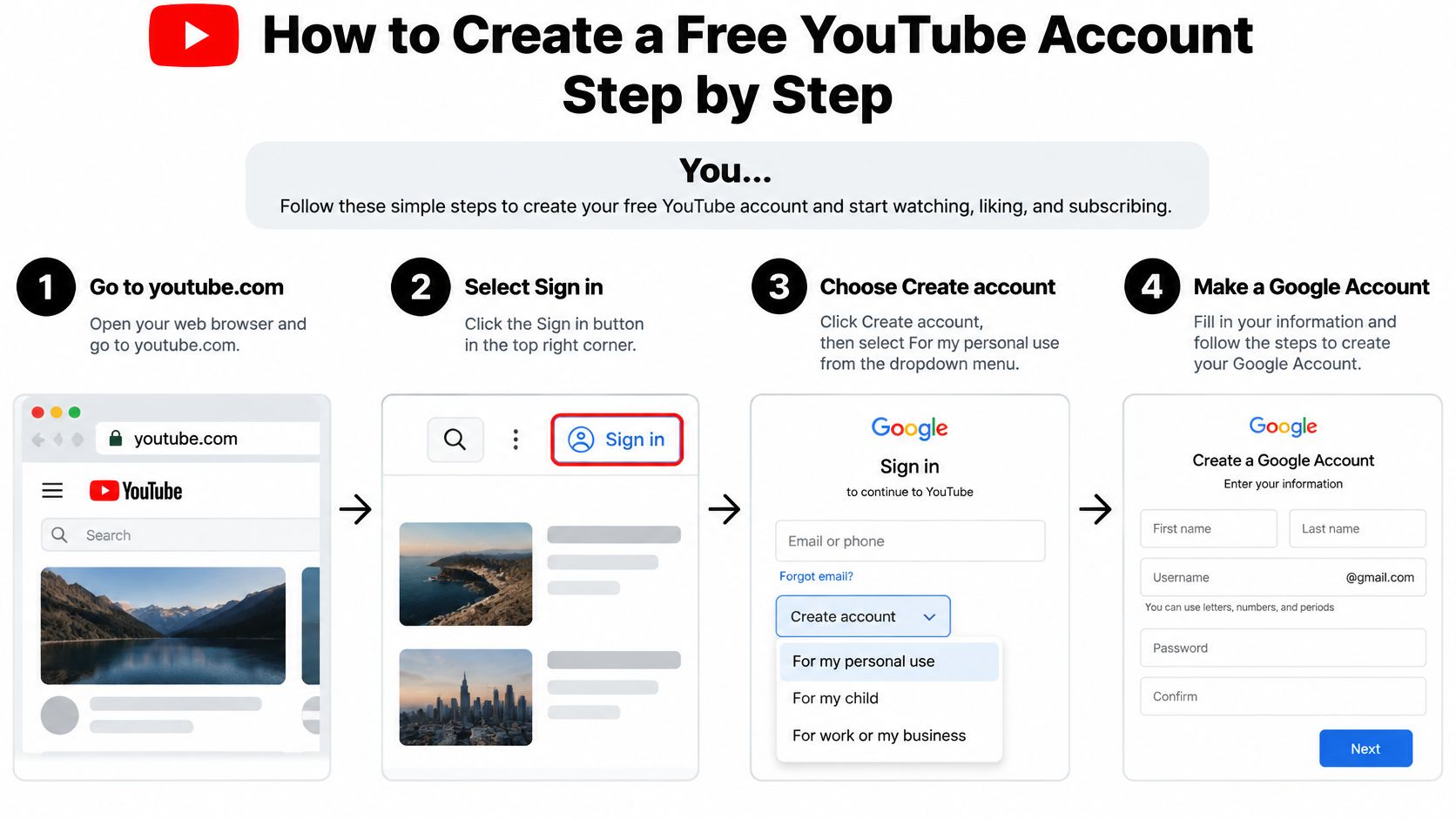
- Open YouTube and select Sign in. Choose an existing Google Account or select Create account if you need a new one. Using an account you already control avoids maintaining another password and recovery setup.
- Complete the account form. Enter the requested name, username, password, and birth date, using accurate information rather than details chosen to bypass restrictions. Phone-number prompts can differ between signup attempts, so don't assume every person will see an identical form.
- Complete any verification request. If Google asks you to confirm a phone number or email address, enter the code through the genuine signup screen. If a verification loop keeps failing, use the recovery and help options inside the Google Account screens rather than a service built around temporary numbers; pages that promise to troubleshoot Google signup verification prompts can point toward workarounds that leave you without a recovery path.
- Sign in to YouTube and review your identity. Open the profile menu and confirm that you're using the intended Google Account, especially if your browser already holds a work or school login. Before commenting, check the public channel name YouTube presents rather than assuming your email address determines what viewers see.
- Create a channel when you need public participation. Ordinary viewing does not require you to become a creator. Uploading is tied to having a channel, and commenting can also prompt channel creation. Choose a personal channel for yourself, or consider a Brand Account channel when you need a distinct organization or project identity.
Protect access before you publish
- Add recovery information you can maintain. In your Google Account settings, review the recovery email and phone options and confirm that the details belong to you. A contact method you'll lose after changing jobs, schools, or mobile plans can make recovery harder.
- Enable 2-Step Verification. Follow the Google Account security prompts and save any backup options somewhere secure, outside the device you normally use. This adds protection if somebody obtains your password, which matters even more once you've published content.
- Check that the setup works. Watch a video, open your subscriptions page, and confirm that the profile menu shows the right account. If you created a channel, open YouTube Studio and check the channel identity before uploading anything.
Practical rule: Create and recover your own account. Don't hand another person your Google password simply because you want help with YouTube.
Privacy Settings to Change Right After Setup
Before adjusting recommendations, check that your recovery details and 2-Step Verification setup are complete. Privacy controls affect what YouTube records or displays; account-security controls help prevent someone else from changing those choices.
Settings labels can differ between the app and desktop website. Look for the underlying function, such as history, subscriptions, or connected apps, instead of expecting every screen to match a tutorial.
Make deliberate choices about activity
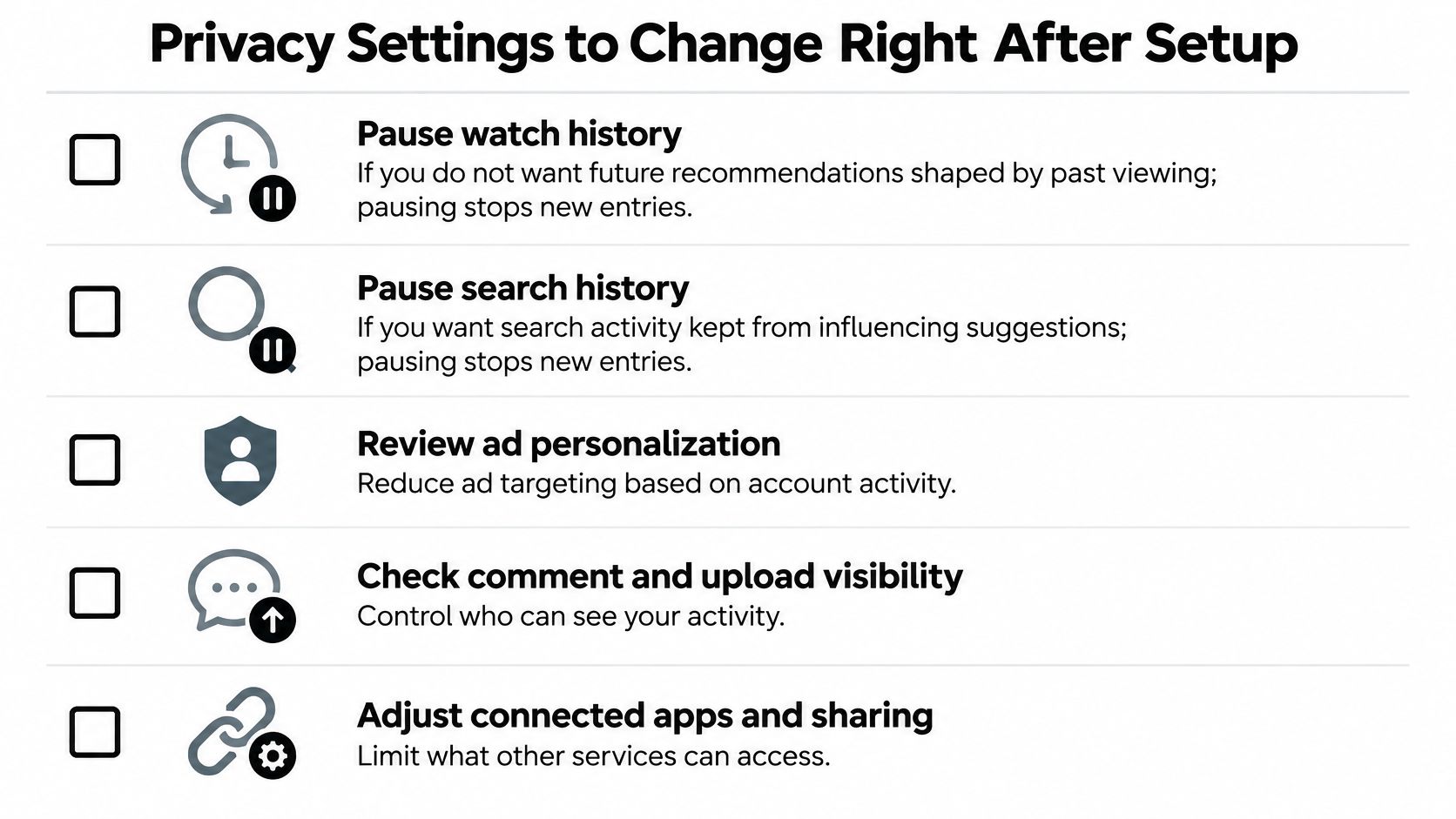
- Pause watch history if you don't want new viewing recorded. Pausing stops new history entries, but it doesn't remove existing activity. Use the guide to erasing viewing history when you also want to clear what's already saved.
- Review and clear search history. On a shared device, someone using the same signed-in profile may encounter earlier searches. Remove sensitive queries and consider pausing future search-history recording if you don't want them retained.
- Keep subscriptions private unless visibility serves a purpose. Review the subscription privacy control rather than assuming a public channel needs a public list. Your viewing interests don't have to become part of your creator identity.
- Remove unfamiliar devices and app connections. Open your Google Account's security settings, review signed-in devices and third-party access, and revoke anything you don't recognize or use. An abandoned session or unnecessary app permission leaves access available after you've forgotten about it.
- Give children an appropriate separate viewing setup. Use supervised accounts or child-appropriate profiles rather than letting a child browse through your adult account. This helps keep their activity and recommendations separate from yours.
Choose the personalization you actually want
More privacy can mean less personalization. If you pause activity recording, don't expect YouTube to build the same recommendations it would from a detailed viewing history.
Also review ad personalization and the visibility of anything you publish. A private subscription list doesn't make a public comment or upload private.
Treat a shared device as shared access unless you've separated accounts and checked which profile is active.
Revisit these settings periodically, particularly after replacing a phone, connecting an app, or lending someone your device. A short review is easier than untangling unfamiliar activity later.
Family Plan Eligibility and Shared Household Rules
A paid family plan isn't permission to divide a subscription among any group of friends. According to YouTube's family-plan requirements, a manager can invite up to five additional members, but members must meet household, account, and regional requirements and must not have changed family groups within the previous 12 months.
The key test is eligibility, not whether everyone agrees to contribute money. Use the requirements below before collecting payments or sending invitations.
Family plan requirements and common failures
| Requirement | What it means | Where it commonly fails |
|---|---|---|
| Same residential address | Members must live at the same home | Friends in separate flats, students living in dorms, or former roommates |
| Eligible Google Account | Each member uses their own eligible account | Accounts that don't meet the plan's eligibility rules |
| Supported region | The plan is available only in supported countries | Digital nomads and people who relocate abroad |
| No recent family-group change | A member must satisfy the waiting period described above | Recently moved or re-joined members |
Test the rules against your living situation
Friends who used to be roommates don't qualify just because they still share expenses. If they now live at different residential addresses, their arrangement fails the household requirement. By contrast, sharing a flat isn't itself a problem when it is everyone's residential home and the other conditions are met.
A student living in a dorm shouldn't assume that a parent's home address automatically qualifies them for the household plan. The relevant question is whether their actual circumstances satisfy YouTube's residential requirement, not whether their family relationship is genuine. Don't enter an inaccurate address merely to make an invitation work.
A digital nomad faces a different issue. Moving to a country outside the supported regions can affect eligibility even when the family relationship hasn't changed. Before relying on ongoing access, check the plan's regional requirements against where you live.
Someone who recently switched family groups also needs to check the waiting restriction. Leaving a group doesn't necessarily make the account immediately eligible to join another, and accepting a new invitation won't erase that restriction.
Sharing a plan isn't sharing a profile. Eligible members keep their own libraries, subscriptions, recommendations, and watch histories.
That separation is a practical privacy benefit: nobody needs to use the manager's login to receive eligible family benefits. The YouTube Premium sharing guide can help you assess an arrangement before you commit.
If a person doesn't qualify, an individual Premium plan is the cleaner fallback. Borrowing somebody else's login doesn't fix the eligibility problem and leaves that person dependent on someone else for access and recovery.
Fixing Age Checks and Locked Account Problems
You sign in successfully, select a video, and discover that YouTube wants you to confirm your age. That doesn't necessarily mean you entered the wrong birthday or that your password has stopped working.
YouTube's age-estimation guidance says it uses an age-estimation model alongside the birth date supplied at signup; when it determines that someone is under 18, it can apply age-related restrictions and protections. These can affect age-rated videos, recommendations, search, wellbeing reminders, and the default privacy of new creator uploads.
Understand what the prompt means
An age check is different from an account-recovery challenge. With an age check, you may still be able to sign in but face restrictions on particular features or content. With a lockout, you can't access the account normally.
To challenge an incorrect age determination, YouTube may offer verification through a government ID, credit card, or selfie. That creates a privacy trade-off: resolving the restriction may require sensitive information, so verify the destination before submitting anything.
Open account settings directly rather than following an unexpected email or message. Don't send identity documents to a person claiming they can restore your account.
Follow the fix that matches the problem
- Check the saved birth date. Confirm that your Google Account contains accurate information. Correct an actual mistake rather than changing the date to obtain access.
- Use the genuine verification process if you're an adult. Review the methods offered within the account and decide which you're comfortable completing. Follow the on-screen instructions instead of uploading documents through an unrelated service.
- Use account recovery if you're locked out. Work through Google's recovery flow using the recovery email or phone configured during setup. Age verification won't replace password recovery.
- Don't create a replacement account with a false birthday. Inconsistent identity details can complicate future verification and recovery. Resolve the original account's issue where possible.
For families, check the active profile before troubleshooting restrictions. A child should use an age-appropriate supervised setup, not an adult's account borrowed to get around a safety control.
Choose Between Free and Premium Before You Pay
| Feature | Free account | Premium |
|---|---|---|
| Watching public videos | Yes | Yes |
| Subscriptions, playlists and comments | Yes, with channel setup where required | Yes, with channel setup where required |
| Personalized recommendations | Yes, subject to activity settings | Yes, subject to activity settings |
| Ad-free playback | No Premium ad-free benefit | Yes |
| Offline downloads | No Premium download benefit | Yes, subject to availability |
| Family plan sharing | No paid benefits to share | Available through an eligible family plan |
Free means no subscription payment, not an ad-free or unrestricted offline experience. Paying for Premium changes viewing benefits; it doesn't remove account-security responsibilities or make an ineligible sharing arrangement valid.
The best choice starts with a specific inconvenience you want to solve. Don't buy a subscription because the signup screen makes it look like the next required step.
Match the plan to your viewing habits
A casual viewer can usually start free. If you watch cooking demonstrations at home, browse tutorials occasionally, and don't mind ads, subscriptions and playlists may cover what you need. Try using the account normally before deciding that you're missing something worth paying for.
For example, someone learning spreadsheet formulas may care more about organizing useful channels than watching without interruptions. A paid plan won't make the lessons better organized on its own. Building playlists and choosing relevant subscriptions addresses that need without a purchase.
A commuter has a stronger reason to consider individual Premium. If your train route has patchy reception and you want supported videos available offline, the download feature solves a concrete problem. Check that the content and region you use support the benefit before treating it as your main reason to subscribe.
A household should assess eligibility before comparing the shared cost. People living together may find an official family plan useful, but the manager should confirm that the intended members qualify before purchasing. A cheaper per-person calculation is irrelevant if the arrangement doesn't meet the rules.
If you're still undecided, use the YouTube Premium value comparison to connect the paid features to how you watch. Separate features you'd use regularly from extras that merely sound appealing.
Check the offer rather than just the price
At AccountShare, our YouTube subscriptions are listed from $16.45 USD. That's a third-party listing price, not a statement of YouTube's official individual subscription price, and you shouldn't assume a billing duration or feature set from the starting amount alone.
When considering any third-party offer, examine how access is delivered, who controls recovery, and what happens if access stops. Shared access can conflict with the underlying provider's terms; a seller's checkout process doesn't override those rules.
Before paying, make these checks:
- Confirm regional support. Make sure the service and advertised benefits apply where you live.
- Protect your own login. Confirm your recovery email and 2-Step Verification remain under your control.
- Read both sets of terms. Review the seller's offer conditions and YouTube's requirements, including any restrictions relevant to sharing.
- Identify the actual benefit. Be clear whether you're paying to remove ads, download supported videos, or cover an eligible household.
Keep the free account if it already does the job. Upgrade when the paid benefit solves a recurring problem and the offer's conditions fit your situation.
We offer accounts, top-ups, and subscription plans across streaming, AI tools, and creative services. Visit AccountShare to compare available YouTube offers, then check the access conditions and regional eligibility before choosing a paid option.