

Mastering the YouTube Shared Playlist A Collaborative Guide
Ever found yourself trying to gather videos from a bunch of different people? Maybe you're building the ultimate road trip soundtrack with friends, pulling together educational resources for a study group, or even curating a digital album of family vacation clips. A YouTube shared playlist is the perfect answer—it's a collaborative space where multiple people can not only watch but also add videos.
Why Shared Playlists Are More Than Just Mixtapes
Let's be clear: this isn't your old-school, static mixtape. A YouTube shared playlist is a living, breathing collection that evolves with every contribution. It turns a simple list of videos into a real hub for shared experiences, memories, and ideas. I've found it's one of the most underrated tools for bringing people together on the platform.

The collaborative nature of these playlists makes them incredibly versatile. You can use them for just about anything.
-
Social Gatherings: Planning a wedding or a big birthday bash? A shared playlist lets guests drop in their song requests beforehand. No more guessing games—the music is guaranteed to be a hit with everyone.
-
Educational Purposes: Imagine a teacher and their students building a collective library of tutorials, documentaries, and lectures for a specific course. It becomes a centralized, easy-to-access study guide that everyone helped create.
-
Professional Teams: My team uses a shared playlist to keep track of competitor ads, inspiring campaigns, and industry talks. It keeps everyone on the same page and sparks new ideas without flooding our inboxes.
The Global Impact of Shared Playlists
The scale of this feature is pretty incredible when you think about it. Shared music playlists, especially, have become a global phenomenon. On YouTube Music, the top playlists have racked up billions of views, which shows a massive appetite for this kind of collaboration.
For example, one of the most popular Brazilian music playlists has a mind-boggling 1.764 billion total views. Another playlist tracking the Billboard Top 50 isn't far behind with 1.720 billion views. It just goes to show how these shared collections can cross borders and connect people. You can check out a full breakdown of the top YouTube playlists to see what’s trending worldwide.
The real power of a shared playlist isn't just in the final collection of videos. It's in the process of creating it together—the conversations, the discoveries, and the shared excitement of building something as a group.
To give you a clearer picture, here’s a quick rundown of what you can do with a shared playlist.
Shared Playlist Features At a Glance
| Feature | What It Does | Best For |
|---|---|---|
| Collaborative Adding | Allows anyone with the link to add videos to the playlist. | Group projects, party music requests, and shared topic libraries. |
| Privacy Controls | Set the playlist to Public, Unlisted, or Private. | Controlling who can see and contribute to your collection. |
| Easy Sharing | Generate a unique link to invite collaborators. | Quickly inviting friends, family, or colleagues to join in. |
| Real-Time Updates | Videos added by one person appear for everyone instantly. | Keeping a dynamic list current for all members. |
| Cross-Device Access | Access and edit the playlist from any device with YouTube. | Managing your shared collection whether you're at a desk or on the go. |
Ultimately, learning how to use YouTube shared playlists well is about more than just organizing videos. It's about opening up a space for teamwork, making memories, and communicating more effectively, no matter what you're working on.
Getting Your First Collaborative Playlist Off the Ground
Jumping into your first YouTube shared playlist is pretty simple, but a few smart moves can make it a genuinely great experience for everyone involved. The real trick is to think about it less like a list and more like a shared space. It all begins with creating a brand-new playlist.
The easiest way to start is by finding a video you know you want to include. Just below the video player, you'll see a "Save" button. Click that, and a menu will pop up allowing you to add it to an existing playlist or, for our purposes, "Create new playlist." This works the same way whether you're on your computer or the YouTube mobile app.
Setting the Stage for Collaboration
Once you hit "Create," you'll be asked to name your playlist and choose its privacy level. Don't rush through this part; it's more important than you might think.
- Name It Something Useful: Instead of a vague title like "Team Project," try something specific that sets the tone, like "Marketing Q3 Brainstorming Videos." A good title gives everyone immediate context.
- Use the Description Wisely: This is your spot to add a quick welcome or some ground rules. A simple note like, "Adding tunes for the annual camping trip! All genres welcome, but let's stick to upbeat, family-friendly stuff," helps guide everyone's contributions.
- Pick the Right Privacy Level: For most shared projects, "Unlisted" is your best bet. This means only people with the link can see and add to the playlist. It keeps things private without the hassle of manually approving every single person.
Nailing these initial details really helps define the purpose of your playlist and gets the collaboration started on the right foot.
Many of these playlists are powered by YouTube Music, which is designed to make organizing your favorite tracks and videos as smooth as possible.
The platform's clean design is all about helping you find, save, and share what you love.
How to Invite People Correctly
Okay, your playlist is created. Now what? Head over to the "Library" tab on YouTube and click on your new playlist to open it. This is where you'll find the sharing settings, but you need to do more than just share a link.
Look for the "Collaborate" option and make sure to toggle it on. Once you do, YouTube will generate a unique invitation link specifically for collaborators.
This part is absolutely crucial. You have to share this specific collaborator link. If you just grab the regular URL from your browser's address bar, your friends will only be able to watch the playlist, not add their own videos.
With the correct link in hand, you can send it out to your group via email, text, or whatever messaging app you all use. Anyone who clicks it can start adding videos right away. It's a fantastic, friction-free way to build a collection together.
If you want to get into more of the nitty-gritty details, our guide on how to share a YouTube playlist has even more tips.
2. Managing Permissions for Secure Collaboration
So, you've created your collaborative playlist. Now for the most important part: controlling who gets in. Getting the permissions right from the start is the key to a great shared experience, whether you're building a playlist with friends or a project team.
Without the right settings, that awesome vacation playlist you're making with your family could end up with random videos from strangers. Let's make sure that doesn't happen.
YouTube gives you three privacy options, and your choice completely changes how your playlist works. Think of it less as a technical setting and more about what you're trying to accomplish.
Decoding Playlist Privacy Settings
-
Public: This is the "open house" setting. Anyone on YouTube can find, watch, and share your playlist. It’s perfect if you're building a resource for your audience, like a collection of your company's tutorials or a workout mix you want the world to use. No real collaboration here, just public consumption.
-
Private: This is the complete opposite—it's for your eyes only. The playlist is visible just to you and anyone you specifically invite via their Google account. It's not really built for easy group collaboration, but more for personal collections you might want to share with one or two specific people.
-
Unlisted: For most group projects, this is the magic setting. An unlisted playlist won't show up in search results or on your channel page, but anyone you give the link to can watch it. This strikes the perfect balance for things like a shared study group resource, a surprise party soundtrack, or a video log for a team project. You get easy sharing without broadcasting it to the entire internet.
This simple decision tree can help you visualize the path you should take, depending on whether you just want people to watch or actively contribute.
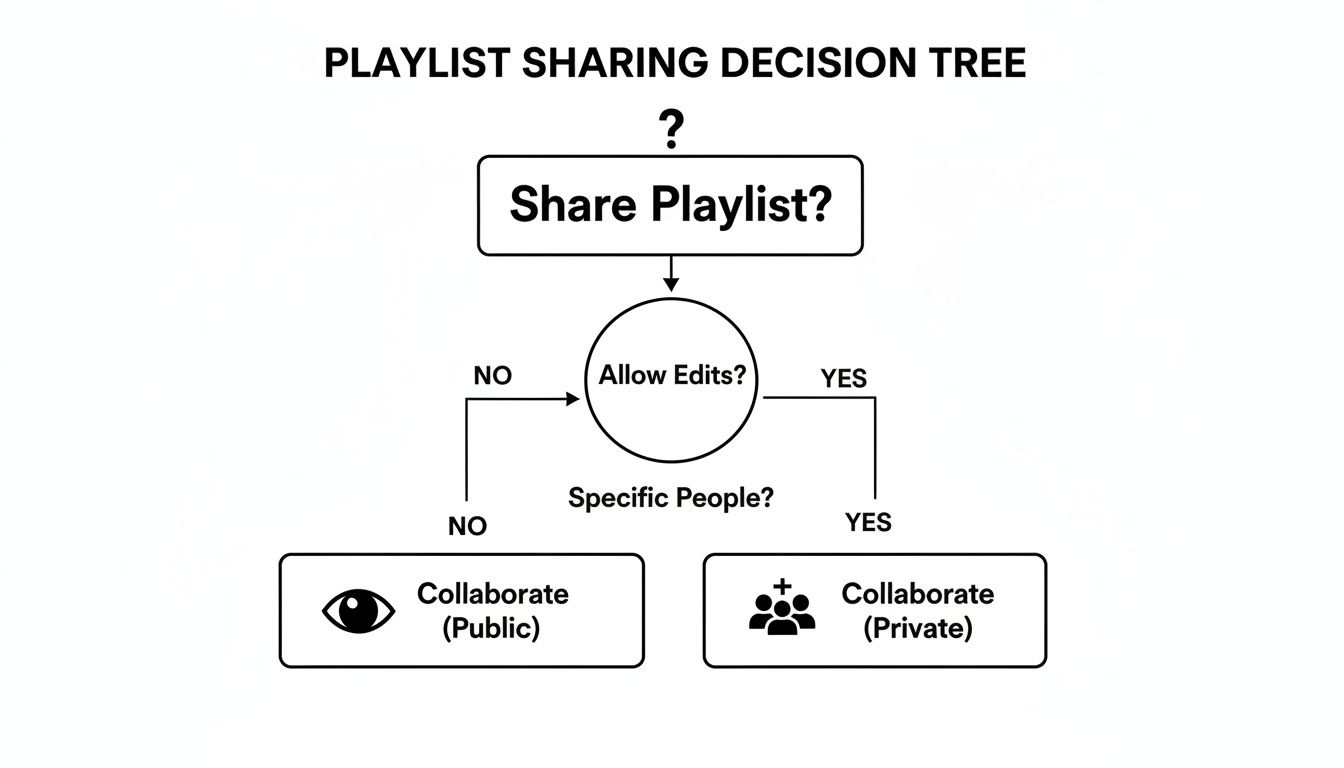
Ultimately, the best choice always comes down to who your audience is and what you want them to do.
Granting and Revoking Collaborator Access
Your control doesn't stop once you send out the initial invite link. You can—and should—manage your collaborators over time. This is especially important for playlists tied to a specific event or project with a clear end date, like a conference or a school assignment.
Just head back into your playlist settings. From there, you can see who has been contributing and, more importantly, you have the power to stop all future collaboration with a single click.
Pro Tip: Once the project is finished or the event is over, turn off the collaboration feature. Go into the playlist’s collaboration settings and toggle it off. This instantly locks the playlist, preventing any new videos from being added. The share link will still work for viewing, but no one can mess with the final product.
Doing this turns your collaborative effort into a perfectly preserved time capsule. It prevents any accidental edits or weird additions weeks later, keeping the playlist exactly as you and your group intended.
Fine-Tuning Your Shared Playlist: Curation and Management Tips
Getting a YouTube shared playlist started is one thing, but turning it into a genuinely useful, organized collection is where the real work begins. Without a little attention, even the best-intentioned playlist can devolve into a digital junk drawer. A few smart management techniques can make all the difference.
The most fundamental tool you have is the ability to reorder videos. On your computer, just hover your mouse over any video in the playlist. You'll see a grab handle—it looks like two little horizontal lines—pop up on the left. From there, you can drag and drop videos into any order you want. This is perfect for arranging a workout playlist from warm-up to cool-down or sequencing a training series from introductory concepts to advanced material.
Setting Some Ground Rules (Playlist Etiquette)
Anytime you have more than a couple of people contributing, things can get chaotic fast. This is why establishing some basic "playlist etiquette" is a game-changer, especially for larger groups like a classroom or a project team.
The best place to lay down these rules is right in the playlist's description box. You don't need a long list of demands, just a few clear guidelines to keep everyone on the same page.
Here are a few examples I've seen work well:
- For a study group: "Let's keep this focused on upbeat, instrumental tracks for deep work."
- For a party: "Everyone add your top 3 favorite party anthems!"
- For a training resource: "When adding a tutorial, please leave a comment explaining why it's a must-watch."
Because YouTube doesn't show you who added which video, these simple instructions are your best bet for maintaining quality without having to constantly manage the content yourself.
Automating and Organizing Your Collection
Beyond just dragging and dropping, you can lean on some of YouTube's own features to keep things tidy. One of the most powerful and underused tools is the auto-add feature. This lets you create rules that automatically pull in new videos that match your criteria.
For instance, you could set up a rule to automatically add any new upload from a specific educational channel right into your "Must Watch" playlist. It's a fantastic way to keep your resources current without any manual effort.
Here’s a little trick I use for really long playlists: create "section headers." Since YouTube doesn't have folders, I upload a short, unlisted video—it can even be a 5-second black screen with text on it—and title it something like "---SECTION: MORNING WORKOUT---". I then drag these "headers" into place to visually break up the content. It's a simple hack, but it makes navigating a massive playlist so much easier.
Putting Your Shared Playlist to Work in the Real World
Knowing how to create a YouTube shared playlist is the easy part. The real magic happens when you start using them to solve actual problems. Let's look at a few practical scenarios where collaborative playlists can genuinely improve how you organize and work together. Think of these as little playbooks you can steal and adapt for yourself.
The demand for features like this has been growing, especially as YouTube Music keeps expanding. Its market share jumped from 8% in 2021 to over 9% by January 2024, and with 868.4 million active users, shared listening is a huge part of how people engage. You can dig into more of the numbers on YouTube Music's impressive growth on thumbnailtest.com.
The Wedding Reception Playlist
Planning a wedding is already a mountain of work, and trying to build a playlist that pleases everyone is a recipe for stress. A shared playlist is your secret weapon for getting song requests from guests ahead of time, making sure the dance floor is never empty.
- How to set it up: Create a new playlist and set its visibility to "Unlisted." Then, share the special collaborator link on your wedding website or in your digital invitations.
- A pro tip: In the playlist description, lay down some ground rules. Something like, "Add your top 2 song requests for our reception! Let's keep it upbeat and dance-floor-ready." This stops that one cousin from adding their entire 40-song emo collection.
- Taking back control: About a week before the wedding, just turn off the collaboration feature. This locks the playlist down, giving you and the DJ the final say on curating the perfect flow from everyone's great suggestions.
Marketing Team Inspiration Hub
For any creative team, keeping up with what competitors are doing and staying on top of industry trends is critical. Instead of letting great ideas get lost in a sea of emails and Slack DMs, a shared playlist can serve as a central inspiration hub.
A collaborative playlist acts as a dynamic mood board. It’s a space where your team can collectively gather competitor ads, insightful conference talks, and software tutorials, creating a shared pool of knowledge that fuels new ideas.
It's as simple as creating a playlist called "Marketing Team: Competitor & Ad Inspiration" and dropping the link in your team's main channel. Make it a habit for everyone to add relevant videos whenever they find them.
For teams and families trying to get the most out of their subscriptions, our guide on sharing YouTube Premium access offers some great tips for managing accounts without sharing passwords.
The Book Club Companion
Why let your book club discussions stop at the last page? A companion playlist can bring the story's world to life, creating a much richer and more memorable experience for everyone involved.
For your group's next pick, try creating a shared playlist where members can add things like:
- Interviews or Q&A sessions with the author.
- Video essays that break down the book's major themes.
- Music that perfectly matches the vibe of certain chapters.
- Short documentaries that explore the book's historical context.
This small addition transforms a regular book club meeting into an interactive, multimedia journey that helps everyone connect with the material on a deeper level.
Navigating Common Playlist Collaboration Headaches
Even the most carefully planned YouTube shared playlist can run into hiccups. You send out a link, and suddenly a friend can't add their favorite new music video. Or maybe the link you just sent isn't working at all. Don't worry—most of these snags are surprisingly easy to sort out once you know what to look for.
More often than not, the culprit is a simple setting that got toggled off. If a collaborator can no longer add videos, the first place you should check is the playlist's settings. Make sure that the "Collaborate" switch is still on. It's easy to accidentally disable it, which immediately locks everyone else out.
Another frequent offender is the invitation link itself. Are you sure you sent the special collaborator link and not just the regular playlist URL from your browser's address bar? They look similar but function very differently. If collaborators are still having trouble, your best bet is to just generate a fresh link and send that one out. This simple step solves the problem 9 times out of 10.
What to Do When Videos Vanish
It can be baffling when videos suddenly disappear from a playlist or one just won't add, no matter how many times you try. This is almost never a collaborator's fault. Instead, it usually points to a platform-level issue with the video itself.
A video might be removed for a few key reasons:
- The original creator deleted it or switched its visibility to private.
- The video is now restricted in your region due to a copyright claim.
- YouTube took it down for violating community guidelines.
Unfortunately, in these cases, there's nothing you can do to get it back; the video is simply no longer accessible on the platform for your playlist.
Remember that YouTube is constantly updating its features, which can sometimes have unexpected side effects. For example, the 2025 Recap feature, which converted personal stats into viral playlists, drove a 30-40% jump in sharing among its 100 million subscribers. While cool, big rollouts like this can occasionally interfere with older playlist functions. You can read more about YouTube Music's 2025 Recap summary on findarticles.com.
If you’ve tried everything and are still stumped, you might be dealing with a deeper glitch. For other streaming-related troubles, check out our guide on what to do when YouTube background play is not working, as some platform-wide bugs can have cascading effects.
Common Questions and Quick Answers for Shared Playlists
When you start using a YouTube shared playlist, especially with a bigger group, a few questions always seem to pop up. Let's clear up some of the most common ones so you and your collaborators can have a great experience.
Is There a Limit to How Many People Can Collaborate?
Officially, YouTube doesn't put a hard cap on the number of collaborators you can invite to a playlist. But, from my experience, that doesn't mean you should invite everyone you know.
Once you get more than a handful of people adding videos, things can get chaotic fast. For a family vacation playlist, that's fine. For a curated project playlist for work? It's best to keep the circle small to maintain focus and prevent the playlist from becoming a jumbled mess.
Can You Tell Who Added a Specific Video?
This is a big one, and unfortunately, the answer is no. YouTube doesn't currently show which collaborator added which video.
This anonymity means you have to rely on good old-fashioned communication. A little guidance goes a long way.
I always recommend adding a simple note right in the playlist description. Something like, "Team: Please only add videos directly related to the Q3 project," or "Family: Let's keep this playlist full of upbeat 80s hits for the road trip!" It helps keep everyone on the same page when you can't see individual contributions.
It’s a bit different from how other collaborative tools work, but it just means trust and clear instructions are key.
What Happens if the Owner Deletes Their Account?
This is the most critical thing to understand for any important playlist. If the person who created the YouTube shared playlist deletes their account, the playlist is gone. Permanently.
It vanishes instantly for everyone, with no way to get it back.
If your playlist is a collection of precious family memories or a vital archive for a work project, don't leave it to chance. I strongly advise collaborators to periodically make their own backup copies of the playlist. It's a simple step that ensures all that collective effort isn't lost if the owner’s account disappears unexpectedly.
Managing access to shared digital tools can be a headache, especially when balancing security and cost. AccountShare makes it easy to share premium subscriptions safely and affordably, without the usual risks. Find out more at the official AccountShare website.