

How to Turn Off Video on Spotify: A Complete Guide
You start a Spotify playlist, put your phone away, and expect an uninterrupted audio session. Instead, a looping Canvas animation starts moving, a music video takes over the player, or a podcast opens with visuals you never asked for. The frustration isn't only the distraction. Video can also consume more data, draw attention on a small screen, and make Spotify feel less like a music player.
The good news is that Spotify now provides account-level controls for video content. The catch is that the controls are split by media type and may use different labels on mobile and desktop. To get an audio-first experience, you need to know which switches affect Canvas, music videos, and podcast videos, then verify the result on the devices you use.
Quickly Disabling Video Across Platforms
The fastest route is Spotify's central content setting. On mobile, open your profile menu, choose Settings and privacy, then open Content and display. On desktop or the web player, open Settings and look for Display. Spotify says saved video preferences apply across mobile, desktop, web, and TV, so this is an account preference rather than a temporary change for the current listening session. See Spotify's official video settings instructions if your interface uses slightly different wording.
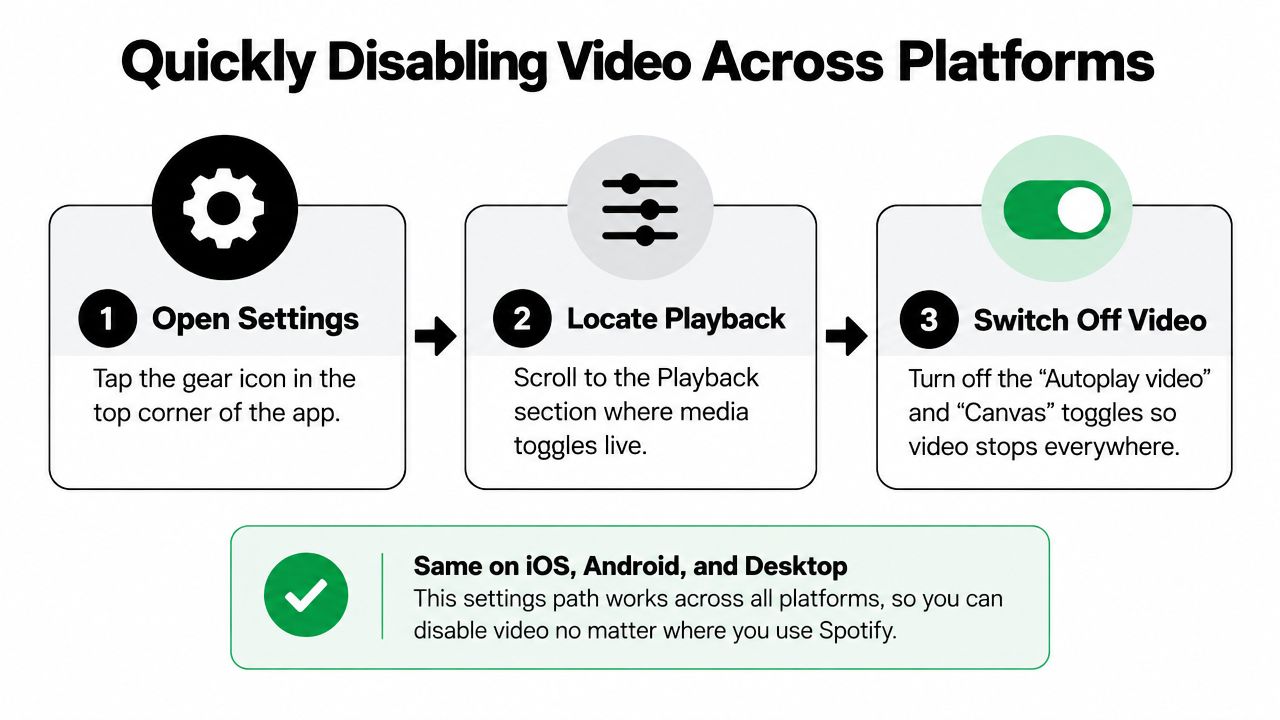
Look for the controls grouped under Videos and Canvas, Content and display, or a similar display heading. Turn off each available video-related switch, not just the first one you see. Spotify separates short looping Canvas visuals from music and podcast video, so one disabled option may not silence every visual format.
The quickest path
- Open Settings. On mobile, tap your profile picture and choose Settings and privacy. On desktop, select your profile menu and open Settings.
- Find the display controls. Mobile users should open Content and display. Desktop users should check Display.
- Disable the relevant formats. Switch off Canvas and any separate controls for music videos or podcast videos.
- Start a new track. Close the current player or skip to another item, then check whether the visual surface has disappeared.
These preferences are useful when several people use the same account or when you move between devices. If you also manage Spotify through a smart speaker, the audio playback setup is separate from Spotify's visual preferences. A guide to linking Spotify with Google Home can help with the device connection itself, while Spotify's content settings govern video behavior.
Distinguishing Canvas from Music Videos
Spotify doesn't treat every visual the same way. Canvas is the short, looping artwork that appears behind or alongside a track in the Now Playing screen. It behaves more like animated cover art than a conventional music video. A full music video is a separate video presentation with a longer visual sequence, while podcast video belongs to another media category again.
That distinction explains why disabling Canvas may not produce the result you expect. You can turn off the looping animation and still encounter a music video or podcast video if its separate control remains active. The settings are grouped together for convenience, but the playback surfaces remain distinct.
Practical rule: If you want audio only, inspect every switch in the video settings area rather than assuming Canvas controls all visual content.
Spotify's expansion into video helps explain why the interface has become more granular. The company said it had more than 250,000 video podcast shows in 2024, up from 100,000 in 2023, and later reported more than 300,000 video podcast shows. Spotify also said more than 250 million users had streamed a video podcast, while two-thirds of podcast consumers on the platform preferred video podcasts over audio-only. Those figures come from Spotify's newsroom overview of video podcasts.
What each setting can silence
| Content type | What it looks like | Setting to check |
|---|---|---|
| Canvas | A short looping visual attached to a music track | Canvas or “Display short, looping visuals on tracks” |
| Music video | A full visual version of a song | Music video control |
| Podcast video | Video attached to a podcast episode | Podcast video control |
The practical lesson is simple. Canvas off doesn't automatically mean every video is off. If your goal is to keep the screen still while music plays, disable Canvas. If your goal is an audio-only Spotify account, also review the music and podcast video controls.
Navigating Settings on Mobile and Desktop
The labels differ by platform, which is why users often think the feature is missing. On an iPhone or Android phone, begin from your profile menu rather than the Now Playing screen. Tap Settings and privacy, open Content and display, and scroll until you reach the video-related controls.
Spotify's mobile path is:
- Profile menu
- Settings and privacy
- Content and display
- Videos and Canvas
- Turn off the formats you don't want
Some accounts may show Videos and Canvas directly, while others may place the options under a broader display section. Don't rely on the exact order of the menu. Search for the words video, Canvas, or display if Spotify's current app layout looks different.
Desktop and web instructions
On the desktop app, select your profile menu and choose Settings. Spotify specifically identifies the Canvas option as Display short, looping visuals on tracks (Canvas). Turn that off, then inspect the surrounding video controls for music and podcast playback.
The web player follows the same general account-settings logic, although the page layout can vary. After changing a setting, refresh the player or start another item so you can test the new preference. A setting that appears saved but hasn't changed the current player can make troubleshooting confusing.
- Mobile: Use Content and display, then inspect Videos and Canvas.
- Desktop: Use Display, then find the Canvas label and nearby video controls.
- Web: Use account settings, save the preference, and reload the player if playback doesn't change immediately.
- TV: Check the account after saving the preference on another device, because Spotify says the setting can apply across supported platforms.
If you're deciding whether Spotify's interface suits your broader streaming habits, Simply Tech Today's streaming guide offers a useful comparison of the two services. For listeners who regularly download music, it also helps to understand how to play Spotify offline, since offline listening and video controls solve different problems.
Troubleshooting Persistent Video Playback
Turning off one switch and still seeing video doesn't necessarily mean Spotify ignored your choice. The common failure point is assuming that one master Canvas toggle controls every video surface. Spotify separates Canvas, music video, and podcast video controls, so the first troubleshooting step is to return to the settings page and verify each one individually.
Check the following before changing anything else:
- Canvas: Confirm that looping track visuals are disabled.
- Music videos: Look for a separate music-video setting and switch it off.
- Podcast videos: Check the podcast-video option if your account displays one.
- Account state: Make sure you're using the same Spotify account on the device where the video appears.
- Current playback: Start a new track or episode after saving the changes.
If Canvas is off but a podcast still displays video, the result may be expected. The podcast control is separate from the Canvas control.
The player can also make the problem look worse than it is. A Now Playing view may still show artwork, thumbnails, or a video-related interface even when automatic visual playback has been disabled. Desktop and mobile interfaces don't always present the same controls in the same place, so test with the exact content type that caused the problem.
Spotify's updated controls are designed to offer broader control, but they aren't a promise that every visual element disappears in every context. Independent coverage also notes that video ads can't be turned off, and older audio-only workarounds may affect only certain content or mobile-data situations. That means an advertisement or a specific podcast experience can still behave differently from a music track.
If a switch keeps reverting, close Spotify fully, reopen it, and check the account setting again. Test on mobile and desktop separately, because a stale app session can display old behavior even after the account preference has been saved. Avoid judging the result from a single screen. Play a standard music track, a music-video-capable track, and a video podcast to identify which category remains active.
Exploring Alternative Methods Like Data Saver
Data Saver can be a useful fallback when you want fewer visuals and lower network activity, but it isn't a dedicated video-off setting. Third-party guidance documents it as a way to suppress Canvas playback, while also warning that it changes broader network and playback behavior. In other words, it may help with animated track visuals, but it won't give you precise control over every music video, podcast video, or advertisement.
Use it when your priority is reducing unnecessary data use, not when you need a guaranteed audio-only mode. Open Spotify's settings, find Data Saver, and enable it. Then test the same type of track or episode that previously displayed video.
The trade-off
Data Saver can affect more than video. It may change playback quality or how Spotify handles network-heavy features, so it can be inconvenient if you want the best available audio quality or a predictable streaming experience. The dedicated video controls are the better first choice because they target the specific behavior you want to remove.
Use Data Saver as a fallback, not as a replacement for the video controls.
This distinction matters if you're already investigating whether Spotify requires a connection for a particular task. A separate guide to whether Spotify needs Wi-Fi can clarify the difference between online playback, downloads, and network-saving settings. Data Saver may reduce visual activity, but it doesn't turn every Spotify session into a fully offline or universally audio-only experience.
Final Tips for a Pure Audio Experience
Start by treating the setting as an account preference, not a button for one listening session. Save the changes, then test Spotify on the mobile app, desktop client, web player, or TV setup you use. Spotify says the controls can apply across those platforms, but checking each important playback environment helps reveal stale sessions, different interface labels, or content-specific behavior.
For the cleanest result, use this short verification routine:
- Play a regular music track. Confirm that Canvas no longer loops.
- Try content with a separate video format. Check whether a music video or podcast video still appears.
- Review every relevant toggle. Canvas, music video, and podcast video controls may be separate.
- Restart the app if needed. A fresh session can make a saved account preference visible.
- Keep expectations realistic. Video ads and certain interface elements may still appear even after playback controls are disabled.
Video podcasts deserve special attention. Disabling Canvas won't necessarily change a podcast's own video behavior, and an audio-first preference may not remove every thumbnail or Now Playing visual. If a particular show keeps opening in video, check the podcast-video control and test another episode before assuming the setting failed.
Spotify's move toward broader controls reflects a real split in listening habits. The platform said its video ecosystem had grown to more than 250,000 video podcast shows, later reaching more than 300,000, while many listeners still want music to remain a primarily audio experience. The right setup is therefore less about finding one hidden master switch and more about choosing each media type deliberately.
Finish by checking the settings once on the device you use most, then leave Data Saver off unless its broader trade-offs suit you. That combination gives you the most predictable audio-focused experience without sacrificing playback quality unnecessarily.
If managing shared Spotify access is part of your household setup, AccountShare helps organize group access to premium subscriptions with account management and sharing controls. Visit AccountShare to explore a more convenient way to manage shared digital services.