

Your Guide to Download Movies on Netflix on Mac
Let's get straight to the point: there's no official, dedicated Netflix app for macOS. If you've scoured the App Store looking for one, you're not alone. This is a common frustration for Mac users, but it's not an oversight—it's a deliberate choice by Netflix.
For a long time, their focus has been on mobile platforms where offline viewing is a must-have for commutes and travel. The good news? While there isn't a simple "click and install" solution, there are some excellent and completely legitimate workarounds to get your favorite shows and movies downloaded onto your MacBook.

Why Is There No Native Mac App?
The core of the issue comes down to strategy. Netflix poured its development resources into apps for smartphones, tablets, and Windows PCs, assuming that's where most people needed offline content. This left Mac users in a bit of a lurch, wondering if they were missing something obvious.
But you're not out of options. This guide is here to walk you through the practical methods to get that content onto your Mac for a long flight, a work trip with spotty hotel Wi-Fi, or just a relaxing evening unplugged.
Shifting Habits and Growing Demand
While mobile has historically been the king of offline viewing, user habits are definitely evolving. In a recent quarter, Netflix's mobile app still pulled in an impressive 18.21 million downloads. However, that figure was part of a broader trend where total downloads actually dipped by 8% year-over-year.
This tells us something important: many of Netflix's 301.6 million global subscribers are looking for more flexibility. More and more people want to download content on their powerful laptops to save mobile data and enjoy a high-quality viewing experience on a bigger screen. You can dig deeper into these shifting user statistics and trends to see the full picture.
The lack of a native Mac app reflects old viewing habits. But as MacBooks become the primary entertainment hub for so many, the demand for offline solutions has exploded, making the workarounds we're about to cover more essential than ever.
If you head over to Netflix's own help page, you'll see they explicitly list mobile devices, Windows, and Chromebooks as compatible with the download feature. Mac is conspicuously absent.
This official stance confirms what we already know: Mac users need to get a little creative. Let's dive into the best ways to bridge this gap.
The Go-To Method for Apple Silicon Macs
If you're rocking a newer Mac with an M1, M2, or M3 chip, you've got a fantastic built-in advantage. These Apple Silicon chips are designed to run iPhone and iPad apps directly, giving you a surprisingly simple and official way to download Netflix content right onto your Mac. Forget about complicated workarounds—this is the cleanest method out there.
Essentially, you'll be using the official Netflix iPad app, which Apple makes available right in the Mac App Store. Since Netflix hasn't released a dedicated macOS app, this is the next best thing. It’s a slick solution that puts the familiar mobile interface, downloads and all, directly on your desktop.
Finding and Installing the Right App
First things first, open up the Mac App Store. When you search for "Netflix," you'll probably see a bunch of third-party apps and guides under the "Mac Apps" tab. This is where most people get stuck and give up.
Here's the trick: look right under the search results for a toggle. You'll see two tabs: "Mac Apps" and "iPhone & iPad Apps."
Click on "iPhone & iPad Apps," and you’ll find the real-deal Netflix app waiting for you.
From this point, it’s a breeze:
- Spot the Official App: In the "iPhone & iPad Apps" list, find the one developed by "Netflix, Inc." to make sure you're getting the legitimate version.
- Install It: Click the download icon (the little cloud) or the "Get" button. It'll install just like any other app.
- Sign In: Once it's done, open Netflix from your Launchpad or Applications folder and log in with your account info.
And that's it! You now have a fully functional Netflix app on your Mac, ready to save movies and shows for that upcoming flight or coffee shop visit.
Getting Used to the Touch-First Interface
Since this is an app built for touchscreens, using it with a mouse and keyboard feels a little different at first, but you'll get the hang of it quickly. A click-and-drag with your mouse or trackpad works just like a swipe, and scrolling is perfectly normal.
One of the coolest parts is that you can resize the window. Keep it in a tall, phone-like layout for easy browsing, or drag the corner to make it a wide, landscape window for a better viewing experience. It's surprisingly flexible and feels pretty close to a native desktop app.
My Pro Tip: When you're ready to watch, hit the green full-screen button in the top-left corner. It hides your menu bar and dock, so you can just focus on the movie without any distractions.
How to Manage Your Downloads
Downloading content works exactly like it does on an iPhone or iPad. Just find the movie or show you want, and tap the download icon—that little downward-facing arrow.
To find your saved shows later:
- Head over to the My Netflix tab in the bottom-right of the app.
- From there, tap on the Downloads section.
You'll see a neat list of everything you've saved for offline viewing. This approach is hands-down the best official way to download movies on Netflix on Mac, keeping things secure, legal, and hassle-free.
A Powerful Workaround: Using Windows on Your Mac
If you have an Intel-based Mac or just want a full-featured desktop experience, running Windows is a surprisingly solid way to download Netflix content. This approach essentially carves out a little piece of your Mac to run as a Windows PC. That gives you direct access to the official Netflix app from the Microsoft Store, download button and all.
It might sound a bit technical, but this is a tried-and-true method for Mac power users. You’ve got two main ways to go about it: using Apple's own Boot Camp utility on older Intel Macs, or running virtualization software like Parallels Desktop on any Mac, including the newer Apple Silicon models.
The whole process is simpler than you might think. You just need to find the right software, get it installed, and then you’re ready to watch your favorite shows offline.
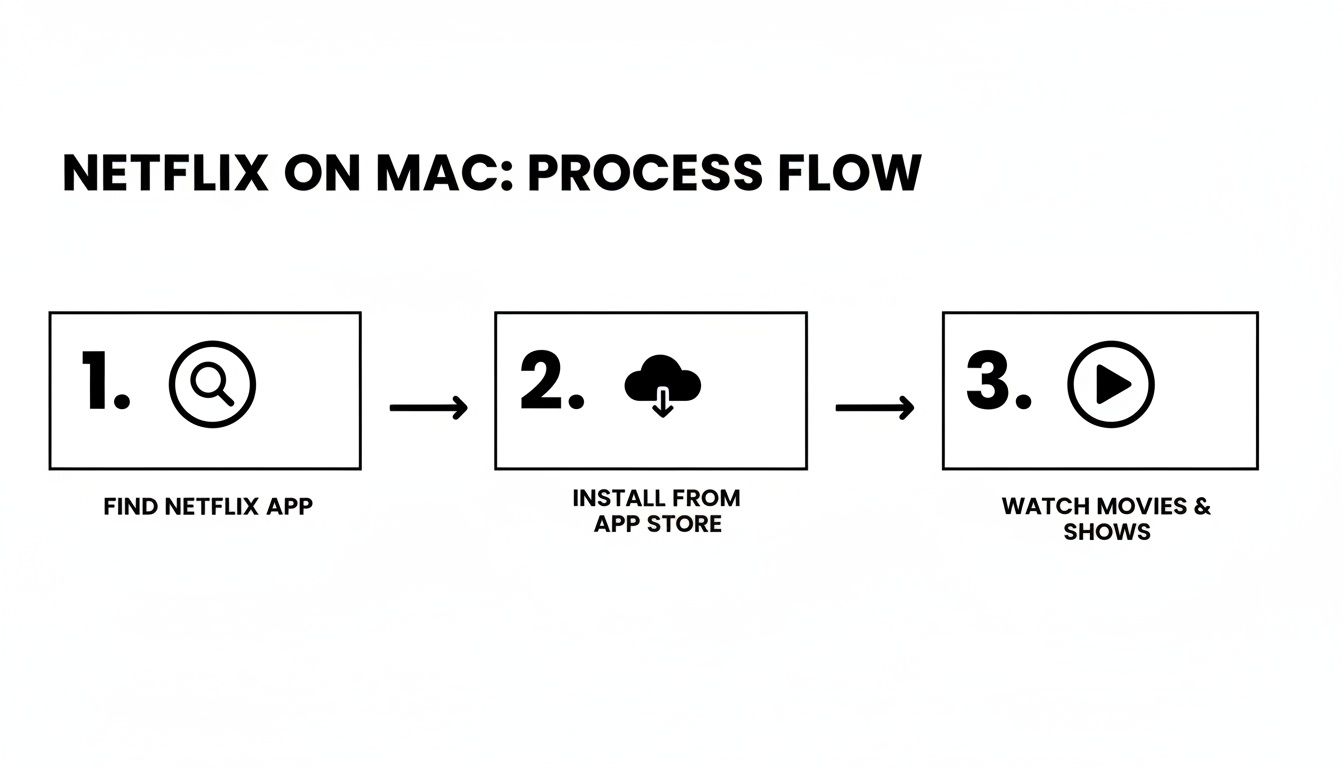
As you can see, it really boils down to getting the right tools in place so you can enjoy unrestricted access to your downloads.
Choosing Your Windows Environment
Your first big decision is how you want to run Windows. This really depends on your Mac's chip and whether you're after raw performance or the convenience of switching between operating systems on the fly.
-
Boot Camp (Intel Macs Only): This is Apple’s built-in tool that lets you install Windows on its own separate partition. When you fire up your Mac, you simply choose whether to load macOS or Windows. The big plus here is performance—Windows gets direct access to all your Mac's hardware, making it run just like it would on a dedicated PC.
-
Parallels (Intel & Apple Silicon): This is a different beast altogether. It's virtualization software, which means it runs Windows in an app window right on your macOS desktop. The major upside is convenience; you can drag and drop files between Mac and Windows and switch between apps without ever restarting. For the latest M1, M2, and M3 Macs, this is your only real option.
For a deeper dive into managing access across different platforms, you might find our guide on alternatives to remote desktop tools useful.
So, what’s the verdict? If you have an Intel Mac and think you’ll use Windows for more than just Netflix (like gaming), Boot Camp is a fantastic, high-performance choice. For everyone else, particularly those with Apple Silicon Macs, Parallels delivers a wonderfully smooth and integrated experience.
Getting Set Up and Downloading
Once you have Windows up and running, the hard part is over. Just open the Microsoft Store, search for the official Netflix app, and click install.
After you sign in, the app will look and feel exactly like it does on any Windows computer. Most importantly, you'll see that little download icon next to all the movies and shows that are available for offline viewing.
This method is more relevant than ever, especially since Netflix recently expanded its global content library by 18.2%. With users collectively watching an almost unbelievable 95 billion hours of content in the first half of a recent year, being able to download shows to your Mac is a serious game-changer for commuters, travelers, and anyone with spotty Wi-Fi. You can read more about these impressive Netflix statistics and what they mean for viewers.
Keeping Your Downloads and Storage in Check
Getting your favorite shows and movies downloaded is only half the battle. Now you have to manage them. Those files, especially the high-quality ones, can eat up your Mac's storage faster than you’d think. Staying on top of your offline library is key to keeping your machine happy and running smoothly.

It's important to remember that whether you're using the iPad app on an Apple Silicon Mac or running the Windows version in Parallels, your downloads are locked inside the app. They're encrypted and tied to your account, so you won't find the video files sitting in a standard folder. This is all part of how Netflix prevents piracy.
How to Keep Your Library Tidy
The only real way to manage your downloads is from within the Netflix app itself. Look for a section like "My Netflix" or a "Downloads" tab. This is your command center—you can see everything you've saved, check how much space each title is hogging, and, crucially, see when it's going to expire.
I can't tell you how many people get caught off guard by this: Netflix downloads don't last forever. The expiration dates are all over the place because of licensing deals. Some can be gone as quickly as 48 hours after you first hit play. Always double-check this before you head off on a long flight or a weekend trip.
Once you've finished a movie or a season, getting rid of it is simple. You can usually just swipe on the title or find a little menu icon to delete it. Making a habit of clearing out what you’ve watched is the easiest way to keep your storage from filling up. If you're constantly fighting for space, offloading other big files from your Mac can help. It might be worth checking out some of the cheapest cloud storage options to free up local disk space.
Let Smart Downloads Do the Heavy Lifting
One of the best quality-of-life features Netflix has is Smart Downloads. If you turn this on, it pretty much automates your series management. I highly recommend it.
Here’s the gist of how it works:
- Deletes for You: As soon as you finish a downloaded episode, the app automatically deletes it for you. No more digital clutter.
- Grabs the Next One: If you're on Wi-Fi, it then automatically downloads the next episode in the series.
This feature is perfect for binge-watching. You always have the next episode cued up and ready to go without having to think about it. You can usually find the toggle for Smart Downloads in the app's settings, often under the downloads section. It’s an essential trick to download movies on Netflix on Mac without drowning your hard drive in files.
Solving Common Netflix Download Problems on Mac
It’s incredibly frustrating when you’re trying to download a movie for a flight, only to be met with a weird error message or a missing download button. I’ve been there. The good news is that most of these Netflix download issues on a Mac are pretty easy to sort out.
Before you start digging into complex settings, just run through a quick mental checklist. Is your Wi-Fi stable? Are you actually logged into the right Netflix profile? You'd be surprised how often it's something that simple.
Why Is the Download Button Missing?
This is probably the most common headache: you find the perfect movie, but the little download icon is nowhere in sight. This almost always comes down to one of two things.
First, not everything on Netflix is downloadable. It all depends on the licensing agreements they have with the studios. Netflix Originals are usually a safe bet, but licensed movies and shows can be hit-or-miss depending on your region.
Second, it could be your account settings. Here are the usual suspects:
- Your Subscription Plan: The Basic plan only lets you download on one device. You'll need the Standard or Premium plan to download on multiple devices.
- Device Limit Reached: Your plan has a strict limit on how many devices can have downloads at once (one, two, or six). You might need to log into your Netflix account on a browser and remove an old, forgotten tablet to free up a slot.
Fixing Playback Errors and Glitches
What about when a show seems to download fine but then just won't play? Or it gets stuck buffering, or throws a random error code at you? This usually points to a problem with the app's data, not the downloaded file itself. A brief Wi-Fi drop during the download or a corrupted cache file can easily mess things up.
A simple, yet surprisingly effective, first step is to completely quit and restart the app. If that doesn't do the trick, clearing the app's cache is often the magic bullet. A cluttered cache can cause all sorts of bizarre playback issues. You can learn more about the specifics of clearing Netflix cache to get things running smoothly again.
If you're running into general software weirdness, like the app freezing, it might be a broader issue. While this guide is about iPhones, reviewing common iPhone freezing fixes can give you some clues about software conflicts that affect app performance on Apple devices in general. And, of course, always make sure both the Netflix app and your macOS are fully updated—that alone prevents a world of trouble.
Answering Your Questions About Netflix Downloads on a Mac
It's smart to have questions when you're navigating workarounds like these. You want to be sure you’re doing everything correctly and, most importantly, legally. Let’s clear up some of the most common questions people have about downloading Netflix shows on a Mac.
Think of this as your quick-reference guide. It's here to resolve any final doubts so you can start building that offline library for your next flight or daily commute with complete confidence.
Are These Download Methods Legal?
Yes, absolutely. Every method we've walked through is 100% legal and doesn't violate Netflix's terms of service. You're simply using the official Netflix app—whether it's the iPad version on an Apple Silicon Mac or the Windows version in a virtual machine—to download content with your paid subscription.
You aren't using sketchy third-party rippers or screen recorders. You're just using clever, legitimate software (like Parallels or Apple's own system) to run an official version of the Netflix app. It's a completely above-board solution.
How Many Devices Can I Have Downloads On?
This is a great question, and it all boils down to your specific Netflix plan. Each subscription tier sets a different limit on the number of devices that can hold downloaded titles at the same time.
Here's how it currently breaks down:
- Basic Plan: You can download content on 1 device at a time.
- Standard Plan: This tier lets you download on 2 devices simultaneously.
- Premium Plan: You get the most flexibility here, with downloads on up to 6 devices.
When you download a show on your Mac using one of these methods, it just counts as one of your allotted devices. Simple as that.
A word of advice: if you hit your device limit, Netflix will ask you to remove the downloads from an older device before you can save new ones. You can easily manage all your download devices right from your account settings on the Netflix website.
Will Netflix Ever Release an Official MacOS App?
That's the million-dollar question, isn't it? While Netflix has never officially announced a dedicated macOS app, the game has changed with Apple Silicon. Since M1, M2, and M3 Macs can run iPad apps natively, the urgent need for a separate Mac app has pretty much disappeared.
For the time being, the workarounds we've discussed are the best and only officially supported ways to get that app experience on a Mac. It seems pretty unlikely that Netflix would invest resources into building a native app from scratch when such a powerful solution already exists.
Can I Move My Downloads to an External Hard Drive?
Unfortunately, this one is a hard no. Netflix downloads are encrypted and locked down inside the app's secure, sandboxed folder. It’s a necessary security measure they take to prevent piracy and honor their content licensing agreements.
This means you can't just drag the video files over to an external drive, move them to another folder, or try to open them with a different player like VLC. They are designed to be played only within the official Netflix app on the device where they were originally downloaded.
Ready to manage your subscriptions more effectively? AccountShare makes it easy to share access to premium services securely and affordably. Learn how AccountShare can help you save on your favorite subscriptions.