

Connection Stability Explained from Metrics to Fixes
A stable connection is one that keeps a session alive from start to finish, not one that merely produces a fast speed-test result. For shared accounts, that means fewer failed logins, frozen streams, and interrupted AI sessions even when several people are online.
You may be seeing the problem already. A movie buffers halfway through a scene while another device seems fine. A shared workspace signs out when someone else starts streaming. A video call remains connected, but the picture freezes precisely when you're explaining something important.
Those failures can happen on a connection with an impressive download number. Speed measures how much data the line can move under test conditions. Connection stability measures whether data keeps arriving predictably, in the right order, for as long as the session needs it.
That distinction matters for families, small teams, and anyone sharing access through AccountShare. A brief burst of capacity may start a stream quickly, but a reliable session needs consistent delivery, manageable delay, and recovery when packets go missing. At Internet scale, perfect continuity isn't realistic. Researchers at the University of Southern California's ISI estimated that about 0.3% of the Internet is likely unreachable at any time, roughly 2.5 “nines” of availability. Their mean outage estimate was about 0.34% after local outages were removed, or 0.50% when they were included (USC ISI Internet outage research).
So begin with a different question: not “How fast is my internet?” but “Can this session stay alive for the full task?” Observe that answer before changing settings.
What Connection Stability Really Means
A shared AccountShare session can start normally, then fail when another person begins streaming. A login may load, yet an AI prompt can hang or a workspace can reconnect. These moments reveal what stability measures: whether a complete task continues predictably, not whether a speed test briefly reports a high number.
Connection stability is the predictability of an end-to-end session. Your device sends a request, several networks carry it, a remote service responds, and the response returns. If one part of that route delays, drops, or rearranges traffic, the application may wait, retry, buffer, or sign you out.
A speed test uses a short, controlled exchange with a nearby test server. A streaming service, shared workspace, or AI tool may use another route, keep the session open longer, and respond differently when packets arrive late or go missing. A connection can therefore download a large file quickly while failing during a login handshake or stalling as a prompt is generated.
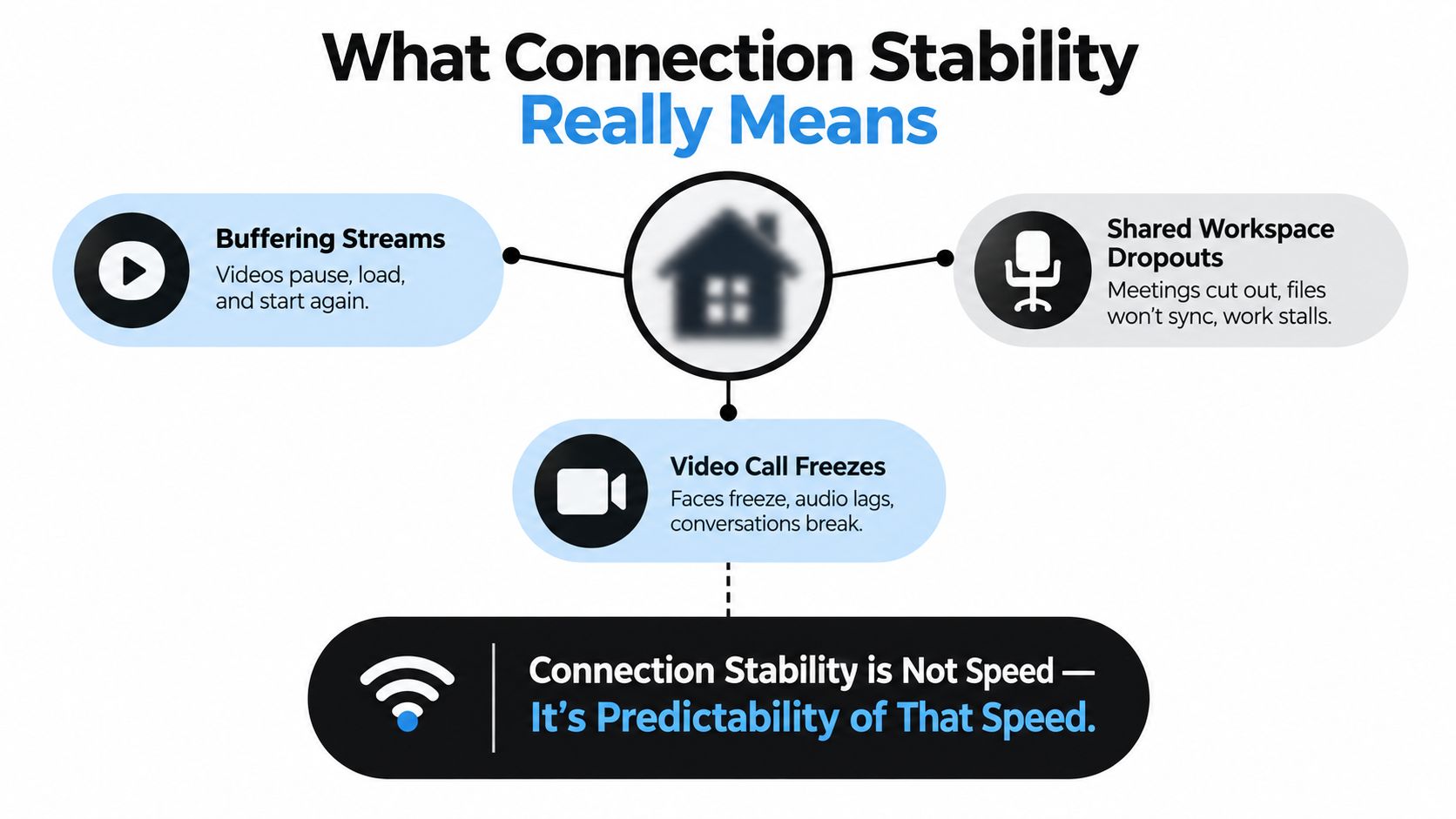
Speed is only one part of the experience
The internet works like a delivery route with several possible failure points. Throughput is the route's carrying capacity. Latency is the travel time. Jitter is the variation in arrival times. Packet loss means some parcels never arrive and need to be sent again.
A streaming player can conceal brief interruptions with stored data. Interactive services have less room for that buffer. A shared AI session may exchange several requests and responses, while a workspace login depends on multiple successful handshakes. Repeated delay or loss can make both feel unreliable, even when the connection appears fast.
The USC ISI outage measurements offer a useful reality check. Internet-wide availability is strong, but it is not perfect. A small, continuing failure rate can affect many users across a large network. Engineers account for that possibility with redundancy, monitoring, and failover, rather than assuming every route will remain available indefinitely.
Practical rule: Judge stability by completed sessions. A stream that finishes, a call that stays clear, and a shared login that remains active reveal more than one speed-test result.
For the next few days, note whether important sessions finish without buffering, freezing, or forced sign-ins. Compare those observations with speed-test results. That record gives you a clearer starting point for fixing shared-access problems than peak Mbps alone.
The Four Metrics Behind a Stable Connection
Four measurements explain most everyday connection behavior. You don't need to become a network engineer, but you should know what each one represents and what symptom it tends to produce.
| Metric | Everyday Analogy | Healthy Range | Warning Threshold | Pain Point |
|---|---|---|---|---|
| Latency | The time for a courier to travel to a destination and return | Under 80 ms for a healthy video call | Above 80 ms | Delayed conversation, slow logins, sluggish interactive tools |
| Jitter | Couriers arriving at uneven intervals | Low and consistent | Above 30 ms can affect playback quality | Choppy audio, dropped frames, unstable calls |
| Packet loss | Parcels that disappear and need to be resent | Near zero | Even 1% can become visible during streaming | Frozen screens, retries, failed handshakes |
| Throughput | The width of the road carrying deliveries | Enough capacity for all active sessions | Falls below combined demand | Pixelation, stalled prompts, slow downloads |
Latency measures the round trip
Latency is the delay between sending a request and receiving a response. For a video call, a healthy target is under 80 ms, while higher delay makes conversation feel less natural. In a shared AI tool, latency can make each prompt appear to hang even when the final response eventually arrives.
Use the courier analogy. If every courier takes a similar amount of time, the service feels responsive. If each trip takes longer during busy periods, the problem may involve congestion rather than your device.
Jitter measures consistency
Jitter is variation in latency. A call might have an acceptable average delay but still sound broken if individual packets arrive in bursts. Above 30 ms, jitter can begin to harm playback quality, especially when the application has little buffer available.
That's why two calls with the same average ping can feel completely different. One has steady arrivals. The other has irregular gaps.
Packet loss forces recovery
Packet loss occurs when traffic fails to reach its destination. Applications may request the missing data again, but those retries consume time and capacity. The Cambridge analysis cited in the research brief shows how sharply TCP setup can react: a 2% packet drop can move connection-establishment time from about 20 ms to roughly 1020 ms when an initial SYN packet triggers a retransmission timeout (Cambridge analysis of end-to-end performance).
Throughput is the size of the pipe
Throughput is the amount of data your connection can deliver over time. It matters, but only after the other metrics are understood. A wide pipe won't help much if packets arrive late, disappear, or compete with several other sessions.
Run a test that reports all four values, then compare results during quiet and busy periods. Don't save only the download number.
What Breaks Stability From Your Router to the Internet
“It's the internet” isn't a diagnosis. The connection between an application and your device crosses several distinct points, and each one can fail differently.
The path outward
- Device: A laptop, phone, console, or smart TV may have overloaded software, outdated drivers, or a weak wireless adapter. If only one device struggles, test that device before changing the router.
- Wi-Fi signal: Distance, walls, and interference reduce the quality of wireless communication. A streamer may buffer in one room while another device works normally beside the access point.
- Interference and density: Nearby networks and many active devices compete for airtime. An independent Wi-Fi 6 study found median latency around 3 ms in stationary small-packet tests, but tail latency rose under load. As device count increased from one to ten, uplink packet loss rose from 0.156% to 0.177% for 64-byte packets, and from 0.176% to 0.234% for 1250-byte packets (Wi-Fi 6 study from Aalborg University).
- Home router and NAT: The router coordinates local devices and tracks their conversations with remote services. Too many simultaneous flows, exhausted resources, or poor firmware can cause resets and intermittent reachability.
- Modem: The modem translates your home network's traffic for the ISP link. Signal problems or damaged cables can create repeated interruptions that look like general internet failure.
- ISP link: Evening slowdowns often point toward local or regional congestion. Your home Wi-Fi may be healthy while the provider's access network is busy.
- Transit and destination service: Traffic may cross backbone networks, cloud platforms, DNS systems, and application infrastructure. A service can fail even while other sites remain reachable.
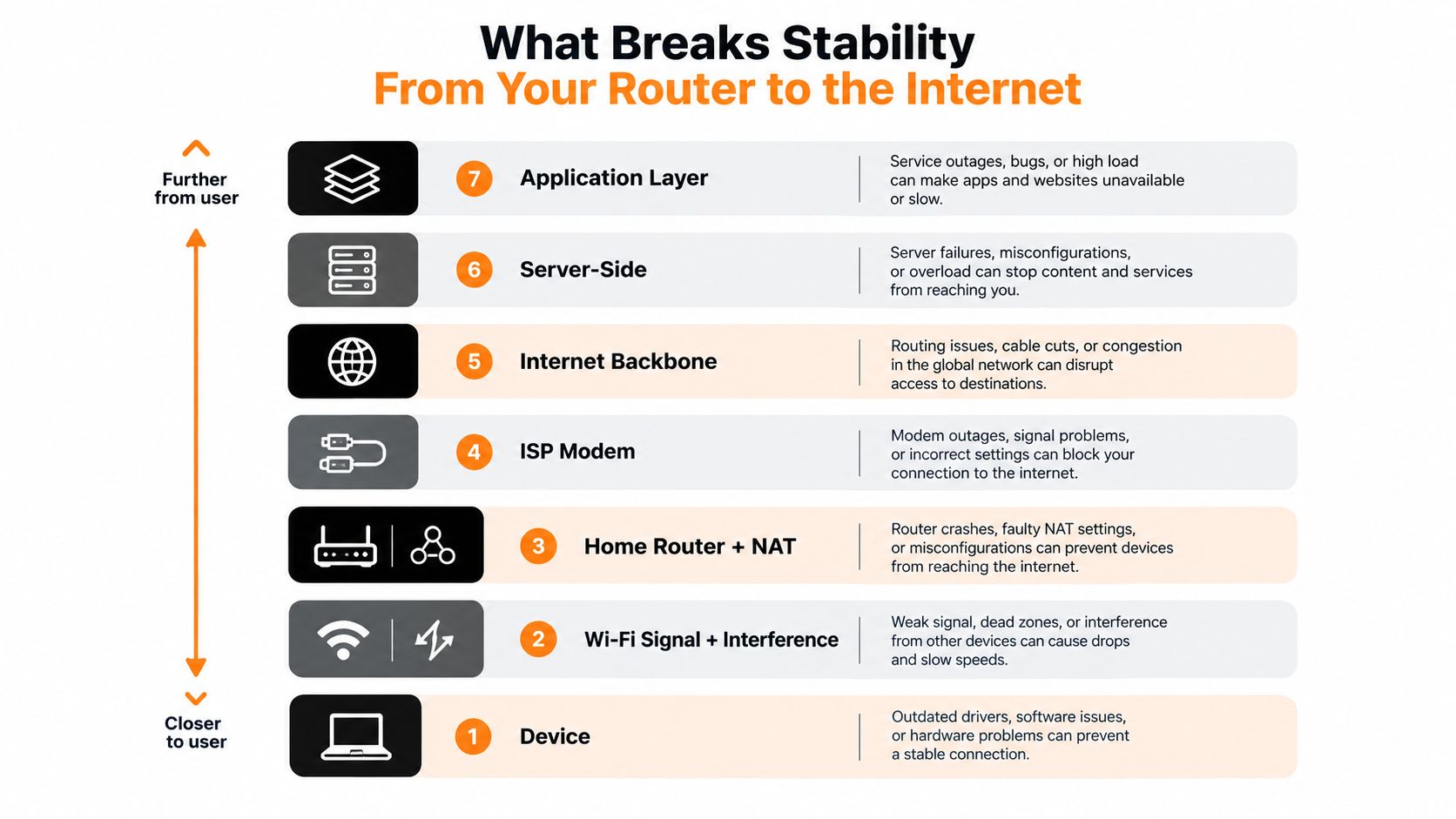
The wider environment matters more than many home troubleshooting guides admit. Cloudflare Radar reported more than 170 major Internet outages worldwide in 2025, and almost half of 174 major outages were attributed to government-directed regional or national shutdowns (Cloudflare Radar's 2025 review). Later reporting also discussed cable cuts, storms, DNS problems, and accidental damage as causes of disruption (Network World's outage overview).
Test one layer at a time. Compare Wi-Fi with Ethernet, one device with another, and one service with another before replacing equipment.
How Instability Shows Up in Streaming and Shared Sessions
A family streaming session and a shared AI session can experience the same network weakness but display different symptoms.
During a movie, throughput collapse may reduce picture quality or stop playback while the player waits for more data. Jitter can produce uneven audio, dropped frames, or a brief freeze. Packet loss may force the player to request missing segments again, creating repeated pauses. Latency matters when the service negotiates playback, loads a new scene, or validates the account.
Now consider three collaborators using one shared AI tool. One person submits a prompt, another opens a new conversation, and a third tries to sign in while background synchronization runs on several devices. The connection may still show a strong peak speed, but packet loss can interrupt authentication, latency can delay responses, and jitter can make interactive work feel erratic.
| Symptom | Primary Metric | Secondary Metric |
|---|---|---|
| Stream buffers after starting normally | Throughput | Packet loss |
| Video freezes while audio continues | Packet loss | Jitter |
| Conversation feels delayed | Latency | Jitter |
| Login repeatedly fails | Packet loss | Latency |
| AI prompt stalls during response | Throughput | Packet loss |
| Call audio crackles or becomes uneven | Jitter | Packet loss |
Cloudflare-based reporting described a global average TCP healthy rate of 78.88%, with Iraq at 30.68% and Singapore at 91.52%, illustrating why completed connections can vary significantly by location (TCP reliability reporting by Technology Checker). The useful lesson isn't to treat one country figure as your household result. It's to recognize that connection quality is about successful completion, not just apparent speed.
For practical advice outside the home, these reliable coworking Wi-Fi tips help travelers assess shared networks before starting important work. If a streaming app behaves strangely after repeated playback attempts, clearing stored application data may also help. AccountShare's guide explains how to clear the Netflix cache.
Keep a short symptom log for several evenings. Write down the service, device, time, number of active users, and whether the failure was buffering, freezing, delay, or a failed login.
Measuring Stability With Tools That Actually Help
A one-off test answers a narrow question. Continuous observation answers the question you care about: whether the connection remains usable while people work, stream, and share access.
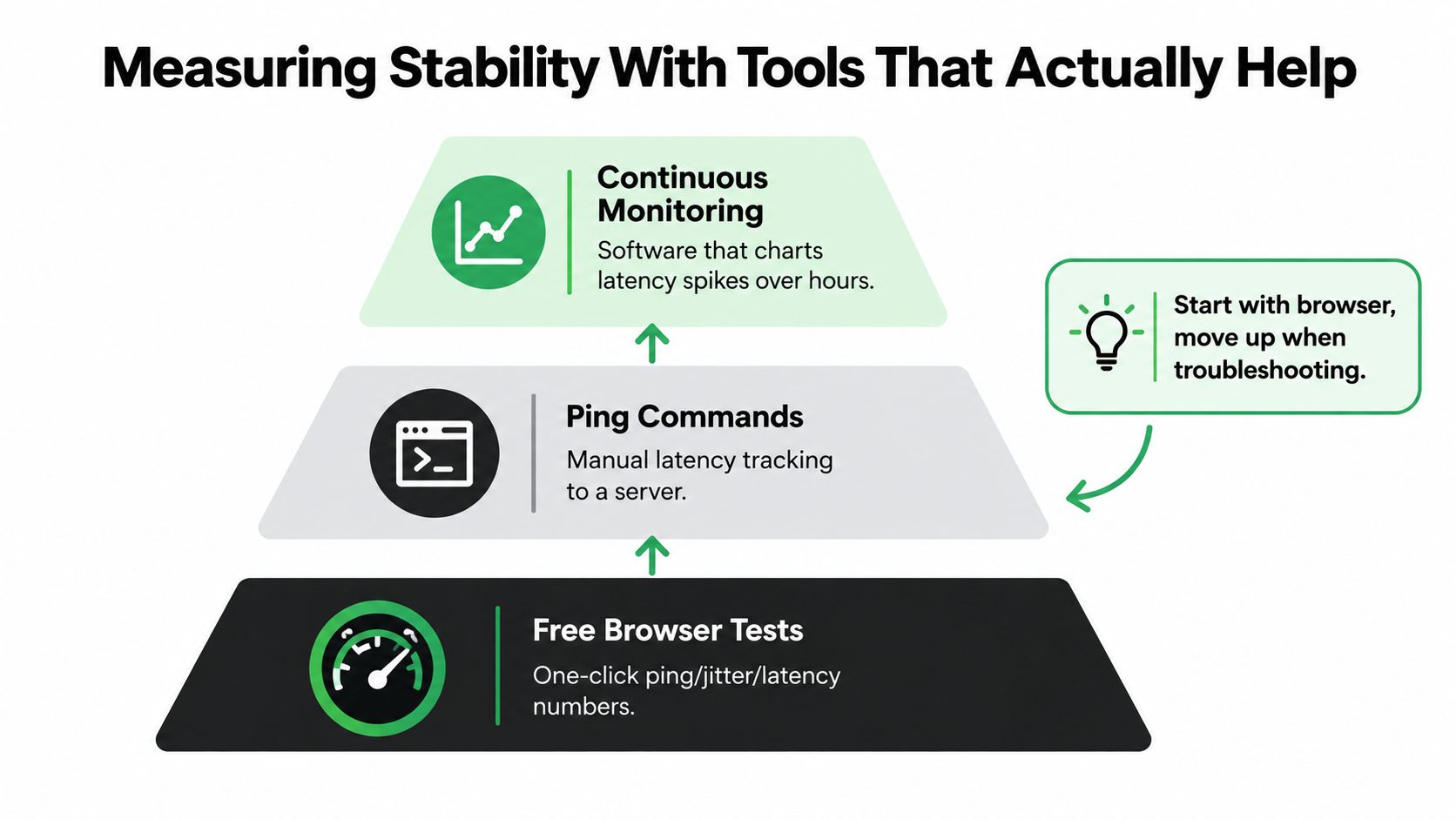
Start with a simple baseline
Begin with a browser-based test that reports latency, jitter, packet loss, and throughput. Run it when the household is quiet and again while the affected session is active. Keep the results with the time and device instead of relying on memory.
A command-line ping test can add context. Send repeated checks to a stable, reputable destination and look for patterns rather than one unusual reply. If latency rises only when a particular device uploads files, that points toward local contention. If it rises across wired and wireless devices at the same time, investigate the router, modem, or ISP path.
Watch the connection over time
Continuous monitors are more useful when the problem appears unpredictably. A chart can reveal evening latency growth, recurring packet loss, or jitter spikes that coincide with one device joining the network. For shared access, this is more valuable than testing immediately after a router restart, when conditions may be temporarily clean.
Advanced users can use packet-capture tools such as Wireshark to examine retransmissions, resets, and protocol behavior. That depth is usually unnecessary for a single household symptom, but it can help an IT administrator distinguish a local wireless issue from a remote service problem.
Measure before changing: A baseline protects you from confusing a normal fluctuation with an improvement.
A network-usage view can help identify which devices consume capacity during a failure. AccountShare users can also consult this network usage monitoring guide when tracking competing activity around shared sessions.
Run a baseline monitor for one full week before making major changes. Compare the same time windows afterward, and change one setting at a time so you know which action affected the result.
Troubleshooting Path From Quick Wins to Lasting Fixes
Random restarts waste time because they erase symptoms without identifying the failing layer. Use a ladder, beginning with changes that are fast and reversible.
First, remove obvious local problems
Start with the active device. Move it closer to the access point, switch between the available Wi-Fi bands, pause large downloads, and restart the router once. If the session becomes stable on Ethernet, the wireless path deserves attention. If every device still fails, move outward to the modem or ISP.
Update the router firmware and device network drivers when updates are available. Check cables and power connections, then test a different Wi-Fi channel if nearby networks appear crowded. A channel change can help interference, but it won't fix a provider outage or a failing modem.
Then control competition
If several people use the connection at once, configure Quality of Service where the router supports it. Give interactive calls and shared work sessions priority over background updates, cloud backups, and large downloads. QoS can't create capacity that isn't there, but it can prevent a background transfer from overwhelming time-sensitive traffic.
Use DNS changes cautiously. They may improve lookup responsiveness in some situations, but they won't repair packet loss or congestion after the connection has reached the destination network. A VPN deserves the same measured treatment. It can improve routing in a particular case, but it can also add delay and another failure point.
For business networks with multiple links or locations, this overview of how SD-WAN works for IT teams provides useful background on policy-based path selection and failover. For households, a second connection or mobile-data failover may be enough to keep a critical shared session alive during a router or ISP interruption.
Escalate with evidence
Contact the ISP when wired devices show the same repeated loss or latency pattern, especially when the issue follows a consistent time window. Provide timestamps, affected services, wired-versus-wireless comparisons, test results, and the steps you've already tried.
Keep the record concise. Support teams can act faster when they see a repeatable pattern instead of “the internet is bad.” For additional practical guidance on reducing delay in interactive services, see this latency optimization guide.
Best Practices for Smooth Shared Access on AccountShare
Shared access changes the network problem because several people may depend on the same service at overlapping times. The aim isn't to maximize speed. It's to protect the sessions that matter while controlling avoidable competition.
Schedule demanding activity thoughtfully. If a household regularly streams while another member uses an AI tool, stagger the start times when possible. During local peak demand, reserve the most stable device and connection path for the session that requires interaction. In AccountShare, assign the primary login slot to the user on Ethernet, and cap one streaming device's quality during busy evening periods if the router or service supports it.
Create a fallback before failure happens. Keep the main router connection as the default, but prepare a mobile tether or secondary connection for a brief interruption. A fallback is especially useful when a router reboot would otherwise terminate a shared login or interrupt a long prompt. Test the handoff before you need it, and reserve one mobile-data slot for the primary AccountShare device.
Audit devices and permissions. A single phone backing up photos, installing updates, or opening many browser tabs can consume capacity without anyone noticing. Review which devices use the shared account, remove inactive sessions where appropriate, and separate heavy background work from the device handling the active session. AccountShare supports shared-account management features such as password-sharing options and customizable permissions, so use those controls to keep access organized rather than letting every client operate without review.
Treat VPNs as a tested choice. A VPN may help when a measured route is poor, but it can add encryption overhead, delay, or another point of failure. Compare the same session with and without the VPN, recording completion rather than trusting a single speed result. If the VPN doesn't solve a repeatable problem, don't leave it in the path by habit.
Finish with a same-day routine: identify the primary device, connect it by Ethernet if practical, pause unnecessary sync jobs, set a fallback, and record the session outcome. That sequence directly addresses the shared-access pains of dropped logins, competing streams, and avoidable reconnects.
Stability Checklist and What Comes Next
Use this checklist before changing equipment or upgrading a plan:
- Test the full set: Record latency, jitter, packet loss, and throughput before peak use.
- Prioritize traffic: Separate streaming and shared AI activity with QoS where available.
- Choose the right band: Prefer 5 GHz for active sessions when signal strength supports it.
- Wire the priority device: Use Ethernet for the primary AccountShare session when practical.
- Save a baseline: Keep dated results so later changes have a reference.
- Enable reconnects: Turn on automatic reconnect where the client supports it.
- Reserve mobile data: Keep one fallback slot available for an urgent session.
- Pause background sync: Limit backups and updates while people share access.
- Question the VPN: Keep it only when testing shows a real routing benefit.
- Review firmware: Check router firmware regularly, including during routine maintenance.
- Rotate problem devices: Move the primary session to another client if one device repeatedly underperforms.
- Recheck after plan changes: Test again after an ISP upgrade, downgrade, or service migration.
Connection stability is becoming a quality-of-experience measure, not just a raw Mbps score. The practical shift is simple: households should optimize for sessions that complete, remain responsive, and recover cleanly when several people use shared services at once.
AccountShare lets users organize shared access to premium streaming, AI, and software subscriptions with account-management features such as password-sharing options and customizable permissions. Visit AccountShare to coordinate shared sessions more deliberately, then apply the stability checklist to keep those sessions dependable across your household or team.