

10 Best Tools for Remote Workers: Pricing and Integrations
A distributed team rarely chooses its final toolset on purpose. It starts with a chat app and a shared drive. Someone asks for better video calls, so the team adds Zoom. A project slips, so a manager adds a board. Then a client needs booking links, a freelancer needs time tracking, and everyone needs a password manager.
That approach feels practical at first. It also creates overlapping subscriptions, scattered information, and unclear ownership. Gartner's 2021 Digital Worker Experience Survey found that nearly 80% of workers used collaboration tools in 2021, compared with just over half in 2019, while average in-person meeting time fell from 63% in 2019 to 33% in 2021. Computer Weekly's coverage of the Gartner survey shows how quickly collaboration software moved from convenience to core infrastructure.
The useful question isn't which app has the longest feature list. It's which tool handles each remote-work job, what you'll pay per seat, and where the plan limits start to affect daily work. Remote workers used an average of 4.8 conferencing applications in 2020, according to industry reporting on online collaboration software. A lean stack matters more than an impressive one.
This list organizes the best tools for remote workers by function, from communication and meetings to documents, planning, scheduling, time tracking, and secure access. For broader operating advice, review these strategies for remote teams.
1. Google Workspace
Google Workspace is the easiest starting point for teams that want email, calendars, files, documents, spreadsheets, presentations, chat, and meetings under one administrative roof. Gmail, Calendar, Drive, Docs, Sheets, Slides, Meet, and Spaces share the same account model, which reduces the number of separate logins and billing decisions a small team has to manage.
The strongest feature is the collaboration model. Several people can work in the same document, leave comments, suggest edits, and see changes without emailing files back and forth. Shared Drives also give teams a clearer ownership model than storing important work inside one employee's personal Drive.
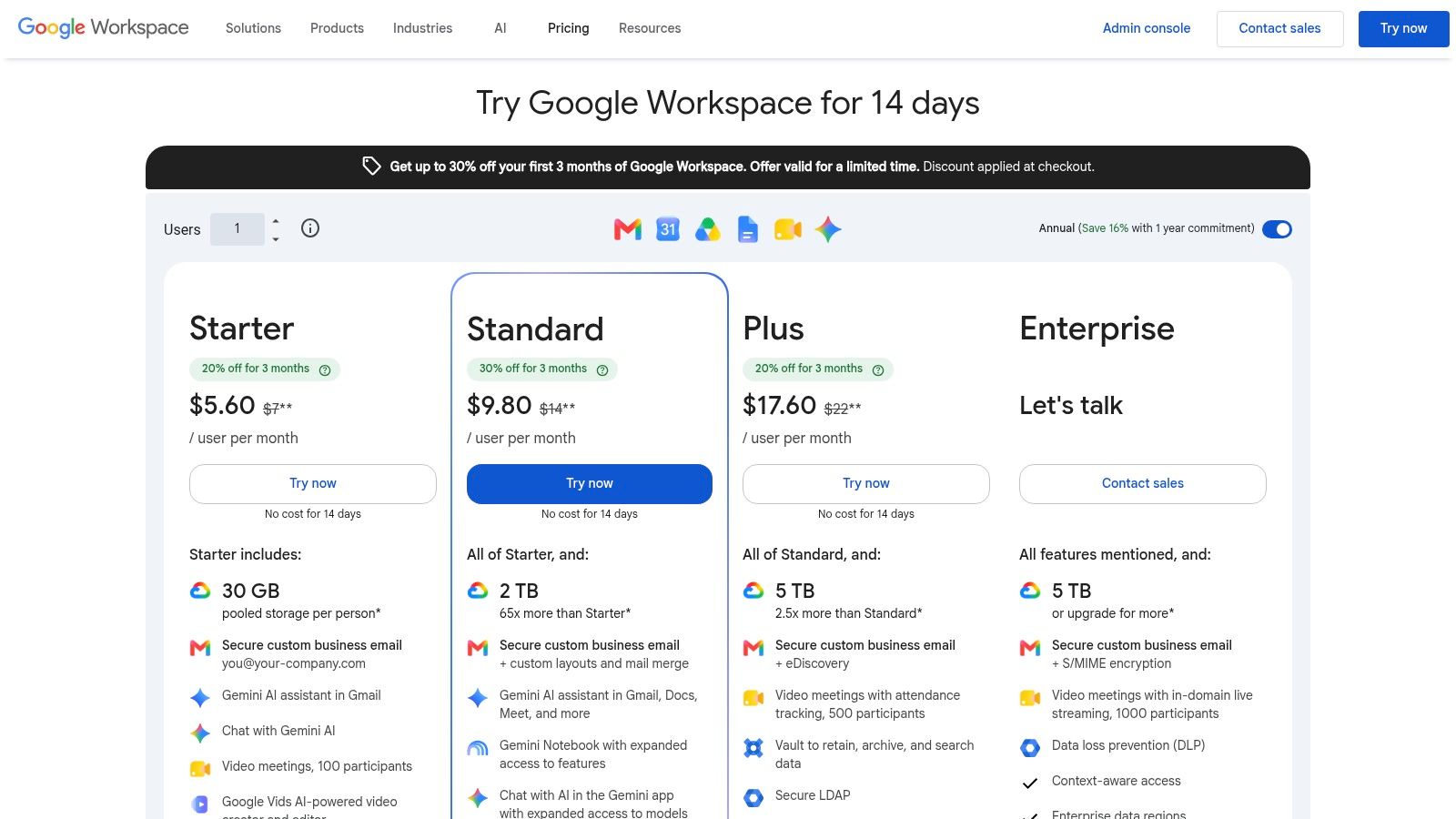
Google Meet works well for routine calls, while Calendar makes meeting links and availability easy to manage. Gemini assistance is integrated into products such as Gmail, Docs, and Meet, but the exact entitlements depend on the subscription tier. Check the current Google Workspace pricing and plan details before assuming every user receives the same AI features.
Where the plan boundaries matter
The main trade-off is predictability versus depth. Business tiers publish per-seat pricing, but storage, AI access, support levels, and administration vary by tier. Google Voice, higher support, and some advanced controls can add to the bill.
Google Workspace is a strong fit when your team wants one cloud-first environment and collaborates heavily in Docs and Sheets. It's less compelling if your team depends on desktop Office workflows, advanced device governance, or deep non-Google identity management.
Practical rule: Choose the tier by storage, AI, and administration requirements, not by the cheapest headline price.
2. Microsoft 365 Business
Microsoft 365 Business fits teams that already work in Windows, Outlook, Word, Excel, PowerPoint, OneDrive, and Microsoft Entra ID. It combines desktop and web Office applications with cloud storage, Teams chat, channels, meetings, and a broad set of identity and device controls.
Teams is more than a meeting app. It gives departments persistent channels, file collaboration, and a place to connect conversations with Microsoft 365 documents. For organizations managing company laptops and remote endpoints, Microsoft's identity and device-management ecosystem can be a major advantage.
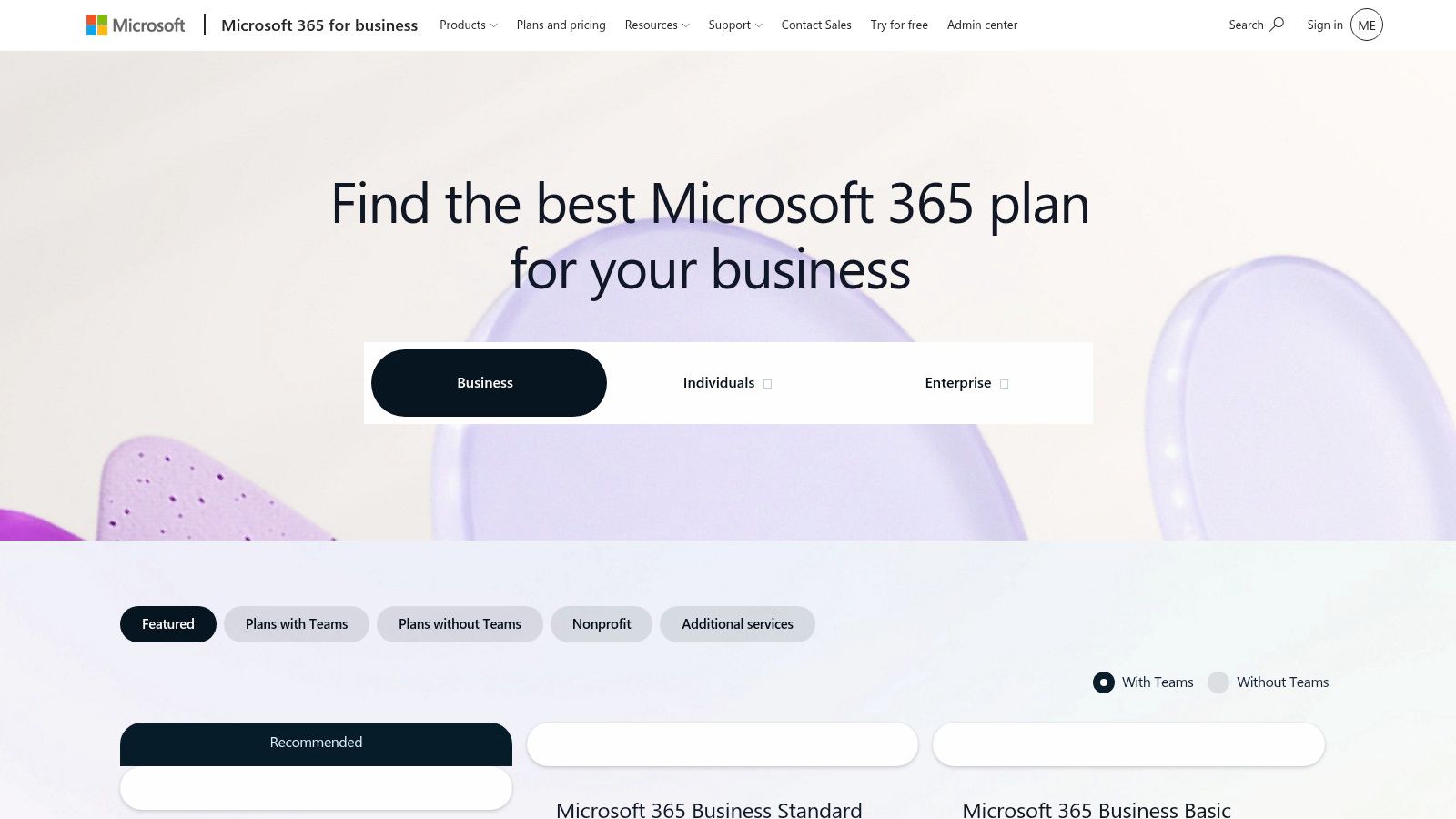
The platform's administrative depth is also its main source of friction. Premium tiers provide stronger security, compliance, and device-management options, but buyers need to understand which controls belong to which package. Microsoft 365 Copilot follows a separate add-on path, so AI access shouldn't be treated as automatically included.
Best for Microsoft-centered operations
Microsoft 365 works best when the team wants identity, files, email, and productivity applications to share one ecosystem. Entra ID single sign-on can simplify access for remote endpoints, while centralized administration helps teams manage joiners, leavers, and device policies.
The drawback is packaging. Comparing Business plans, security options, device features, and Copilot can take more work than comparing a simple bundled suite. The best rates may also require annual commitments, which makes a short pilot important before signing.
Review the current Microsoft 365 Business plans and pricing with your actual user types. A finance employee, a contractor, and a field worker may not need the same license.
3. Slack
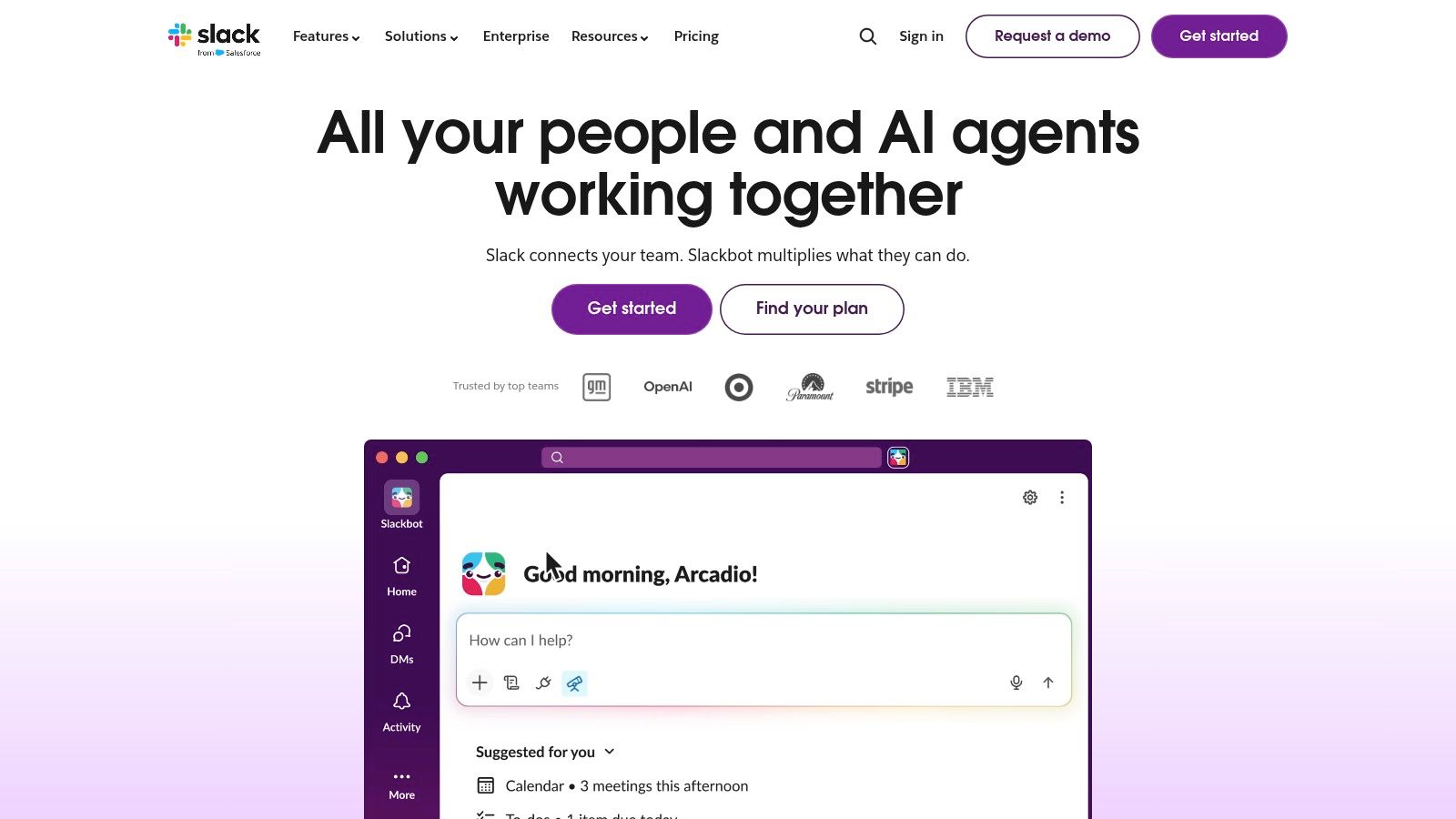
Slack handles the core communication job better than most remote teams expect, provided someone maintains channel discipline. Create channels around projects, functions, and decisions. Keep direct messages for private or short exchanges. Use threads for context instead of letting every update become a new conversation.
Channels, DMs, Huddles, file sharing, Workflow Builder, and integrations with tools such as Google Drive, Jira, GitHub, Zoom, and Notion make Slack a flexible communication layer. Huddles support audio and video, including screen sharing, but Slack still works best as an asynchronous communication hub rather than as a replacement for every meeting platform.
Slack AI adds summaries, search assistance, daily recaps, and file summaries. Those features can reduce the time spent reconstructing what happened in a busy channel, but advanced AI and enterprise search capabilities are gated to higher plans. The Slack product site is the right place to confirm current packaging because its plan structure changes as new capabilities are added.
The free-plan trap
Slack's Free plan can work for a small team with light history requirements. Message history limits become painful when employees need to search old decisions, onboarding context, or project files. Paid plans provide more useful history and administrative controls, but the per-seat cost rises as every occasional collaborator becomes a billable user.
Slack Connect helps teams work with external partners, while SSO and SCIM are reserved for upper tiers. That makes the plan decision depend on governance, not just messaging volume.
For teams considering a shared subscription to reduce software costs, this guide to remote collaboration tools can provide additional context. Confirm account terms, permissions, and security requirements before using any shared-access arrangement.
4. Zoom Workplace
Zoom Workplace remains a practical choice when meetings are the main remote-work problem. Its interface is familiar to employees and external guests, and its video-first design makes it suitable for recurring team meetings, customer calls, training, recordings, and larger events.
The product now extends beyond meetings. Teams can use integrated chat, whiteboards, notes, Clips, transcripts, AI summaries, and scheduling features. That broader workspace can reduce the need for separate tools in some workflows, especially when asynchronous video is useful for updates that don't justify another live call.
Budget for the meeting you actually run
Zoom's main weakness is SKU sprawl. Zoom Phone, Rooms, Webinars, Events, larger meeting capacity, and other add-ons can change the total cost quickly. Some capabilities also sit behind Business or Enterprise tiers, so a team may discover that its required workflow costs more than the basic meeting license suggests.
The right test is simple. List the meetings you run, the number of participants, recording needs, transcription requirements, external access, and telephony requirements. Then price that exact configuration through Zoom's pricing page.
Zoom is a good dedicated meeting option when video reliability and guest access matter more than having every collaboration feature inside one suite. It's less efficient when your team already has a mature meeting environment in Google Workspace or Microsoft 365 and only needs occasional calls.
5. Notion
Notion is useful when documents, knowledge, meeting notes, lightweight project tracking, and databases need to live together. Its flexible pages and databases let a remote team build a wiki, project brief, content calendar, CRM, onboarding area, or operating manual without buying a separate tool for every use case.
The flexibility is both the product's value and its risk. A well-designed workspace can give employees one place to find policies, decisions, templates, and project context. An unmanaged workspace becomes a collection of attractive pages that nobody can use consistently.
Notion supports integrations and embeds for services such as Slack, GitHub, Figma, and Jira. Its API and webhooks also help teams connect information to other workflows. Notion AI provides summaries and question-answering, while Custom Agents use a credit model that teams should assess before enabling heavy usage.
Build the information architecture first
Notion works best when an administrator defines page ownership, naming conventions, templates, permissions, and archival rules. Start with a small set of top-level areas. For example, keep company policies, team documentation, active projects, and meeting records separate.
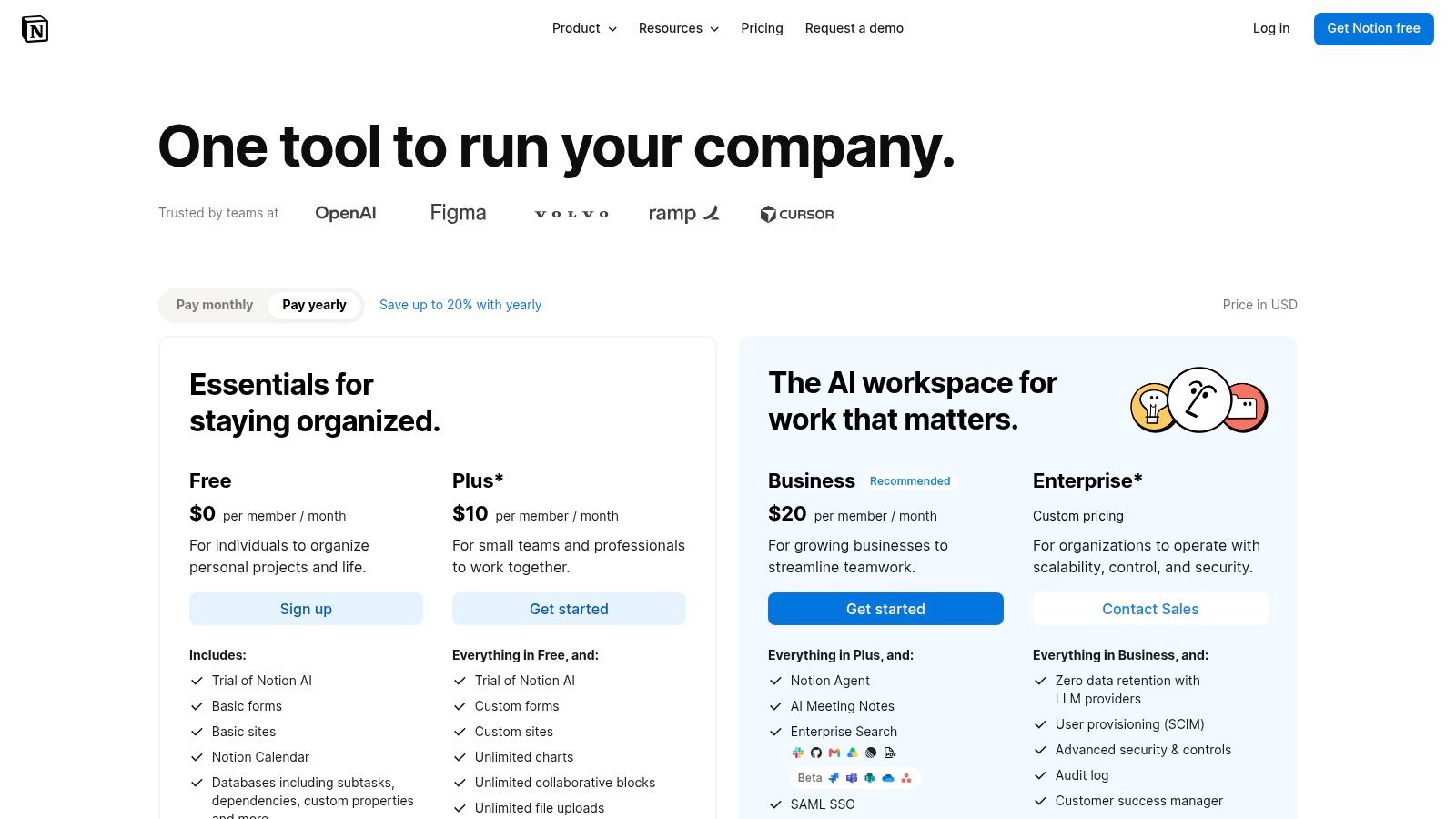
Business and Enterprise tiers provide more administration, security, and analytics. AI credit costs can also grow for teams that use agents heavily. Check the current Notion pricing structure against your expected AI usage rather than treating AI as a free extension of the workspace.
Notion is a strong choice for asynchronous knowledge work. It isn't a complete replacement for a specialized project manager when you need mature resource planning, complex reporting, or strict delivery governance.
6. Asana
Asana is built for the question remote managers ask most often: who owns this work, what happens next, and when should it be finished? Boards, lists, timelines, Gantt views, dashboards, portfolios, goals, approvals, proofing, and resource management give teams several ways to make work visible.
The platform earns its place in cross-functional teams because it separates communication from execution. Slack can hold the discussion, but Asana can hold the owner, due date, dependency, review state, and completion record. That distinction matters when projects involve marketing, product, design, finance, or operations.
AI features include Asana Dash, AI Teammates, AI Studio, and request pools or usage packs. The practical issue is not whether AI exists. It's whether your team understands the included request allowance and the cost of additional usage. Review Asana's current pricing and feature tiers before rolling AI features out to every seat.
Strong governance, with a larger bill
Asana's premium features are useful when a team needs portfolio visibility, goals, reporting, and structured approvals. Timesheets and Budgets can be add-ons, and advanced AI requests may be metered or paid beyond included amounts.
A small team with straightforward tasks may find Asana heavier than necessary. A distributed organization with many projects can benefit from the governance, but only if managers enforce ownership and keep task descriptions current.
A project tool doesn't create accountability by itself. It makes accountability visible when people assign one owner, define a next action, and close outdated work.
Use Asana when the work has dependencies and multiple stakeholders. Use a simpler board when the team only needs a shared list of current tasks.
7. Calendly
Calendly solves a narrow problem well: getting people into the right meeting without a long email exchange. Users publish booking links, connect calendars, define availability, and let invitees choose from open times. Team features add round-robin assignment, pooled availability, and routing forms.
That makes Calendly especially useful for sales, recruiting, customer success, office hours, and distributed teams working across time zones. Calendar integrations connect with Google and Microsoft services, while integrations with Zoom, Slack, Zapier, and other platforms can reduce manual follow-up.
The per-seat model is straightforward until the team grows. Cost rises with each additional user, and advanced routing or AI features may sit behind higher plans or add-ons. Optional AI notetaker and assistant features also need to be priced separately where applicable. Confirm the current packaging on Calendly's pricing page.
Keep scheduling rules simple
Calendly can create a better booking experience, but it won't fix a badly designed calendar. Define buffers, working hours, meeting types, cancellation rules, and ownership before sharing links widely. Otherwise, invitees see too many choices and employees lose control of their days.
Round-robin scheduling works well for shared inbound requests. Pooled availability is better when several people can host the same session. Routing forms help direct prospects or customers to the right person, but they're most valuable when the qualification rules are clear.
Calendly is worth adding when scheduling creates regular friction. It's unnecessary for a small team that has few external meetings and already handles availability in Google Calendar or Outlook.
8. Toggl Track
Toggl Track is a low-friction time tracker for freelancers, agencies, consultants, and teams that need dependable records without turning time entry into a second project. Employees can use timers or manual entries, assign time to clients and projects, mark work as billable, and produce reports for invoicing or utilization review.
The product's simplicity matters. People are more likely to record time when starting and stopping a timer takes little effort. Multi-platform apps, reminders, alerts, and integrations support teams that move between browsers, desktop applications, and mobile devices.
Plan differences become important as reporting and administration requirements grow. Advanced features are reserved for Premium or Enterprise tiers, while Enterprise pricing is quote-based and should be confirmed directly. The Toggl Track pricing page documents the current plan differences.
Track for a reason
Time tracking works when the team knows what the data is for. Use it for client billing, project estimation, workload planning, or identifying unprofitable work. Don't introduce it as vague surveillance and expect accurate records.
For agencies, project and client tagging can support invoices and margin reviews. For internal teams, reports can reveal where planned work differs from actual effort. That information is useful only if managers act on it, such as changing deadlines, staffing, or scope.
Toggl Track is a good specialist tool when time data has a clear purpose. It's not a substitute for a project manager, and it won't solve unclear priorities.
9. 1Password Business
1Password Business protects the access layer behind a remote team's software stack. It stores passwords, passkeys, two-factor authentication details, and shared credentials in controlled vaults. Role-based sharing helps administrators give people access to the systems they need without sending primary passwords through chat.
Watchtower risk alerts, browser extensions, cross-platform apps, SSO, SCIM, device trust, and advanced reporting support distributed work. Developer teams can also use tools for SSH, the command line, and secrets management. Integrations with Okta, Entra, and Google can connect password administration to the identity system already in use.
Protect shared access properly
A password manager is not just a vault. It's an offboarding system. Administrators should be able to remove one person's access, identify which vaults they used, rotate sensitive credentials, and review account activity without disrupting the whole team.
Business plans focus on annual billing, and per-seat costs can add up. Advanced features also need proper onboarding. If nobody defines vault ownership and sharing rules, the team may recreate the same access problems inside a more secure interface.
The broader security context is serious. A 2024 workplace-technology survey reported that nearly 66% of respondents did not use a password manager, according to Tech.co's cybersecurity statistics. That gap makes secure defaults and simple recovery procedures more important for remote teams.
For teams comparing shared-access models, these shared password manager picks can add context. Confirm whether the chosen arrangement supports the vendor's terms, MFA, permissions, and rapid access removal.
10. NordLayer
NordLayer addresses remote access rather than collaboration. It provides business VPN and Zero Trust capabilities, including dedicated gateways, device posture checks, cloud firewall controls, browser-level protections, split tunneling, session controls, and dedicated IP options depending on the plan.
That makes it useful when remote workers need controlled access to company resources from different locations and devices. Dedicated IP allowlisting can help organizations restrict access to approved network paths, while posture checks can support rules around the device itself.
The plans are organized into Lite, Core, and Premium tiers, but key security features are plan-dependent. Dedicated IP, network access controls, cloud firewall functions, and some NAC capabilities may require higher tiers or add-ons. Check the current NordLayer business pricing before comparing it with a consumer VPN.
Check the minimum before you buy
NordLayer's clear SMB tiers and quick deployment can suit a small business with a defined access problem. The main limitation is the five-user minimum on most plans, which can make it unsuitable for a solo worker or very small operation.
Use it when you need managed remote access, policy controls, and administrator visibility. Don't buy it because employees work from home. If the core issue is weak passwords, uncontrolled SaaS access, or missing MFA, fix those controls first.
A practical remote-access setup should let an administrator revoke a user, identify active sessions, enforce MFA, and review access logs. This guide to secure remote access provides additional context for evaluating those controls.
Top 10 Remote Work Tools, Quick Comparison
| Product | Core features ✨ | UX / Quality ★ | Price / Value 💰 | Target audience 👥 | Unique strength 🏆 |
|---|---|---|---|---|---|
| Google Workspace | Gmail, Drive, Docs/Sheets/Slides, Meet, Gemini AI | ★★★★☆, real-time co-editing, reliable | 💰 Mid per-seat; tiered storage & AI entitlements | 👥 SMBs & distributed teams standardizing on Google | 🏆 Realtime collaboration + integrated AI |
| Microsoft 365 Business | Office desktop/web apps, Exchange, Teams, Entra/MDM | ★★★★☆, enterprise-grade, rich desktop UX | 💰 Mid–High; complex tiers, best with annual commit | 👥 Enterprises & Windows-centric orgs | 🏆 Deep admin, compliance & device controls |
| Slack | Channels, DMs, Huddles, Workflow Builder, Slack AI | ★★★★☆, fast async comms, strong integrations | 💰 Low–Mid; Free limits history, paid for full power | 👥 Teams who live in chat / distributed teams | 🏆 Ecosystem & automation for reduced context-switch |
| Zoom Workplace | HD meetings, transcripts, whiteboards, Clips, AI | ★★★★☆, reliable video & recording features | 💰 Mid; add-ons (Phone/Webinars) raise total cost | 👥 Remote-first teams, trainers, events | 🏆 Video-first performance & telephony path |
| Notion | Pages, databases, web publishing, Notion AI agents | ★★★☆☆, highly flexible, moderate learning curve | 💰 Low–Mid; core inexpensive, AI credits add cost | 👥 Knowledge workers, startups, PMs | 🏆 Flexible info architecture & publishing |
| Asana | Boards, Timelines, Portfolios, AI Teammates | ★★★★☆, strong visibility & reporting | 💰 Mid; seat-based pricing, some premium add-ons | 👥 Project teams, PMOs, cross-functional delivery | 🏆 Cross-team governance & portfolio views |
| Calendly | Booking links, pooled availability, routing, payments | ★★★★☆, frictionless scheduling, reliable UX | 💰 Low–Mid; cost grows with seat count | 👥 Sales, consultants, client-facing teams | 🏆 Automated scheduling & routing workflows |
| Toggl Track | Timers, manual entries, reports, billable rates | ★★★☆☆, simple, fast adoption | 💰 Low–Mid; basic affordable, enterprise quotes apply | 👥 Freelancers, agencies, time-based billing teams | 🏆 Low-friction time tracking & reporting |
| 1Password Business | Vaults, passkeys, SSO/SCIM, Watchtower, dev tooling | ★★★★☆, strong security, cross-platform apps | 💰 Mid; per-seat annual billing typical | 👥 Security-conscious teams & enterprises | 🏆 Enterprise-grade secrets & password management |
| NordLayer | Business VPN, dedicated gateways, posture checks, Cloud FW | ★★★☆☆, quick deployment, SMB-friendly | 💰 Mid; published tiers, 5-user min & add-ons | 👥 SMBs needing secure remote access | 🏆 Fast-deploy Zero Trust VPN with gateway controls |
Building a Remote Stack Without Overpaying
Start by mapping jobs, not brands. A remote team needs a communication layer, a meeting layer, a document source of truth, a task system, scheduling where external meetings justify it, time tracking where billing or planning requires it, and access controls for every important account. One product may cover several jobs, but that doesn't mean it covers each job well.
Google Workspace and Microsoft 365 can provide a broad foundation. Slack adds a stronger channel and integration model. Zoom is useful when video meetings, training, or telephony deserve dedicated investment. Notion can consolidate knowledge and lightweight project information, while Asana provides stronger work governance. Calendly, Toggl Track, 1Password, and NordLayer solve narrower problems and should be added only when those problems are real.
Tool selection should also reflect ecosystem fit. Stack Overflow survey data reported Microsoft Teams usage rising from 25.6% in 2020 to 53.1% in 2024, while Zoom was reported at 40.0% in 2024 and Slack at 43.9%, as summarized in Stack Overflow's developer survey review. These figures describe reported usage, not paid-seat revenue or direct market share. The practical lesson is to assess identity, integrations, guest access, search, and administration instead of choosing by popularity alone.
Price the stack by seat and by year
List every user type before choosing a plan. Full-time employees, contractors, guests, administrators, and occasional collaborators may need different access. Then record the monthly or annual seat price, required add-ons, minimum seats, AI allowances, storage limits, meeting capacity, and cancellation terms.
Plan-gated features deserve special attention. A product may appear affordable until the team needs SSO, SCIM, audit logs, advanced reporting, larger meetings, dedicated IP addresses, AI usage, or device management. Add those requirements before comparing vendors, not after adoption.
Remote teams also need to govern AI use. Research cited by Ivanti reported that 42% of surveyed office workers used generative AI tools at work in 2025, while 74% of IT professionals reported using them. The same research warned that unauthorized tools may not meet organizational security or data-protection standards. Ivanti's Tech at Work research supports a managed approach, with clear rules for sensitive data, approved tools, retention, training use, regional compliance, and offboarding.
Pilot the smallest useful combination
Choose the two or three tools that address the largest gaps. Run them with real work, not a demo project. Ask whether employees can find decisions, complete tasks, book meetings, access documents, and leave the organization without creating unmanaged accounts.
Tool overload is a measurable cost. A 2025 survey reported that employees spent an average of 4.5 hours per week searching for files, emails, or previously accessed links, while remote workers kept nearly 11 browser tabs open on average, according to coverage of the digital-clutter research. The answer isn't always another productivity app. Often, it's one communication channel, one document source, one task system, and clear rules for naming, notifications, retention, and search.
Don't commit to annual plans until the pilot exposes the limits. Check whether a free or lower tier hides history, storage, reporting, AI usage, routing, security, or administration behind an upgrade. Confirm that integrations work with the actual accounts your team uses, not just the logos on a vendor page.
Shared access can reduce subscription overhead in some situations, but it requires careful review. Add AccountShare only where the vendor's terms, the team's security requirements, permission model, MFA expectations, and access-removal process are clear. Shared access is not a replacement for individual identity controls, auditability, or proper offboarding.
The best remote stack is usually smaller than the first one. If a suite already handles email, files, meetings, and documents well, add only the missing capability. If Slack already connects the team's key systems, don't add another chat layer without a clear reason. If Notion becomes the knowledge base, establish ownership before adding another documentation tool. If Asana tracks delivery, avoid duplicating the same tasks in chat.
For another perspective on comparing shared group tools, see how Divvy compares. Then make the decision from your own workflow, seat count, security requirements, and plan-level limits.
AccountShare offers group access to selected premium productivity, AI, and software subscriptions, with centralized access, customizable permissions, invitations, password sharing, and access removal. If you're reviewing the cost of a remote-work stack, visit AccountShare to see whether shared access fits your team's budget and security requirements.