

The 12 Best Tools for Remote Work to Boost Your Productivity in 2026
The shift to remote work is more than a trend; it's a fundamental change in how we collaborate, manage projects, and stay productive. Thriving in this new landscape requires more than just a laptop and an internet connection-it demands a strategic set of digital tools. This guide cuts through the noise to identify the essentials that power today's successful remote teams and individuals. We've compiled a comprehensive roundup of the best tools for remote work, from seamless communication hubs and powerful project managers to secure file sharing and innovative AI assistants.
This list is designed to be your definitive resource. Each entry includes a practical overview, an honest assessment of its pros and cons, and specific use cases tailored for students, digital nomads, families, and small businesses. We'll provide screenshots and direct links to help you evaluate each platform efficiently. Forget generic feature lists; we're diving into what makes each tool stand out, who it's best for, and how you can access premium features without breaking the bank.
Whether you're building a remote setup from scratch or refining an existing one, our analysis will help you build a more efficient, secure, and cost-effective work environment. To ensure your remote office is fully equipped, you can also check out this list of the top 10 tools every remote team needs in 2025. This curated list will help you select the right software stack to optimize your productivity for 2026 and beyond. Let’s get started.
1. AccountShare
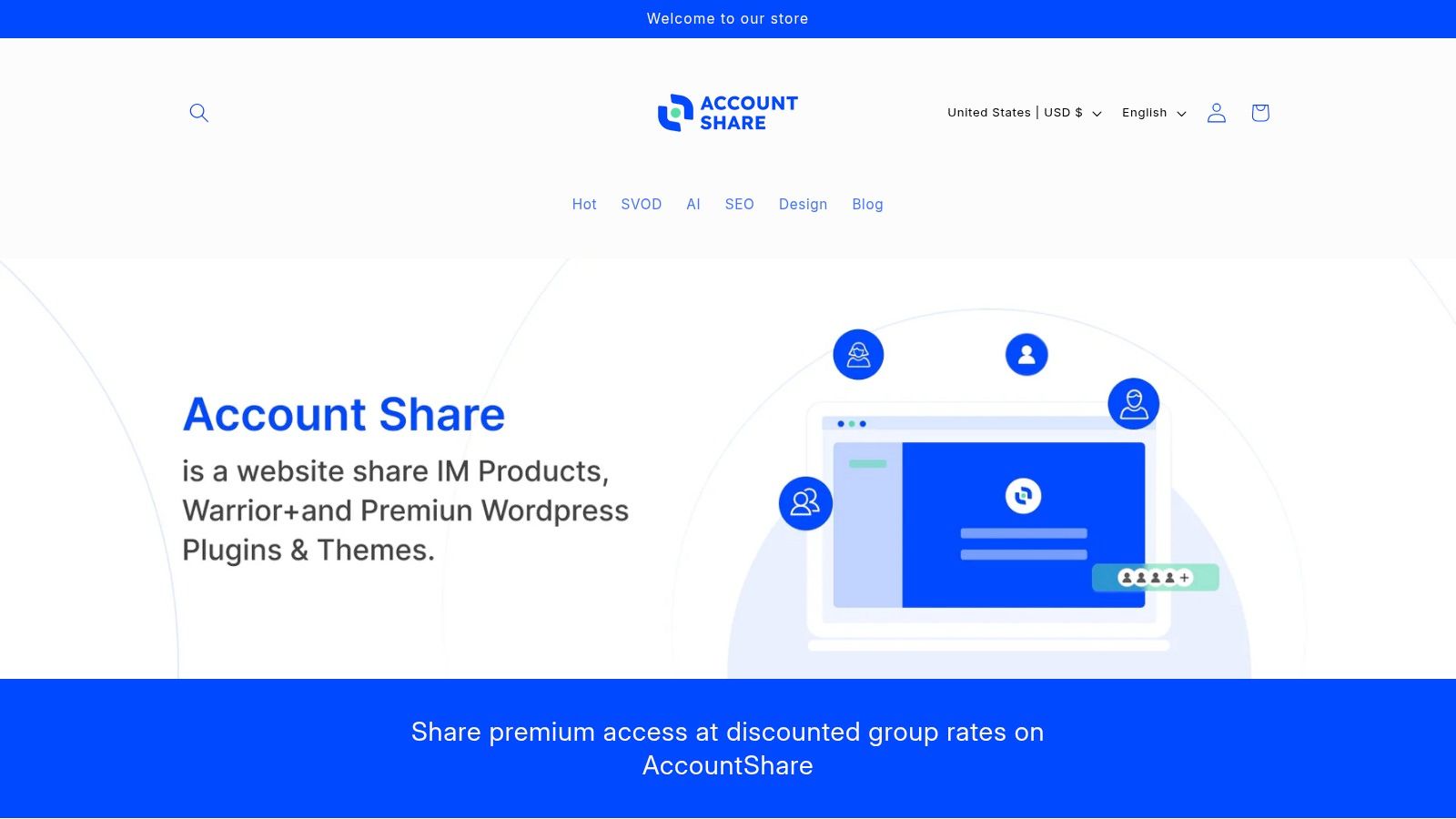
AccountShare stands out as a powerful resource for remote workers by tackling one of the biggest overheads: the rising cost of premium subscriptions. This platform facilitates a group-buy model, allowing individuals and small teams to access high-tier services like ChatGPT Plus, Canva Pro, MidJourney, and Netflix at a fraction of the standard price. It operates on a simple principle of collective buying power, pooling users into managed, shared accounts to unlock premium features without the full financial burden.
This approach makes it one of the best tools for remote work, especially for those who rely on a diverse suite of AI, productivity, and entertainment software. By dramatically lowering the barrier to entry for these essential services, AccountShare empowers freelancers, students, and small businesses to leverage cutting-edge technology that might otherwise be unaffordable.
Key Features and User Experience
AccountShare is engineered for simplicity and security. The platform is built on Shopify, providing a familiar and reliable checkout experience, with payment options including PayPal. A key advantage is the instantaneous delivery of account credentials upon payment, which are sent via email and also accessible directly from your user dashboard.
The platform's management system is a significant differentiator. It provides a secure framework for sharing credentials, complete with customizable permissions and dedicated, responsive customer support. Testimonials frequently praise the stability of the shared accounts and the quick resolution of any issues, which is critical for professionals who depend on these tools for daily work.
Ideal Use Cases
- For Tech-Savvy Professionals & Digital Nomads: Gain cost-effective access to advanced AI and SaaS tools like Claude Pro or Runway to enhance productivity and creative output.
- For Small Teams & Startups: Equip your team with collaborative software such as Canva Pro without committing to expensive enterprise-level contracts.
- For Families & Students: Share streaming (Netflix) and educational tool subscriptions to manage a tight budget effectively. You can discover more about effective subscription management on AccountShare's blog.
Pricing and Practical Considerations
Pricing is dynamic and varies by service, with many popular subscriptions listed for around $10 per seat. Availability can fluctuate due to high demand, and some listings may show as "sold out." It's wise to check the site regularly for restocks or new additions.
While the service provides a secure sharing environment, users should remain mindful of the terms of service for each third-party platform. AccountShare is transparent about this and provides guides to help users navigate best practices, emphasizing that shared usage is generally acceptable when it adheres to the provider’s limits on simultaneous users.
| Feature | Benefit |
|---|---|
| Group-Buy Model | Significant cost savings on premium subscriptions. |
| Instant Access | Credentials delivered immediately after payment. |
| Secure Management | Built-in password controls and responsive support. |
| Priority Access | Access to features of higher-tier plans (e.g., faster AI). |
Pros:
- Substantial cost reduction on a wide range of popular services.
- Immediate, hassle-free access post-purchase.
- Secure and managed sharing environment with fast customer support.
Cons:
- Inventory is limited and popular items can sell out quickly.
- Users must verify that sharing aligns with the third-party service's terms.
Website: https://accountshare.ai
2. Microsoft 365 (Business and Home)
Microsoft 365 is an all-encompassing productivity ecosystem that stands as one of the best tools for remote work due to its deeply integrated suite. It goes beyond the classic Office apps (Word, Excel, PowerPoint) by bundling them with powerful cloud services like OneDrive for file storage and Teams for comprehensive communication, creating a seamless workflow from document creation to real-time collaboration.
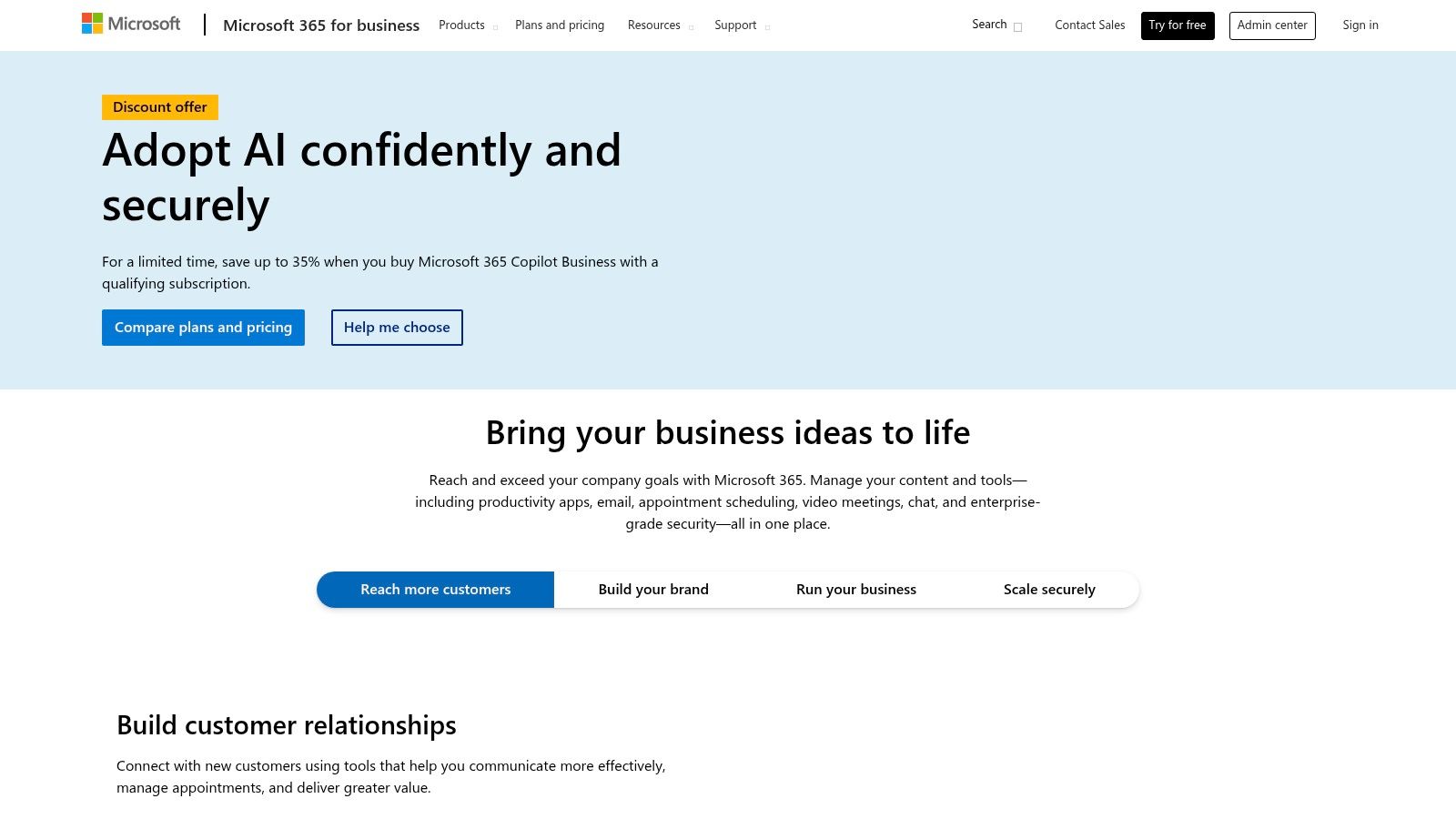
Unlike standalone apps, its strength lies in the interconnected experience. You can co-author a document in Word, share it via OneDrive, and instantly launch a Teams call to discuss edits without ever leaving the environment. This tight integration is what makes it a powerhouse for distributed teams and organized families alike.
Key Features and Use Cases
- For Small Businesses: The Business plans provide essential security and device management tools, allowing administrators to control access and protect company data on remote employee devices. This centralized control is critical for maintaining security and compliance.
- For Digital Nomads & Families: The Personal and Family plans are incredibly cost-effective. A Family plan allows up to six users, each getting 1TB of OneDrive storage and the full suite of Office apps, making it a budget-friendly way to equip an entire household.
Pro Tip: For families or small teams, sharing a Microsoft 365 Family subscription is a significant cost-saver. Using a platform like AccountShare can help manage the shared access and split the cost equitably, ensuring everyone benefits from premium tools without the full individual expense.
Pricing and Plans
Microsoft 365 offers a wide range of plans tailored to different users:
- Personal: ~$6.99/month for one person.
- Family: ~$9.99/month for up to six people.
- Business Basic: Starts at $6.00/user/month with web and mobile apps only.
- Business Standard: Starts at $12.50/user/month, adding desktop apps.
Website: https://www.microsoft.com/en-us/microsoft-365/business/
3. Google Workspace
Google Workspace is a deeply integrated productivity and collaboration platform that has become a staple for remote teams worldwide. It bundles essential tools like Gmail, Calendar, Meet, and Drive with collaborative apps such as Docs, Sheets, and Slides, creating a cohesive digital environment. Its core strength lies in its simplicity and powerful, real-time co-authoring capabilities.
Unlike competitors that may require extensive setup, Google Workspace excels with fast onboarding and an intuitive, browser-based interface. A team member can start a document in Docs, get instant feedback via comments, and transition to a video call in Meet seamlessly. This frictionless experience makes it one of the best tools for remote work, especially for agile teams that prioritize speed and ease of use.
Key Features and Use Cases
- For Startups & SMBs: The platform's simple administration and robust security controls, including Single Sign-On (SSO), make it easy to manage users and protect company data without a dedicated IT department.
- For Freelancers & Digital Nomads: Real-time collaboration in Docs and Sheets is unparalleled for client work, while pooled Drive storage and shared calendars simplify project coordination across different time zones.
Pro Tip: For smaller teams or groups of freelancers, a Business Standard plan offers significant value. You can use a tool like AccountShare to manage shared access to a plan, ensuring everyone gets features like larger meeting capacities and more storage while splitting the cost.
Pricing and Plans
Google Workspace offers several tiers designed for different business needs:
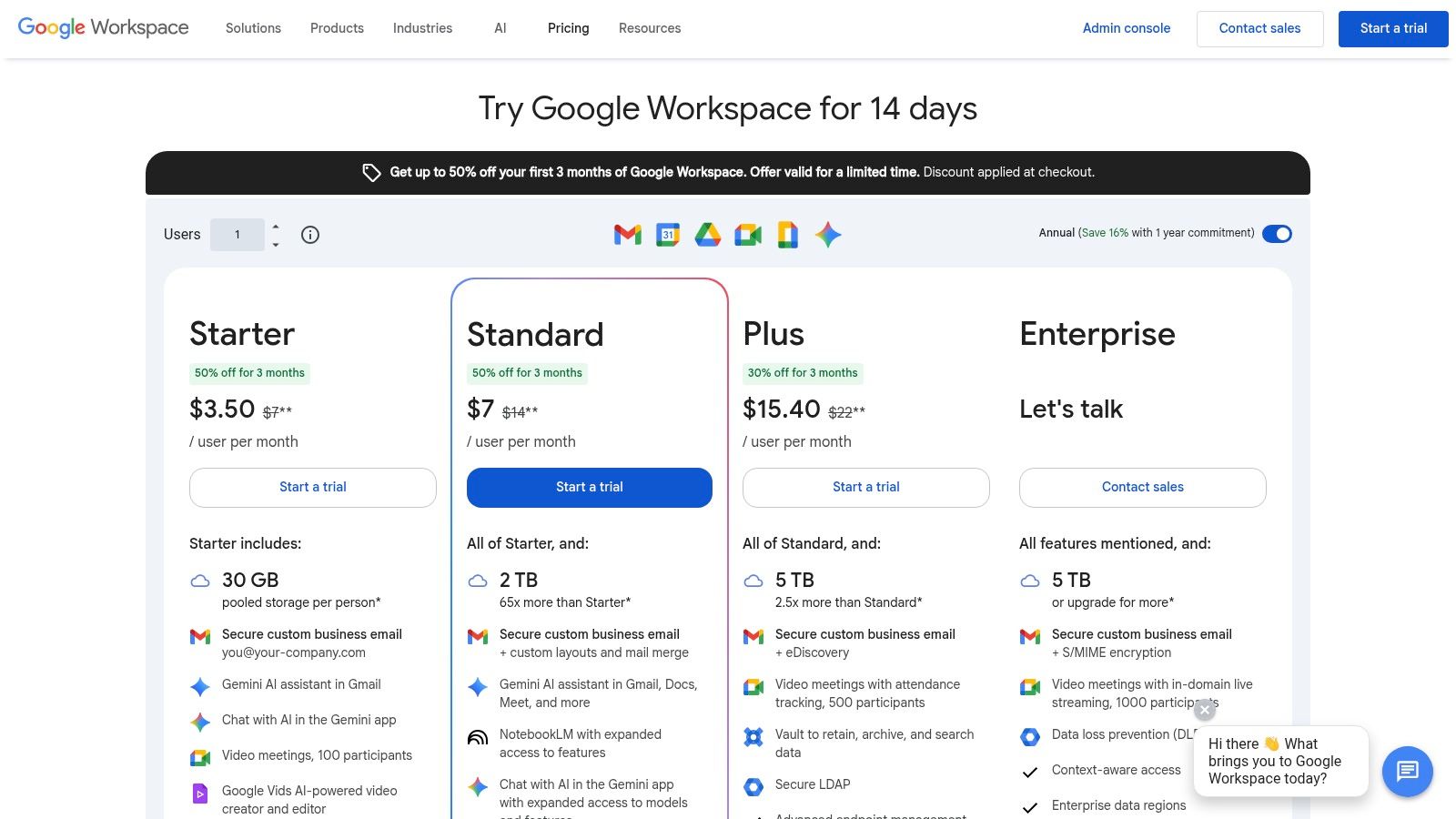
- Business Starter: Starts at $6/user/month with 30GB of storage per user.
- Business Standard: Starts at $12/user/month with 2TB of pooled storage per user.
- Business Plus: Starts at $18/user/month, adding enhanced security and compliance features.
- Enterprise: Custom pricing for advanced controls and larger organizations.
Website: https://workspace.google.com/pricing
4. Zoom
Zoom is a video-first communication platform that became synonymous with remote work due to its reliable, high-quality video meetings. It offers a comprehensive suite for collaboration, including HD video and audio, chat, webinars, and a cloud phone system, making it one of the best tools for remote work that requires seamless real-time interaction. Its simplicity and performance at scale are what set it apart.
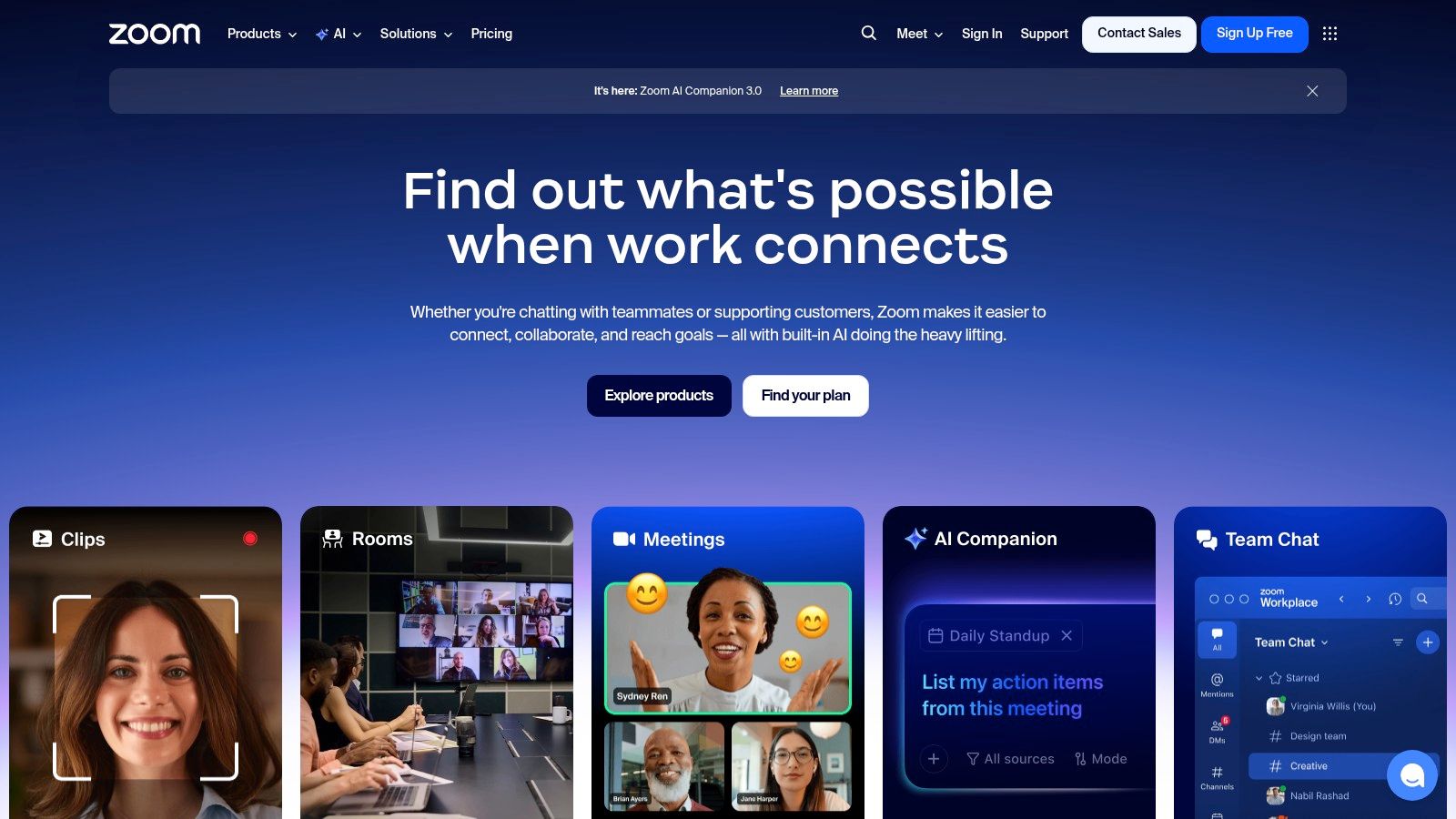
While many platforms offer video conferencing, Zoom’s strength lies in its robust infrastructure that consistently delivers clear audio and video, even with large numbers of participants. This reliability makes it an essential tool for everything from one-on-one check-ins to company-wide town halls.
Key Features and Use Cases
- For Hybrid Teams: Zoom Rooms and its broad hardware ecosystem allow businesses to equip conference rooms for seamless collaboration between in-office and remote employees, bridging the physical gap.
- For Freelancers & Consultants: The free plan is very generous, offering 40-minute meetings for up to 100 participants. This is often sufficient for client calls and project updates without requiring any investment. Paid plans offer features like AI Companion for meeting summaries and cloud recording.
Pro Tip: For small businesses or teams needing features like longer meetings and cloud recording, a single Pro license can be shared. Use a tool like AccountShare to manage login credentials securely and split the cost, allowing multiple team members to host professional meetings without each needing a separate paid plan.
Pricing and Plans
Zoom's pricing is modular, allowing users to choose the features they need:
- Basic: Free, with a 40-minute limit on group meetings.
- Pro: Starts at $15.99/month/license, removes the time limit and adds cloud recording.
- Business: Starts at $19.99/month/license, adds company branding and managed domains.
- Add-ons: Features like Zoom Phone, Webinars, and Large Meetings are available for an additional cost.
Website: https://zoom.us
5. Slack
Slack has fundamentally changed real-time team communication, making it one of the best tools for remote work. It replaces cluttered email inboxes with organized, topic-specific channels for public, private, or shared conversations. Its core strength lies in creating a centralized hub where messaging, file sharing, and app integrations converge, supporting both synchronous huddles and asynchronous collaboration.
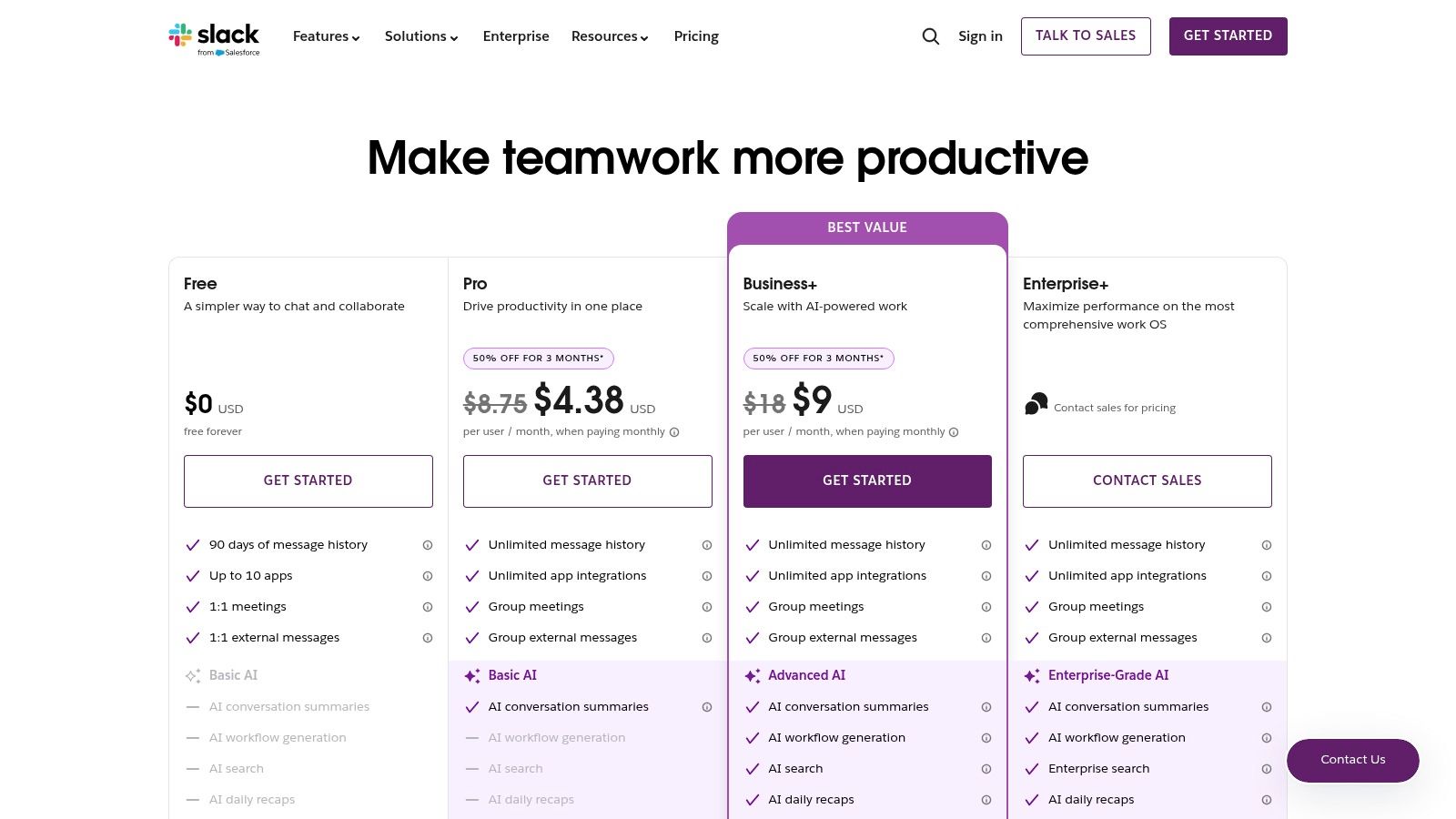
Unlike many communication apps, Slack's power is amplified by its massive integration ecosystem and features like Slack Connect, which allows seamless collaboration with external partners in a shared channel. This breaks down communication silos not just within a company, but between organizations, making it an indispensable asset for freelancers, agencies, and B2B businesses. Its searchable message history on paid plans also turns conversations into a valuable, accessible knowledge base.
Key Features and Use Cases
- For Remote Teams: Channels dedicated to specific projects or departments keep conversations focused and transparent. Huddles offer a quick way to start spontaneous audio or video calls, mimicking the "tap on the shoulder" of an office environment.
- For Freelancers & Agencies: Slack Connect is a game-changer for managing client communication. It provides a professional, organized space to collaborate with clients without adding them to your internal workspace, keeping sensitive information separate. You can explore a deeper dive into how it compares to other remote collaboration tools.
Pro Tip: For small teams or startups on a budget, the free version of Slack is highly functional. However, be mindful of the 90-day message history limit. Regularly export important information or upgrade to a paid plan as your team's need for a permanent, searchable archive grows.
Pricing and Plans
Slack offers plans that scale with team size and feature requirements:
- Free: Limited to 90 days of message history and 10 app integrations.
- Pro: Starts at $8.75/user/month with unlimited message history and integrations.
- Business+: Starts at $15/user/month, adding advanced identity management and compliance features.
Website: https://slack.com/pricing
6. Asana
Asana is a comprehensive work management platform that excels at bringing clarity and structure to team projects, making it one of the best tools for remote work. It moves beyond simple to-do lists by offering multiple project views like lists, boards, and timelines (Gantt charts), allowing teams to visualize progress in whatever way suits them best. This flexibility is crucial for remote teams who need a central source of truth for who is doing what, by when.
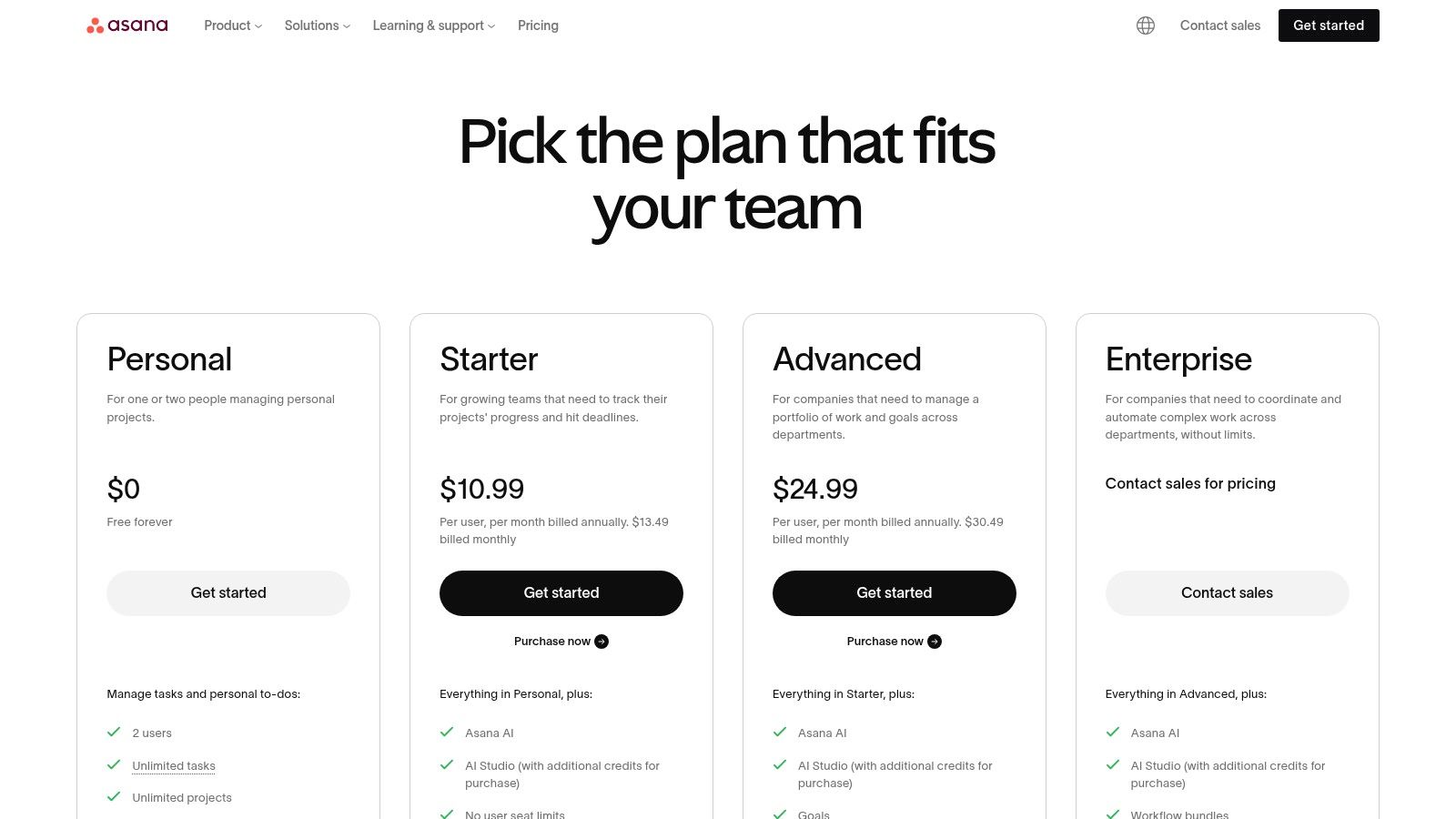
Its core strength lies in its ability to connect individual tasks to larger, cross-functional company goals. Unlike simpler task managers, Asana provides tools for portfolio management and workload tracking, giving managers clear visibility into team capacity and project health without constant check-in meetings. This structured approach helps prevent burnout and ensures everyone is aligned, no matter where they are located.
Key Features and Use Cases
- For Cross-Functional Teams: The Timelines and Portfolio views are invaluable for mapping out project dependencies and tracking progress across multiple initiatives. Marketing, product, and engineering teams can see how their work impacts one another in a shared space.
- For Individuals & Small Teams: The free plan is robust enough for personal project management or small teams getting started. The board view is perfect for agile workflows, while automations can handle repetitive tasks like assigning work or updating statuses.
Pro Tip: Use Asana's Forms feature to standardize incoming requests from other departments or clients. This ensures you receive all the necessary information upfront, cutting down on back-and-forth communication and streamlining your workflow from the very beginning.
Pricing and Plans
Asana offers tiers that scale from individuals to large enterprises:
- Personal: Free forever for individuals or small teams (up to 10 members).
- Starter: Starts at $10.99/user/month (billed annually), adding automations, timelines, and more.
- Advanced: Starts at $24.99/user/month (billed annually), with features like portfolios, workload, and goals.
Website: https://asana.com/pricing
7. Notion
Notion is the ultimate all-in-one workspace, combining documents, wikis, databases, and project management into a single, highly flexible platform. It has become one of the best tools for remote work by allowing teams to build a centralized "brain" for their entire operation, from standard operating procedures (SOPs) and team handbooks to complex project trackers. Its modular, block-based system lets you create exactly the workflow you need.
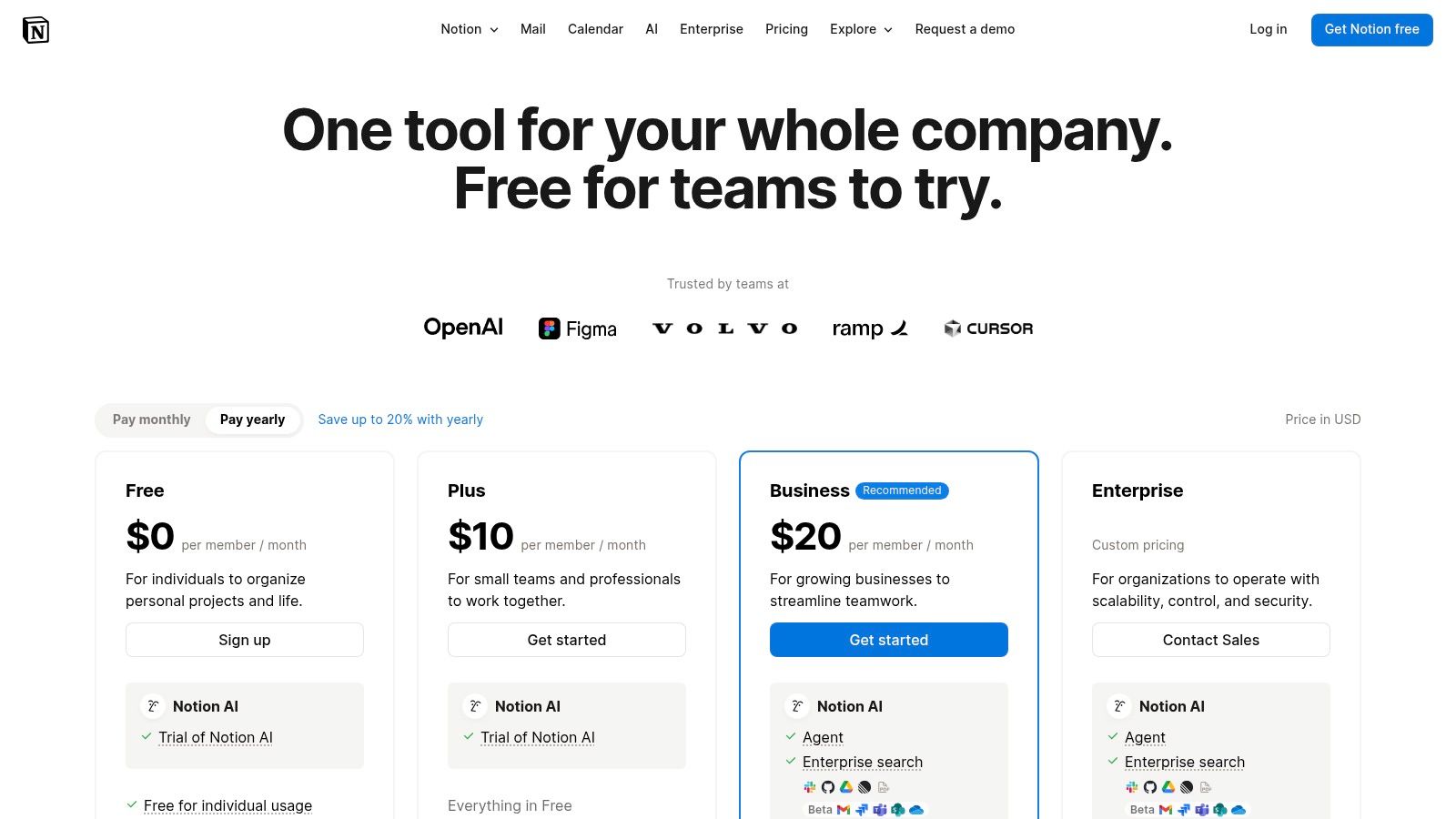
Unlike rigid project management tools, Notion's strength is its customizability. You can start with a simple to-do list and expand it into an interconnected database of tasks, projects, and meeting notes. This adaptability makes it perfect for remote teams that need to document processes and maintain a single source of truth without being confined to a specific structure.
Key Features and Use Cases
- For Small Businesses: Create a comprehensive team wiki, manage content calendars, and track lightweight projects using Kanban boards or timelines. Its ability to centralize knowledge is invaluable for onboarding new remote hires and ensuring consistent processes.
- For Students & Solopreneurs: Organize class notes, manage personal projects, and even build a simple portfolio website. The free plan is incredibly generous, offering unlimited blocks for individuals, making it a powerful tool for personal productivity.
Pro Tip: For small teams or startups on a budget, the Plus plan offers enhanced collaboration features. To make it more affordable, consider using a service like AccountShare to manage shared access and split the subscription cost, giving everyone access to powerful features like increased file uploads and version history.
Pricing and Plans
Notion offers several tiers, including a robust free option:
- Free: Unlimited blocks for individuals, with collaborative workspaces.
- Plus: Starts at $8/user/month (billed annually) for small groups needing more collaboration tools.
- Business: Starts at $15/user/month (billed annually) with advanced security features.
- Enterprise: Custom pricing for organizations needing enterprise-grade controls.
Website: https://www.notion.so/pricing
8. 1Password
In a remote work environment, managing dozens of passwords across various platforms is not just a convenience issue; it's a critical security challenge. 1Password addresses this head-on, serving as a secure vault for all your credentials, sensitive documents, and private notes. It stands out as one of the best tools for remote work because it makes strong, unique password generation and secure sharing effortless across all devices.
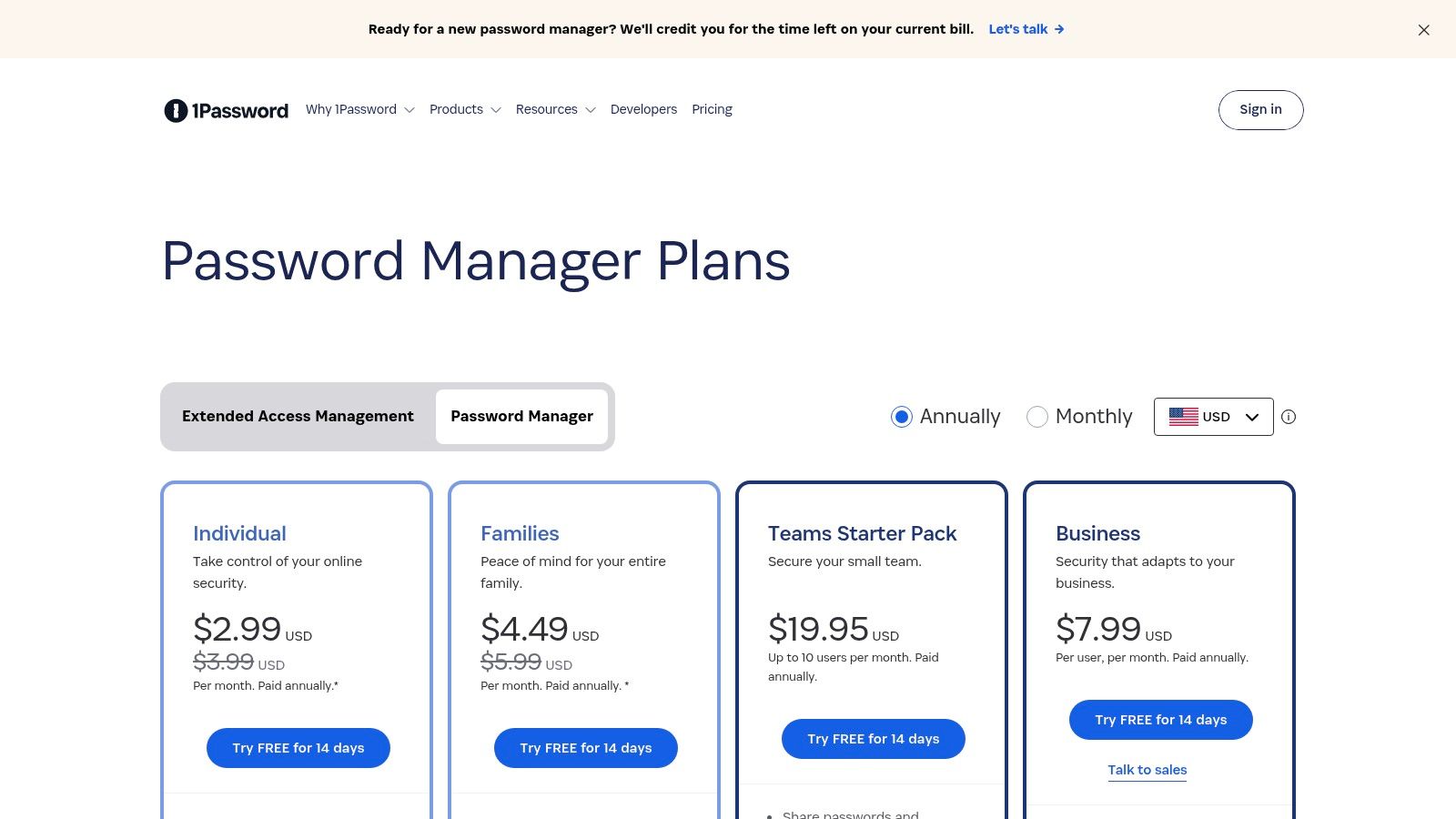
Unlike basic browser-based password managers, 1Password is a dedicated, cross-platform security solution built for individuals, families, and businesses. Its intuitive user interface and powerful features like Watchtower, which alerts you to compromised passwords and security vulnerabilities, empower remote teams to maintain a strong security posture without friction. This focus on both usability and robust security is why it’s a trusted choice.
Key Features and Use Cases
- For Remote Teams: The Business plan offers powerful tools like role-based access control, audit logs, and secure vault sharing. This allows an IT admin to grant a new team member access to all necessary app logins with a single click, then just as easily revoke access when they leave.
- For Families & Digital Nomads: The 1Password Families plan allows up to five people to share a single subscription, with private vaults for each member and a shared vault for common accounts like Wi-Fi passwords or streaming services. This makes it simple to manage household digital life securely.
Pro Tip: Securely managing shared credentials is a cornerstone of remote work. To understand the broader context, learn more about remote work security best practices and how tools like 1Password fit into a comprehensive strategy.
Pricing and Plans
1Password's pricing is structured for different user groups, with annual billing offering the best value:
- Individual: ~$2.99/month (billed annually).
- Families: ~$4.99/month (billed annually) for 5 family members.
- Teams Starter Pack: ~$19.95/month for up to 10 users.
- Business: Starts at $7.99/user/month.
Website: https://1password.com/pricing
9. NordVPN
NordVPN is a crucial security tool for remote work, providing a high-speed VPN that protects your internet connection, especially when using public Wi-Fi at cafes or coworking spaces. Beyond simple privacy, it acts as a comprehensive security suite designed to shield remote workers from online threats, ensuring company and personal data remains encrypted and secure no matter where you connect from.
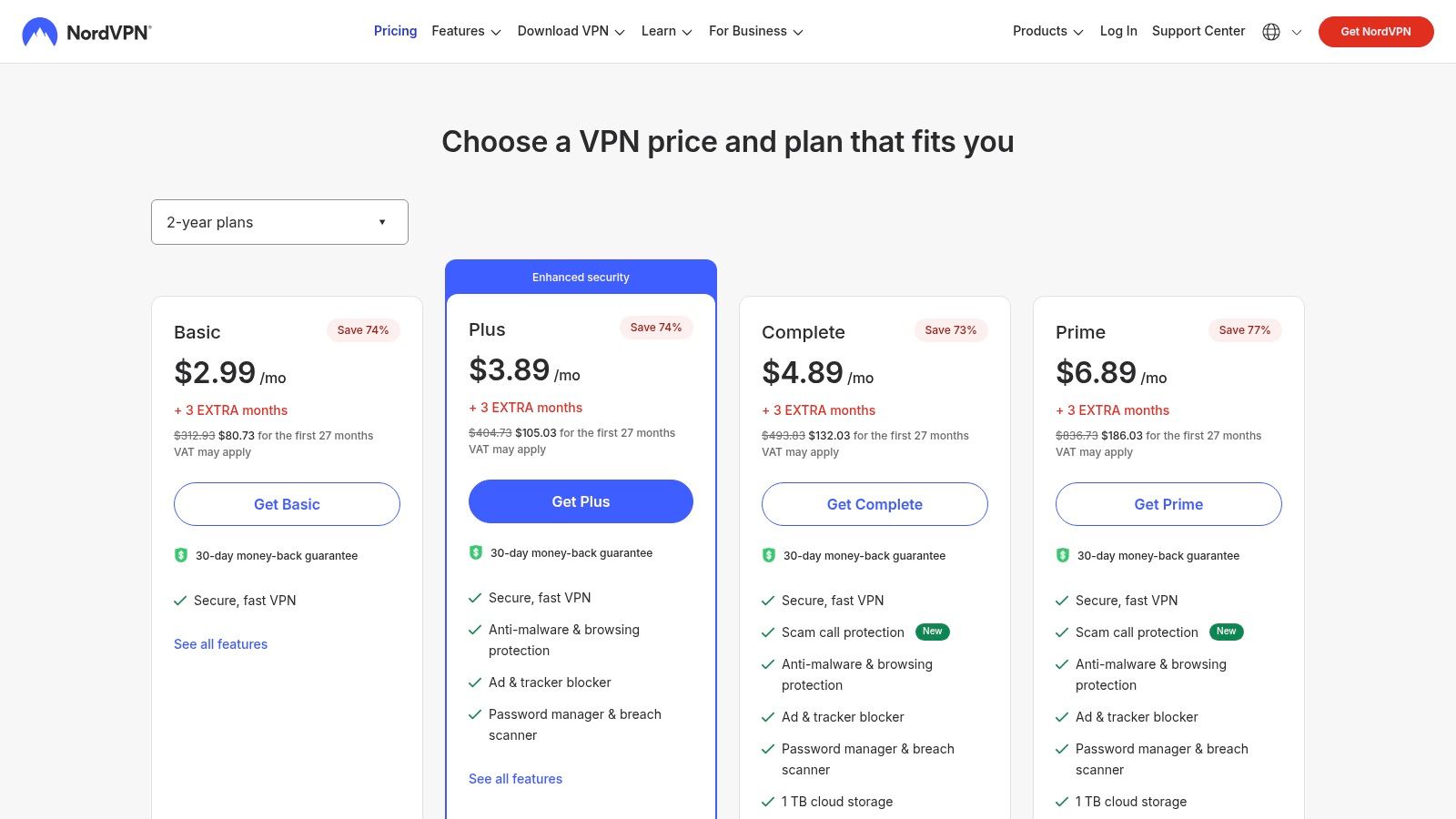
Its strength lies in bundling multiple security features into one subscription. With its Threat Protection feature, NordVPN actively blocks malware, malicious websites, and intrusive ads before they can harm your device. This proactive defense is invaluable for remote workers who may not have the robust network security of a traditional office.
Key Features and Use Cases
- For Digital Nomads: Securely access sensitive work files and banking information on unsecured public networks. The vast server network also allows you to access geo-restricted content and services from your home country.
- For Small Businesses: A single subscription can cover multiple devices for a small team, providing a standardized layer of security for all employees. This helps enforce security policies and protect company data on personal or company-issued laptops.
Pro Tip: A NordVPN plan can be shared among a family or a small group of trusted colleagues. By using a service like AccountShare, you can easily split the cost of a long-term plan, making premium online security highly affordable for everyone involved.
Pricing and Plans
NordVPN offers tiered plans, with the best value found in multi-year commitments:
- Standard: Starts around $3.99/month for the VPN and Threat Protection.
- Plus: Adds a cross-platform password manager and data breach scanner.
- Ultimate: Includes encrypted cloud storage and cyber protection benefits.
Website: https://nordvpn.com/pricing
10. Dropbox
Dropbox is a foundational cloud storage and file workflow platform that excels in providing reliable, cross-device access to files. As one of the original players in cloud sync, its strength lies in a stable and fast sync engine, making it one of the best tools for remote work for teams and individuals who need dependable file access and seamless external sharing capabilities. It has evolved beyond simple storage to include features like e-signatures and large file transfers.
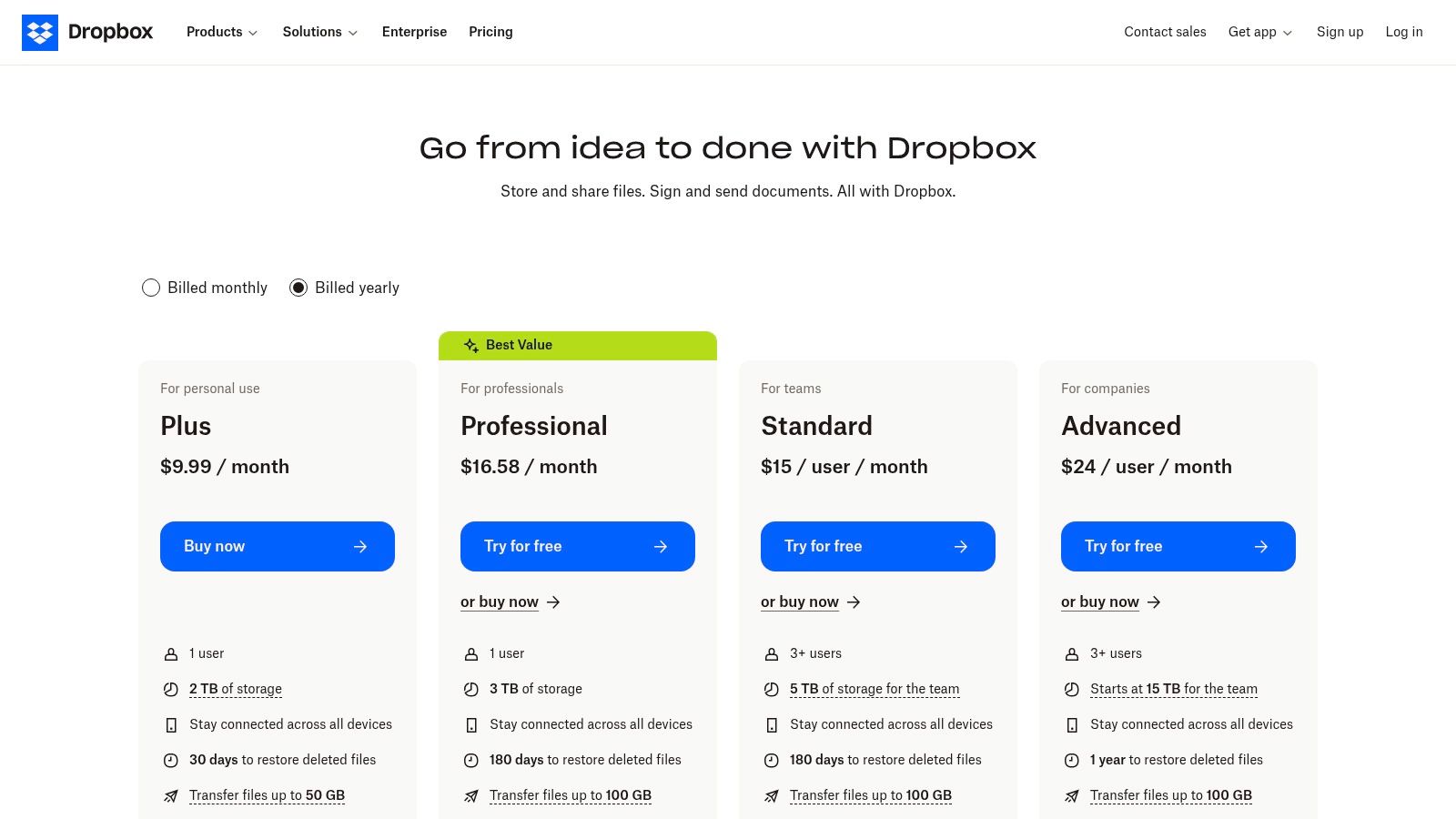
Unlike competitors that are part of a larger productivity suite, Dropbox focuses almost exclusively on the file management experience. This dedicated approach results in a refined user interface and powerful version history features, allowing users to recover previous versions of a file for up to 180 days on higher-tier plans, which is a lifesaver for collaborative projects.
Key Features and Use Cases
- For Freelancers & Creatives: The ability to send large files with Dropbox Transfer and create professional, trackable share links is ideal for delivering work to clients. The extended version history also protects against accidental edits or deletions.
- For Distributed Teams: The Business plans offer team folders, granular permissions, and robust admin controls. This ensures that sensitive company data is managed securely while remaining accessible to authorized remote employees.
Pro Tip: Dropbox Professional and Family plans offer substantial storage and advanced sharing features. Small teams or groups of freelancers can use a service like AccountShare to split the cost of a Professional plan, gaining access to premium features like extended version history and advanced link controls at a fraction of the individual price.
Pricing and Plans
Dropbox offers plans for individuals, families, and businesses of all sizes:
- Plus: ~$9.99/month for one user with 2 TB of storage.
- Family: ~$16.99/month for up to six users sharing 2 TB of storage.
- Professional: Starts at $16.58/month for one user with 3 TB and advanced features.
- Standard (Business): Starts at $15/user/month with 5 TB of team storage.
Website: https://www.dropbox.com/plans
11. Amazon (Amazon Business + retail)
While not a software tool, Amazon is an indispensable platform for equipping a productive home office, making it one of the best tools for remote work from a hardware perspective. It serves as a one-stop shop for everything from ergonomic chairs and standing desks to high-quality webcams, microphones, and monitors. The sheer scale of its inventory ensures options for every budget and technical requirement.
Its real power for remote teams lies in the Amazon Business accounts, which transform a consumer marketplace into a controlled procurement system. Businesses can set up multi-user accounts, establish approval workflows, and gain insights into spending. This bridges the gap between individual employee needs and centralized business purchasing.
Key Features and Use Cases
- For Businesses: Amazon Business allows companies to create approved product lists, manage spending with detailed analytics, and streamline purchasing across a distributed workforce. This is crucial for maintaining equipment standards and controlling expenses without complex reimbursement processes.
- For Individual Remote Workers: The vast selection, competitive pricing, and fast Prime shipping make it easy to quickly upgrade a home setup. Robust user reviews and return policies provide confidence when purchasing essential, and sometimes expensive, hardware.
Pro Tip: When setting up a home office, use Amazon's "Save for Later" or private Wish Lists to compare similar items like monitors or chairs over time. Prices often fluctuate, and this strategy helps you buy at the best possible moment without losing track of your options.
Pricing and Plans
- Standard Amazon Account: Free to create; Prime membership (~$14.99/month) offers shipping benefits.
- Amazon Business Account: Free to sign up. Optional Business Prime plans start at ~$69/year for one user, adding features like fast, free business shipping and spending visibility tools.
Website: https://business.amazon.com/
12. Best Buy – Home Office
While not a digital tool, a well-equipped physical workspace is fundamental to productivity, making Best Buy a critical resource. Its curated "Home Office" section simplifies sourcing essential hardware, from ergonomic chairs and standing desks to high-resolution monitors and reliable Wi-Fi routers. This makes it one of the best tools for remote work when you need to build or upgrade your setup quickly.
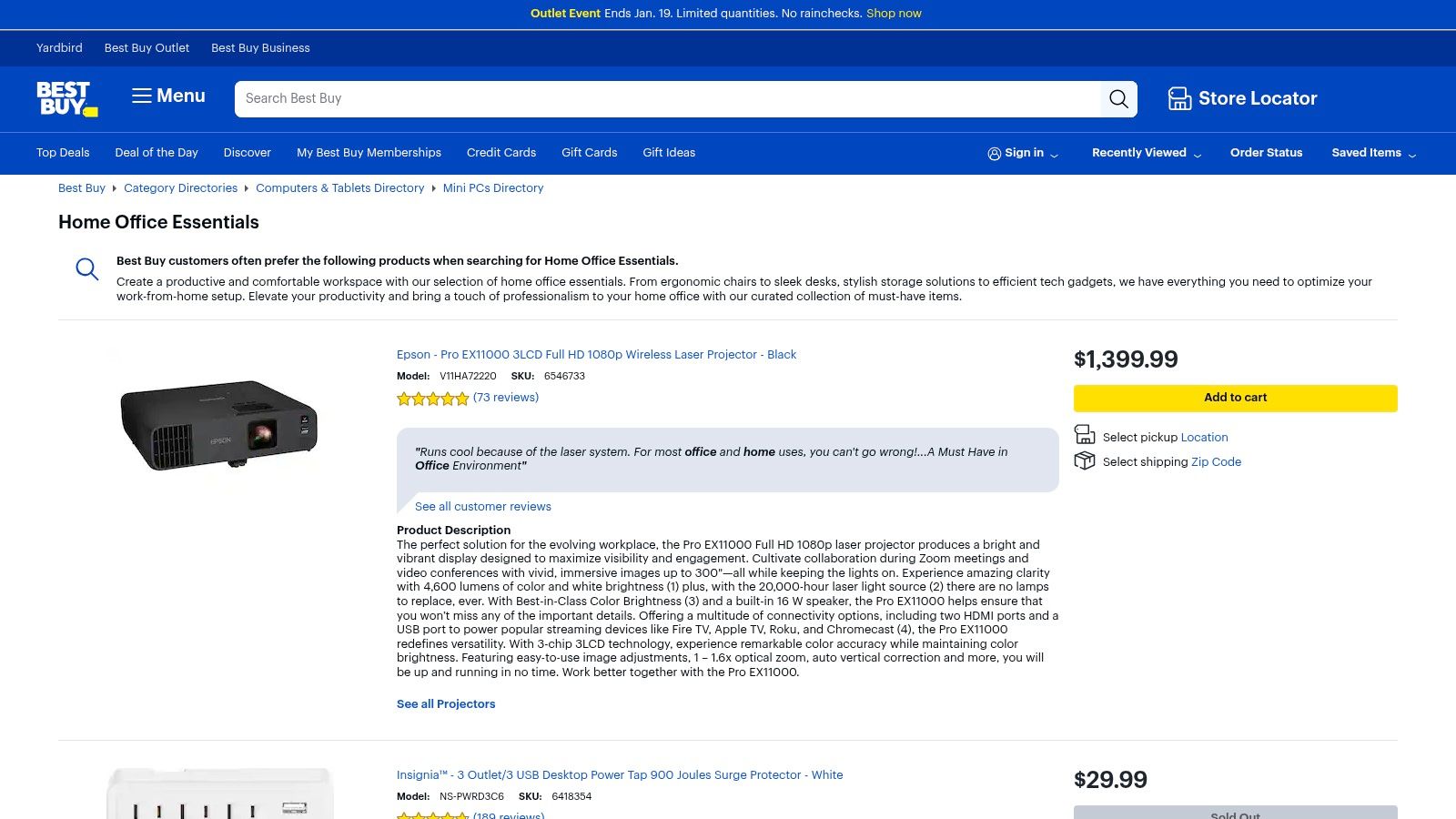
Unlike online-only retailers, Best Buy's major advantage is its physical footprint. The ability to see a monitor's display quality firsthand, test a keyboard's feel, or get same-day replacements for critical gear like a broken modem is invaluable. This hybrid online-and-in-store model provides flexibility that pure e-commerce sites can't match.
Key Features and Use Cases
- Urgent Hardware Needs: When a critical piece of equipment fails, the option for in-store pickup means you can be back online in hours, not days. This is a lifesaver for remote workers who can't afford downtime.
- Hands-On Shopping & Easy Returns: For items where personal preference is key, like office chairs or monitors, being able to see and touch the product before buying is a significant benefit. The hassle-free local return process is also a major plus over shipping items back.
Pro Tip: Keep an eye on Best Buy's "Open-Box" deals online. You can often find like-new monitors, printers, and other home office essentials at a significant discount, and you can still pick them up in-store the same day.
Pros and Cons
- Pros: Ability to see and return items locally, provides in-store Geek Squad support for setup and repairs, excellent for urgent needs with same-day pickup.
- Cons: In-store inventory can be limited by location, and some prices may be higher than on competitive online-only storefronts.
Website: https://www.bestbuy.com/site/shop/home-office-essentials?utm_source=openai
Top 12 Remote Work Tools — Quick Comparison
| Product | Core features | Quality (★) | Price/value (💰) | Target audience (👥) | Unique perks (✨) |
|---|---|---|---|---|---|
| 🏆 AccountShare | Group-buy subscriptions; shared-seat management; instant credential delivery | ★★★★ Reliable, fast support | 💰 Typical shared-seat ~$10; major savings vs retail | 👥 Students, families, small teams, AI power users | ✨ Instant access; password-sharing controls; priority feature access |
| Microsoft 365 | Office apps, OneDrive, Teams, admin & security | ★★★★ Deep, enterprise-ready | 💰 Per-user tiers (Personal → Business); Copilot add‑on | 👥 Businesses, enterprises, households | ✨ 1TB/user, tight app integration, admin controls |
| Google Workspace | Gmail, Drive, Meet, Docs/Sheets; pooled storage | ★★★★ Strong collaboration | 💰 Per-user pricing; pooled storage on some plans | 👥 SMBs, education, real-time collaboration teams | ✨ Real-time coauthoring; Gemini AI; simple admin |
| Zoom | HD meetings, webinars, Zoom Phone, Events | ★★★★ Best-in-class video reliability | 💰 Freemium; paid add‑ons for large meetings/phone | 👥 Remote teams, webinar hosts, event organizers | ✨ Scalable video, Phone & Events ecosystem |
| Slack | Channels, DMs, huddles, workflows, integrations | ★★★★ Excellent async collaboration | 💰 Freemium; paid for full history & advanced features | 👥 Teams needing searchable, async comms | ✨ Huge app marketplace; Slack AI summaries |
| Asana | Tasks, boards, timelines, reporting, automations | ★★★★ Strong planning & reporting | 💰 Freemium; paid tiers for portfolios & time tracking | 👥 PMs, cross-functional teams, scaling orgs | ✨ Workload views, automations, enterprise reporting |
| Notion | Docs, databases, templates, lightweight PM | ★★★★ Highly flexible | 💰 Freemium; paid for teams/enterprise features | 👥 Knowledge teams, startups, SOP owners | ✨ Modular pages/databases; templates & AI tools |
| 1Password | Cross-platform vaults, sharing, role-based access | ★★★★ Strong security UX | 💰 Individual/family/business pricing; annual best value | 👥 Families, businesses, developers | ✨ Secure sharing, Watchtower alerts, SSO integrations |
| NordVPN | High-speed VPN, Threat Protection, extras | ★★★★ Robust privacy features | 💰 Discounted long-term plans; multi-year best value | 👥 Remote workers, travelers, privacy-minded users | ✨ Threat protection, identity/cloud extras, 30-day refund |
| Dropbox | Sync, sharing, eSign, backup, admin controls | ★★★★ Reliable sync engine | 💰 Tiered plans; team minimums on business tiers | 👥 Distributed teams, external collaborators | ✨ Stable sync, eSign & file transfer controls |
| Amazon (Business + retail) | E‑commerce for hardware, Business procurement tools | ★★★★ Massive selection & logistics | 💰 Wide price range; frequent deals; business discounts | 👥 Procurement teams, buyers outfitting offices | ✨ Vast inventory, Prime shipping, Business analytics |
| Best Buy – Home Office | Curated home-office gear, Geek Squad, pickup | ★★★★ Good local support & selection | 💰 In-store/open-box deals; financing options | 👥 Local shoppers, urgent/hands‑on buyers | ✨ In-store pickup, Geek Squad setup & repairs |
Building Your Perfect Remote Work Stack
Navigating the vast landscape of digital tools can feel overwhelming, but building your ideal remote work environment doesn't have to be a monumental task. The key isn't to adopt every popular app, but to strategically assemble a personalized "stack" that addresses your specific challenges and enhances your daily workflow. This guide has walked you through some of the best tools for remote work, from foundational suites like Microsoft 365 and Google Workspace to specialized solutions like Asana for project management and NordVPN for security.
The journey to an optimized setup is deeply personal. A digital nomad might prioritize lightweight, cloud-based tools and robust security, while a small business owner will focus on scalable collaboration and centralized administration. Similarly, a family managing shared home and work life will benefit from bundling subscriptions and using platforms like AccountShare to manage access and costs effectively.
Key Takeaways for Building Your Stack
Remember, the goal is to create a seamless, integrated system that works for you, not against you. As you review your options, keep these core principles in mind:
- Prioritize Integration: The most powerful tool stacks are those where the individual components work well together. Can your project management tool sync with your communication app? Does your cloud storage integrate with your productivity suite? Reducing the friction between applications saves time and minimizes frustration.
- Focus on Your Pain Points: Before you commit to a new subscription, identify the biggest bottleneck in your current process. Is it disorganized communication, missed deadlines, or inefficient file sharing? Choose tools that directly solve these core problems first.
- Embrace Scalability and Flexibility: Your needs will evolve. The best tools for remote work are those that can grow with you. Opt for solutions with flexible pricing tiers and features that can adapt whether you're a student, a freelancer, or leading a growing team.
- Security is Non-Negotiable: In a remote setting, your digital perimeter is your first line of defense. A secure password manager like 1Password and a reliable VPN are not optional luxuries; they are fundamental components of a professional and safe remote work environment.
Actionable Next Steps to Get Started
Feeling ready to upgrade your toolkit? Here’s a simple, actionable plan to move forward:
- Conduct a Personal Audit: List all the software and subscriptions you currently use. Identify what’s working, what’s redundant, and where the gaps are.
- Utilize Free Trials: Almost every tool we've mentioned offers a free trial or a freemium plan. Dedicate time to test-drive your top two or three choices for each category before making a financial commitment.
- Think Beyond Individual Subscriptions: For premium software that seems out of reach, explore cost-sharing models. Services like AccountShare allow you to legally and securely split the cost of family or business plans, making enterprise-grade tools more accessible. To build a robust and efficient remote work setup, consider reviewing the best collaboration tools for remote teams that can integrate into your workflow.
- Implement Incrementally: Don't try to overhaul your entire system overnight. Introduce one new tool at a time, get comfortable with it, and ensure it integrates smoothly before adding the next piece to your stack.
Ultimately, the perfect remote work setup is an ecosystem that empowers you to be productive, connected, and secure, regardless of your physical location. By making deliberate, informed choices, you can craft a digital environment that not only supports your work but actively helps you thrive in the new era of remote collaboration.
Ready to make premium remote work tools more affordable? AccountShare helps you securely share subscription costs with your family, friends, or colleagues, giving you access to the best software without the full price tag. Start building your ultimate, cost-effective remote stack today at AccountShare.