

Backup: backup codes for google authenticator - stay secure on any device
Think of Google Authenticator backup codes as a set of 10 single-use "get out of jail free" cards for your Google account. They are your last line of defense, designed to get you back in when your primary two-factor authentication (2FA) method—usually your phone—is lost, stolen, or otherwise out of commission.
They are, quite literally, your emergency keys to your digital kingdom.
Why Backup Codes Are Your Digital Lifeline
We’ve all had that heart-stopping moment. Your phone slips from your grasp, and the screen goes dark for good. Or worse, you're on a trip, and it vanishes. In an instant, you're not just without a phone; you're locked out of everything. Your email, your photos, your work documents—it's a full-blown digital disaster.
This is precisely where Google's backup codes prove their worth. They aren't just some optional, nice-to-have feature. They are the essential safety net standing between you and a catastrophic lockout.

Real-World Scenarios Where Codes Save The Day
Let’s get practical. Here are a few all-too-common situations where having those codes printed out or saved somewhere safe makes all the difference:
- Your phone is gone. Whether it’s lost or stolen, your authenticator app is gone with it. Without backup codes, you’re looking at a painfully slow and frustrating account recovery process.
- An unexpected factory reset. A nasty software bug or an accidental tap can wipe your phone clean, taking your authenticator setup with it.
- You get a new phone. In the excitement of upgrading, it’s easy to forget to transfer your authenticator settings before wiping the old device.
- The phone is just... broken. A dunk in the pool or a serious drop can render it completely useless, making it impossible to get a 2FA code.
In every one of these cases, a backup code lets you sign in, set up 2FA on a new device, and get on with your life. This is especially true for teams who share access to tools through services like AccountShare, where one person’s lockout can bring an entire team’s workflow to a grinding halt.
The numbers don't lie. Verizon’s Data Breach Investigations Report found that 81% of hacking-related breaches used weak or stolen passwords. 2FA can cut that risk by a staggering 99%, but it only works if you can get in. Shockingly, surveys show that 43% of users have been locked out by 2FA, usually because they lost their phone and had no backup plan.
Your backup codes are the master key that bypasses the digital gate when your primary key is gone. Neglecting to save them is like locking your front door but leaving the only key inside.
Understanding the bigger picture of data security and privacy, even during something as routine as a phone repair, highlights just how vital these safeguards are. Taking five minutes to generate and securely store your codes is one of the smartest security moves you can make. For more on this, check out our guide on how to https://accountshare.ai/blogs/new/prevent-unauthorized-access-10-key-security-tips.
How to Get Your 10 Google Backup Codes
Getting your hands on these digital lifelines is surprisingly simple, but you have to know exactly where to look. Think of it less as a chore and more like a crucial pre-flight check before you travel, get a new phone, or find yourself in a jam.
First things first, you need to head into your main Google Account settings. A common misconception is that these codes live inside the Authenticator app itself—they don't. They're managed at the core account level, which makes sense since they protect everything tied to your Google identity.
The screenshot below shows the main dashboard of your Google Account's security settings page. This is your command center.
This hub is where you control your password, recovery options, and, most importantly for us, your 2-Step Verification settings.
Navigating to Your Codes
Once you're in the Security tab of your Google Account, you’re in the right place. Your next move is to find the section called "How you sign in to Google."
Inside that box, you’ll see the 2-Step Verification option. Click on it. Google will almost certainly ask you to sign in again just to prove it’s really you.
After you've verified your identity, you’ll land on a page showing all your 2-Step Verification methods. Just scroll down a bit until you spot the Backup codes section. It's often tucked away near the bottom, but it's the treasure you're looking for.
Viewing and Securing Your Codes
Clicking on "Backup codes" will finally reveal your current set of 10 unique, eight-digit codes. This is a critical moment, and you have a few options:
- View Codes: They'll pop up right on your screen.
- Print Codes: This is my personal recommendation. It gives you a physical copy you can store offline.
-
Download Codes: This saves the codes as a simple text file (
backup-codes-username.txt) to your device.
Key Takeaway: Treat these codes like one-time-use keys. As soon as you use one, it's dead. And if you ever generate a new list, the entire old set is immediately wiped out. This is a vital security feature, so don't get caught trying to use an old, printed list!
Let's say you're heading overseas where cell service is notoriously unreliable. Generating and printing these codes before you leave is a brilliant move. It means you can still get into your email and other accounts even without a network connection.
It's also worth pointing out a big change in how Google Authenticator works. Since early 2023, the app can now sync your one-time codes to the cloud. The catch? You still need your main Google password to restore them, which makes these 10 backup codes the ultimate emergency escape hatch when everything else goes wrong. To get a better handle on this new feature, it's a good idea to check out some up-to-date Google Authenticator tutorials.
Smart Strategies for Storing Your Codes Securely
So, you've just generated a fresh set of Google backup codes. Great first step. Now for the most important part: where do you keep them? Just downloading the file to your computer or, worse, leaving it in an email draft is a huge security mistake. The whole point is to have these codes handy in an emergency while keeping them locked away from everyone else.
Think of these codes like physical cash or your passport. You wouldn't just leave those sitting on your desk. They need to be stored with that same level of care—somewhere safe, secure, and accessible only to you when things go wrong.
The process of getting your codes is simple enough, as this flowchart shows. The real strategy comes in what you do next.
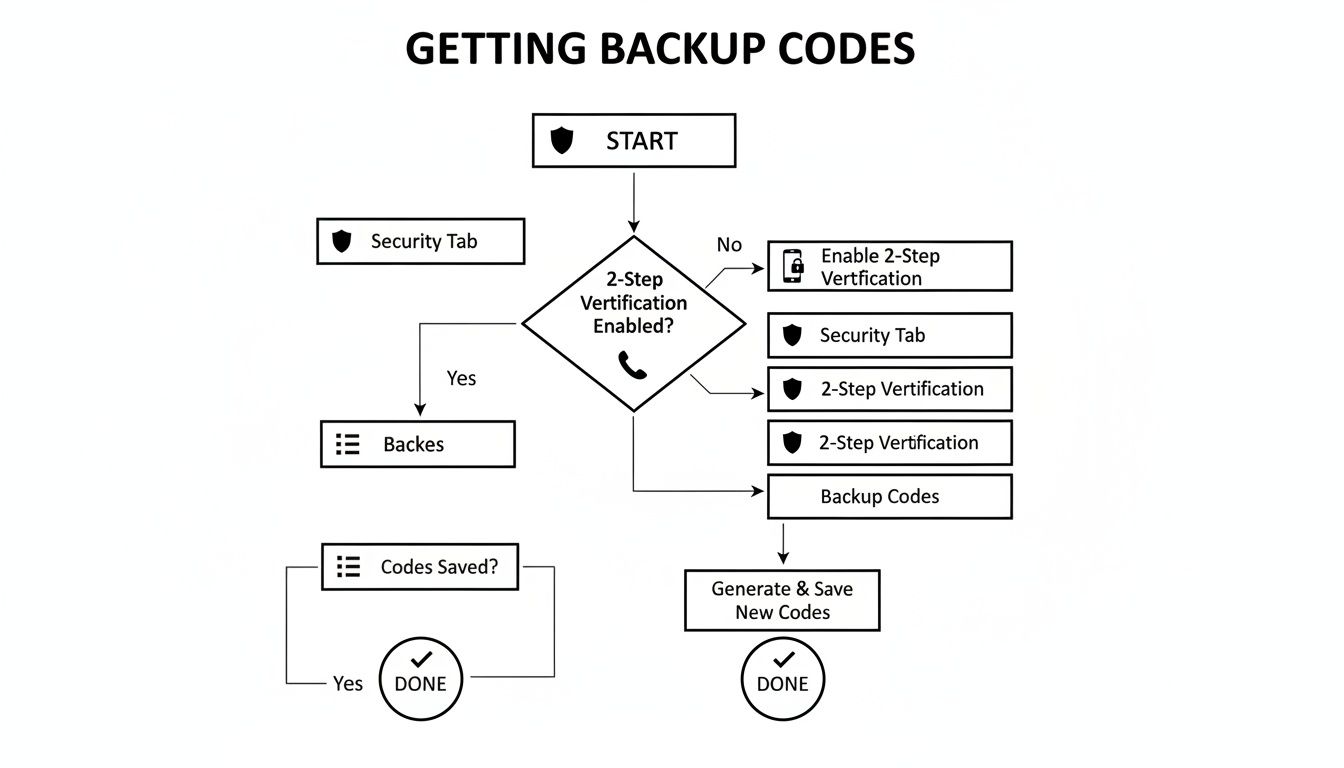
This visual guide breaks down the steps within your Google Account's security settings. It's a quick but essential security check-up everyone should do.
Physical Storage: The Gold Standard
When it comes to backup codes, nothing beats having a physical copy. It's completely offline and immune to digital threats like hacking or malware. Redundancy is your best friend here.
- Print two copies. Seriously, don't just print one. Paper gets lost, damaged in a flood, or accidentally thrown out. Having a backup for your backup is just smart planning.
- Keep one at home. A fireproof safe or a locked filing cabinet is the perfect spot for your primary copy. This protects it from theft, prying eyes, and unforeseen accidents.
- Store the second copy off-site. This is the crucial part. Give the second copy to a trusted family member or put it in a safe deposit box at your bank. If something happens at home—a fire, a break-in—you'll still have a way to get back into your account.
Security experts have been recommending this approach since at least 2019, because it’s a time-tested, effective strategy. As the experts at Protectimus.com explain in their guide to Google Authenticator best practices, these physical codes are your last line of defense. Losing them means you're stuck with Google's often-frustrating account recovery process.
Digital Storage: A Cautious Approach
While physical copies are king, some digital methods can work if you're careful. The key is to avoid storing them in plain text anywhere on a cloud drive or your local documents folder.
A Quick Warning: Using a password manager is a popular option, but be aware of the risk. If you get locked out of your password manager for any reason, you've just locked yourself out of your backup codes, too. It can create a single point of failure.
If you're going the digital route, consider these options:
- A Password Manager's Secure Notes: Most high-quality password managers include a "Secure Note" feature. This is an encrypted field perfect for storing sensitive text. It’s a world away from a simple text file on your desktop.
-
An Encrypted USB Drive: Save the downloaded
.txtfile onto a USB stick, and then use a tool to encrypt the entire drive. Just remember to store that USB drive somewhere safe—they're small and very easy to misplace!
Deciding where to store your codes depends entirely on your personal security needs and what you're comfortable with. To help you choose, here's a quick comparison of the most common methods.
Comparing Backup Code Storage Methods
| Storage Method | Security Level | Accessibility | Best For |
|---|---|---|---|
| Printed Paper (in Safe) | High | Moderate | Individuals who prioritize offline security and have a secure physical location. |
| Password Manager | High | High | Tech-savvy users who already rely on a password manager for everything. |
| Encrypted USB Drive | Moderate | Moderate | Users comfortable with managing physical devices and encryption software. |
| Off-Site Physical Storage | Very High | Low | The ultimate backup plan; storing a copy with a trusted person or in a bank vault. |
Ultimately, the best method is one you'll actually use and maintain. Whether you choose a fireproof safe or an encrypted note, the goal is to ensure you can always get back into your account, no matter what happens.
For teams using AccountShare or managing shared accounts, one person holding all the keys is a recipe for disaster. The team lead should use a business-grade password manager to securely grant access to the codes to a few trusted individuals. This way, if one person is unavailable, the whole workflow doesn't grind to a halt. Our guide to the 10 best password management tools for 2025 can help you find the right fit for your team's needs.
Using a Backup Code and Restoring Access
We've all been there—that sinking feeling when you're staring at the Google login screen, but your phone is nowhere to be found. Maybe it's lost, broken, or just sitting on your kitchen counter miles away. This is precisely why you have those backup codes. Getting back in can feel stressful, but if you've prepared, the process is surprisingly simple.

When Google asks for your 2FA code, don't panic. Look for a link that says “Try another way” or something similar. This is your lifeline.
Clicking it reveals all the other verification methods you've set up. You should see an option to use one of your backup codes for Google Authenticator. Select it, and you’ll get a field to enter one of the eight-digit codes from your list. Type it in carefully, hit enter, and you're back in.
Critical Steps After You Regain Access
Getting back into your account is a huge relief, but your work isn't finished. Think of it as a fire drill—you passed the test, but now you need to reset the system. Taking these next steps immediately is crucial for keeping your account secure.
Here’s your essential post-recovery checklist:
- Generate a new set of backup codes right away. As soon as you use one code, the entire list is compromised. Don't risk it. Head straight back to your Google Account’s security settings and generate a fresh set. This automatically invalidates all the old codes, instantly re-securing your account.
- Set up 2FA on your new device. If you were locked out because you got a new phone, the very next thing you should do is install Google Authenticator and connect it to your account. This puts your primary line of defense back in place.
Following through on these two steps doesn't just fix the immediate lockout. It reinforces your account for the long haul, making sure this digital headache doesn't happen again.
Important Reminder: Each backup code is strictly a one-time-use key. Once you enter a code to get back in, it’s burned forever. I always make a point to physically cross it off my printed list the moment I use it. This small habit prevents a lot of future confusion and failed login attempts.
When to Use a Backup Code
A lost or broken phone is the classic reason, but it's not the only one. Backup codes are also your best friend when you’re traveling without cell service and can't receive SMS codes, or if your authenticator app is just glitching out.
They're also incredibly useful in shared account situations, which is common for our AccountShare users. Imagine the primary account holder is on a flight and a critical login is needed. A securely shared backup code can prevent major downtime for the whole group. In these cases, backup codes go from being a personal safety net to a vital tool for team continuity, keeping everything running smoothly for everyone.
Beyond Backup Codes: Layering Your Account Security
Think of your backup codes for Google Authenticator as the emergency key hidden under a rock. It's great to have, but it shouldn't be your only line of defense. Real digital security isn't about one perfect solution; it's about building layers of protection. Just like you lock your front door, close the windows, and set an alarm at home, your Google account needs a similar multi-pronged strategy.
Relying on a single recovery method—even one as solid as backup codes—is a gamble. If that one method fails, you're locked out. By weaving together a few different recovery options, you create a robust safety net that makes it far more likely you'll always be able to get back in.
Simple, Powerful Add-Ons: Recovery Phone & Email
Two of the easiest and most effective layers you can add are a recovery phone number and a secondary email address. They might seem basic, but they give Google different ways to confirm it's really you trying to sign in.
- Recovery Phone Number: This lets Google text you a verification code. It’s incredibly handy for a quick login when you have cell service but might not have your primary device.
- Recovery Email Address: This needs to be an email you can access separately from your Google account (think a Microsoft or Proton account). If you get locked out of your main Gmail, this becomes a secure lifeline for password resets.
These options don't replace your backup codes; they work alongside them, giving you more flexibility. To see how these fit into a complete security framework, check out our guide on top credential management best practices for secure accounts.
The Gold Standard: Physical Security Keys
If you're looking for the absolute strongest protection available, it's time to consider a physical security key. These are small devices—often looking like a USB stick—that provide a cryptographic signature proving you are physically there when you log in.
Here’s a look at Google's own Titan Security Keys, a popular choice for this.
A key like this makes it virtually impossible for someone to access your account remotely, even if they've stolen both your password and a backup code. When prompted, you simply tap the key, and it sends a secure signal that can't be phished or intercepted. It's about as close as you can get to an unbreakable digital lock.
Expert Tip: A physical key is a powerful addition, not a replacement. Always keep your backup codes stored in a safe place. The key protects you from online threats, while the codes protect you if you lose the key itself.
A Word on Google Authenticator's Cloud Sync
Google recently rolled out a cloud sync feature for its Authenticator app. This update automatically backs up your 2FA codes to your Google Account, which is a lifesaver if you get a new phone.
But this convenience comes with a security trade-off. By syncing your codes, you're tying their security back to your main Google password. If someone compromises your password, they could potentially get access to your synced 2FA codes, too. For this reason, many security-conscious users opt to keep cloud sync turned off, preferring to stick with manual transfers and offline backup codes for Google Authenticator for maximum protection.
Got Questions About Backup Codes?
It's natural to have questions when you're dealing with something as important as account security. Let's tackle some of the most common ones I hear from people trying to get this right.
What Happens If I Use All 10 Codes?
Once you've used that tenth and final code, your backup plan is officially exhausted. You'll need to sign into your account as soon as possible and generate a completely new list.
Think of it this way: the moment you generate a new set of 10 codes, your old list becomes completely useless. This is a crucial security feature. So, make sure you immediately find and destroy any old printed copies to avoid mixing them up later. Getting locked out is stressful enough without trying to use an invalid code.
It's like having a spare key to your house. If you use it because you lost your main key, the first thing you do is get a new set of locks and keys. Same logic applies here. A used code means it's time for a fresh set.
Can I Use the Same Backup Code More Than Once?
Nope, never. Each code is a one-shot deal. Once you use it to sign in, it's immediately deactivated for good.
This is by design. It prevents someone who might find your old list from using a code you've already redeemed. I always tell people to physically cross off a code the second they use it. It's a simple habit that can save you a ton of frustration down the road.
Is Storing My Codes in a Password Manager a Good Idea?
Using a password manager's "Secure Note" feature is a decent digital storage option. It's definitely a smarter move than keeping them in a plain text file on your computer.
But here's the catch: it creates a single point of failure. If you ever get locked out of your password manager, you've just lost your backup codes for Google Authenticator too. That's why most security pros, myself included, still lean towards a physical copy stored in a safe place as the most reliable method.
Do My Google Authenticator Backup Codes Expire?
Technically, no. Your current list of backup codes won't expire on its own. They remain active indefinitely until you do one thing: generate a new set.
The second you create a new list, the old one is instantly and permanently disabled. There's no grace period.
Juggling shared account access can be a real headache. With AccountShare, we simplify the entire process, making it secure and straightforward for your team to access the tools they need. Learn more about how AccountShare can help you.