

Your Guide to Sharing Games on the PS4
Yes, you can absolutely share games on a PS4, and it's all thanks to a built-in feature called 'Activate as Your Primary PS4'. Think of it as Sony's official method for a single household to share one digital game collection across multiple users.
This setting essentially ties your entire digital library to one specific PS4 console. Once you've done that, anyone who logs into that PS4 can play your games, even on their own separate accounts.
How PS4 Game Sharing Actually Works
At its heart, game sharing on the PS4 isn't some clever hack or a sneaky workaround. It’s a legitimate, powerful feature baked right into the PlayStation Network, designed around the idea of a "home" console.
When you designate a PS4 as your primary console, you're basically telling Sony, "This is my main machine. Anyone who uses it should have access to my digital stuff." This gives that specific console a set of special permissions. Every other user profile on that PS4 can now fire up your downloaded games, use your PlayStation Plus for online multiplayer, and even play everything offline without a hitch.
This was a brilliant move for the PlayStation 4, a console that sold a staggering 117 million units globally, making it one of the most popular of all time. The ability to effectively use a single digital library on two consoles at once was a huge value-add for families and friends. For more on the PS4's incredible run, check out these PlayStation statistics from ElectroIq.com.
The Two Sides of the Coin
So, what does this look like in practice? Let's say you're sharing with a friend. They would log into their PS4 using your account details, navigate to the settings, and activate their console as your account's primary PS4.
From that moment on, your entire digital game library becomes available for them to download and play using their own personal profile.
Meanwhile, you'll be playing on what the system now considers your "secondary" console. You still have full access to all your games, but there's one important catch: your PS4 must be connected to the internet to verify your game licenses before you can play. That's the core trade-off. If you want to dive deeper into the basics, our complete digital gaming guide on what game sharing is is a great place to start.
To make this clearer, let's break down what each console gets when you set up game sharing.
Game Sharing on PS4 Key Features at a Glance
| Feature | Primary PS4 Console | Secondary PS4 Console |
|---|---|---|
| Offline Play | Yes - Can play downloaded games without an internet connection. | No - Requires an active internet connection to verify licenses. |
| Sharing with Others | Yes - All other accounts on this console can play your games. | No - Only your account can play your games. |
| Auto-Downloads | Yes - Pre-orders and remote purchases download automatically. | No - Downloads must be initiated manually. |
| Remote Play | Yes - Can easily connect via Remote Play. | Yes - Can still use Remote Play, but setup can be less seamless. |
This table really highlights the give-and-take. The primary console gains universal access for all its users, while the secondary console (the game owner's) retains access but with an online requirement.
Key Takeaway: The "Primary PS4" setting is the linchpin. The console set as primary gets full offline access and shares all its digital benefits with every user on it. Your own console becomes the secondary one and will need an internet connection to launch your games.
Let's Get Game Sharing Set Up
Ready to get this up and running? The whole magic of sharing your PS4 game library comes down to one key setting: designating a console as your account's "Primary PS4." It sounds more complicated than it is. Think of it as telling Sony, "This is my home base console, so anyone who uses it can play my games."
We'll walk through exactly what to do on both your console and your friend's to make it happen.
Setting Your Friend's Console as Your Primary PS4
First thing's first: this initial step has to happen on your friend's PS4. You'll need to log into their console with your own PlayStation Network (PSN) account to give their machine access to your digital game library. Your friend can't do this part for you—it requires your credentials.
Have your friend log out of their own profile. Then, on their PS4, log in using your PSN email and password. Once you're logged in as yourself, just follow these steps:
- Head to the main dashboard and open up Settings.
- From there, go into Account Management.
- Select the option Activate as Your Primary PS4.
- Hit Activate, and the console will do its thing.
And that's it! Your friend's PS4 is now the official "home" console for your account. They can log back into their own profile and will find your entire digital game collection waiting for them in their Library, ready to download.
Key Takeaway: You can only have one PS4 console set as your primary at any given time. If you previously had your own console activated, this process will automatically switch it to your friend's.
This setup is the core of how Sony lets you share games. Your account basically "unlocks" its digital content for all users on the primary console, while you still retain access on your own machine.
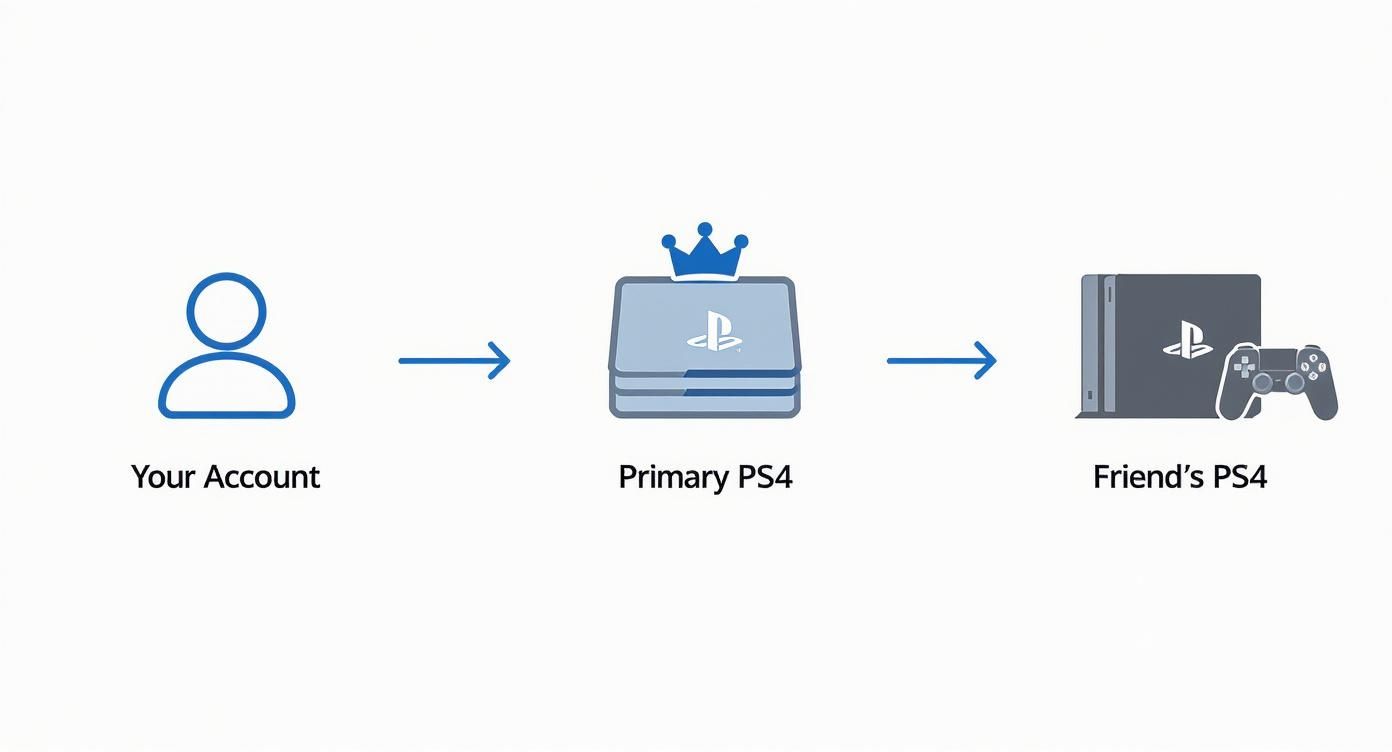
As the diagram shows, your single account serves two consoles: the primary one (where everyone can play) and your own secondary one (where only you can play while online).
How Your Friend Accesses Your Games (And How You Keep Playing)
So, what happens on your end? After you've set your friend's console as your primary, you can just keep using your own PS4 like you normally would. Your machine is now considered the "secondary" console for your account.
You still have full access to every single game you own. The only catch is that your PS4 needs a constant internet connection to verify you own the games each time you launch one. It's a quick digital handshake with Sony's servers.
Meanwhile, here's how your friend gets to the good stuff on their console (which is now your primary):
- Log into their own account: Make sure you've logged out of your profile on their machine. They can then sign back in as themselves.
- Check the Library: When they go to their game Library, all of your digital games will appear right alongside their own.
- Download and enjoy: They can pick any game from your collection, download it, and play it on their own profile without any restrictions. It's as if they bought it themselves.
This is a fantastic way to share a massive game library. The system works in a very similar way on Sony's newer hardware, which you can read all about in our guide on how PS5 game sharing works.
The Rules and Limits You Need to Know
While sharing games on your PS4 is a fantastic, Sony-approved feature, it isn't the Wild West. There are a few ground rules you absolutely have to understand to keep things running smoothly and avoid any frustrating surprises later on.
The most important rule is the big one: one primary PS4 per account. That's it. You can't set your PSN account as primary on a handful of your friends' consoles and create a massive sharing circle. The system is built for a one-to-one share, not a one-to-many broadcast.
If you decide to activate a new PS4 as your primary, Sony automatically deactivates the old one. It’s a simple system that keeps everything in check and prevents the kind of widespread sharing Sony doesn't intend to support.
Offline Access and Internet Requirements
This is where the rubber meets the road and where the experience really differs for the two people sharing. It’s not an identical setup for both of you.
-
The Primary PS4: This console gets the golden ticket—full offline access. Because the system sees this as the "home" console, it doesn't need to phone home to Sony's servers to verify game licenses. If the internet cuts out, no problem. The person on the primary PS4 can keep playing all of your downloaded games without a single hiccup.
-
The Secondary PS4 (Your Console): Now, for you, the account owner playing on any non-primary machine, things are a bit different. Your PS4 needs a stable internet connection to launch any of your digital games. Each time you fire up a game, it does a quick online check to make sure you own the license. An internet outage means your digital library is temporarily locked until you're back online.
Key Insight: The trade-off for sharing is giving up the convenience of offline play on your own console. Your friend gets that perk on their primary machine, while your console becomes dependent on an internet connection for verification.
Sharing Your PlayStation Plus Benefits
PlayStation Plus is where this sharing feature really shines. By the early 2020s, PSN had ballooned to over 50 million PlayStation Plus subscribers globally, which just goes to show how essential the service is. And the great news? Most of its best benefits are shareable. You can discover more about the growth of PlayStation Plus on ExplodingTopics.com.
Here’s how it works: with an active PS Plus subscription on your account, anyone using your designated primary PS4 gets to enjoy the core perks. That means your friend can hop into online multiplayer in games like Call of Duty or Elden Ring on their own account, even if they don't pay for PS Plus. They also get to play the monthly free games you've added to your library.
Just keep in mind, some things don't transfer. Features like cloud saves are tied directly to your account and can't be shared.
Sharing Your Account Without the Risk
Let's be honest, handing over your PlayStation Network login, even to a close friend, can feel a little risky. That account holds your entire game library, all your save files, and maybe even your credit card info. It’s a big deal.
But you can absolutely do this securely. With a few smart precautions, sharing your PS4 games can be totally stress-free.
The single best thing you can do is enable 2-Step Verification (2SV) on your PSN account. This is a game-changer for security. It means that any time someone tries to sign in on a new device, a unique code gets sent to your phone or authenticator app.
With 2SV turned on, your password alone is useless to anyone else. They can't get in without that second code, which means you’re always in control. It’s a massive peace of mind.
Setting the Right Ground Rules
Technology is only half the battle. The other half is good old-fashioned communication and trust. Before you even think about sharing login details, have a quick, clear chat with the person you’re sharing with. Setting some ground rules upfront is the best way to avoid headaches later.
Here are a few non-negotiables to agree on:
- No Store Purchases: Make it crystal clear that they should never buy games, DLC, or anything else from the PlayStation Store using your account. To be extra cautious, you might even want to remove your credit card info before they log in.
- Don't Touch the Settings: Ask them not to mess with any account details, privacy settings, or notifications. The only thing they need to do is activate their console as your primary PS4.
- One and Done: Your login info is just for the initial setup. Once they're done, they need to log out and switch back to their own profile for good.
Key Tip: Trust is everything here. You're giving someone the keys to your digital castle. Only ever do this with someone you know well and can count on to respect your account and the boundaries you've set.
A Smart Password Strategy
Whatever you do, don't give them your main password—the one you use for email, banking, or other important accounts. A much safer way is to create a strong, temporary password just for this. Think of it as a one-time-use key. For some great tips on this, check out our guide on finding a secure way to share passwords.
As soon as your friend confirms they've logged in and set their console as your primary PS4, your next move is critical. Immediately log into your account and change that password back to your old one, or even better, a brand new one.
This simple step instantly cuts off their access to your account settings while still letting them play your games. It’s a clean, safe workflow that keeps your account secure.
Fixing Common Game Sharing Problems
Even when you follow the steps perfectly, PS4 game sharing can sometimes throw a curveball. It’s frustrating when a game that worked fine yesterday suddenly won't launch, but don't panic. Most of these hiccups are common and surprisingly easy to fix once you know what to look for.
The most frequent sign of trouble is the dreaded padlock icon appearing over a game's thumbnail. This little lock means the PS4 can't verify the game's license, effectively blocking you from playing. It’s the system's way of saying, "I don't know who owns this," and it almost always points to one of a few simple issues.
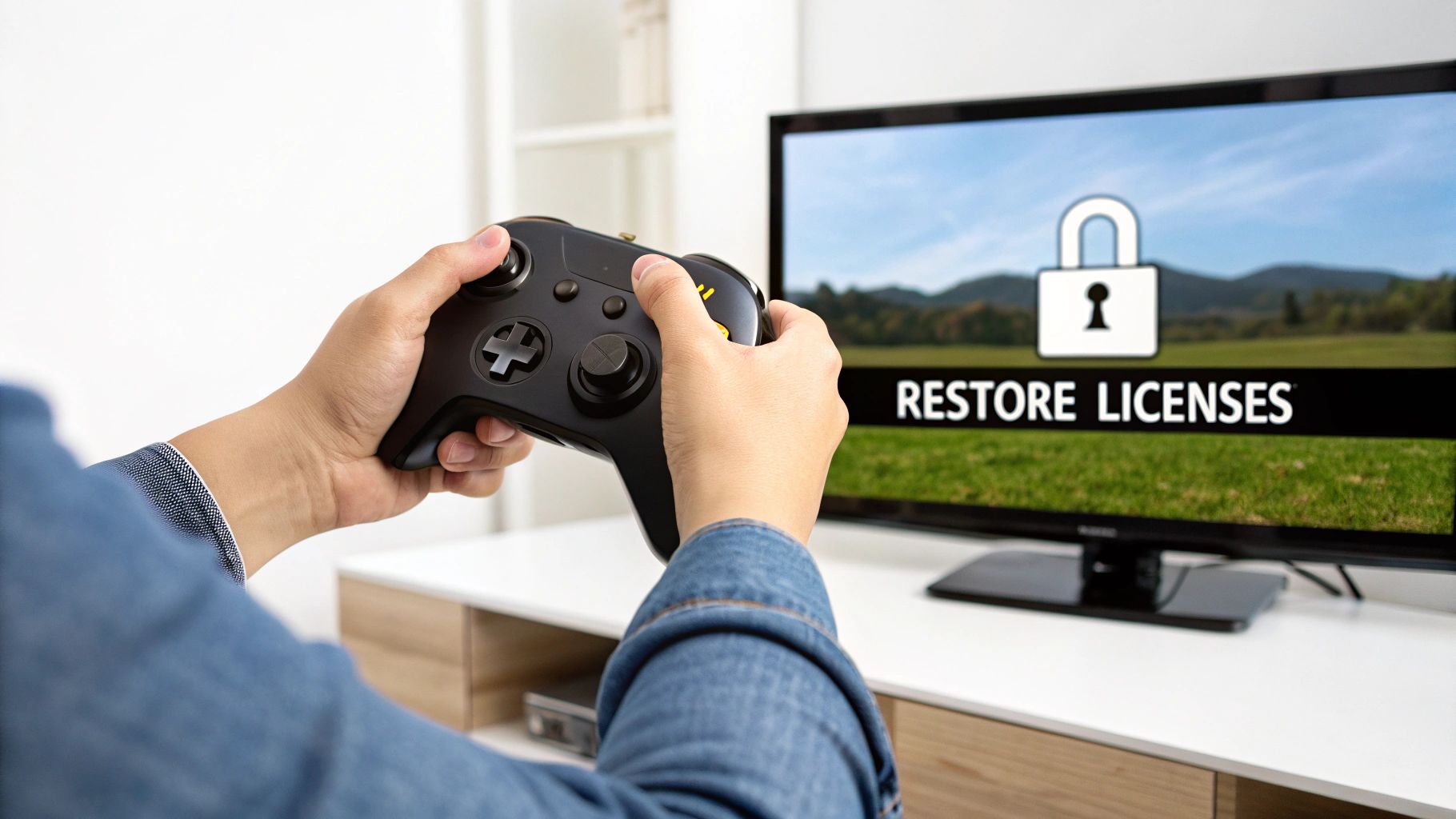
Think of that padlock as your first clue. Your job is to figure out why the license check is failing.
Solving the Dreaded Padlock Icon
Where you see the padlock tells you a lot. If it appears on the secondary console (the one belonging to the game’s owner), the problem is almost certainly the internet connection. Remember, that console has to be online to verify licenses for every game launch. Pop into your network settings and make sure everything is connected properly.
If the padlock shows up on the primary PS4 (your friend's console), the fix is usually just as straightforward. It could be a temporary hiccup with the PlayStation Network or just a license that’s fallen out of sync. The go-to solution here is to restore licenses.
You can find this option by heading to:
- Settings
- Account Management
- Restore Licenses
Just select it and let the console do its thing. This process forces a re-sync of all your digital content with your account and fixes the padlock issue in over 90% of cases.
Pro Tip: Make "Restore Licenses" your first troubleshooting step anytime a digital game acts up. It's the PS4 equivalent of "turning it off and on again"—a quick, non-destructive fix that solves most authentication problems without you having to re-download a single thing.
When Games or DLC Don't Appear
Another classic headache is setting everything up correctly, only to find that a game or its DLC is missing from your friend's library. It's like sending a package that never arrives.
First, the obvious stuff: log into the account that owns the game and double-check that the purchase actually went through. If everything looks good there, the next step is to give the system a little nudge. Try deactivating the console as your primary PS4 and then immediately reactivating it. This simple toggle often forces the system to re-scan the account's library and push all the content through correctly.
Common PS4 Sharing Errors and Their Fixes
I've run into my fair share of sharing-related issues over the years. To save you some time, I’ve put together a quick-reference table for the most common problems and their solutions.
| Problem | Likely Cause | Solution |
|---|---|---|
| Padlock on Secondary Console | The console can't connect to the internet to verify the license. | Go to Settings > Network and run a connection test. |
| Padlock on Primary Console | Your game licenses have fallen out of sync with your account. | Head to Settings > Account Management > Restore Licenses. |
| Games Not Showing in Library | The system hasn't updated its list of available content. | Deactivate and then reactivate the console as the primary PS4. |
| PS Plus Multiplayer Fails | The console is no longer set as primary for the PS Plus account. | Verify the console is still activated as primary for the correct account. |
With these fixes in your back pocket, you should be able to tackle most of the common frustrations that come with game sharing. A little troubleshooting is often all it takes to get you and your friend back in the game.
Answering Your Top PS4 Game Sharing Questions
Even when you've followed the steps perfectly, a few questions always seem to pop up. Let's tackle some of the most common ones I hear from people setting this up for the first time.
A big one is always about numbers. Can you share your library with more than one friend at once? The answer here is a hard no. Your PlayStation account can only be linked to a single PS4 as its "primary" console.
This one-to-one limit is baked right into the system, so there's no way to create a multi-console sharing network from a single account.
Can We Play the Same Game at the Same Time?
This is where the magic happens. Can you and your friend both hop into the same game, at the same time, from your own consoles? Yes, you absolutely can! It's one of the best parts of game sharing.
As long as the secondary console (that's you) stays connected to the internet, you can both fire up the same game and even play together online.
For instance, you could buy one digital copy of Elden Ring, and your friend on the primary PS4 can summon you for some co-op boss fights. It works flawlessly, as if you both bought the game.
How it Works: The system essentially sees two valid licenses. The primary PS4 has the license to play offline, while the secondary PS4 verifies its license by being online. This clever setup allows for simultaneous gameplay.
What Happens When I Upgrade My Console?
So, you've finally got your hands on a PS5. Great! You'll want to move your primary account status over to the new machine to get all the benefits. But first, you need to break the link with your old PS4.
Before you sell or give away your old console, it's critical that you manually deactivate it.
Here’s how to do it on the PS4 itself:
- Head to Settings
- Go into Account Management
- Select Activate as Your Primary PS4
- Finally, hit Deactivate
Doing this frees up your account, so you can make your new PS5 the primary console and keep sharing your library on the latest hardware.
Juggling multiple subscriptions for gaming, streaming, and more can be a real headache—not to mention expensive. AccountShare makes it easy to split costs on premium services safely and without the usual hassle. Check out how you can save some cash and manage your accounts better by visiting AccountShare.