

My Spotify Stats: Where to Find Them and What They Mean
The most popular advice for "my Spotify stats" is to open Wrapped or connect a stats site. That's convenient, but it skips the important question: which data can you access, and how current or complete is it? Spotify spreads listening information across in-app summaries, limited live data, and a downloadable archive. The right view depends on whether you want a quick recap, a recent listening check, or a searchable record of what you played.
Why Your Spotify Stats Are a Data Access Problem First
A Wrapped-style recap is a polished summary, not a complete listening timeline. If you want to know what you played on a particular day, compare listening over time, or inspect individual track records, the first challenge is getting the right data. A dashboard can only display what its data source makes available.
Think of Spotify listening information as four separate layers. The app offers current summaries and occasional features such as weekly listening stats. The recently-played API provides a limited window, with a ceiling of 50 tracks. Spotify's extended streaming history is a separate archive request, and may take up to 30 days to arrive. Wrapped turns selected activity into a seasonal recap, but it isn't designed to serve as a continuously searchable history. The API limit and archive timing are described in this guide to Spotify listening history by date.
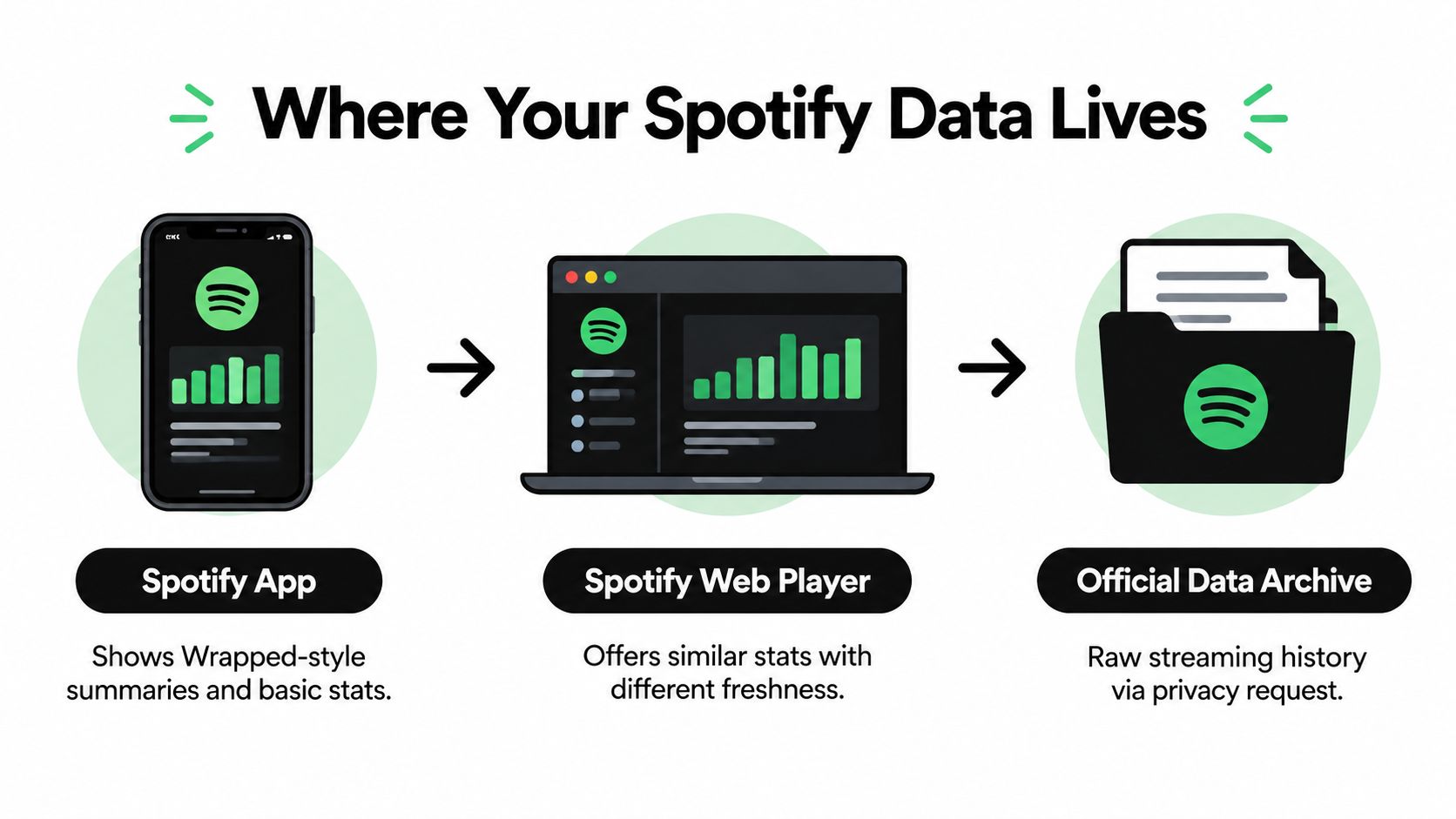
These layers answer different questions. A live dashboard can be useful for a quick look at recent top artists or tracks, but it won't necessarily reveal a complete history. The official archive is more useful for examining past plays, but it's a static download, not a live feed. Wrapped is easy to share, but its rankings and totals follow their own measurement rules.
Practical rule: Choose the data source before choosing the visualization. Otherwise, a clean chart can make incomplete information look definitive.
For a fast check, start in the app. For a particular past date or deeper analysis, use the archive or begin keeping your own record prospectively. A single tool can't make all four layers interchangeable.
Built-In Stats You Can Pull From the Spotify App Right Now
Spotify's built-in stats are useful when you need a quick view without authorizing an outside service. The exact screens and availability can vary by app version and account, so treat the paths below as starting points rather than a promise that every account will show every feature.
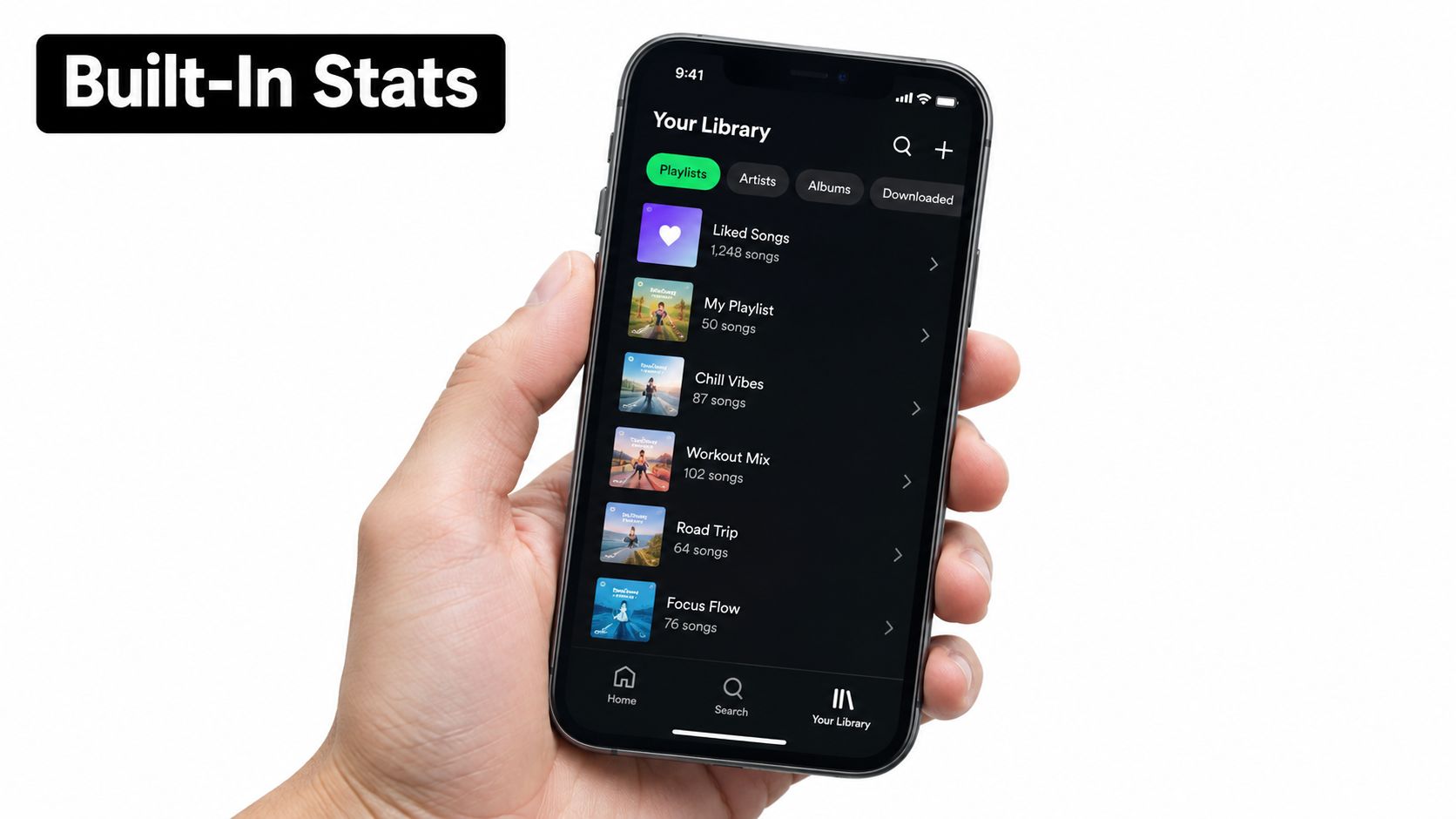
Check weekly listening stats
In the mobile app, tap your profile picture, then look for Listening stats. This feature presents a recent snapshot of top artists and songs, along with listening-related highlights. It's suited to checking what's been in rotation lately, not auditing your full account history. Spotify describes the feature in its announcement of weekly listening stats.
Find recently played music
Use Home and the Recently played area to revisit tracks, albums, and playlists you've opened. This is a convenient memory aid, but it isn't the same as a searchable record with a complete date-by-date view. If you need a specific play from further back, don't assume the visible list includes it.
Open Wrapped and its explanation
When Spotify makes Wrapped available, look for the Wrapped hub in the app. Its stories and rankings provide an easy annual recap. If a story offers Behind the Stats, open it to review how Spotify explains that particular result. Wrapped is designed to summarize listening, not expose every underlying play.
Browse library and playlist details on desktop
In the desktop app, open Your Library or a playlist and inspect the available sorting and display options. These views help you organize saved music and see track details, but they don't turn the library into a listening-history report. A saved track is not proof of how often you played it.
Use these built-in screens for quick, low-friction checks. If you need play counts, a historical timeline, or a particular date, you'll need a different data source.
Third-Party Dashboards Worth Your Time
Third-party Spotify dashboards generally get data in one of two ways: you connect your account, or you give the tool a public playlist link. Those approaches solve different problems. Account-connected tools can show personalized information available through Spotify's interface, while a playlist analyzer can only examine what the playlist exposes.
| Tool type | Data source | Refresh speed | Account scope needed |
|---|---|---|---|
| Listening-stats dashboard | Authorized account data | Often refreshes when you reconnect or reload | Yes, review requested permissions |
| Playlist analyzer | Public playlist link | Updates when the tool checks the playlist | No account connection for public playlists |
| Taste-profile explorer | Authorized account data or imported history | Depends on the source and update process | Usually, if it reads personal account data |
An OAuth connection can be convenient because the dashboard doesn't need your password. But authorization still matters: read the permission screen, ask whether the tool needs the access it requests, and check whether you can revoke it later. Don't connect an unfamiliar service just because it promises a more attractive chart.
Playlist-link tools trade depth for less account access. They can help you inspect track lists and playlist composition, but they can't show your private listening history from a public URL. If a site claims it can reconstruct plays that aren't present in its data source, treat that claim skeptically.
A useful test is to ask what each chart measures. “Top tracks” may reflect a limited listening window, imported history, or playlist contents. Those aren't equivalent. Likewise, a dashboard that displays rankings without explaining its source may be entertaining but weak for comparing habits over time.
Before granting access, review the tool's data handling and access controls. This overview of third-party app permissions is a useful reminder to check what an app can see and how to remove access when you're done. Choose a connected dashboard for convenience, and a public-playlist analyzer when the playlist itself is all you need.
Requesting Your Official Spotify Data Archive
Spotify's extended streaming history is the option to choose when a short live view isn't enough. It's a downloadable record rather than a dashboard, so expect files to inspect or import, not an always-updating timeline.
To request the archive, sign in to your Spotify account and open the account privacy settings. Find the option to download your data, review the available data categories, and select the extended streaming history request if it's offered. Follow Spotify's confirmation steps and keep an eye on the email associated with the account for updates.
What the archive is good for
The extended history is more appropriate than a quick in-app list when you want to study listening across dates or preserve a record outside Spotify. It can support questions such as which tracks appear repeatedly in your data or how your listening changes across periods. For artist-facing performance analysis, Spotify for Artists also recommends fixed reporting windows and comparing unique listeners with streams, saves, and playlist adds rather than treating raw streams as reach. Its audience analytics tools outline that kind of measurement approach.
Spotify may take up to 30 days to prepare an extended-history export, and the result is a static snapshot. It won't update itself as you keep listening, and it can't instantly provide a live, searchable timeline. If you want to track habits continuously, download the archive when needed and preserve new listening data prospectively using a tool you trust.
The archive is most useful when you treat it as a dataset, not a finished report. Keep the original files, note when you requested them, and be careful when combining them with dashboard data. Different sources can cover different periods and use different definitions, so a combined chart may look complete without actually being so.
Why Your Minutes and Top Tracks Do Not Always Match
A difference between Wrapped minutes and your rankings doesn't automatically mean Spotify has miscounted. The measures can include different listening activity and apply different rules. Spotify says Private Mode and tracks marked Exclude from Taste Profile can count toward total listening time without shaping taste-based stories.
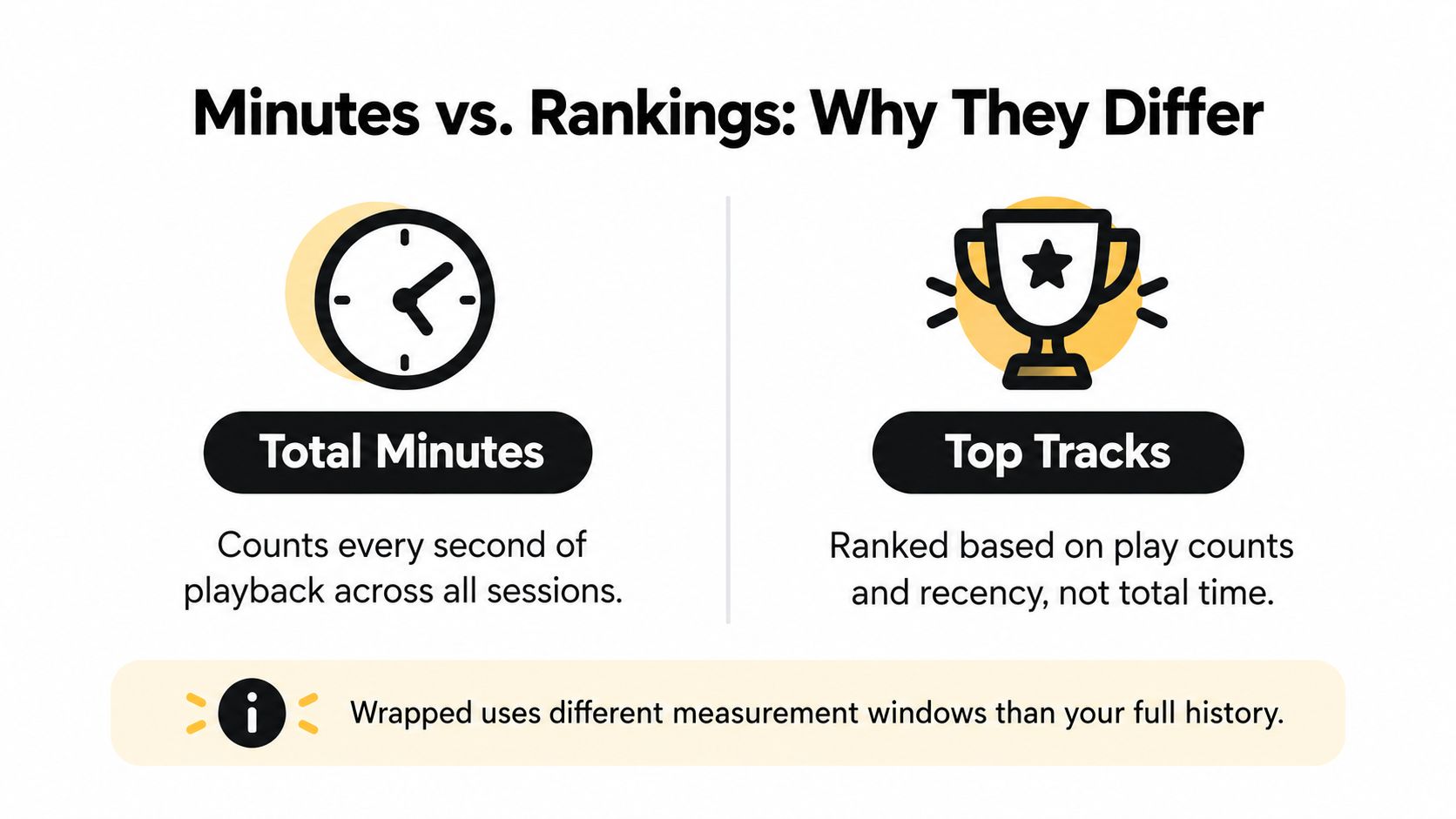
Wrapped also doesn't cover the full calendar year. Spotify says its 2025 Wrapped reporting period ran from January through mid-November. Offline listening can be included after your device reconnects before the reporting period closes, so a trip or a stretch without a connection may affect when plays appear in the service's records. Spotify's explanation of how Wrapped is made describes these distinctions, including its treatment of background audio.
Use a reconciliation checklist
If your minutes seem out of step with your top tracks, check the measurement rules before trying to interpret the result:
- Private listening: Remember that Private Mode activity can contribute to listening time without influencing taste-based stories.
- Excluded tracks: Check whether you marked music as excluded from your Taste Profile.
- Reporting window: Compare Wrapped with the period it covers, not with a complete calendar-year archive.
- Offline playback: Consider whether your device synced after listening without a connection.
- Audio type: Separate music, podcasts, and background audio rather than assuming every playback affects every story in the same way.
Third-party dashboards can diverge for another reason: they may use recent account data, imported archive files, or playlist contents, each with its own coverage. A ranking is only meaningful when you know its source and time window. Treat minutes, rankings, and taste-based stories as related but distinct measurements.
Privacy Controls and Data Minimization
A stats tool can only be useful if you're comfortable with the access it needs. Before connecting an account, decide whether you want to share listening data at all, and whether a public playlist view is enough for your purpose.
Start with the Spotify app's Private Session control when you don't want a listening session to influence your visible taste activity. For an individual track or playlist, use Exclude from Taste Profile where available. These controls affect how listening shapes taste-based recommendations and stories, but don't assume they erase an existing record or replace a data deletion request.
Privacy check: Remove access you no longer use, not just the app from your phone.
To disconnect a third-party service, open your Spotify account page, locate the section for apps with account access, and revoke the service you no longer trust. For a copy of your information, use Spotify's account privacy and data-download options. If you're seeking deletion rather than a download, review the account's privacy controls and follow Spotify's current instructions for privacy requests.
Shared listening creates an extra complication. If several people use one account, a dashboard may combine their activity, making it difficult to interpret the results as one person's habits. For guidance on limiting what others can see, see how to make a Spotify account private.
Teams and creators building their own services should also explain what they collect and why. A practical guide to modeling your own privacy policy can help clarify those disclosures. For personal use, keep the same principle: grant the least access needed, then revoke it when the tool no longer serves a purpose.
A Simple Ongoing Workflow for Your Spotify Stats
A useful stats routine combines quick checks with a durable record. Don't rely on one recap to answer every question, and don't assume a dashboard can retrieve history that Spotify hasn't made available to it.
- Check the app when you want a current snapshot of recent artists, songs, or Wrapped stories.
- Request the archive when you need a broader record, then store the original files somewhere you control.
- Track prospectively with a dashboard you've reviewed or a public-playlist tool if that's all your question requires.
- Reconcile surprises against the relevant time window, privacy settings, and measurement rules before drawing conclusions.
If you're trying to remember what played recently, Spotify's visible history can help, but it isn't a substitute for a complete archive. This guide to clearing recently played Spotify activity is also useful when you're managing what appears in your account.
For shared accounts, treat any combined listening picture as a household record, not an individual profile. Separate accounts where possible, and label shared data clearly when reviewing it. That small discipline makes the numbers easier to understand and prevents a polished chart from claiming more than the underlying data supports.
If you want premium subscriptions to fit a shared or household budget, AccountShare helps people access eligible services through group purchasing and manage shared access with customizable permissions. Review the available options and choose an arrangement that suits how you use streaming and other digital services.