

Kindle Sharing With Family Made Simple
Absolutely. Sharing Kindle books with your family is one of the best features of the Amazon ecosystem, and it’s all done through something called Amazon Household.
Think of it as creating a single, digital family library. This feature allows two adults and up to four children to share Kindle books, audiobooks, and even apps, so you don't have to buy the same content over and over. It's a fantastic way to save a little money and build a curated collection for everyone in the house.
Why Kindle Family Sharing Is Such a Big Deal
Before we jump into the setup, it’s worth taking a moment to appreciate why this is so useful. Amazon Household basically links individual Kindle accounts into one shared bookshelf, much like the real one in your living room, but with all the conveniences of digital.
Here’s where it really shines:
- It saves you money. This is the big one. Instead of you and your partner both buying the latest bestseller, one of you buys it, and it instantly appears in the other's library.
- You control what your kids read. You can hand-pick age-appropriate books from your main library and add them to your children's profiles. This gives you peace of mind that they're only accessing content you’ve approved.
- The perks go beyond books. Your Household also gets to share certain Amazon Prime benefits, like Prime Video streaming and free shipping, which just adds to the value.
This kind of integration is key to Amazon's strategy, and for good reason. The Kindle platform accounts for roughly 72% of global e-reader sales and a staggering 79% of ebook purchases in the US as of 2024. With so many of us reading on Kindles, a solid family-sharing system is practically a necessity. If you're curious, you can explore more data on Kindle's market share and how its features cater to families.
This infographic gives a quick visual breakdown of how to get started.
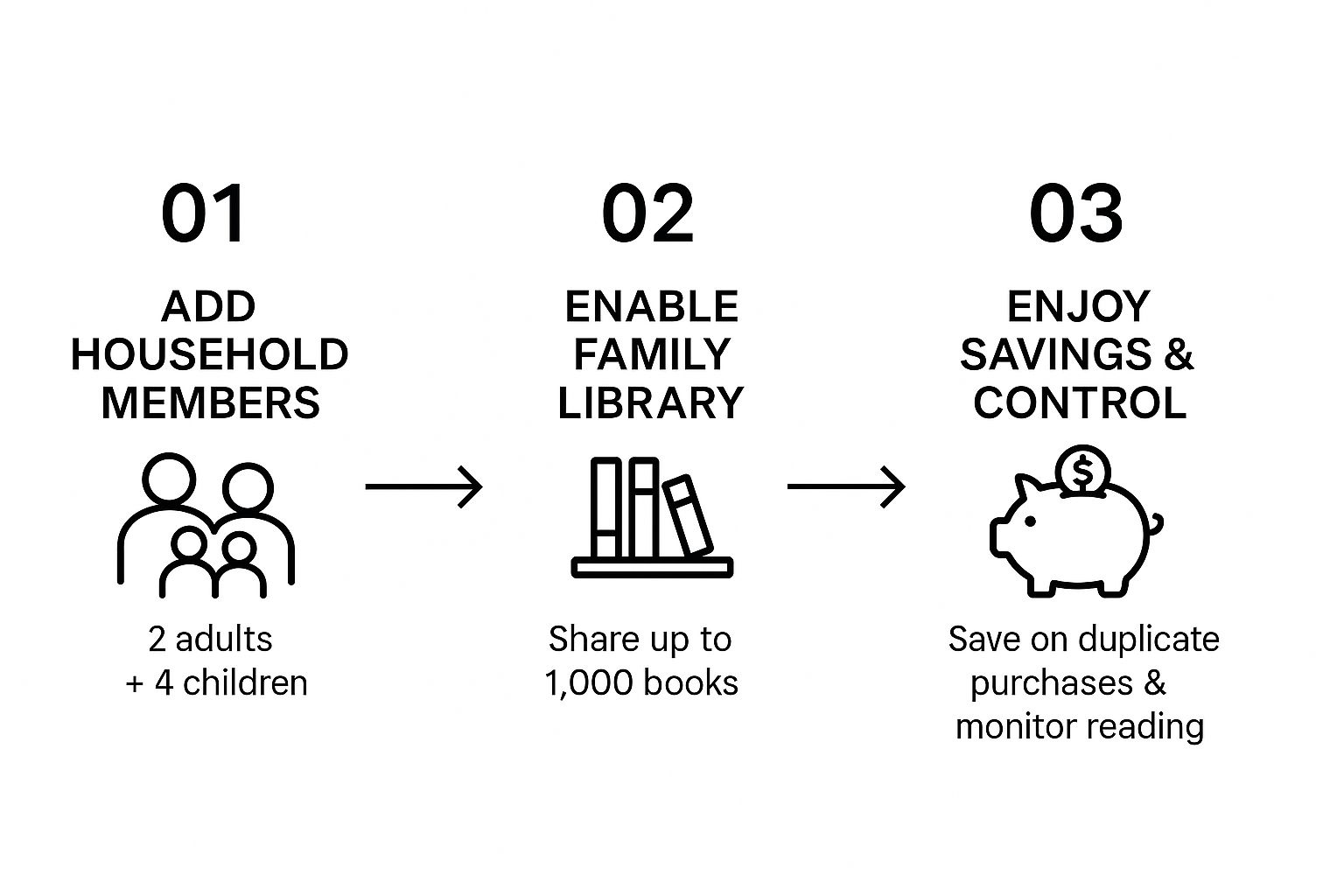
As you can see, the process is pretty logical: connect your accounts, turn on sharing, and then manage what everyone has access to. Once you get the basic idea, the step-by-step process is a breeze.
Setting Up Your Amazon Household
To get started sharing Kindle books, the first thing you need to do is create an Amazon Household. Think of it as the digital home that connects your family's Amazon accounts. Getting it set up is pretty simple, but a few details are important to get right from the get-go.
First, you'll need to head over to the Amazon Household page. The easiest way is to go to your account settings and find the "Amazon Household" section, or you can just navigate directly to the management page.
This is the dashboard you'll be working from:
From here, you can add another adult, teens, and children to start sharing your library.
Inviting Your Family Members
From the dashboard, you’ll kick things off by inviting the second adult. Just enter their name and email, and Amazon will send them an invitation. They have 14 days to accept it, so give them a nudge if they forget.
Now for the most critical part: to link your accounts, both adults must agree to share payment methods. This authorization is non-negotiable and it's what allows Amazon to view your two accounts as a single household, which is the key to sharing Kindle books and other digital content.
This sharing requirement is part of a bigger policy change. Starting October 1, 2025, Amazon is tightening its sharing features to be exclusively for members of the same household. This move is designed to ensure Prime digital benefits, including Kindle ebooks, are shared only among family living under the same roof. You can read more about the evolution of Amazon's sharing policies to understand the full context.
Crucial Tip: Choose your household partner wisely. If an adult leaves the Household, neither of you can join or start a new one for a full 180 days. This is a strict "lock-in" period, so it’s best reserved for a long-term family member.
Setting up a Household is great for books, but it also unlocks a lot more. If you want to get the most out of your membership, check out our complete guide on how to share Amazon Prime benefits with family to see all the perks you can share.
Creating a Curated Library for Your Kids
Once the adults are connected in your Amazon Household, you can turn your attention to the kids. This is really where Kindle sharing shines, because it gives you fine-tuned control over the digital bookshelf your children see.
Your command center for all of this is the Parent Dashboard. From here, you’ll set up a unique profile for each child. Amazon lets you designate them as a "Child" (generally for kids under 13) or a "Teen," which changes the default settings and the level of freedom they have.
Hand-Picking Books for Each Child
The best part of the Parent Dashboard is that you can hand-select every single ebook that appears in your child's library. Instead of overwhelming them with your entire collection (and all the grown-up titles), you add books to their profile one by one. This means they only ever see what you've personally approved.
It's a fantastic way to tailor their reading experience. For instance, you could load up your older child's profile with the entire Harry Potter series while keeping your younger one’s library filled with picture books and early readers. It’s a simple, effective method for guiding their reading journey.
The global ebook user base is projected to hit 1.1 billion consumers by 2029, a significant jump from around 700 million in 2017. As digital reading grows, creating these curated family libraries becomes an essential tool for parents to manage not just screen time, but content quality too.
When building out their digital library, it's also worth looking into how audiobooks can accompany ebooks to aid children's reading. Pairing the two can be a game-changer for literacy skills. And if your family is big on audio content, our guide on how to share your Audible account might come in handy: https://accountshare.ai/blogs/new/share-audible-account.
Supercharge with Amazon Kids+
If you want to take things a step further, consider an Amazon Kids+ subscription. This is an optional add-on that works perfectly with the child profiles you’ve already created.
It unlocks a massive, pre-vetted library of thousands of age-appropriate books, videos, and games. The beauty of it is that all this content is delivered within the safe, controlled environment you’ve set up, giving your kids a ton of new things to explore without you losing any of your parental oversight.
Getting Your Books into the Shared Library
You’ve done the hard part and set up your Amazon Household. Now, let’s get to the good stuff: actually sharing your books. This is where the magic of kindle sharing with family really happens, letting you and your partner dive into each other's digital bookshelves.
It’s important to know that your books aren't shared automatically. Amazon gives you total control, so you have to manually add each title to the Family Library. This is a great feature, as it means your guilty-pleasure sci-fi novel can stay just for you unless you decide to share it.
How to Add Books to Your Family Library
Sharing a book you've purchased is a simple process you'll manage from your Amazon account settings, not from your Kindle device.
Here’s the rundown:
- First, head over to the "Content and Devices" section on the Amazon website.
- Find the book you want to share in your content list and click the "More actions" button next to it.
- A menu will pop up. Look for an option like "Add to Library" or "Manage Family Library."
- Clicking this will bring up a window showing the other members of your Household. Just check the box next to the other adult's name and hit confirm.
That’s it! The book will instantly be available for them to download and read. You can do this for most of the ebooks and audiobooks you've bought.
What You Can and Cannot Share in Your Family Library
Before you start sharing, it's helpful to know what works and what doesn't. Some digital content plays by different rules, especially when it comes to subscriptions.
Here’s a clear breakdown of the sharing policies:
| Content Type | Shareable with Adult? | Shareable with Child? | Key Details |
|---|---|---|---|
| Purchased Kindle eBooks | Yes | Yes | Most purchased books can be shared freely. |
| Purchased Audiobooks | Yes | Yes | Shareable just like eBooks through the Family Library. |
| Prime Reading | Yes | Yes | Eligible titles can be shared among Household members. |
| Kindle Unlimited Books | No | No | This is a big one. Kindle Unlimited is an individual subscription and cannot be shared. |
| Kindle Vella & Serials | No | No | These are tied to the original purchaser's account. |
| Comics & Manga | Yes | Yes | Most titles purchased from the Kindle store are shareable. |
| Digital Magazines/Newspapers | No | No | Subscriptions are typically for individual use only. |
As you can see, the system is fantastic for content you own, but subscription-based services like Kindle Unlimited are a different story.
How to Find and Read Shared Books
Once a book has been added to the Family Library, finding it on your Kindle or in the app is a breeze.
On your Kindle e-reader or Fire tablet, go to your library. You’ll need to filter your view to see books that aren't your own. Tap on the filter options at the top (it might say "All" or "Your Items"). You should see an option to view books from the other adult in your Household. Select their name, and their shared library will appear.
From there, you can download any book and start reading as if you bought it yourself.
Pro Tip: If you know your partner shared a book but you don't see it, give your device a quick refresh. Go into your Kindle's settings and tap "Sync Your Kindle." This forces it to check for new content and usually solves the problem in seconds.
To take it a step further for the little ones, you might look into the best reading apps for kids, which can be a great supplement to their Kindle reading.
And remember, certain types of content just can't be shared. If you're wondering about that popular subscription service, our guide on https://accountshare.ai/blogs/new/sharing-kindle-unlimited breaks down exactly why those books are off-limits for sharing.
Troubleshooting Common Sharing Problems
Even with a perfect setup, you’ll probably run into a few hiccups with Kindle sharing from time to time. Most of these issues are minor and can be fixed in seconds, but it's always frustrating when a book you’re excited to read just doesn't appear.
Let's walk through the most common snags I've seen and how to get things working again.
The biggest complaint I hear is a shared book not showing up on someone's device. Before you start diving deep into your account settings, always try the simplest fix first: manually sync your Kindle.
Just head to your device's settings and tap "Sync Your Kindle" or "Sync & Check for Items." This forces your Kindle to check in with Amazon's servers for new content. Honestly, 9 times out of 10, this is all it takes to solve the problem.
When Syncing Is Not Enough
If a manual sync didn't do the trick, the next culprit is usually your library filter. It's an easy thing to miss.
On your Kindle or in the Kindle app, your library is often filtered to show only "Your Items" by default. You need to switch this view to see books from other people in your Household. Look for a dropdown menu or filter option and simply select the other adult’s name. Their shared titles should pop right up.
Still no luck? Check your connection. A spotty Wi-Fi signal can prevent new books from downloading from the cloud. Make sure your Kindle has a strong, stable internet connection.
A common point of confusion is why some books are marked as "ineligible for sharing." This isn't a glitch; it's a restriction set by the book's publisher. While most purchased ebooks are shareable, a small percentage are not, and unfortunately, there's no way to override this.
Finally, double-check that the book is actually shareable. As we covered earlier, subscription-based books from services like Kindle Unlimited are not part of the Family Library. Only content you have actually purchased can be shared with the other adult in your Household.
Got Questions About Kindle Family Sharing?
Setting up your Kindle Family Library is usually straightforward, but a few common questions always seem to trip people up. Let's clear the air on some of the finer points so you can manage your shared digital library like a pro and sidestep any confusion.
Can I share my Kindle Unlimited or Prime Reading books?
This is probably the most common question I hear. The short answer is no. You can't share books you've borrowed through a Kindle Unlimited subscription. That service is linked directly to your individual account, not the shared household.
The same rule applies to Prime Reading. While Amazon Household lets you share many Prime benefits, the books from the Prime Reading catalog are for your eyes only and can't be added to the Family Library.
What happens if we split up the Amazon Household?
If you or the other adult in your Household decides to leave, you’ll instantly lose access to any books they shared with you. Don't worry, all the books you personally purchased are yours to keep.
Be warned, though: there's a 180-day waiting period. Once an adult leaves an Amazon Household, they can't join or create a new one for six months. It’s a decision that really impacts your sharing abilities long-term, so it's not something to do lightly.
Do I have to share every single book I own?
Not at all, and this is one of the best parts of the Family Library feature. Your library is private by default, giving you complete control.
To share a book, you have to manually go into your "Content and Devices" settings on the Amazon website and select which specific titles you want to add to the shared library. This ensures you only share what you’re comfortable with, keeping the rest of your collection just for you.
For more innovative ways to manage and reduce the cost of your family's digital subscriptions, check out AccountShare. Our platform makes it simple to share access to premium services securely and affordably. Learn more at https://accountshare.ai.