

Learn How to clear recently played spotify and reclaim your feed
So, let's get one thing straight: Spotify doesn't have a magic "clear all" button for your listening history. It’s a common frustration, but you're not completely out of options. You can definitely take back control by removing specific songs or albums and using a feature called Private Session to keep certain listening habits off the record. It’s more of a precision strike than a total reset.
Why Your Spotify Listening History Is a Bigger Deal Than You Think

A cluttered 'Recently Played' list isn't just a small cosmetic issue. It's the reason your Discover Weekly suddenly decided you’re a huge sea shanty fan after your friend hijacked the music at a party. It’s a classic, everyday problem that sends millions of us looking for a solution.
This isn't just about keeping things tidy—it directly impacts how Spotify works for you. A messy listening feed throws a wrench in the platform's personalization algorithms, and the results can be pretty annoying.
The Impact on Your Music Discovery
Spotify's recommendation engine is its secret sauce, and it learns everything from what you play. When your history gets polluted with music you don't actually like, the algorithm gets confused.
Suddenly, you're dealing with:
- Skewed Recommendations: Your Discover Weekly and Release Radar playlists start pushing artists and genres you’d normally skip.
- Irrelevant Daily Mixes: Those personalized mixes that are usually perfect for your mood become a weird jumble of your taste and someone else's.
- Misguided "Fans Also Like": The suggestions on artist pages become less helpful, making it harder to find new music you'll genuinely enjoy.
Think of your listening history as the blueprint for your personalized Spotify experience. A clean, accurate history ensures the algorithm is working for you, not against you, serving up suggestions that actually hit the mark.
Privacy in a Shared World
Beyond just getting better song recommendations, managing your history is a big deal for privacy, especially if you share an account or even just a device. In a world where our digital footprints are everywhere, having control over what shows up on your profile is essential.
It’s part of a bigger conversation about digital privacy. As a general rule, it's smart to lean toward using tools that don't spy on you whenever you can. Your Spotify history is just one piece of that puzzle.
Removing Individual Tracks from Your Recently Played List
While Spotify doesn't give us a big "clear all" button for our listening history, they do offer one official way to tidy things up. This method lets you manually pick off specific artists, playlists, or albums, giving you granular control over what shows up in your feed. It's the perfect fix for hiding that one guilty pleasure playlist you listened to on repeat or an album that just didn't land.
Think of it as a precision tool, not a sledgehammer. It’s your go-to move for getting rid of those one-off listens that are starting to mess with your Discover Weekly. Yes, it takes a little manual effort, but it's the most direct way to manage what you see.
How It Works on Mobile and Desktop
Good news—the process is practically the same whether you're on your phone or your computer, so it's easy to remember. All you need to do is find the item you want to get rid of and open its menu.
Here’s the simple play-by-play:
- Find the Item: Head to your "Recently Played" section and spot the artist, album, or playlist you want to zap.
- Open the Menu: Tap or click the three-dot menu (...) right next to the item’s name.
- Hit Remove: A menu will pop up. Just select the "Remove from Recently Played" option.
This screenshot shows you exactly where to find it on your phone.
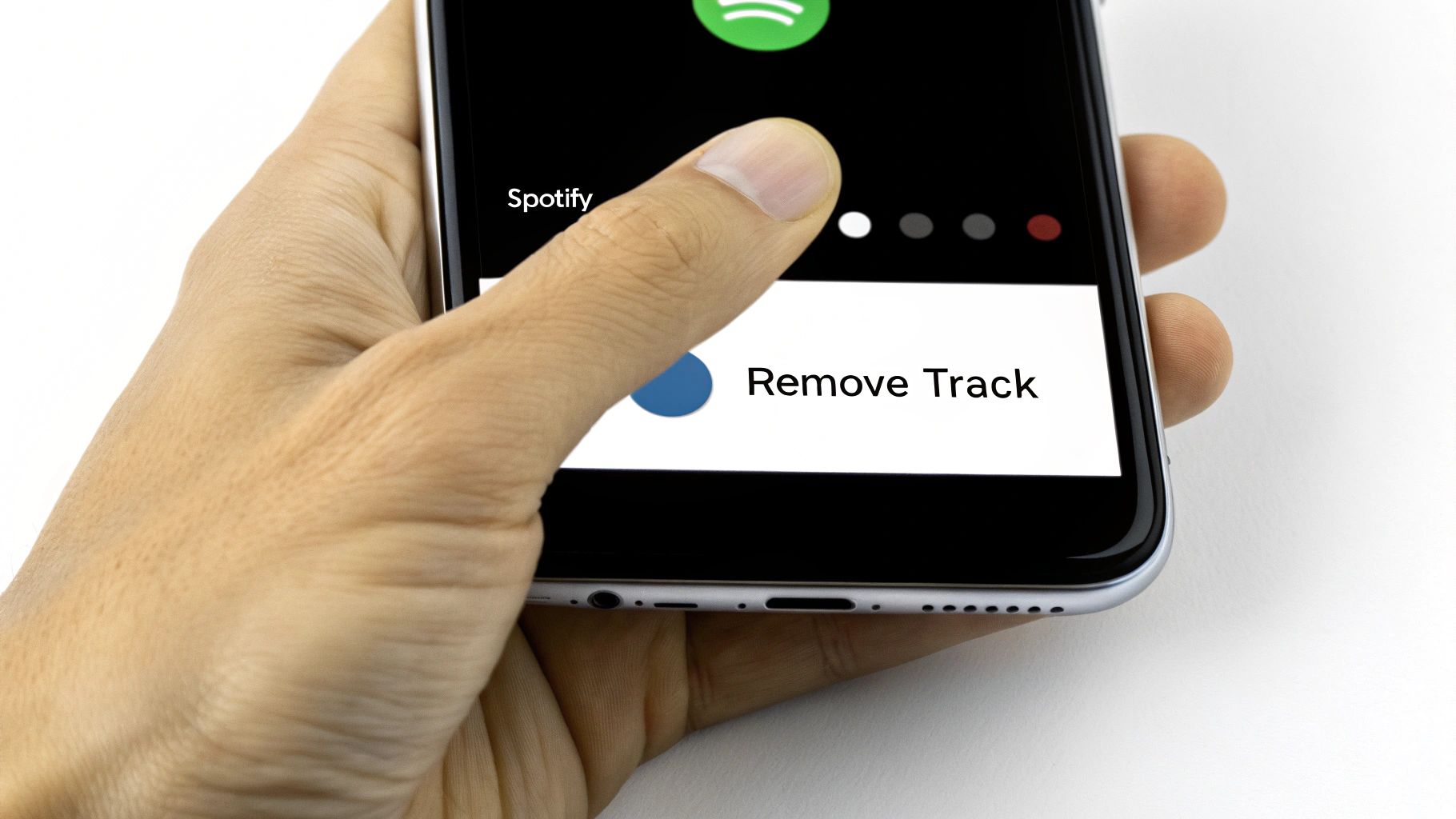
As you can see, the option is clearly labeled. Once you tap it, that item disappears from your list almost instantly.
A Quick Tip: This change is immediate and syncs everywhere. Remove an album on your desktop, and it'll vanish from your phone's history too (you might need to pull-to-refresh the app).
This is a fantastic tool for quick, targeted cleanups. But if you're trying to clear out weeks of history, it's going to feel like a chore. For those bigger jobs, we'll need to look at a few other workarounds.
Using a Private Session to Keep Listening Off the Record
Instead of constantly cleaning up your listening history after the fact, the best move is often to keep certain tracks from ever showing up in the first place. This is exactly what Spotify's Private Session feature is for. Think of it as an incognito mode for your music—it lets you listen completely off the record.
Just flip it on before you hand your phone to a friend at a party or put on a playlist for your kids. This simple toggle tells Spotify to stop tracking your listening activity for that session. None of those songs, artists, or albums will appear in your history, which means they won't mess with your future recommendations.
When a Private Session Makes Sense
Knowing the right time to use this feature can save you a ton of hassle later. It's perfect for those moments when someone else is using your account or when you're just exploring music that's way outside your usual taste.
I find myself using it most in these situations:
- Sharing your device: A friend wants to play DJ for a bit.
- Playing background music: You need some ambient study music that you don't necessarily want saved to your profile.
- Listening with family: The kids are begging to hear that one animated movie soundtrack for the tenth time today.
A Private Session is your best defense against a cluttered listening history. It ensures that temporary music choices don't permanently skew the algorithm that builds your personalized playlists like Discover Weekly and Release Radar.
Activating Your Private Session
Starting a Private Session is pretty straightforward, no matter what device you're on.
On a mobile device, just tap "Home," hit the gear icon for "Settings," and you'll find "Private Session" under the Social tab. If you're on a desktop, click your profile name in the top-right corner and select "Private Session" from the menu.
The session stays active until you either close and reopen Spotify or manually turn it off. For a deeper dive into protecting your listening habits, check out our complete guide on how to make a Spotify account private. Taking this one proactive step is the easiest way to keep your music recommendations purely yours.
Smart Workarounds for a Cleaner Listening Feed
Since Spotify doesn't give us a simple 'clear all' button, we have to get a little creative to manage our listening history. This really comes down to using a few clever workarounds to get the same result—a clean, personalized feed that actually reflects your taste. Think of these methods as your toolkit for reclaiming control.
One of the first things people suggest is clearing the Spotify cache. It’s a solid troubleshooting step, but it's important to know what it does and doesn't do. Clearing the cache removes temporary files stored on your device, which can fix display bugs or get rid of local data from tracks you don’t want popping up. It's more of a local reset, not a permanent history wipe from Spotify's servers.
Flooding Your Feed with New Content
Here’s a surprisingly effective strategy I call the "flooding" technique. Let’s say your ‘Recently Played’ is clogged with tracks from a party or a shared listening session that just aren't you. You can simply push them out of sight.
The process is really straightforward:
- Find a very long piece of audio. A multi-hour podcast episode or an ambient sound playlist works perfectly.
- Let it play on mute while you're working, studying, or even overnight.
- This new, long-form content will slowly but surely fill up your ‘Recently Played’ list, pushing all those older, unwanted items off the visible feed.
This method doesn't technically delete anything, but it's a fantastic way to quickly hide the evidence. It’s the perfect fix when you need to clean up your visible history fast without the tedious task of removing dozens of items one by one. And if a particular podcast is causing the disruption, you might want to check out our guide on how to block a podcast on Spotify.
A Quick Comparison of Methods
To help you decide which approach is best for your situation, here's a quick rundown of the most common ways to manage your listening history.
Spotify History Management Methods Compared
| Method | What It Does | Best For | Limitation |
|---|---|---|---|
| Clearing Cache | Removes temporary files from your device. | Fixing local display glitches or minor bugs. | Doesn't touch your server-side listening history. |
| Flooding the Feed | Pushes old items out of view by playing new content. | Quickly hiding a large number of unwanted tracks. | Doesn't actually delete anything; just conceals it. |
| Private Session | Temporarily stops tracking your listening activity. | Preventing embarrassing or one-off sessions from ever being recorded. | You have to remember to turn it on before you listen. |
| Manual Removal | Individually removes specific items from the list. | Getting rid of a few specific songs, albums, or artists. | Very time-consuming if you have many items to remove. |
Ultimately, being proactive is your best bet. A Private Session stops the problem before it starts. The other methods are great for cleaning up afterward.
This little decision tree can help you visualize when to use these privacy features before you even need to start cleaning up.
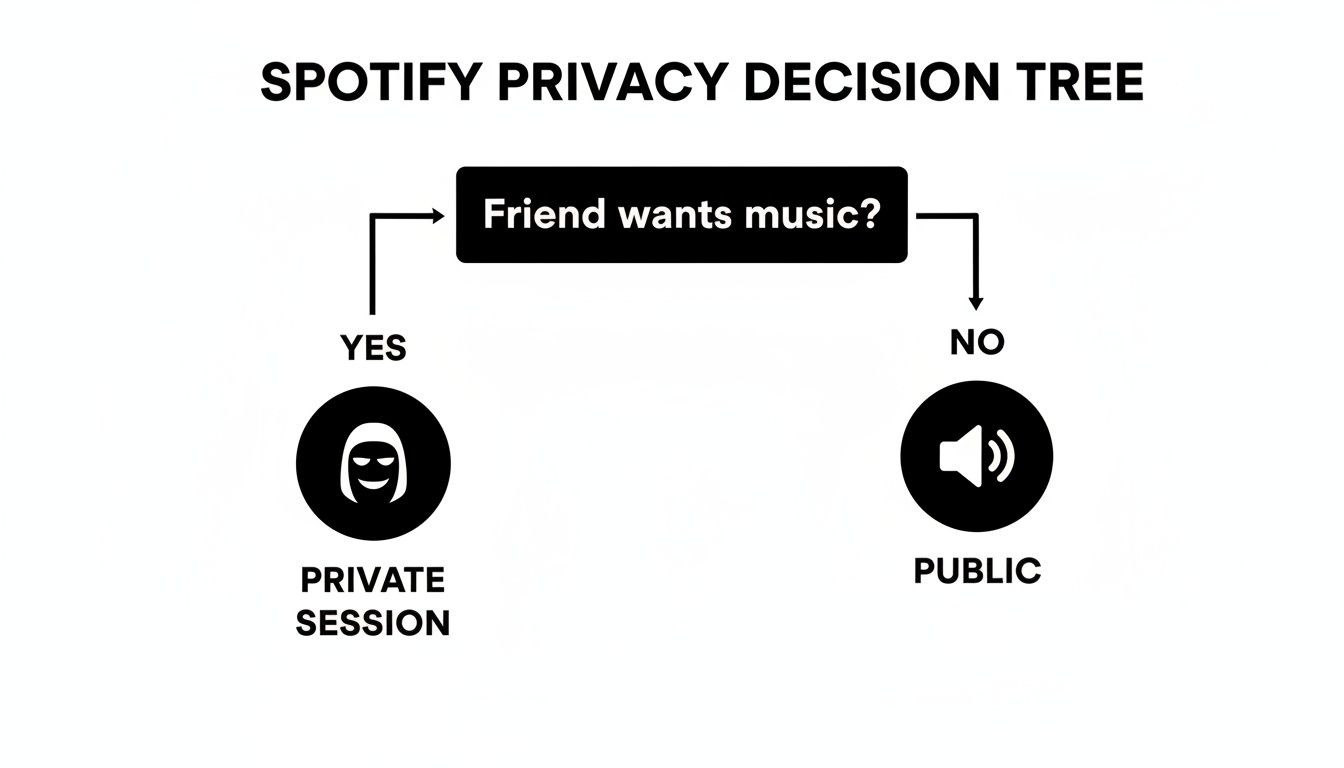
The real takeaway here is that prevention is always the best strategy. Using a Private Session means you won't have to worry about cleanup later.
Remember, these workarounds are all about managing what you see and what influences your algorithm. They give you practical control when a direct 'clear recently played Spotify' option isn't available, ensuring your music experience stays tailored to you.
Best Practices for Managing a Shared Spotify Account
Sharing a Spotify account is a fantastic way to cut costs, but let's be honest—it can get messy. One person's death metal binge can completely throw off someone else's carefully curated "Chill Lo-fi Beats to Study To" algorithm. To keep the peace, you need a strategy that’s more proactive than just constantly clearing the ‘Recently Played’ list.
Setting a few ground rules from day one is the single best thing you can do. A simple agreement can save a ton of headaches later. For example, make it a house rule: if you're borrowing the account, you must use a Private Session. This one small habit keeps listening history separate and protects everyone's personalized recommendations.
Create a Culture of Private Listening
Think of the Private Session feature as the "guest mode" for your shared Spotify. It’s hands-down the easiest way to keep everyone's listening habits from bleeding into each other.
- Make it the default: Get everyone in the habit of flipping it on before they hit play.
- Explain the "why": Let them know it's how their guilty pleasure pop playlist won't crash the primary user's Discover Weekly. No one wants that.
- Lead by example: If you're diving into a new genre you're not sure about, use it yourself.
This simple, proactive step stops the problem before it even starts, making the shared account a much better experience for everyone involved.
The point of a shared account is collaboration, not algorithmic chaos. The most effective rule you can implement is this: always use a Private Session for personal listening. It maintains harmony and makes sure everyone actually enjoys their recommendations.
Secure and Simple Sharing
Beyond managing playlists and history, how you handle login details is crucial. Texting passwords back and forth is not just insecure, it's a pain to keep track of.
For families or larger groups, it's worth looking into services designed specifically for secure account sharing. These platforms help manage who has access without passing around sensitive info. By combining smart habits with the right tools, you can streamline the whole process. For a deeper dive, you can learn how to master your Spotify shared account with a few more practical tips.
Got Questions About Your Spotify History? We’ve Got Answers.
Even after walking through the steps, you might still have a few questions about how Spotify handles your listening history. It's totally normal. Let's clear up some of the most common points of confusion so you can manage your account like a pro.
We'll cover what clearing the cache actually does, what you can (and can't) see on a Family plan, and more.
Does Clearing the Spotify Cache Delete My Recently Played History?
Short answer: nope. Clearing your cache on Spotify is a local cleanup job—it removes temporary files from your device to free up space or fix glitches. Your listening history, however, lives on Spotify's servers, not on your phone or computer.
So while clearing the cache is a great first step for troubleshooting, it won't touch the "Recently Played" list you see in the app. You'll still need to remove those items manually or use a workaround like flooding your feed with new music.
Can I See or Clear the Listening History of Another Person on My Family Plan?
Thankfully, no. If you’re on a Spotify Premium Family plan, each member has their own separate, private account. You cannot see or alter the listening history of anyone else on the plan. Everyone gets their own unique recommendations, playlists, and "Recently Played" list.
This is one of the biggest perks of a Family plan. However, if you're all sharing a single standard account, then yes—everyone shares one history. In that scenario, using Private Sessions becomes absolutely essential if you don't want your sibling's death metal phase influencing your Discover Weekly.
Will Music I Listen to in a Private Session Affect My Recommendations?
Not at all. That’s precisely what a "Private Session" is for. Any music you play while it’s active is kept completely off the books. It won't show up in your history and has zero influence on your algorithm-driven playlists like Discover Weekly or your Release Radar.
Think of it as Spotify's incognito mode. It’s perfect for when you want to explore a totally new genre, let a friend play DJ for a bit, or listen to that one guilty pleasure song on repeat without skewing your recommendations.
How Long Does It Take for a Removed Item to Disappear Everywhere?
When you manually hide a song or artist from your "Recently Played" list, the change should feel instant on the device you're using. But sometimes, it can take a moment for that change to sync across all your other devices.
If you remove something on your desktop and it’s still hanging around on your phone a minute later, just restart the mobile app. A quick refresh is usually all it takes to get everything in sync.
Sharing accounts to save money is smart, but managing them can be a pain. With AccountShare, you can securely and affordably split the cost of premium services. Our platform simplifies group purchases for everything from streaming to software, making sure everyone gets a great deal without the usual headaches. Simplify your digital life and start saving today at https://accountshare.ai.