

Why Won't Netflix Work on My TV a Common Sense Troubleshooting Guide
You're all set for a movie night, you grab the remote, fire up the TV, and... nothing. The Netflix app just won't cooperate. It’s a frustratingly common scenario, but the fix is usually much simpler than you think. More often than not, you're dealing with a minor glitch in your device, the app, or your internet connection—not some catastrophic tech failure.
Before you start digging through complex settings menus, try this first. The single most effective fix is a classic power cycle. Just unplug your TV and your internet router from the wall, wait a full 60 seconds, and plug them back in. This simple act clears out temporary software cobwebs and, from my experience, solves the vast majority of streaming headaches.
Your Fast Track to Fixing Netflix on Your TV
Let's be honest, nothing kills the vibe faster than a black screen where your favorite show should be. The good news is you don’t need to be a tech wizard to get things working again. Most problems that stop Netflix from playing on your TV are things we've all seen before.
This guide is built to get you straight to the solution. We'll start with the basics—the simple checks that fix the problem most of the time—so you aren't wasting your evening on wild goose chases. Think of it like a quick diagnostic checklist.
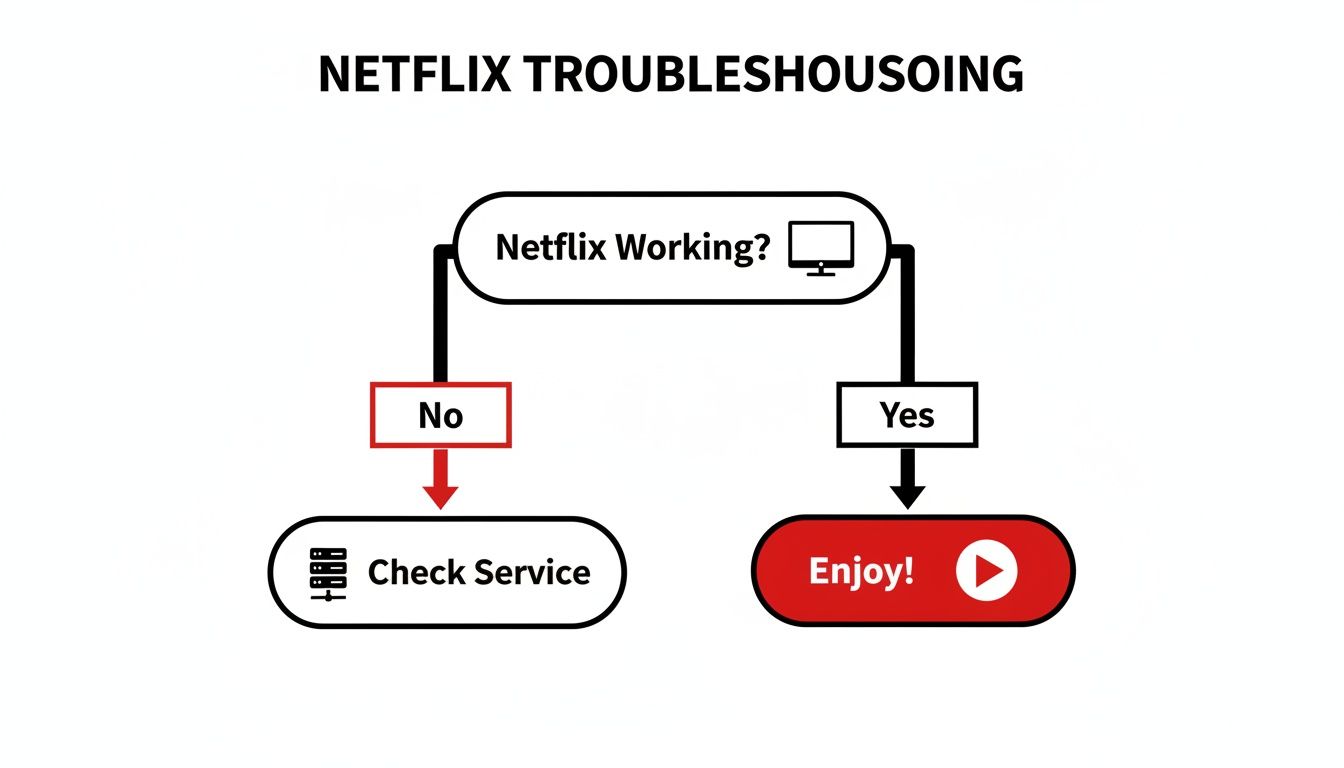
The very first question you should always ask is: "Is it just me, or is Netflix down for everyone?" Checking the service status first can save you a ton of unnecessary troubleshooting.
Quick Fix Cheat Sheet for Common Netflix Errors
To help you get right to the point, I've put together this cheat sheet. Find the symptom you're experiencing to see the most likely culprit and the very first thing you should try.
| Symptom | Likely Cause | First Action to Try |
|---|---|---|
| Black screen or app won't open | App glitch or TV software error | Power cycle your TV (unplug for 60 seconds) |
| Constant buffering or poor quality | Weak or unstable internet | Run a speed test from your TV’s browser |
| Error code appears on screen | Varies (app, network, or account) | Search for the specific error code online |
| App works on phone but not TV | Issue is isolated to the TV | Clear the Netflix app cache and data |
Think of it this way: you’re just checking the three most common points of failure—the app itself, your TV's software, and your network. By tackling them in order, you can fix almost any streaming issue on your own.
And if you happen to be setting up a new TV or just getting started, our other guide on how to hook up Netflix to your TV with fast setup tips is a great resource to make sure everything is configured correctly from the get-go.
Is Your Streaming Device Still Supported?
Here's a culprit that often goes overlooked when your movie night hits a snag: your TV or streaming stick has simply aged out. As technology moves on, services like Netflix have to drop support for older hardware. It's the only way they can roll out new features, tighten up security, and keep the viewing experience smooth for everyone.
This isn't a glitch; it's just part of the technology lifecycle. A smart TV from 2013 might have been a showstopper back then, but its internal guts just can't keep pace with the demands of today's streaming apps. This is a huge reason why "Netflix won't work on my TV" is such a common complaint—the device itself becomes the bottleneck.
The Inevitable Tech Expiration Date
It’s a lot like an old smartphone that eventually stops getting app updates. Streaming devices hit the same wall. A perfect example is how Netflix and other services are handling their hardware support. We're seeing a clear trend where devices are phased out after a certain number of years on the market.
This pattern is pretty consistent across the industry. For instance, as of June 3, 2025, Netflix officially ended support for Fire TV devices released between 2014 and 2016. That’s hardware that's now a decade old. This move came about a year and a half after they did the same for older TVs and Blu-ray players from big names like Samsung and Toshiba, cutting off most pre-2014 smart TVs. You can get more details on this shift from this report on streaming device support.
Key Takeaway: If your TV or streaming stick is more than seven or eight years old, its age is a prime suspect. It's not personal—manufacturers and app developers just have to focus their resources on current tech.
How to Check Your Device's Compatibility
So, how can you tell if your trusty device has been officially retired? It’s actually pretty simple and only takes a minute. All you need is your TV's model number and, if you can find it, its manufacturing year.
You can usually find this info in a few places:
- On the back of the TV: There should be a sticker with the model number and sometimes the manufacture date.
- In the TV’s menu: Dig around in the settings under "Support," "About," or "System Information."
- On the original box or receipt: If you're the type to keep these, they'll have everything you need.
Once you have the model number, just pop it into a search engine—something like "Netflix compatible [Your TV Brand and Model]" should do the trick. If you can’t find your device on an official support page, you've probably found your answer.
The good news? You don't necessarily need a whole new TV. A modern, affordable streaming stick like a Roku or Fire TV can get you back up and running instantly.
Sorting Out App and TV Software Conflicts
Sometimes, even on a fully supported TV, the Netflix app itself is the culprit. Over time, the app accumulates a stash of temporary files and data. When this data gets corrupted, it can cause all sorts of headaches—crashes, endless loading screens, or the app refusing to open at all.
Think of it as a digital logjam. This is often the case when you notice Netflix is working perfectly fine on your phone or laptop but not on your smart TV. It’s a classic sign that the problem is isolated to that specific device's software. The good news is that fixing it is usually pretty simple.
Start with the Simple Stuff: Clear the Cache and Data
Before you jump to reinstalling the app, there’s a much faster first step: clearing the app’s cache and data. This is like hitting a refresh button for the app without actually deleting it. It wipes out all those temporary files that might be causing the conflict, forcing Netflix to pull down fresh data from its servers.
Outdated apps and firmware are a prime reason why Netflix won't work on my TV. Based on user reports, a corrupted cache can easily block playback, and simply clearing it resolves up to 70% of these specific issues. You can learn more about how software conflicts impact streaming on simalabs.ai.
To do this, you'll need to dive into your TV's settings menu.
- First, head to your TV’s Settings.
- Look for a section called Applications or Apps.
- Scroll through the list and find the Netflix app.
- Once you select it, you should see options like Clear Cache and Clear Data. Hit them both.
If you need a more detailed guide, check out our post on clearing the Netflix cache on various devices. More often than not, this simple action gets things working again.
Keep Your Software in Sync
If clearing the data didn't solve the problem, the next thing to look at is software updates. For Netflix to run smoothly, both the app itself and your TV's operating system (often called firmware) need to be current. When one is updated and the other isn't, they can stop "talking" to each other correctly.
App developers are constantly pushing out updates to fix bugs, patch security holes, and keep up with new streaming technologies. If your TV’s firmware is too old, it simply can’t support the newer versions of the app, and things start to break.
It's like trying to run brand-new software on a ten-year-old computer—sooner or later, you're going to hit a wall.
The Last Resort: Reinstall the Netflix App
When you've tried everything else, a complete reinstallation is your best bet. This move deletes every last trace of the app from your TV and replaces it with a completely fresh copy from the app store. It's the ultimate software reset.
Here’s how you do it:
- Go back into your TV’s Apps or Applications manager.
- Find the Netflix app and select the Uninstall option.
- After it’s gone, restart your TV. This is a crucial step that clears out any leftover junk files.
- Finally, head to your TV’s app store, search for Netflix, and Install it again.
This guarantees you have the absolute latest version that’s fully compatible with your TV, wiping out any deep-rooted software glitches in the process.
Your Home Network Might Be the Real Culprit
Let's be honest, a spotty internet connection is usually the prime suspect when Netflix starts acting up. Your Wi-Fi signal might look strong, but that doesn't tell the whole story. Hidden issues like slow speeds, signal interference, or even a problem with your Internet Service Provider (ISP) can stop a binge-watch in its tracks.
You can have the fanciest TV and the latest app, but without a steady stream of data, you're going nowhere. This is a classic reason why Netflix won't work on my TV even when it seems fine on your phone. Your TV needs a much more stable, high-bandwidth connection to stream high-quality video compared to just scrolling through social media.
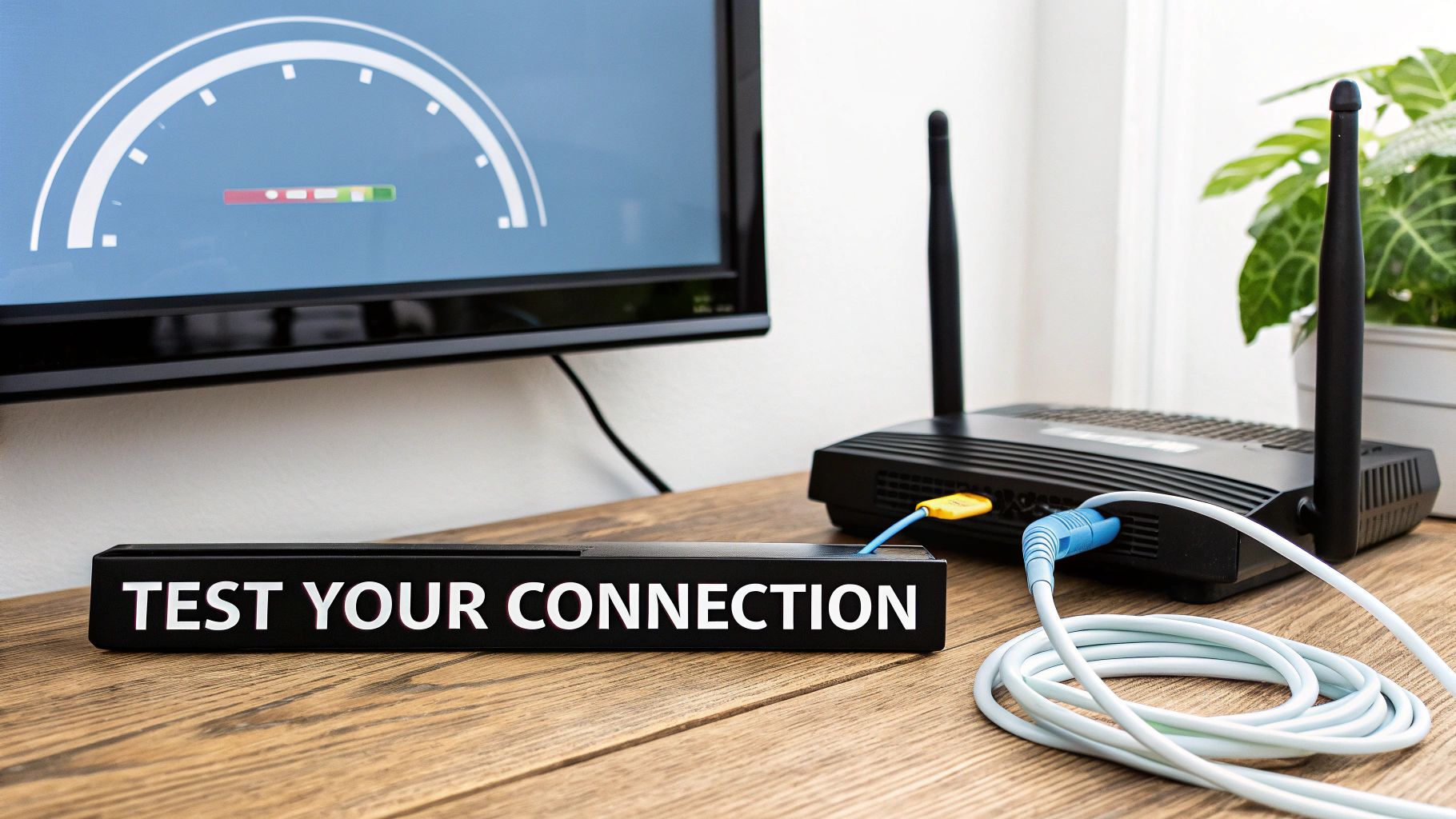
Run a Speed Test—But Do It on Your TV
Before you start messing with your router, your first move should be to find out what kind of internet speed your TV is actually getting. Netflix is pretty clear about the bandwidth it needs, and if you're not meeting the minimums, you'll be stuck with endless buffering or shows that won't even start.
Here's what Netflix says you need:
- Standard Definition (SD): 1 Mbps
- High Definition (HD - 720p): 3 Mbps
- Full High Definition (FHD - 1080p): 5 Mbps
- Ultra High Definition (4K/UHD): 15 Mbps
Most smart TVs have a web browser tucked away in their app menu. Fire it up and head over to a speed testing site. I recommend Fast.com (since Netflix themselves run it) or the classic Speedtest.net. Testing directly from the TV is crucial because it gives you a real-world reading of the bandwidth it has to work with—a number that can be wildly different from what your laptop or phone is getting.
Is a Weak Wi-Fi Signal the Problem?
If that speed test came back with a depressingly low number, a weak Wi-Fi signal is the most common cause. Wireless signals can be surprisingly fragile and get weakened by all sorts of things on their way to your TV.
Distance is the number one enemy. The farther the TV is from your router, the weaker the signal gets. Walls are another major obstacle, especially if they're made of brick, concrete, or contain a lot of plumbing. Even other electronics, from your microwave to a baby monitor, can cause interference.
Pro Tip: As a quick diagnostic test, try temporarily moving your TV closer to the router (or the router closer to the TV). If the streaming problems suddenly disappear, you've found your culprit: a weak signal.
When in Doubt, Go Wired
For the absolute best streaming experience, nothing beats an old-fashioned Ethernet cable. A wired connection is like a private, high-speed lane for your data, bypassing all the congestion and interference of Wi-Fi. It’s a direct, stable link from your router to your TV.
If your TV and router are in the same room, this is a no-brainer. Just grab an Ethernet cable, plug one end into your router, and the other into the port on the back of your TV. Your television should automatically switch to the wired connection, giving you the best possible shot at smooth, uninterrupted 4K streaming. It’s a simple fix that permanently solves a ton of frustrating Netflix issues.
Check Your Netflix Account and Subscription Status
Sometimes, the simplest explanation is the right one. Before you start unplugging your TV or rebooting your router, it’s worth checking if the problem is actually with your Netflix account itself. It's an easy thing to overlook, but an expired credit card or a maxed-out stream limit will stop you in your tracks just as effectively as a bad Wi-Fi signal.
This is a really quick check that can save you a ton of time and frustration. Just hop on a computer or your phone, log into the Netflix website, and take a peek at your account details. You'll know in about 30 seconds if this is where the issue lies.
Is Your Subscription Still Active?
The most common culprit here is a payment issue. If your credit card on file has expired or was declined for any reason, Netflix will put your account on hold. It happens all the time.
Here's how to see if that's the problem:
- Sign in to your Netflix account using a web browser.
- Head over to your Account page.
- Look for the Membership & Billing section. It will tell you straight away if your account is active or if there's a billing problem.
If you see a payment error, just update your card details. Once the payment goes through, your service should be back up and running almost instantly. It’s a surprisingly common reason for Netflix to stop working, but thankfully, it's also one of the easiest fixes.
Did You Hit Your Stream Limit?
Another classic roadblock, especially in a full house, is hitting the maximum number of screens your plan allows. If the kids are watching on a tablet and your partner is on their laptop, your TV might not be able to start another stream.
Every Netflix plan has a hard cap on simultaneous streams:
| Netflix Plan | Simultaneous Streams |
|---|---|
| Standard with ads | 2 |
| Standard | 2 |
| Premium | 4 |
If you're on a Standard plan and two other people are already watching, your TV is out of luck. This is a frequent headache for those who share accounts, especially if you're using a service like AccountShare where it's easy to lose track of who's watching.
The "Nuke It From Orbit" Fix: Sign Out Everywhere
If you think someone else is logged in without permission or a previous session on another device never properly closed, your best bet is to force a logout on every single device. It's a clean slate approach that kicks everyone off, freeing up all your streaming slots.
From the Netflix website, go to your Account page, scroll down to Security & Privacy, and click Sign out of all devices. You'll have to log back in on your TV, but this fresh start often clears up stubborn access problems. If you can't remember your password when you try to log back in, our guide on a quick Netflix password reset will get you sorted out fast.
Common Questions About Netflix TV Problems
Even after running through all the usual fixes, you might be left with a very specific problem that just doesn't make sense. Let's tackle some of those head-scratching scenarios I see all the time.
Often, the way things are failing gives you the biggest clues. For instance, if Netflix is working on your phone but not the TV, you've already eliminated half the potential suspects. Let's dig into these common—and admittedly frustrating—issues.
Why Does Netflix Work on My Phone but Not My TV?
This is probably the most telling sign you can get. When Netflix streams perfectly on your phone or laptop but flat-out refuses to work on your TV, it immediately confirms two things: the Netflix service isn't down, and your home internet is doing its job. The problem is isolated to your TV or whatever streaming device is plugged into it.
So, you can stop worrying about your account or resetting your router for the tenth time. The issue is right there in the living room.
Nine times out of ten, the culprit is one of these:
- Glitched App Data: The Netflix app on your TV has some bad temporary files gumming up the works.
- Outdated Software: The Netflix app itself needs an update, or your TV’s main firmware is behind.
- A Simple Freeze: Your TV's processor just got stuck on something, and it's only affecting the Netflix app.
The quickest fix? Do a full power cycle. Unplug the TV from the wall, count to 60, and plug it back in. If that doesn't clear it up, the next logical step is to dive into your TV's settings and manually clear the Netflix app's cache and data.
What if the Netflix App Isn’t in My Smart TV’s App Store?
If you search for Netflix in your TV’s app store and come up empty, it’s a pretty clear sign: your TV model is no longer supported. It feels harsh, but manufacturers and developers like Netflix eventually have to stop supporting older hardware that can't handle the demands of the modern app.
When an app vanishes from the official store, it’s not a bug. It’s a deliberate decision indicating the device has reached its end-of-life for that service. You won't be able to download or update it.
But this doesn't mean you need a new TV! You can easily breathe new life into it by plugging in an inexpensive, modern streaming device. A gadget like an Amazon Fire TV Stick, a Roku, or a Google Chromecast will handle all the smarts and give you the latest version of Netflix and every other app you could want.
Netflix Is Stuck on the Loading Screen. What’s the Fastest Fix?
Ah, the dreaded red loading circle or the screen frozen at 25%. We've all been there. This is a classic Netflix hiccup, and it’s almost always a temporary software conflict within the app or the TV itself. Frustrating, yes, but the fix is usually quick.
The most reliable solution is to power cycle your entire setup.
- First, turn the TV off with the remote.
- Next, unplug both your TV and your internet router from the wall outlet.
- Wait a full 60 seconds. This part is crucial—it gives the internal capacitors time to fully discharge, clearing any junk from their temporary memory.
- Plug everything back in, wait for your router to reconnect, and then turn on the TV.
I'd say this simple process fixes the stuck loading screen well over 80% of the time. It just gives everything a completely fresh start.
Can a Bad HDMI Cable Actually Stop Netflix From Working?
You bet it can. A faulty or outdated HDMI cable can cause a whole host of issues that look just like a Netflix app problem. You might get a black screen, a flickering picture, missing audio, or the dreaded HDCP error. That "High-bandwidth Digital Content Protection" error is a digital handshake to prevent piracy, and if the cable can't maintain that connection, Netflix will simply refuse to play.
This is a really common problem when trying to stream in 4K. That Ultra HD signal requires a newer, High-Speed HDMI cable that supports the HDCP 2.2 standard. An older cable just can't carry the signal properly.
If you’re using an external box like a Roku or Apple TV, try swapping to a different HDMI cable and plugging it into a different HDMI port on your TV. That simple test helps you rule out both a bad cable and a broken TV port at the same time.
Navigating shared account limits and login headaches can be a common source of streaming issues. With a service like AccountShare, you can get premium access to Netflix and more at a reduced cost through secure group sharing, making your digital life a bit simpler. Find out more at https://accountshare.ai.