

Master Spotify Premium Offline Music Your Ultimate Guide
Picture this: you're about to board a flight or head down into the subway, and you have that moment of peace knowing your entire music library is good to go, no Wi-Fi necessary. That's the real magic of Spotify Premium’s offline mode. It basically turns your phone into a self-sufficient jukebox, guaranteeing your favorite albums, playlists, and podcasts are always with you.
Why Offline Listening Is Such a Big Deal
The ability to download your music is more than just a nice-to-have feature; for many people, it's the number one reason to upgrade from the free version of Spotify. It completely changes where and how you can listen. You can finally stop stressing about hitting a dead zone on your commute or racking up a huge data bill when you travel abroad. You're in total control.
It's About More Than Just Saving Data
Sure, saving your mobile data is a huge plus, but the perks of offline listening go way beyond that. One of the first things you'll notice is the jump in audio quality. Premium subscribers can download tracks at a very crisp 320kbps, which delivers a much richer, more detailed sound than what you get streaming on the free plan. If you've invested in a good pair of headphones, you'll hear the difference immediately.
And let's not forget the other major win: a totally ad-free experience. When you're listening to downloaded content, there are zero interruptions. No commercials crashing the vibe of an album, no ads popping up in the middle of a podcast. It's just you and your audio, the way it was meant to be.
The real power of offline mode is creating a self-contained, reliable entertainment hub. Your morning commute, gym session, or cross-country flight will never be silent again, even without a single bar of service.
Before we get into the "how-to," let's quickly break down what you actually get with each plan when it comes to offline listening.
Spotify Free vs Premium Offline Capabilities
| Feature | Spotify Free | Spotify Premium |
|---|---|---|
| Download Music | No | Yes, full albums, playlists, and songs |
| Download Podcasts | Yes | Yes |
| Download Limit | None (podcasts only) | 10,000 songs per device |
| Device Limit | N/A for music | Up to 5 devices |
| Audio Quality | Standard quality streaming only | Download in Very High quality (320kbps) |
| Ad-Free Listening | No | Yes, completely ad-free offline |
| Offline Mode | No (cannot play music) | Yes, full access to downloaded library |
As you can see, the difference is night and day. Premium unlocks the full potential of your music library by letting you take it anywhere.
The Technical Edge of Premium Downloads
The offline download feature is a cornerstone of Spotify Premium's appeal. As a subscriber, you can save up to 10,000 songs on five different devices. The files are stored as DRM-protected OGG files, but the key is that they’re saved at that high-quality 320kbps bitrate. This is a massive leap from the free tier's ad-supported, shuffle-only experience on mobile.
This generous limit means you can build out extensive libraries for any occasion—from workout playlists to an artist's entire discography—all ready to play in an instant. If you're curious about the numbers behind the platform, you can find more Spotify user statistics and feature breakdowns on soundcamps.com.
How to Download Music and Podcasts for Offline Use
One of the biggest perks of a Spotify Premium account is the freedom to build your own personal audio library, right on your device. This means your go-to playlists, must-listen albums, and favorite podcasts are always just a tap away, even when you're completely off the grid. Let's get into exactly how you can curate your collection of Spotify Premium offline music.
The process is refreshingly simple, whether you're on your phone or computer. When you come across an album or a playlist you want to save, just look for that little downward-facing arrow icon (↓). Give it a tap, and you'll see it turn green. A matching green arrow will then pop up next to every track, confirming that it's been successfully saved to your device for offline listening.
What about single songs? Spotify handles this a bit differently. You can't download just one track by itself, but there's an easy workaround. Simply add the song to a playlist—your "Liked Songs" works perfectly for this—and then download that entire playlist. So, next time you discover a new favorite, just hit the heart icon to add it to your Liked Songs, and make sure that playlist is downloaded.
Downloading for Different Scenarios
The key to a great offline library is thinking ahead. You can tailor your downloads for pretty much any situation you can imagine.
Here are a few real-world examples:
- The Perfect Road Trip: Before you hit the road, create a brand-new playlist for the journey. As you find songs that fit the mood, just add them in. A quick tap of the download button before you pull out of the driveway, and you're set.
- Your Gym Motivation: Keep those high-energy workout playlists downloaded permanently. This way, they're always ready to go the second you walk into the gym—no waiting, no buffering.
- That Long Flight: This is the perfect time for long-form content. Download a couple of full albums you've been meaning to listen to or a few episodes of a podcast series to make the hours fly by.
These are the core benefits that really make offline listening a game-changer with a Premium subscription.
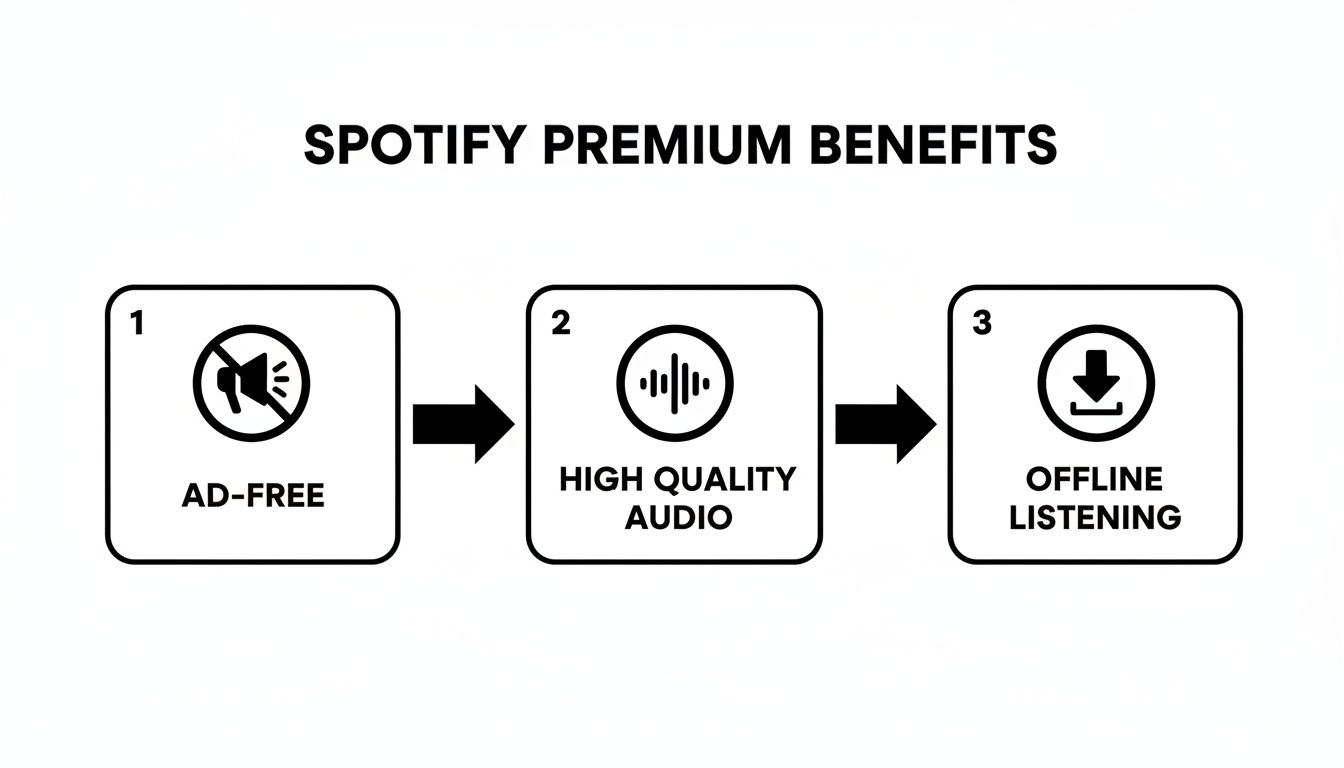
Being able to download high-quality, ad-free audio is what makes the Premium experience so seamless. Your offline library isn't just convenient; it's a top-tier listening experience.
Activating Offline Mode
Once you've got your content downloaded, you can manually flip the Spotify app into Offline Mode. This is a brilliant feature for making absolutely sure you don't accidentally chew through your cellular data.
To turn it on, just head into your app's settings. On a mobile device, you'll go to Settings > Playback and then toggle on the "Offline" switch. The app will then only show you the music and podcasts you've actually downloaded, giving you total peace of mind. If you want a more detailed look, our guide on using Spotify's offline mode on an iPhone has some extra pointers.
Keep this in mind: While you can save an unlimited number of songs to your online library, Spotify has a hard limit for offline listening. You can download up to 10,000 tracks per device, on a maximum of five different devices.
And if you want to expand your offline collection beyond Spotify, you can always explore other tools. For instance, finding the best YouTube to MP3 converter can help you build an even broader personal audio library, giving you complete control over your offline soundtrack.
Managing Your Offline Library Like a Pro
Downloading your favorite tracks is one thing, but keeping that collection organized is what separates a good offline experience from a great one. A well-managed library means you can always find the right playlist for the moment without digging through clutter or maxing out your phone's storage. Let's get into the best ways to keep your spotify premium offline music library in top shape.
This really comes down to being aware of your device's storage and understanding a few key rules Spotify has in place. These limits aren’t there to cramp your style; they’re necessary for licensing agreements and to keep things fair for everyone. Knowing them ahead of time saves you from any "why won't this download?" headaches later.
Understanding the Key Limits
There are two main numbers you need to keep in mind when building your offline world on Spotify. They're especially important if you're hopping between devices or sharing an account.
- The 10,000 Song Limit: You can save up to 10,000 songs on a single device. That's a ton of music, but for serious collectors downloading entire artist discographies, it’s a number that can creep up on you.
- The 5 Device Limit: Your offline library can live on up to five different devices at the same time. This could be your phone, a tablet, your laptop, and so on.
Remember, these caps are per device, not per account. This detail is crucial for anyone on a shared plan, as every person’s device counts toward that total of five.
The 30-Day Offline Check-In
Spotify has one simple rule to keep your downloads active: your device needs to go online at least once every 30 days. This isn't about checking up on you. It's just an automated handshake to confirm your Premium subscription is still valid and refresh the licenses for the music you've saved.
You don't have to do anything special—just opening the Spotify app while you're on Wi-Fi or cellular data is enough to handle it. If you happen to stay completely offline for more than 30 days, your downloads will be grayed out and unplayable until you reconnect.
Think of it like a library book. Your Premium subscription lets you borrow the music, and that 30-day check-in is just Spotify stamping your card to renew the loan.
Keeping Your Library Fresh and Tidy
An offline library full of old playlists can chew through your storage faster than you'd think. We all have that one playlist for a road trip that happened two years ago or albums we've moved on from. Making a habit of spring cleaning your downloads is a smart move.
Removing downloads is easy. Just head to the playlist or album, and tap that green download arrow (↓). It'll turn back to white, and Spotify will clear those files off your device, instantly freeing up precious space. This little bit of housekeeping keeps your library relevant and ensures you always have room for your next favorite album.
These rules are central to how the platform works. Premium users can download up to 10,000 songs on up to 5 devices, and a quick internet connection every 30 days keeps everything fresh. If you're curious about the bigger picture, you can learn more about Spotify's user features and statistics to see how these limits fit into their overall system.
Solving Common Spotify Download Problems
Let’s be honest, even the best features have their off days. It’s a special kind of frustration when your perfectly curated spotify premium offline music collection suddenly decides to stop working. You might be staring at a download that’s been stuck at 99% for what feels like an eternity, or wondering why your go-to playlist is suddenly grayed out and unplayable.
Don't panic. Most of these issues are surprisingly common and usually have a simple fix. We'll walk through the most frequent download headaches and get your music library back on track.
When Your Downloads Get Stuck
We've all been there—the eternally spinning download icon. Before you throw your phone across the room, run through this quick mental checklist. More often than not, one of these will solve the problem.
- Check Your Wi-Fi: Is the connection stable? A weak or spotty signal is the number one culprit. A quick toggle of your Wi-Fi off and on again can sometimes work wonders.
- Is Your Phone Full? Remember, high-quality audio files need space to live. If your device's storage is maxed out, Spotify simply can't finish the job. Pop into your phone's settings to see if you need to clear out some old photos or apps.
- Give it a Reboot: The classic "turn it off and on again" is a cliché for a reason. Don't just minimize the app—fully close it from your recent apps list and then relaunch it. This simple act can clear out minor glitches and get the download moving again.
Why Are My Songs Grayed Out?
Seeing your favorite tracks turn gray and become unplayable is a real pain, especially right before a flight. This almost always points to an issue with licensing or your account's status.
The biggest reason for grayed-out songs is Spotify’s 30-day online check-in. To keep your offline licenses active, the app needs to connect to the internet at least once every 30 days. This confirms your Premium subscription is still valid.
The fix is usually as simple as connecting to a Wi-Fi or cellular network and opening the app. Spotify will quickly verify your account in the background and your songs should become playable again.
On rare occasions, a song might be grayed out because it's been removed from the Spotify library entirely due to licensing changes with the artist or label. If that’s the case, there’s unfortunately nothing you can do.
For those sharing accounts, hitting device limits can also trigger this. If you’re juggling multiple users, check out our guide on https://accountshare.ai/blogs/new/how-many-devices-on-spotify to make sure you're not accidentally kicking someone off.
The Last Resort: A Clean Reinstall
If you've tried everything and the app is still misbehaving, it's time for a clean reinstall. This process nukes any corrupted files or pesky cached data that might be causing the persistent bug.
First, navigate into Spotify's settings within the app and find the option to "Delete Cache." Once that's done, go ahead and uninstall the app completely. For good measure, restart your device before heading to the app store to reinstall Spotify.
Yes, you'll have to re-download your library, which is a bit of a hassle. But this "scorched earth" approach almost always resolves those stubborn, deep-rooted issues.
Sharing an Account Without Offline Headaches
Splitting the cost of a Spotify Premium subscription is a smart way to save money, but it brings its own set of challenges—especially when everyone wants their music offline. When you have multiple people downloading tracks to their own devices, you have to play by Spotify’s rules to avoid accidentally kicking someone off.
The two big hurdles are the 5-device limit for offline listening and the 10,000-song cap per device. Honestly, most people won't hit the song limit, but that device limit? It can fill up surprisingly fast on a shared plan. If one person signs in on their new phone, tablet, and laptop, they’ve just claimed three of the five available offline slots for the whole group.
Create Personal Offline Playlists
The absolute best way to keep the peace is to have everyone create their own dedicated offline playlists. Think of them as personal lockers inside the shared account. For example, you could have playlists like "Sarah's Workout Mix" or "David's Commute Podcasts."
This simple habit solves one of the most common frustrations: someone "tidying up" the library and deleting an album another person had downloaded for a flight. Keeping everyone's offline content clearly labeled and separate brings order to the chaos. It also helps everyone manage their own slice of the song limit. For a smooth start, check out our guide on how to add someone to your Spotify account and establish these ground rules from day one.
A little communication goes a long way. A quick text like, "Heads up, I'm downloading a ton of stuff for a road trip, so try to stay online for a bit," can prevent someone from getting their downloads wiped.
Coordinate Your Online Check-Ins
Don't forget that Spotify requires every device to go online at least once every 30 days. This is how it verifies your Premium subscription and keeps your downloads from expiring. On a shared account, this is even more important. If one person’s phone stays offline for too long, Spotify might de-register it, which frees up a slot but also erases all their downloaded music.
Make it a house rule for everyone to open Spotify on their devices while connected to Wi-Fi every couple of weeks. It’s a simple, two-second action that keeps all devices authorized and their offline libraries intact. For users in major markets like North America, who spend an average of 140 minutes a day on the app, having reliable offline access for flights or the gym is non-negotiable. Staying synced prevents any nasty surprises right when you need your music most.
Your Top Questions About Offline Music, Answered
Even a feature as awesome as offline listening can have its quirks. From my experience helping people get the most out of their subscriptions, a few questions pop up time and time again. Let’s clear up the confusion so you can get back to building your perfect offline library.
Can I Just Download a Single Song?
This is a common point of confusion. Spotify doesn't give you a download button for individual tracks, which can be a little frustrating when you just discover one great song. Their system is designed around downloading entire collections like playlists, albums, or podcasts.
But don't worry, there's a super easy workaround I use all the time. Simply add that one song to a new or existing playlist that you've already marked for download. Your "Liked Songs" playlist is a perfect place for this. Once you add it, the app will automatically sync and download it for you.
What's the Deal with the 10,000 Song Download Limit?
Ah, the infamous limit. Back in 2020, Spotify finally lifted the cap on how many songs you could save to your online library, which was great news. You can now "like" an infinite number of songs. So why does the offline download limit still exist?
It all comes down to licensing. The 10,000-song download limit per device is a requirement from music labels and artists. Saving a song online is like a bookmark, but downloading it creates an actual, encrypted file on your device, which is treated differently under these agreements.
Think of it this way: liking is a pointer, but downloading is a temporary copy. Those copies are what the music industry has strict rules about.
Are My Downloads Eating Up All My Phone's Storage?
They definitely can. High-quality audio files are bigger than you might think. A single three-minute song at "Very High" quality (which is 320kbps) will take up about 7-8 MB of space. If you download a hefty 20-song playlist, that's already around 150 MB gone.
If you're tight on storage, dive into your settings and switch the download quality to "Normal." The audio fidelity will be a bit lower, but you'll save a ton of space, making it a worthwhile trade-off for many. For more answers to common questions, you can also check out these general music FAQs.
What Happens to My Downloads if I Cancel Premium?
This one is simple: the moment your Premium subscription ends, your offline access goes with it. The files don't get deleted immediately, but they'll be grayed out and completely unplayable within the app.
The offline feature is one of the main draws of a paid plan. If you decide to resubscribe later, your downloaded playlists will become available again without you needing to redownload everything.
It's clear why this feature is so valued. As of the second quarter of 2025, a staggering 276 million users were subscribed to Spotify Premium, with offline access being a primary driver for that growth. You can discover more insights about Spotify user growth on soundcamps.com to see just how popular these paid features are.
Ready to unlock premium features like offline listening without paying the full price? At AccountShare, we make it easy and affordable to join group subscriptions for services like Spotify. Enjoy all the benefits securely and cost-effectively. Explore our shared account options today at https://accountshare.ai.