
Remote Access Software for Small Business: 2026 Comparison
64% of surveyed small businesses identified secure access as a leading cybersecurity challenge in a Cisco survey of more than 1,900 IT decision-makers across 13 Asia-Pacific, Japan, and China markets. That's the problem remote access software for small business has to solve. Connecting to a screen is easy. Connecting the right person, to the right machine, for a limited time, with a record you can check later is harder.
Buy on governance first and features second. A tool that can't show who connected, revoke a leaver in minutes, and limit a technician to one device will cost you more in risk than it saves in license fees.
Remote Access Software Compared at a Glance
Remote access software does two distinct jobs. Attended support means someone at the machine accepts the session, which suits helpdesk work and one-off fixes. Unattended access means a staff member or technician reaches a switched-on machine with nobody present, which suits office PCs and scheduled maintenance. That's different from a VPN, which connects you to a whole network rather than to one computer's screen.
In 2025, 85% of organizations surveyed across the United States, United Kingdom, Canada, Japan, and the European Union allowed some form of remote work, according to the Parallels Cloud Report 2025. Remote work isn't the question anymore. Which tool you trust is. If you'd rather have an outside provider design and manage the setup, look at secure business access with Nutmeg Technologies before you commit to running it yourself.
| Tool | Best fit | Business licensing | Unattended access | Main limitation |
|---|---|---|---|---|
| TeamViewer | IT support across mixed Windows, Mac and Linux machines | Paid business licence required; free tier is for personal use | Yes, licensed per device | Cost rises quickly as seats and devices are added |
| AnyDesk | Fast ad-hoc support on variable connections | Paid business licence required | Yes | Fewer built-in admin and reporting features than suite-style tools |
| Splashtop | Budget unattended access to office PCs | Paid per-user or per-device plans | Yes | Audit and admin features depend on the plan tier |
| Chrome Remote Desktop | Free one-off help and personal-device access | Free for personal use; business control through Google Workspace | Yes, tied to a Google account | Limited policy controls and reporting |
| Windows Remote Desktop | Office PCs inside one Windows network or behind a VPN | Included with Windows Pro and Enterprise | Yes, on Pro or Enterprise hosts | Exposed ports attract attacks; needs a VPN or gateway |
| RealVNC Connect | Mixed Linux, Windows and embedded devices | Subscription priced per device | Yes | Cost scales with device count |
| ConnectWise ScreenConnect | Managed service providers supporting many client sites | Quote-based, per technician | Yes | Overbuilt for a team of under ten staff |
How to Read This Table
The licensing column decides your real cost, because per-user and per-device pricing produce very different bills for the same team. The unattended column decides your exposure, since every always-on entry point needs an owner and a revocation path. The limitation column decides fit for a team under ten, where an overbuilt suite wastes money and a thin free tool leaves you without logs. Vendor tiers change often, so confirm current terms on the vendor's page before buying.
Security Controls That Separate Safe Tools
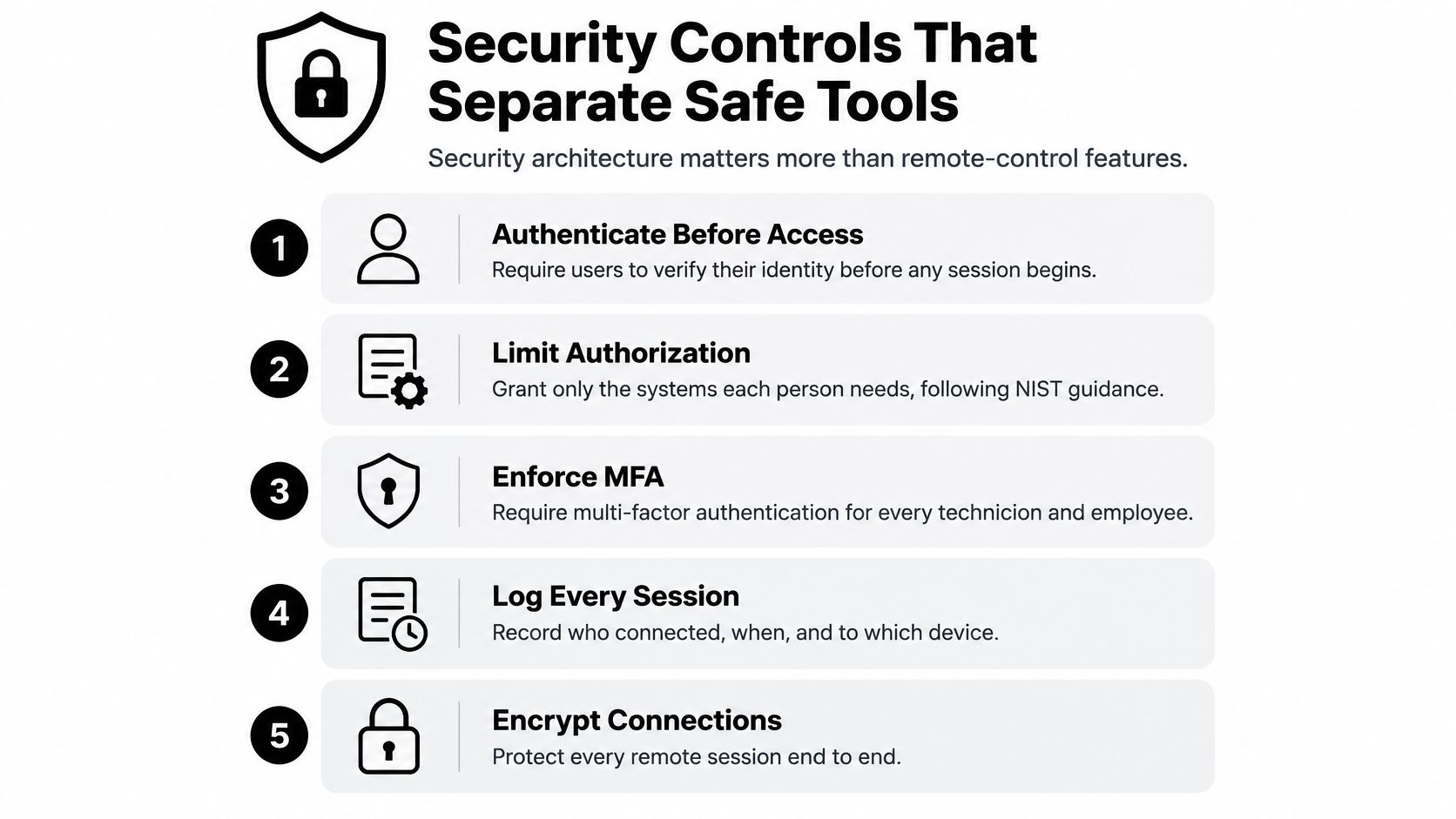
Security architecture matters more than remote-control features. Screen sharing, file transfer, and remote printing are roughly equal across serious tools. What separates them is whether you can prove who got in, limit what they reached, and cut them off fast.
NIST guidance on remote access and zero trust recommends authenticating users before granting access, limiting authorization to necessary resources, protecting communications with approved cryptographic mechanisms such as TLS or a protected VPN tunnel, and requiring multifactor authentication for both telework devices and remote-access solutions. Its zero-trust model adds a point small firms miss: a user's network location or device ownership shouldn't imply trust. A laptop on your office Wi-Fi and a laptop at home should both prove identity every time.
Controls You Can Verify Before Buying
Don't accept a vendor's claim that a tool is secure. Test each control during the trial and keep screenshots for your records.
- MFA enforced for every technician: Confirm an admin can require it for all accounts, not just offer it as an option individuals can skip.
- Role-based permissions: Check you can build roles that reach specific device groups, so support staff can't open the finance PC by default.
- Exportable session logs: Run a test session, then export the log and confirm it shows user, device, start time, and duration.
- Device health checks: Look for checks on operating system version, disk encryption, or antivirus status before a connection is allowed.
- One-click revocation: Disable a test account and confirm its live sessions end and its unattended access stops working.
- Approval prompts: Require the person at the machine, or a manager, to approve sensitive unattended sessions.
- Application-level access: Prefer publishing one application over handing over the whole desktop where the job allows it.
Practical rule: If you can't export a session log and revoke a user in under five minutes during the trial, remove that tool from your shortlist.
Two Jobs That Show the Difference
Say your bookkeeper works from home two days a week and needs accounting software on one office PC. Application-level access, or a role limited to that single machine, gives her what she needs without exposing payroll folders, email, or shared drives. A full desktop with unattended access gives her everything, including things she'd never open, and that's exactly the exposure least privilege exists to prevent.
Now say an outside technician needs the finance PC for one hour to fix a printer driver. He should get an individual account, MFA, an approval prompt, and access that expires the same day. If his credentials leak later, there's nothing left to use. Our guide to remote work security best practices covers the wider habits, from password managers to home router updates, that sit around the tool itself.
A tool with polished unattended access but no centralized audit trail can create more risk than a plainer platform with strong identity controls. Put three questions to every vendor in writing. Where are logs stored, and who can alter them? How long are they kept on the tier you're buying? How do you cut off a lost device within minutes, including its unattended keys? Vague answers are an answer.
How to Grant and Revoke Access for Each Team Member
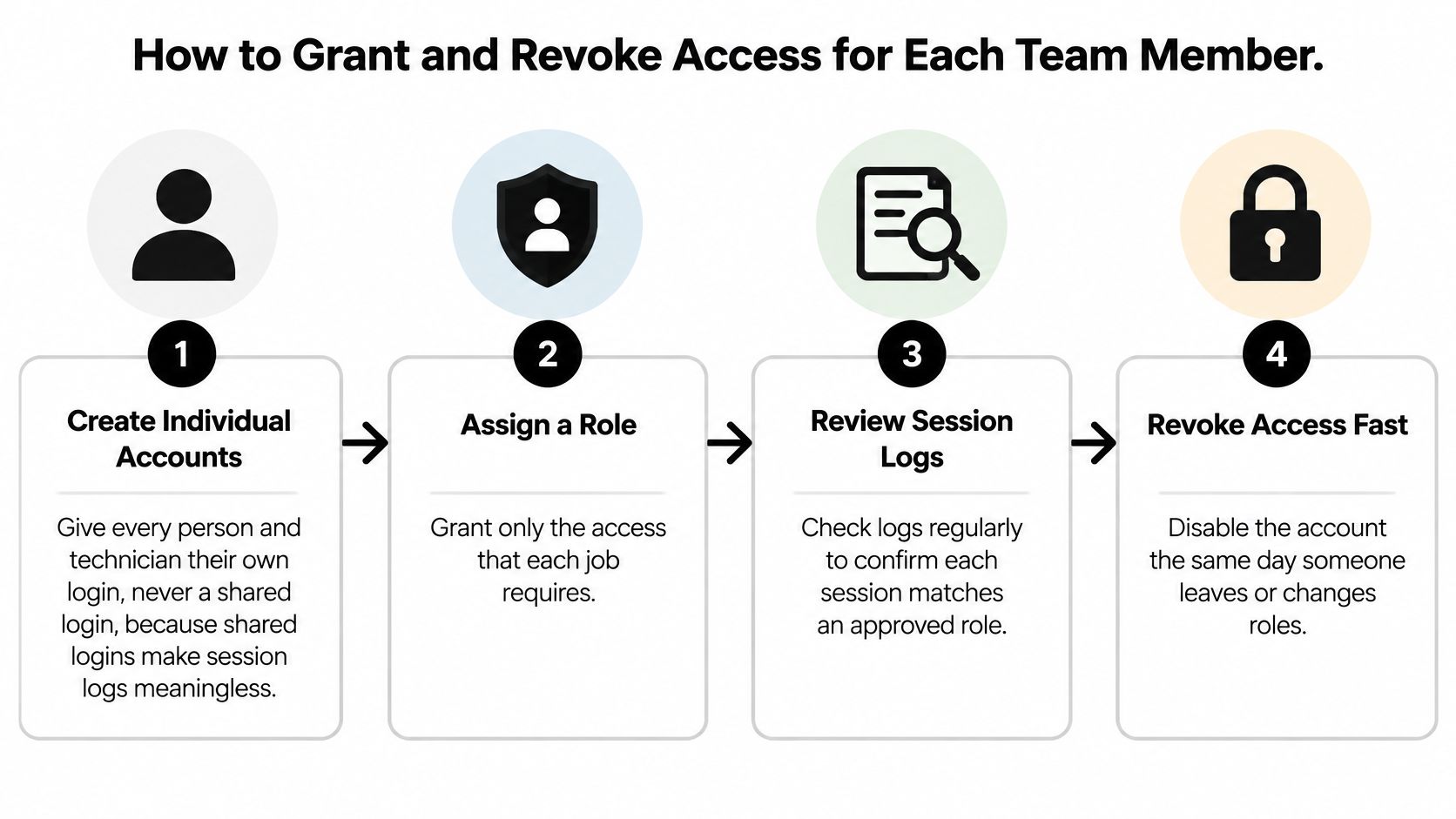
Access problems rarely come from hackers defeating encryption. They come from shared logins, roles nobody reviewed, and former staff whose access nobody removed. This procedure takes an afternoon to set up and prevents most of that.
Granting Access in Seven Steps
- Create an individual account for every person. Give each employee and technician their own login, including outside support providers. A shared login makes session logs meaningless, because you can see that someone connected but never who.
- Assign a role tied to the job. Build roles around work, such as office staff, finance, and external support, rather than around individuals. Each role grants only the devices and applications that job needs.
- Require MFA at first sign-in. Don't let anyone connect to a live machine until enrolment is complete. For the thinking behind role design, our complete guide to user roles and permissions walks through permission levels in detail.
- Restrict devices by role. Separate finance PCs from general office machines so a broad support role can't reach both. Keep administrator rights in a role of their own, held by as few people as possible.
- Review the first session in week one. Open the log after each new user's first real session and confirm it shows the right person, device, and time. Fix naming or grouping problems now, while the list is short.
- Set a quarterly access review. Put a recurring date in the calendar and compare every active account against current staff, current contracts, and current devices. Remove anything you can't match to a person and a reason.
- Offboard on the same day. Disable the account, revoke trusted devices, remove unattended-access keys and saved passwords, and rotate any shared secrets that person knew. Then check the previous thirty days of logs for sessions you can't explain.
Contractors and the Most Common Slip
Say a contractor in another time zone maintains your point-of-sale PCs overnight. Give her access that expires on the contract end date, limit it to those machines, and require approval for any session with higher privileges. Time limits matter more across time zones because nobody's awake to notice an odd login.
The most common slip is disabling a leaver's account but leaving the unattended-access key on the machine. The login is dead, but the door is still open.
Treat the device-side credential as part of offboarding, every time. Test it after removal by trying to connect.
Pricing Models and Hidden License Costs
Start with a concrete team. Say you have eight office staff, three technicians, and twelve devices that need remote access. A per-user plan counts eleven seats. A per-device plan counts twelve machines, and may still charge for the three technician seats on top. The same team produces two very different quotes, which is why headline prices mislead.
The Five Pricing Models You'll Meet
Free personal use covers tools like Chrome Remote Desktop and the personal tiers of commercial products. You get connectivity with thin policy controls, and using a personal tier for business work can breach the license terms. Per-user subscriptions suit staff who each work from home on their own office PC. Per-device unattended licenses suit shared machines, servers, and point-of-sale terminals that several people reach. Bundled operating system tools, mainly Windows Remote Desktop on Pro and Enterprise, add no license fee but push cost elsewhere. Quote-based suites for managed service providers price per technician and bundle ticketing and monitoring you may not need.
Windows Remote Desktop deserves a direct warning. It's included with your Windows license, but running it safely means paying for a VPN or gateway, configuring firewall rules, and spending your own time maintaining them. Free software with expensive plumbing isn't free.
Costs That Hide in the Tier Structure
- Admin and reporting features: Centralized user management and detailed reports often sit in higher tiers than the one advertised first.
- MFA and single sign-on: Some vendors reserve enforced MFA or SSO for business plans, which means your security requirement sets your tier.
- Audit-log retention: A cheap tier may keep logs briefly, so check retention against your insurance or client audit needs.
- Add-on modules: Remote printing, file transfer controls, and mobile device support sometimes bill separately.
- Guest and technician seats: Outside support may consume paid seats even for occasional sessions.
Write a twelve-month total that includes add-ons and support, then compare it against the controls you need. Our notes on tracking software licenses across a small team help you keep renewal dates and seat counts in one place. Vendors change tiers without much notice, so verify current terms directly and get a written quote naming the tier, seat count, and log retention before you decide.
Performance on Real Small Business Connections
Bandwidth claims on vendor pages tell you almost nothing. A peer-reviewed evaluation of remote desktop protocols measured actual traffic across two workloads, an office profile and video playback, in a cloud test environment with an average 53 ms round-trip time. The spread between protocols is wide enough to change which tool you should buy.
| Protocol | Office workload (KB/s) | Video playback (KB/s) |
|---|---|---|
| ICA | 13.51 | 171.63 |
| RDP | 14.10 | 149.01 |
| VNC | 14.56 | 320.85 |
| PCoIP | 32.18 | 83.46 |
| TeamViewer | 12.05 | 14.12 |
What the Numbers Actually Tell You
For ordinary office work, the protocols cluster together. RDP, ICA, and VNC each used roughly 14 KB/s, and TeamViewer used 12.05 KB/s, so email, documents, and accounting software will feel fine on almost any business connection. PCoIP used more, at 32.18 KB/s, but even that is modest. If your staff mostly run office applications, don't pay a premium for a protocol marketed on bandwidth savings you won't notice.
Video playback separates them sharply. VNC climbed to 320.85 KB/s, ICA to 171.63 KB/s, and RDP to 149.01 KB/s, while PCoIP held at 83.46 KB/s. On a shared office connection with several simultaneous sessions, those figures compound quickly and start competing with calls and cloud backups.
TeamViewer is the cautionary case. It used the least bandwidth in both profiles, just 14.12 KB/s during video, yet the evaluation recorded its lowest image-quality score. A protocol can win on efficiency by sending you a worse picture. For a spreadsheet that's a good trade. For reviewing a design file, checking a label proof, or reading fine print on a scanned invoice, it can make the work impossible.
Lowest bandwidth is not best performance. It's one variable traded against image quality, frame rate, and responsiveness.
Run a One-Hour Trial on Your Own Connection
These are laboratory results, not guarantees for your building. Before buying, spend one hour testing your two finalists on real work. Open your largest spreadsheet and scroll it fast. Play a short product video. Open a design file or detailed PDF and zoom in. Watch for typing lag, blurry text that sharpens slowly, host CPU spiking, and whether the cursor tracks your hand.
Test twice, once from a home connection and once through your VPN if you'll use one. Each adds delay a lab can't reproduce, and a tool that feels instant in the office can feel sluggish from a technician's house. Pick the tool your staff can work in for a full day, not the one with the smallest number in a table.
Matching Tools to Your Small Business Use Cases
One tool rarely covers everything well. Most small businesses end up with a primary tool plus one fallback, for example Splashtop for staff working from home and AnyDesk for quick ad-hoc help. That's cheaper and safer than forcing a single product into jobs it handles badly, as long as both tools follow the same account and logging rules.
| Scenario | Priority | Tool type to shortlist | Watch-out |
|---|---|---|---|
| Office staff working from home on Windows PCs | Reliable office-app performance | Windows Remote Desktop behind a VPN, or Splashtop | Never expose an RDP port directly to the internet |
| Field technicians supporting client sites | Quick attended sessions with notes | TeamViewer or ConnectWise ScreenConnect | Session logs must be kept for client audits |
| Designers and video editors | Image quality and frame rate | Protocol tested on real files, with a high-quality fallback | Lowest bandwidth can mean unreadable graphics |
| Bookkeeper using one finance application | Least-privilege access | Application-level access or a role limited to one PC | Full-desktop access exposes unrelated files |
| Contractor working across time zones | Time-limited, approved access | Tool with approval workflows and expiry dates | Expired contractors keep device keys unless removed |
| Mixed Linux and Windows shop | Cross-platform support | RealVNC Connect | Per-device pricing grows with each machine |
Office Staff and Field Technicians
Office staff working from home need boring reliability. They open documents, email, and line-of-business software for hours at a stretch, so connection stability and easy sign-in beat advanced features. Windows Remote Desktop behind a VPN works well if you already maintain that VPN. If you don't, Splashtop's unattended access is simpler to run. Either way, never expose an RDP port directly to the internet to save setup time. Automated scanners find open ports fast, and a brute-force attack against a weak password is a matter of persistence.
Field technicians have the opposite profile. They connect briefly, to many different sites, often with a client watching. They need a session code the client can read out over the phone, fast connection on mediocre client Wi-Fi, and notes attached to the session for billing. TeamViewer fits smaller support operations. ScreenConnect fits firms supporting many client sites with several technicians. Justify the higher cost with the log retention your client contracts require, not with features your team won't open.
Creative Work and Finance Access
Designers and video editors should never buy on a spec sheet. Their work depends on image quality, color fidelity, and frame rate, none of which a bandwidth figure predicts. Test on a real project file, at the monitor resolution they'll use day to day, from the home connection they'll use. Keep a higher-quality option available even if the rest of the business standardizes elsewhere. Paying for one extra seat is cheaper than a designer who can't judge their own work.
The bookkeeper scenario is where governance pays for itself. She needs one accounting application, so give her that application, or a role that reaches only the finance PC. Handing her a full desktop with unattended access also hands her, and anyone who steals her password, every file on that machine. When you explain this to a manager, frame it as insurance. Limited access limits what a single compromised account can damage.
Contractors and Mixed Environments
Contractors across time zones need expiry dates and approvals, because their working hours are your sleeping hours. Choose a tool where access ends automatically on a set date rather than depending on someone remembering. Then verify the device keys are gone after the contract, since an expired account with a live device key is still an open door.
Mixed Linux and Windows shops, including firms with a Linux server or embedded devices in the workshop, should shortlist RealVNC Connect for its cross-platform reach. Budget realistically for per-device pricing. Count every machine you'll add this year, not just today's fleet, because the bill grows one device at a time and surprises people at renewal.
Choose Your Setup and Confirm Access Before You Buy
Choosing remote access software for small business use comes down to four steps. Do them in order and you'll avoid the usual outcome, which is buying licenses first and inventing policy later.

- List every device and person. Write down who needs access, to which machines, and whether each case is attended support or unattended access. Include your outside IT provider.
- Shortlist two tools. Pick tools that pass your MFA, role, and logging checks and match your scenarios. Two is enough to compare fairly.
- Trial both for one week on real work. Use actual files, actual home connections, and the one-hour performance test. Have a technician and one ordinary staff member score each tool.
- Write the access policy before rollout. One page covering roles, who approves new access, offboarding steps, and quarterly review dates is enough for a small team.
One honest clarification about us. AccountShare is an independent third-party subscription service, and product names and logos belong to their respective owners. We sell shared subscriptions for AI, creative, and streaming tools, not remote access software, so we can lower the cost of collaboration tools your staff use alongside remote sessions but we don't replace the remote access tool itself. Keep administrator and remote-control accounts private and individually owned. Shared access and private accounts are different options, and any usage limits or exclusions listed for the selected plan apply to it. Online submission of sensitive authorization data is not open, so contact our support first to confirm whether a given plan can be handled.
Your next action is simple. Shortlist two tools this week, write the one-page policy, then confirm any supporting subscription plan with support before you purchase.
Cut the cost of the AI and creative tools your team uses during remote sessions with shared and private subscription plans from AccountShare, while keeping your remote access accounts individually owned and under your own control. Browse the current categories, check the usage limits and exclusions on the plan you want, and contact support first to confirm it can be handled before you buy.