

Netflix: netflix too many devices? Fix & secure your account now
That frustrating "too many devices" error on Netflix isn't actually about how many gadgets you have the app installed on. It’s all about how many people are trying to stream at the exact same time—a limit set by your subscription plan. For most people, figuring this out is the key to solving the problem for good.
Why You’re Suddenly Seeing the Netflix Streaming Limit Error
It’s a classic scenario. You finally sit down to binge that new show, hit play, and BAM—an error message pops up, telling you your account is already being used on too many screens. This happens because every Netflix plan has a hard cap on simultaneous streams. It's a common headache, especially in households with multiple people or shared accounts.
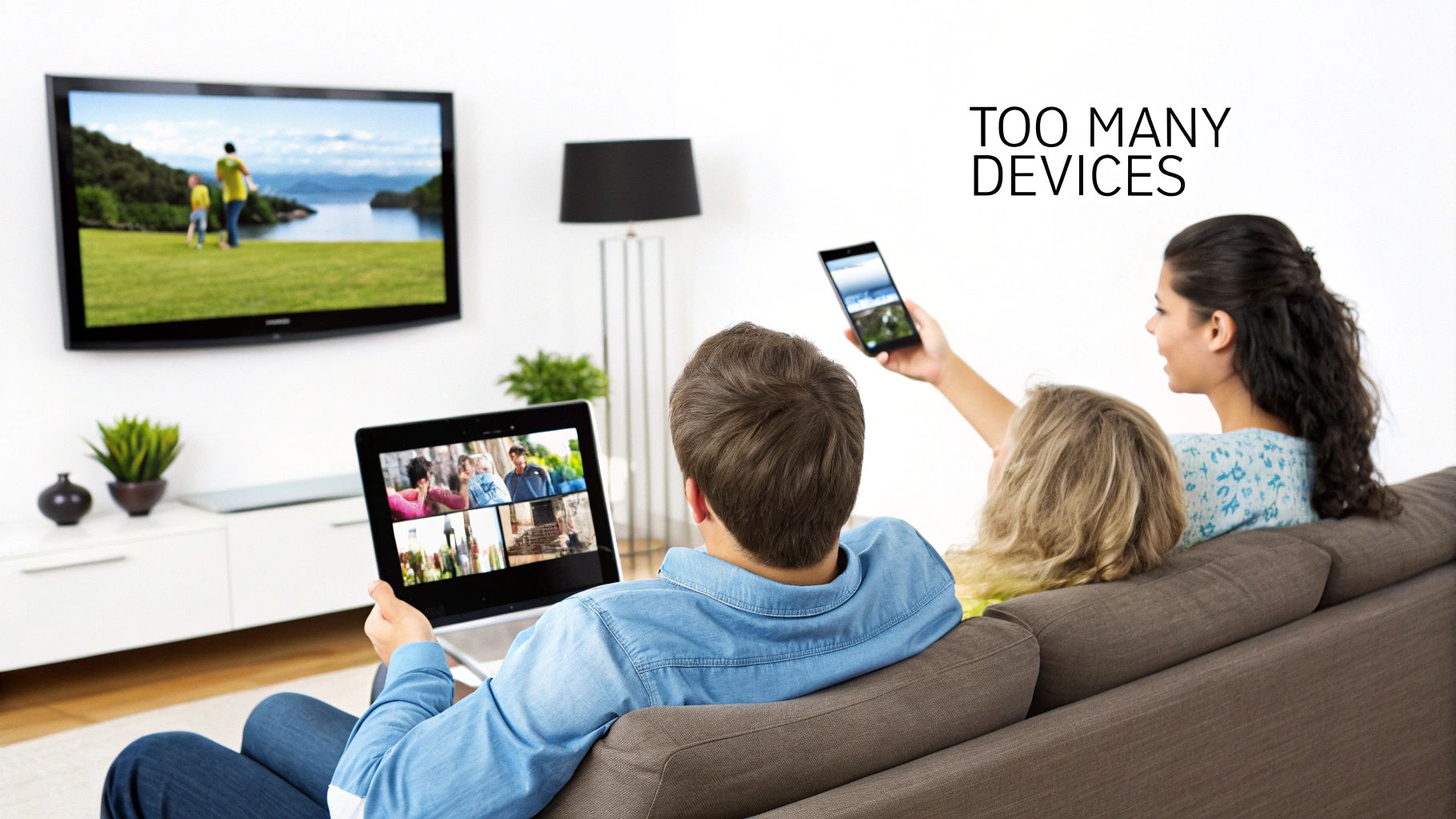
Think about a family on the Standard plan, which allows for two simultaneous streams. If one person is watching a movie on the living room TV while someone else is catching up on a series on their tablet, the account is maxed out. If a third person then tries to start a show on their laptop, they’re the one who gets blocked.
Understanding Your Plan's Streaming Limits
To stop this from happening, you first need to know the rules of your own subscription. Netflix bases its entire plan structure around these simultaneous stream limits.
Here’s a quick rundown to help you see where you stand.
Netflix Streaming Limits by Plan
| Netflix Plan | Simultaneous Streams | Best For |
|---|---|---|
| Standard with Ads | 2 devices | Individuals or couples on a budget |
| Standard | 2 devices | Small families or roommates |
| Premium | 4 devices | Larger families or group shares |
This table makes it easy to see how your plan's limits can quickly become a bottleneck.
This tiered system is a core part of how Netflix manages its service. The catch is that you can install the app on as many devices as you want, which can create a false sense of freedom. In reality, these strict streaming caps are a major reason why an estimated 100 million households started sharing passwords in the first place, leading Netflix to clamp down on the practice. You can learn more from this in-depth analysis of Netflix's device policies and how they affect users worldwide.
Key Takeaway: The "too many devices" error is a direct result of hitting your plan's simultaneous streaming limit. Knowing what your plan allows is the first step. Once you know that, you can coordinate with others using the account and get back to watching without interruptions.
How to See and Manage Your Connected Devices
When that "too many people are using your account" message pops up, the first thing you need to do is play detective. Who, exactly, is using your Netflix right now? More often than not, it’s not some nefarious hacker but a simple oversight—a friend you let log in on their TV last month, or an old tablet you sold without wiping it first.
Thankfully, Netflix gives you a simple way to see every single device that's recently used your account so you can take back control.
Finding Your Device List
You'll find everything you need on the Manage Access and Devices page. Think of it as your account's mission control. It shows you which device was used, which profile was active, and the last time it streamed anything. It’s the perfect spot to identify that weird smart TV in another state or just confirm your teenager is, in fact, the one hogging the last stream.
Getting there is easy. Log into Netflix on a web browser, then:
- Hover over your profile icon in the top-right corner and select Account.
- Look for the "Security & Privacy" section and click on Manage access and devices.
You'll be presented with a list of all recently active devices. Each entry gives you the rundown: the type of device (like a Roku or a Chrome browser), the profile it used, and the date it was last active.
This is what you'll see—a clear, simple overview of every active session.
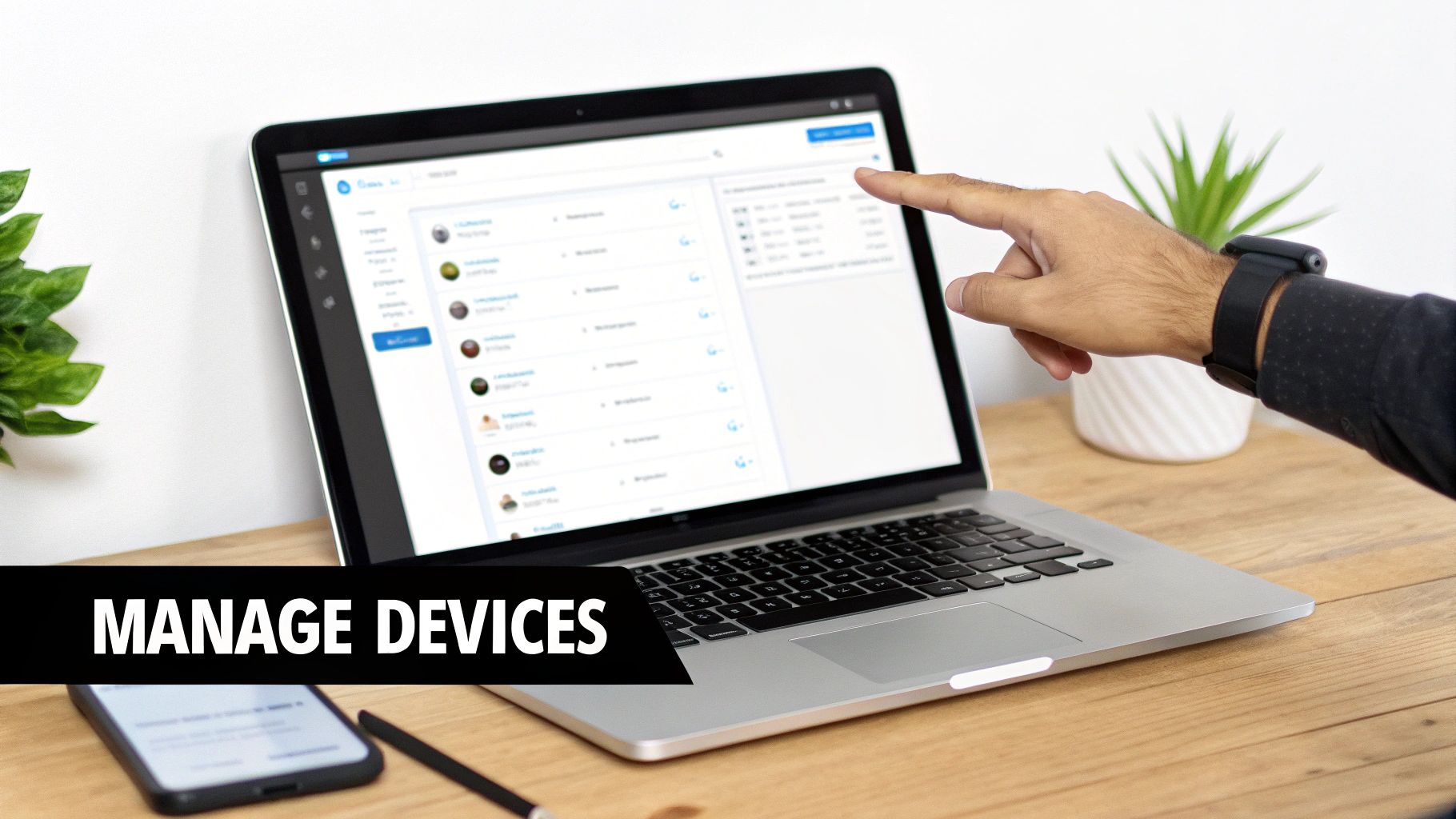
From here, you can easily spot any unfamiliar devices and kick them off to free up a spot for yourself.
Removing a Single Device
Spotted a device that shouldn’t be there? Getting rid of it is as simple as clicking a button. Just find the device on the list and hit Sign Out right next to it. Poof. That device is immediately logged out, and you’ve got one of your precious streaming slots back.
This surgical approach is perfect for minor clean-ups, like when a friend forgets to log out of their device, and you don’t want to disrupt everyone else in your household.
My Two Cents: I make it a habit to check this device list every few months. It's just good security hygiene. It helps you stay on top of who’s using your account and catch any unauthorized access before it becomes a bigger headache.
This level of control isn't an accident. It's a key part of Netflix's bigger push to rein in account sharing. With their crackdown on password sharing—which now involves location checks and paid "extra member" slots—these tools are essential. They give account owners the precise control they need, which makes sense when you remember that an estimated 100 million households were once sharing passwords.
Managing devices one-by-one is the quickest way to fix an immediate streaming conflict. For a deeper dive, our guide on how to remove devices from your Netflix account has even more tips. But if you're seeing a bunch of devices you don't recognize, it's probably time for a more serious security overhaul.
A Full Security Sweep: Reclaiming Your Netflix Account
Finding strange devices logged into your Netflix account is an instant red flag. It’s a clear sign that your account has been compromised, and it's time to lock it down. Let's walk through the essential steps to kick out any intruders and make sure they can't get back in.
The first move is your most powerful one: forcing a sign-out on every single device connected to your account.
Think of the "Sign out of all devices" feature as the nuclear option—it’s the digital equivalent of changing all the locks on your house. This single click immediately revokes access for everyone, whether it’s your living room TV, your cousin’s tablet, or that sketchy login from halfway across the country. It's the critical first step.
You'll find this setting in your Account page, tucked under the Security & Privacy section. Once you click it, Netflix starts booting everyone out.
The Two-Step Security Shuffle
Here’s where people often make a mistake. Just signing everyone out isn't a permanent fix. If an unauthorized person has your password, they'll just log right back in a few minutes later. That’s why you need to do a quick two-step shuffle.
- Sign Out of All Devices: This kicks everyone off the account immediately.
- Change Your Password: This is the crucial follow-up that locks the door behind them.
If you skip the password change, the whole exercise is pointless. You have to do both, one right after the other, to truly secure your account and stop the "too many devices" error for good. If you need a hand, our guide walks you through everything: https://accountshare.ai/blogs/new/how-to-change-my-netflix-password-the-ultimate-safety-guide.
This whole situation gives you a peek into the massive technical challenge Netflix deals with. The platform manages data for about 140 million hours of content watched every day, syncing viewing history across hundreds of millions of devices. Keeping that straight is a monumental task, which is why device limits are as much a technical necessity as a business choice.
Creating a Password That Actually Works
While you're at it, now is the perfect time to create a password that’s actually strong. Please, no more "password123" or using your pet's name.
A much better approach is a passphrase—a short, memorable sentence. Something like "MyCatHatesMondays!" is way harder for a machine to guess than a simple word with a number at the end.
Pro Tip: I highly recommend using a password manager. These tools create and save incredibly complex, unique passwords for every site you use. You only have to remember one master password, and your online security gets a massive upgrade.
Finally, think beyond just Netflix. A full security audit means making sure old devices you've sold or given away are completely wiped of your accounts. For example, before you sell a phone, you should always remove iCloud from your iPhone to protect your personal data. Taking these extra steps doesn't just solve the problem today—it builds a much stronger defense for the future.
Proactive Tips to Keep the Error from Coming Back
Fixing the "too many devices" error is great, but preventing it from happening again is the real goal. Shifting from a reactive mindset to a proactive one is all about building smarter habits around how you use your Netflix account. These small tweaks can make a massive difference.
It really just boils down to better account organization and being aware of a few less-obvious features that can trip you up.
Tidy Up Your Account with Good Profile Hygiene
One of the simplest ways to stop streaming conflicts before they start is to give everyone who uses your account their own profile. When people share a profile, it's incredibly easy for someone to fire up Netflix on a device you don't even know about, instantly gobbling up one of your precious streaming slots.
Creating separate profiles for each family member or roommate keeps everyone’s watch history and recommendations neatly organized. More importantly, it dramatically cuts down on accidental stream-hogging.
For another layer of control, think about adding a PIN to your main profile. This stops anyone from accidentally (or intentionally) using your profile, which is a lifesaver in a house with kids. Setting a PIN is a breeze:
- Head to your Account settings and pick the profile you want to lock.
- Find the Profile Lock option and set a 4-digit PIN.
- It's also a good idea to check the box that requires the PIN to add new profiles.
This simple move keeps your profile yours and prevents unexpected device usage from triggering that annoying error message.
Keep an Eye on Your Offline Downloads
Here’s a sneaky one that catches a lot of people off guard: offline downloads. When you download a show to a phone or tablet, Netflix often treats that device as "active." It essentially reserves a streaming slot for it, even if you aren't watching anything at that moment.
So, if your plan allows for two simultaneous streams, having downloads on two separate phones could easily block a third device, like your TV, from starting a stream.
To sidestep this, get into the habit of deleting downloads once you’re done with them. You can also manage this from the Manage Access and Devices page by simply signing out the device that has the old downloads on it.
Taking a few minutes to secure your account is more than just about convenience—it's good digital hygiene. Think of it like locking your front door; it's a simple habit that prevents much bigger headaches later.
Ultimately, a clean and secure account is your best defense. This means being mindful of who has your password and recognizing the risks of sharing it too freely. For those looking to build better security habits, resources like security awareness training programs offer valuable insights into common digital pitfalls. By adopting these straightforward practices, you can ensure your account runs smoothly and make streaming interruptions a thing of the past.
Smart and Safe Account Sharing Solutions
Sharing a Netflix account with friends and family is practically a modern tradition. But let's be honest—just handing out your password is a recipe for disaster. It's how you end up with security risks and, of course, that infuriating "too many people are using your account" error right in the middle of a season finale.
With Netflix tightening its sharing policies, the old, casual way of doing things just doesn't cut it anymore. We need smarter, more organized methods to share access without the constant headaches.
Netflix's own solution is the Extra Member feature. For a few extra bucks a month, you can officially add someone who doesn't live with you to your plan. They get their own login and profile, which sidesteps the whole simultaneous streaming problem. The catch? It's not available everywhere, and the extra cost can make a shared plan feel a lot less like a good deal.
This is exactly why platforms built for secure group access have started to pop up. They offer a much better way to manage who's using your account.
A Modern Approach to Account Sharing
Instead of juggling messy group chats and passing your password around like a hot potato, a platform like AccountShare brings some much-needed structure to the party. It’s designed specifically to handle the chaos of sharing subscriptions, creating a secure space where everyone has clear, managed access without ever seeing the primary account holder's actual password.
This approach completely flips the script on account sharing. It takes you from the insecure, disorganized world of "Did you change the password again?" to a controlled, orderly system. It's a game-changer if you want the cost-saving perks of sharing without all the usual frustration and security risks.
Why Organized Sharing Is the Future
Let’s get real—using a dedicated platform has some serious advantages over the old "just trust everyone" method. The biggest one is security. Your main account password is never exposed to the group, which immediately kills the risk of someone misusing it or it ending up in the wrong hands.
Beyond that, a managed system just brings order to the chaos.
- Clear Rules and Access: Everyone knows exactly what their access rights are, which stops arguments over who gets to stream and when.
- No More Device Clashes: Since access is properly managed, you can finally say goodbye to the "too many devices" error that always seems to pop up at the worst possible time.
- Respects Service Terms: A structured approach operates within a framework that’s more respectful of the provider’s rules, giving you a more stable experience.
By putting a formal system in place, you get all the benefits of splitting the costs with none of the usual drawbacks. It's about being smart and secure so everyone can enjoy the service without stepping on each other's toes.
Ultimately, this is the way to go if you're tired of playing referee for your Netflix account. If you’re ready to set up a more robust system, you can learn more about how to safely and effectively share a Netflix account with friends or family using these modern tools. It transforms what can be a frustrating chore into a seamless, secure collaboration.
Got More Questions About Netflix Device Limits?
Even when you've sorted out the "too many devices" error, a few lingering questions often come up. Getting a handle on these details can help you manage your account like a pro and stop future streaming headaches before they start. Let's clear up some of the most common ones.
How Long Does a Full Sign Out Take?
When you hit that "Sign out of all devices" button, you probably expect it to happen instantly. In reality, Netflix says it can take up to 8 hours to fully kick in.
It's usually much quicker than that, but there's a good reason for the potential delay. The command has to travel through Netflix's massive global network, telling every server to end your sessions on smart TVs, phones, tablets, and everything else. It's a big job, so a little patience is key. Just know that once you've forced the sign-out and changed your password, the system is doing its job to secure your account.
Do Downloads Count Toward My Device Limit?
Yes, they absolutely do, and this trips up a lot of people. When you download a movie or show to a device for offline viewing, Netflix treats that device as "active" and reserves one of your available stream slots for it.
Think about it this way: if you're on the Standard plan with a two-stream limit:
- You have a movie downloaded on your tablet. That's one slot used.
- You have a season of a show on your phone. That's your second slot used.
If you then try to watch something on your smart TV, you'll get the error message. Your two "offline" devices have already claimed your spots. The best way to manage this is to get into the habit of deleting content once you’ve watched it.
Can I Use a VPN to Bypass Device Limits?
It's a clever thought, but the answer is a simple no. A VPN (Virtual Private Network) can't help you get more streams than your plan allows.
Your streaming limit is tied directly to your subscription level, not your IP address or where you appear to be in the world.
A word of caution: using a VPN with Netflix can sometimes create more problems. Netflix actively looks for and blocks VPN traffic, which can lead to frustrating connection errors that have nothing to do with device limits. It's best to switch it off when troubleshooting.
Stop the streaming struggle before it starts. With AccountShare, you can manage shared subscriptions securely and efficiently, ensuring everyone gets access without the headaches. Eliminate device limit errors and password chaos for good by visiting the AccountShare website to see how simple sharing can be.