

How Do I Cast Netflix to My TV A Simple Guide
Getting your favorite Netflix show from a small phone or tablet screen onto your big-screen TV is a lot easier than most people think. The absolute golden rule? Just make sure your phone, tablet, or computer is on the same Wi-Fi network as your TV or streaming device. Once that's sorted, it's usually as simple as tapping the Cast icon in the Netflix app.
Your Quick Guide to Casting Netflix on Any TV
You've settled in for the night, ready to dive into the latest binge-worthy series, but watching on a tiny screen just won't do. You want the full cinematic experience, and figuring out how to get Netflix on your TV shouldn't feel like a technical chore. Good news: it all comes down to a few straightforward methods that work for pretty much any setup you have at home.
There are really only three main ways to get this done:
- Use your Smart TV's built-in app for a direct, high-quality stream without any extra gear.
- Plug in a streaming device like a Chromecast, Roku, or Apple TV to turn any TV into a smart one.
- Go old-school with an HDMI cable and connect your laptop for a super reliable, wired connection.
This flowchart breaks down which path is probably the best one for you.
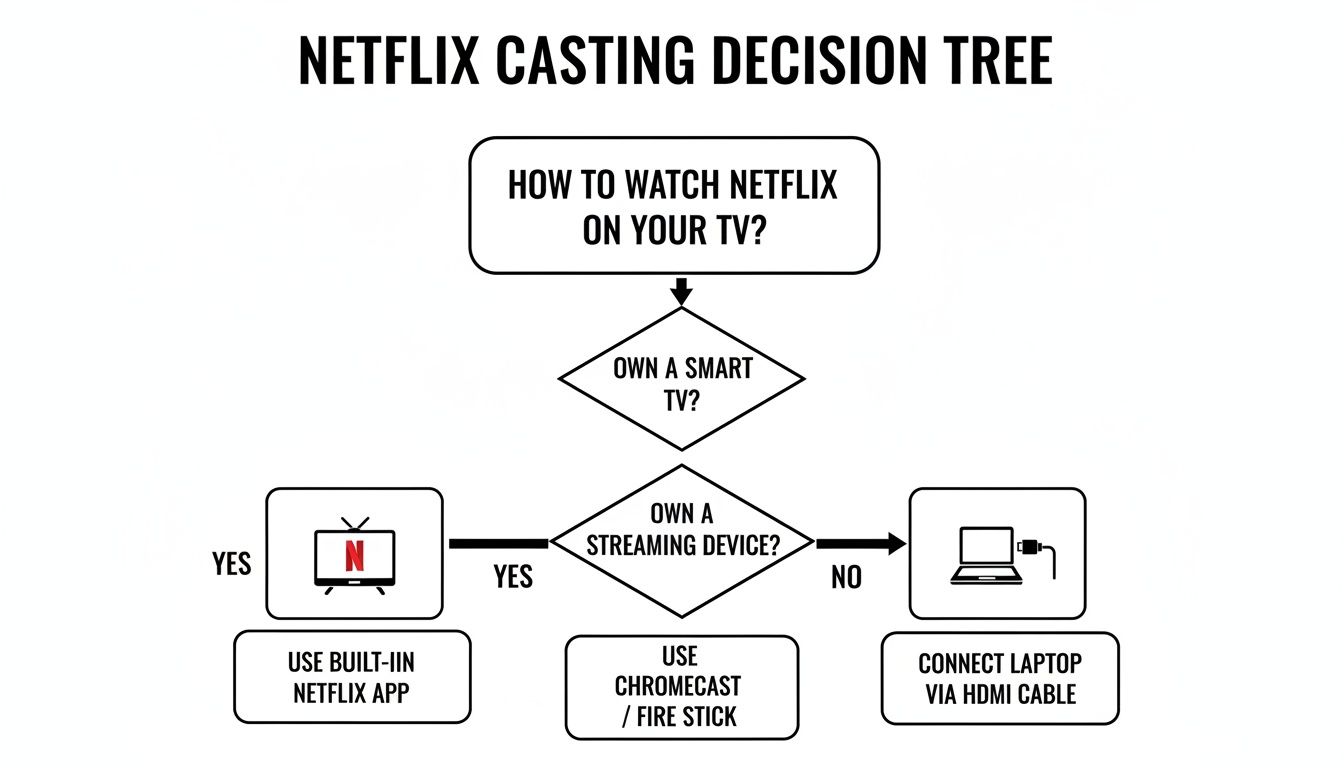
As you can see, each option is a pretty direct path. You definitely don't need to be a tech wizard to get this working, and that simplicity is what has completely changed home entertainment.
The Rise of At-Home Streaming
This massive shift to watching on our TVs is more than just a passing trend. It's fundamentally changed how we watch movies and shows. By August 2025, connected TV streaming had already reached an incredible 96.4 million U.S. households, with people watching a collective 13.9 billion hours of content.
This boom is driven by easy-to-use casting technologies that let us "throw" apps like Netflix from our phones to our TVs in seconds. You can dig into the numbers yourself in the full 2025 State of Streaming Report on Comscore.com.
I can't stress this enough: for any wireless casting to work, your phone (the casting device) and your TV or Chromecast (the receiving device) must be on the exact same Wi-Fi network. This is the #1 reason casting fails, and it's always the first thing I check.
Casting Methods at a Glance
To make it even easier, here's a quick rundown of the most common methods, what you'll need, and when they work best.
| Casting Method | What You Need | Best For |
|---|---|---|
| Smart TV App | A smart TV with the Netflix app installed | The most direct and simple experience; great for high-quality 4K streaming without extra devices. |
| Chromecast | A Chromecast dongle and the Google Home app | Effortlessly "casting" from any phone or Chrome browser tab with just a tap. |
| AirPlay | An Apple device (iPhone, iPad, Mac) and an AirPlay-compatible TV or Apple TV | Seamlessly mirroring or casting within the Apple ecosystem; perfect for Apple users. |
| Roku/Fire Stick | A Roku or Amazon Fire TV device | A budget-friendly way to add streaming apps and casting capabilities to any TV with an HDMI port. |
| HDMI Cable | A laptop and an HDMI cable | A foolproof, wired connection that always works, especially when Wi-Fi is unreliable. |
This table should help you quickly identify the right solution for your gear. Now, let's dive into the step-by-step details for each one.
Casting Netflix From Your Phone or Tablet
Let's be honest, your phone is practically an extension of your arm. It's also the best remote control you'll ever own. Sending a Netflix show from that small screen to your big TV is one of the simplest bits of modern magic, turning a solo binge-watch into a movie night for everyone. Getting it to work is way easier than you might think, though the process varies slightly between Android and Apple devices.
This kind of easy-access streaming is a huge reason why our viewing habits have changed so dramatically. Netflix’s own growth is a testament to this, as casting technology helped it jump from a personal mobile app to the centerpiece of the family living room. By 2023, the platform boasted over 260 million global subscribers, a massive leap from 230.75 million in 2022. This explosion was fueled by just how simple it is to get content onto the big screen in homes all over the world. You can dig into more of this growth data on Investing.com.
The key to all this is one little symbol: the Cast icon. It looks like a small rectangle with Wi-Fi waves in the corner. Once you find it and tap it, you’re on your way.
Casting From an Android Phone or Tablet
If you're in the Android ecosystem, your bridge to the big screen is Google Cast. This is the tech behind Chromecast and is also built right into a ton of modern smart TVs.
First thing's first: fire up the Netflix app on your phone or tablet. Look in the top right corner for that Cast icon. Give it a tap, and a list of available devices on your network will pop up—you might see something like "Living Room TV" or "Family Room Chromecast."
Just select your TV from that list. The Cast icon will turn solid to show it's connected, and the Netflix app should automatically launch on your television and start playing whatever you picked. Your phone is now your remote control.
Here’s what you can do with your phone once you're connected:
- Play, pause, and skip forward or back.
- Use your phone's physical volume buttons to adjust the sound.
- Tweak audio tracks and subtitles on the fly.
- Line up the next episode or search for something new without interrupting the show that's currently on.
One of the coolest features is that the TV isn't streaming from your phone; it's streaming directly from the internet. This frees up your phone completely. You can jump out of the Netflix app, scroll through social media, answer a text, or even take a call—the show on your TV won't miss a beat.
Using AirPlay With an iPhone or iPad
For those with an iPhone or iPad, the experience is just as smooth, but it relies on Apple's own AirPlay technology. To make this work, you'll need an Apple TV or an AirPlay-compatible smart TV.
Just like with Android, open the Netflix app and pick a show or movie. Instead of the Cast icon, you’ll be looking for the AirPlay symbol, which is a screen with a solid triangle at the bottom.
Pro Tip: In some recent versions of the Netflix app for iOS, the AirPlay button isn't always visible inside the app itself. If you don't see it, just swipe down from the top-right of your screen to open the Control Center. From there, tap the Screen Mirroring icon (it looks like two overlapping rectangles) to find your TV.
Once you tap it, choose your Apple TV or smart TV from the device list. Your phone or iPad's screen will then appear on the television, and you can play Netflix full-screen. Your device now acts as your remote, giving you full control over the playback.
Sending Netflix From a Laptop or Computer
Let’s be honest, sometimes a movie night starts spontaneously on your laptop, and you realize you'd much rather be on the couch. Getting that Netflix show from your computer screen to the big TV is easier than you think. Whether you're using a Windows PC, a Mac, or even a Chromebook, the secret weapon is almost always the Google Chrome browser.
The go-to wireless method for this is Chrome's built-in casting feature. It’s a fantastic tool that lets you beam your Netflix tab directly to any Chromecast device or a TV that has Chromecast built right in. This is a game-changer, turning your computer into a media powerhouse without needing a bunch of extra gear.
You might be surprised how many devices already have this technology baked in.
The big takeaway? You probably don't need to buy a separate Chromecast dongle. A lot of modern TVs from brands like Sony, Vizio, and Philips are ready to receive a cast right out of the box.
Using Google Chrome to Cast
Getting this set up is a breeze. First, fire up Chrome and head over to Netflix.com. Pick what you want to watch and get it playing.
Look for the three-dot menu icon in the top-right corner of your browser. Give that a click, and you'll spot a "Cast..." option in the menu that drops down.
When you select it, a small window pops up and starts looking for compatible devices on your Wi-Fi network. Just pick your TV or Chromecast from that list, and like magic, the video will jump from your laptop to the TV screen. Your computer’s Netflix tab now acts as your remote control for pausing, playing, and adjusting the volume.
A quick heads-up: Casting a browser tab is a bit more demanding on your computer and network than casting from your phone's app. Since your computer is doing all the work of processing the video before sending it over, you might see some lag or a dip in quality if your Wi-Fi is spotty or your laptop is a bit older.
The Reliable HDMI Connection
What happens when wireless just won't cooperate? Maybe you're in a hotel with a finicky network, or your home Wi-Fi is on the fritz. This is where an HDMI cable becomes your best friend.
It's a direct, wired connection that completely sidesteps any network headaches, guaranteeing the best possible video quality your laptop can push out. I always pack one when I travel—most hotel TVs have an open HDMI port but no smart features.
Plugging it in is simple:
- Connect one end of the HDMI cable to your laptop.
- Plug the other end into an available HDMI port on the TV.
- Grab the TV remote and change the input (often labeled "Source") to the HDMI port you're using.
Your TV should immediately mirror your laptop's screen. For the best movie-watching setup, you’ll want to tweak your display settings. On a Windows machine, just hit the Windows Key + P. On a Mac, you'll find the settings in System Settings > Displays.
From there, you can choose how the TV behaves:
- Duplicate: This shows the exact same thing on both screens. It's simple and works fine.
- Extend: This turns your TV into a second desktop. This is the pro move. You can drag the Netflix window over to the TV, make it full-screen, and still have your laptop screen free to browse or get some work done.
Using Your Smart TV or Streaming Device App
While casting from your phone or laptop is a great trick to have up your sleeve, often the best way to watch Netflix is to skip casting entirely. Why juggle two devices when your TV can handle everything on its own? This shifts the whole process from a tech puzzle to simply turning on the TV and hitting play.
Almost every modern smart TV and streaming device—think Roku, Apple TV, or Amazon Fire Stick—has its own app store. Inside, you'll find the official Netflix app, built from the ground up for your specific television. From my experience, using this native app is almost always the best way to go.
The connection is just more stable. Your TV is pulling the video stream directly from the internet, which cuts out a potential weak link: the Wi-Fi connection between your phone and your TV. This usually means a smoother, buffer-free movie night.
Finding and Installing the Netflix App
On most new TVs and streaming players, the Netflix app is already pre-installed and waiting for you on the home screen. If you don't see it, don't worry—it’s easy to find.
Just head over to your device’s app store. Depending on the brand, it might be called the "LG Content Store," "Google Play Store," or just "Apps." Use the search bar to type in "Netflix," and then select "Install" or "Download." The whole thing is automated and typically takes less than a minute.
Once it's installed, you’ll just need to sign in with your Netflix email and password. The good news is you only have to do this once. Your TV will remember your login, making it as simple as launching the app and jumping back into your show. For a deeper look at different TV setups, you can check out our complete guide on how to connect to Netflix on TV, which gets into more device-specific details.
The Benefits of a Native App Experience
Choosing the built-in app over casting unlocks a few key advantages that really elevate the viewing experience. It's the difference between a decent stream and a truly great one.
Here’s why it’s my go-to method:
- Superior Video Quality: Native apps are optimized to push the highest resolution your TV can support, including 4K Ultra HD, HDR, and Dolby Vision. Casting, particularly from a web browser, can sometimes compress the video, leading to a slightly softer picture.
- Immersive Audio: When you use the native app, your TV or sound system can directly decode advanced audio formats like Dolby Atmos. That’s a feature that doesn’t always come through when you’re casting from another device.
- Ultimate Convenience: Let's be honest, nothing beats using your trusty TV remote. You don’t have to keep your phone unlocked and nearby or worry about its battery dying right at a cliffhanger.
My personal rule of thumb is pretty simple: if the TV has a Netflix app, I use it. It’s the most reliable way to get the best possible picture and sound, just like the filmmakers intended. I only fall back on casting when I’m dealing with an older TV that doesn't have any smart features.
One last piece of advice: keep your apps updated. A surprising number of streaming glitches and random crashes are caused by outdated software. Most devices will update automatically, but it never hurts to pop into your TV’s settings and check for "Software Updates." A quick check can solve a lot of headaches before they even start.
Troubleshooting Common Netflix Casting Problems
It’s one of the most frustrating modern rituals: you’re settled in for a movie night, you open Netflix, and… it just won’t cast to your TV. We've all been there.
Luckily, most casting glitches are surprisingly easy to fix. Before you get too frustrated, let's walk through some of the most common headaches and get you back to your show.
The top complaint I hear is the disappearing Cast icon. You know the one—that little rectangle with the Wi-Fi symbol. When it's missing from the Netflix app, it's almost always a network issue.
First thing’s first: double-check that your phone and your TV (or Chromecast, Roku, etc.) are connected to the exact same Wi-Fi network. This is the number one culprit. It’s an easy mistake to make, especially if your router has both 2.4GHz and 5GHz bands. If your phone is on MyWifi-5G and your TV is on MyWifi-2.4, they can't see each other.
Quick Fixes for When Things Go Wrong
If you've confirmed both devices are on the same network and you're still stuck, it's time for the classic "turn it off and on again" routine. This simple sequence fixes a huge majority of casting problems, from a missing icon to choppy video.
- Relaunch the App: Start by completely closing the Netflix app on your phone or tablet. Don't just minimize it—force-quit it and then open it again.
- Reboot Your Devices: Next, power down your phone, your TV, and your streaming device. Give them a good 30 seconds before turning them back on.
- Restart Your Router: If that doesn't do the trick, unplug your Wi-Fi router. Wait a full minute to let it completely reset, then plug it back in. It can take a few minutes to fully reboot and establish a connection.
This little three-step dance is my go-to, and it works more often than not. For more persistent issues, like an app that keeps crashing, clearing the app's cache in your phone's settings is another great move. We dive deeper into these kinds of problems in our guide on what to do if you find Netflix won't load on your TV.
Dealing with Buffering and Poor Quality
Is your show constantly freezing to buffer, or does it look like it was filmed on a potato? That’s almost certainly a weak Wi-Fi signal. If you can, try moving your router closer to your TV or getting rid of anything that might be blocking the signal.
Pro Tip: I've found that one of the biggest bandwidth hogs is other devices on the network. If someone else in the house is downloading a huge game or another family member is on a video call, it can starve your Netflix stream. Pausing those other activities for a bit can make an immediate difference.
Finally, there’s one small but crucial detail that catches a lot of people by surprise: your Netflix plan. According to Netflix’s own support info, the ad-supported tier does not support casting from a mobile device. To cast, you’ll need to be on one of their ad-free plans. It’s a sneaky limitation that's worth checking if nothing else seems to work.
Answering Your Top Questions About Casting Netflix
Even when everything goes right, a few questions always pop up about the ins and outs of casting. I've run into just about every scenario imaginable over the years, so let's clear up some of the most common head-scratchers you might face when sending Netflix to your big screen.
Why Can't I See the Cast Icon in My Netflix App?
This is, without a doubt, the most frequent problem people run into. The first thing to check—and it's the culprit most of the time—is that your phone and your TV (or Chromecast, Roku, etc.) are connected to the exact same Wi-Fi network.
It's a common mistake. Many modern routers broadcast two separate networks, one on the 2.4GHz band and another on the 5GHz band. If your phone is on one and your TV is on the other, they simply can't find each other. Make sure they're both on the same network name.
If you've confirmed the Wi-Fi is correct and the icon is still missing, try this classic troubleshooting sequence. I've found it fixes the issue more than 90% of the time.
- First, completely force-close the Netflix app on your phone and then reopen it.
- No luck? Restart both your phone and your TV or casting device.
- If you're still stuck, unplug your Wi-Fi router from the wall, wait a full minute, and then plug it back in.
This little tech-support dance almost always gets things talking again.
Can I Still Use My Phone for Other Things While I'm Casting?
Absolutely! This is one of the best parts about casting. When you tap that Cast icon, your phone just acts like a fancy remote control. It sends a signal to your Smart TV or Chromecast, telling it which show or movie to play.
After that initial command, your TV takes over and streams the video directly from the internet. You’re completely free to check your email, scroll through social media, or even turn your phone's screen off completely. Your show will keep playing on the TV without a hitch, and it's a great way to save your phone's battery life.
A quick heads-up: this doesn't apply if you're using screen mirroring. If you mirror your entire phone screen (like with AirPlay on an iPhone), then everything you do on your phone shows up on the TV. For Netflix, always stick to the dedicated Cast icon inside the app for the best experience.
Does Casting Netflix Burn Through My Phone's Mobile Data?
Nope, it doesn't. As long as your phone is connected to Wi-Fi, the actual streaming doesn't touch your mobile data plan.
Your phone just sends a small instruction over your local Wi-Fi network. The heavy lifting—downloading the actual video stream—is handled entirely by your TV or Chromecast using its own Wi-Fi connection.
Is It Possible to Cast Netflix to a TV in a Hotel?
Ah, the traveler's dilemma. This can be tricky. Most hotel Wi-Fi networks use a security feature often called "client isolation" that's designed to prevent guests' devices from seeing or interacting with each other. This is great for security but completely blocks casting.
While some modern hotels are starting to offer casting-friendly solutions, the most reliable bet is still an old-school HDMI cable connected directly from your laptop. Also, keep in mind that Netflix has rules about sharing accounts across different households, which can be a factor when you're on the road. It’s always a good idea to explore Netflix account sharing policies and tips to avoid any surprises.
At AccountShare, we're all about making your favorite digital services more accessible and affordable. By joining a sharing group, you get to enjoy premium subscriptions without the hefty price. Discover how you can save on your subscriptions today at AccountShare.