

The 12 Best Alternative to TeamViewer Options in 2026
TeamViewer has long been a go-to solution for remote access, but it's not always the perfect fit. High costs, licensing complexities, and occasional performance issues have prompted many individuals and businesses to seek a more suitable alternative to TeamViewer. Whether you're a home user needing occasional access to your personal computer, an IT professional managing a fleet of devices, or a creative requiring low-latency screen sharing, a specialized solution likely exists that is better tailored to your specific needs.
This guide is designed to help you navigate the crowded market of remote desktop software. We'll dive deep into the top 12 alternatives, analyzing their unique strengths, practical limitations, and ideal use cases to help you make an informed switch. Instead of generic feature lists, we'll cut through the marketing fluff to provide real-world insights, so you can find a tool that aligns with your budget and technical requirements. For those stepping beyond TeamViewer to explore new remote access horizons, ensuring a robust internet connection is foundational. You can find insights on the best internet for remote work to guarantee smooth and productive remote sessions.
Each entry in our list includes detailed analysis of key features, security protocols, and pricing structures, complete with screenshots and direct links. From powerful enterprise-grade platforms like ConnectWise ScreenConnect and Zoho Assist to free, open-source options like RustDesk and high-performance tools like Parsec, this comprehensive resource will equip you with the knowledge to choose the best remote access software for your exact situation. Let's explore the options that can offer better performance, greater flexibility, and more predictable costs.
1. AnyDesk
AnyDesk is a well-regarded remote desktop application known for its speed and lightweight design, making it a powerful alternative to TeamViewer, particularly for users dealing with lower bandwidth connections. It utilizes a proprietary video codec, DeskRT, which is engineered to provide fluid on-screen experiences with high frame rates and minimal latency, even on connections as slow as 100 kB/s. This makes it ideal for everything from quick IT support sessions to more demanding tasks like remote video editing.
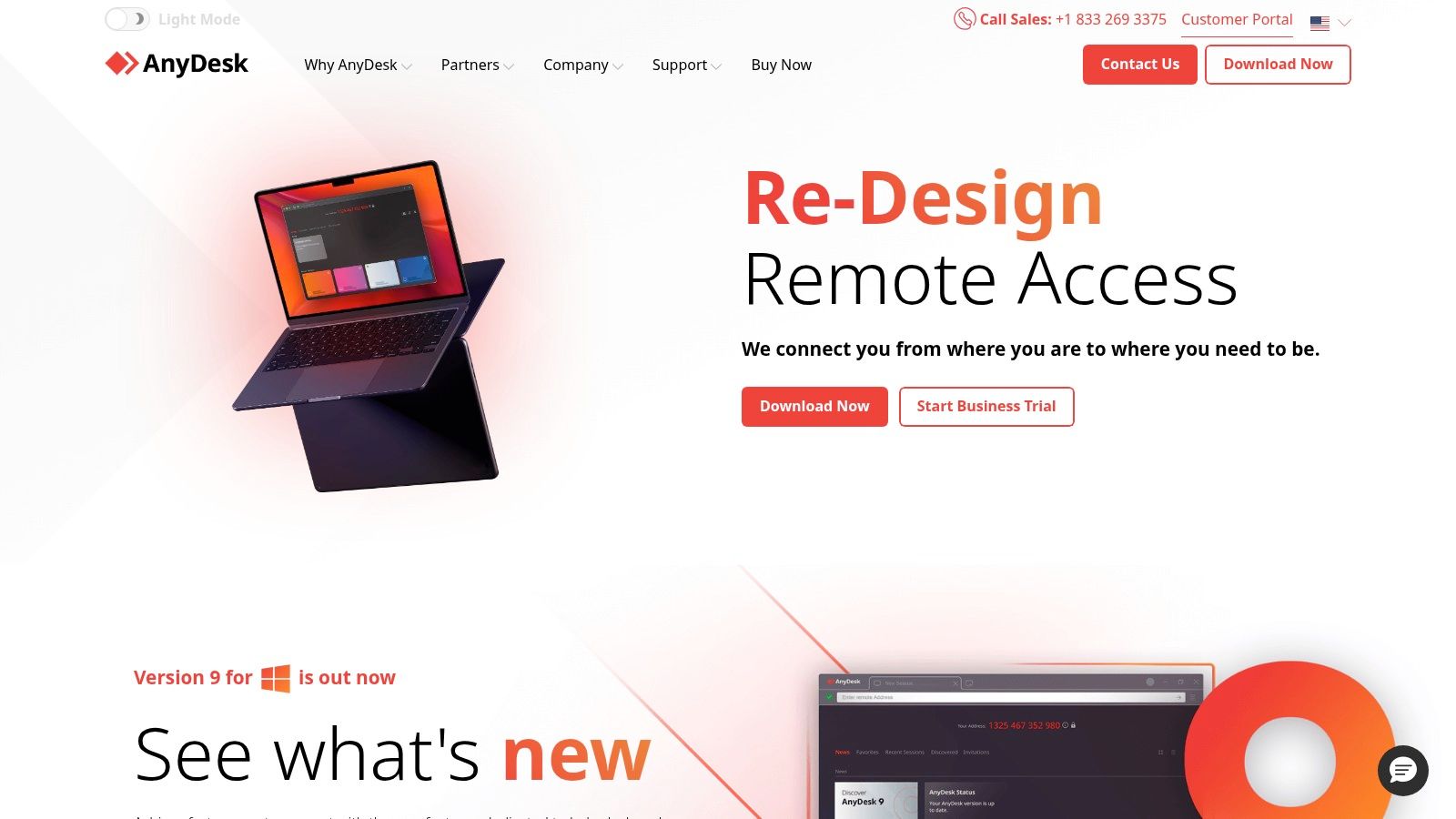
The platform offers both cloud-based and on-premises solutions, catering to individuals, small businesses, and large enterprises. Its cross-platform support is extensive, with clients available for Windows, macOS, Linux, and mobile operating systems like iOS and Android. For businesses, advanced features like a custom client generator and MSI package for mass deployment simplify large-scale IT management. You can find out more about the importance of deployment in our guide to enabling secure remote work.
Key Features & User Experience
AnyDesk’s interface is clean and straightforward, focusing on quick connections via a simple numerical ID system.
- Performance: Its core strength is its low-latency performance, which feels noticeably smoother than many competitors, especially over less-than-ideal network conditions.
- Essential Tools: It includes standard features like unattended access, session recording, file transfer, and remote printing.
- Security: Sessions are secured with TLS 1.2 banking-standard technology and RSA 2048 asymmetric key exchange encryption.
Pros and Cons
Pros:
- Excellent performance and responsiveness, even on slow networks.
- Generous free version for personal use.
- Clear and competitive pricing for paid tiers with defined device limits.
Cons:
- The licensing model, based on concurrent connections and manageable devices, can be confusing for new users.
- Priority phone support is reserved for the higher-priced enterprise plans.
You can learn more and download at anydesk.com.
2. Splashtop
Splashtop is a high-performance remote access and support solution that has gained popularity as a strong alternative to TeamViewer due to its affordability and feature-rich plans. It segments its offerings clearly for different use cases, providing specific products for individuals needing personal access, IT teams requiring attended and unattended support, and large enterprises. The platform is known for its smooth streaming and reliable connections, making it suitable for both simple file transfers and more demanding tasks like remote media work.
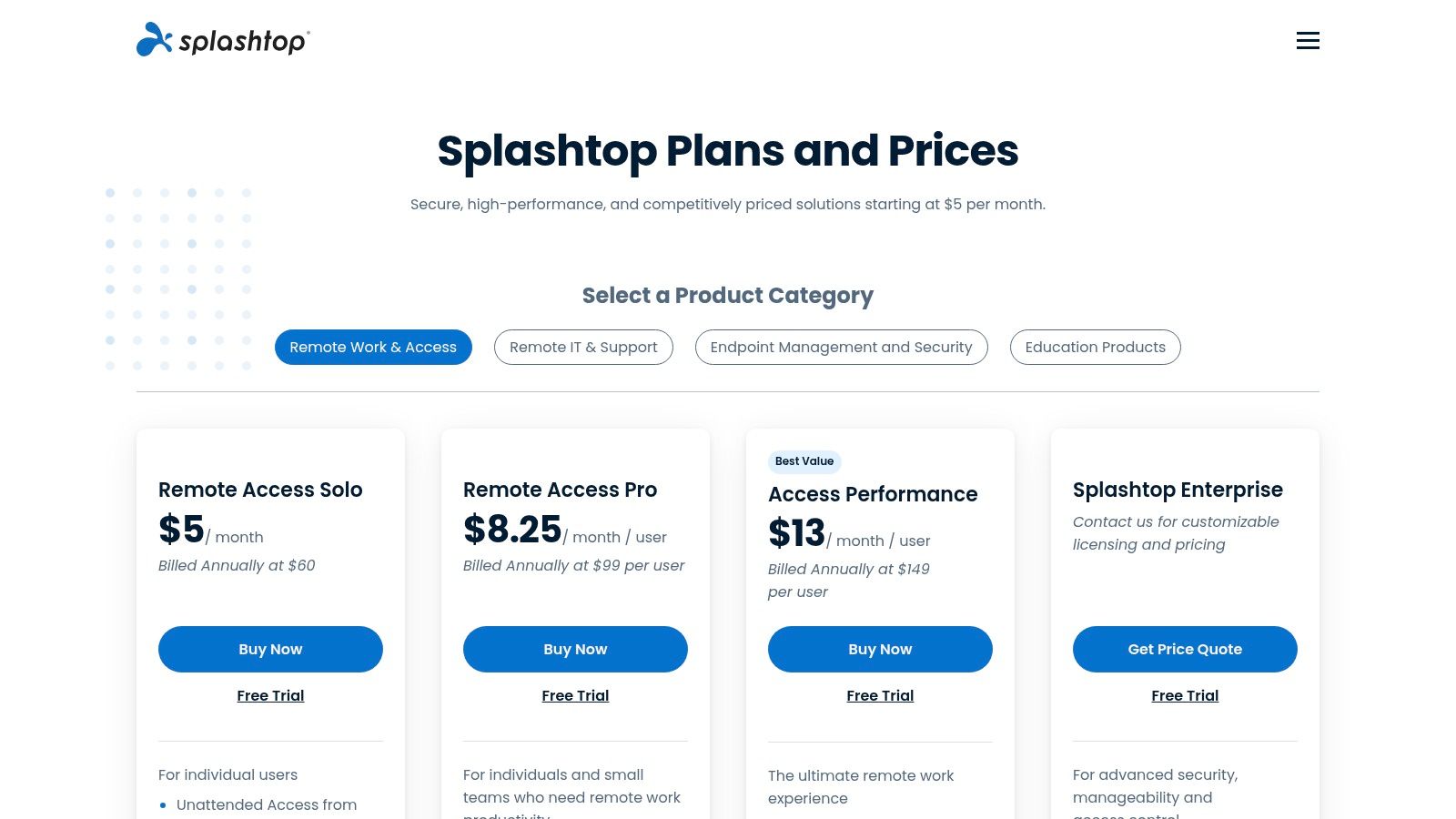
Splashtop’s product lineup includes Business Access for remote work, SOS for on-demand remote support, and Enterprise solutions for comprehensive IT management. This targeted approach allows users to select and pay for only the features they need. It supports a wide range of devices, including Windows, macOS, Linux, iOS, and Android, ensuring broad compatibility. The user experience is designed for simplicity, allowing users to get started quickly with minimal setup.
Key Features & User Experience
Splashtop provides a straightforward interface that prioritizes quick and secure connections, with a simple agent installation process for remote devices.
- Targeted Plans: Offers distinct products like Business Access (unattended access) and SOS (attended support), which helps avoid paying for unnecessary features.
- Core Functionality: Includes essential tools like multi-monitor support, file transfer, remote print, and session recording across most plans.
- Security: All remote sessions are protected with TLS and 256-bit AES encryption, with additional security features like two-factor authentication and device authentication.
Pros and Cons
Pros:
- Extremely competitive pricing, often significantly lower than TeamViewer for similar features.
- Simple and fast onboarding process with an intuitive user interface.
- Clear separation of products for remote access versus on-demand support.
Cons:
- The licensing model can feel segmented; for example, on-demand support (SOS) and unattended access are separate purchases.
- Advanced enterprise features like SSO integration and on-premises deployment require custom pricing.
You can learn more and see pricing at splashtop.com.
3. RemotePC (by IDrive)
RemotePC, developed by the same team behind IDrive cloud backup, is a highly cost-effective alternative to TeamViewer that prioritizes affordability and scalability. It is an excellent choice for individuals, small businesses, and even large enterprises looking for a feature-rich remote access solution without a significant financial commitment. The platform's main appeal lies in its extremely competitive pricing, often featuring deep first-year discounts and low ongoing annual rates per computer.
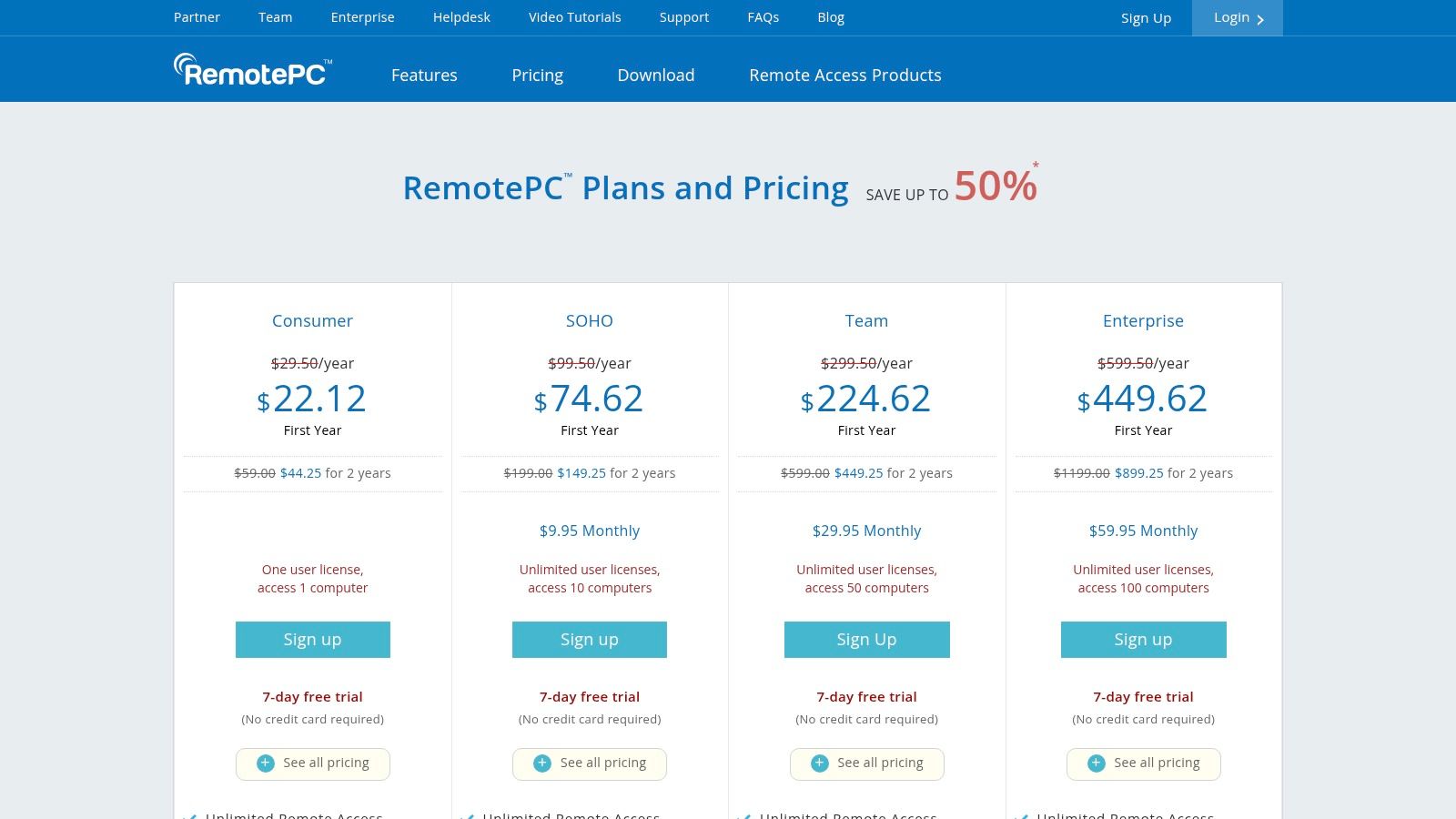
This solution supports a wide range of devices, including Windows, Mac, and Linux, with mobile apps for iOS and Android. RemotePC is particularly well-suited for organizations that need to manage a large number of computers, offering tiers that can handle thousands of devices. Its "Always-ON" remote access ensures that computers are available for connection at any time, making it reliable for unattended IT support and management tasks across a distributed workforce.
Key Features & User Experience
While its interface is more functional than flashy, RemotePC delivers a solid set of tools for effective remote management.
- Core Functionality: It provides all the essentials, including robust file transfers, remote printing, session recording, and a collaborative whiteboard feature.
- Multi-Monitor Support: Users can easily view and switch between multiple monitors on the remote machine, displaying them on a single screen or across multiple local monitors.
- Security: Connections are secured with TLS v1.2 and AES-256 bit encryption, with options for using a personal key as a secondary password for enhanced security.
Pros and Cons
Pros:
- Extremely budget-friendly, with low per-computer annual pricing.
- Unlimited user licenses on business-oriented plans (SOHO, Team, Enterprise).
- Comprehensive feature set suitable for both personal and professional use.
Cons:
- The user interface is utilitarian and feels less modern than some competitors.
- Features and add-ons can vary significantly between tiers, requiring careful plan selection.
You can learn more and see pricing at remotepc.com.
4. Zoho Assist
Zoho Assist offers a comprehensive remote support and unattended access solution, positioning itself as a robust alternative to TeamViewer for small to medium-sized businesses. Its primary strength lies in its granular and transparent pricing structure, which allows companies to purchase Remote Support and Unattended Access plans separately or bundled. This flexibility ensures businesses only pay for the specific features they need, with clear volume-discount calculators available directly on their site.
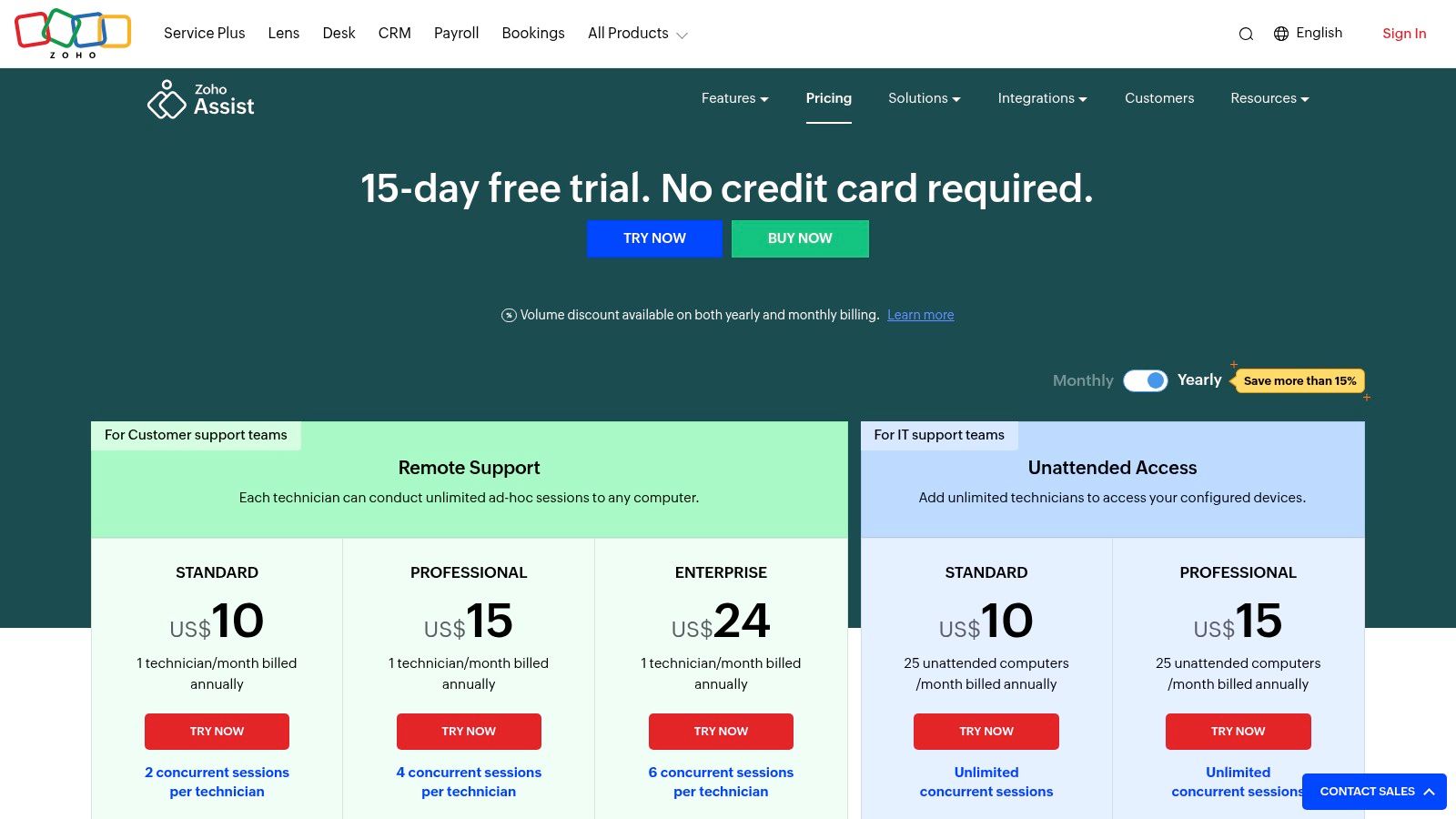
The platform is part of the larger Zoho ecosystem, which means it integrates seamlessly with other Zoho products like Zoho Desk and CRM. Beyond basic remote access, it includes advanced IT management tools such as bulk deployment, diagnostic tools, and Wake on LAN. These features make it a powerful asset for IT departments managing multiple endpoints. Zoho's commitment to business users is also evident in its extensive reporting and session auditing capabilities. For more ideas on effective teamwork, explore our guide to the best remote collaboration tools.
Key Features & User Experience
Zoho Assist provides a clean, web-based interface that is easy for both technicians and end-users to navigate.
- Granular Control: Features like multi-session handling, reboot/reconnect, and detailed session recording give technicians precise control.
- Customization: The platform offers extensive rebranding options, allowing businesses to maintain their corporate identity on support clients.
- Advanced Tools: Unique add-ons like an augmented reality "Lens" feature allow technicians to see what the user sees through their smartphone camera for real-world troubleshooting.
Pros and Cons
Pros:
- Flexible and transparent pricing with separate tiers and volume discounts.
- Strong integration with the Zoho business suite and other third-party apps.
- Includes a free plan for basic needs and a 15-day trial for paid tiers.
Cons:
- The pricing structure, while transparent, can be complex to navigate with its separate plans and bundles.
- Some advanced features, like the AR Lens, are only available as paid add-ons.
You can learn more and download at zoho.com/assist.
5. ConnectWise ScreenConnect (ConnectWise Control)
ConnectWise ScreenConnect is a highly capable, technician-centric remote support platform that serves as a powerful alternative to TeamViewer, especially for IT professionals and managed service providers (MSPs). It is engineered with robust administrative tools that give support teams deep control over remote sessions, offering both on-premises and cloud-hosted deployment models. The platform scales effectively from a single technician to large-scale enterprise help desks, with a licensing model based on concurrent technicians rather than the number of endpoints.
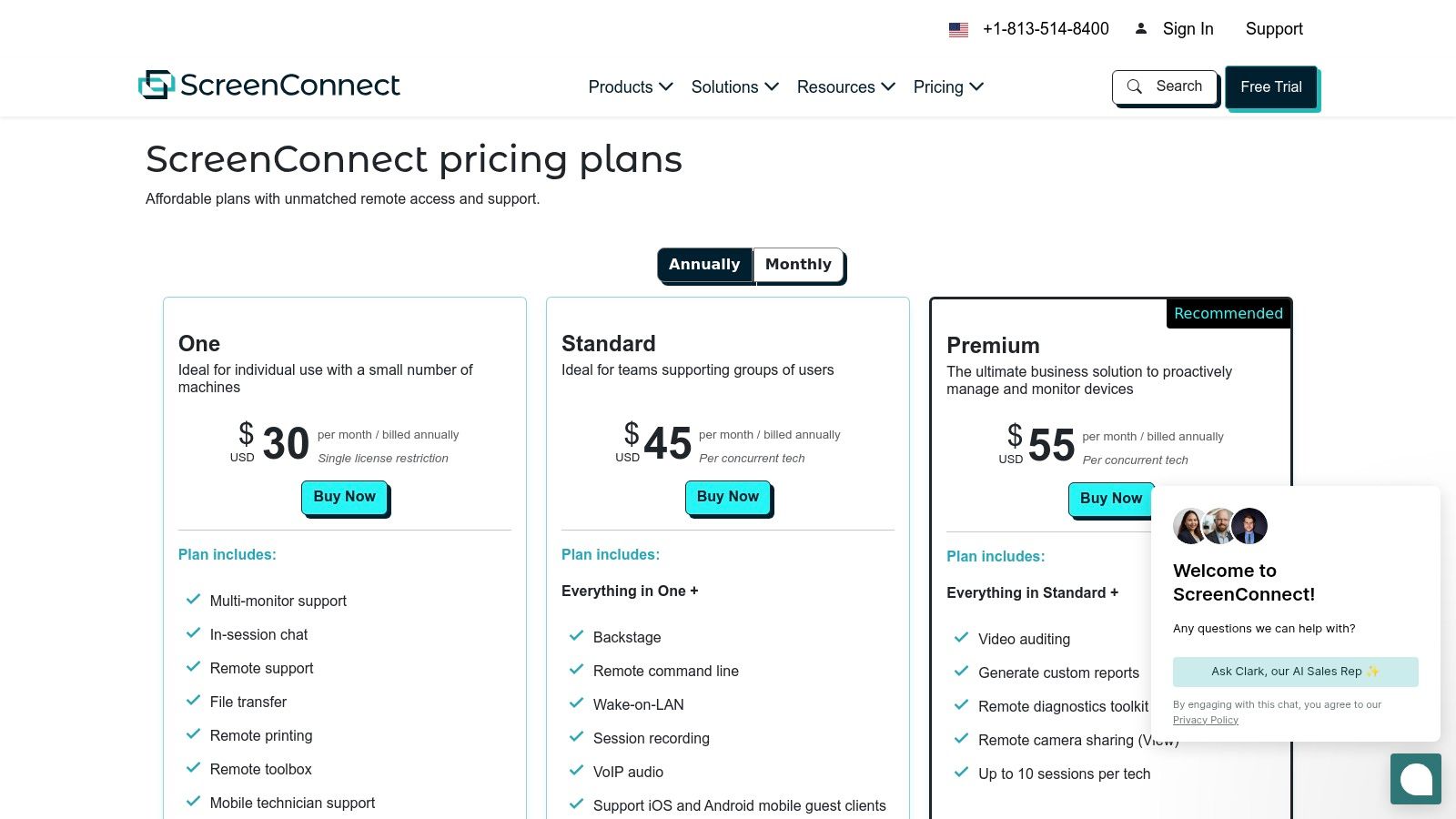
This focus on the technician's workflow sets it apart. It offers extensive customization options, from branding the client portal to creating sophisticated role-based security permissions. Managing licenses based on concurrent users can be complex, and you can explore our guide on the best practices for software license tracking to streamline this process. ConnectWise ScreenConnect is built for those who need more than just screen sharing; it's a comprehensive remote management toolkit.
Key Features & User Experience
The user interface is functional and packed with tools, clearly designed for technical users who need quick access to advanced functions.
- Technician-Focused Tools: Features like Backstage mode allow command-line access without disturbing the end-user, alongside a robust toolbox for running diagnostics and deploying scripts.
- Scalability: Plans like "One," "Standard," and "Premium" offer a clear upgrade path, with varying numbers of included unattended access agents and session limits.
- Broad Compatibility: It supports mobile technicians connecting from iOS and Android devices and includes essential business features like session recording and remote printing.
Pros and Cons
Pros:
- Strong control and diagnostic tools designed for IT and help desk professionals.
- Flexible cloud and on-premises deployment options to fit different security needs.
- Scalable pricing that grows with your team's concurrent usage needs.
Cons:
- The free tier is no longer actively offered to new users, making it a primarily paid solution.
- Pricing per concurrent technician can become costly for larger teams needing simultaneous access.
You can learn more and download at screenconnect.com.
6. LogMeIn Resolve (formerly GoTo Resolve)
LogMeIn Resolve positions itself as a comprehensive IT support and management platform, making it a robust alternative to TeamViewer for businesses seeking more than just remote access. It merges remote support functionalities with a built-in helpdesk ticketing system, automation capabilities, and optional endpoint protection. This all-in-one approach is designed to streamline IT workflows, allowing technicians to manage support requests and resolve issues from a single, unified console.
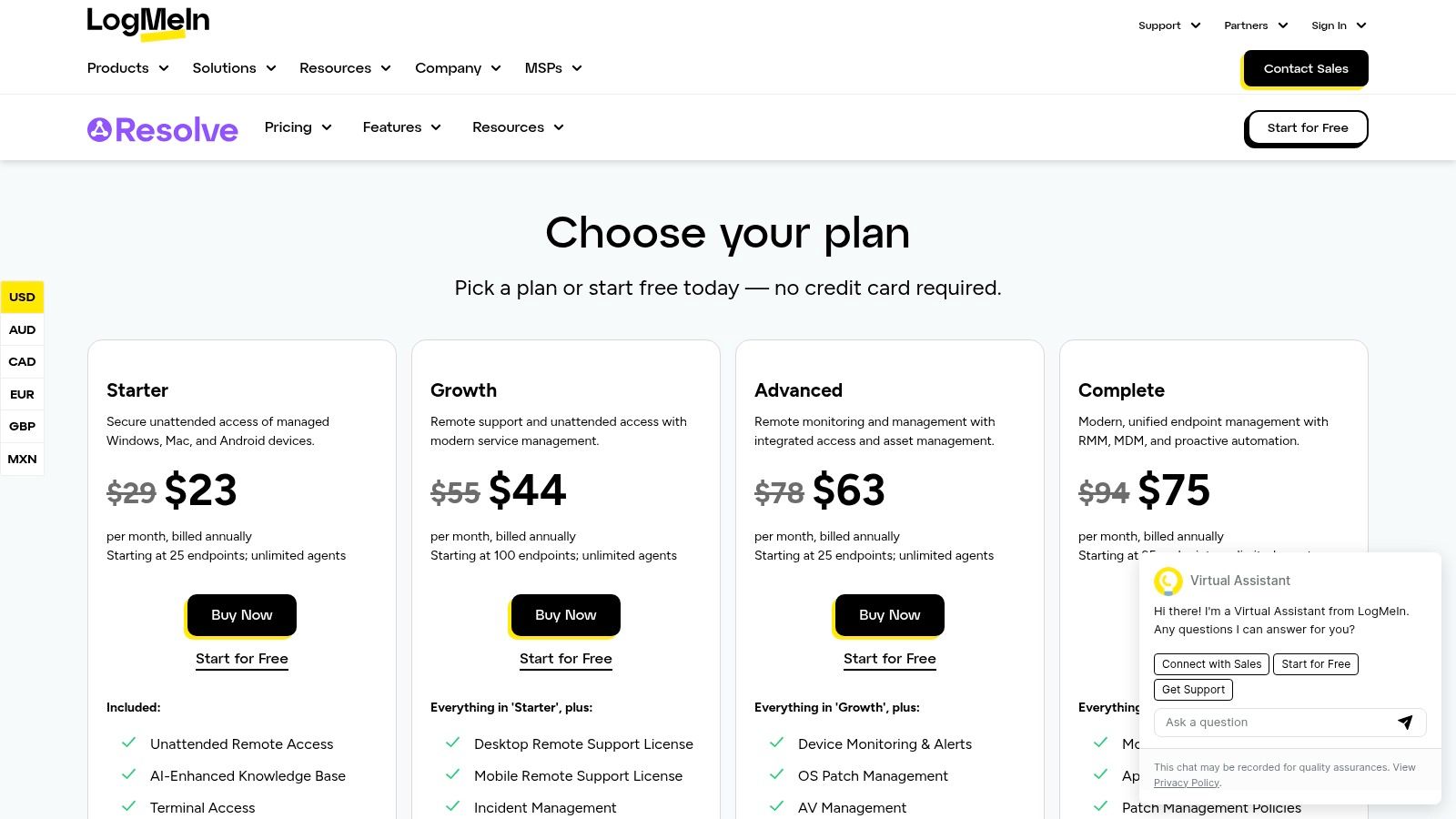
The platform is built on a zero-trust security architecture, ensuring that every sensitive action requires verification, enhancing security for remote sessions. Resolve's tiers are structured to scale from basic remote access needs to full-scale remote support and management, with clear agent and device limits defined in each plan. For teams using collaboration tools, integrations with platforms like Slack and Microsoft Teams allow for seamless ticket creation and notifications directly within existing workflows.
Key Features & User Experience
Resolve offers a modern administrative console with a lightweight agent that is quick to deploy, minimizing setup friction.
- All-in-One Platform: Combines remote support with helpdesk ticketing, remote execution, and asset management, reducing the need for multiple tools.
- Zero-Trust Security: Implements strict security prompts for actions like file transfers or running scripts, providing granular control over remote sessions.
- Mobile and Camera Support: Features like Camera Share allow technicians to see what the end-user sees through their mobile device's camera, which is excellent for troubleshooting hardware issues.
Pros and Cons
Pros:
- Integrated ticketing and support system streamlines IT service management.
- Strong focus on security with a zero-trust model.
- Modern interface and fast agent deployment process.
Cons:
- More complex and potentially more expensive than a simple remote access tool.
- Key features like endpoint protection and mobile device management are paid add-ons.
- Higher-tier pricing details often require contacting sales.
You can learn more and view plans at logmein.com/pricing/resolve.
7. Chrome Remote Desktop
For users seeking a completely free and straightforward solution, Chrome Remote Desktop is an excellent alternative to TeamViewer, leveraging the power and ubiquity of the Google Chrome browser. It provides a simple way to access your own computers or offer quick, on-demand support to others without installing hefty software. Its integration with your Google account makes setup incredibly fast, making it a go-to choice for personal use, family tech support, and light administrative tasks.
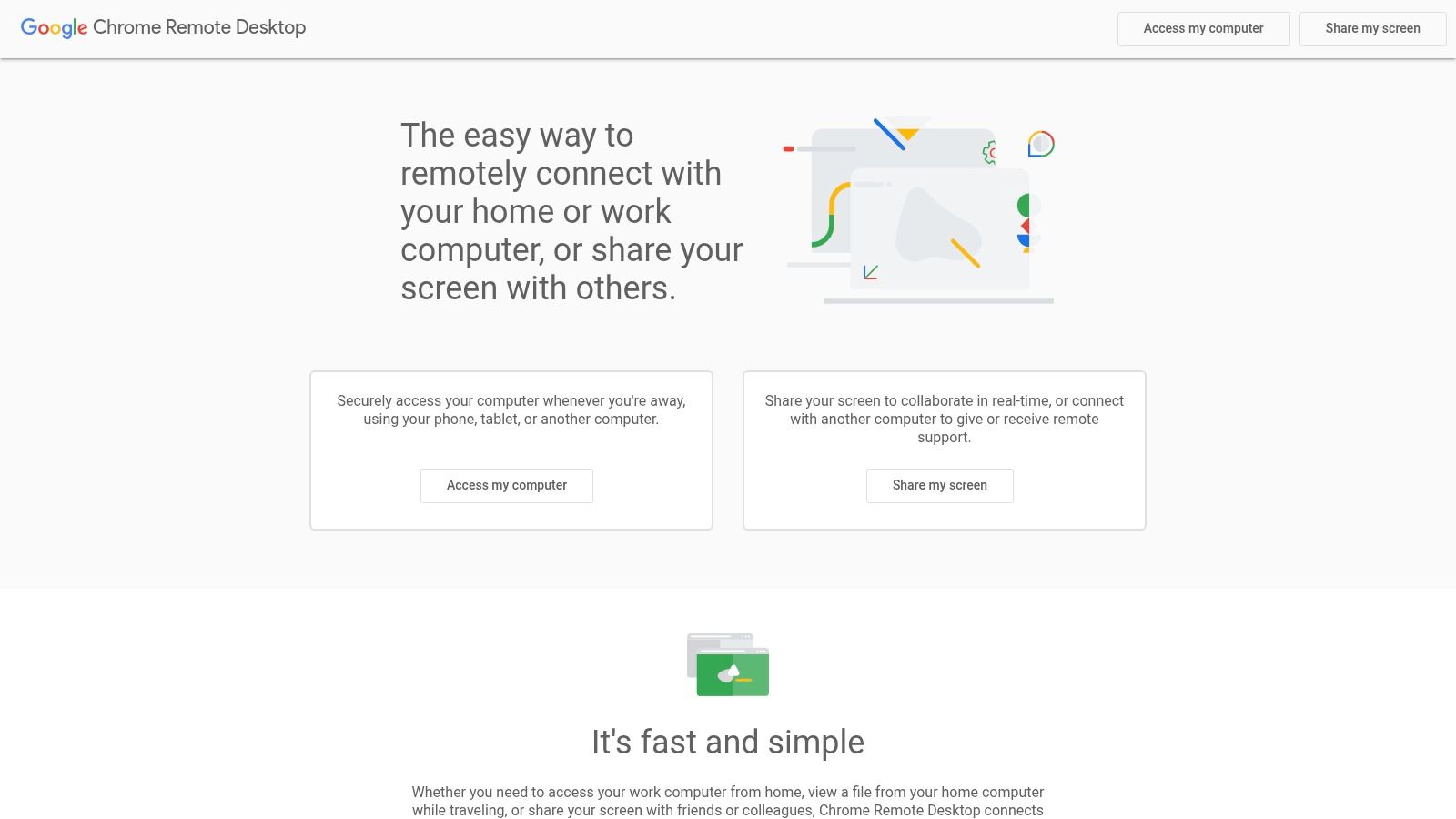
The platform operates primarily through a browser extension or a web portal, with dedicated mobile apps available for both Android and iOS. This web-based approach using WebRTC technology ensures broad cross-platform compatibility wherever Chrome runs. You can set up permanent, unattended access to your devices or generate a one-time code for a spontaneous screen-sharing session, offering a surprising amount of flexibility for a free tool.
Key Features & User Experience
The user experience is minimalist, focusing on core remote access functionality without the complexity of enterprise-grade tools.
- Simplicity: Connections are initiated through a simple PIN for your own devices or a temporary access code for remote support, removing significant setup friction.
- Essential Tools: It supports basic functionalities like copy-and-paste between machines and is fully cross-platform.
- Security: All remote sessions are fully encrypted, providing a secure connection for your remote activities.
Pros and Cons
Pros:
- Completely free with no hidden costs or feature limitations.
- Extremely easy and quick to set up for personal and family use.
- Reliable performance for routine tasks like file management and basic support.
Cons:
- Lacks advanced business features like session recording, detailed reporting, or user management.
- Admin controls are very limited compared to paid, business-focused solutions.
You can learn more and get started at remotedesktop.google.com.
8. Parsec
Parsec is a high-performance remote desktop tool designed for creative professionals and gamers, making it a powerful alternative to TeamViewer for use cases demanding ultra-low latency and impeccable visual quality. It excels in delivering a fluid, 60 FPS experience with 4:4:4 color accuracy, which is essential for video editing, 3D modeling, and other color-critical work. Its core technology is built to handle graphically intensive tasks, providing a responsive feel that is nearly indistinguishable from working on a local machine.
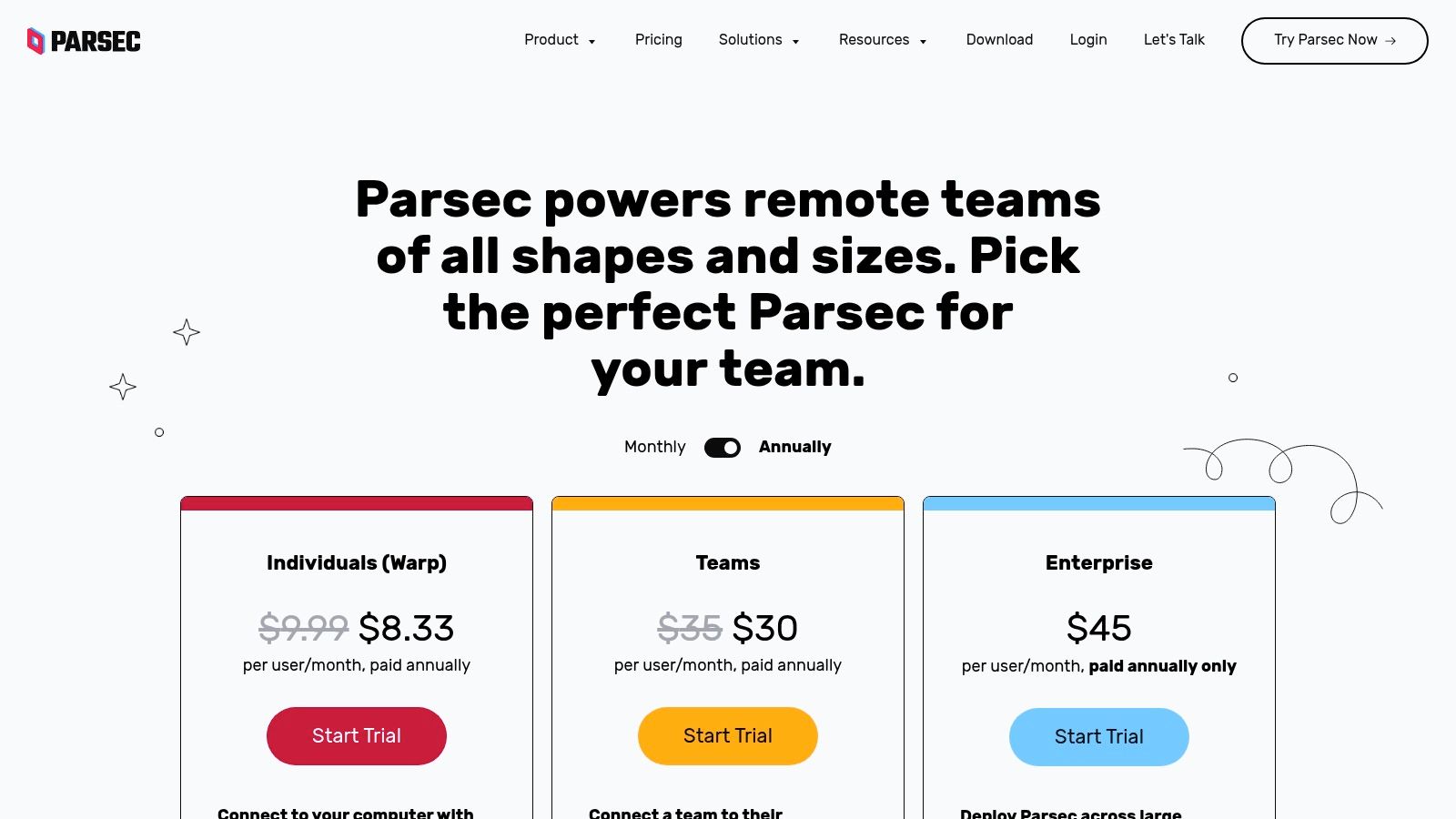
The platform caters to both individuals and large studios, offering advanced features tailored for creative workflows. Enterprise-level tools include SSO integration, role-based access control, detailed audit logs, and APIs for custom integrations. A standout feature for collaboration is the "Guest Access" credit system, which allows teams to securely grant temporary access to external partners or clients without adding them as permanent team members.
Key Features & User Experience
Parsec's interface is streamlined for performance, focusing on connecting users to their work with minimal friction and maximum fidelity.
- Creative Tool Support: It offers native support for multi-monitor setups and Wacom tablets, including pressure and tilt sensitivity, a critical feature for digital artists.
- Privacy Mode: Users can blank the host screen and disable local input, ensuring privacy and security when accessing a machine in a shared office space.
- Performance: The primary differentiator is its near-zero latency and high-framerate stream, making it ideal for real-time creative work and even remote gaming.
Pros and Cons
Pros:
- Exceptional responsiveness and visual fidelity unmatched by most general-purpose tools.
- Strong support for creative workflows and peripherals like drawing tablets.
- Scales effectively from individual plans to full enterprise deployments.
Cons:
- It is not designed as a traditional IT helpdesk tool and lacks features like ticketing or session scripting.
- Guest Access credits for external collaboration are a separate cost for Teams plans.
You can learn more and download at parsec.app/pricing.
9. NoMachine
NoMachine is a high-performance remote desktop solution that stands out as a strong alternative to TeamViewer for users prioritizing performance and self-managed infrastructure. It uses its proprietary NX protocol, which is engineered for exceptional speed and quality, making it suitable for demanding tasks like remote audio/video editing, 3D modeling, and even gaming. It provides a free version for personal use that is remarkably full-featured.
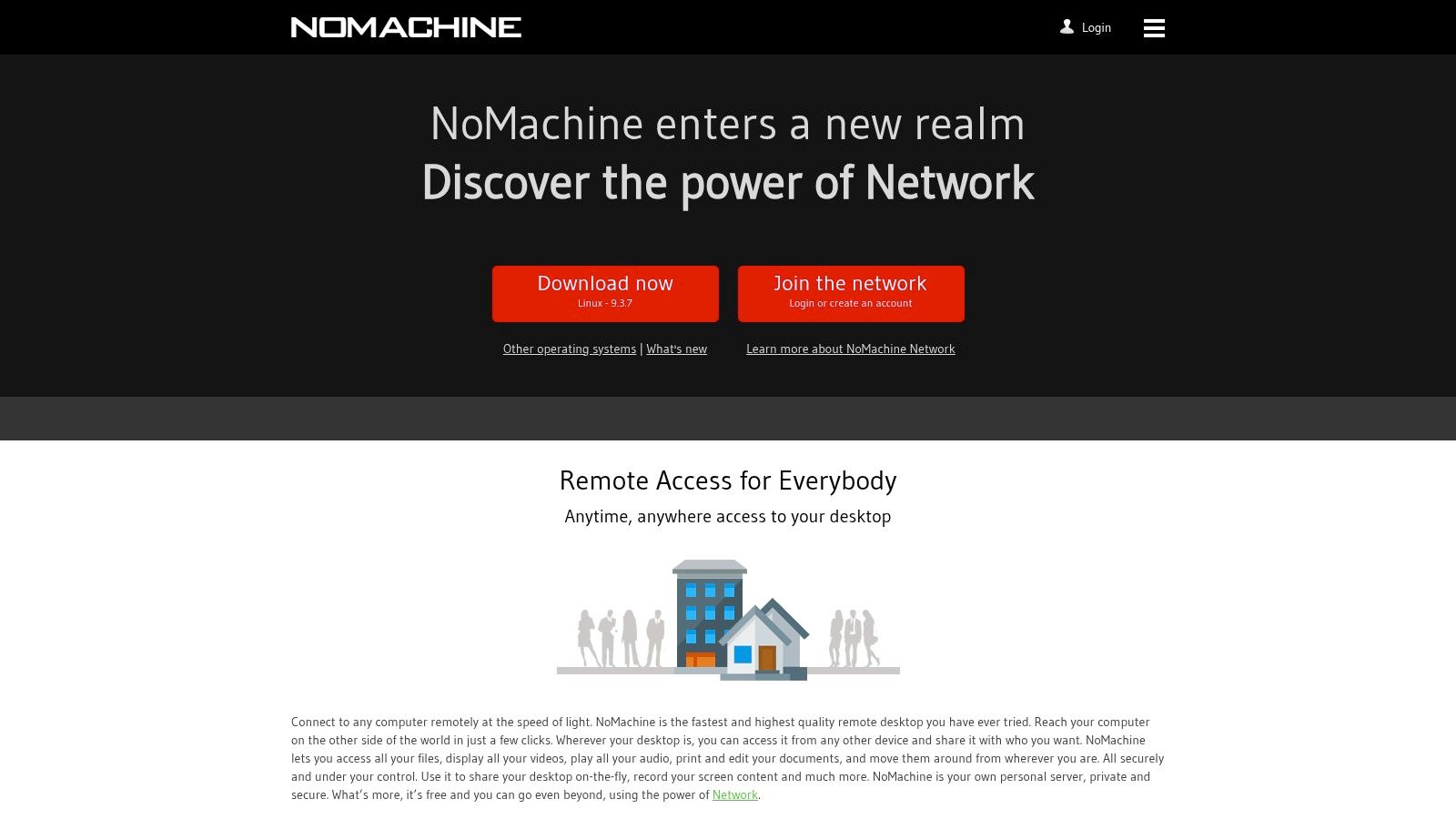
For businesses, NoMachine offers paid Enterprise Desktop and Network subscriptions that allow for flexible on-premises architectures. This is ideal for privacy-minded organizations that need to maintain complete control over their data and remote access infrastructure. Enterprise setups also gain access to advanced features like WebRTC browser sessions, which enable connections without installing client software.
Key Features & User Experience
NoMachine's interface is functional, providing quick access to connected computers and session settings.
- High-Performance Protocol: The NX protocol delivers a remarkably smooth and responsive experience, capably handling multimedia and high-resolution displays.
- Flexible Architecture: It supports self-hosted, on-premises deployments, giving administrators full control over security and access policies.
- Enterprise Tools: Features like session recording, multi-monitor support, and remote USB device access are built-in.
Pros and Cons
Pros:
- Excellent performance, especially for graphics-intensive applications.
- Generous free version for personal use with solid features.
- Flexible on-premises architecture for enhanced security and control.
Cons:
- Setup and architecture can require more administrative effort compared to cloud-based SaaS tools.
- Accessing some advanced features may require combining both Enterprise and Network subscriptions.
You can learn more and download at nomachine.com.
10. RustDesk
RustDesk is an open-source remote desktop solution that has gained significant traction as an alternative to TeamViewer, especially for users who prioritize privacy, control, and cost-effectiveness. Its defining feature is the ability to be self-hosted, allowing you to run your own server and manage your entire remote access infrastructure. This "own your stack" approach means your data never has to pass through a third-party server, providing maximum security and data sovereignty.
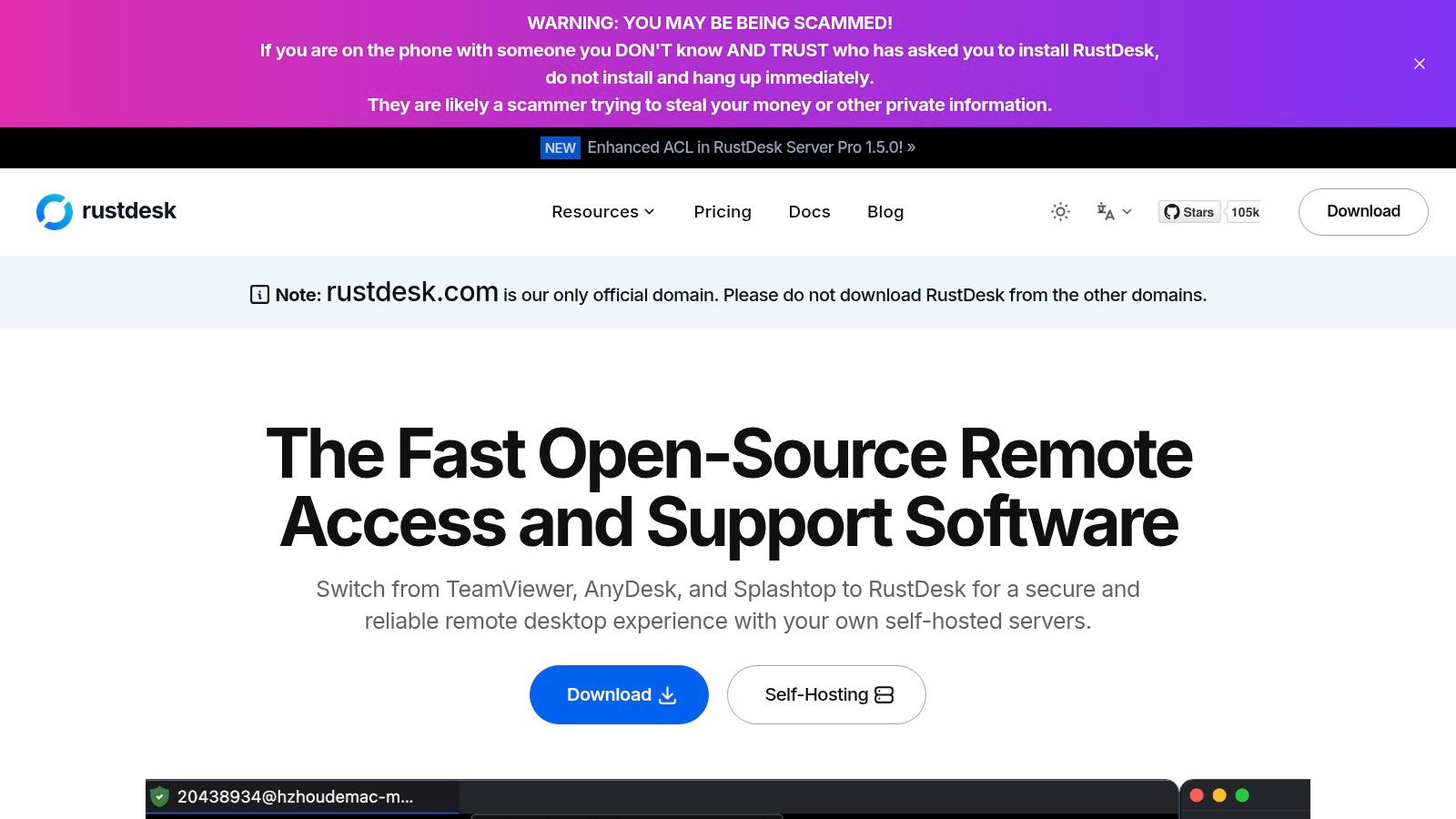
While the public relay server is available for free use, the real power of RustDesk lies in its self-hosting capabilities. The platform provides extensive cross-platform support with clients for Windows, macOS, Linux, iOS, and Android. For businesses, the paid Pro server licenses add crucial features like a web console, an address book, centralized settings, audit logs, and SSO/LDAP integration, turning a simple remote tool into a comprehensive management platform.
Key Features & User Experience
RustDesk’s client interface is minimal and functional, focusing on quick and secure connections through your own server.
- Self-Hosting: Complete control over your data and infrastructure by running your own relay and ID server.
- Essential Tools: Includes core features like file transfer, clipboard synchronization, and TCP tunneling.
- Business Features (Pro Server): A web console allows for centralized management of users, devices, logs, and permissions.
- Security: End-to-end encryption is standard, and self-hosting eliminates reliance on external servers.
Pros and Cons
Pros:
- Open-source client with strong community support and transparency.
- Extremely low ongoing costs when self-hosting on your own infrastructure.
- Flexible and scalable, with unlimited concurrent connections on paid plans.
Cons:
- Self-hosting requires technical expertise and server administration skills.
- Commercial features are tied to the server-side license, not the client.
You can learn more and download at rustdesk.com.
11. DWService
DWService offers a unique and open-source approach as a free alternative to TeamViewer, operating almost entirely through a web browser. It relies on a small, open-source agent installed on the remote machine, which then allows the controller to access it from any modern web browser. This web-based model eliminates the need for software installation on the controlling device, making it incredibly versatile for quick, ad-hoc support sessions from any computer.
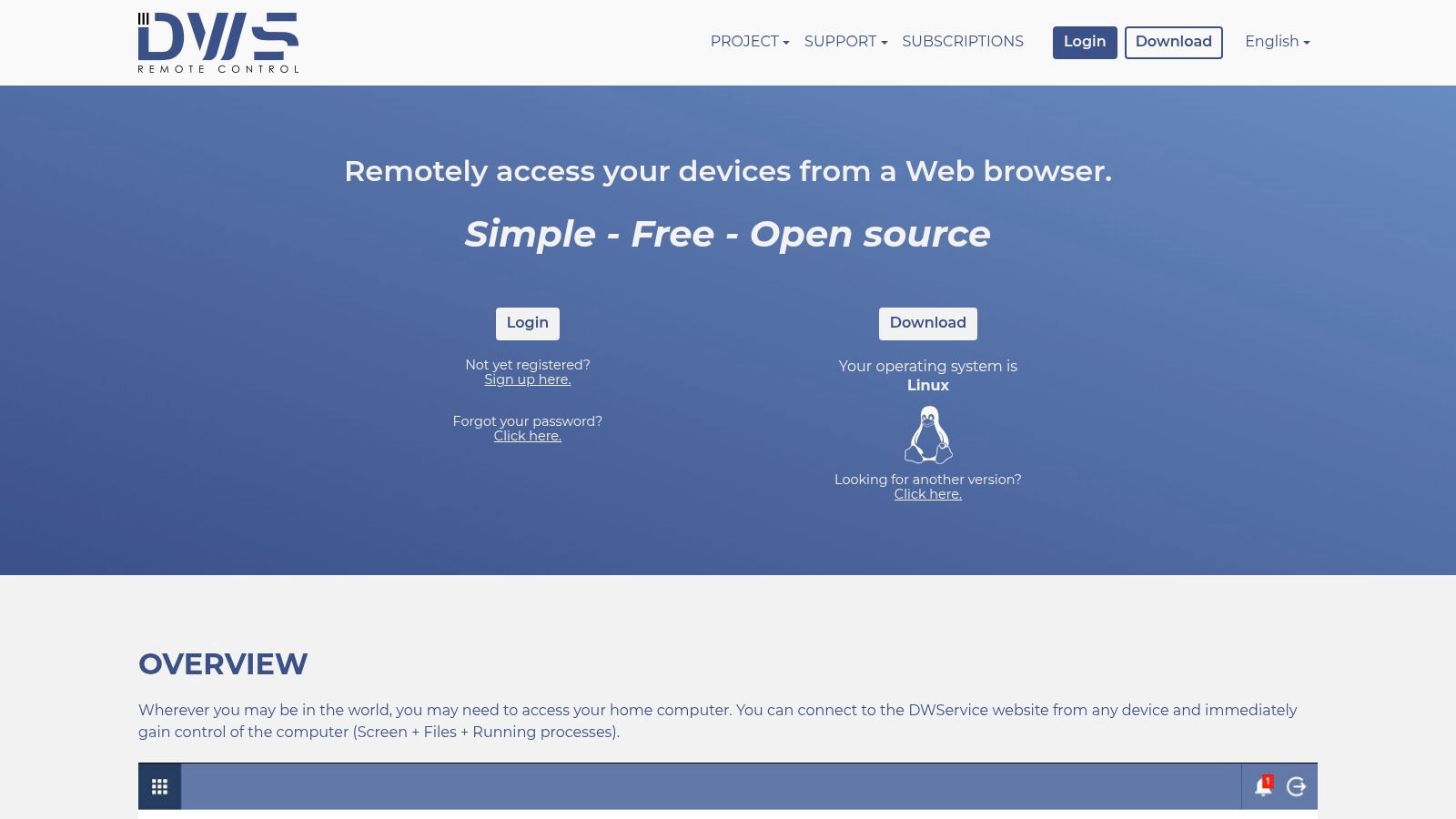
The platform is funded by donations and optional subscriptions that grant users access to higher bandwidth, but the core functionality remains free for personal and professional use. Its agent is available for a wide array of systems, including Windows, macOS, Linux, and even Raspberry Pi. The project's transparency, with its agent code available on GitHub, appeals to security-conscious users who prefer open-source solutions.
Key Features & User Experience
The user experience is centered around a web dashboard where you manage your agents and initiate connections.
- Browser-Based Access: Connect and control remote desktops, manage files, and access a command-line terminal directly from your web browser.
- Open-Source Agent: The client-side agent is open-source, providing transparency and trust for users concerned with proprietary software.
- Comprehensive Tools: Beyond screen sharing, it provides access to the file system, resource information (CPU, RAM), and running processes.
- Unattended Access: Set up agents for permanent access to your devices without needing someone on the other end to approve the connection.
Pros and Cons
Pros:
- Completely free to use, with optional paid tiers for increased bandwidth.
- No software required on the controller side; works from any browser.
- Open-source agent promotes security and transparency.
- Supports a wide range of operating systems.
Cons:
- Free tier bandwidth can be limited, potentially causing lag during intensive sessions.
- Fewer enterprise-grade features like mass deployment or advanced user management.
- The server-side infrastructure is centrally managed by DWService, so it isn't a fully self-hosted solution.
You can learn more and sign up at dwservice.net.
12. Amazon DCV (AWS)
Amazon DCV (NICE DCV) is a high-performance remote display protocol, making it a powerful and specialized alternative to TeamViewer for organizations heavily invested in the AWS ecosystem. It is engineered to stream desktops and applications from Amazon EC2 instances or on-premises servers with minimal latency. This makes it ideal for graphics-intensive workloads common in engineering, media production, and scientific visualization, where near real-time responsiveness is critical.
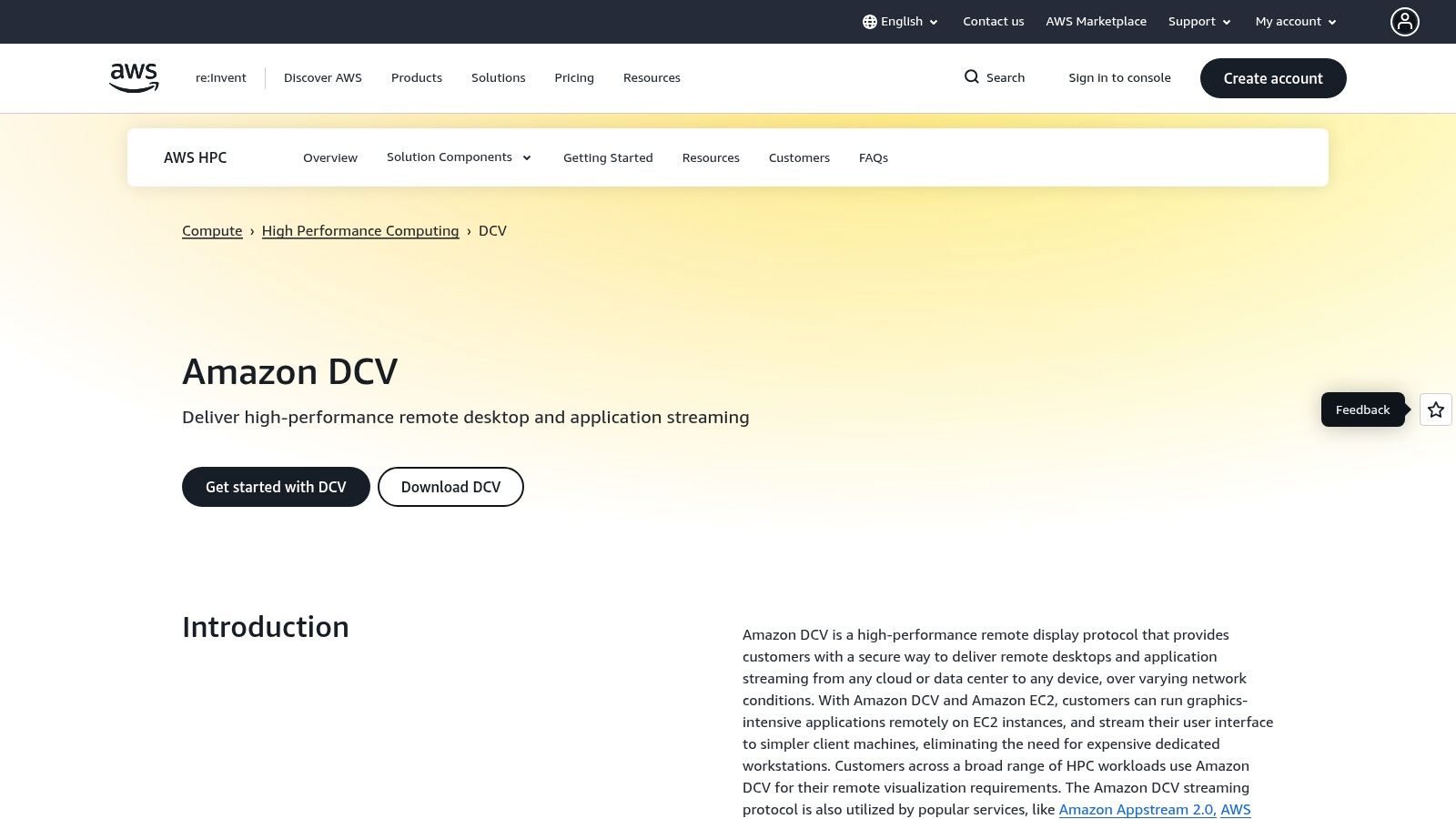
Unlike traditional remote support tools, DCV is designed for VDI-style needs and demanding applications. It offers both a native client capable of supporting up to four 4K monitors and a convenient HTML5 web client for browser-based access. The protocol is bandwidth-adaptive, automatically adjusting stream quality to match network conditions, ensuring a fluid user experience even under fluctuating connectivity. Security is handled with end-to-end AES-256 encryption.
Key Features & User Experience
Amazon DCV prioritizes performance and scalability over a feature-packed helpdesk interface.
- Performance: Its core strength is delivering a high-fidelity, low-latency stream for graphically demanding applications, including support for GPU sharing on Linux servers.
- Essential Tools: Includes crucial features for professional workflows, such as file transfer, audio redirection, printing, and support for USB devices and stylus input.
- Security: Built on AWS infrastructure, it benefits from a strong security posture and leverages robust encryption standards to protect session data.
Pros and Cons
Pros:
- No extra DCV license cost when used on Amazon EC2, you only pay for standard EC2 usage.
- Scales seamlessly with AWS infrastructure for bursty or graphics-intensive workloads.
- Excellent performance for demanding 3D and high-resolution applications.
Cons:
- Not a turnkey IT support or helpdesk tool; lacks built-in ticketing or chat.
- Requires paid licenses and significant setup for on-premises deployment.
You can learn more and get started at https://aws.amazon.com/hpc/dcv.
Top 12 TeamViewer Alternatives — Feature Comparison
| Solution | Core features | UX/Quality (★) | Price & Value (💰) | Target (👥) | Unique selling points (✨ / 🏆) |
|---|---|---|---|---|---|
| AnyDesk | Unattended access, cross‑platform, session recording, MSI deployment | ★★★★ | 💰 Moderate — clear tiers | 👥 IT pros, SMBs | ✨ Lightweight + low‑bandwidth perf; 🏆 strong deployment tools |
| Splashtop | Solo/Pro access, SOS support, multi‑monitor, enterprise APIs | ★★★★ | 💰 Low entry — competitive | 👥 Individuals, small teams, helpdesks | ✨ Mixed access/support SKUs; 💰 great entry value |
| RemotePC (IDrive) | Always‑on unattended, large device tiers, session recording | ★★★★ | 💰 Very low annual rates; deep discounts | 👥 Home users to large orgs | ✨ Large‑scale tiers and low ongoing cost |
| Zoho Assist | Remote support + unattended SKUs, diagnostics, AR add‑on | ★★★★ | 💰 Good value — free plan + volume discounts | 👥 SMBs, MSPs | ✨ Strong integrations & reporting; transparent tiering |
| ConnectWise ScreenConnect | Per‑tech pricing, unattended agents, Backstage, WOL | ★★★★ | 💰 Paid — scales by concurrent techs | 👥 Technicians & IT help desks | ✨ Advanced admin controls; 🏆 technician‑centric tools |
| LogMeIn Resolve | Remote + ticketing, automations, integrations, Zero‑Trust | ★★★★ | 💰 Mid–high; add‑ons for endpoint/MDM | 👥 Service desks, ITSM teams | ✨ All‑in‑one service desk + remote access |
| Chrome Remote Desktop | Browser/mobile access, WebRTC, simple unattended setup | ★★★ | 💰 Free | 👥 Personal users, ad‑hoc support | ✨ Fast, zero‑friction browser access |
| Parsec | 60fps, 4:4:4 color, tablet support, guest credits | ★★★★★ | 💰 Variable — creative/enterprise tiers | 👥 Creative pros, studios, VFX | ✨ Ultra low‑latency high‑fps; 🏆 best for visual fidelity |
| NoMachine | Free personal + Enterprise licenses, WebRTC sessions | ★★★★ | 💰 Free for personal; paid enterprise | 👥 Privacy‑minded/self‑hosters | ✨ Flexible on‑prem architectures |
| RustDesk | Self‑host server, unlimited connections per terms, web console | ★★★★ | 💰 Low when self‑hosted; Pro server paid | 👥 Open‑source fans, sysadmins | ✨ Open‑source self‑hosted alternative |
| DWService | Browser agent, web UI for screen/files/processes, OSS agent | ★★★ | 💰 Free + contribution tiers | 👥 Personal/light remote help | ✨ Web‑only access + transparent OSS model |
| Amazon DCV (AWS) | Bandwidth‑adaptive streaming, AES‑256, multi‑GPU support | ★★★★★ | 💰 Pay via EC2 usage; scales enterprise | 👥 Graphics/engineering, VDI | ✨ Near real‑time GPU streaming; 🏆 ideal for graphics workloads |
Making the Right Connection: Your Final Verdict
Navigating the landscape of remote access software can feel overwhelming, but as we've explored, the market is rich with powerful and specialized tools. The search for the best alternative to TeamViewer is less about finding a direct one-to-one replacement and more about identifying the solution that precisely matches your unique requirements. This journey isn't just about escaping a specific brand or pricing model; it's an opportunity to significantly upgrade your remote workflow.
Our in-depth analysis of twelve distinct platforms reveals a clear pattern: the "best" choice is entirely dependent on context. There is no single winner, only the right tool for the right job. By moving beyond a one-size-fits-all mindset, you can find a solution that not only meets your current needs but also scales with your future ambitions.
Key Takeaways and Final Recommendations
Reflecting on the options presented, several key themes emerge. For individuals and families needing simple, no-cost remote access for occasional tech support, Chrome Remote Desktop remains an unbeatable starting point due to its sheer simplicity and accessibility. It's a testament to how effective a straightforward tool can be for non-commercial tasks.
For creative professionals, gamers, or anyone requiring ultra-low latency and high-fidelity streaming, Parsec stands in a class of its own. Its focus on performance over administrative features makes it the premier choice where responsiveness is non-negotiable. Similarly, open-source advocates and privacy-conscious users will find a powerful and self-hostable champion in RustDesk, offering control and transparency that proprietary solutions simply cannot match.
On the commercial front, the decision becomes more nuanced.
- Splashtop shines as a value-driven powerhouse, offering a robust feature set for businesses, MSPs, and educational institutions at a highly competitive price point.
- ConnectWise ScreenConnect provides unparalleled control and customization for IT professionals who need deep integration and granular security management within their support ecosystem.
- Zoho Assist is a fantastic alternative to TeamViewer for businesses already invested in the Zoho ecosystem, providing seamless integration and a comprehensive suite for customer support and IT management.
Your Action Plan for Selecting a Tool
Making the final decision requires a structured approach. Before you commit, follow these actionable steps to ensure you choose wisely:
- Define Your Core Use Case: Are you primarily providing on-demand IT support, accessing a powerful work machine from home, managing a fleet of unattended servers, or collaborating on creative projects? Be specific.
- Establish Your Budget: Determine what you're willing to spend. Many paid tools offer significant savings over TeamViewer, but free options like DWService or RustDesk can eliminate costs entirely if they meet your needs.
- Prioritize Your Feature List: Create a "must-have" vs. "nice-to-have" list. Do you absolutely need session recording, multi-monitor support, or Wake-on-LAN? This will help you filter out unsuitable candidates quickly.
- Test, Test, Test: Almost every commercial service offers a free trial. Use this period to evaluate performance across different network conditions, test key features, and assess the user interface. This hands-on experience is the most critical step in the evaluation process.
The perfect remote access tool is out there. It might be a well-known name like AnyDesk or a specialized solution like Amazon DCV. By focusing on your specific needs for performance, security, and cost, you can confidently select a platform that not only replaces TeamViewer but truly empowers your remote capabilities, making every connection more efficient and secure.
As you optimize your digital toolkit with the right remote access software, consider how you can also maximize the value of your subscription-based tools. AccountShare helps you securely and affordably share access to your favorite services with family, friends, or colleagues, ensuring you get the most out of every subscription. Discover a smarter way to manage and share your digital accounts at AccountShare.