

How to netflix remove device and Secure Your Netflix Account
To really take charge of your account, you need to know how to manage which devices are logged in. Netflix handles this with a global "Sign out of all devices" feature. Think of it as a master reset button that logs out every single TV, phone, and laptop connected to your account. It's the quickest and most effective way to reclaim control.
Why You Need to Manage Your Netflix Devices
Ever sold a smart TV and had that sinking feeling you forgot to log out? Or realized an ex still has full access to your Netflix queue post-breakup? These are super common situations that show why managing your connected devices is so important.
It’s not just about being tidy—it's a critical part of keeping your account secure and your recommendations genuinely yours. Every old, forgotten device that stays logged in is a potential backdoor to your account.
An unwanted user can do more than just binge-watch on your dime. They can completely mess with your viewing history, which throws Netflix's recommendation algorithm out of whack. Suddenly, your feed is cluttered with shows you have zero interest in. They could also add or delete profiles, creating a chaotic experience for everyone else who legitimately uses the account. It's just good digital housekeeping, and a few proactive clicks can save you a lot of future headaches.
Protecting Your Viewing Experience
Your watch history is what feeds the Netflix algorithm. When someone else uses your profile, it pollutes that data, and your recommendations start to feel random and impersonal. Actively managing your devices ensures the "For You" section is actually for you.
Key Takeaway: Regularly checking and removing unknown devices isn't about being paranoid. It's about maintaining the quality of the service you pay for, making sure your account reflects your tastes.
Real-World Scenarios for Device Removal
The need to kick a device off your Netflix account isn't always about a dramatic security breach. It often pops up in totally normal, everyday situations.
- Selling or Gifting Electronics: If you sell a smart TV, tablet, or gaming console, the new owner could get a free pass to your account if you don't sign out first.
- Staying in a Vacation Rental: Logging into the TV at an Airbnb is super convenient, but it's also incredibly easy to forget to log out when you check out.
- Changing Roommates: When a roommate moves out, making sure they can't access your account anymore is just a standard part of untangling your digital lives.
Once you get the "why," the "how" makes a lot more sense. For an even closer look at what's been happening on your account, you can also learn how to discover your Netflix account history insights to get the full picture.
The Ultimate Security Reset: Remotely Signing Out of All Netflix Devices
Sometimes you just need a clean slate. Whether you've noticed strange viewing activity or simply want to do a security audit, the most powerful tool in your Netflix arsenal is the "Sign out of all devices" feature. Think of it as the master reset button for your account access.
With a single click, you can force every single device—every smart TV, phone, tablet, and gaming console—to log out. This is my go-to move anytime I suspect someone might be using my account without permission. It’s a clean sweep that gives you back complete control.
It's a really effective method, but it's not instant. Netflix says it can take up to eight hours for the logout command to reach every device. In my experience, it's usually much faster, but don't be surprised if a device still has access for a little while after you click the button. Just give it time to work.
How to Trigger the Global Sign-Out
Ready to reclaim your account? You don't need to have the physical devices on hand; all you need is access to your account through a web browser.
Here’s how you do it:
- Head over to the Netflix website on any computer or mobile browser.
- Log in if you aren't already.
- In the top-right corner, find your profile icon and click on Account in the menu.
- Look for the "Security & Privacy" section and click on Sign out of all devices.
- Netflix will ask you to confirm. Just click the blue Sign Out button, and you're done.
That’s all it takes. The process is now in motion, and every device will soon be prompted to log back in.
This flowchart can help you decide when it's the right time to take this step. If something feels off, it's always better to be safe than sorry.
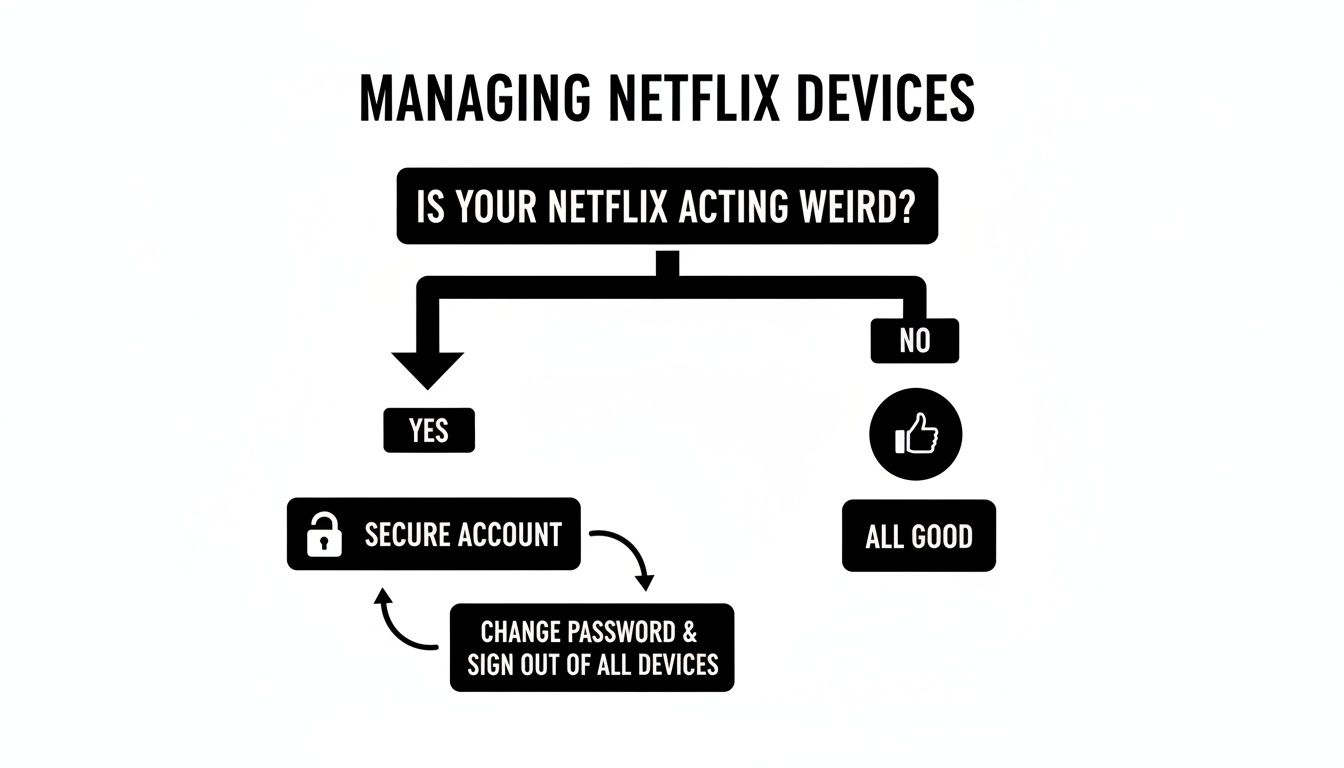
Don't Forget This Crucial Next Step
Okay, you've signed everyone out. Great. But if you stop there, anyone with your old password can just waltz right back in. Signing out is only half the job.
Expert Tip: The moment you use the "Sign out of all devices" feature, your very next move should be to change your password. This is non-negotiable.
Think of it like this: you've kicked the unwanted guests out, and now you're changing the locks. This powerful one-two punch is the best way to secure your account for good. For a walkthrough on creating a truly secure new password, take a look at our complete guide on how to change your Netflix password. This combination ensures your account stays yours, and only yours.
Sometimes, the "Sign out of all devices" option feels like using a sledgehammer to crack a nut. It’s effective, but it’s not exactly subtle. What if you just want to deal with the specific devices that have your favorite shows downloaded for offline viewing?
That’s where the “Manage download devices” setting comes into play. It’s a much more surgical tool for controlling your account.
This little-known feature is a game-changer for anyone who downloads shows and movies, especially if you travel a lot. Every Netflix plan limits how many devices can store downloads at the same time. If you’ve ever tried to download a movie for a flight only to be told you've hit your limit, you know how frustrating that can be. This tool lets you free up a download slot without having to log everyone out everywhere.
How It Works (and What It Doesn't)
It's really important to understand what this feature does and, more importantly, what it doesn't do. When you remove a device here, you are only deleting its downloaded content and revoking its ability to download more in the future.
This action does not sign that device out of your Netflix account. So, that old tablet you sold will still be able to stream Netflix if you forgot to log out, but at least it won’t be hogging one of your precious download slots.
Getting to this setting is straightforward:
- First, head to your Account page using a web browser.
- Scroll down until you see the Settings section.
- From there, click on Manage download devices.
You'll be presented with a clean list of every phone, tablet, or computer that currently has content downloaded from your account. Just find the one you want to clear and click "Remove device" next to it. The next time that device connects to the internet, Netflix will automatically wipe all of its downloads.
If you’re trying to manage downloads on a computer specifically, our guide on how to download movies from Netflix on a Mac has some extra pointers that might help.
Why This Matters More Than Ever
Giving users this kind of specific control is part of Netflix's bigger picture: they want you using their native apps as much as possible. This strategy became crystal clear with a major change they rolled out.
In a move that surprised many in late November 2025, Netflix pulled the plug on casting content from mobile devices to most TVs. This decision impacted an estimated 300 million-plus global subscribers and now requires users to log in directly through the app on their smart TV or streaming stick. As detailed in a Fortune article about the Netflix casting feature removal, this gives the company a much tighter grip on how accounts are accessed and used.
By funneling everyone through its native TV apps, Netflix gets a clearer view of account activity, making it easier to enforce its household sharing rules. This shift makes knowing how to manage your account through the official settings more critical than ever.
So, while "Manage download devices" won't let you selectively kick a specific person off your account, it serves a vital and practical purpose. It helps you keep your offline viewing organized and ensures there’s always a download slot ready when you need it most.
Essential Steps to Lock Down Your Account After Removing Devices
Hitting "Sign out of all devices" is a fantastic first move, but your work isn't quite done. Think of it as locking the door—now you need to make sure no one else has a key. To truly secure your account and keep unwanted users out for good, there are a couple more crucial steps to take.
These aren't just tedious chores; they're smart habits that protect your account, especially as Netflix gets more sophisticated about how it manages access.
Immediately Update Your Password
This is the big one. Signing everyone out kicks them off for now, but if they still have your old password, they can waltz right back in. Changing your password is like changing the locks on your digital front door.
When you create a new one, make sure it’s strong. A good password should be:
- Long and complex: Use a solid mix of uppercase letters, lowercase letters, numbers, and symbols.
- Totally unique: Never reuse a password from another site. A password manager is your best friend for this.
For an even bigger security boost, it’s a great idea to learn how to implement two-factor authentication across all your important online accounts. It adds a powerful extra layer of defense that a password alone can't provide.
Audit Your Viewing and Device Activity
Once you've set a new password, it’s time to play detective for a minute. This is how you confirm that no one was watching things without your knowledge and that every device currently logged in actually belongs to you.
Head over to your Account page and find Viewing activity. Quickly scan the list for any shows or movies that you know you didn't watch. A strange viewing history is one of the most obvious red flags of a compromised account.
Next, from that same Account page, go to Recent device streaming activity. This gives you a list of every device that has recently used your account, complete with its location and the last time it was active. If anything on that list looks unfamiliar, you can rest easy knowing you made the right call to secure your account.
Key Insight: This quick security checkup is more important than ever. Netflix is actively monitoring device types, locations, and viewing patterns to enforce its household policy and crack down on password sharing outside the home.
This strategy really kicked into high gear after the 2023 policy changes. It's the reason behind many of the platform's decisions, including the upcoming casting purge in November 2025. By killing phone-to-TV casting on most modern hardware, Netflix forces people to log in directly through their TV apps, making it much easier to verify location and block users from outside the household. This strategy has been a massive success, helping drive subscriber growth from 260.3 million in late 2023 to over 300 million by mid-2025. Taking these steps helps ensure your account stays secure and compliant.
Smart Ways to Share Your Netflix Account (and Stay on Their Good Side)
The days of handing out your Netflix password to friends and family like it's candy are pretty much over, thanks to their strict household rules. But that doesn't mean you're stuck footing the bill for a premium plan all by yourself. Netflix has actually rolled out an official, approved way to share your account with people you don't live with.
It's called the "extra member" feature, and it's Netflix's answer to the account-sharing dilemma. For an extra monthly fee, you can add someone outside your primary home to your plan. The best part? They get their own profile, their own login, and their own password. Your viewing history and curated recommendations stay completely yours.
Think of it as a dedicated sub-account. They get the full Netflix experience, but it’s all managed under your main subscription. This is the only way to share your account that is 100% compliant with Netflix's rules, so you don't have to worry about your account getting flagged or shut down.
Getting Used to the New Streaming Rules
Netflix's big crackdown isn't just about who's logging in; it's about controlling the entire viewing experience. This became crystal clear with a major change that really shook up how millions of people watch their favorite shows.
Back in late November 2025, Netflix pulled the plug on casting content from a phone or tablet to most TVs and streaming sticks. This was a huge blow for travelers and anyone who likes to bounce between devices, as it closed a loophole that over 100 million users worldwide had come to rely on. The change essentially forces everyone to use the native TV apps, making it much simpler for Netflix to track a device's location. A deep dive into the Netflix mobile casting removal shows just how much this altered the convenience we all took for granted.
The message from Netflix is loud and clear: they want to control the entire streaming process, from the moment you log in to when you hit play. Knowing these rules is key to keeping your account running smoothly, especially if you travel or share access with others.
A Modern Fix for Sharing Subscriptions
While Netflix’s "extra member" feature is a solid, official option, it’s not always the most flexible or budget-friendly choice. This is especially true for digital nomads, students, or groups of friends trying to split the cost of multiple premium services. That’s where a new way of thinking about subscription management can really help.
Platforms like AccountShare offer a completely different approach. Instead of being boxed in by one company's sharing rules, you can join a community built around group purchasing for all sorts of services. It lets you get secure access to premium accounts for a fraction of the price, all while playing by the rules. It’s a smart solution designed for how we actually live and share today.
Common Questions About Kicking Devices Off Your Netflix Account
Even when you know the steps, a few questions always seem to come up. Getting the answers to these common head-scratchers will help you feel more in control of your account's security. Let's tackle them one by one.
Why Can't I Just Remove One Device at a Time?
This is easily the most common point of frustration. You see an old smart TV on the list and just want to zap that one device, but Netflix makes you sign out everywhere. What gives?
Think of the "Sign out of all devices" feature as a security nuke, not a surgical strike. Netflix designed it this way on purpose. It’s their ultimate "break glass in case of emergency" tool. By forcing a global logout, it guarantees that any unauthorized user—whether it’s an ex, an old roommate, or someone who used your account in a vacation rental—is immediately booted out. It’s a blunt instrument, but it’s incredibly effective at giving you a clean slate and prioritizing total account security.
How Often Should I Actually Check My Device List?
Honestly, there's no hard-and-fast rule, but I'd suggest getting into the habit of doing a quick security audit every few months. It's like checking the air in your tires—a simple, proactive step that prevents bigger problems down the road.
That said, there are a few times when you should drop everything and do it immediately:
- You just sold or gave away an old smart TV, gaming console, or tablet.
- A roommate moves out or your living situation changes.
- You just got back from a trip where you logged into a hotel or Airbnb TV. (This one is so easy to forget!)
Making this a regular practice helps you catch potential security risks before they turn into real headaches. It's the best way to make sure your account stays your account.
If I Sign Out Everywhere, Will I Lose My Watch History?
Deep breaths. The answer is a resounding no.
Signing out of all your devices will not erase your profiles, your watch history, or your carefully curated "My List." All that precious data is tied to your Netflix account in the cloud, not stored on any specific device.
The moment you log back in, everything will be exactly as you left it. Your "Continue Watching" row will be ready and waiting, and Netflix's recommendations will still know you better than you know yourself. The only thing you're resetting is who has the password to get in.
Tired of juggling subscriptions and payments? AccountShare provides a much smarter way to share the premium services you love, securely and without the usual hassle. Join our community to see how simple it is to save money while enjoying your favorite accounts. Check us out at https://accountshare.ai today.