

Mastering Netflix Manage Profiles for a Shared Account
Sharing a Netflix account is a great way to split costs, but let's be honest—it can quickly turn into a mess. One minute you're scrolling through serious dramas, the next you're dodging your roommate's reality TV obsession in your "Continue Watching" row.
This guide will show you how to truly master Netflix profiles. We'll go beyond the basics and turn your shared account from a source of chaos into a perfectly organized streaming hub.
Why Bother Managing Your Netflix Profiles?
Properly managing your Netflix profiles is less about being tidy and more about reclaiming your personal viewing experience. When everyone piles into one profile, Netflix's powerful recommendation algorithm gets completely confused. Your curated feed, once a source of exciting new finds, becomes a jumble of everyone else's tastes.
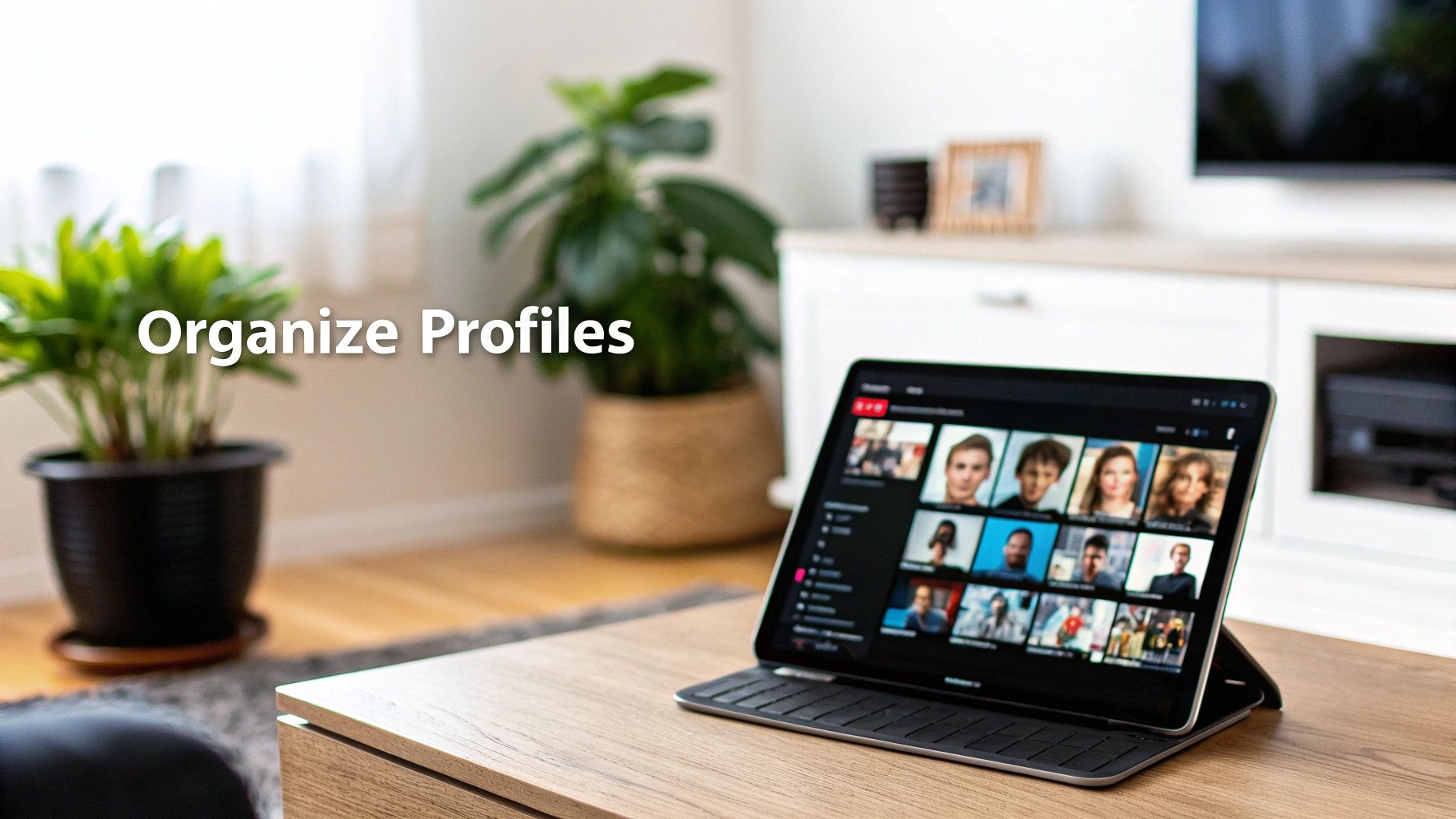
By taking a few minutes to netflix manage profiles correctly, you give everyone their own corner of the account. This is a game-changer for a few key reasons:
- Spot-On Recommendations: Everyone gets suggestions that actually match what they like to watch.
- A Private Watch History: No more spoilers or side-eye for that guilty pleasure you binged over the weekend.
- Smarter Parental Controls: You can create a kid-safe zone with content you've approved.
- Better Account Security: A simple Profile Lock can keep others from messing with your history and lists.
The Real Value of Having Your Own Space
Profiles are what make a shared account work. Netflix allows up to five distinct spaces, which is perfect for families and also the main reason account sharing is so common. It’s a practical way to manage costs.
In fact, U.S. surveys found that while only 11-13% of users admit to sharing their login with people outside their home, these same users tend to subscribe to fewer streaming services. It's a clear sign of the financial motivation behind sharing.
A well-managed set of profiles is the difference between a functional shared account and a frustrating free-for-all. It ensures everyone gets the premium, personalized experience they expect from their subscription.
If you're looking to get the most out of your subscriptions, dive into our ultimate guide to your shared Netflix account. A little bit of setup upfront eliminates the most common headaches and makes your shared Netflix account work better for everyone.
Creating and Customizing Your Personal Profile
The first step to taming a shared Netflix account is giving everyone their own little corner of the streaming universe. Creating a new profile is simple, no matter where you're doing it—on your smart TV, a web browser, or your phone.
Just look for the "Add Profile" option, which is usually a big plus (+) sign on the main "Who's watching?" screen. Click that, and you're on your way.
At first, you just need a name. For a family, you might use "Dad," "Mom," or the kids' names. If you're sharing with roommates, simple first names like "Alex" or "Jordan" work great. But that's just the starting point. The real magic happens when you dive into the settings to make each profile truly personal.
Making Each Profile Feel Like Home
Once you’ve created a profile, it's time to give it some personality. The most obvious touch is the profile icon. Netflix has a massive library of generic icons, but let's be honest, the best ones are the character avatars from shows you love. Want to be Vecna from Stranger Things? Or maybe Geralt from The Witcher? Go for it.
Beyond the cool icon, you can tweak some really practical settings for each user:
- Language Settings: This is a lifesaver in a multilingual house. You can set the default audio and subtitle language per profile. So, if one person wants to watch a show in its original Spanish audio and another needs English subtitles, nobody has to change the settings every single time.
- Maturity Ratings: You can set an age-based viewing restriction for any profile. This means you can lock one profile to "Teens" (content up to TV-14) and another for younger kids, making sure everyone sees only what's appropriate for them.
Getting these settings right transforms a generic user slot into a personalized streaming hub. When someone clicks on their profile, everything from the language to the recommendations is built just for them.
Before we move on, it's helpful to know that not all settings are available on every device. Editing a profile's name or icon is easy anywhere, but more detailed changes often require you to log in through a web browser.
Netflix Profile Customization Options Across Devices
Here's a quick breakdown of where you can manage different profile features. As you can see, the web browser offers the most complete control.
| Feature | Web Browser | Smart TV App | Mobile App (iOS/Android) |
|---|---|---|---|
| Create/Delete Profile | ✅ | ✅ | ✅ |
| Edit Profile Name/Icon | ✅ | ✅ | ✅ |
| Change Language | ✅ | ✅ | ✅ |
| Set Maturity Rating | ✅ | ❌ | ❌ |
| View Viewing History | ✅ | ❌ | ❌ |
| Set Profile PIN Lock | ✅ | ❌ | ❌ |
| Transfer Profile | ✅ | ❌ | ❌ |
While you can handle the basics on your TV or phone, for anything heavy-duty like setting up parental controls or transferring a profile, you'll need to hop on a computer.
What Makes the "Kids" Profile Different?
When you create a new profile, you’ll notice a little checkbox that says "Kid?". Ticking this box does more than just filter content—it launches a completely different, locked-down Netflix experience.
The Kids profile has a brighter, more visual interface filled with characters, making it super easy for little ones to navigate. Crucially, it removes direct access to account settings and stops them from clicking over to another profile. It’s a true digital sandbox. They can explore shows and movies curated for their age group without any risk of seeing something you haven't approved.
Advanced Profile Tools for Security and Privacy
Once you've set up profiles for everyone in your household, it’s time to dial in the security and make sure everyone's viewing experience stays personal. Netflix has some fantastic tools that go beyond just creating a profile; they give you real control over who sees what and what happens when someone eventually moves on to their own account.
Think of it like this: a basic profile is your room in a shared house. These advanced tools are the lock for your door, the moving boxes for when you get your own place, and the ability to clear the room out completely when someone leaves for good. They’re essential for keeping a shared account running smoothly.
Secure Your Watchlist with a Profile Lock
Tired of your roommate’s reality TV binges messing up your carefully curated recommendations? Or maybe you want to keep the kids from wandering into your profile and stumbling upon The Witcher. The Profile Lock is your best friend here. It lets you pop a 4-digit PIN on any profile you choose.
This feature is a lifesaver for privacy. To get it working, you'll need to hop on a web browser and log into your Netflix Account page. Find the "Profile & Parental Controls" section, pick a profile, and you can add a unique PIN in seconds. Now, no one can snoop on your watch history or mess with your algorithm.
A Profile Lock is the single best way to maintain your personalized Netflix experience in a shared environment. It keeps your recommendations clean and your viewing history private, no matter who else uses the account.
Setting up a profile is the first step—you create it, customize it, and start watching. That's the foundation for why these security steps are so important.
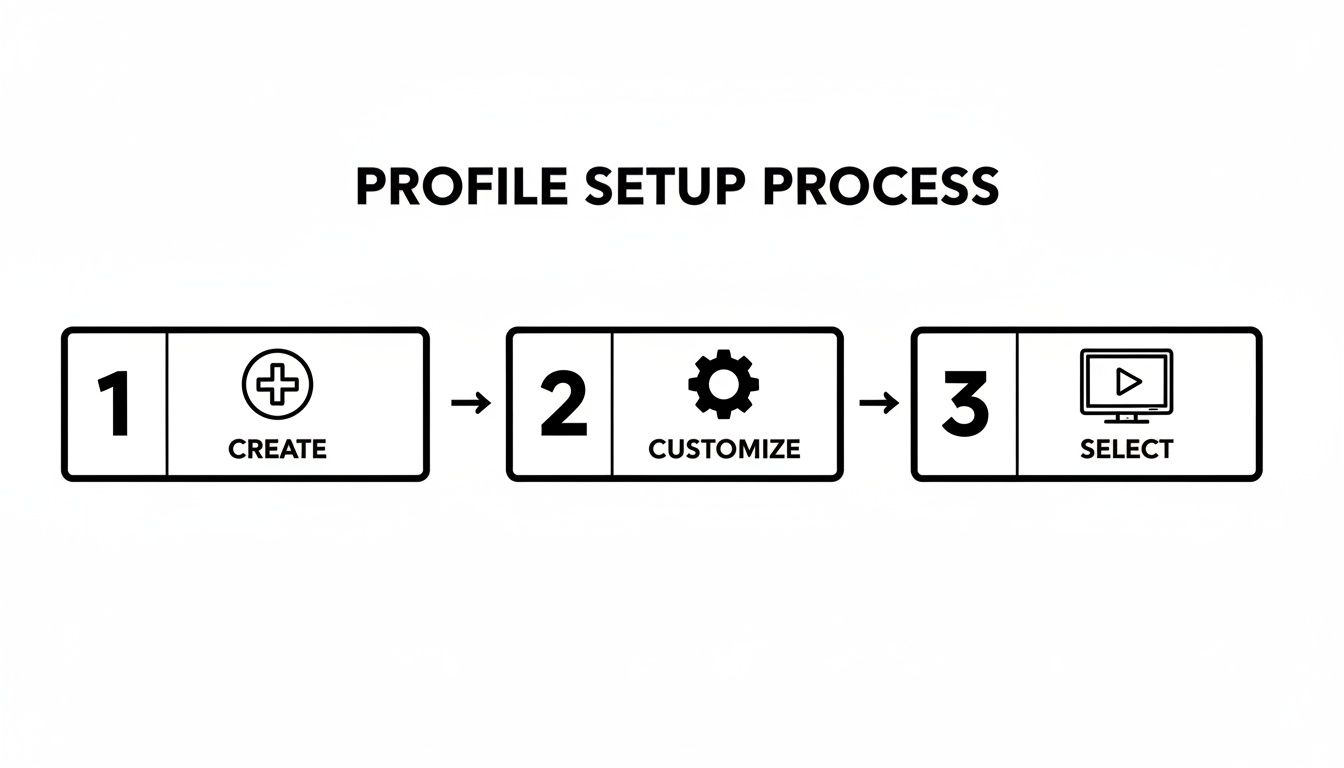
This simple flow—create, customize, select—is what makes features like Profile Lock so powerful. You're not just adding a password; you're protecting a personalized space you've spent time building.
Transfer Your Profile to a New Account
What happens when a roommate moves out or your kid finally decides to get their own subscription? For a long time, the answer was painful: they lost years of watch history and a finely tuned "My List." The Profile Transfer feature completely changed the game.
It allows someone to pack up their entire profile—recommendations, viewing history, saved games, the works—and move it to a brand-new account.
The original profile isn't deleted; Netflix just creates a perfect copy on the new subscription. This has been a huge win for Netflix, making it painless for people to graduate from a shared account to their own. It’s part of why they've grown to nearly 277 million subscribers globally. With 88% of U.S. households subscribed to at least one major streaming service, this kind of smooth data migration is a big deal. You can find more data on these trends from S&P Global.
How to Permanently Delete a Profile
Sometimes, a profile has just run its course. Maybe an old roommate is long gone, or you created a temporary profile for a guest. Deleting it is easy, but it's a one-way street.
Just like setting a PIN, you have to do this from the Account page on a web browser. Find the profile you want to axe and click "Delete Profile."
Heads up: once you hit confirm, everything tied to that profile is gone for good. All the viewing history, ratings, and recommendations will be wiped clean. It’s the perfect way to tidy up an old account, but make sure you’re positive before you click that button.
Implementing Effective Parental Controls
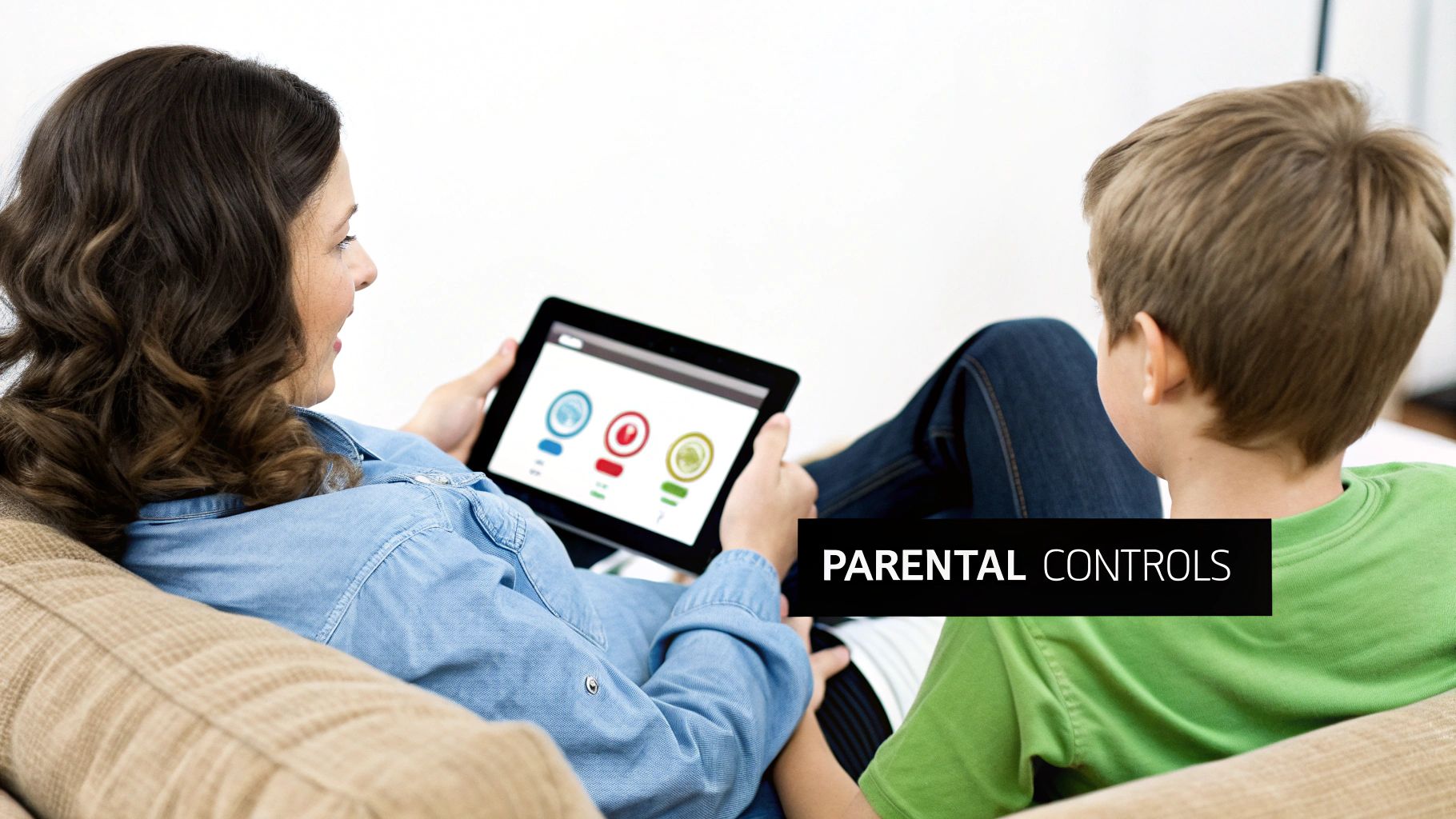
For any household with kids, Netflix's parental controls are more than just a feature—they're a necessity for creating a safe viewing space. The default "Kids" profile is a decent start, but real peace of mind comes from digging a little deeper and customizing the settings for each child. This ensures they can explore and enjoy content you’ve personally approved.
The control center for all this is in your Account settings, which you’ll need to access from a web browser, not the app. Once you're in, head to the "Profile & Parental Controls" section and pick the child's profile you want to adjust. You'll find a whole suite of options waiting.
Don't worry, your kids can't just undo your hard work. Netflix smartly requires your main account password to change any of these settings, stopping even the most tech-savvy children from bypassing your rules.
Customizing Viewing Restrictions
The first and most powerful tool you have is setting the maturity rating for a profile. You can go far beyond the generic "kids" or "adult" labels and choose a specific rating, like "TV-Y" for your little ones or "TV-14" for your teens. This instantly filters the entire library, making sure only age-appropriate titles show up.
But we all know a rating doesn't tell the whole story. You might feel a certain show is just a bit too intense for your child, even if it technically falls within their approved rating. That’s where title-specific restrictions become your best friend.
-
Blocking Individual Titles: Got a show that gives your kid nightmares? You can block it. Simply type the exact title into the blocklist for their profile. For example, if you think Jurassic World Camp Cretaceous is too scary for your seven-year-old, you can block it from ever appearing on their profile.
-
Reviewing Viewing History: Curiosity is a good thing. You can easily check the complete viewing history for any profile to see exactly what your kids have been watching. This is great for sparking conversations and helps you make better decisions about what to block or allow in the future.
Effectively using netflix manage profiles for parental controls means going beyond the defaults. By combining maturity ratings with title-specific blocks and regularly checking the viewing history, you can build a truly customized and secure entertainment space for your family.
This hands-on approach to digital safety is more important than ever. For those looking to integrate cultural or religious values into their media rules, you might find resources like the Islamic screen time guidelines for kids helpful for children aged 0-3. Exploring different frameworks can really strengthen your family's overall media plan.
By taking these steps, you build a digital environment that is both safe and enjoyable. And for families sharing one account, mastering these settings is a key part of making it work for everyone. Learn more about the ins and outs of family account management with this guide: https://accountshare.ai/blogs/new/family-sharing-netflix-guide-cost-setup-tips.
Solving Common Netflix Profile Problems
Even the most meticulously organized Netflix account can hit a snag now and then. Profiles can act up, PINs go missing, and suddenly your carefully curated recommendations are a mess. The good news is that most of these frustrations are surprisingly easy to fix yourself, no customer support call needed.
Let's walk through some real-world headaches and how to solve them.
One of the classic problems is someone else using your profile, completely wrecking your algorithm. Your nephew binges cartoons on your profile for an afternoon, and suddenly your "Top Picks" are full of animated adventures. The fix is simpler than you think: you can edit your viewing history. Just log into Netflix on a web browser, head to your Account settings, and look for your viewing activity. You can hide any titles that don't belong, and within about 24 hours, the algorithm will start to get back on track.
Recovering a Forgotten Profile PIN
Forgetting your 4-digit Profile Lock PIN feels like being locked out of your own digital living room. But don’t panic—you don't need to nuke the profile and start over. Because the PIN is tied to the main account, the account holder can reset it in a snap.
Here’s the straightforward recovery process right from the Netflix account page.
As you can see, all you need to do is click the "Forgot PIN?" link right below where you'd normally enter it. Netflix will then ask for the main account password. Once you enter it, you can instantly reset or remove the PIN and get back to your watchlist.
Another frequent complaint is a profile that just won't load, which is especially common on smart TVs and streaming sticks. This is usually just a simple caching glitch. Before you get too frustrated, try these quick fixes:
- Sign out and sign back in. On the device giving you trouble, log out of Netflix completely and then log back in.
- Do a full restart. Unplug the device from the wall, wait a full 60 seconds, and then plug it back in.
- Check for app updates. Head to your device’s app store and see if the Netflix app has a pending update.
These three steps solve the vast majority of loading issues. If a profile seems to have vanished completely, it was likely deleted by accident. Unfortunately, there's no "undo" button for that—you'll have to recreate it from scratch.
Keeping on top of these little issues is the secret to a happy, shared streaming experience. When everyone’s profile is secure and their recommendations are clean, Netflix feels like the personalized service it’s meant to be.
Proper profile management became even more important when Netflix started cracking down on password sharing outside of a primary household. At its peak, Netflix's 222 million subscribers were thought to be masking an additional 100 million viewers. After the new rules took effect, account borrowing in the U.S. dropped from 16% to 10%, helping Netflix grow to nearly 277 million paying members. You can dig into these streaming statistics on Statista.
If you think someone is accessing your account without permission, it’s a good idea to act quickly. Check out our guide on how to remove a device from your Netflix account.
Common Questions About Managing Netflix Profiles
Even after you've got the basics down, you might run into a few specific quirks when managing Netflix profiles. I've been helping people navigate shared accounts for years, and a few questions pop up time and time again.
Let's tackle some of the most common ones. This is the stuff that helps you solve those little annoyances and really get the most out of your account, whether you're sharing with family or roommates.
How Many Profiles Can I Have on One Netflix Account?
You can create up to five individual profiles on a single Netflix account. This limit is the same across all subscription plans, from Basic to Premium.
Each of those five profiles acts as its own little Netflix world, with separate recommendations, viewing history, My List, and personalized settings.
It’s easy to mix this up with simultaneous streams. While you get five profiles, the number of people who can watch at the same time is tied to your plan: one screen for Basic, two for Standard, and four for Premium.
The five-profile limit is really the secret sauce to sharing an account without driving each other crazy. It gives everyone their own space.
Keeping these two numbers straight is the key to a happy shared streaming experience.
Can I Stop Someone From Using My Netflix Profile?
You absolutely can. If you’re tired of your roommates or kids messing up your recommendations, the Profile Lock feature is your best friend. It lets you pop a 4-digit PIN on your specific profile.
To set it up, you'll need to hop onto a web browser. Log in, head to your "Account" page, and find your profile under "Profile & Parental Controls." You’ll see the "Profile Lock" option right there. Once you set a PIN, nobody can get in without it.
If you suspect a more serious security issue, like someone you don't know using your account, you can take a bigger step. In your account settings, you'll find an option to "Sign out of all devices." Do that, then immediately change your main account password for a full reset.
What Happens to My Viewing History if I Transfer a Profile?
When you transfer a profile to a brand-new account, all your personalized data moves right along with it. Netflix designed this to be a smooth handoff, so starting a new subscription doesn't mean starting from scratch.
Here’s what gets packed up and moved:
- Your entire viewing history
- All the recommendations the algorithm has learned for you
- Everything you've saved in your My List
- Saved games and any progress you've made
- General settings like language and maturity rating
The original profile on the old account isn't deleted—Netflix just creates a perfect copy on the new one. It's a lifesaver for someone moving out or finally getting their own plan, saving them from losing years of a finely-tuned viewing history.
How Do I Fix Bad Recommendations on My Profile?
Has your homepage suddenly started suggesting things that make no sense? It's usually one of two culprits: someone else has been watching on your profile, or you binge-watched something totally out of character. Luckily, the algorithm can be retrained.
The most direct way is to clean up your viewing history. Log in on a web browser, go to "Account," pick your profile, and find "Viewing activity." You can go through the list and hide any titles you don't want influencing your suggestions. Give it about 24 hours, and you should see the algorithm start to correct course.
For a faster, more hands-on approach, start using the rating system more aggressively. Giving a double thumbs-up to shows you absolutely love is a powerful signal to Netflix, telling it, "More like this, please!" This can quickly steer your recommendations back in the right direction.
At AccountShare, we believe managing your digital life should be simple and affordable. Our platform helps you securely share subscriptions and access premium services at a fraction of the cost. Join a community of savvy users and start saving today at https://accountshare.ai.