

How to Listen to YouTube in Background on Any Device
You're halfway through a podcast, your phone hits the lock screen, and the audio stops. You wake the screen, press play, switch back to your messages, and it stops again. The advice you find online tells you to try an old browser trick, but that method may fail before you finish the first paragraph.
The answer depends on what you mean by “background.” You might want screen-off playback, audio while switching between apps, a floating picture-in-picture window, or offline listening when your connection disappears. These aren't interchangeable, and choosing the wrong instructions wastes time.
What Listeners Actually Want When YouTube Stops Playing
Start by identifying the outcome you need.
- Screen-off playback: You want YouTube audio to continue after locking your phone. This is the clearest Premium use case.
- App switching: You want to read messages, browse, or use maps while the video continues. Picture-in-picture may solve this.
- Picture-in-picture: You want a small video window visible over other apps. This isn't the same as audio-only background play.
- Offline listening: You want content available without a connection. Downloads are more useful than background playback during flights, commutes through dead zones, or travel.
Google's official documentation says background play is available in the YouTube, YouTube Music, and YouTube Kids mobile apps when you're signed in with an eligible Premium account. That makes the native Premium route the dependable choice for locked-screen listening, rather than an accidental side effect of a browser setting. Google's background-play documentation also makes clear that availability can depend on location and the app you're using.
Practical rule: Decide whether you need the screen off or merely need to leave the YouTube app. PiP can handle the second case, but it doesn't replace true audio playback with the display locked.
For ordinary spoken-word content, such as interviews, lectures, podcasts, and long discussions, audio-only playback is usually the sensible choice. Keeping a video rendered on screen wastes battery and can consume more data than necessary, especially when you aren't watching.
On a laptop, the situation is simpler. YouTube generally continues playing when its tab sits behind another desktop window, and browser PiP can keep the video visible above your work. Mobile browser tricks are a different matter. Google's current position is that officially supported background playback in a mobile browser requires Premium, so old “request desktop site” instructions aren't a reliable 2026 strategy.
Setting Up Background Play on Android the Right Way
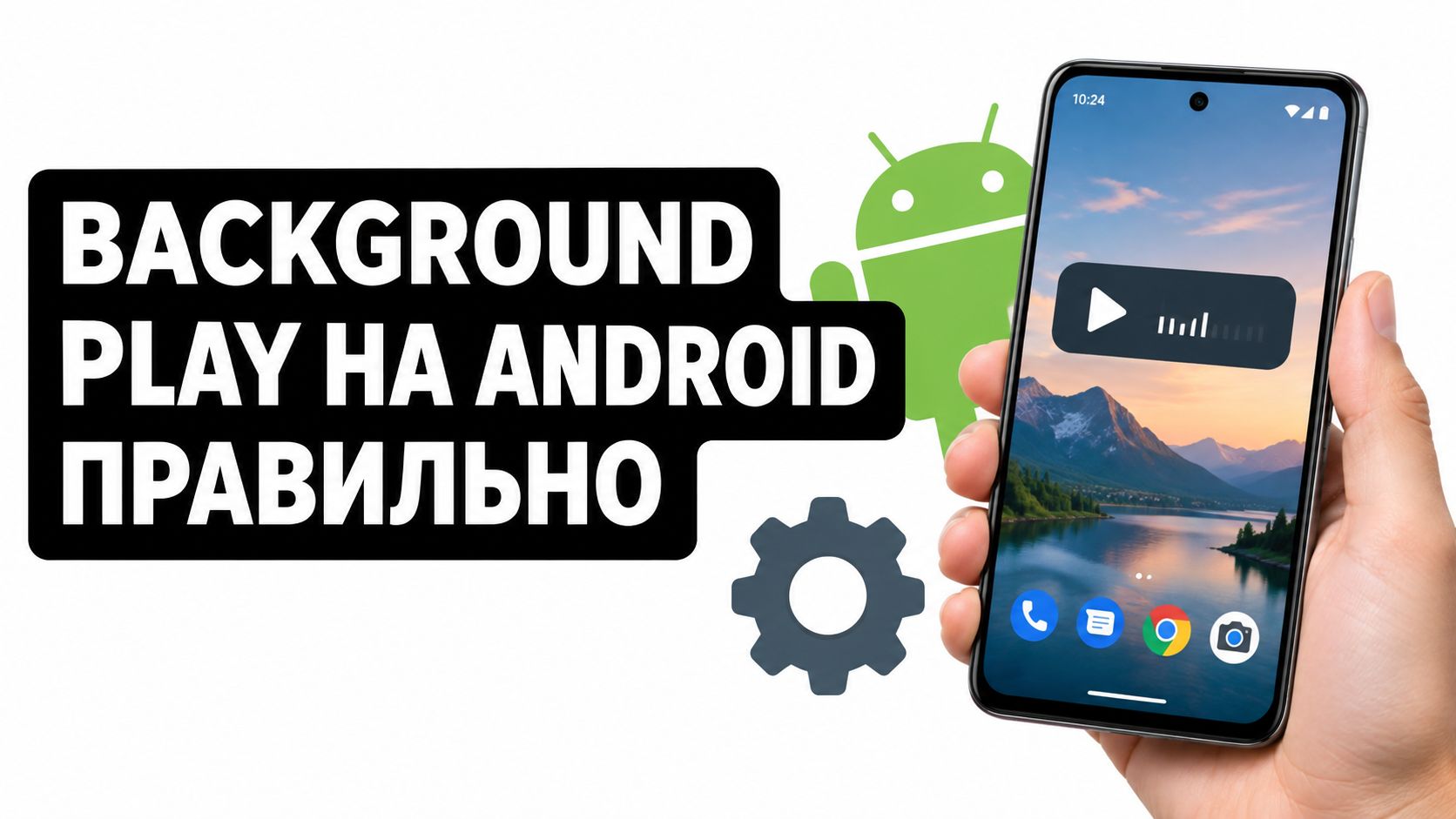
On Android, use YouTube's native setting rather than experimenting with browser flags. You need to be signed into the Google account that holds the Premium entitlement, not merely an account that has the YouTube app installed.
Enable the native setting
Open the YouTube app and follow this path:
- Tap your profile picture.
- Open Settings.
- Select Background & downloads.
- Tap Background play.
- Choose Always on.
- Start an eligible video.
- Lock the screen or switch to another app.
Google documents this route for background playback in the YouTube, YouTube Music, and YouTube Kids apps where the feature is available. If you're looking for a separate guide focused specifically on Android, see how to play YouTube in the background on Android.
If playback stops immediately, check the account before changing anything else. Open the account switcher and confirm that the active profile is the one with Premium. A subscription attached to another Google account won't automatically transfer its playback permissions to the account currently open in YouTube.
Check privacy and device conditions
YouTube also documents a “Headphones or external speakers” restriction. When enabled, background playback can be limited to connected audio devices. That can prevent a lecture or music stream from suddenly playing through a phone speaker in a library, office, hotel room, or shared home.
Regional availability can affect the result as well. If the menu is missing, verify your membership status and location, update YouTube, then sign out and back into the account with the entitlement. Don't assume that reinstalling the app will fix an account mismatch. It usually won't.
Test with a spoken-word video first. Start playback, lock the screen, and use the lock-screen controls to pause or resume. Once that works, test music separately, because content classification can introduce restrictions that have nothing to do with your Android settings.
Picture-in-Picture Tricks for Android and iPhone
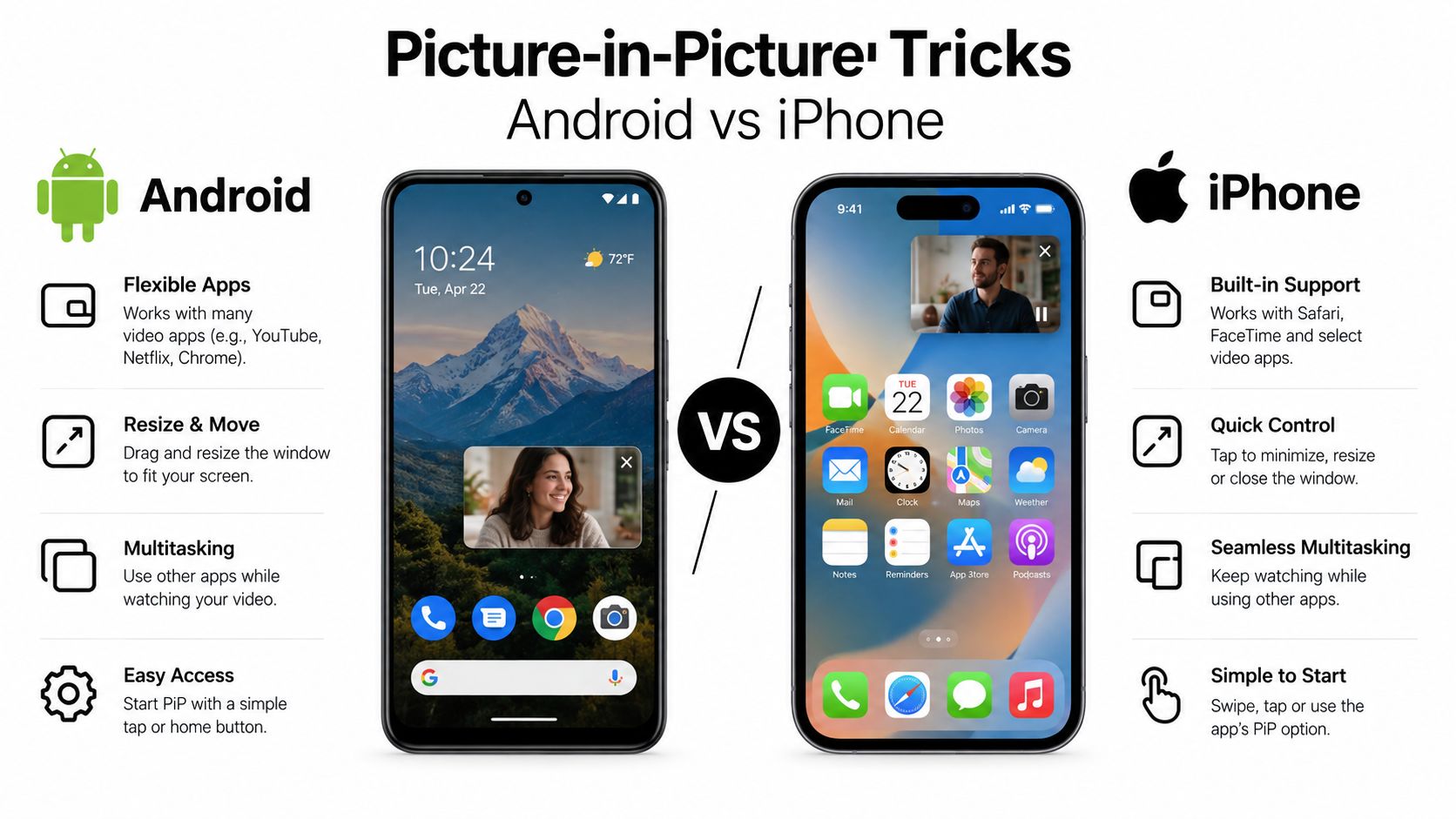
Picture-in-picture is the right tool when you want to keep watching while using another app. It creates a small floating video window, so it isn't the cleanest solution for someone who wants the display fully locked. It is, however, useful for navigation, messaging, note-taking, and browsing.
On Android, start a YouTube video and leave the app. If your device and content are eligible, the video should shrink into a floating player. You can move the window, continue using another app, or dismiss the PiP window. Premium users can continue into background playback after dismissing the floating player, but PiP eligibility and background-play eligibility aren't identical.
Configure PiP on iPhone and iPad
On iOS and iPadOS, enable both the system and YouTube controls:
- Open Settings > General > Picture-in-Picture.
- Turn on Start PiP Automatically.
- Open YouTube.
- Go to Settings > Playback.
- Enable Picture-in-Picture.
- Play an eligible video and leave the app.
If PiP works for spoken content but fails for a song, your device probably isn't broken. YouTube documents that PiP for music content, including official music videos, Art Tracks, children's songs, and user-generated song covers, is restricted to Premium members, even though non-music eligibility may be broader. YouTube's PiP guidance is the useful reference here.
Try a spoken lecture first, then try the music video you actually want. That two-step test separates a configuration problem from a content entitlement restriction.
This distinction matters because users often describe every failed attempt as “YouTube background play not working.” In reality, the phone may be running PiP correctly while YouTube refuses PiP for that particular music category. For more background-listening context, see how YouTube background play works.
Listening on Desktop and Laptop Without Premium
Desktop listening is much less restrictive. Start a video in YouTube, then move to another browser tab or application. The audio usually continues while you work, provided you haven't paused the player or closed the tab. This is the practical difference between a phone and a laptop: desktop browsers are built around multiple visible and background tabs.
Chrome's built-in PiP mode is useful when you want the video visible. Right-click the video, then use the browser's picture-in-picture command. You may need to right-click twice because the first menu can belong to YouTube. The resulting window stays above other applications, letting you follow a tutorial while working in a document.
Safari and Firefox offer comparable picture-in-picture controls, although the menu names and placement differ. If a browser supports PiP, look for a video-player control or a right-click option rather than searching for a mobile-style Background Play setting.
Choose the desktop method by task
Use the normal background tab for podcasts, lectures, interviews, and music when the visual stream adds no value. Use desktop PiP for software demonstrations, workout videos, recipes, and tutorials where you occasionally need to see the screen.
Premium downloads solve a different problem. YouTube says background play is available for signed-in Premium members in the YouTube, YouTube Music, and YouTube Kids apps, while Shorts are excluded. Its download and background-play guidance is therefore relevant when your real issue is unreliable connectivity, not multitasking.
Don't confuse a browser tab continuing to play with mobile background audio. Closing the laptop, suspending the browser, or putting the computer to sleep can still stop playback. For a desk, use the tab or PiP. For a locked phone, use the native mobile route described earlier.
Why Outdated Browser Workarounds Stopped Working
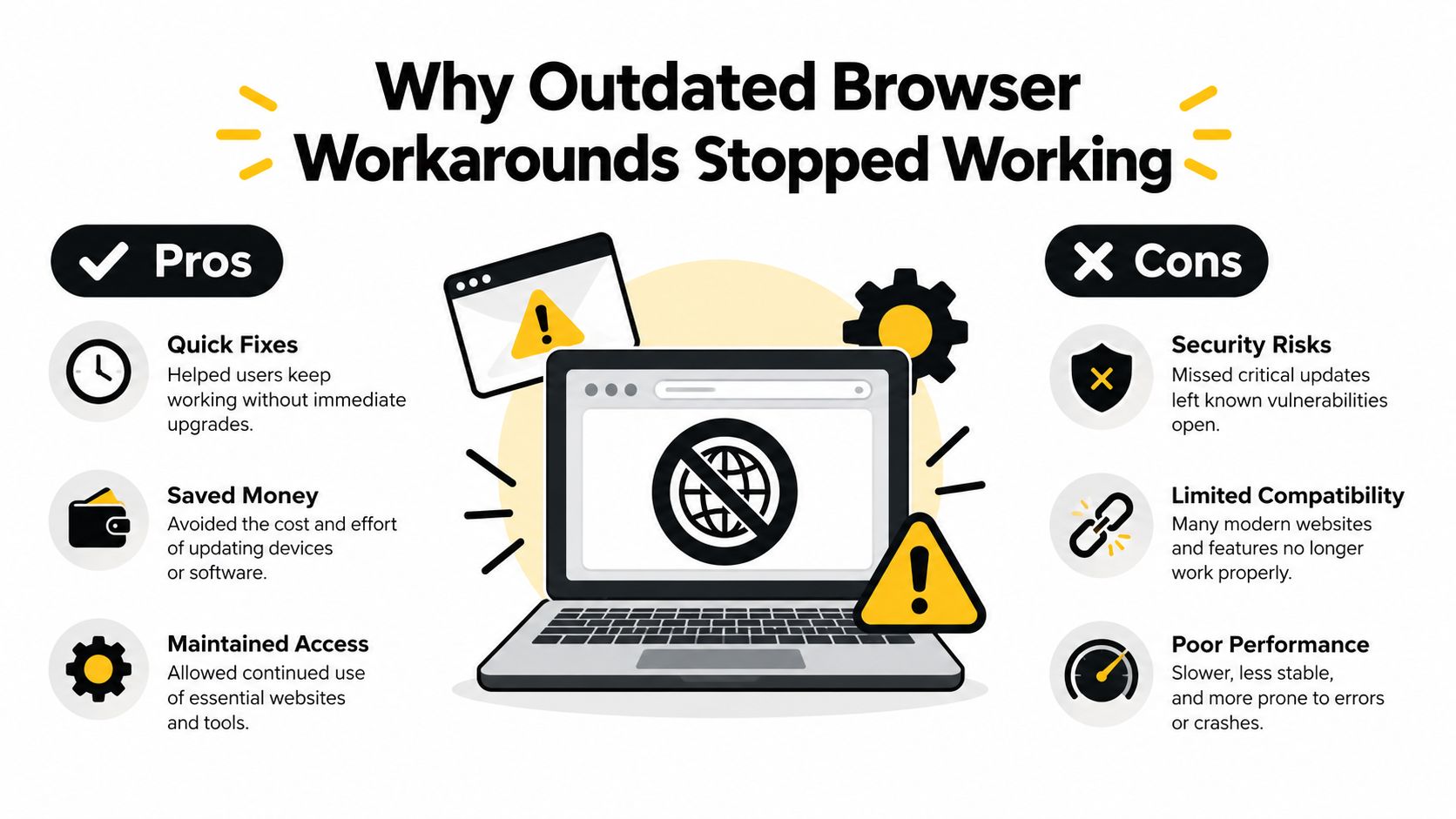
The advice to open YouTube in Firefox, request the desktop site, or toggle a browser setting survives because it used to work for some users. It isn't a dependable recommendation now. Google's current documentation treats officially supported background playback in a mobile browser as a Premium feature, so a browser trick shouldn't be your primary plan for locked-screen listening.
Third-party sites are an even worse bet. They can change behavior without notice, expose you to aggressive advertising, or disappear entirely. A method that depends on a particular browser menu or an unverified site isn't suitable for accessibility-critical listening, a long trip, or a work routine you need to repeat every day.
What Premium does and doesn't solve
Premium gives you the platform-supported route, but it doesn't remove every limitation:
- Shorts remain excluded from the documented background-play behavior.
- Music content can have separate PiP restrictions, particularly for users without the relevant Premium entitlement.
- Location matters, because feature availability can vary by market.
- The active account matters, because the app must be signed into the account carrying the membership.
That last point causes more failures than many settings. People buy or join a subscription, open YouTube under a family or work account, and conclude that the service is broken. The app sees the wrong entitlement.
Browser workarounds are experiments, not infrastructure. If you need dependable audio, choose the native feature, desktop playback, PiP, or an offline download according to the job.
Choosing Between Premium, Premium Lite, and Free Methods
Choose the plan around your listening pattern, not around the label “background.” Full YouTube Premium is the straightforward option if you need screen-off playback for music, spoken content, and YouTube Music features. It also combines background playback with ad-free viewing and offline access, which makes it more useful for people who listen across devices.
Premium Lite is more nuanced. YouTube has been rolling out Background Play and Downloads to Premium Lite in markets where that tier is available, but YouTube says full Premium remains necessary for music content and YouTube Music Premium. If you mostly listen to ordinary spoken-word videos, Lite may cover your use case. If your library is music-heavy, don't assume it will.
Match the method to your constraints
| Your priority | Sensible choice |
|---|---|
| Locked-screen music and YouTube Music | Full Premium |
| Spoken videos with background playback, where Lite is available | Premium Lite |
| Occasional app switching on eligible content | PiP |
| Unreliable mobile connectivity | Downloads |
| Desktop multitasking | A background browser tab or desktop PiP |
| Shared public or family spaces | Headphones or external speakers restriction |
Battery and data deserve equal billing. Screen-off playback avoids keeping the display active, while audio-focused content avoids spending your attention on a video you aren't watching. Downloads are preferable when a network is unreliable, because they let you prepare content before leaving Wi-Fi.
For users with accessibility needs, stable lock-screen controls and predictable audio routing matter more than a clever workaround. YouTube's settings include Always on and a restriction that can limit playback to headphones or external speakers, helping prevent accidental loud output in public or shared spaces. Students, families, and digital nomads should test the exact account and content category they use most.
Cost-conscious users may compare group-access options such as AccountShare's guide to whether YouTube Premium is worth it. Independent creators and producers evaluating where their audio should appear can also explore music distribution for producers, which is a separate distribution question from how listeners access YouTube playback.
Diagnosing Why Audio Stops and What to Try Next
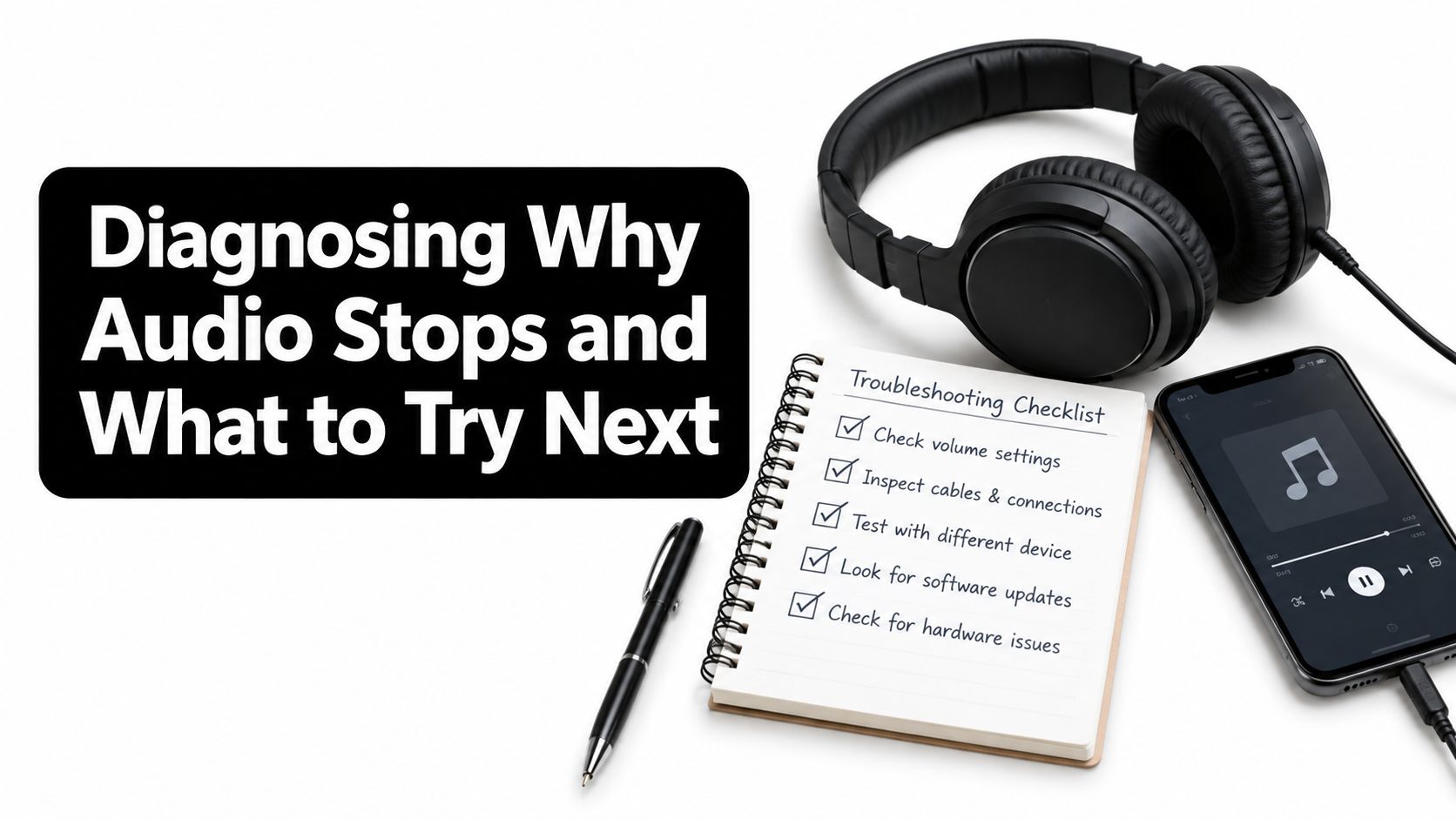
Treat the failure as a short decision tree. Don't start by changing five settings at once, because you'll lose track of which change mattered.
Run the account and setting checks
- Verify membership: Confirm that Premium is active and hasn't expired.
- Check the account: Make sure YouTube is signed into the Google account that owns the membership.
- Inspect Background Play: Return to Profile > Settings > Background & downloads > Background play and select Always on.
- Update YouTube: Install the current app version, then restart it.
- Review connectivity: Check mobile-data permissions if playback stops away from Wi-Fi.
- Review battery controls: Aggressive battery optimization can interfere with apps that need to continue audio in the background.
- Test the lock screen: Start spoken content, lock the phone, and check whether media controls appear.
If spoken content continues but music doesn't, test PiP eligibility and Premium status before reinstalling anything. YouTube's music-content rules can produce a clean device-level failure that looks like a broken setting. If nothing plays after an account check, sign out, sign back in, and test again before escalating.
Shorts are another boundary to check. YouTube documents background play for signed-in Premium members in its supported mobile apps, while Shorts are excluded. A failure limited to Shorts isn't evidence that your whole setup is malfunctioning.
Google announced in September 2022 that YouTube Music and YouTube Premium had exceeded 80 million subscribers globally, including users in free trials, and listed ad-free playback, background playback, and offline access among the benefits. Google's subscriber announcement helps explain why these functions now sit inside a broader subscription system rather than behaving like a universal mobile-player feature.
The fastest solution is usually simple: use native Premium for screen-off playback, PiP for app switching, desktop playback for laptop multitasking, and downloads for poor connectivity. Stop spending time on browser tricks that fail the moment YouTube changes enforcement.
AccountShare lets users access shared premium subscriptions, including services that provide YouTube background playback, through group purchasing and account-management features. If full-price access doesn't fit your listening routine, visit AccountShare to compare available options and choose a setup that matches your device and use case.