

Finding the Cheapest Video Editing Software That Delivers
When you're hunting for the cheapest video editing software, the decision usually boils down to two paths: feature-packed free programs like DaVinci Resolve or affordable one-time purchases like Wondershare Filmora. The right choice really depends on what you value more—pro-level tools with a learning curve, or a simple, intuitive experience from the get-go. This guide is here to help you figure out where you land and find the absolute best value for what you need to create.
Your Guide To The Best Low-Cost Video Editors
It's easy to think you have to choose between shelling out big money for an industry-standard editor or settling for a clunky, underpowered free tool. Thankfully, that's not the reality anymore. The market has completely changed.
Today, "cheapest" doesn't mean you're scraping the bottom of the barrel; it just means you're making a smart choice. Whether you're a student putting together a project, a small business creating marketing videos, or a creator just starting out, there's a fantastic, affordable option out there for you.
This guide is designed to cut through the noise. We'll lay out clear comparisons and give you real-world recommendations for free, budget, and subscription editors so you can make a decision you feel good about. The goal is simple: find a tool that matches your creative vision without emptying your wallet.
Finding Value in a Crowded Market
The boom in accessible editing software has truly changed the game for content creation. Low-cost and free options have brought millions of new people into the fold, empowering a whole new generation of editors. The market share once held captive by pricey professional suites is now being shared with some incredibly capable, budget-friendly alternatives.
The data shows this shift clearly. Between 2019 and 2025, the number of paid video-editing users jumped from around 32 million to an estimated 48.2 million. But the real story is in the free and freemium space. DaVinci Resolve’s free version alone snapped up roughly 15% of the market, while other low-cost editors carved out another 20%. If you want to dive deeper, this ultimate guide to beginner video editing software breaks down how these market trends can influence your choice.
Quick Guide to Top Affordable Video Editors
Before we get into the nitty-gritty, it helps to see how the top contenders stack up. This quick-reference table breaks down some of the best affordable editors by their pricing, who they’re best for, and a key feature that makes them stand out.
| Software | Pricing Model | Best For | Key Feature Highlight |
|---|---|---|---|
| DaVinci Resolve | Freemium (Free version is extremely powerful) | Aspiring filmmakers and colorists on a budget | Industry-standard color grading and audio post-production tools |
| Filmora | One-Time Purchase / Subscription | Beginners and social media content creators | Massive library of built-in effects, templates, and titles |
| CapCut | Free (with Pro subscription option) | Mobile-first creators and short-form video producers | Seamless auto-captioning and trending social media effects |
| Lightworks | Freemium (Free version has export limitations) | Hobbyists and editors needing multi-cam support | Professional timeline editing workflow and real-time effects |
Think of this table as a starting point. It highlights the core strengths of each program, helping you zero in on which one might be the best fit for your projects before we explore them in more detail.
Comparing Free vs. Budget Video Software
When you're looking for the cheapest video editing software, it's easy to think "free is free." But that's only part of the story. The real choice isn't just about the price tag; it's about what you're willing to trade in time, frustration, and features. Deciding between a truly free tool and a low-cost one comes down to what you actually need to get your project done.
A $0 price is obviously tempting. On the other hand, budget software—which might cost you a small one-time fee or a low monthly subscription—offers a completely different kind of value. Getting to the bottom of that difference is how you'll find the right editor for you.
The Power and Pitfalls of Free Software
Let's be clear: free video editors can be incredibly powerful. Tools like the base version of DaVinci Resolve give you access to features that, not long ago, were reserved for Hollywood post-production houses. If you're a film student or a creator who wants to genuinely learn the craft from the ground up, this is a massive win.
You get your hands on industry-standard color grading, advanced audio tools, and a professional-grade editing timeline without spending a cent. Plus, the online communities and tutorial libraries are huge, so if you're willing to put in the hours, you can teach yourself almost anything.
The catch? That power comes with a notoriously steep learning curve. The interfaces can feel overwhelming to a newcomer, full of technical jargon and complex menus. More importantly, you get zero dedicated customer support. When you hit a bug that halts your entire project, you're left scrolling through forums, hoping someone else has found a fix. That's a huge gamble when you're facing a deadline. For a broader look at this category, you can check out more free software alternatives that offer a similar trade-off.
The Value Proposition of Budget Software
This is where editors like Filmora or CapCut Pro really find their footing. They ask for a small investment—often less than a few coffees a month—but they're built for a completely different kind of user. Their main selling point is usability.
These programs are designed to be picked up and used right away. They welcome you with clean layouts, simple drag-and-drop mechanics, and even guided "Easy Mode" workflows that help you create a great-looking video in minutes, not days.
Key Insight: With budget software, you're not just paying for features; you're paying for a faster, less frustrating creative process. The time you save by not having to fight with a complex interface is often worth the small price of admission.
This focus on a smooth experience is backed by a few key perks:
- Pre-Built Asset Libraries: Budget editors usually come loaded with royalty-free music, sound effects, animated titles, and cool visual effects. This alone can save you the time and money you'd spend hunting for these assets on your own.
- Dedicated Customer Support: When things go wrong, you have a support team to email. That peace of mind is a big deal, especially if you're a small business owner who can't afford to have a project get stuck.
- Optimized for Social Media: Many of these tools are built for modern creators. Features like auto-captioning, one-click aspect ratio changes for TikTok or Instagram, and trending filters are often built right in.
Of course, there are trade-offs. You might eventually hit a creative ceiling. These programs don't offer the same depth as a professional suite for things like intricate visual effects or granular color correction. But honestly, for the majority of people making videos for YouTube, social media, or company presentations, those limitations will never even be an issue.
Alright, we've covered the big picture—now let's get into the specifics. Knowing the difference between free and budget software is one thing, but figuring out which tool is right for you is another. I'm going to walk you through some of the best affordable video editors out there, giving you a real feel for what they're like to use, who they're built for, and whether your computer can actually keep up.
This isn't just a list of features. It's a look at the quirks and strengths that make each of these programs a serious contender. From Hollywood-level powerhouses to apps built for viral TikToks, each one has a unique reason to be on your radar.
The image below really nails the core trade-off. While free tools give you the essentials, you're often paying a small amount for budget software to save a massive amount of time, thanks to better support and a smoother workflow.
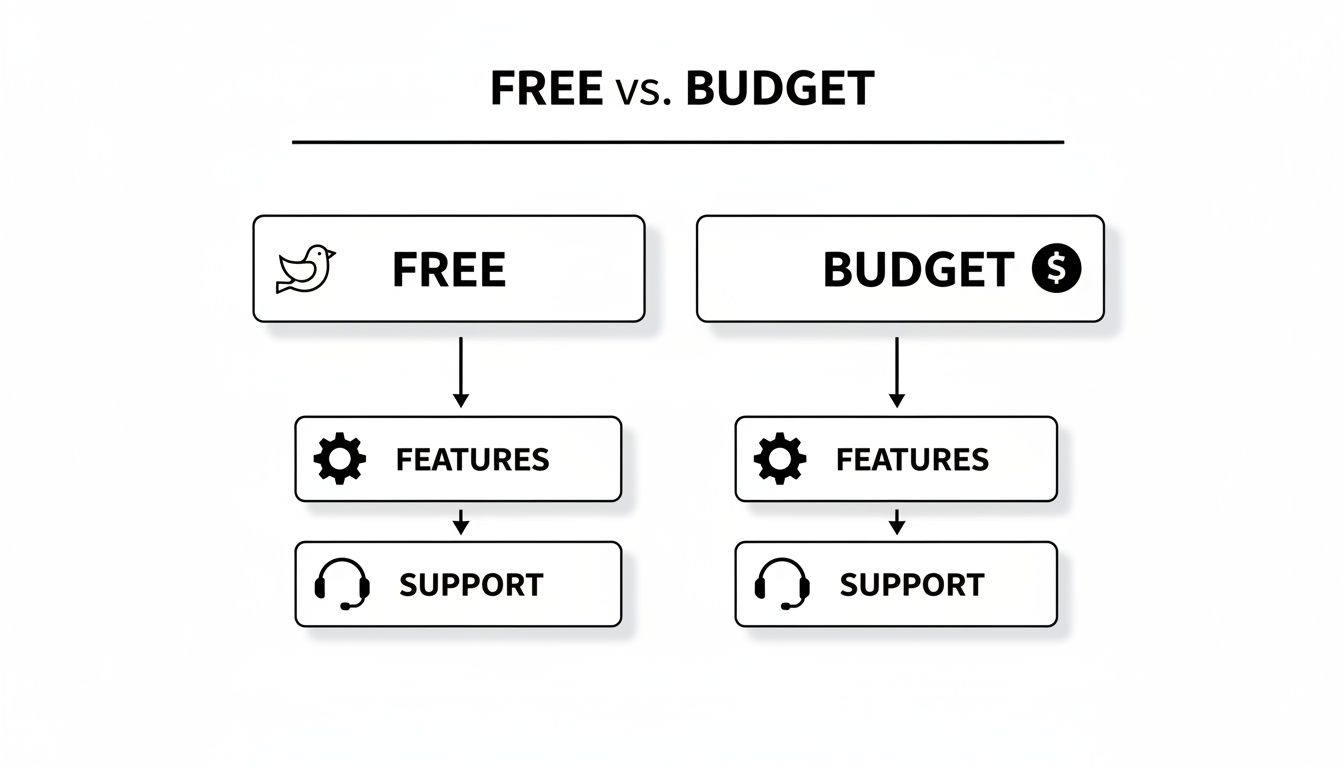
Think of it this way: budget tools don't just add features; they add convenience. And for many creators, that's worth every penny.
H3: DaVinci Resolve (Free Version): The Professional Powerhouse
First up is DaVinci Resolve, and let's be clear: its free version is an absolute beast. This isn't some watered-down "lite" program; it's a full-fledged post-production suite used to color grade actual Hollywood films. It masterfully combines editing, jaw-dropping visual effects (Fusion), professional audio mixing (Fairlight), and its legendary color correction tools into one application.
So, who is this for? Aspiring filmmakers, serious video creators, and anyone who wants to learn on the same software the pros use without spending a dime. The catch? It has a steep learning curve. The interface is complex, and you'll need to invest real time to get comfortable. You’ll also need a beefy computer with a dedicated graphics card to avoid pulling your hair out, especially with 4K footage.
Key Differentiator: DaVinci Resolve’s free version offers the most powerful and nuanced color grading tools on the planet. Nothing else—free or paid—even comes close to its capabilities for achieving a truly cinematic look.
H3: Wondershare Filmora: The User-Friendly Creator Tool
On the complete opposite end of the spectrum is Wondershare Filmora. This editor is all about one thing: getting great-looking videos done fast. It's designed from the ground up for beginners, YouTubers, and small business owners who need to produce polished content without getting bogged down in technical details. The interface is clean, intuitive, and built around a simple drag-and-drop system.
Filmora is packed with a huge library of pre-made titles, effects, transitions, and royalty-free music that can save you hours of work. For a one-time purchase, it's an incredible value, giving you access to features like motion tracking and keyframing that are easy to use right out of the box. Best of all, it runs smoothly on most modern laptops and desktops, so you don't need a high-end machine to get started.
H3: CapCut: The Social Media Sensation
CapCut started on mobile and absolutely took over the world of short-form video. Its desktop version brings that same magic to a bigger screen, making it the undeniable champion for anyone creating content for TikTok, Reels, or Shorts.
CapCut's superpowers are its AI features. The auto-captioning is scarily accurate and incredibly fast, turning a once-tedious task into a one-click job. It also has fantastic AI-powered background removal, trending filters, and viral effects that are constantly updated. It may not have the deep, multi-track timeline of a traditional editor, but that's not the point. It's built for speed and relevance. Plus, it’s super lightweight and runs on just about anything. You can really unlock its full power with a Pro account, which you can learn about in our in-depth guide to CapCut Pro.
Key Differentiator: CapCut's genius is its direct line to social media trends. It’s less of a blank-slate editor and more of a content creation engine, giving you the exact tools and effects you need to create something that feels current right now.
H3: The Growing Market for Affordable Editors
The fierce competition between these tools is fantastic for creators. This constant one-upmanship on price and features has completely changed the game. Industry analysis valued the video software market at around USD 3.09–3.25 billion in the early 2020s, with projections showing it could hit USD 4.8–5.1 billion by the early 2030s. A huge part of that growth comes from these affordable tools making it possible for anyone to create high-quality content.
H3: Lightworks: The Veteran Editor
Lightworks is a true industry veteran, with a long history in professional film and TV editing. The free version gives you a taste of that legacy with a robust, professional-style timeline and surprisingly powerful multi-camera editing tools. It’s a great option for film students or hobbyists who want to learn a more traditional editing workflow.
The biggest drawback of the free version is the export limit—it’s capped at 720p. That's a dealbreaker for most YouTubers or anyone needing crisp HD video. But if you’re just learning the ropes or working on projects where 720p is good enough, Lightworks provides a stable, feature-rich environment. It runs well on most systems, though like Resolve, it appreciates a bit of extra horsepower.
Feature Comparison of Leading Budget Video Editors
To help you see how these tools stack up at a glance, I've put together a quick comparison table. This breaks down the key specs and features that often matter most when you're making a decision.
| Software | Price (One-Time/Annual) | Platform | Best for Beginners? | Advanced Color Grading? | AI Features? |
|---|---|---|---|---|---|
| DaVinci Resolve | Free / $295 (Studio) | Win, Mac, Linux | No | Yes (Best-in-class) | Yes (Studio version) |
| Wondershare Filmora | $79.99 / $49.99 | Win, Mac | Yes (Excellent) | Basic | Yes (AI Portrait, Smart Cutout) |
| CapCut | Free / $7.99 (monthly) | Win, Mac, Mobile | Yes (Excellent) | Basic | Yes (Auto Captions, Background Removal) |
| Lightworks | Free / $99 (Create) | Win, Mac, Linux | No | Yes (Pro version) | No |
This table should make it easier to weigh the pros and cons. A beginner might lean toward Filmora for its ease of use, while an aspiring filmmaker would be drawn to the professional power of DaVinci Resolve, even with its steep learning curve.
Matching The Right Software To Your Needs
Finding the right video editing tool isn't about chasing the longest feature list. The "best" software is the one that fits you and the project you're tackling right now. A tool that’s a lifesaver for a student on a deadline could be a frustrating dead end for a small business owner trying to build a brand.
This is where we get practical. Let's move past generic comparisons and look at real-world scenarios, matching actual needs with the right software. Thinking this way helps you pick a tool that lines up perfectly with your skills, your budget, and what you’re trying to create.
For Students Creating Academic Projects
Picture this: you have a five-minute documentary due for a final project. You need to combine interview footage, add some b-roll, drop in a few titles, and find a decent background music track. Your priorities are getting it done fast, making it look good, and spending zero dollars.
For this kind of assignment, Wondershare Filmora is a fantastic choice. Its "Easy Mode" can help you assemble a polished video in no time, and the built-in library of templates and music cuts down on the time you'd otherwise spend searching. If the project is for a media class focused on modern communication, CapCut is another excellent option, especially with its slick auto-captioning and social media-ready effects.
The goal here isn't to become a master colorist overnight. It’s about communicating your ideas clearly and hitting that deadline. A simple, intuitive interface is way more valuable than a mountain of professional features you'll never even touch.
For Small Businesses Producing Marketing Videos
Now, let's switch gears. Imagine you're a small business owner creating weekly marketing videos for Instagram and your website—think product demos, customer testimonials, and quick ads. You need a professional look, consistent branding, and an efficient workflow.
A one-time purchase like Filmora is a strong contender here, striking a great balance between power and ease of use. But if you’re serious about building a brand, the free version of DaVinci Resolve might just be the smarter long-term move.
Key Insight: The learning curve for DaVinci Resolve is admittedly steep, but mastering it gives a small business the power to create a truly cinematic look without ever paying for software. This can seriously elevate your brand perception and make your content stand out from competitors relying on cookie-cutter templates.
This route requires a real commitment to learning, but it pays off with total creative control over color, sound, and effects, ensuring every video is a perfect reflection of your brand identity.
For Digital Nomads and Travel Vloggers
Think about a digital nomad editing travel vlogs on a laptop, bouncing between cafes and co-working spaces. They're juggling footage from a drone, a GoPro, and their phone, and they need a tool that's both powerful and light on system resources. Speed is essential, but so is having detailed color correction to make those scenic landscapes truly pop.
This is the perfect user for DaVinci Resolve. Its color grading tools are the industry standard for a reason—they can turn flat, washed-out footage into something vibrant and breathtaking. Better yet, its proxy workflow makes it possible to smoothly edit high-resolution 4K files on a decent laptop, a non-negotiable feature when you're working on the go.
The power of free tools like this is fueling a global trend. While North America and Europe still lead in market revenue, we're seeing explosive growth in Asia-Pacific and Latin America, driven by widespread smartphone access. With smartphone usage hitting 90%+ in many major markets, the demand for capable, free editing software has never been higher.
For Aspiring Filmmakers on a Tight Budget
Finally, let's consider an aspiring filmmaker working on their first short film. They have a powerful creative vision but next to no budget for post-production. They need professional-grade tools for editing, sound design, visual effects, and precise color grading to bring their story to life.
For this person, there's really only one answer: DaVinci Resolve. It is, without a doubt, the best free software for any kind of serious narrative project. No other free tool even comes close to offering a complete, all-in-one workflow for editing, VFX (Fusion), audio post-production (Fairlight), and world-class color grading. To really see how different tools measure up for creative projects, digging into a detailed video production software comparison can help you find the perfect fit for your specific workflow and budget.
How to Lower Your Software Costs Even Further
Picking a free or budget-friendly editor is smart, but becoming a truly savvy consumer is how you really save money. A few strategic moves can stretch your budget and give you access to more powerful features without paying the sticker price.
This is about more than just choosing the right tool. It’s about being clever with your approach to get the most value from your investment, whether you're spending time or money. A little planning can make a huge difference to your bank account.
Maximize Free Trials Strategically
Almost every paid video editor dangles a free trial, but most people let it go to waste. Don't just click around aimlessly. Before you even start the clock, have a small, real-world project ready to go. Gather your clips, find your music, and sketch out a rough edit.
This tactic throws you right into the fire, forcing you to test the software under actual working conditions. You'll figure out fast if the workflow clicks or if it just drives you crazy. By the time the trial is over, you won't just have a hunch—you'll have a finished video and a definite answer on whether it's worth your money.
Understand Lite Versions and Their Limits
Lots of companies offer "lite" or free versions of their premium software, and they can be fantastic deals. But you have to know what you're getting into. The biggest catch is usually the export resolution—for example, the free version of Lightworks caps your exports at 720p.
Before you commit to a lite version, ask a few hard questions:
- Is the export quality good enough? For some quick social media clips, 720p might be fine. For a YouTube channel trying to look professional, it's a non-starter.
- Are the features I really need locked away? Often, the free versions strip out the good stuff, like advanced color grading or multi-cam editing.
- Is there a watermark? Nothing screams "amateur" like a big company logo plastered over your video, which is a deal-breaker for any business or portfolio project.
If the limitations don't get in your way, a lite version is a phenomenal way to get your hands on professional-grade software for absolutely nothing.
Hunt for Educational Discounts
If you're a student or a teacher, you're sitting on a goldmine of software discounts. Companies like Adobe offer massive price cuts if you have a valid educational email address. Never assume a tool is out of reach until you've checked for an academic discount. You can often get top-tier software for less than many so-called "budget" options.
Pro Tip: Always dig around the software's official website for a page labeled "Education" or "Students & Teachers." The savings can be huge, often more than 60% off the regular price.
Explore Powerful Open-Source Alternatives
Finally, don't sleep on open-source software. Tools like Shotcut and Kdenlive are completely free, built by a community of passionate developers, and pack a surprising punch. Sure, they might not have the slick, polished feel of a commercial editor, and they won't come with massive asset libraries, but they are incredibly capable.
These are perfect for anyone who loves to customize their tools and isn't afraid of a bit of a learning curve. For more ideas on cutting expenses, our guide on how to reduce software costs with top strategies for 2025 has even more insights. Pairing these strategies with the right software choice is the key to getting maximum editing power for minimal cost.
How To Make Your Final Decision

Choosing the right video editor is about more than just finding the cheapest option. It’s about matching the tool to your actual workflow, your skill level, and what you’re trying to create. Now it's time to pull all this info together and make a choice you won't regret later.
To make things easier, I've put together a simple checklist. A few honest answers here will help you cut through the noise and zero in on the perfect fit for your projects.
Your Final Checklist
Take a minute to really think about these questions. Your answers will steer you toward the right software and save you the headache of committing to a tool that just gets in your way.
- What is your absolute maximum budget? Be real with yourself. Are you sticking to a strict $0 budget, or can you swing a one-time purchase or a small subscription to unlock better features and a smoother experience?
- What single feature is most critical to your projects? If you could only have one thing, what would it be? Professional-grade color grading? Fast, automatic captions for social media? Or maybe a huge library of effects that saves you a ton of time?
- How much time can you actually invest in learning? If you need to start churning out videos tomorrow, you need something intuitive. But if you have the patience to master a more complex system for a bigger payoff down the road, a pro-level editor is on the table.
- What kind of computer are you working with? Don't forget to check the system requirements. Powerful software like DaVinci Resolve needs a machine with some muscle, especially a good graphics card. On the other hand, a tool like CapCut will run just fine on most modern laptops.
You don't need every feature under the sun. Focus on your core needs to avoid getting stuck in "analysis paralysis." The best tool is the one that lets you create without fighting you every step of the way.
Once you have your answers, just line them up with our recommendations. If you need something fast and easy, Filmora is a fantastic choice. For professional power without spending a dime, DaVinci Resolve is in a class of its own. And if you're all about social media, CapCut is a no-brainer. This simple approach will help you pick your software with confidence.
Your Questions Answered
Diving into the world of video editing software can feel a little overwhelming, especially when you're trying to stick to a budget. Let's clear up some of the most common questions to help you land on the right tool with confidence.
These aren't just generic answers; they're based on real-world experience with these tools, highlighting the practical differences between free, budget, and subscription options.
Can Free Software Really Be Used for Professional Work?
Absolutely, but it's not a simple yes or no. A powerhouse like the free version of DaVinci Resolve is a perfect example. It's genuinely used in Hollywood for color grading, and its core editing tools are more than enough for serious, high-quality projects.
The real trade-off isn't features—it's your time and workflow. Professional projects live and die by deadlines. With most free tools, you're on your own when a technical glitch pops up, which means hours spent scrolling through forums instead of working. That lack of dedicated support is a risk many freelancers and businesses simply can't afford, making a paid tool a worthwhile investment.
What Are the Typical Limits of Budget Editors?
Most budget-friendly editors offer a fantastic, streamlined experience, but they usually come with a few strings attached. Knowing what to look for can save you a headache later.
Common limitations include:
- Export Resolution Caps: Many free versions or entry-level tiers will lock your exports at 720p or 1080p. That's fine for some things, but it's a non-starter for crisp YouTube content or professional client work.
- Watermarks: This is the most obvious one. A lot of free tools will slap a permanent, distracting watermark on your final video unless you pay up. For any project you're sharing publicly, this is a deal-breaker.
- Locked Advanced Features: You'll get all the basic editing functions, but the cool stuff—like multi-camera editing, advanced color wheels, or slick motion tracking—is often tucked away behind a paywall.
These trade-offs are how they keep the price low while making the user experience much smoother than complex freeware.
Is a One-Time Purchase Better Than a Subscription?
This really boils down to your personal workflow and how you see yourself using the software down the road. A one-time purchase, like a lifetime license for Filmora, feels great upfront. You pay once and it’s yours. For students, families, or small businesses on a tight budget, that cost certainty is a huge win.
Final Takeaway: The catch with one-time purchases is that you're often buying a specific version. When a major new update with game-changing features comes out, you might have to pay an upgrade fee. A subscription, on the other hand, means you're always on the latest version with every new feature and security patch.
For a creator whose income depends on having the best tools, a subscription often makes more sense in the long run. For a hobbyist who just needs a reliable editor, a one-time purchase is usually the smarter financial move. Think about your needs over the next couple of years to figure out where the real value is for you.
Ready to slash your software costs without sacrificing quality? With AccountShare, you can get access to premium video editing tools and hundreds of other subscriptions at a fraction of the price. Stop overpaying and start creating today. Explore shared subscriptions on AccountShare and unlock a smarter way to use the tools you love.